Enable ODBC on the new Agent
Introduction
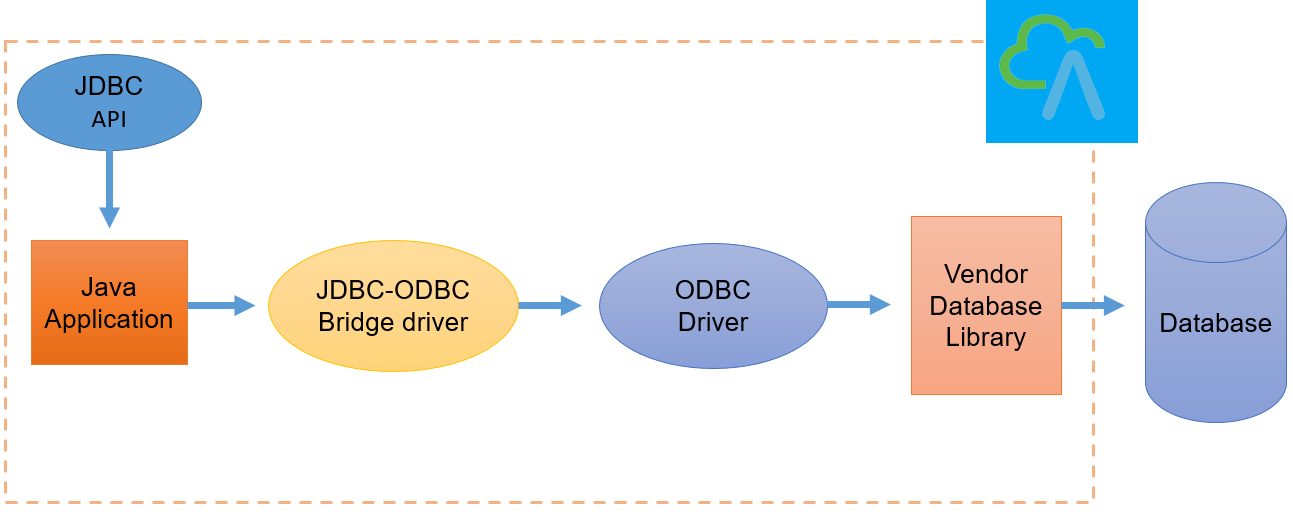
The JDBC-ODBC Bridge allows applications written in the Java programming language to use the JDBC API with many existing ODBC drivers. The Bridge is itself a driver based on JDBC technology ("JDBC driver") that is defined in the class sun.jdbc.odbc.JdbcOdbcDriver. The Bridge defines the JDBC sub-protocol odbc. Oracle does not support the JDBC-ODBC Bridge from Java 8. Oracle recommends that you use JDBC drivers provided by your database vendor instead of the JDBC-ODBC Bridge. Oracle was removed JDBC-ODBC Bridge since Java 8, but we have enhanced on our new Agent to support ODBC connection although the Agent was used Java 15. This function available from Agent 3.05 and later. We are showing the direction from Salesforce to the Agent for pushing data to insert records to the database, SQL Server is used for example. Currently, we support only this Database. In this tutorial, we showed the INSERT operation only, due to everything is the same as JDBC. So we can check the JDBC tutorial follow to this link How to push data to the Database using the new Agent
Pre-required
- Create a data source
- Create ODBC adapter on Agent Control Board
- Generate MessageType from Table
- Create Integration/Interface
- Do mapping
- Push data to Database
Step-1: Create a Data source [su_box title="Note" box_color="#2a8af0" title_color="#000000"]We need to create a data source on the machine which is running the Agent. We need to download the OBDC driver if it not available on your machine[/su_box]
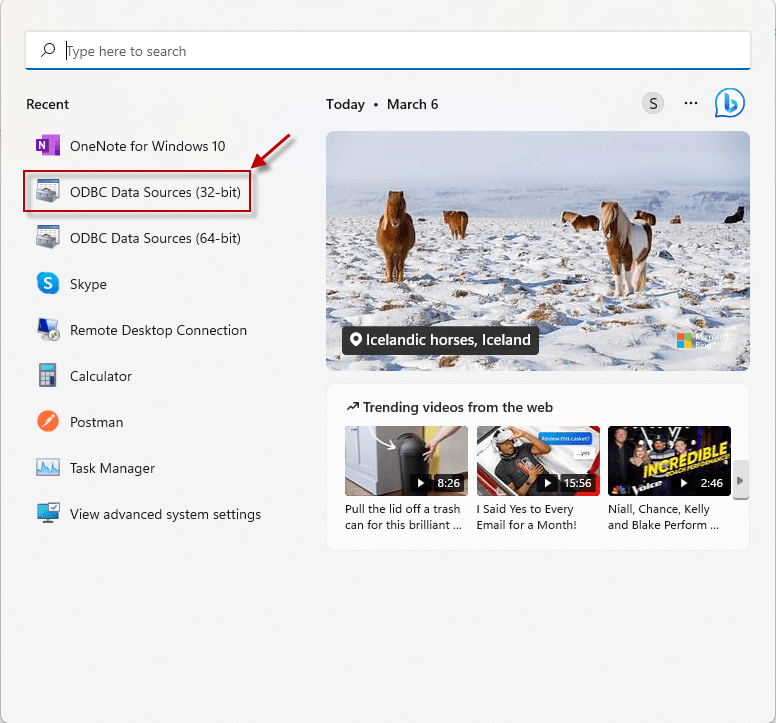
- Start => Administrative Tools=>ODBC Data Sources (32-bit)
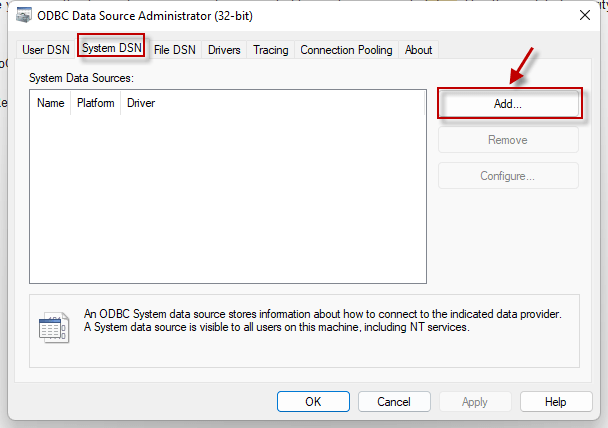
- Navigate to the System DSN tab and press Add
- Choose the driver and press Finish

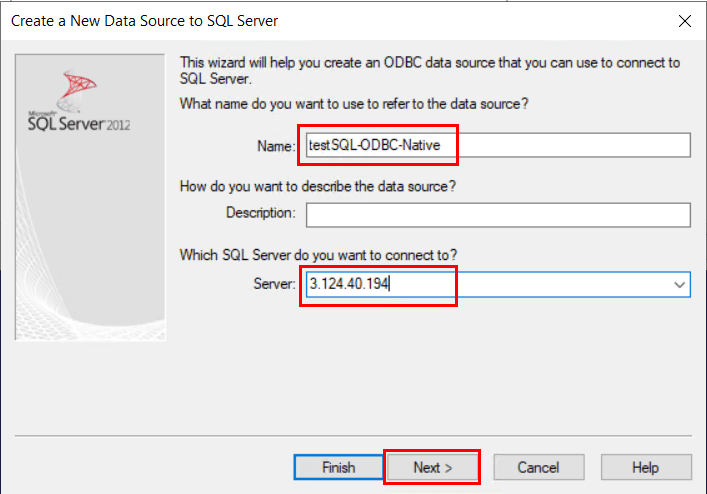
- Fill in any Name and Server address then press Next
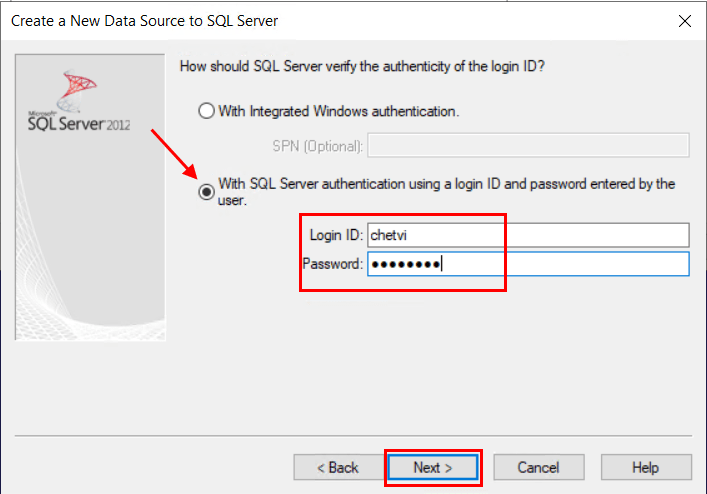
- Choose with SQL Server authentication using a login ID and password entered by the user. And fill the Username and Password of the Database.
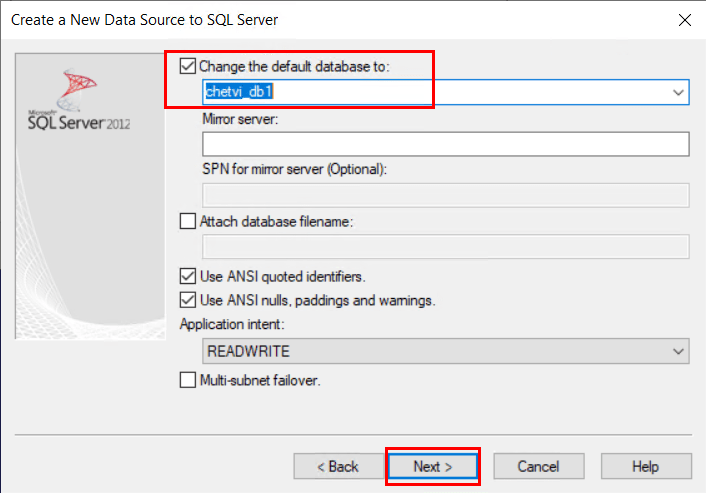
- Choose default Database
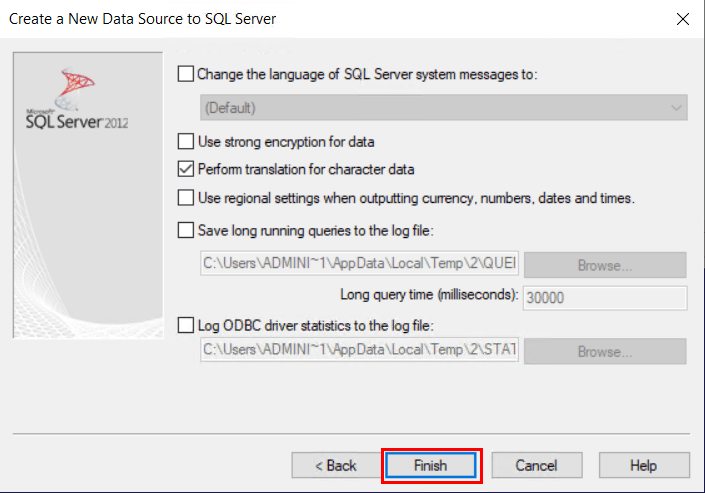
- Press Finish, for keeping as the default setting
- Press Test Data Source for test connection and press Ok for completing setup Data Source
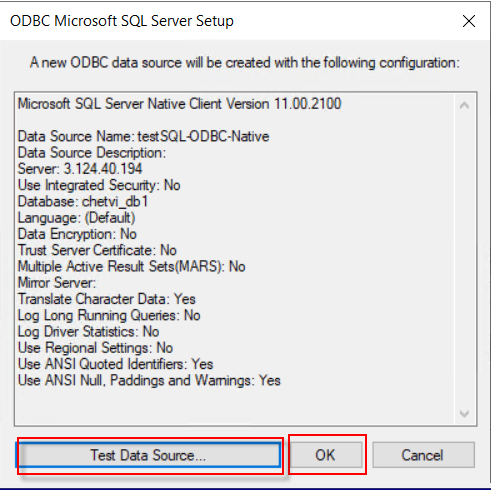
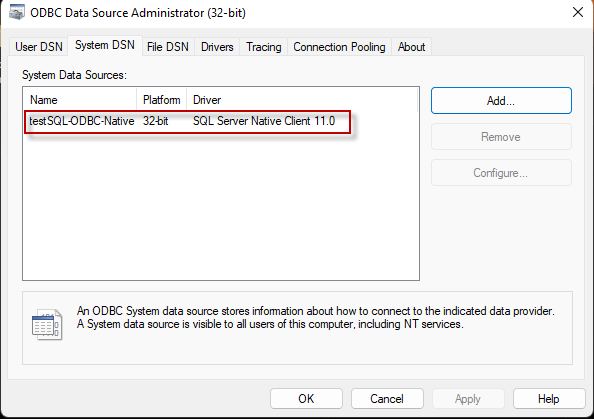
- Then we got Data source name display as an example below
Step-2: Create an Adapter
- Navigate to Agent Control Board

- Verify the connection between Agent and Salesforce
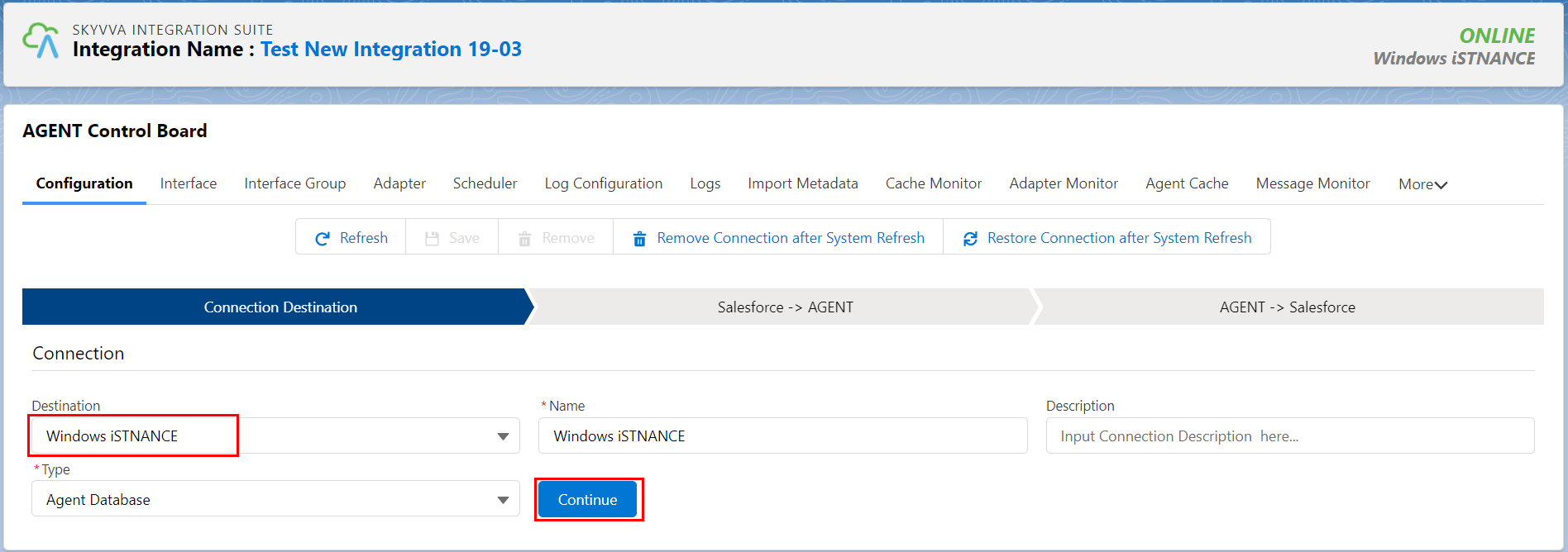
- Choose the existing connection destination and press Continue
- Ping Agent Connection

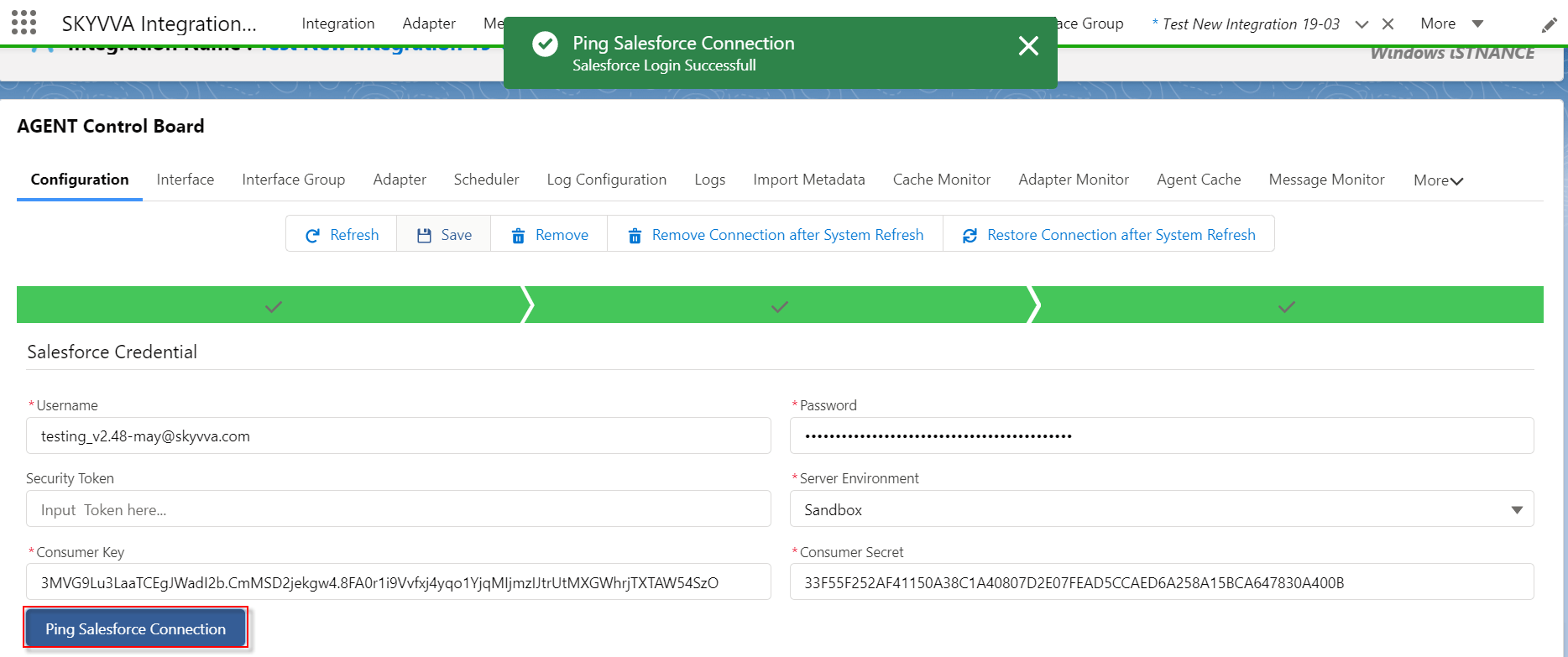
- Ping Salesforce Connection
- After the instance connection is online then navigate to Adapter for creating ODBC Adapter to connect to the Database

Fill all required field
- Name: any name
- Type: Agent Database
- Direction: Outbound
- Status: Active
- API: ODBC
- Database Type: SQLServer
- Driver: jdbc.odbc.JdbcOdbcDriver
- Username: (your user name on database)
- Password: (your password on database)
- Hostname: 3.124.40.194 (public ipv4 on EC2 AWS)
- Port: 1433(default)
- Database Name: your database name
- Insert Operation Mode: Internal Key Management
- Connection URI: jdbc:odbc:testSQL-ODBC-Native(connection url will be form: jdbc:odbc:
[ = ]) - Connection Destination: your destination name

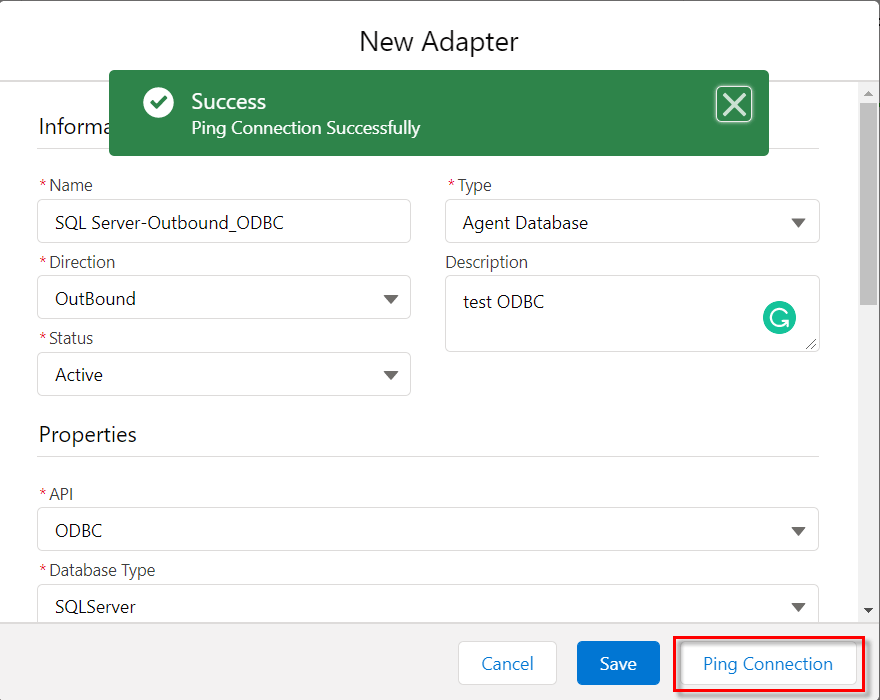
[su_box title="Note" box_color="#2a8af0" title_color="#000000"]For Agent version 3.05 , on the Connection URI we need to include the username and password.For example: jdbc:odbc:testSQL-ODBC-Native;user=yourUsername;password=yourPassword. It is used for generate MessageType. But if we use patch 1 of Agent 3.05, and then we no need to include the user name and password on Connection URI, we need only Datasource name[/su_box] We can test the connectivity to the Database by pressing Ping Connection
Step-3: Generate Message Type
- Navigate to the Import Metadata tab
- Choose Metadata Provide and Repository then press Import Database Metadata
 Fill in required fields and Database Operations like Insert, Update, Delete, and Select. The MessageType will generate differently depend on those operations.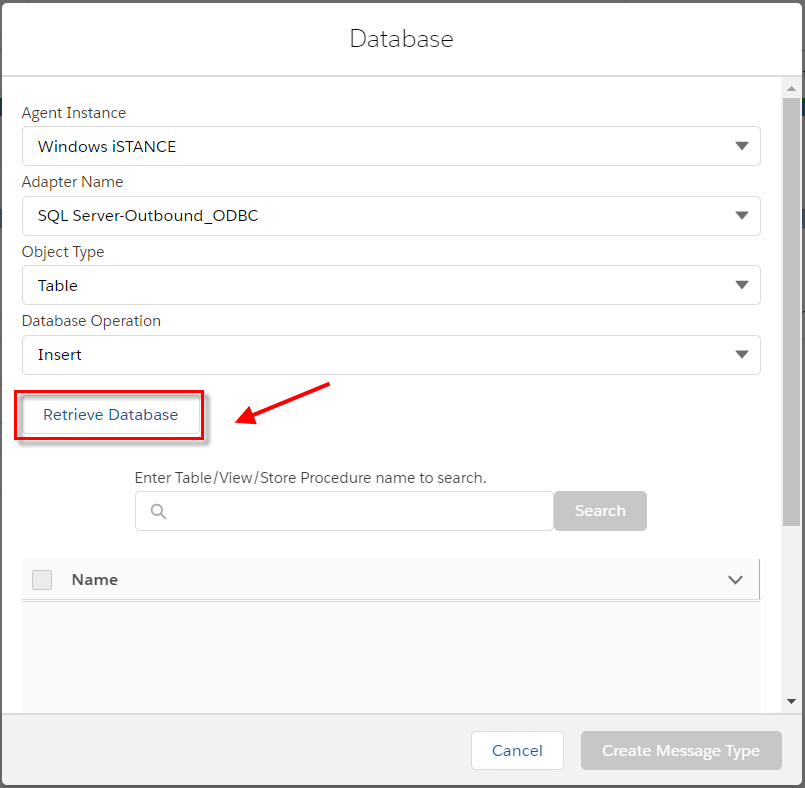
- Choose the Table name then press Create Message Type button
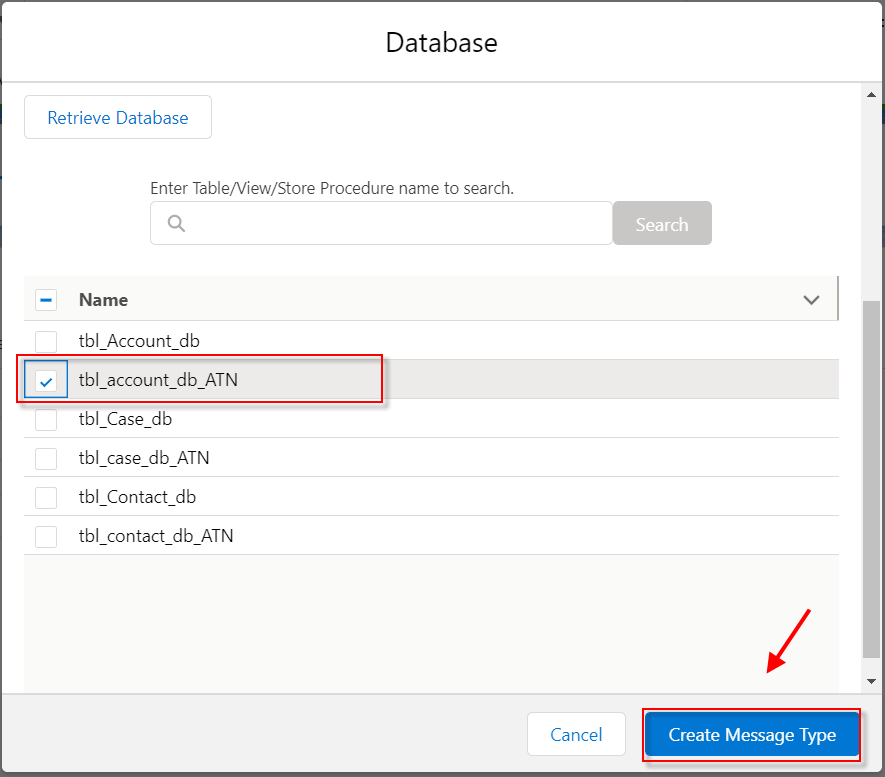
Here is the Message Type generating from the Table “tbl_account_db_ATN”
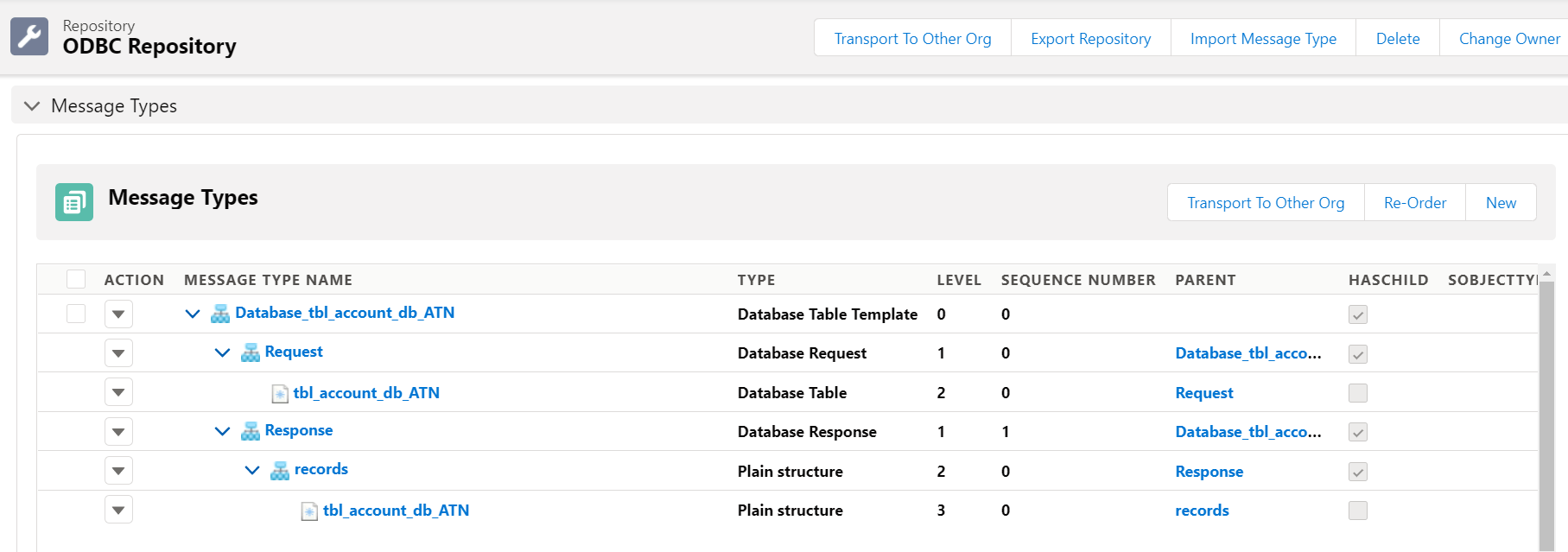
In this example, we show about INSERT operation to send data from Salesforce to the SQL Server Database. We have defined the key auto increment on the table, the key is generated automatically by the database. So we need to define the Response interface for updating the key sent from the Database. For making the data on from Salesforce and the Database the same. The Message Type generating explanation is the same as the JDBC example, we can find out on this link How to do insert operation using Synchronous and Asynchronous outbound interface Step-4 Create Interface
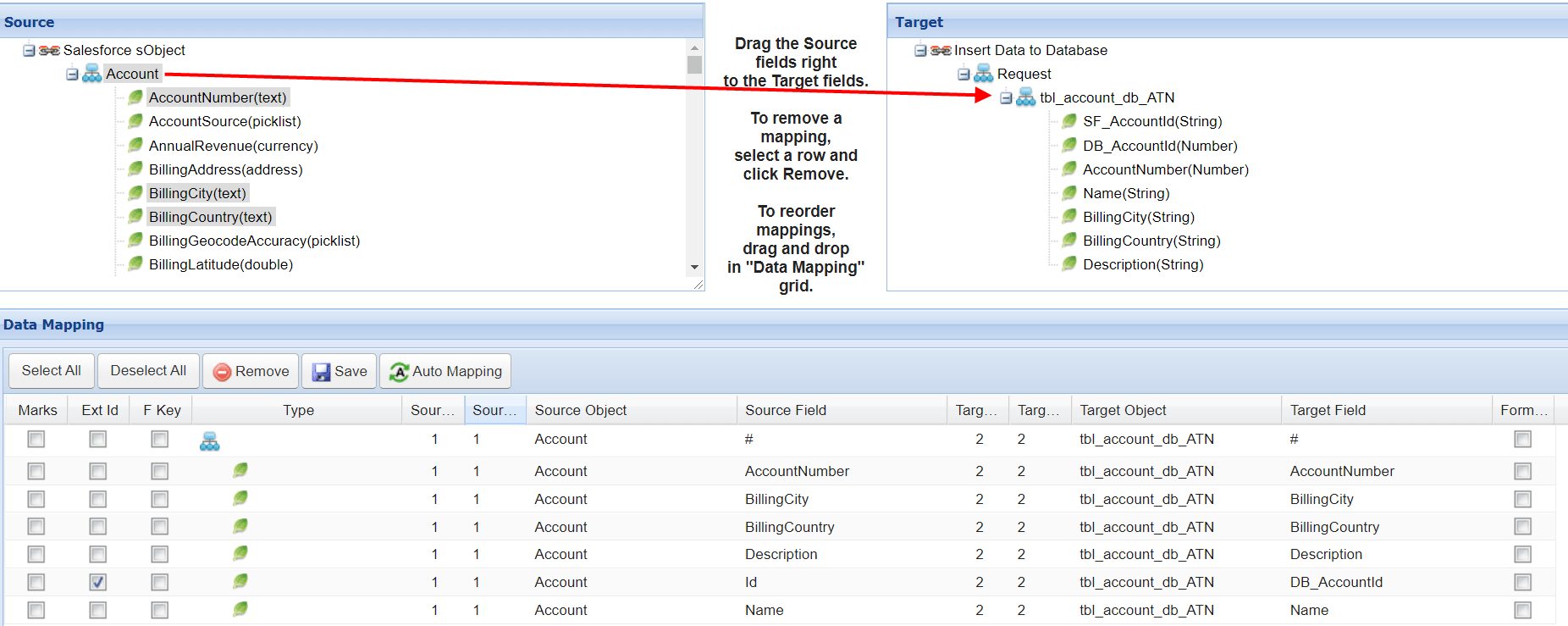
- Create an outbound Interface (Request)
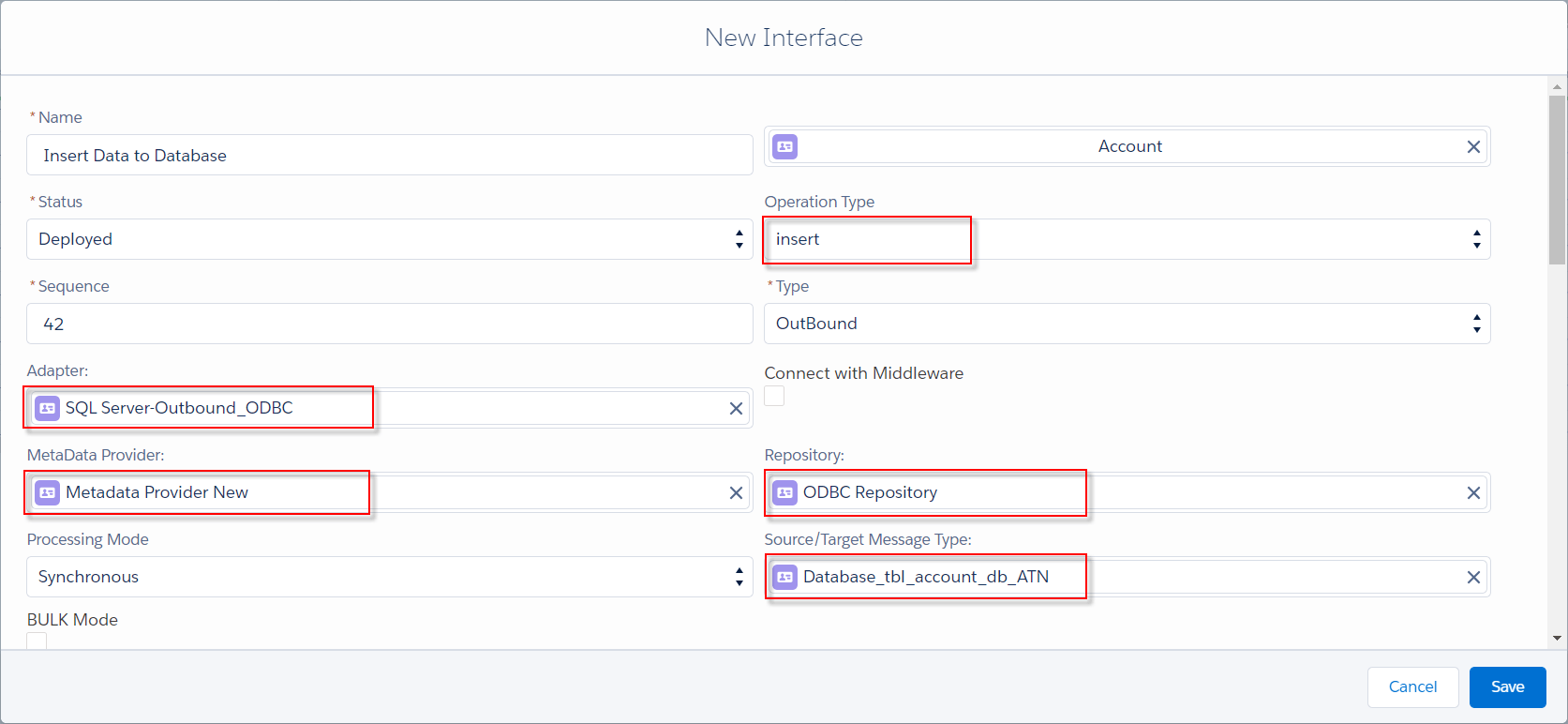
- Do mapping
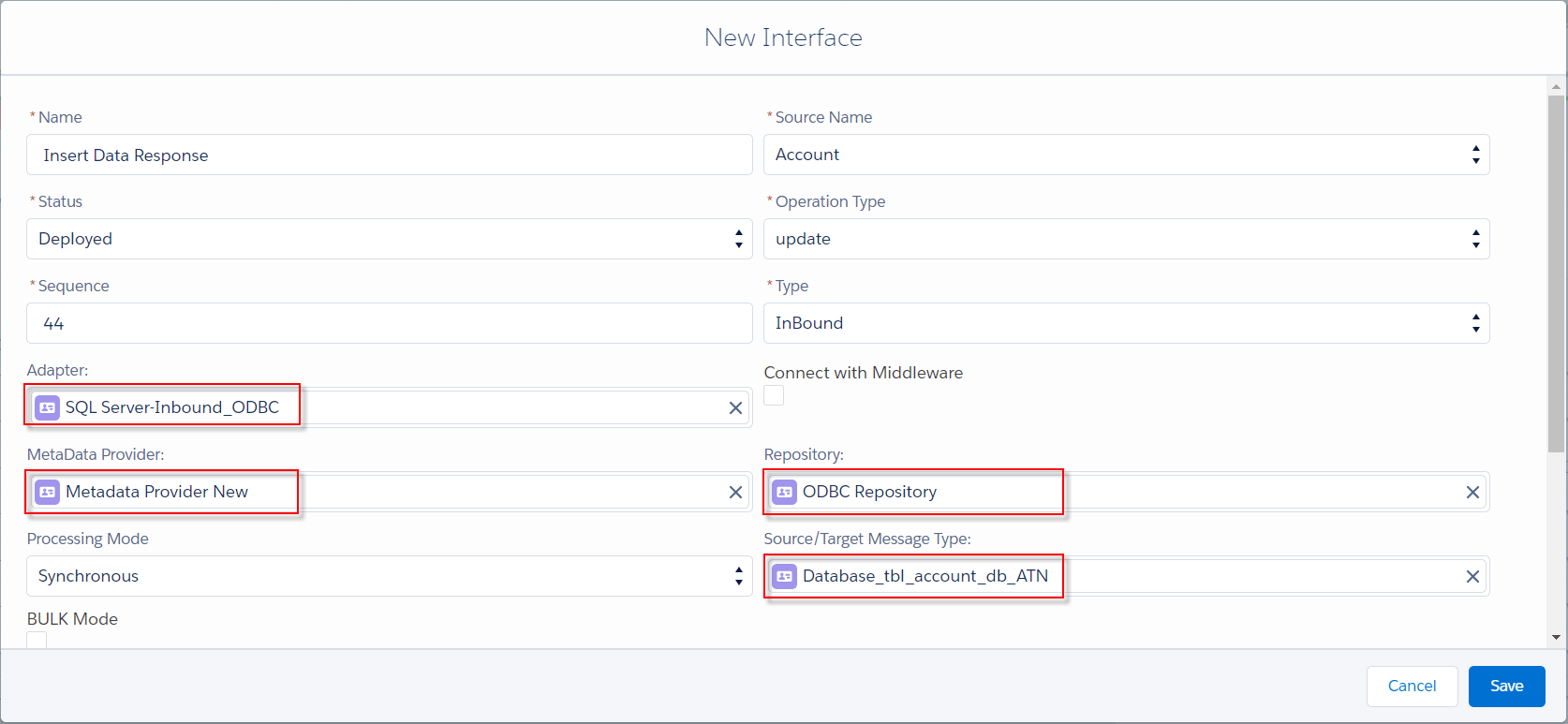
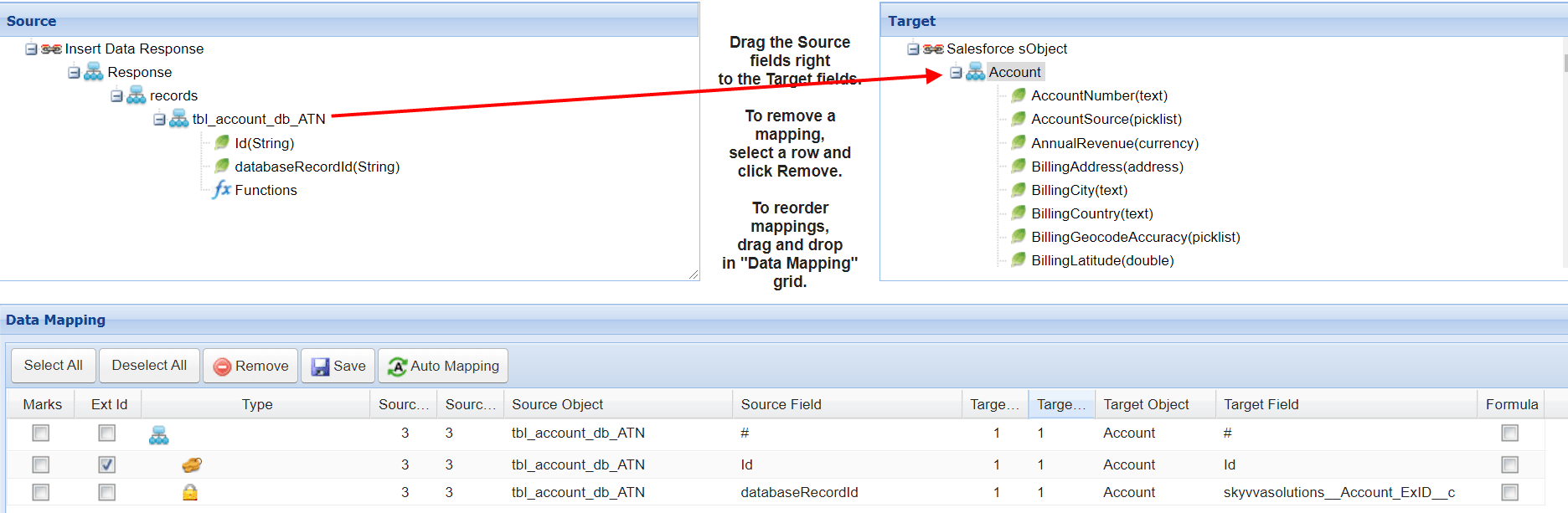
- Create an inbound Interface (Response)
- Do mapping
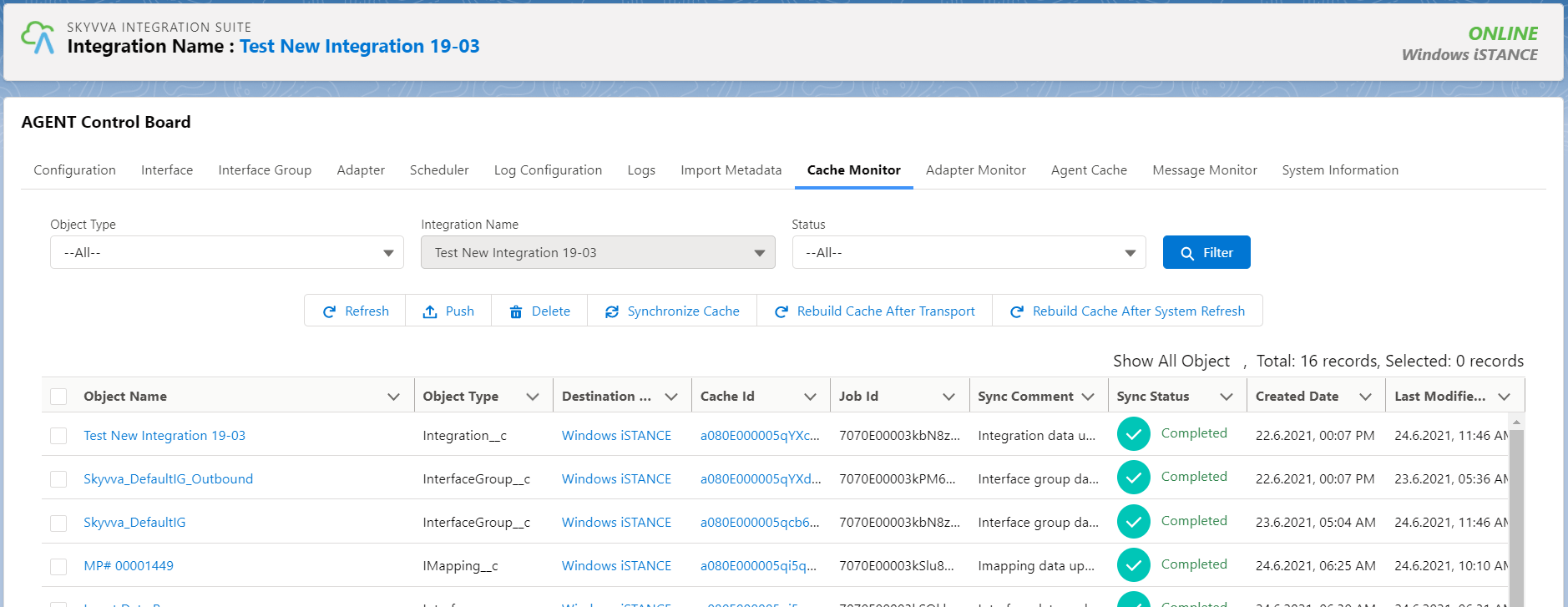
Before pushing data to the Agent, we need to check the Cache status first, and make sure it displays completely.
Step-5 Push data to the Database
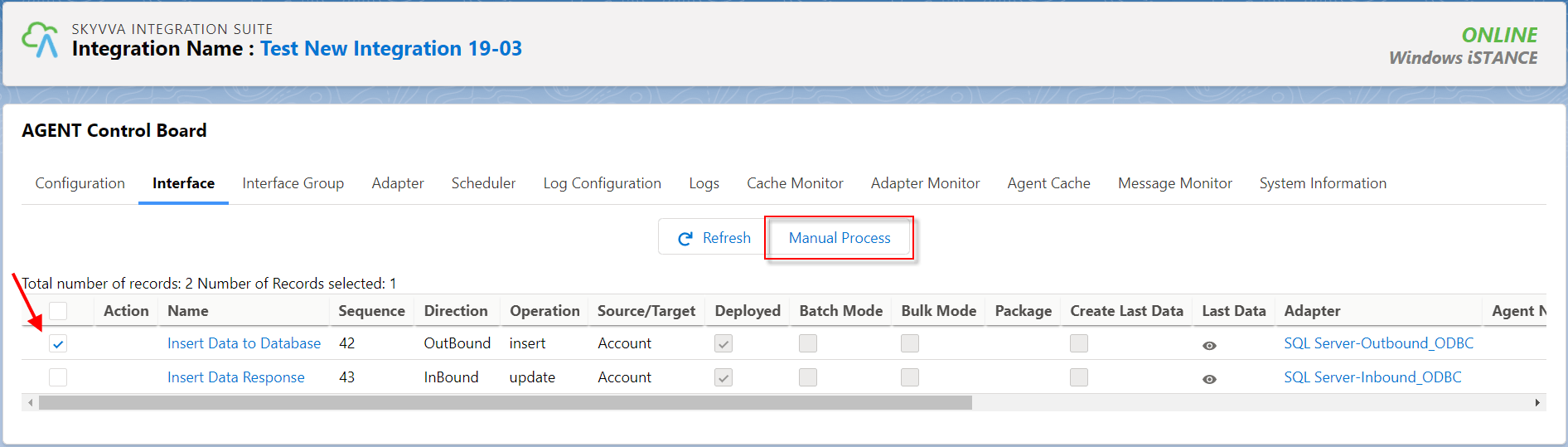
- Navigate to Agent Control Board then Interface tab, choose Interface outbound direction, and press button Manual Process
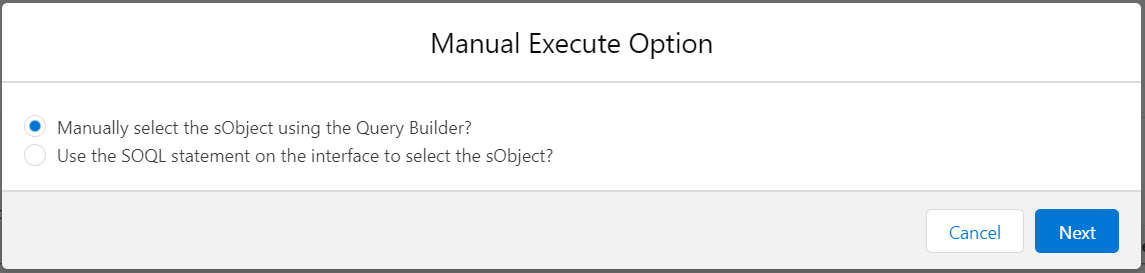
- Choose the option “Manually select the sObject using the Query Builder?”
- Press Execute SOQL button, it will select the record base on the query statement
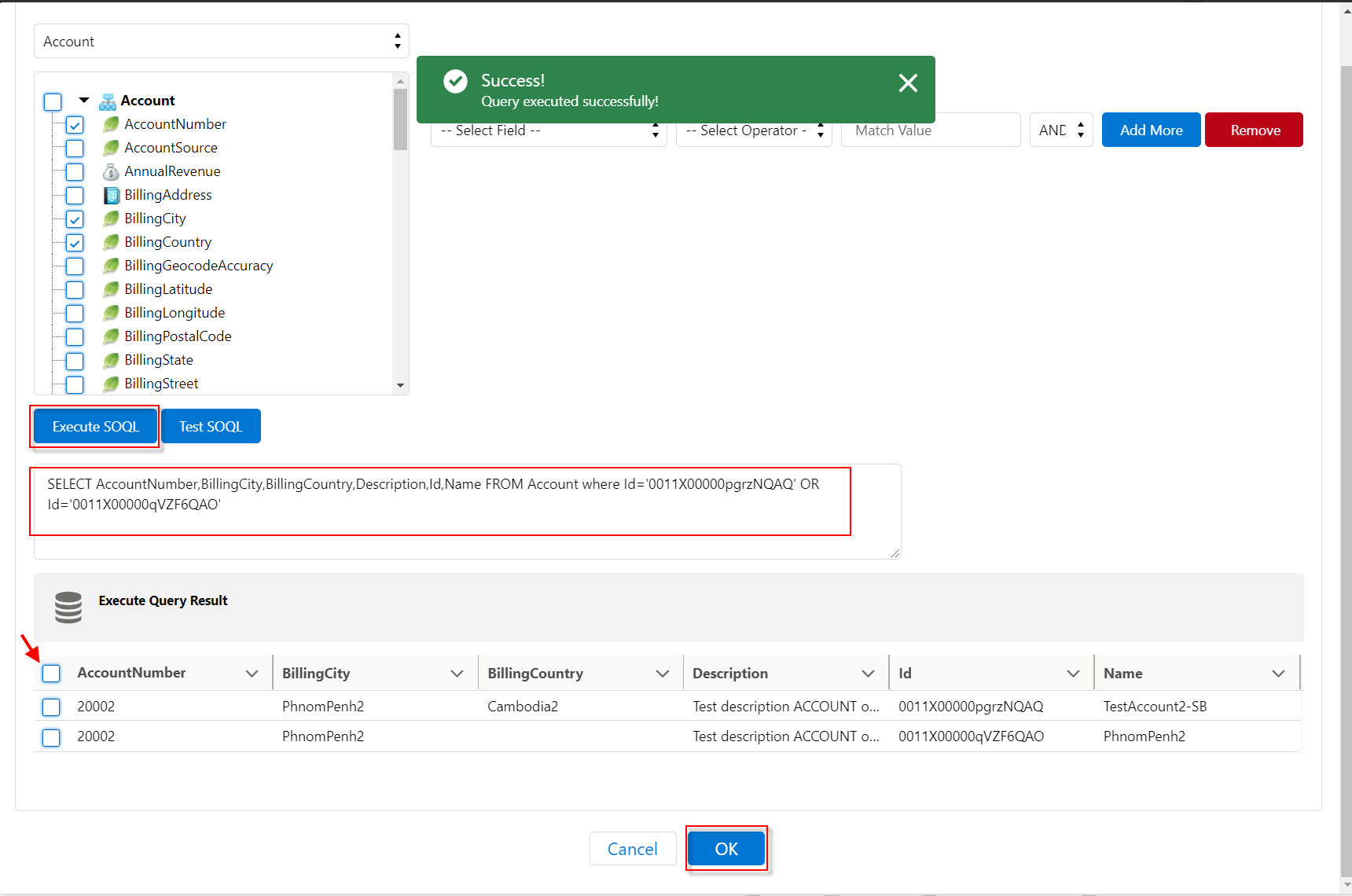
- Press button Send

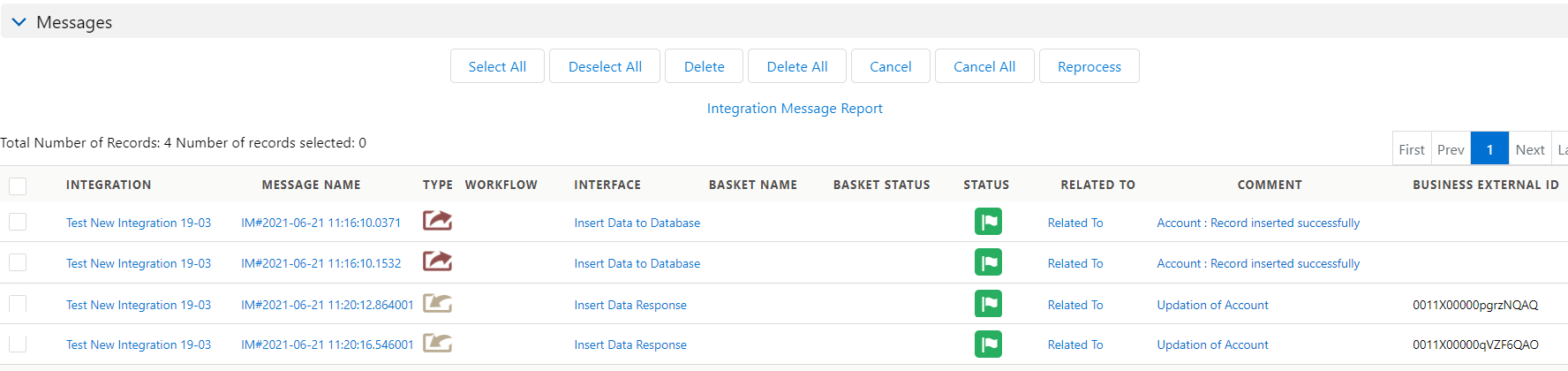
- Check the result on Message Monitoring
The record insert correctly into the Database and update the database key to the Salesforce
Summary
Finally, we have understood the scope of the new Agent that we can push data to the Database by using the ODBC driver. We also know about how to create Data Sources, generate Message Type and push data on the Agent Control Board.