2.4 File Base Integration
We have Adapter:
- File Base Integration (CSV, Excel, XML)
- Database Integration (JDBC, ODBC)
- FTP data Integration
2.4.1 File Base Integration (CSV, Excel, XML, FTP)
File-base Integration includes CSV, Excel, XML, and FTP Integration.
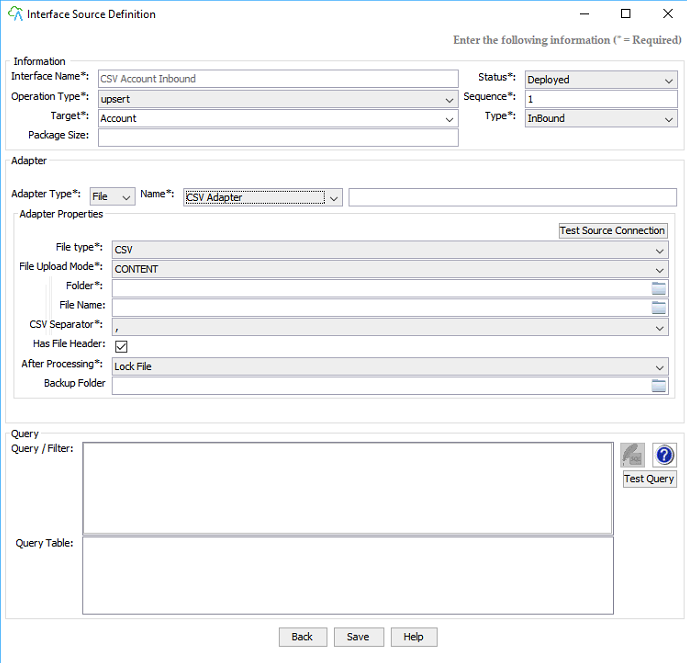
- Click “Test Source Connection” to test the connection to be specified folder and file Click “Save” to save the Integration, Adapter, and Properties to create a New Interface and write the info as shown in the screenshot :
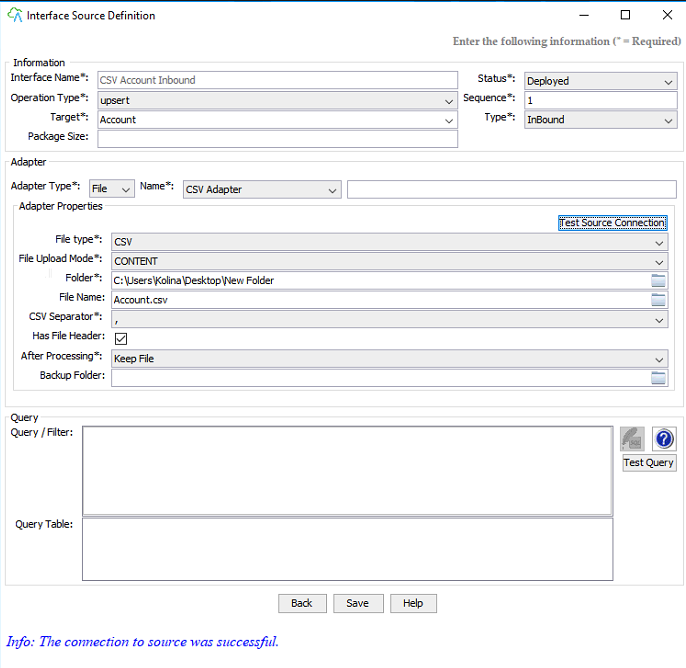
- Interface Name: set Name your interface.
- Status: Deployed or Development
- Choose type as “Inbound” amount the list (“Inbound” and “Outbound”)
[su_box title="Note" box_color="#2a8af0" title_color="#000000"]Inbound⇒ Agent– SF Outbound⇒ SF – Agent[/su_box]
- Target: the sObject name in the Salesforce system “Account”
- In the query section, you may not supply the filter or query as there is only one file to query from.
[su_box title="Note" box_color="#2a8af0" title_color="#000000"]In case of multiple files query, you may supply the file filter, so that the agent will query data only from the files that meet the filter value.[/su_box]
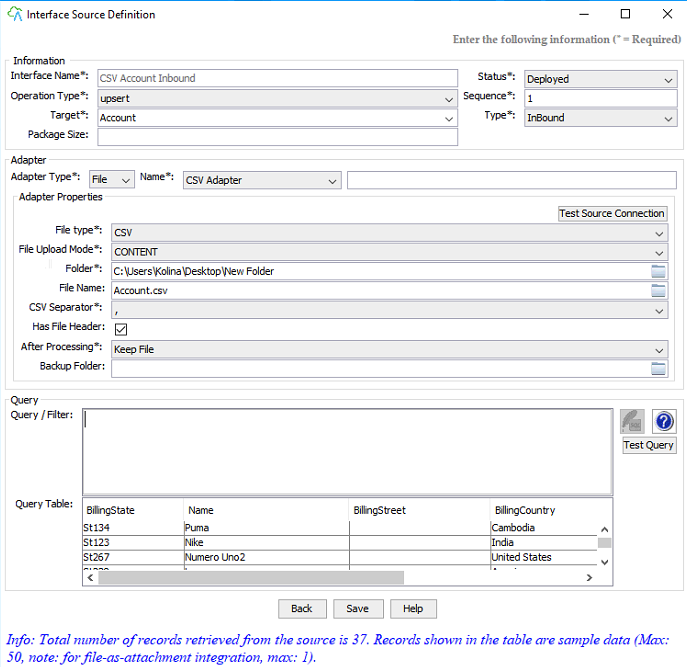
- Click “Save” to go to test integrating and click on test integration
- See user example Info
- The total no. of records retrieved from the source is 37
- The record shown in the table are sample data
[su_box title="Note" box_color="#2a8af0" title_color="#000000"]Remember to click “Save” in the interface , and click “Process” after finishing[/su_box]
- Click “Save” to go to test integrating and click on test integration
- Click “Test Integrate” to test integrating data from CSV
- After completing the integration test, click on “Finish”. You will be asked to click on existing integration to the Properties Setup page.
- Click “Test Integrate” to process integrating data from CSV to SF
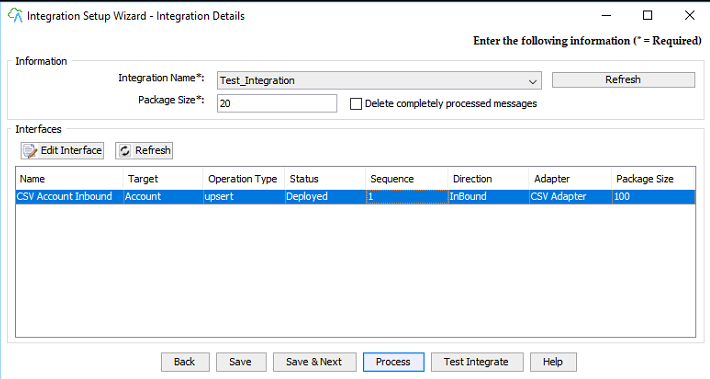
- After completing the integration test, click on “Save”.
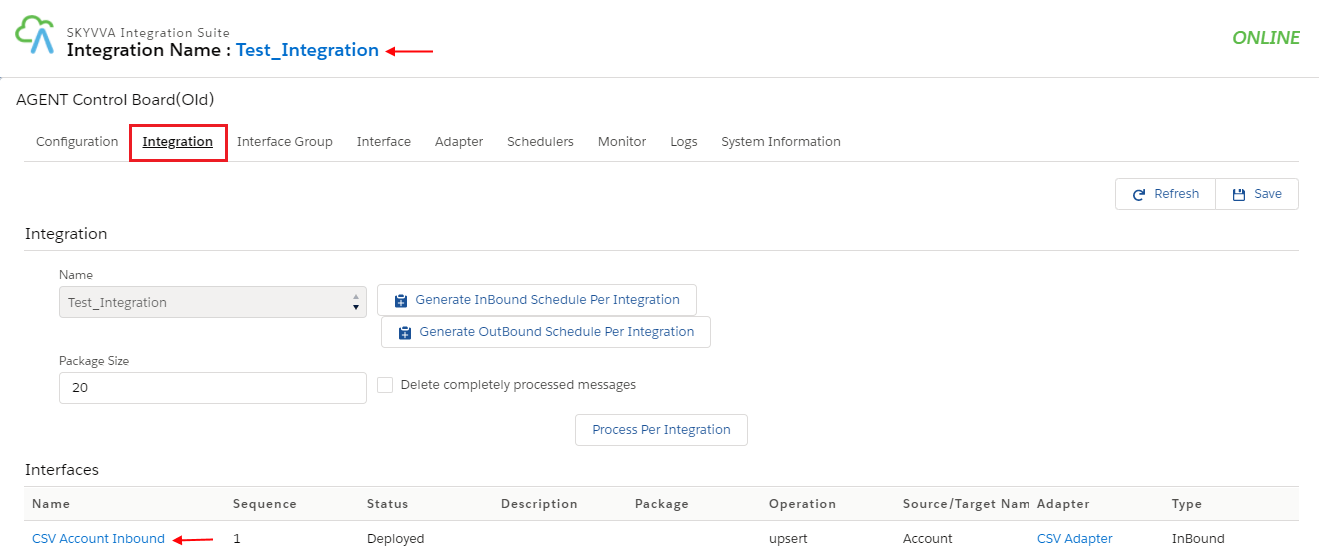
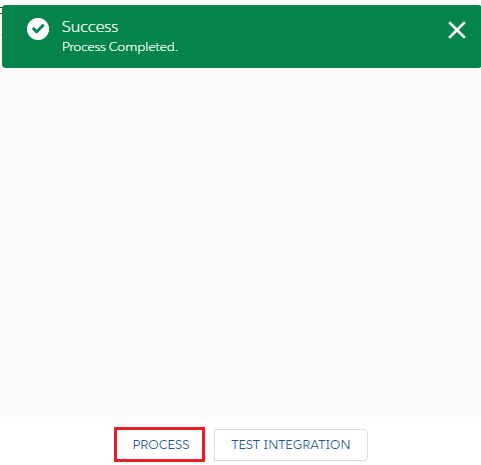
- Process
Data Monitoring:
- Go to the Messageboard
- Click search

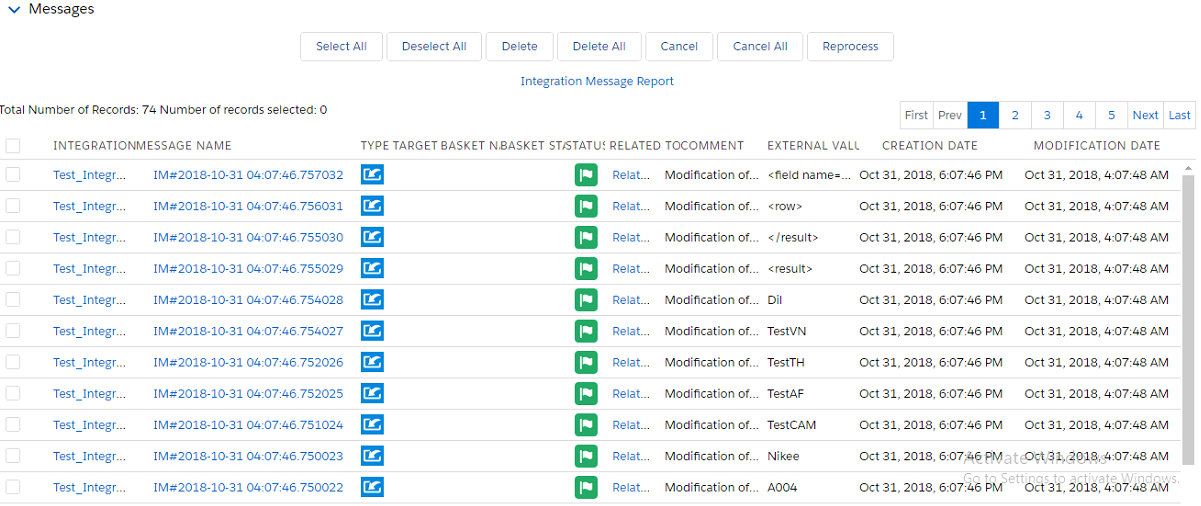
- See Message Board
- Inbound process successfully
A. SF – Agent: CSV Integration In the Interface Source Definition screen, create a new Interface and fill in all necessary info as a screenshot Follow the same process as above we done for Inbound Type Go to Salesforce Org.
- Name your integration
- Name your interface
- Status: Deployed or Development
- Choose type as “Outbound” amount the list (“Inbound” and “Outbound”)
- Scroll down to the Mapping section and choose Name as Ext Id
- Save
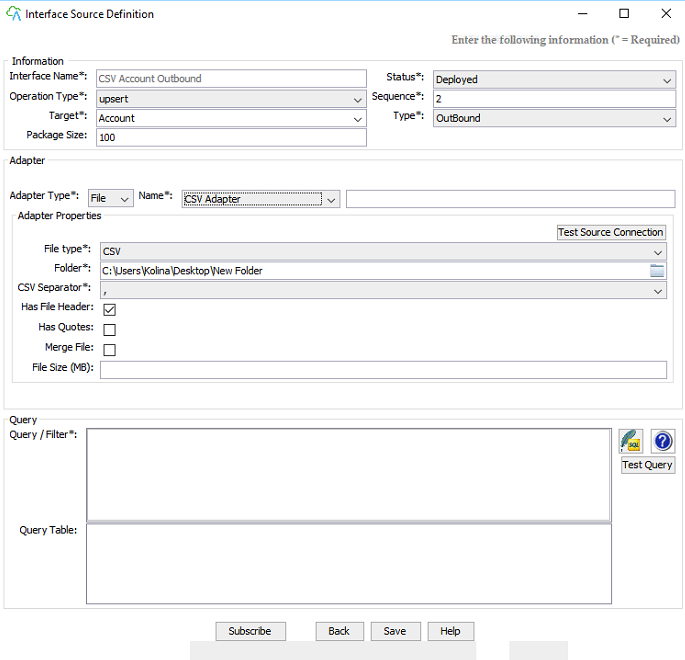
[su_box title="Note" box_color="#2a8af0" title_color="#000000"]Inbound⇒ Agent – SF Outbound⇒ SF – Agent [/su_box]
- Target: for SF-Agent integration, the Target value is the CSV file name that you would like to create in the integration. For instance, we put the value of “Account”, so that the file name to be created will be something like “Account2017072814221.csv”.
- Click the button(Query Editor) to go to the query editor wizard.
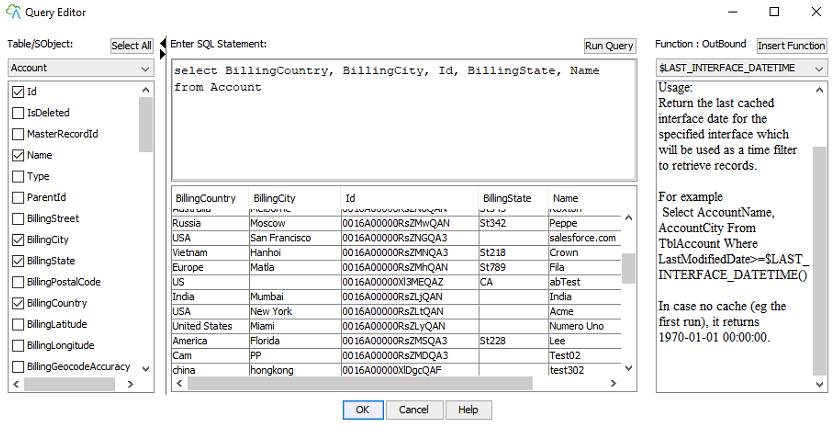
- Click on each field name to select the fields and click “Run Query” to test your SQL statement.
- Click “OK” to finish editing query and go back to the Interface Source Definition
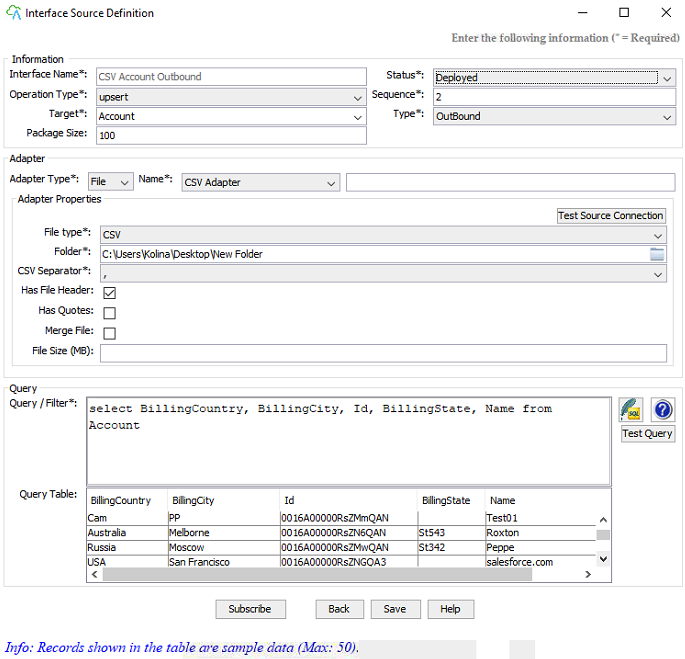
After completing the integration test, click on “Save”.
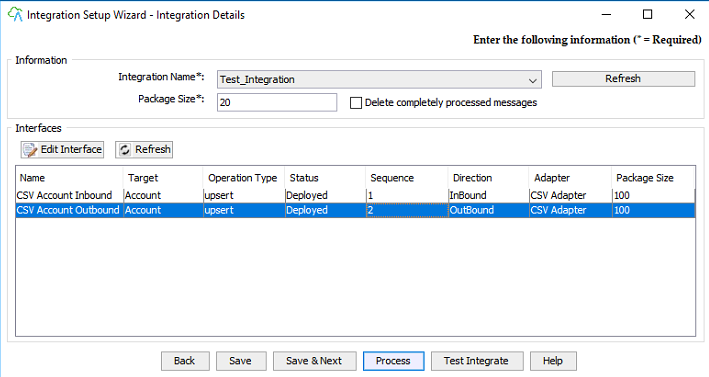
- Click on Save
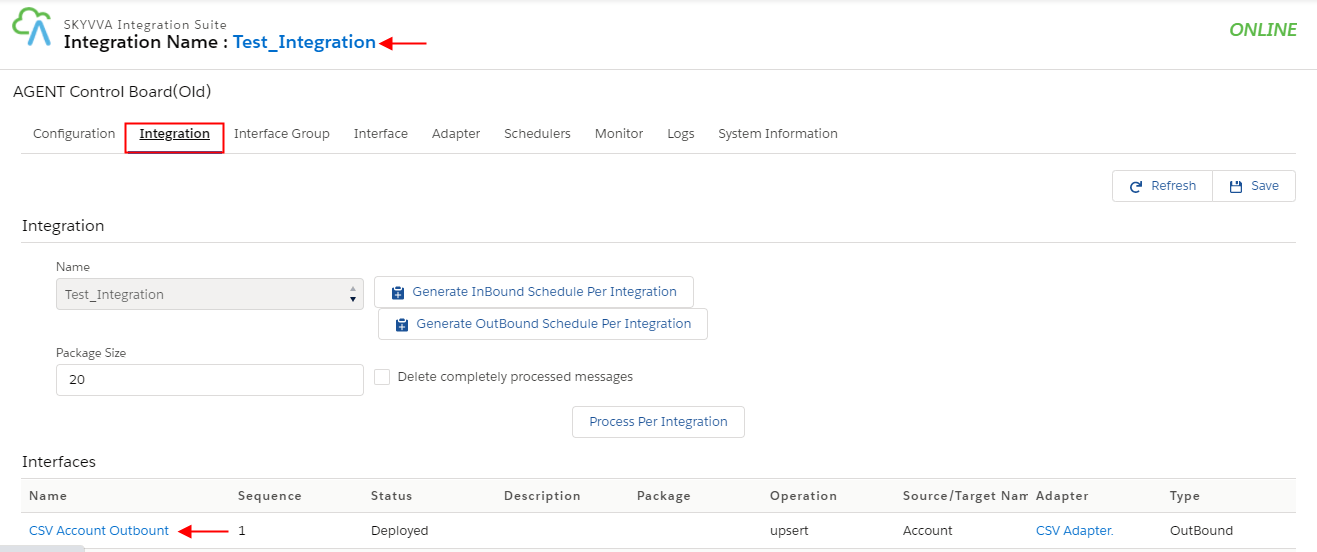
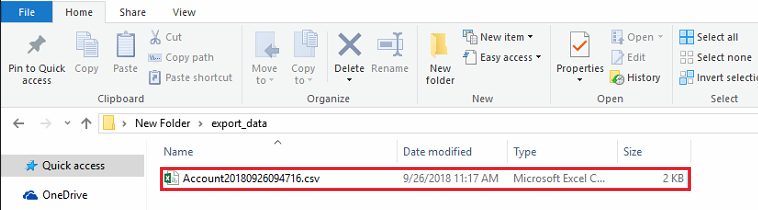
Data Monitoring: On the local server (computer), go to the folder specified in the properties of the adapter “C:\Users\kolina\Desktop\New Folder\export_data” and you will see a file named “Account20180926094716.csv” which is created from the integration “My System Integration”
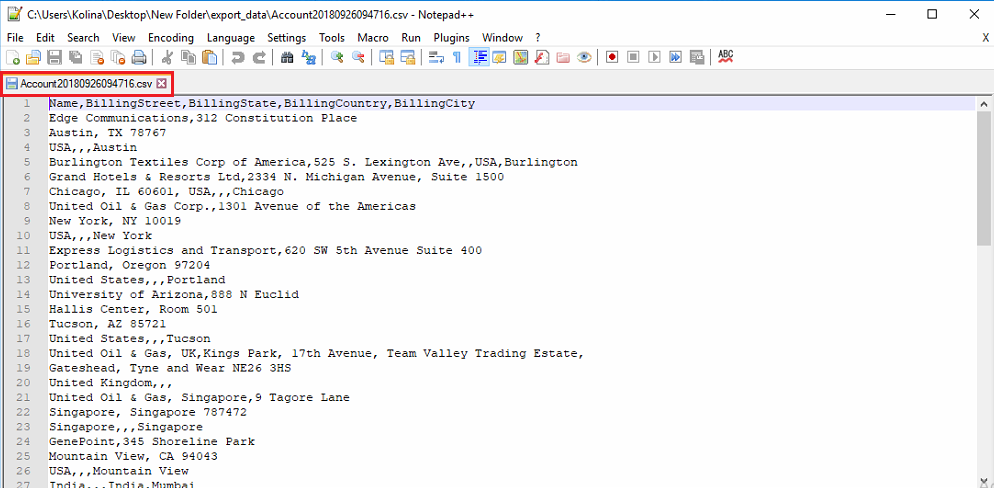
- Open the file and you will see the data that is migrated from Salesforce.com. as shown below:
[su_box title="Remark" box_color="#2a8af0" title_color="#000000"]
- For Excel and XML Integration, you can just do the same as CSV Integration. But just you need to change the file types, adapter, and its properties accordingly.
- For FTP Integration, please find the file “FTP and SF Integration User Guide V1.11.doc” as a reference. The updated feature is as follows:
- No need to supply the file extension "Target" field.
Example: Let say your "Target" field is "Account". After data migration from SF to FTP at 9:56: 21:36 AM on the 26th of Sep 2018, the agent will create a file named "Account20180926094716.csv ". It means that the agent will automatically append the current integrating date/time to the file name and also add an extension. (For more updated features on this version, see “Release Notes.txt”)[/su_box]
2.4.2 Agent – SF: FTP Integration
1. FTP Server Configuration As a test, we use FTP server application, named FileZilla Server and its client tool. In this server, we configure the user and group as below :

- Create a user named “Akash” and a shared folder” C\Users\Akash\Desktop\New folder” which contains the data files in XML, CSV, Excel formats
- Give full permissions to the folder as shown above
[su_box title="Note" box_color="#2a8af0" title_color="#000000"]Always think of file/folder access permissions on FTP server when doing integration between SF and FTP, and vice versa. Please disable the SSL login.[/su_box] 2. FTP data integration: Properties for the FTP adapter are URL, Username, Password, File Type, Folder, Filename, and CSV Separator (for CSV file type).
- Run Integration Agent UI
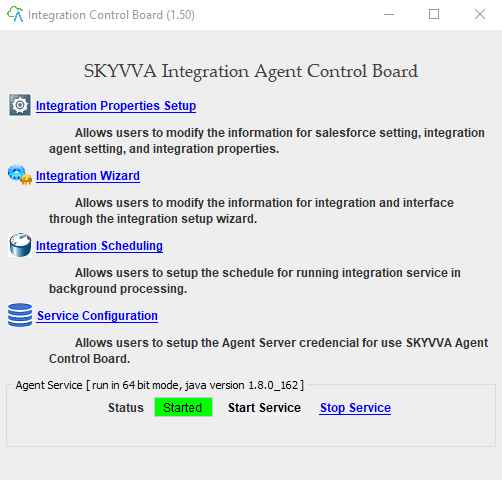
Create a New Integration (for SF-Agent integration) as follows:
- Either click the Integration Wizard link on the above figure or
- Integration Properties Setup link as shown in the below figure:
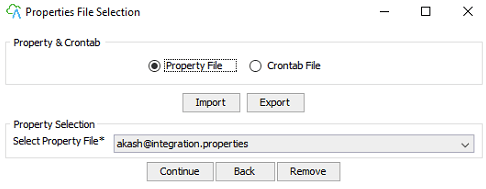
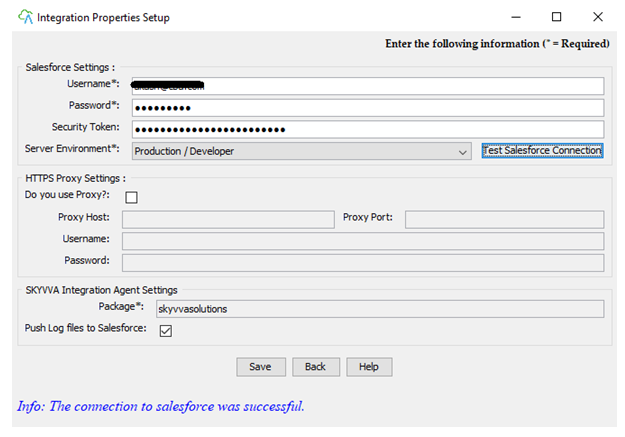
- Supply your Salesforce organization info and environment and click “Test Salesforce Connection” for Testing.
- We need to create a new integration for Agent-SF by clicking New Integration :
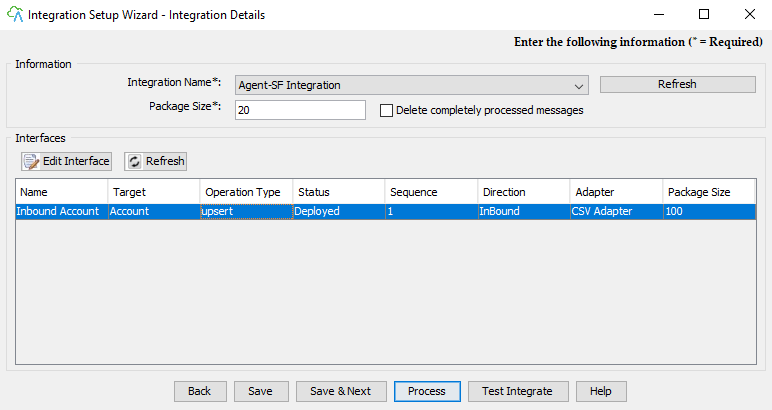
- Fill in the integration name, adapter name as you wish to name.
- Adapter property :
- URL: the URL to your FTP server – here we use localhost ( our FTP server is FileZilla installed in current agent machine)
- Username: Username to log in to FTP server
- Password: Password to login to FTP server
- File Type: Types of files to be queried the data for the integration process. There are three types: CSV, XML, and Excel (2010 format)
- Folder: a path to get the file/files.
Ex. In our above FileZilla configuration, we already added a shared folder named which has the path of “C\Users\Akash”. And the value of the property Folder is “CSV”. Therefore the full path to get the file/files is “C\Users\Akash\Desktop\New folder
- File Name: (Optional) a file name for an agent to query data from.
[su_box title="Note" box_color="#2a8af0" title_color="#000000"] When filename is not specified, the agent will go to the folder and lookup for all files with the type.[/su_box] Ex. In the screenshot, we don’t specify the file name, so that the agent will go to the folder “C\Users\Akash\FTP test with CSV” to query data from all files (Account.csv) with the file type of CSV.
- CSV Separator: Value separator for CSV file type.
- Click “Test Source Connection” to test the connection to the specified FTP server
- Click “Save & Next” to save the Integration and its Adapter and Properties and to create a New Interface and fill in all necessary info as shown in the below figure:
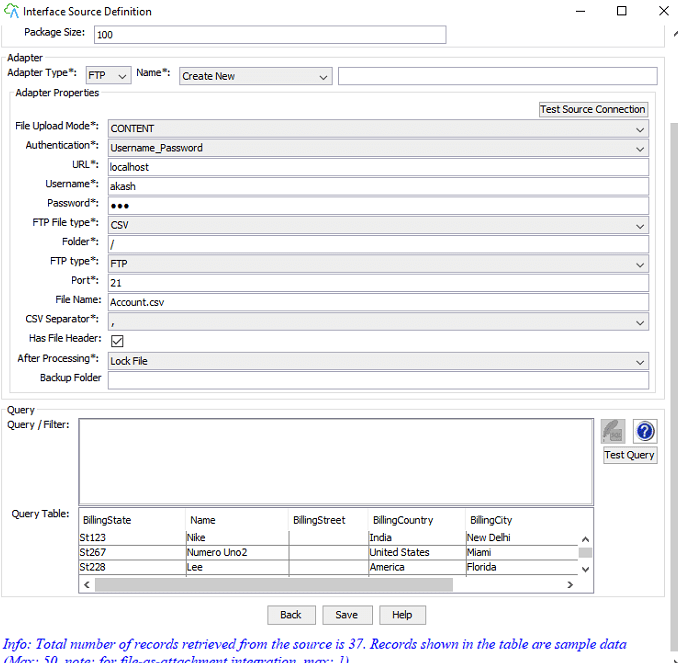
- Name the interface
- Status: Deployed
- Choose type “Inbound” among the list (“Inbound”; “Outbound”).
Inbound: for Agent – SF Outbound: for SF – Agent
- Target: SObject in the Salesforce.com
- Click Next to do Mappings as shown in the below figure:
- Click the button “Save” on the Data Mapping grid to save the defined Mappings
- Then click “Next” to test integrate
- Click “Test Integrate” to test this interface setup and data integration from data files of FTP server as shown in the table to the Account object in Salesforce.com.
- Click Finish to complete the wizard. You will be asked as shown above
- Click “Yes” to save the integration you have just created on the Integration Properties Setup page.
As a result, you will see the figure as shown below
B. SF – Agent: FTP Integration The process is very similar to section A
- Click “New Integration” on the Integration Properties Setup page as shown in the below figure
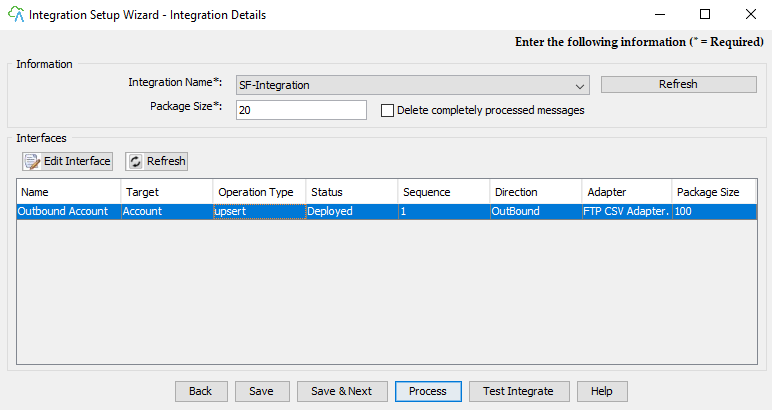
- Fill in the integration name, adapter name as you wish to name.
- Adapter property: (same as FTP-SF section)
Unlike, the file name property is not used in SF-FTP Integration
- Click “Test Source Connection” to test the connection to the specified FTP server
- Click “Save & Next” to save the Integration and its Adapter and Properties and to create a New Interface and fill in all necessary info as shown in the below figure :
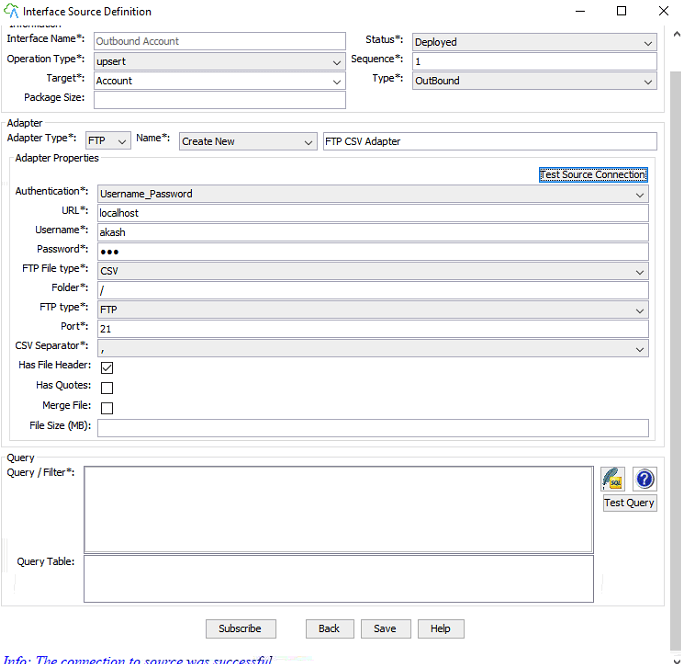
[su_box title="Note" box_color="#2a8af0" title_color="#000000"]For SF-FTP Integration, the "Target" field is equal to a target filename of storing data which is queried from SF.[/su_box] Ex. After integration, the agent will create a file named “Employees2011-06-22 09-08-41-841 AM.csv” on the FTP server.
- On the Query section: input the Salesforce SOQL statement or you can click the button. Query Editor to open a Query Editor
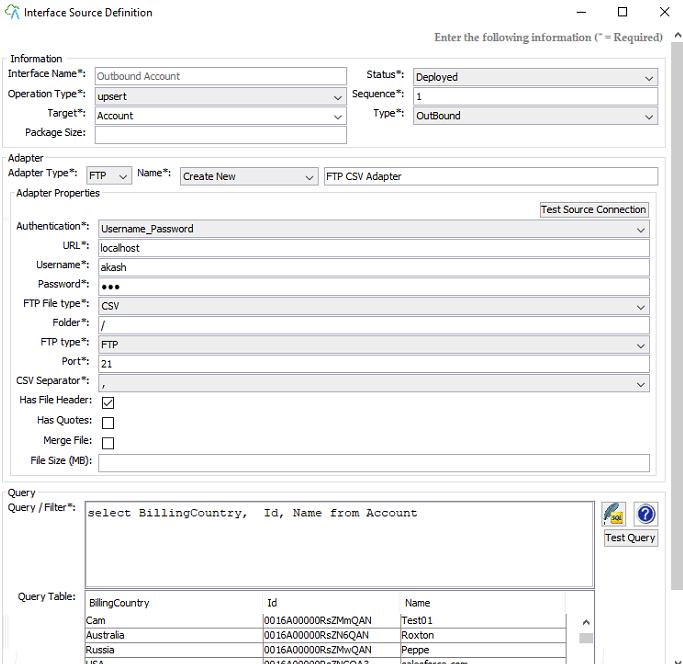
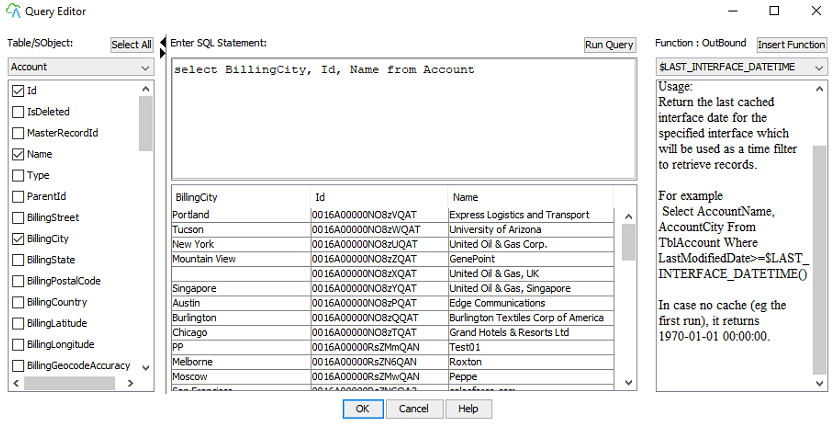
- Click OK after completion of the editing query statement.
- On the Interface Source Definition screen, click Browse to get to the file containing the field structures and then click the Upload button and upload them to Salesforce.com for mapping
- Click Next to do Mappings as shown in the below figure:


- Click the button “Save” on the Data Mapping grid to save the defined Mappings
- Then click “Next” to test integrate
- Click “Test Integrate” to test this interface setup and data integration from Salesforce Account to the FTP server by creating a file type of CSV.
- Click Finish to complete the wizard
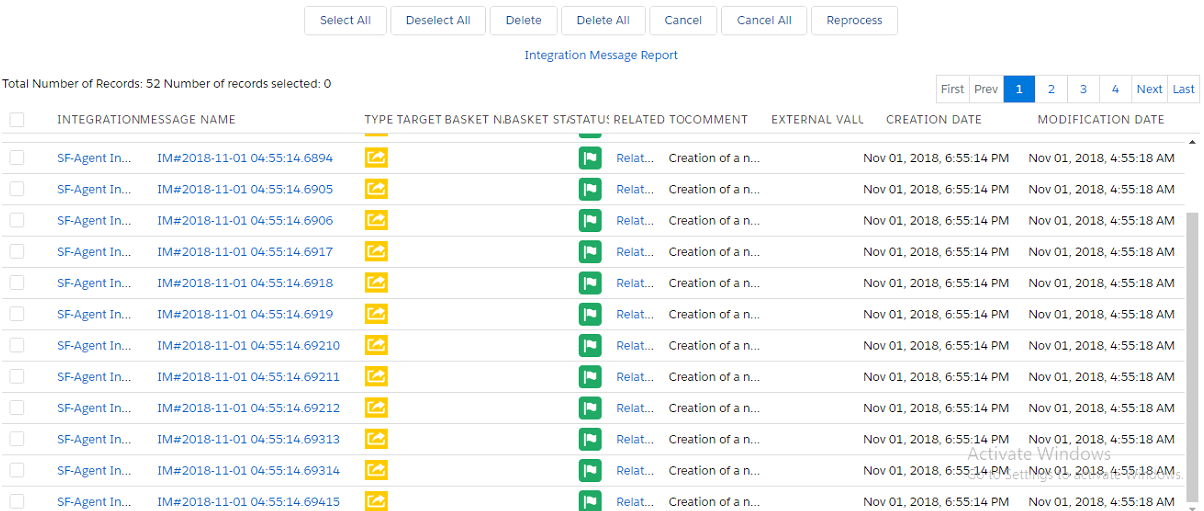
Data monitoring a. Salesforce Monitoring:
- Login to the Salesforce instance
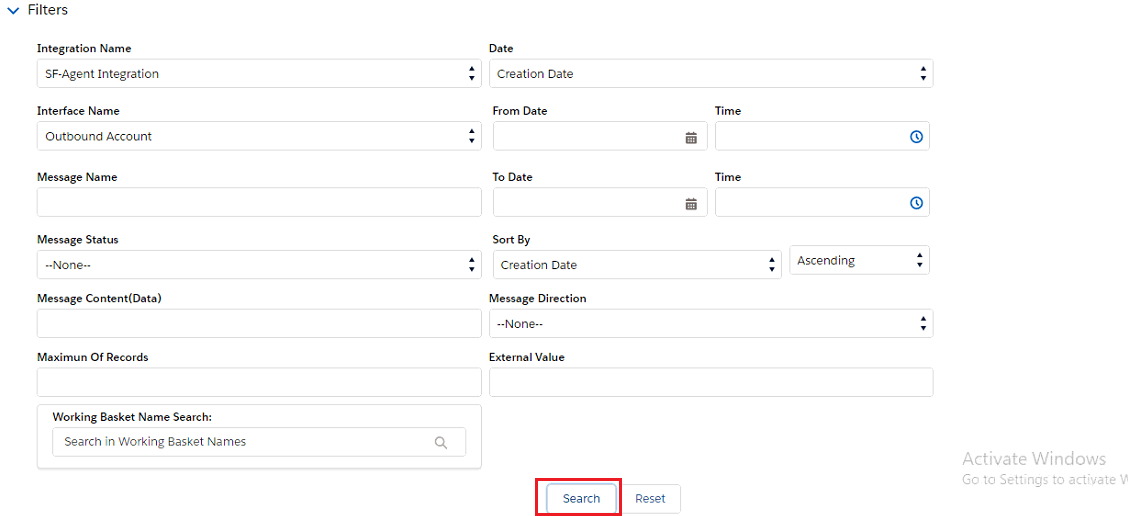
- Go to the integration “FTP - SF Integration” for Agent – SF integration and “SF - FTP Integration” for SF – Agent integration
- See their Messages Board
b. FTP Server Monitoring:
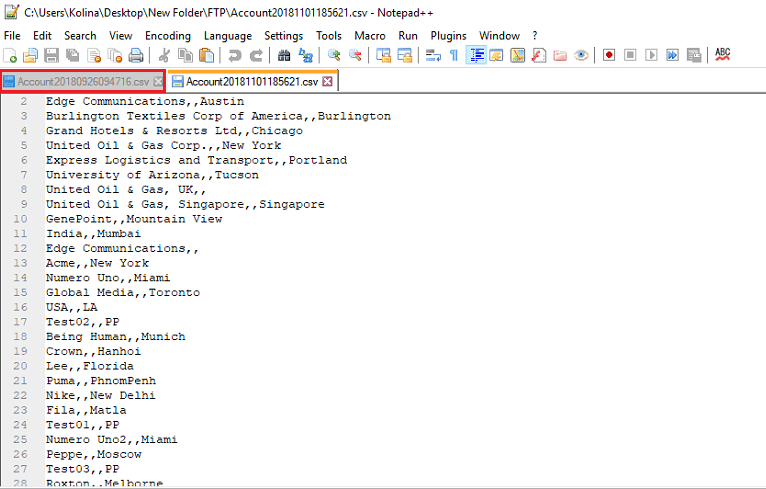
- On the FTP Server, go to the folder “C:\Users\Kolina\Desktop\New Folder\FTP” and you will see a file named “Account20181101185621.csv” which is created from SF-FTP Integration.

- Open the file and you will see the data that is migrated from Salesforce.com. There are 53 records migrated from Salesforce.com and stored into a file on FTP Server
####