12. Google Drive Adapter
Introduction
SKYVVA Google Drive Adapter is used to first configure a Google Drive connection, establishing access to an account on the Google Drive server, and then used to configure one or more Google Drive activities associated with that connection as either a source or target within an operation: Get File: Retrieves a file from a Google Drive connection and is used as a source in an operation. Create File: Creates a file in a Google Drive connection and is used as a target in an operation. Update File: Updates a file in a Google Drive connection and is used as a target in an operation. Delete File: Deletes a file in a Google Drive connection and is used as a target in an operation.
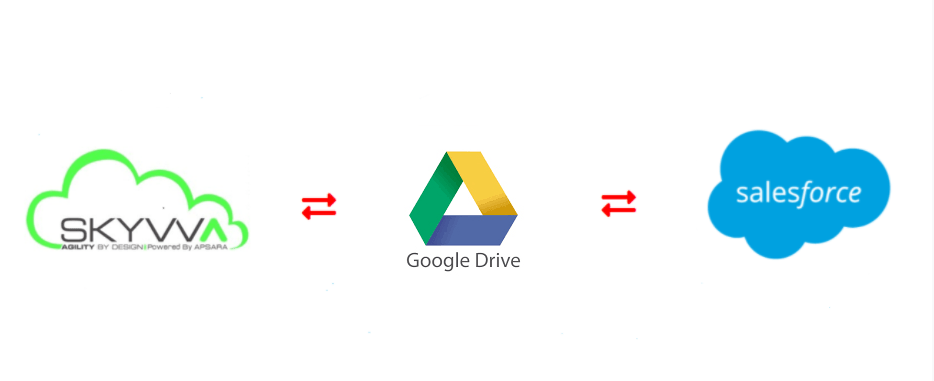
How Google Drive Works
Google drive is a platform which can store piles of data on the cloud. It is very reliable and user-friendly. Since Salesforce needs data to analyze and generate reports, thus integration of Salesforce with Google drive is the requirement of many organization. Files Connect is an application which helps in integration of Salesforce with Google Drive in a simple and efficient way. Files Connect can be used to integrate Salesforce with other applications like Google Apps, SharePoint App, OneDrive, etc.
- Endpoint Name: Enter a name to use to identify the Google Drive connection. The name must be unique for each Google Drive connection and must not contain forward slashes (/) or colons (:).
- Project ID: Enter the Google Drive Service Account Project ID– Google Drive Registration
- Client Email: Enter the Google Drive Service Account Client Email– Google Drive Registration
- Private Key String: Enter the Google Drive Service Account Private Key String– Google Drive Registration
- Test: Click this button to verify the connection. The server will check only that the specified user can make a connection.
- Save Changes: Click this button to save and close the connection configuration.
- Discard Changes: After making changes to a new or existing configuration, click Discard Changes to close the configuration without saving. A message will ask you to confirm that you want to discard changes.
- Delete: After opening an existing connection configuration, click Delete to permanently delete the connection from the project and close the configuration ( Component Dependencies, Deletion, and Removal).
Prerequisites
- The user has to assign a SkyvvaAllPermissions set to the current user.
- The user has to add skyvvasolutions namespace inside callout logic.
- Supports Asynchronous mode, Asynchronous mode is a switching technique used by SKYVVA that uses asynchronous time-division multiplexing to encode data into small, fixed-sized cells. An Asynchronous mode is working as when you make a request and whatever the result. Whether you failed or succeed just call the function SKYVVA gonna give you a call back code. So Asynchronous never waits for a call to come back in order to execute the rest of the code.
Cache → Object Name → Integration Name → Filter → Push → Developer Console → Execute
- Adapter Section: Choose Adapter Type (File) → Name Adapter.
- Adapter Properties:
- FileProtocol → Local
- Content_Format → Text
- Filetype → CSV
- Folder → File
- filename → File.csv
- upload_mode → Override
- adapter_instance → akashtest-integrationORG2
- Separator → (,),(;),(Tab),(I)
- Click “Ping Source Connection” to test the connection to the specified folder and file.
- Click Save.
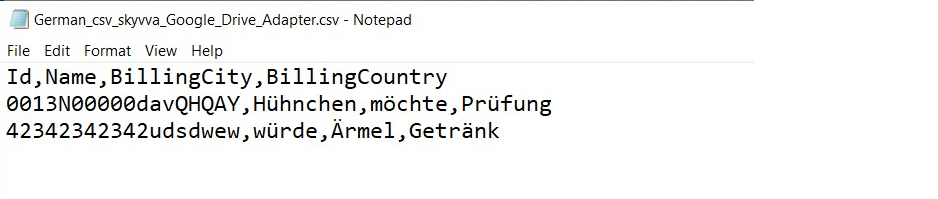
Please hit these links→
- How to save data from Salesforce to Google Drive ?
- How to read data from Google drive and push to Salesforce ?
- How to get Token for OAuth2 ?
Google Drive is a cloud storage service that allows users to save files and access them from anywhere. From SKYVVA v2.48, we have the capability to allow the users to back up their data directly from Salesforce to keep on Google Drive. Besides sending data to google drive we can also read data from Google drive back to Salesforce. The user can transform their data to any file format such as CSV, XML, or JSON. They can save their data to Google Drive manually or automatically from our Control Board.