1. How to create an inbound hierarchical interface using SKYVVA Bulk mode with V2 SKYVVA Connector module?
This document describes how to create an inbound hierarchical interface using SKYVVA Bulk mode with SKYVVA connector module. Introduction SKYVVA provides different processing modes and uses API Dynamic Switch where incoming data goes automatically to be processed as asynchronous, batch or bulk. What Is Bulk? SKYVVA Bulk Interface Processing is an interface uses for running bulk attachments. When you have a huge amount of data I.e data >= 5000records, then we should use bulk processing to process the interface. We should know some terms:
- BULK Mode: We have to set this flag to run our interface in bulk mode using salesforce bulk API.
- SKYVVA Bulk: SKYVVA Bulk is slow but very powerful, it allows you to do business mapping using our mapping tool and formula. Likewise, you can use SKYVVA workflow to validate the data before posting. You can use SKYVVA Bulk mode with both Bulk-processing mode, which are Parallel and Serial. The default value is Serial. With V2 Skyvva connector module we cannot support message type hierarchical data. SKYVVA Bulk will support both flat and hierarchical data.
- SFDC Bulk: We support SFDC pure bulk mode in version 1.0 or 2.0 that is very fast but cannot use SKYVVA mapping tool to do business data mapping. On the other hand, SFDC Bulk require the data has to be mapped already on the sender side and doing additional mapping to enrich the business logic is not possible using SKYVVA mapping. This mode will work with both processing mode, Parallel and Serial, for version 1.0. Version 2.0, you can only use with Serial mode processing. SFDC Bulk will support only flat structure.
- Bulk Version: SKYVVA support SFDC pure bulk mode in version1.0 or version 2.0 then we have our own skyvva bulk mode. This use skyvva workflow and mapping and thus it is more powerful but slower than pure bulk API technique from salesforce.
- Bulk Processing Mode: This fields indicate two modes which is support with bulk version 1.0 and bulk version 2.0 only parallel mode is supported. So the value is depend here the selection of field bulk version. For example When we want to use ‘ serial‘ we should select bulk 1.0.
- Parallel: When you select this processing mode, it will run parallel.
- Serial: When you select this mode, it will not run at the same time.
- Bulk Package Size: This parameter determine how many records is splitted into Bulk data size. If your Message contain 10.000 records and the value for this parameter is 1000 so you will get 10 bulk data set in Salesforce.
- Bulk Monitor Keep Size: The number of bulk execute logs to be keep.
- Bulk Sch Frequency: This is the schedule time frequency for bulk scheduler on
interface.
- Bulk Integrate Time Interval (minute): The interval (minutes) used for integrate bulk job scheduler. For example, if its value is 10, then the integrate bulk scheduler will be run every 10 minutes.
- What is needed for a BULK Inteface
The process and development of an inbound interface utilize the bulk api is almost the same like developing an ordinary inbound interface. How to develop an ordinary inbound interface with SKYVVA Integration Suite is described in the document "How to create an inbound interface to post a single sObject? ". The following steps to be follow to develop and processing an interface with bulk api:
- Follow all the steps to develop an inbound interface
- Configure these parameters SforceBulkOperation, SforceBulkPacketSize and SforceBulkInterfaceId for in the soap inbound channel
- Bulk data set will be created as bulk data load job and has to be processed inside Salesforce manually
2. SKYVVA interface creation For the hierarchical interface we have to create parent child interface in skyvva. Create an inbound interface, for example, "AccountContactIntegrateBulk" as shown below. Account is the parent and contact is child

maximum integrate Batch size will be 5000


As we are using SKYVVA Bulk 1.0. So, we have to check the Bulk mode checkbox as shown below:

Create contact child interface

maximum integrate Batch size will be 5000


As we are using SKYVVA Bulk 1.0. So, we have to check the Bulk mode checkbox as shown below:
Now add the child interface as ichained interface in the parent interface related tab.

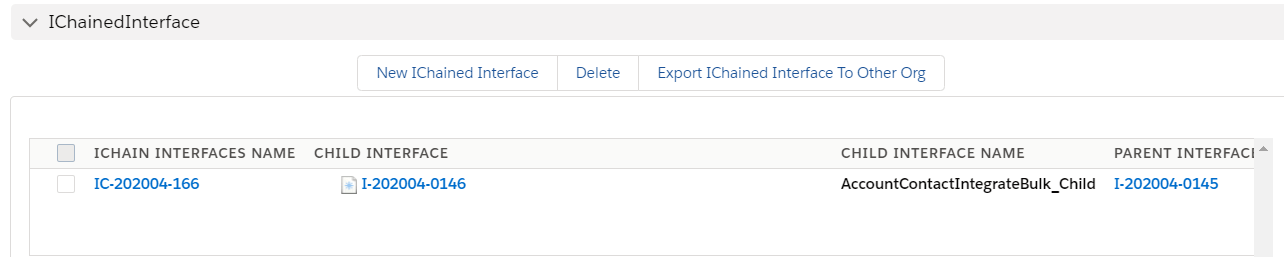
Add the foreign key in the child interface to link the Contact with Account.

Download the WSDL's from the classic mode to do further mapping in SAP PO.
Step 3 - Import WSDL into ESR First, we have to create a namespace in ESR like "urn:skyvva:ChainedInterface2Level". Now create an external definition under the namespace like below. Here the WSDL is for Account. So, we can give the name as "ED_Account_Contact"
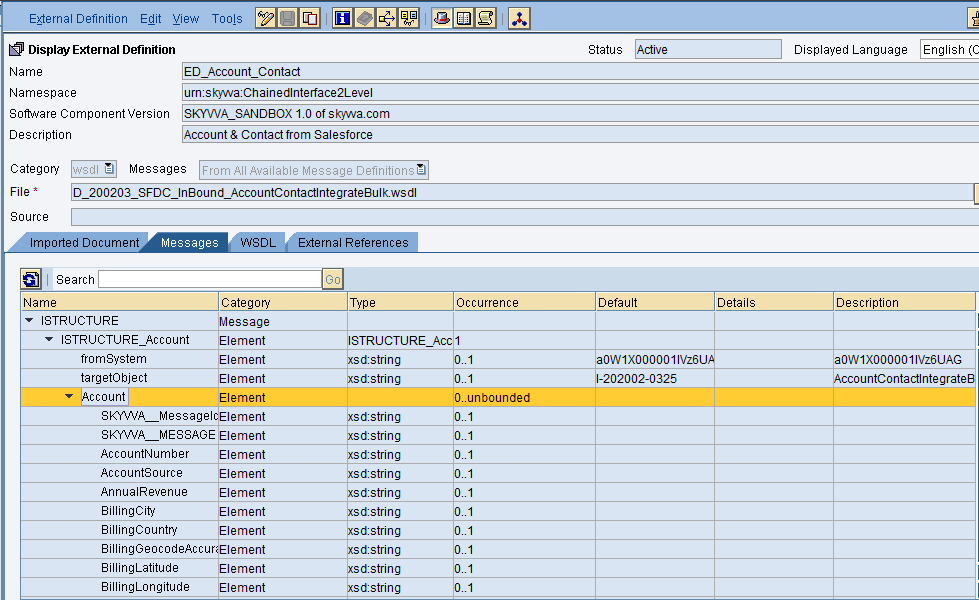
Import the WSDL and save and activate the external definition.
- Sender data type
Create sender data type as shown below

after creating the source data type click on save and activate.
- Source message type
Create the message type as shown below:

- Outbound Service Interface
Create an Outbound service interface, in that select category as outbound and select the respective message type.
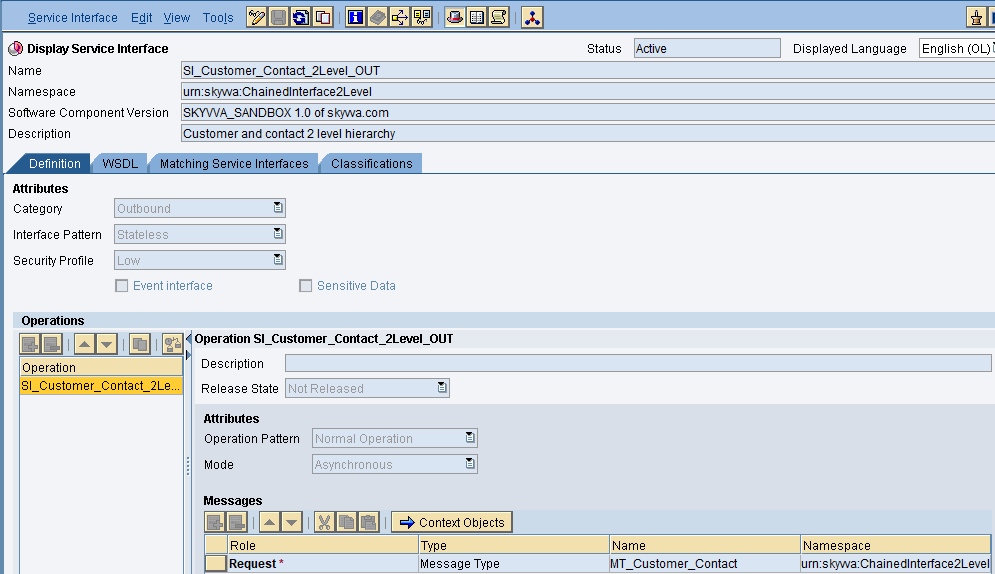
then save and activate the outbound service interface.
- Inbound Service Interface
Create an inbound service interface, in that select category as inbound and select the respective external definition.

Save and active the inbound service interface.
- Message Mapping
Create message mapping as shown below:

Insert the respective source and target structure and then do the mapping. Now save and activate the message mapping.
- Operation Mapping
Create Operation mapping as shown below

Select the respective outbound and inbound service interfaces and also the message mapping then save and activate the operation mapping.
Creation of Integrated Configuration Objects After creating the objects in ESR. We have to configure these objects in the integration directory. First, we have to create Configuration Scenario.

An Integration scenario has the following objects.
- Business System for Sender and Receiver
- Sender and Receiver Communication channel
- Integrated Configuration
These are the objects we should create. We have to define our business system e.g. for the SAP-Backend. For Salesforce you can use our proposal "Salesforce" as the business system. We have to import these business systems from SLD.
Configuring the Sender SOAP communication channel Create sender communication channel as shown below. Since we are using SOAP UI as a source. So, here we are using SOAP in the sender channel.
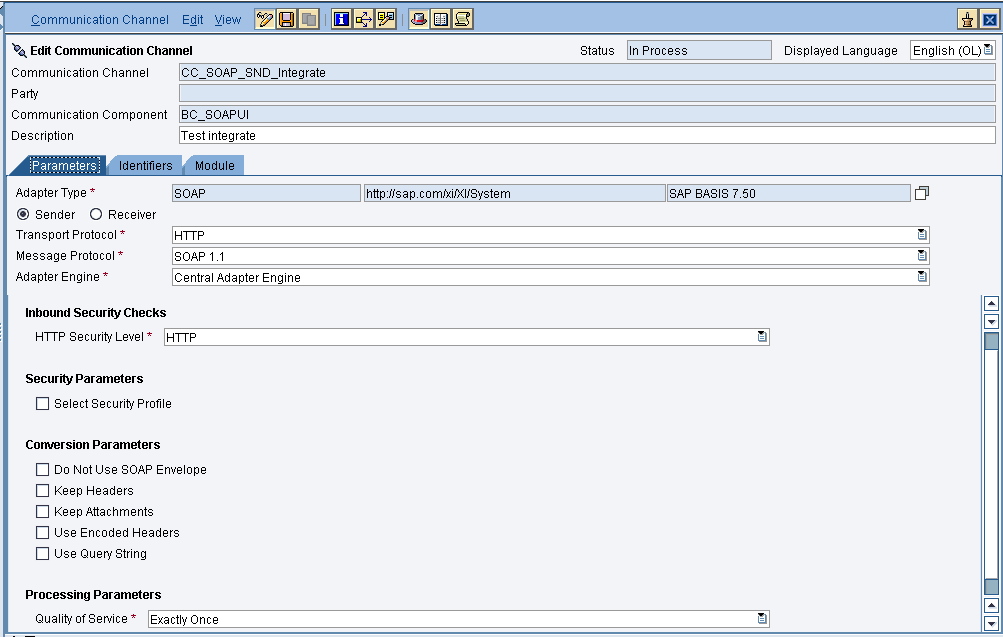
Provide the necessary details as shown and then save and activate the channel.
- Configuring the SOAP receiver channel
Configuration for Tab "General"

Specify the parameters as shown in the above screenshot. Below is the configuration for the "Advanced" Tab.
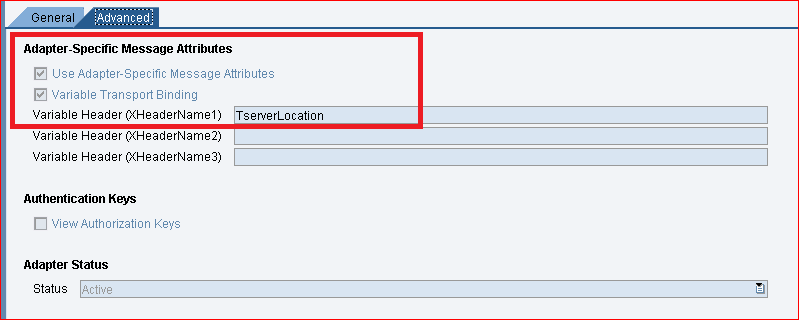
The value "TserverLocation" has to be entered for the parameter Variable Header (XHeaderName1). Below are the settings for Tab "Module". Here, the SKYVVA module containing the logic for session handling must be specified.


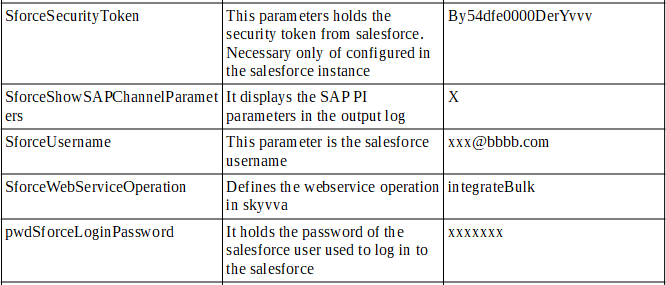
Configuration of module parameters are described in detail below
- SKYVVA Module Parameters


Integrated Configuration Create integrated configuration objects as shown below. Enter the required data e.g. the Communication Component, Interface and Namespace and then click on create button to create an ICO. Now go through the tabs from left to right to configure the relevant objects. In this first tab “Inbound Processing” here we have to specify the sender communication channel.
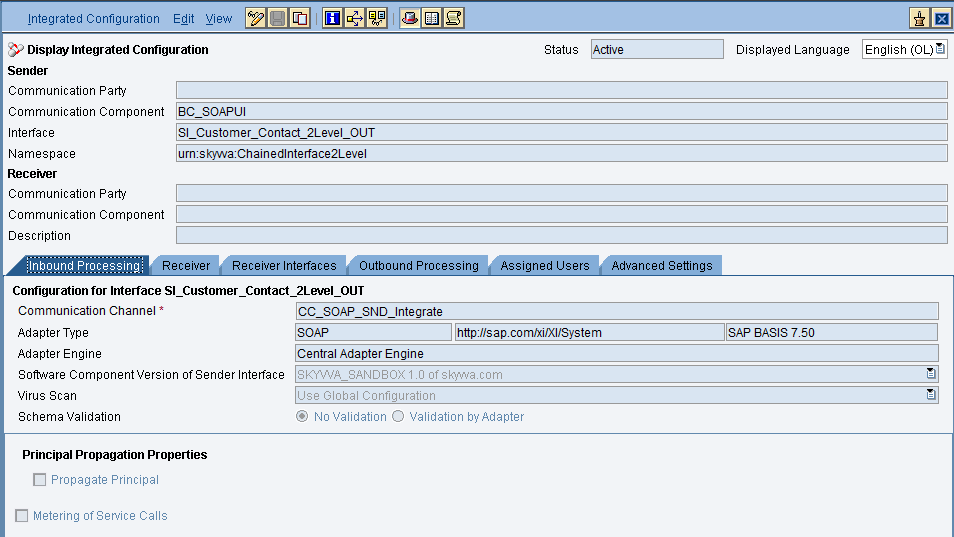
Here in the “Receiver” tab, we have to specify the receiver business system.

In Receiver interfaces tab specify the operation mapping.

In the “outbound processing” tab, we have to specify the receiver channel.

- Test the Inbound Interface.
Triggering the data from the Source system. Now we have to check the result in Bulk Control board as shown below.

Here we have to select the Bulk interface then click on search.
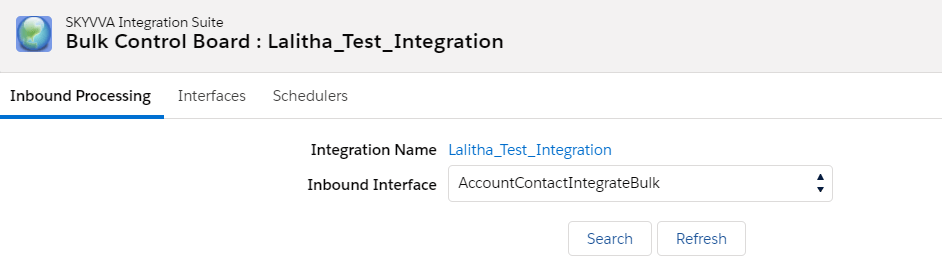
We have a scheduler to schedule the jobs during a particular time intervals.

Bulk data inbox. We can process the files manually with the Process Bulk Attachment button as shown

In the below section we can see the processed files.

Now the message processing completed. We can see the messages in message monitor.

Click on related to to view the record

Here is the data which we sent from the source system.
