1. How to create an outbound synchronous interface in SAP PI/PO using SKYVVA SAP PI/PO Adapter using SOAP Protocol?
This document describes how to create an outbound Synchronous interface in SAP PO with SKYVVA SAP PI/PO Adapter For SOAP V3 we have to create the message type in skyvva as explained below. SOAP V3 message type template: We use a standard message type template for SOAP Adapter { "Google SOAP Service": { //Type: WSDL Service "Request": { //Type: WSDL Request "HTTP Header": {//Type: HTTP Header }, "URL Query Parameter": { //Type: WSDL URL Query Parameter }, "SOAP Header": {//Type: WSDL Header "SessionHeader": { "SessionId": "" } }, "SOAP Body": {//Type: WSDL Body "Quote_Sync_Out": {//Type: Plain Structure "Quote_Header_Request": {//Type: Plain Structure "skyvvasolutions__SAP_Requested_Delivery_Date__c": "", "skyvvasolutions__SAP_Sales_Org__c": "", "skyvvasolutions__SAP_Distribution_Channel__c": "", "skyvvasolutions__SAP_Division__c": "", "skyvvasolutions__SAP_Group__c": "", "Id": "", "Name": "", "OpportunityId": "", "skyvvasolutions__SAP_Offer_Valid_To__c": "", "skyvvasolutions__SAP_Offer_valid_from__c": "", "QuoteLineItem": { "LineNumber": "", "Quantity": "", "skyvvasolutions__SAP_Material_Number__c": "", "skyvvasolutions__SAP_Customer_Number__c": "" } } } } }, "Response": {//Type: WSDL Response "Envelope": {//Type: Plain Structure "Header": {//Type: WSDL Header }, "Body": {//Type: WSDL Body "Quote_IN": {//Type: Plain Structure "Quote": {//Type: Plain Strucuture "Name": "", "Id": "", "OpportunityId": "", "skyvvasolutions__SAP_Quote_ID__c": "", "Status": "", "QuoteNumber": "", "QuoteLineItem": { "Id":"", "Quantity": "", "QuoteId": "", "skyvvasolutions__SAP_Material_Number__c": "", "skyvvasolutions__SAP_Quote_Line_ID__c": "", "OpportunityLineItemId": "" } } } } } } } } Note: For SOAP Adapter we have to use soap template. So here we have soap envelope structure and root has to be Envelope in the response interface but the Envelope is not Salesforce field name. So we cannot use external mapping in the inbound response interface with SOAP Adapter.
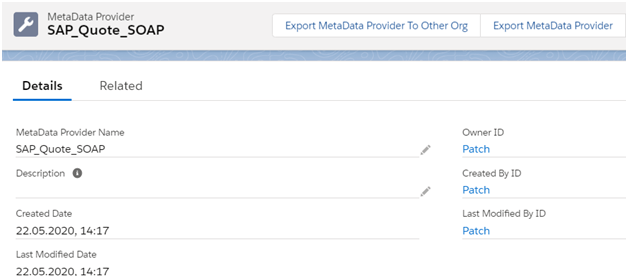
Initially we have to create Metadata Provider.
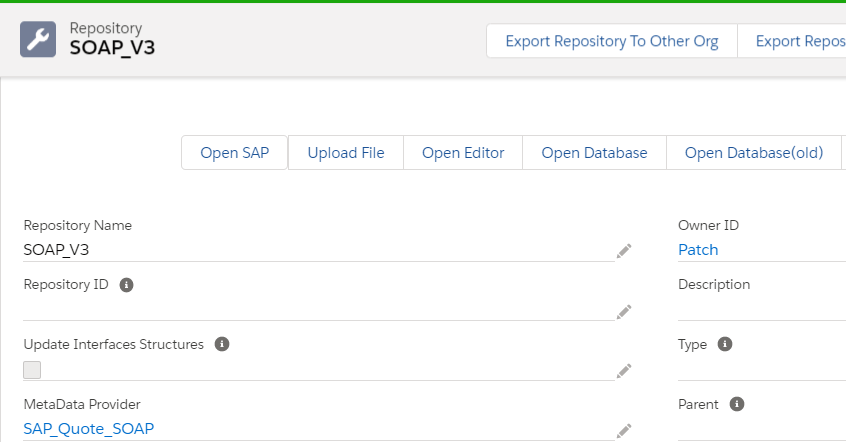
Now create Istructure repository
Now create Message type for hierarchical request and response

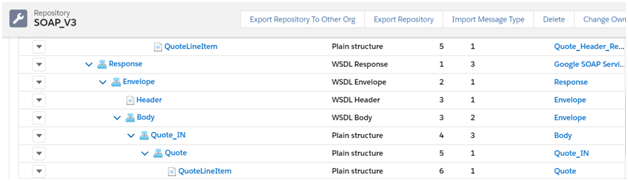
Now we have to use the message type in both request and response interface. For SOAP V3 we can generate the Business message type from Repository Click on Repository
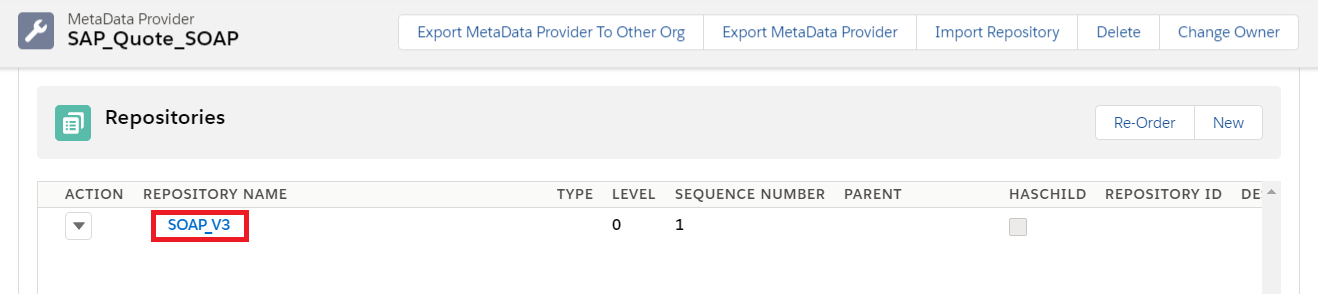
Select "Export Metadata"

Select the message type name and then the type should be XSD.

Now click on Export The downloaded file looks like below

The XSD looks like below after import it into SAP PO. It contains only the business message type.
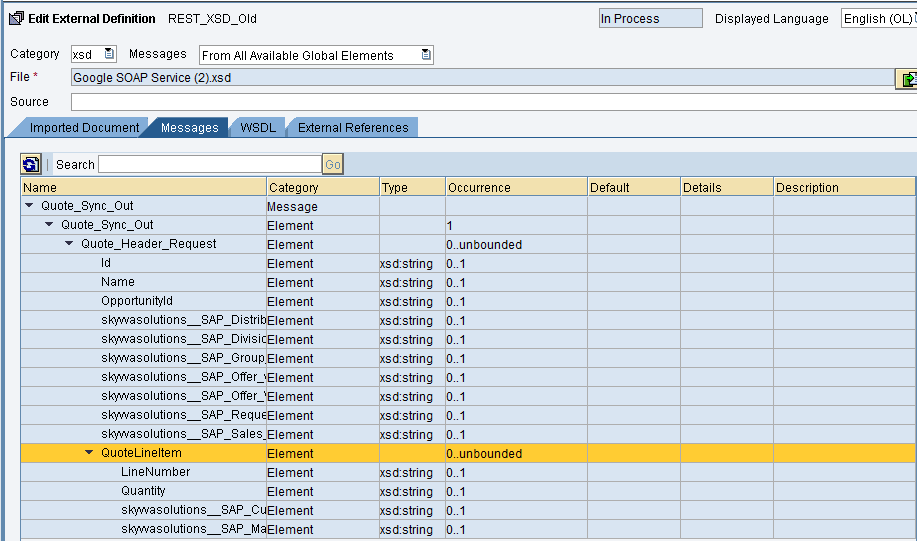
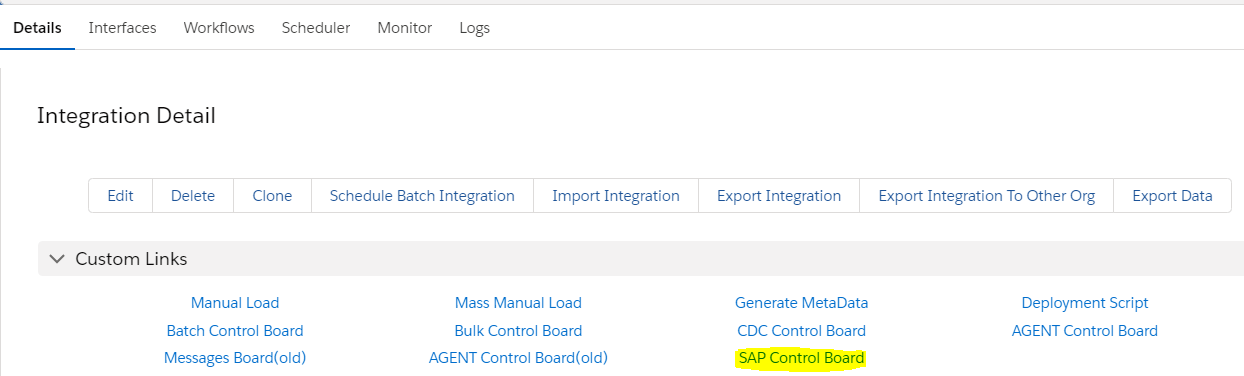
We can download the response interface XSD directly from the interface details tab. But we recommend to use WSDL for Synchronous interface. Here in V3 we have feature like the WSDL contains both request and response interface structure. Creation of Outbound Skyvva SAP PI/PO adapter: Provide the details as shown below To create SAP PI/PO Adapter we have to go to Integration details tab and then select "SAP Control board" as shown
Select Adapter tab and then click on new to create Adapter

Provide the details as shown below:
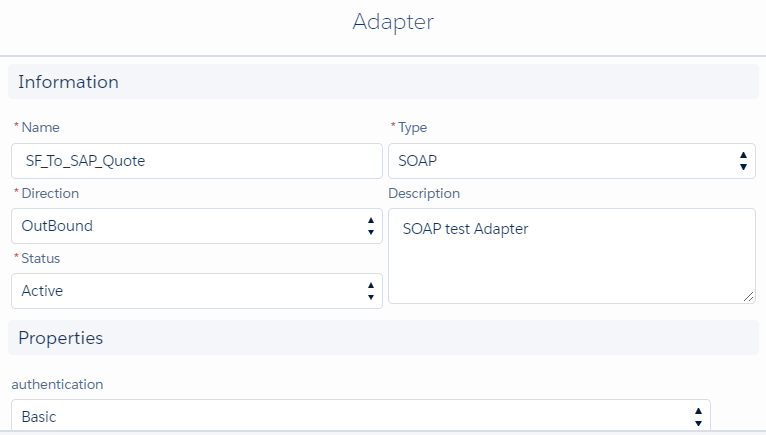
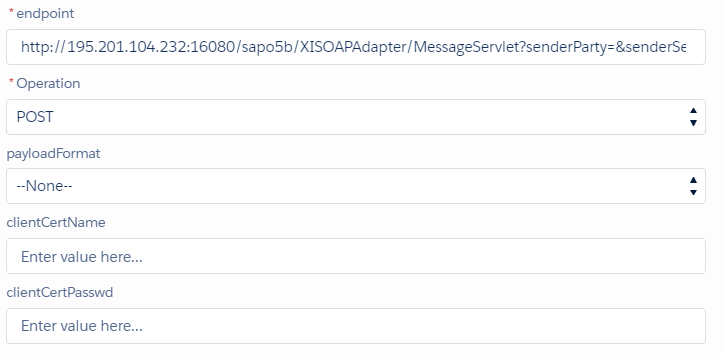
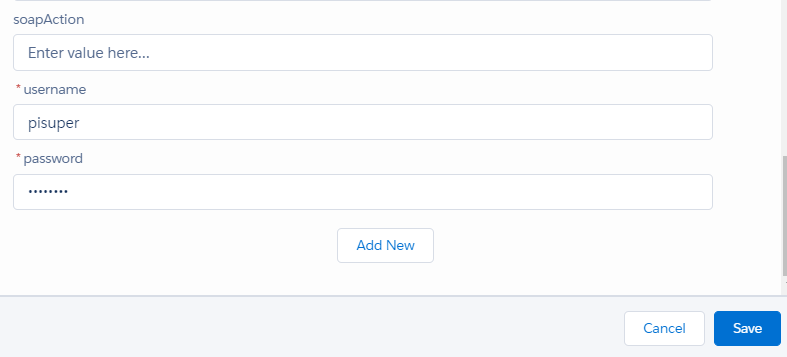
Use this adapter in the outbound request interface. In this example, I have created the interface under "SOAPV3"
- Create Outbound request interface
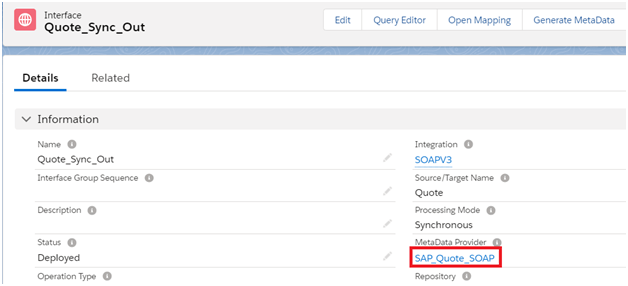

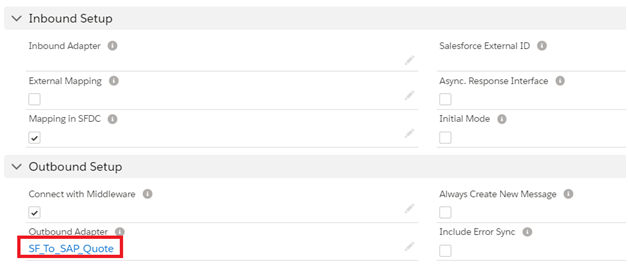

If we use the message type defined in skyvva then we have to do mapping in skyvva as shown.

Now save the mapping and the outbound interface.
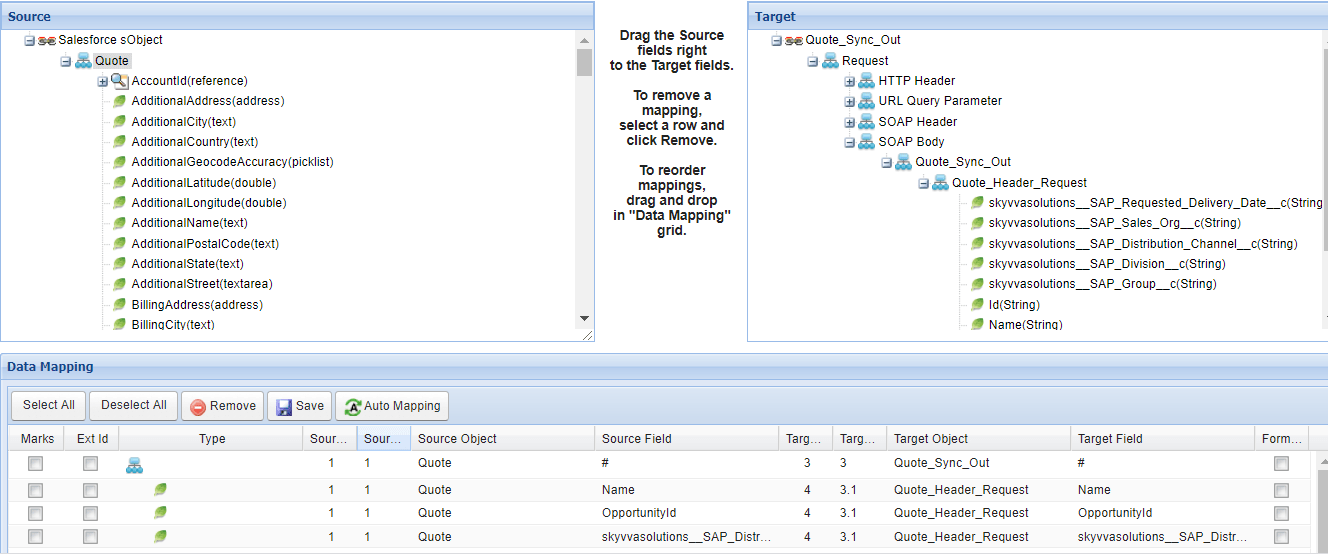


- Create an inbound response interface

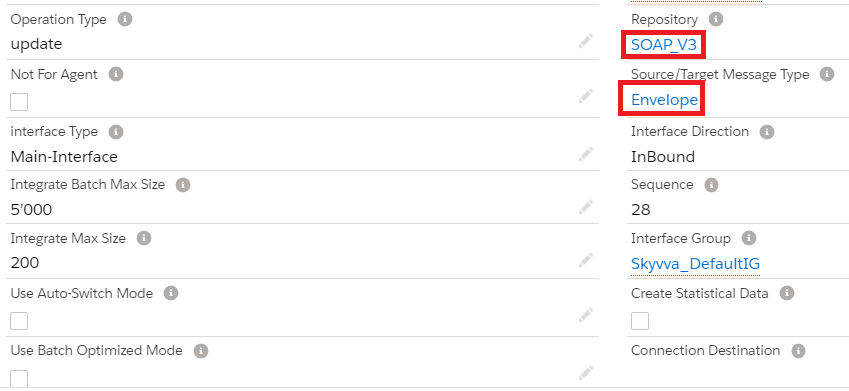
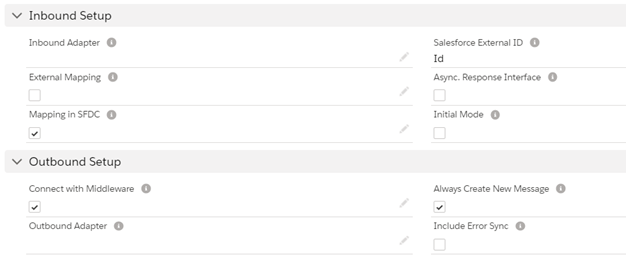
Do the mapping for inbound response interface
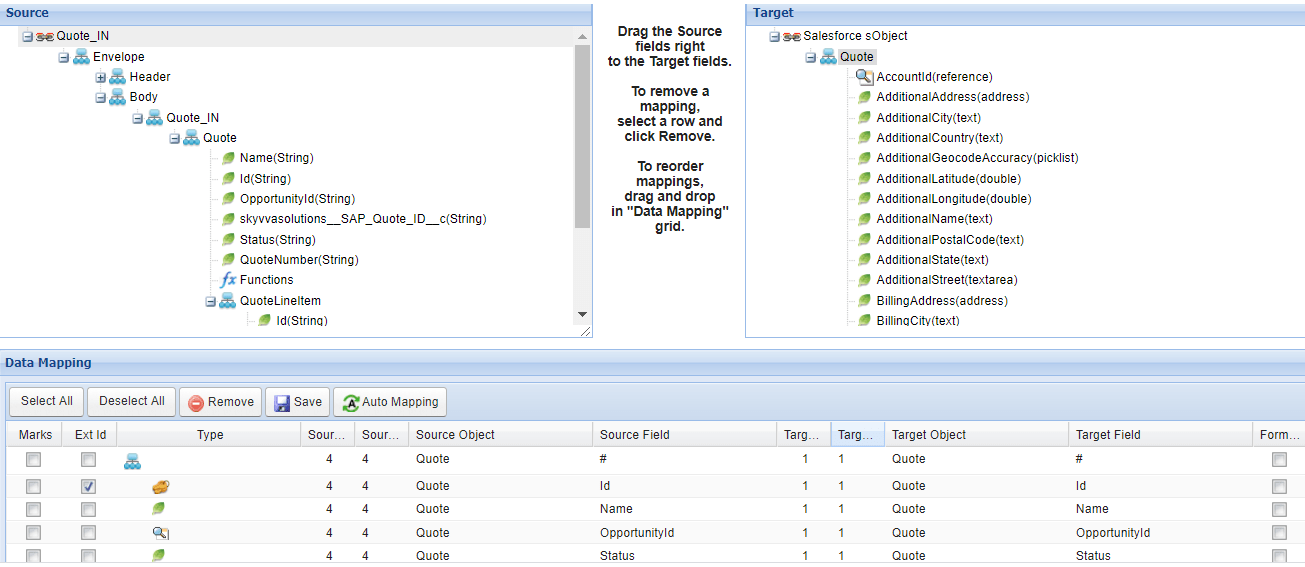

Save the mapping and the inbound response interface. In the outbound interface add the inbound response interface as shown below.

Download the inbound and outbound interface XSD's and upload it into SAP PO for mapping.
Create external definition for outbound and inbound interfaces in SAP PO Outbound External definition:

Import the WSDL and Save and activate it. Inbound External Definition: In synchronous inbound response interface we don't need Integration and Interface in the WSDL Structure.
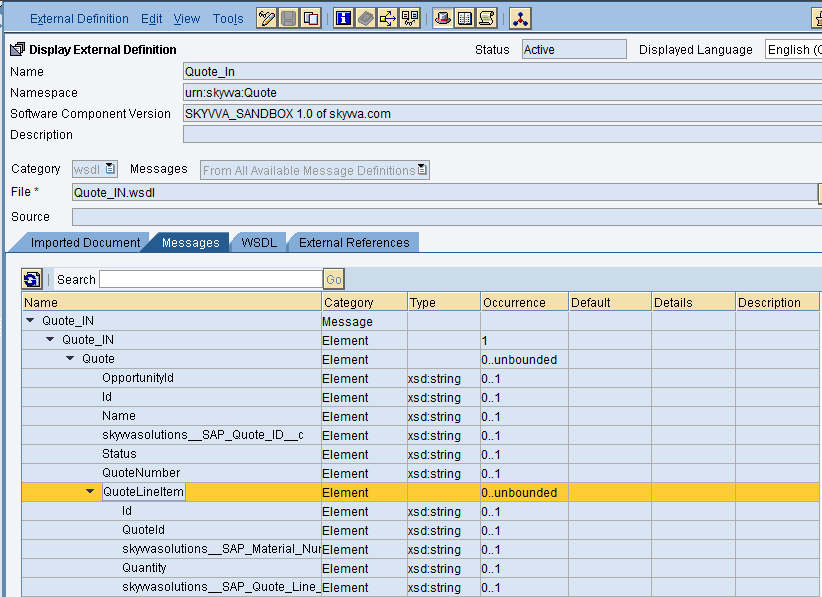
It’s a Salesforce to SAP outbound interface sending quote information to SAP. SAP side we are using RFC. So no need to create data type, message type and service interface for the target side. Create Outbound Service interface:

Provide the necessary details as shown and then save and activate it.
- Message mapping
Create request and response message mapping as shown below. Request Mapping - Select the Source structure and target structure and complete the mapping.

Response Mapping -
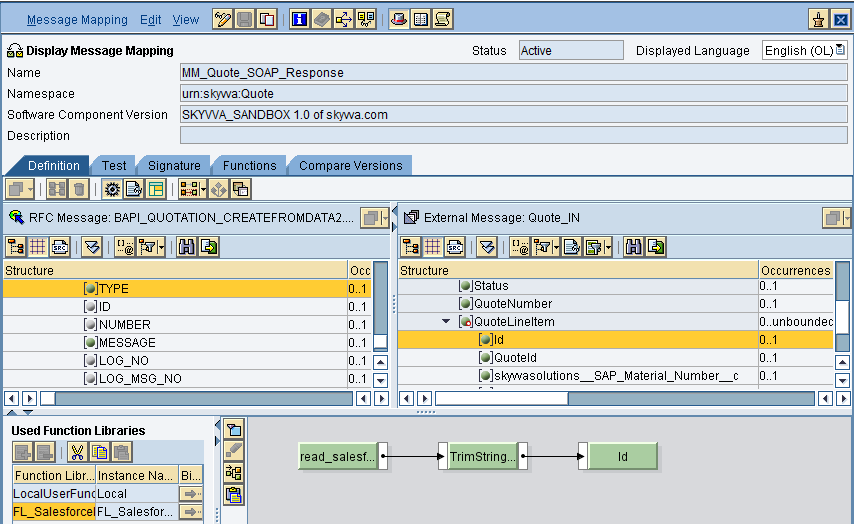
Now save and activate both the mappings
- Operation Mapping
Create Operation mapping as shown below. Now select the inbound and outbound service interfaces and the respective request and response mappings. This is for request mapping

Response Mapping
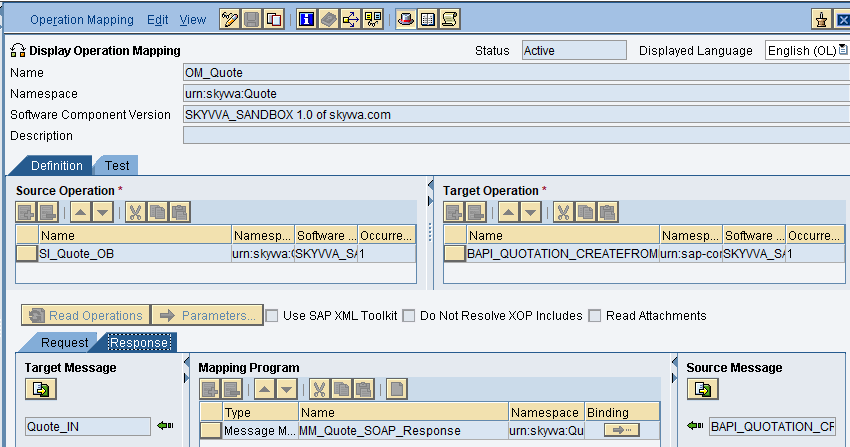
Then save and activate the operation mapping.
- Creation of Integrated Configuration Objects
After creating the objects in ESR. We have to configure these objects in the integration directory. First, we have to create Configuration Scenario. An Integration scenario has the following objects.
- Business System for Sender and Receiver
- Sender and Receiver Communication channel
- Integrated Configuration

These are the objects we should create. We have to define our business system e.g. for the SAP-Backend. For Salesforce you can use our proposal "Salesforce" as the business system. We have to import these business systems from SLD.
- Configuring the Sender SOAP communication channel
Create sender communication channel as shown below. We are using SOAP adapter in the sender channel
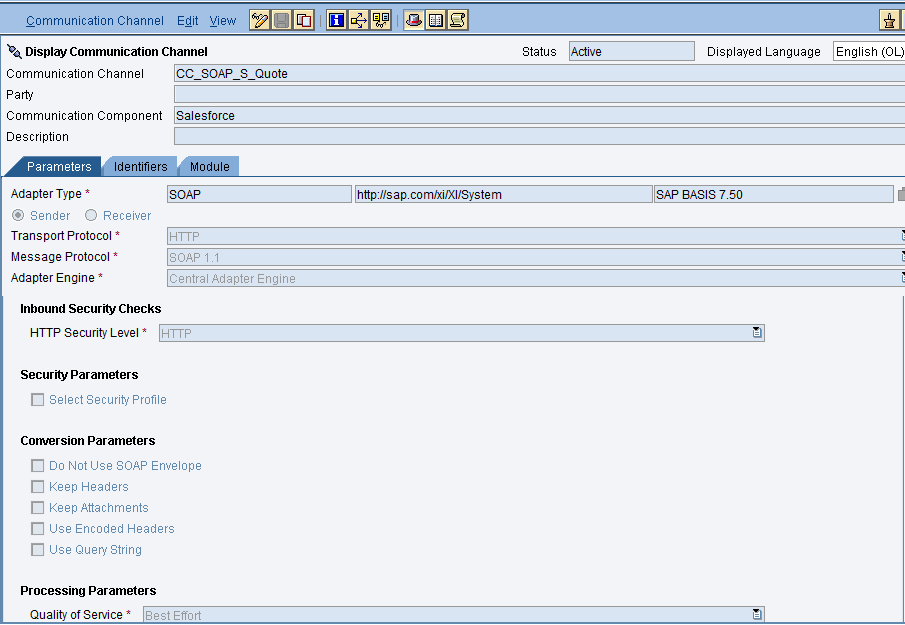
Provide the necessary details. After that save and activate the channel.
- Configuring the RFC receiver channel
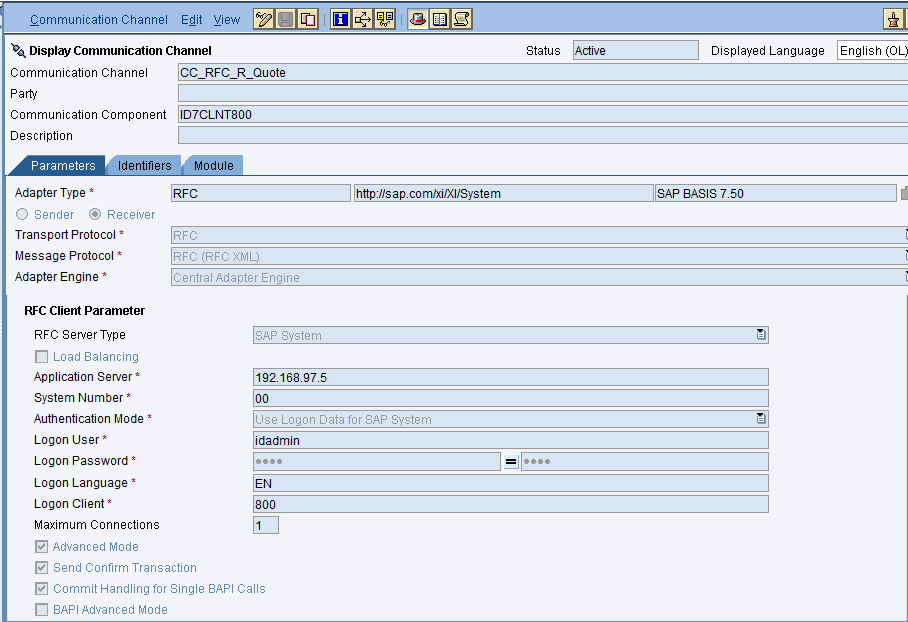
- Integrated Configuration
Create integrated configuration objects as shown below. Enter the required data e.g. the Communication Component, Interface and Namespace and then click on create button to create an ICO. Now go through the tabs from left to right to configure the relevant objects. In this first tab "Inbound Processing" here we have to specify the sender communication channel.

Here in the "Receiver" tab, we have to specify the receiver business system.

In Receiver interfaces tab specify the operation mapping.
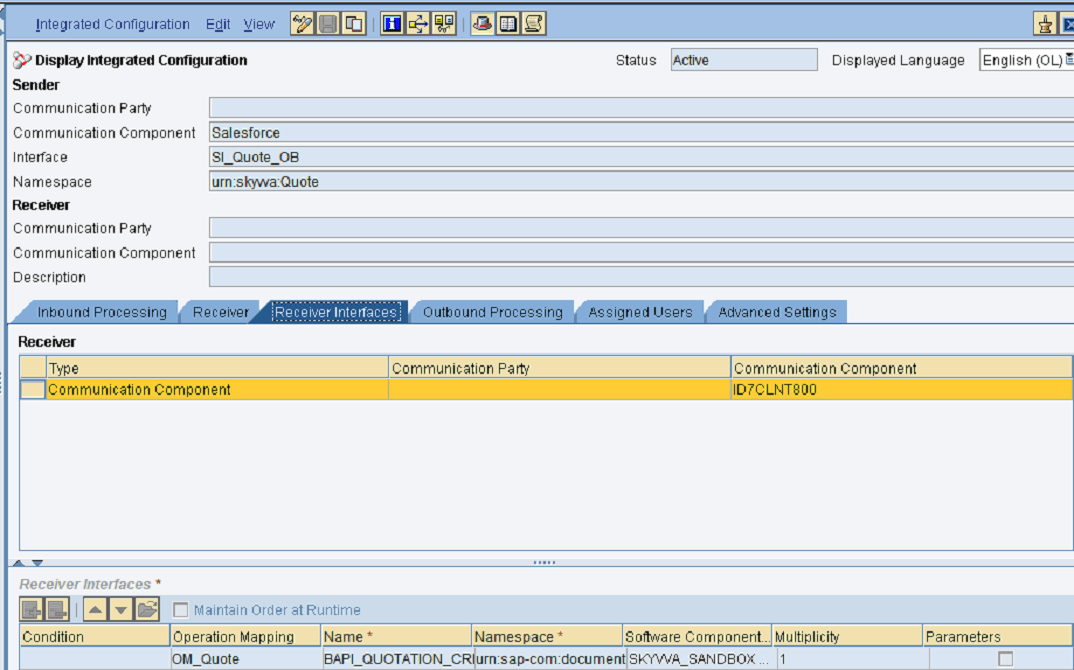
In the "outbound processing" tab, we have to specify the receiver channel.
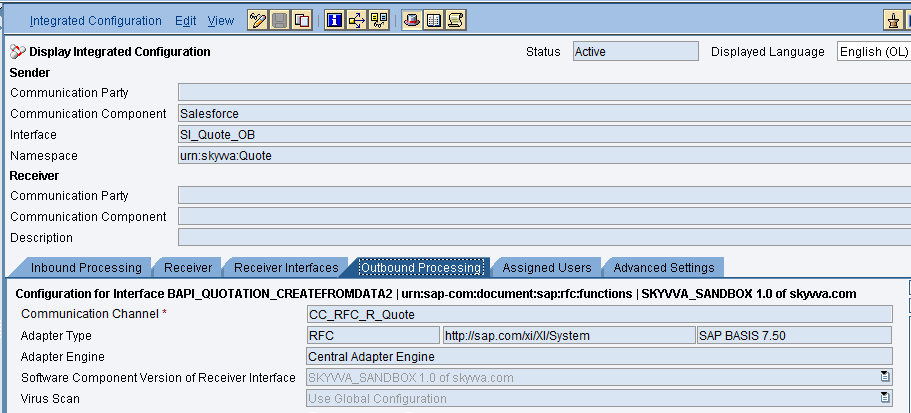
- Testing the Outbound synchronous Interface.
Callout from skyvva from developer console using the below apex code skyvvasolutions.CallOutControl c=new skyvvasolutions.CallOutControl(); c.returnXml=true; c.returnListRecord=true; c.isCreateMessage=true; c.actionDoIntegrate=true; String[] ids=new String[]{'0Q03N000000HZYbSAO'}; skyvvasolutions.Iservices.invokeCalloutV3('SOAPV3','Quote_Sync_Out',ids,'SYNC', c);
We can see the message status in the message monitor

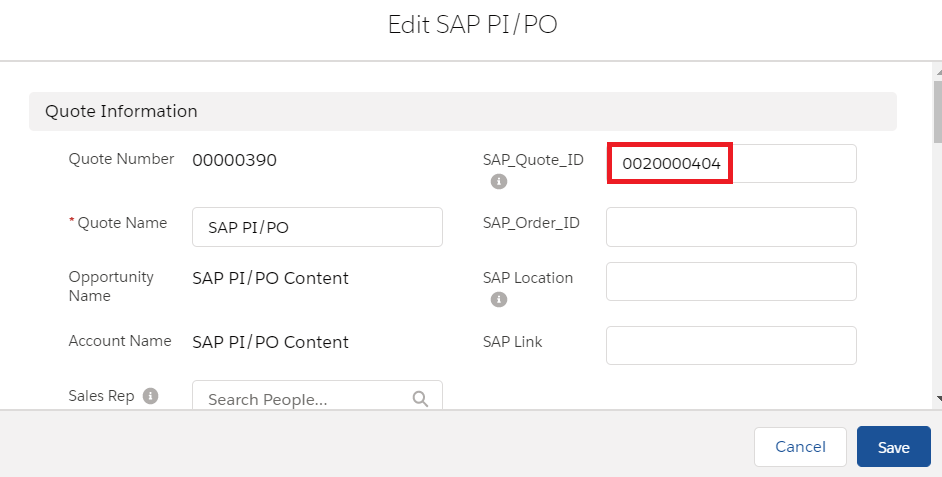
Quote Id is updated in salesforce