1. How to send an acknowledgement from SKYVVA to SAP?
This document explains us about how to get an acknowledgement from SKYVVA after we have sent message to SKYVVA. The process starts from SAP where with the inbound interface message is send asynchronously to SKYVVA. Then SKYVVA will send to SAP an acknowledgement using for example IDOC Number. When SAP send the inbound message to SKYVVA it will send the IDOC Number. This IDOC number has to send back in the acknowledgment message. If the SAP IDOC number is not sent back with the acknowledgement message from SKYVVA then the correlation on SAP side cannot be done. Figure below depicts the actual flow of the message. The flow starts from SAP to Salesforce and we get the acknowledgement from Salesforce to SAP.
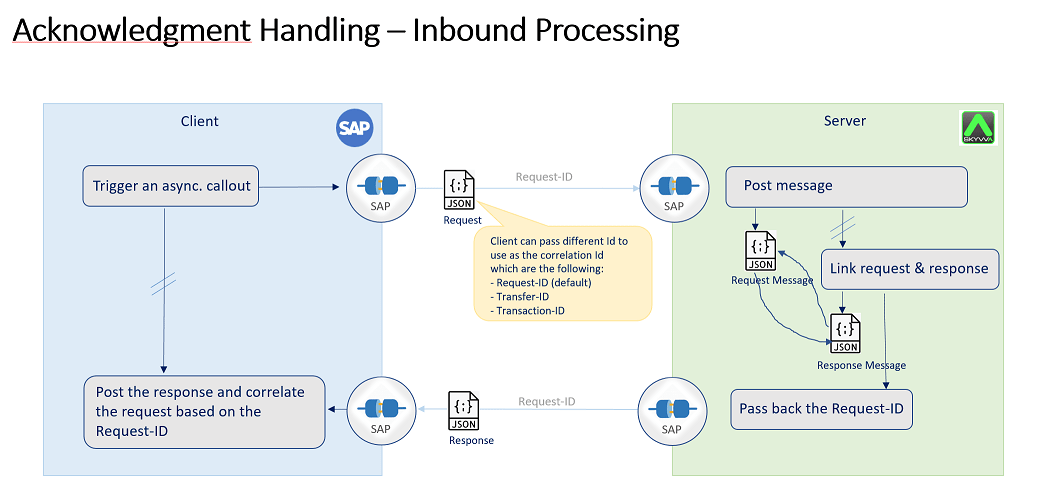
Steps needs to be done in Skyvva
- Create Asynchronous Request Inbound Interface
- Create Asynchronous Response outbound Interface to send the acknowledgement to SAP.
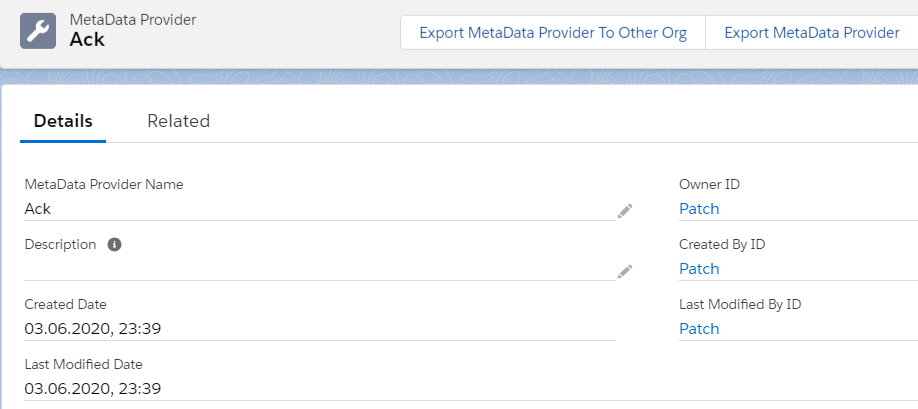
Acknowledgment handling works only with Skyvva message type. Create Metadata Provider:
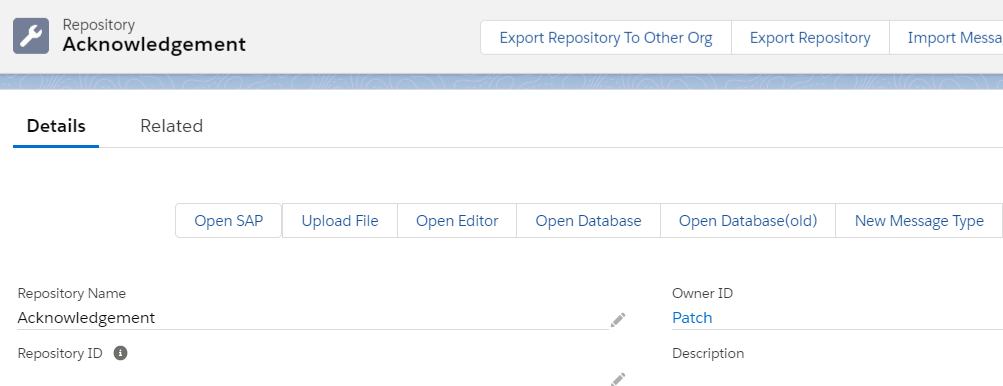
Create IStructure Repository:
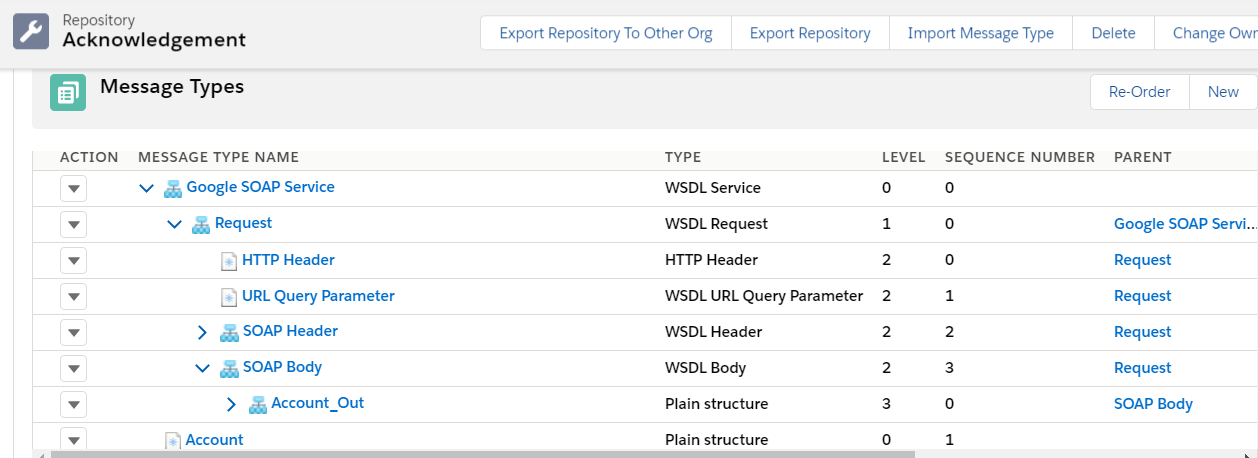
Create Message type: In this example I am using SOAP V3 adapter. So, I am using soap template message type for Outbound response interface. For Inbound we can use normal message type as shown. { "Google SOAP Service": { "Request": { "HTTP Header": { }, "URL Query Parameter": { }, "SOAP Header": { "SessionHeader": { "SessionId": "" } }, "SOAP Body": { "Account_Out": { "Account": { "skyvvasolutions__STATUS__c": "", "skyvvasolutions__DOCNUM__c": "", "skyvvasolutions__SAP_Customer_ID__c": "" } } } } } } { "Account": { "BillingCity": "", "skyvvasolutions__SAP_Customer_ID__c": "", "Phone": "", "Name": "", "BillingCountry": "", "BillingPostalCode": "", "BillingState": "", "BillingStreet": "", "Fax": "", "Industry": "" } } }
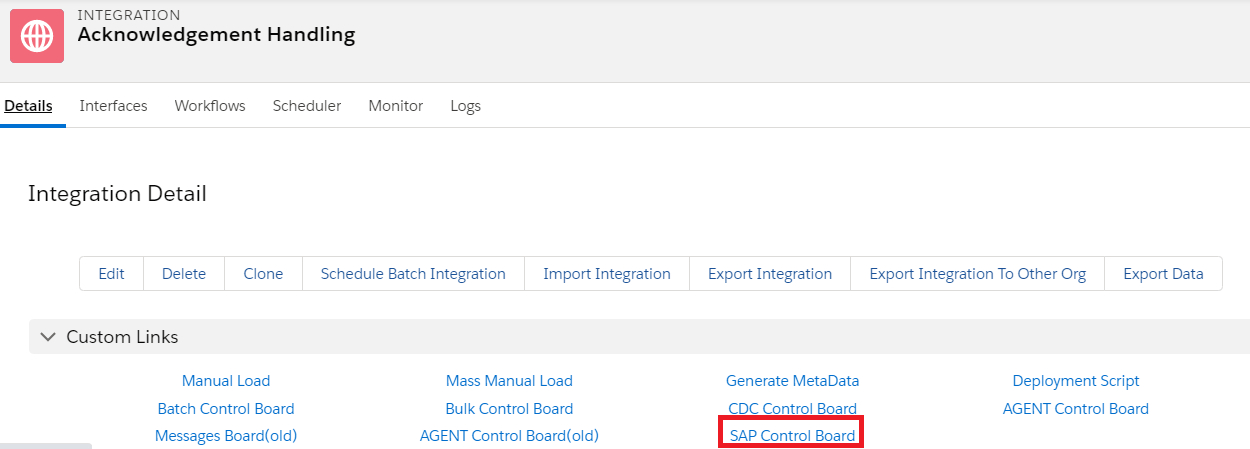
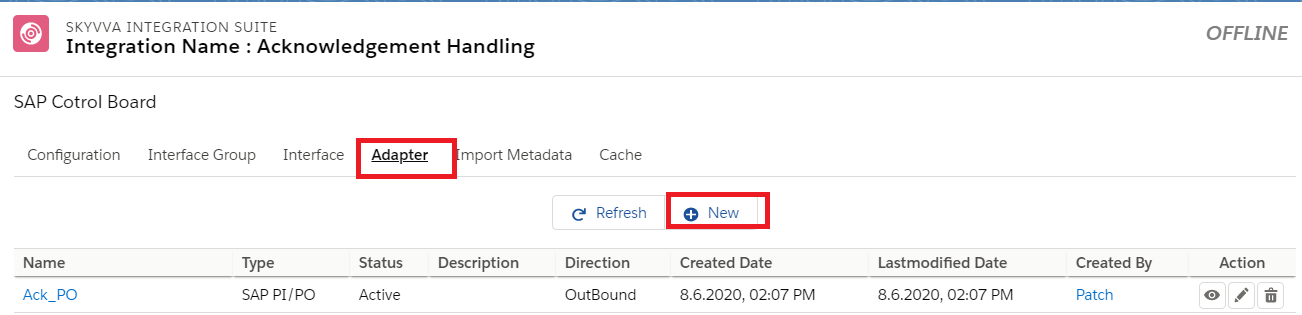
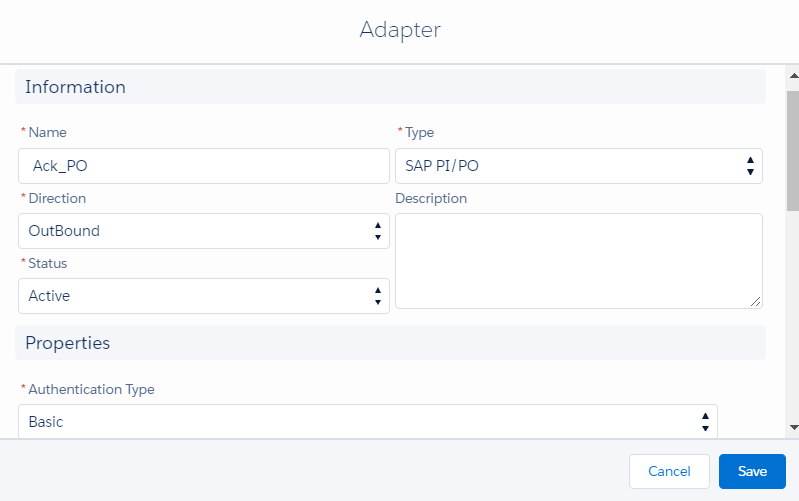
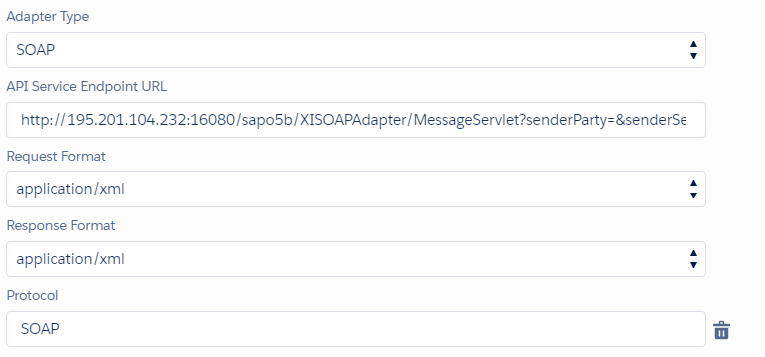
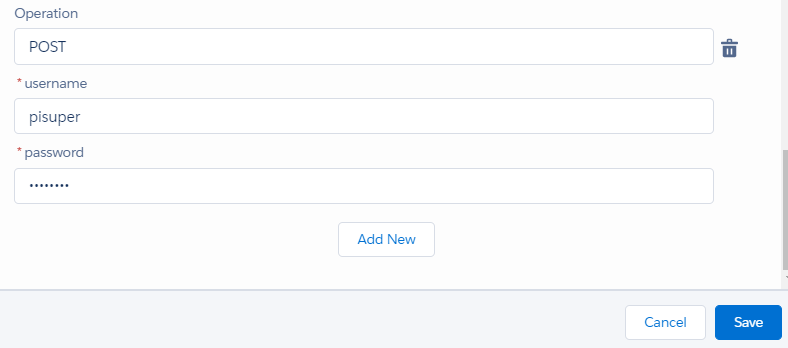
Creating new a SAP PI/PO Adapter with adapter type SOAP for outbound call: For this we need to go to Integration details tab and select SAP Control board
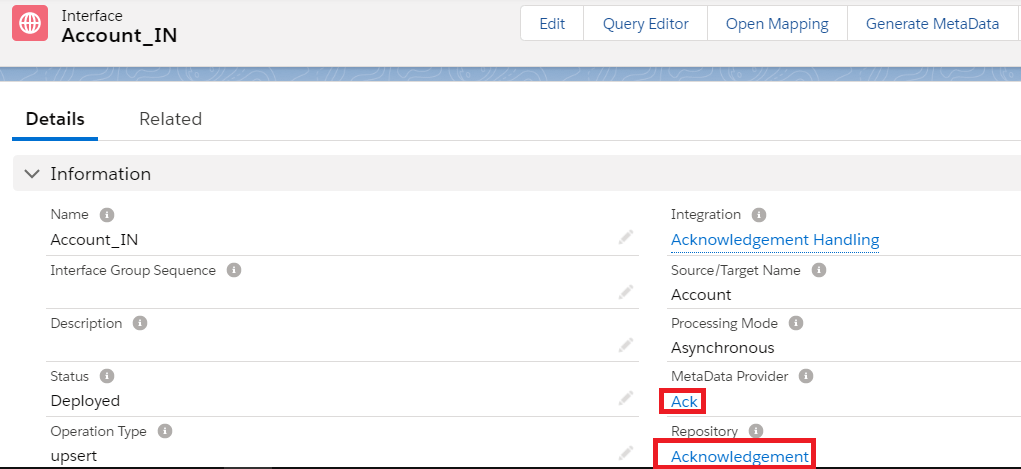
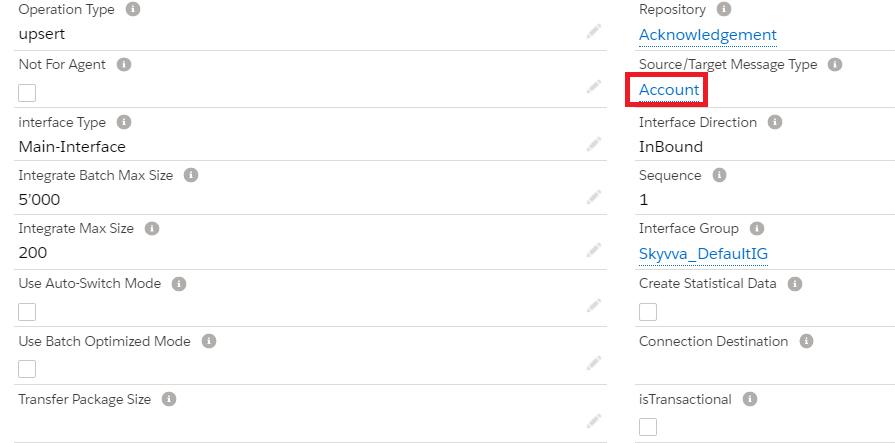
Inbound Request Interface - In this example i am creating the interfaces under "Acknowledgement Handling" Integration


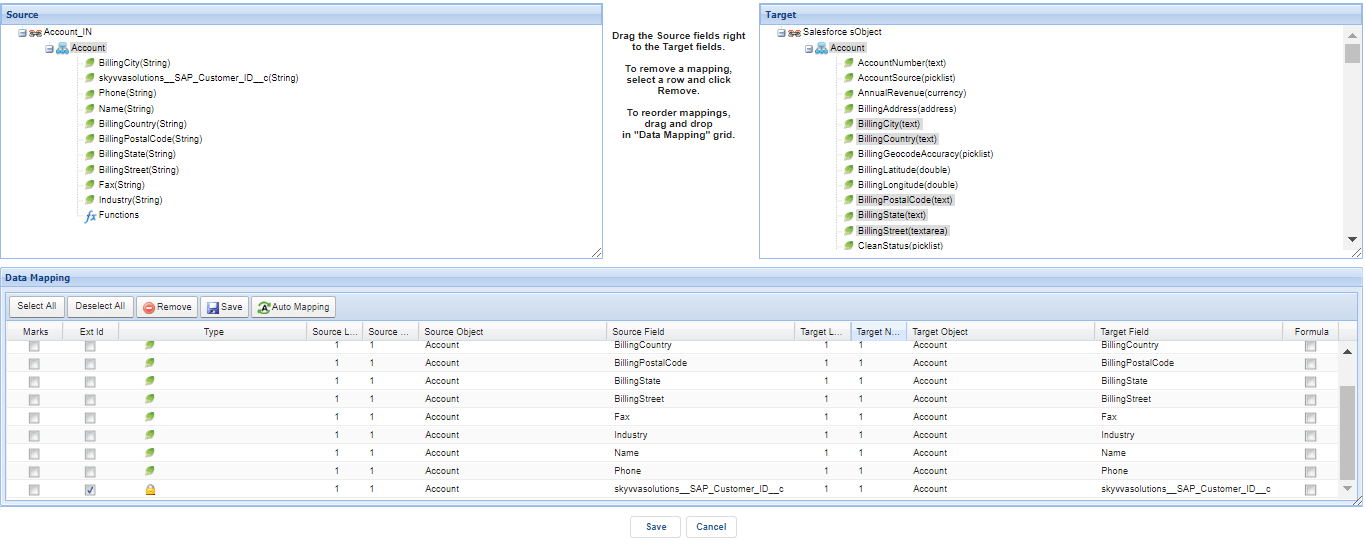
Do the mapping as shown below
Create Outbound Response Interface:
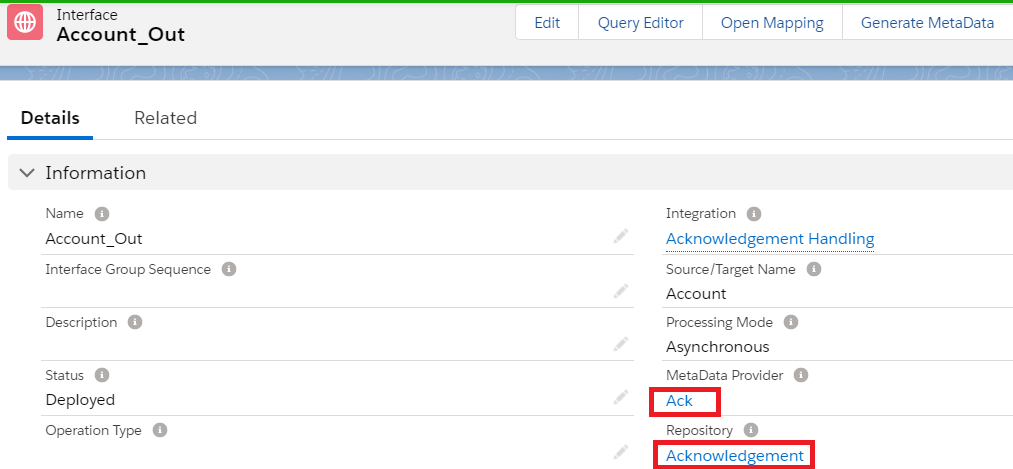
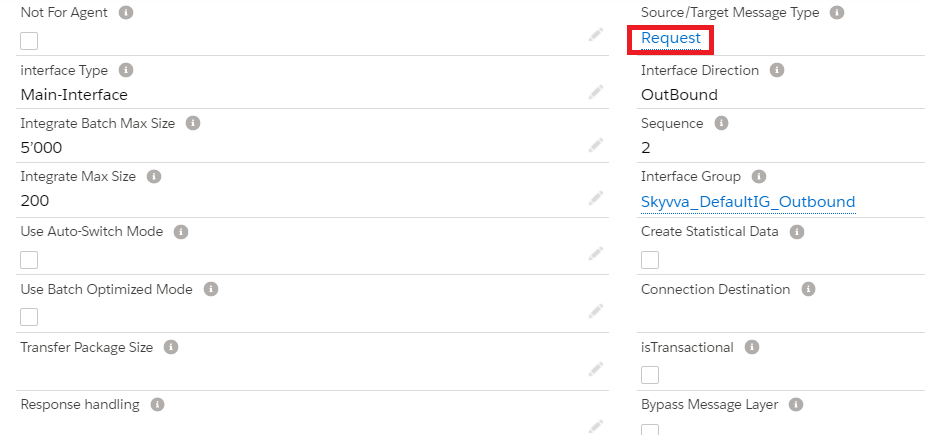
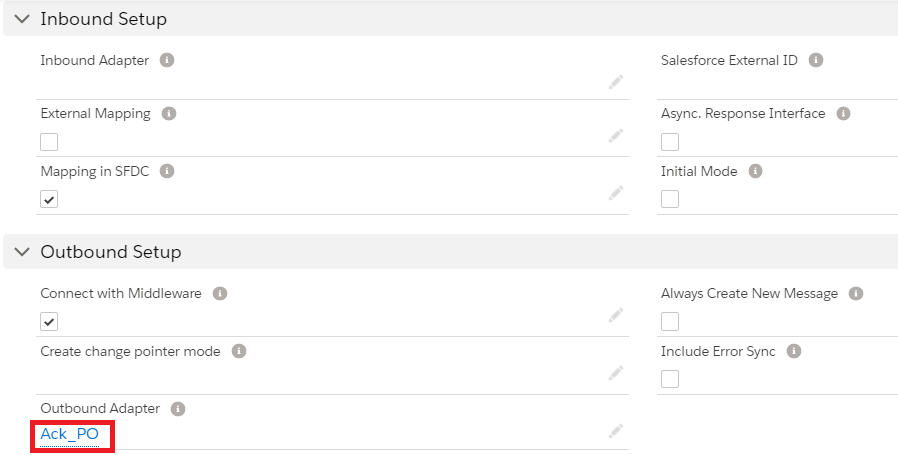

Do the mapping as shown
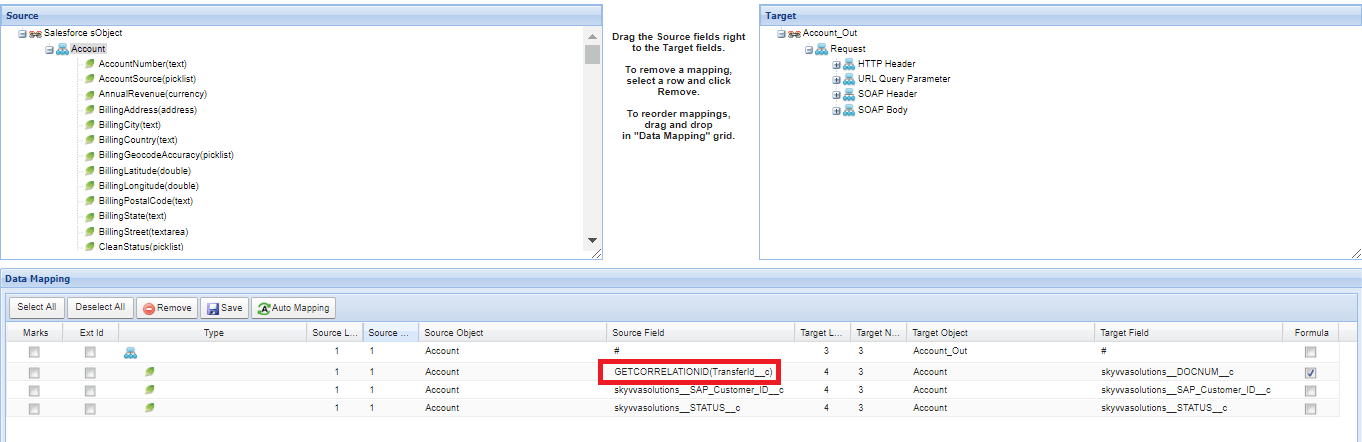
With SAP PO Acknowledgment we only use TransferId__c as the Correlation Id. It is hardcoded in Skyvva connector module. Download the inbound and outbound interface WSDL's to import to SAP PO for mapping. In SAP PI/PO we need to create two Asynchronous interfaces One for Request from SAP to Skyvva and one for the response from Skyvva to SAP Request Interface(SAP to Salesforce) Import WSDL into ESR First, we have to create a namespace in ESR like "http://DEBMAS07_to_AccountUpdate". Now create an external definition under the namespace like below. Here the WSDL is for Account. So, we can give the name as ED_Ack_IN
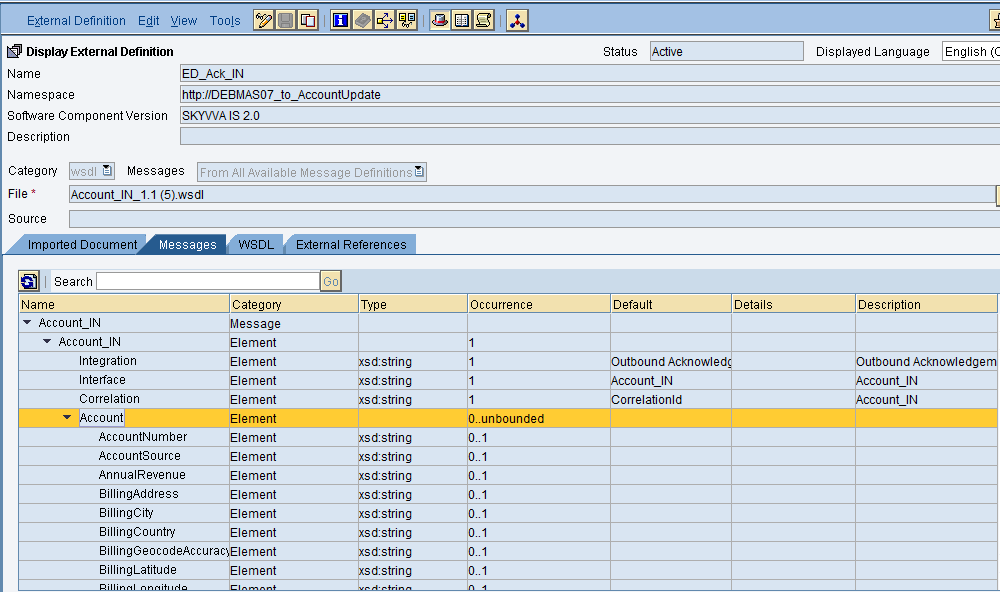
We have to add the Correlation field into WSDL manually
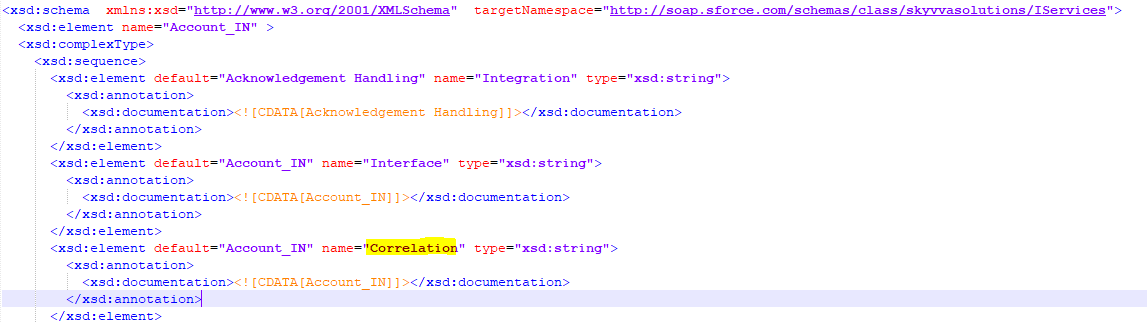
As we are using this field as a correlationId(TransferId__c) Now import the WSDL and Save and activate it. No need to create Datatype, Messagetype and Service Interface for Sender system SAP as we are using IDOC as a source.
Service Interface Create service interface
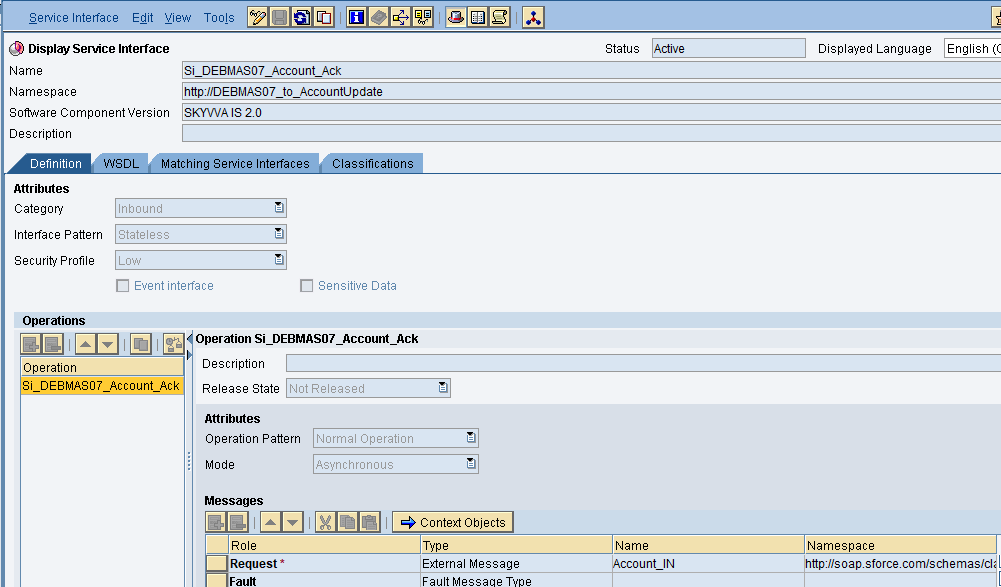
Now click on Save and activate it. Message mapping
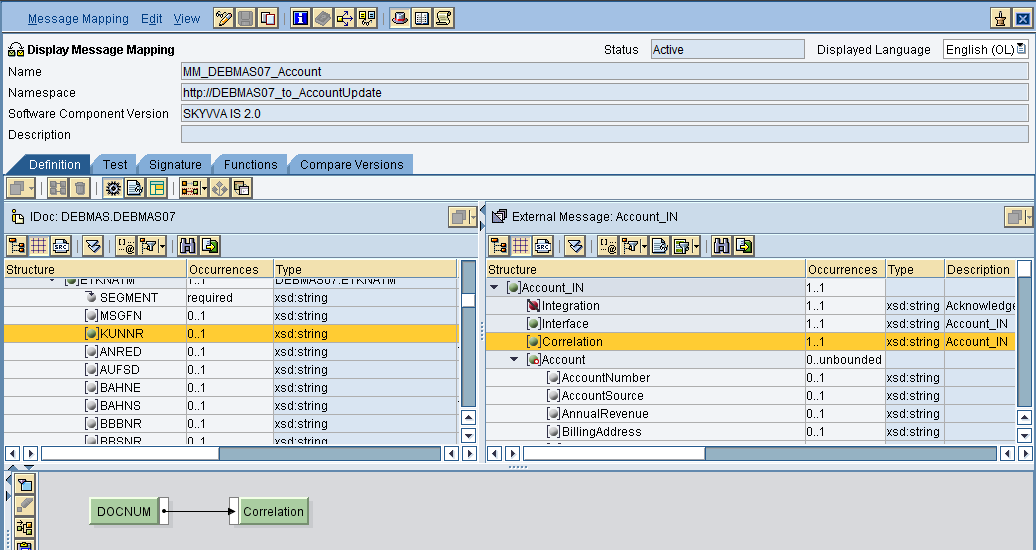
As we are sending the IDOC number as CorrelationId to Skyvva Do the respective mapping and save and activate it.
Operation Mapping for asynchronous inbound interface Create Operation mapping.
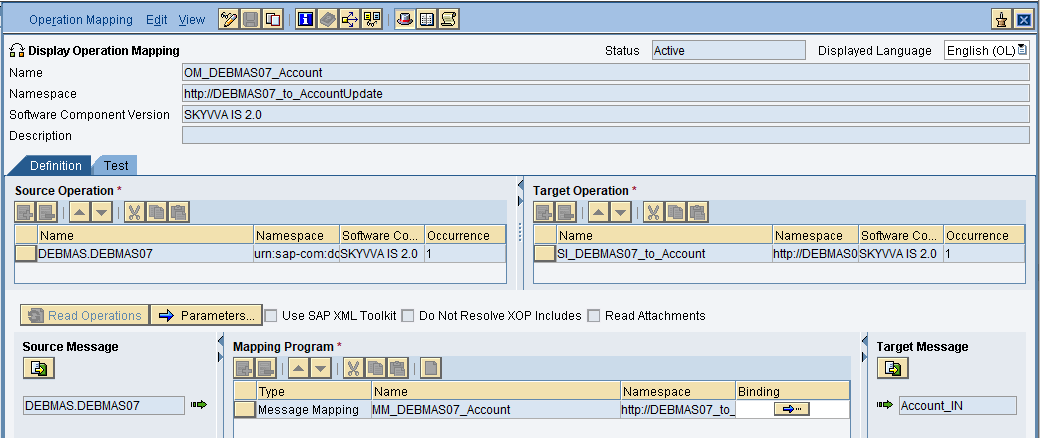
Then save and activate the operation mapping. Creation of Integrated Configuration Objects After creating the objects in ESR. We have to configure these objects in the integration directory. First, we have to create Configuration Scenario.Now enter the name of the scenario, description and choose a folder if you have created then press on create button. An Integration scenario has the following objects.
- Business System for Sender and Receiver
- Sender and Receiver Communication channel
- Integrated Configuration

These are the objects we should create. We have to define our business system e.g. for the SAP-Backend. For Salesforce you can use our proposal "Salesforce" as the business system. We have to import these business systems from SLD. Configuring the Sender Idoc communication channel Create sender communication channel as shown below. Since we are using an IDOC as a source. So, here we are using IDoc adapter in the sender channel.
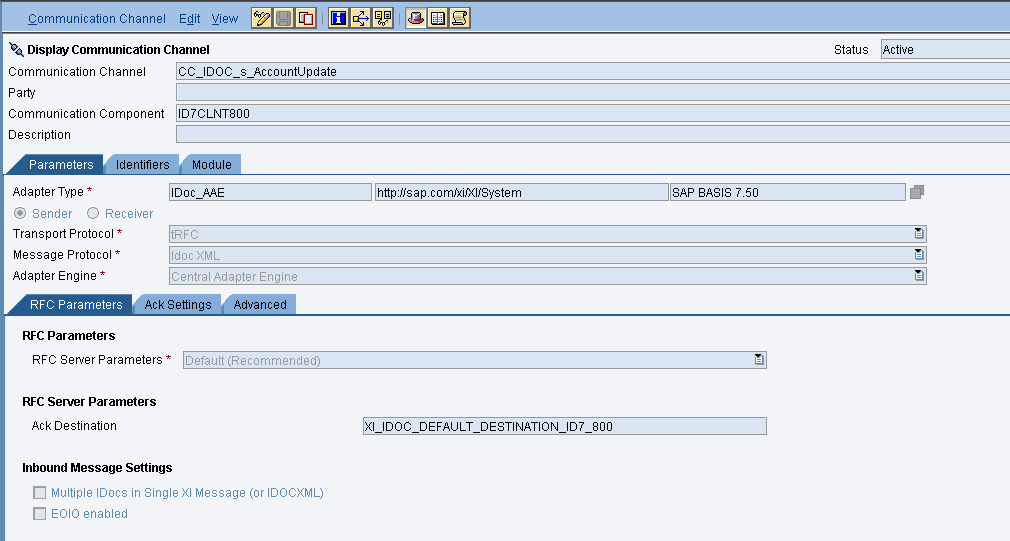
Provide the necessary details. After that save and activate the channel. 10. Configuring the SOAP receiver channel Configuration for Tab "General"

Specify the parameters as shown in the above screenshot. Below is the configuration for the "Advanced" Tab.
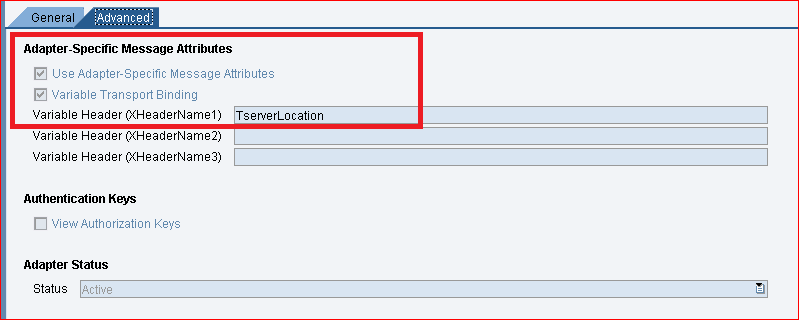
The value "TserverLocation" has to be entered for the parameter Variable Header (XHeaderName1). Below are the settings for Tab "Module". Here, the SKYVVA module containing the logic for session handling and transformation logic must be specified.
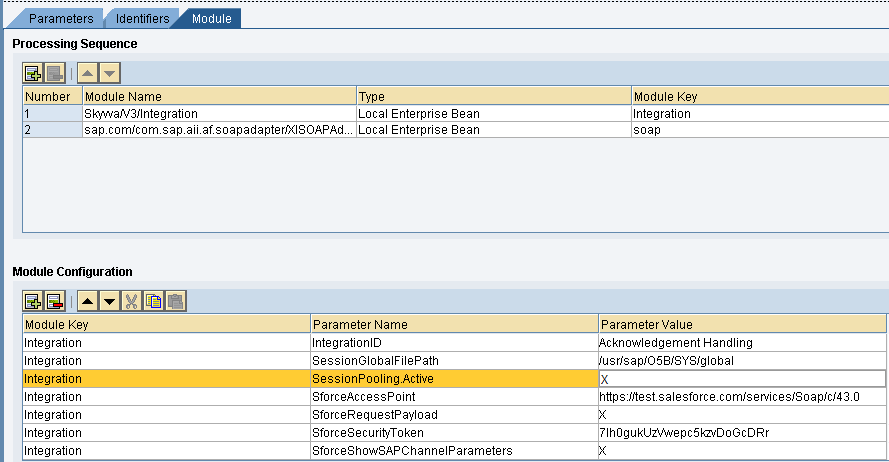

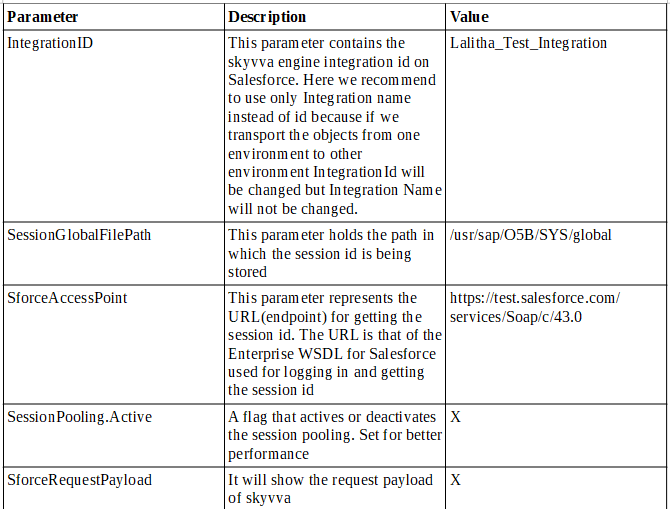
Configuration of module parameters are described in detail below Skyvva Module Parameters "Skyvva/V3/Integration" to be used with SOAP receiver channels. Module parameters are outlined below

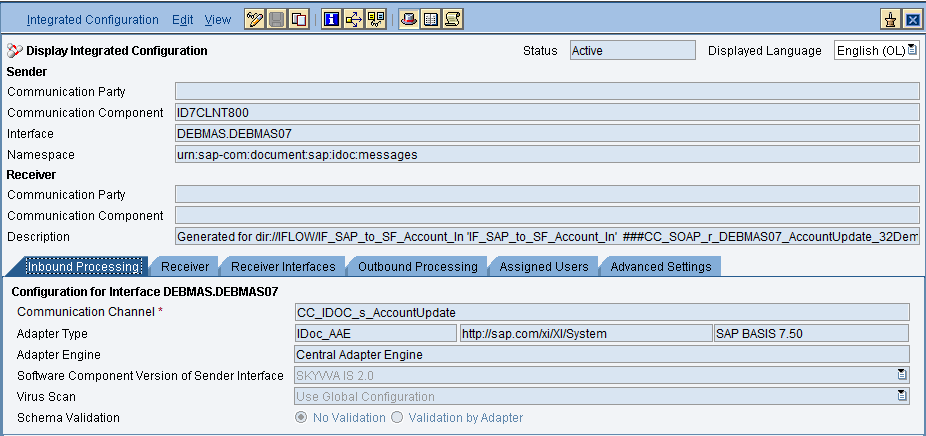
Integrated Configuration Create integrated configuration objects as shown below. Enter the required data e.g. the Communication Component, Interface and Namespace and then click on create button to create an ICO. Now go through the tabs from left to right to configure the relevant objects. In this first tab "Inbound Processing" here we have to specify the sender communication channel.
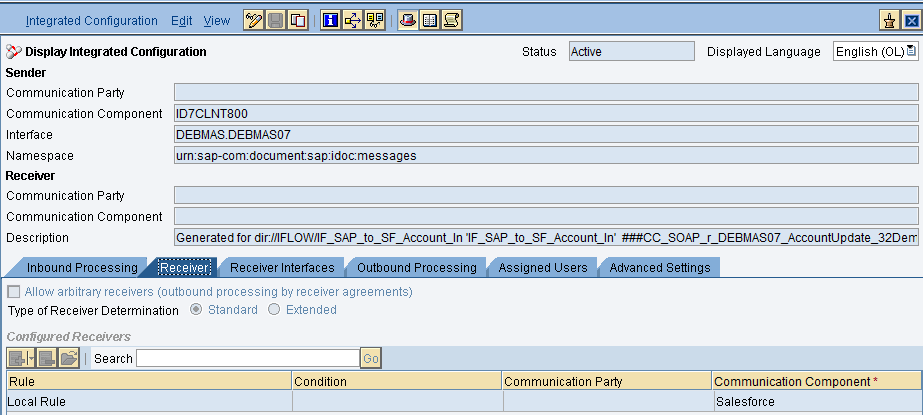
Here in the "Receiver" tab, we have to specify the receiver business system.
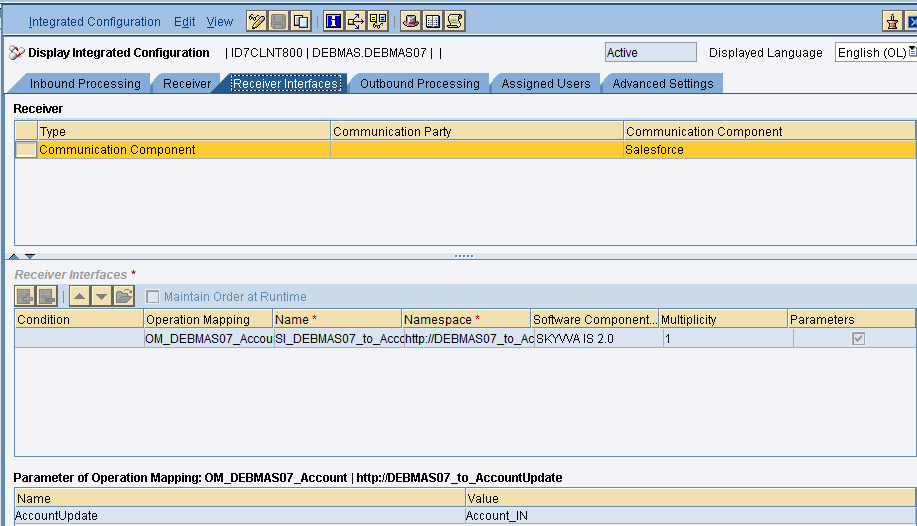
In Receiver interfaces tab specify the operation mapping and also the values of the parameters. The parameter Account_Update_In is the interface name (on Skyvva side) of the interface Account.
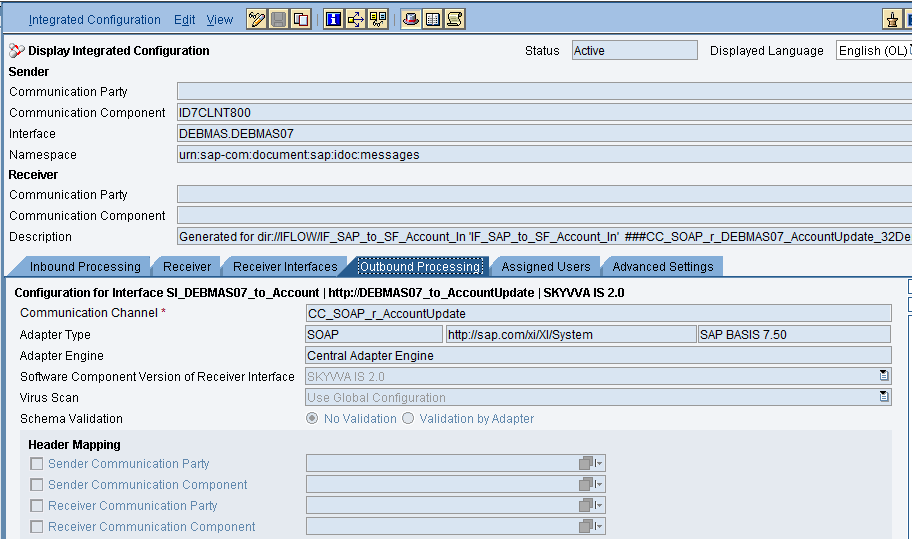
In the "outbound processing" tab, we have to specify the receiver channel.
Response Interface(Salesforce to SAP) Import WSDL into ESR First, we have to create a namespace in ESR like "http://DEBMAS07_to_AccountUpdate". Now create an external definition under the namespace like below. Here the WSDL is for Account. So, we can give the name as ED_Account_Ack
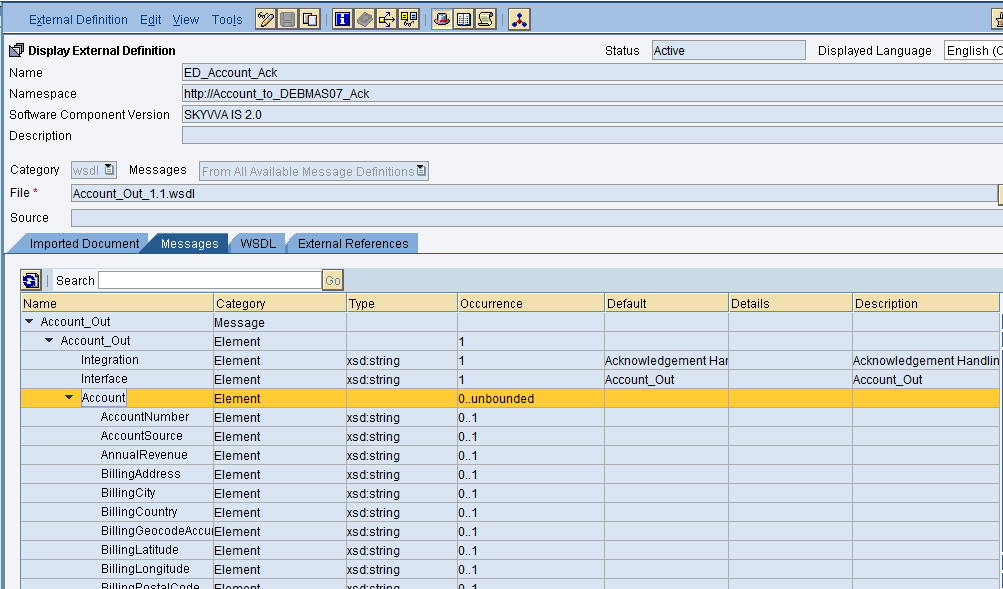
Now import the WSDL and Save and activate it. No need to create Datatype, Messagetype and Service Interface for Target system SAP as we are using IDOC as a Target
Service Interface Create service interface
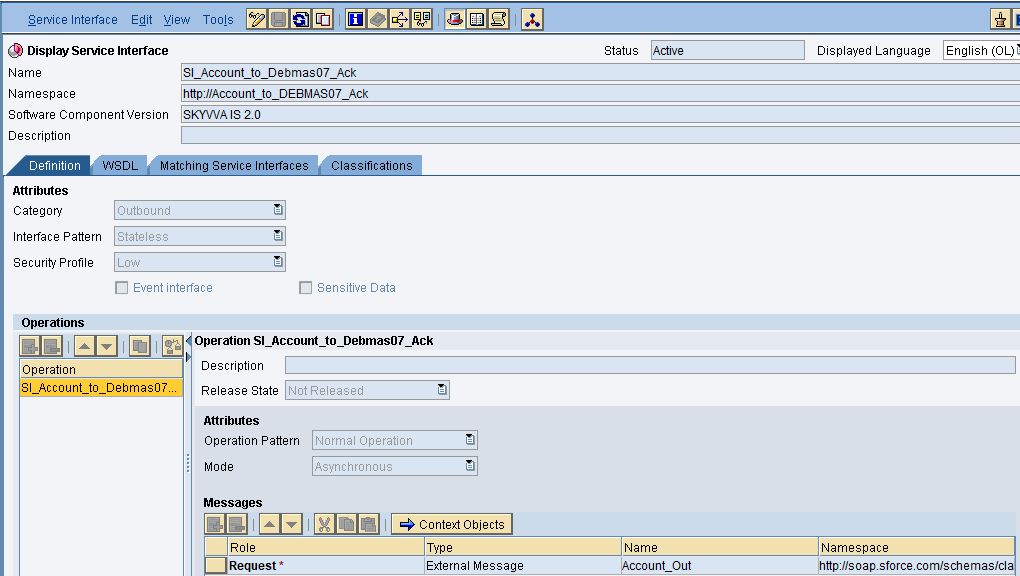
Now click on Save and activate it. Message mapping
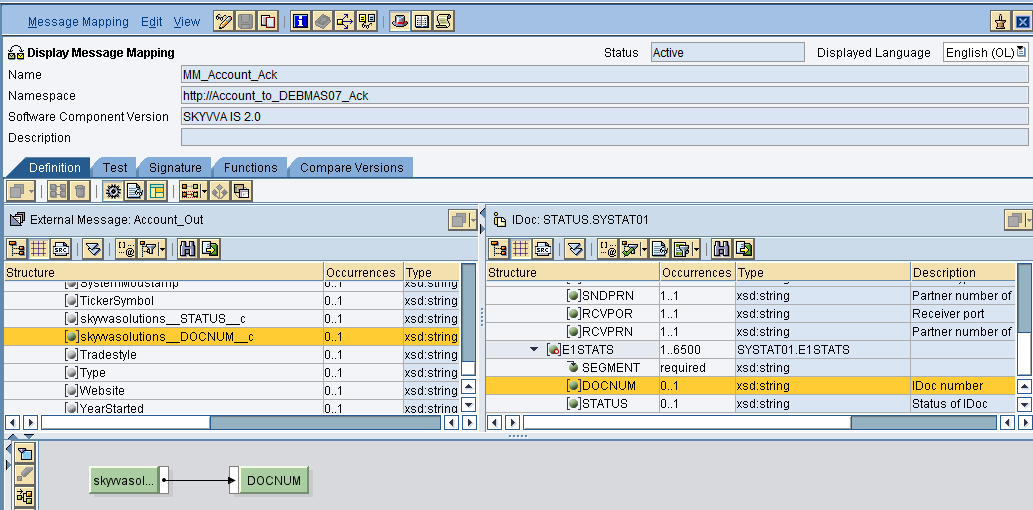
As we are sending the IDOC number back as a acknowledgement from Skyvva Do the respective mapping and save and activate it.
Operation Mapping for asynchronous inbound interface Create Operation mapping.
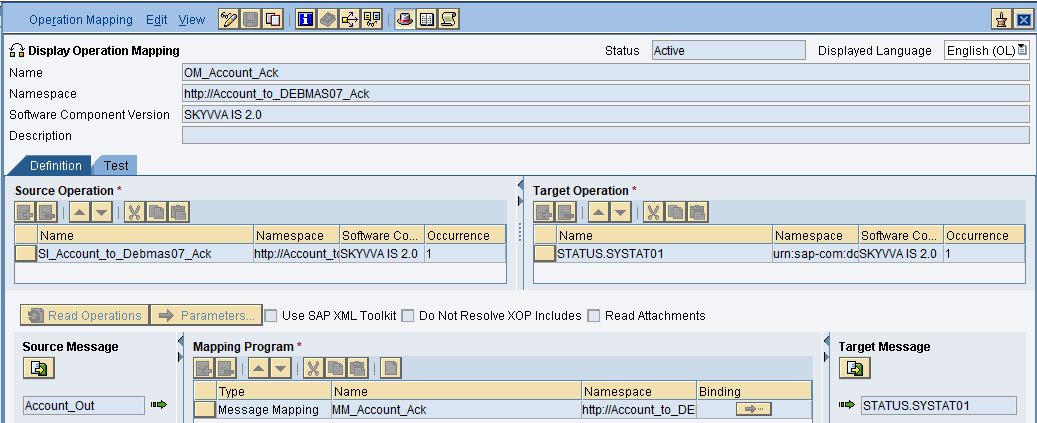
Then save and activate the operation mapping. Creation of Integrated Configuration Objects After creating the objects in ESR. We have to configure these objects in the integration directory. First, we have to create Configuration Scenario.Now enter the name of the scenario, description and choose a folder if you have created then press on create button. An Integration scenario has the following objects.
- Business System for Sender and Receiver
- Sender and Receiver Communication channel
- Integrated Configuration
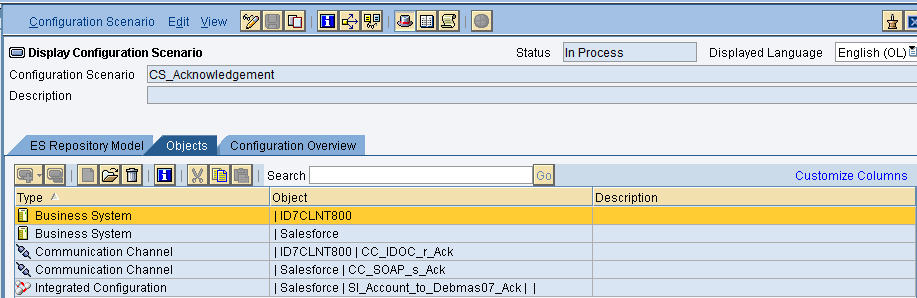
These are the objects we should create. We have to define our business system e.g. for the SAP-Backend. For Salesforce you can use our proposal "Salesforce" as the business system. We have to import these business systems from SLD. Configuring the Sender SOAP communication channel Create sender communication channel as shown below. Since we are using an SOAP as a source. So, here we are using SOAP adapter in the sender channel.
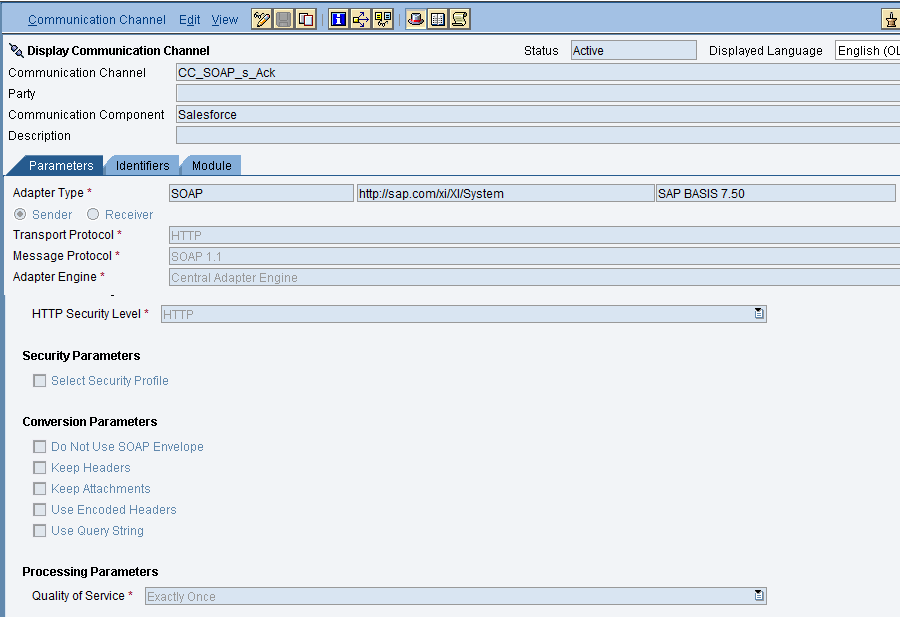
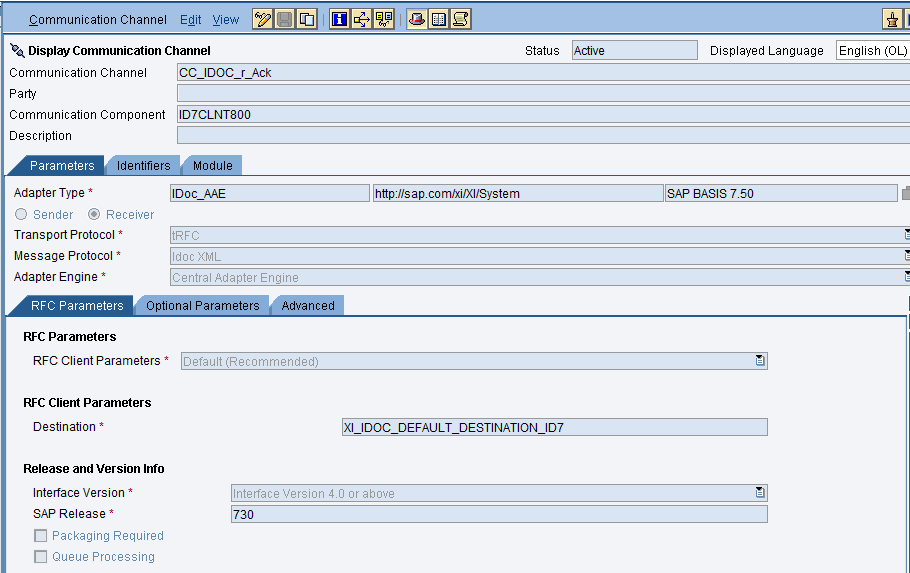
Provide the necessary details. After that save and activate the channel. Configuring the IDOC receiver channel
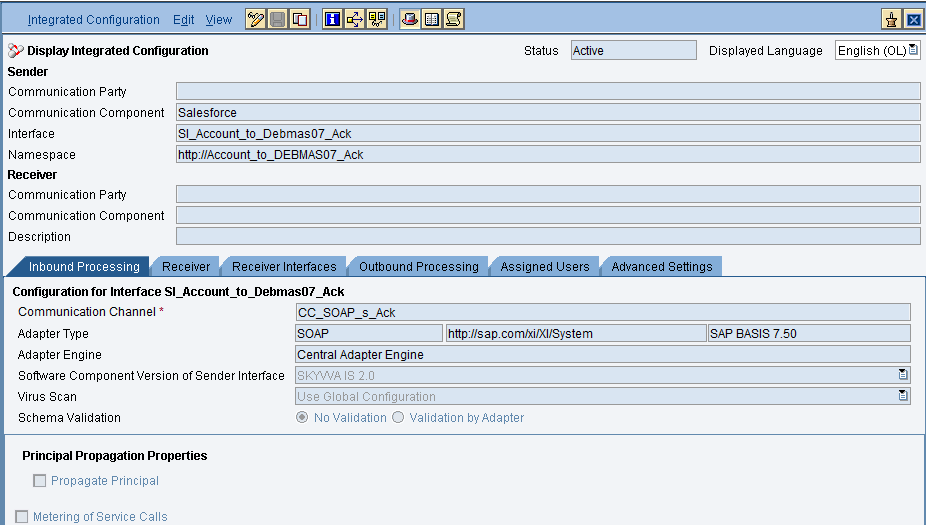
Integrated Configuration Create integrated configuration objects as shown below. Enter the required data e.g. the Communication Component, Interface and Namespace and then click on create button to create an ICO. Now go through the tabs from left to right to configure the relevant objects. In this first tab "Inbound Processing" here we have to specify the sender communication channel.
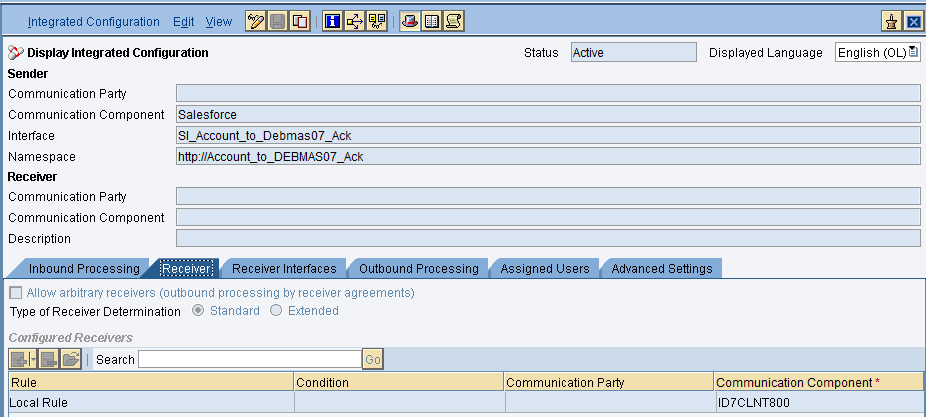
Here in the "Receiver" tab, we have to specify the receiver business system.
In Receiver interfaces tab specify the operation mapping

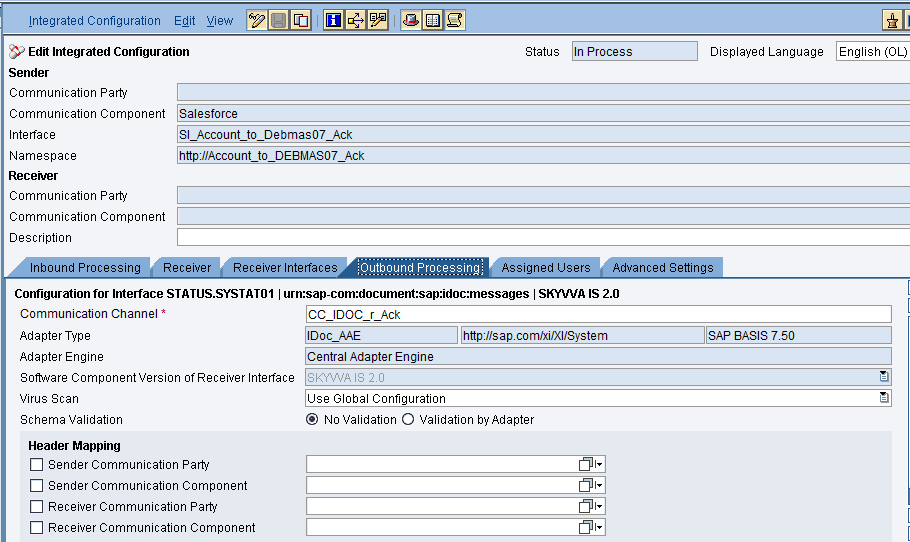
In the "outbound processing" tab, we have to specify the receiver channel.
Testing the interface - Triggering the data from SAP

In the Inbound interface we can see the transferId which is IDOC number from SAP
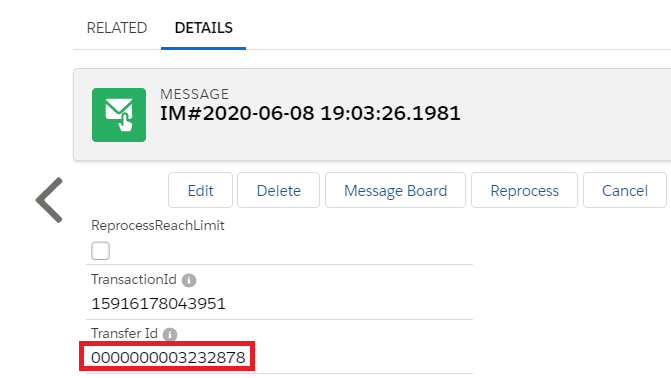
We got the DOCNUM as acknowledgemnt from Skyvva
