How to custom error handling?
Introduction
It is a situation related to error response handling in an outbound processing system, where the user needs to map a table called "Imessage__c" for a fault interface on the inbound side. However, users are encountering an issue where this "sObject" is not visible in a picklist list in a previous, available on SKYVVA application version 2.50 and above.
Here's a breakdown of your description:
- Error Response Handling: This refers to how the SKYVVA application deals with errors or exceptions during outbound processing.
- Mapping Table: The user needs to create a mapping between possible fields on the "Imessage__c" object. This mapping is necessary for handling errors in a structured manner.
- Imessage__c: "Imessage__c" is a custom object in the SKYVVA application. The "__c" suffix suggests that it's a custom object in Salesforce.
- Fault Interface (Inbound): An interface on the inbound side of the SKYVVA application that handles faults or errors that occur during outbound processing.
- Picklist: In your previous SKYVVA application version, there was a picklist that the user would use to select the "Imessage__c" object for this mapping. However, users are encountering an issue where this object is not visible in the picklist.
[su_box title="Note" box_color="#2a8af0" title_color="#000000"]"Include the sObject in the selection list to enable users to perform the mapping."[/su_box]
Display the skyvvasolutions__IMessage__c for the Interface’s source name
Create an integration and map fields from the "skyvvasolutions_IMessage__c" object in the SKYVVA application. Here are the steps you should follow:
- Create Integration:
Go to our SKYVVA application.
- Navigate to the Integration section and create integration.
- Create a New Inbound Interface:
"Create New Inbound Interface."
- Select the Source Picklist:
In the process of creating the inbound interface, the user needs to specify the Source picklist.
- Look for an option to select the source picklist, and choose the "skyvvasolutions_IMessage__c" value.
Required step:
- Create Integration
- Click Create the new inbound Interface and select the skyvvasolutions_IMessage__c on the Interface’s source Name
- Map as normal then click save.
Result:

- Map Fields:
After selecting the source picklist, the user needs to map fields from this source side to the target destination.
- Typically, users see a visual mapping interface where they can match fields from "skyvvasolutions_IMessage__c" to corresponding fields on the target side.
- Save the Mapping:
Once the user mapped the necessary fields, make sure to save your mapping configuration. Look for a "Save" button to save your mapping settings.
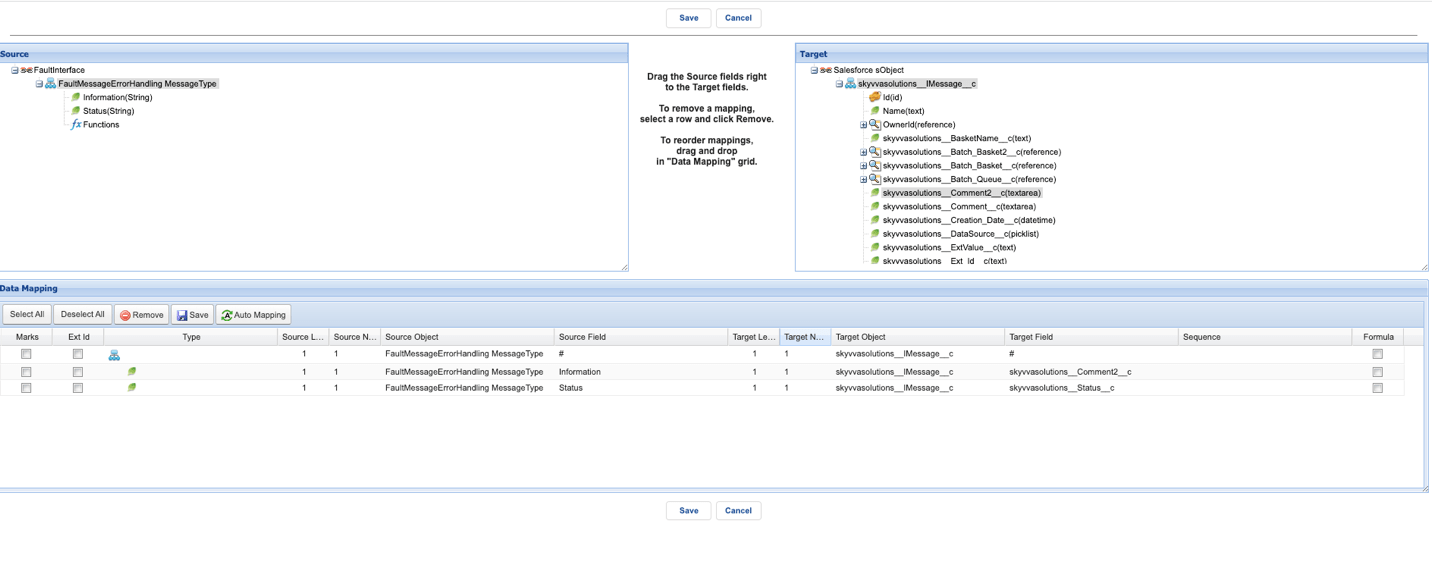
[su_box title="Expectation:" box_color="#2a8af0" title_color="#000000"]The user is expected to perform mapping for the skyvvasolutions_IMessage__c object within the Skyvva system. [/su_box]
Fault Message Error Handing with SAP CPI adapter
Creating an integration with an outbound adapter for SAP CPI involves several steps. Below are the steps user can follow to achieve this:
- Create Integration:
Log in to your SAP CPI (SAP Cloud Platform Integration) environment.
- Create a new integration project.
- Create Request/Response Interface:
Within your integration project, create the Request and Response interfaces that define the structure of the data the user is sending to and receiving from SAP CPI. The user can do this using Data Types or Message Types, depending on business requirements.
- Create Fault Interface:
Similarly, create a Fault Interface to handle error scenarios in case the integration fails. Define the structure of error messages the user needs to handle.
- Outbound - SAP CPI Adapter :
To connect to SAP CPI, the user needs to create an outbound adapter. In your integration project, select the outbound adapter, which should be the "SAP CPI" adapter ."
- Link with Request Interface:
Configure the outbound adapter to use the Request Interface the user just created. This involves mapping the data from the integration flow to the structure defined in the Request Interface.
- Create Message Types:
Create Message Types for REST Request, REST Response, and Fault messages. These message types define the format of data that will be exchanged between the SKYVVA application and the SAP CPI.
- Create SAP CPI Adapter:
Within the integration flow, add a component that represents the SAP CPI adapter. Configure this adapter to connect the SAP CPI instance, providing the necessary connection details, such as the URL, credentials, and any other required entities.
- Link SAP CPI Adapter with Outbound Interface:
In your integration flow, link the SAP CPI adapter with the outbound interface the user just created. This defines the data flow from the SKYVVA application to SAP CPI.
[su_box title="Expectation:" box_color="#2a8af0" title_color="#000000"]The message outbound will be updated in the event of an error occurring following the callout.[/su_box]
Required step:
- Create Integration and Request/Response Interface/Fault Interface
- Outbound adapter “SAP CPI” and link with request interface.
- Create Message type for Rest for request, response, and Fault.
- Create SAP CPI adapter to connect with the mock service and link it with the outbound interface
[su_box title="Note:" box_color="#2a8af0" title_color="#000000"]Ensure that the inbound interface for the fault will perform an insert operation.[/su_box]

- Response Inbound mapping

- Request Outbound Mapping
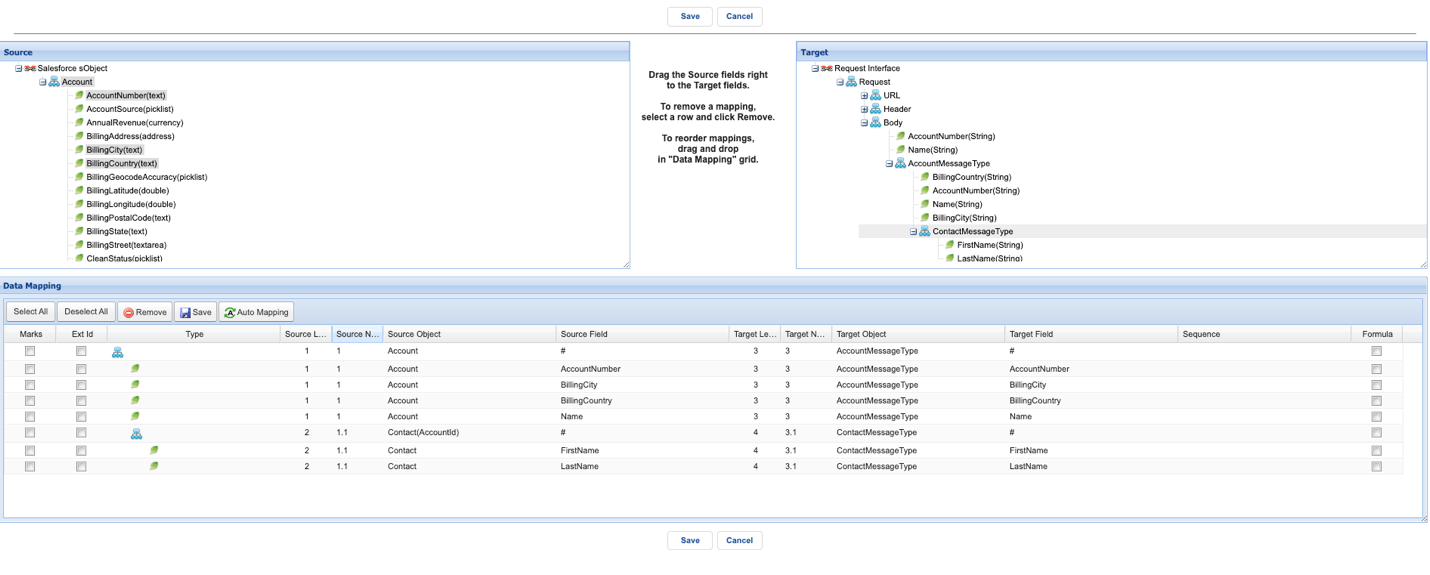
- Fault Inbound mapping

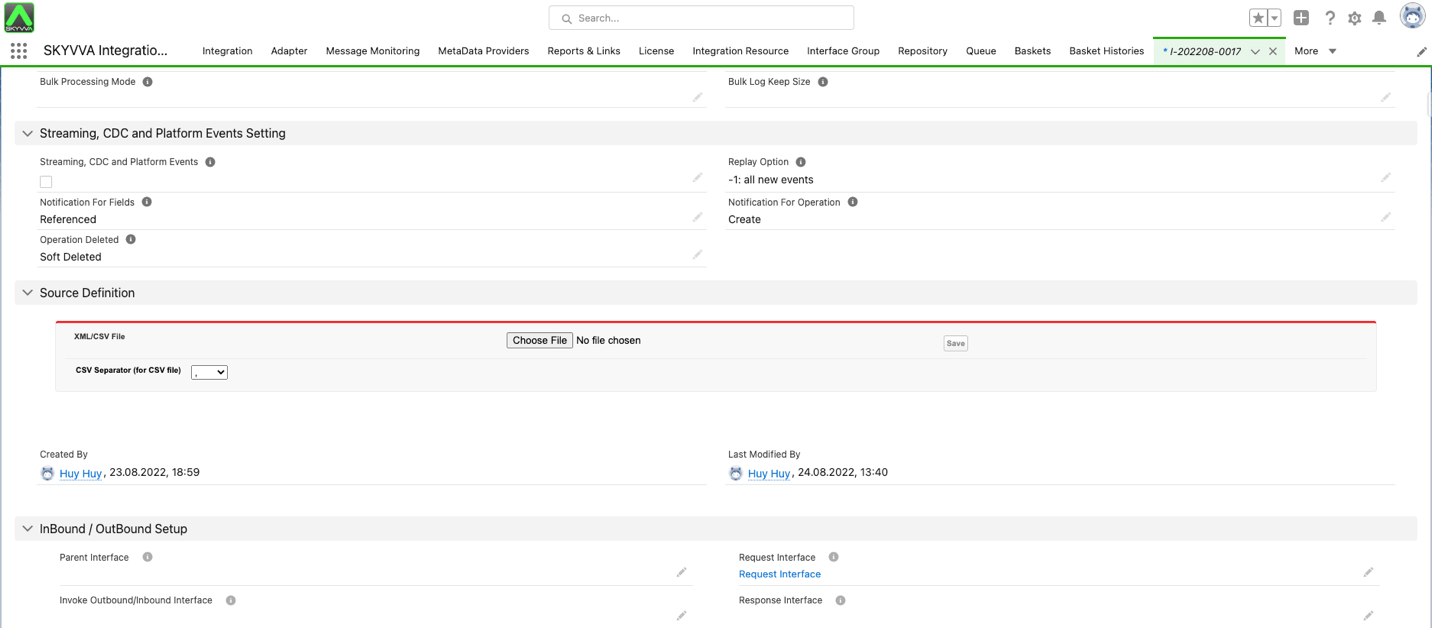
- Link Response and fault interface Inbound/ interface into Response Interface field of Inbound / Outbound Setup section of outbound interface


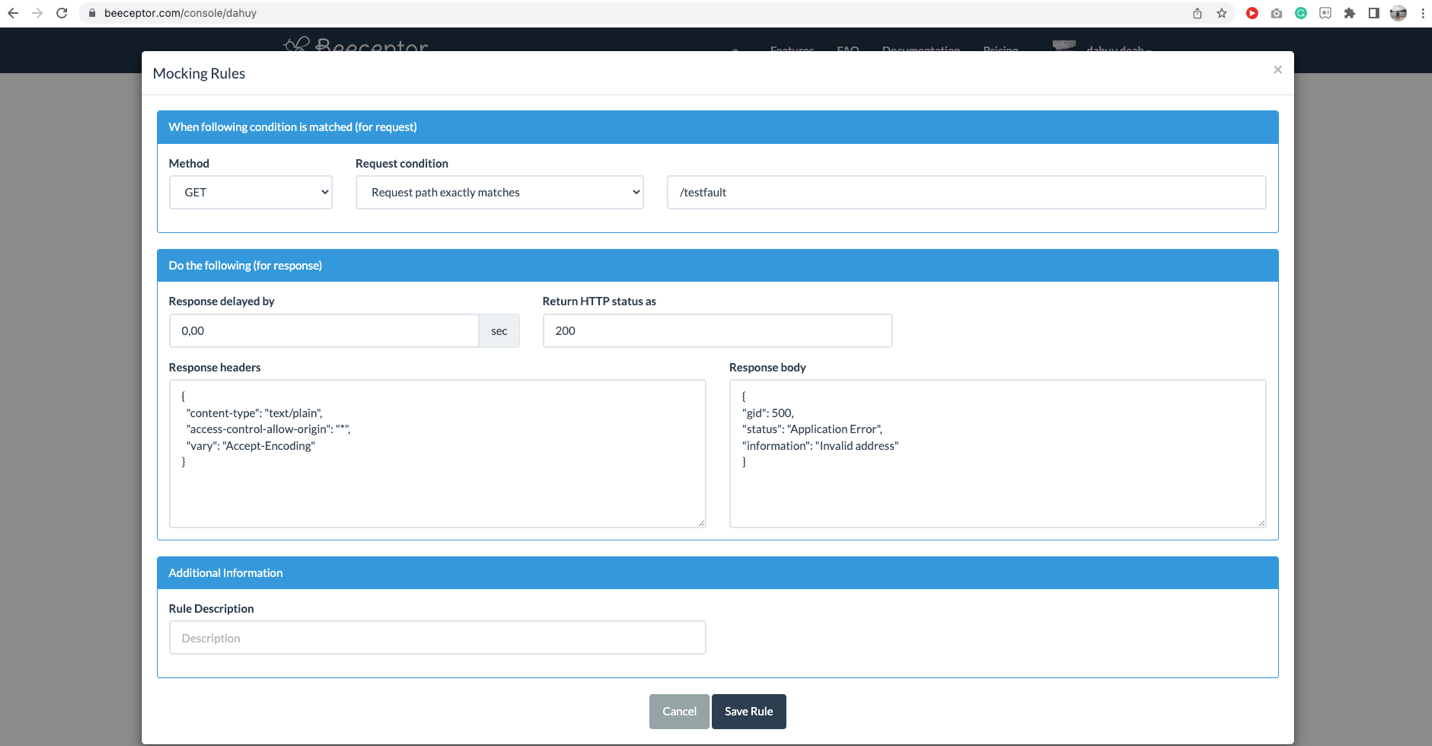
Here is the payload of the response fault interface in the mock service.
{ "gid": 500,
"status": "Application Error",
"information": "Invalid address"
}
Code for callout
String[] ids= new String[]{'0011j00001jHopOAAS'}; List result = skyvvasolutions.Iservices.invokeCalloutV3('Dahuy Fault handling','Request Interface',ids,'SYNC',null); String ResultString = result.toString();
- After executing the apex callout above in the developer console, we will get the result as shown in the screenshot below. You will get the request failed message as a screenshot below:

Summary
In outbound processing, users can understand error response handling. Specifically, familiar with mapping a table called "Imessage__c" for a fault interface on the inbound side of the SKYVVA application. However, users have encountered an issue where this "sObject" is not visible in a picklist in a previous version of the SKYVVA application, now this picklist value is visible starting from version V2.50 and above.