How to Generate SKYVVA V2/integrate API Metadata for Interface API V2
Overview
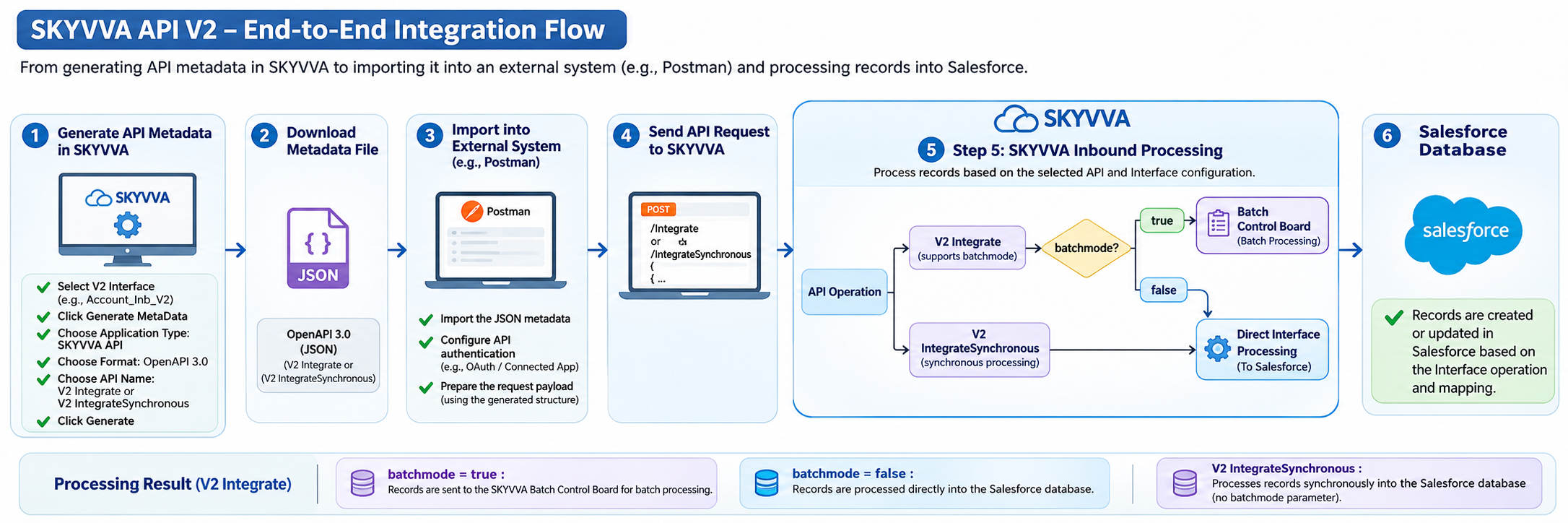
This document explains how to generate SKYVVA API metadata for Interface API V2 using the Generate MetaData feature in SKYVVA.
The generated metadata uses the OpenAPI 3.0 format and can be used by compatible external systems or applications to integrate with SKYVVA and exchange data with Salesforce.
SKYVVA supports two API operations for Interface API V2:
- V2 Integrate
- V2 IntegrateSynchronous
The generated API request structure is based on the fields configured in the selected Interface Mapping Tool. These fields can be either custom source fields defined in the interface's IStructure or Salesforce sObject fields. Users can view and configure these fields in the Interface Mapping Tool before generating the API metadata.
Note: SKYVVA API metadata is intended for integration with external systems or applications. In this document, Postman is used as an example API client to demonstrate importing the generated metadata, viewing the original request structure, and testing the API with sample business data.
Prerequisites
Before generating the API metadata, ensure that:
- A SKYVVA Integration has been created.
- An Inbound Interface has been configured with Interface API V2.
- The required fields, either custom source fields defined in the interface's IStructure or Salesforce sObject fields, are configured and available in the Interface Mapping Tool.
- You have access to the Generate MetaData feature.
5. A compatible API client, such as Postman, is available for testing.
Step 1: Select the Interface and Open Generate Metadata
- Navigate to the Integrations tab in SKYVVA.
- Open the required Integration, for example,
Generate_SKYVVA_API. - Select the Interfaces tab.
- Select the checkbox next to the V2 Interface, for example,
Account_Inb_V2. - Click Generate MetaData.
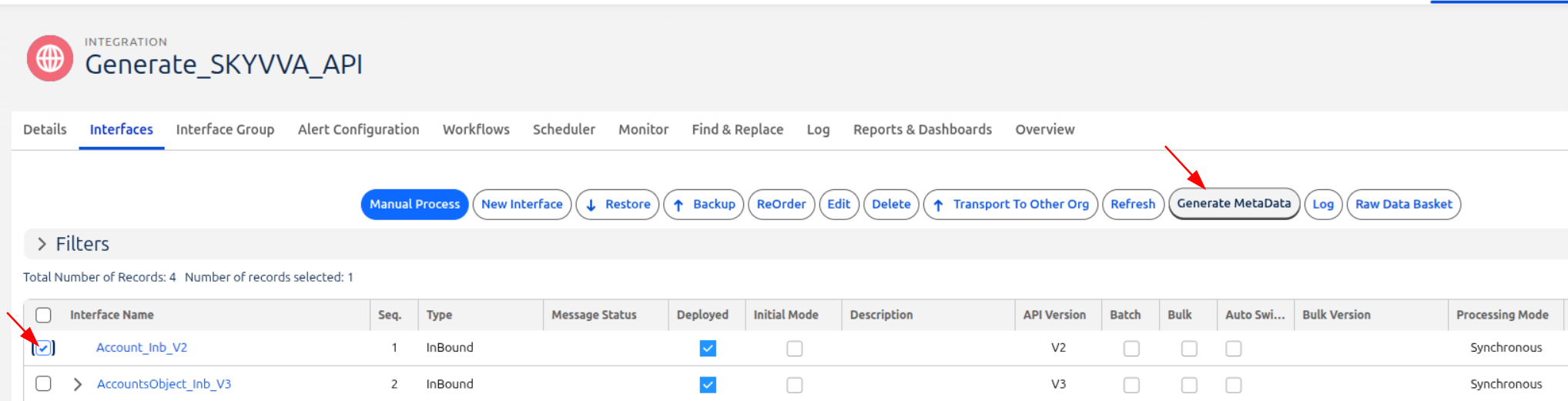
Figure 1: Select the Account_Inb_V2 Interface and open Generate MetaData.
Expected Result:
The Generate Metadata wizard opens for the selected Interface.
Step 2: Choose the Application Type
- In the Choose your application screen, locate the Application Type field.
- Select SKYVVA API.
- Click Next to continue.
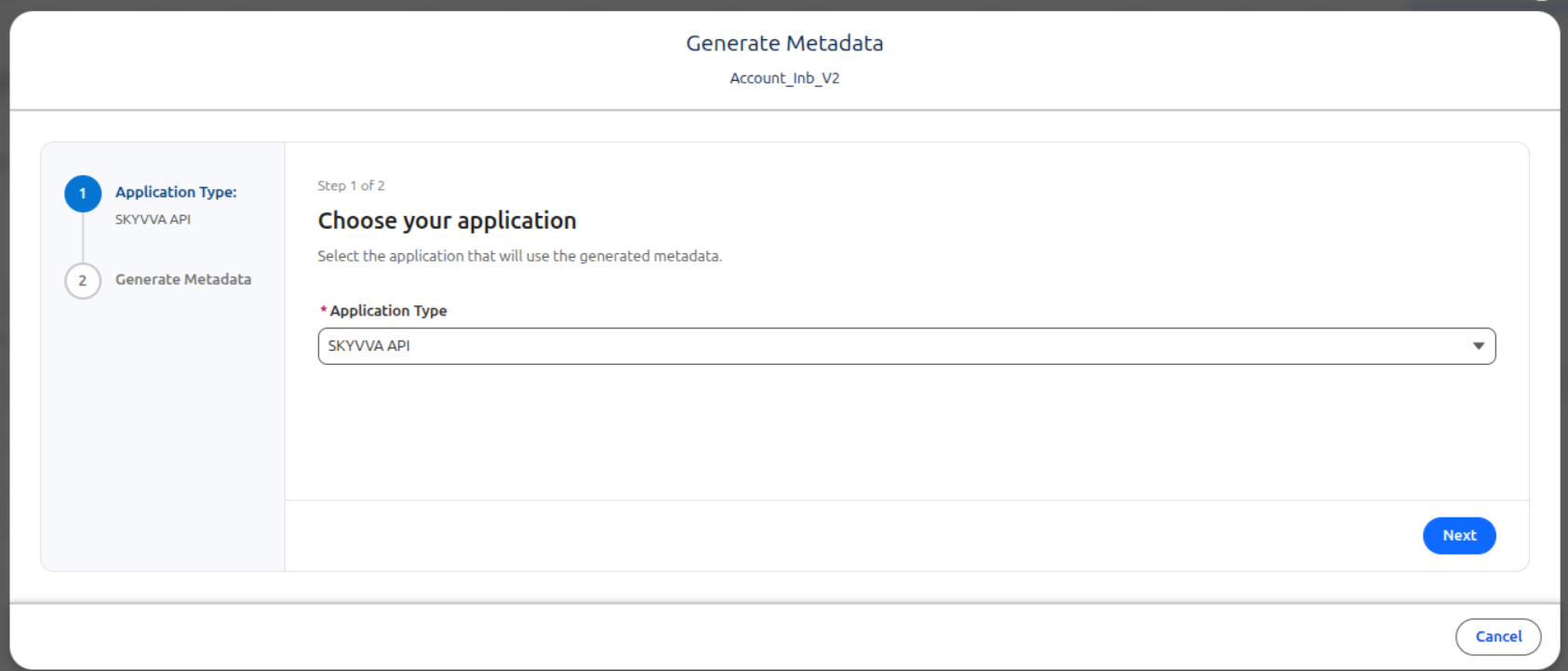
Figure 2: Select SKYVVA API as the application type.
Expected Result:
The wizard proceeds to Step 2 of 2 – Configure your metadata.
Step 3: Configure the Metadata
In the Configure your metadata screen, select the required file format and API operation.
| Field | Example Value | Description |
|---|---|---|
| Choose a format File | OpenAPI 3.0 | Defines the format of the generated metadata file. |
| Choose an API name | V2 Integrate or V2 IntegrateSynchronous | Defines the V2 API operation for which metadata will be generated. |
Available API operations:
- V2 Integrate: Generates metadata for the V2 Integrate API operation.
- V2 IntegrateSynchronous: Generates metadata for the V2 IntegrateSynchronous API operation.
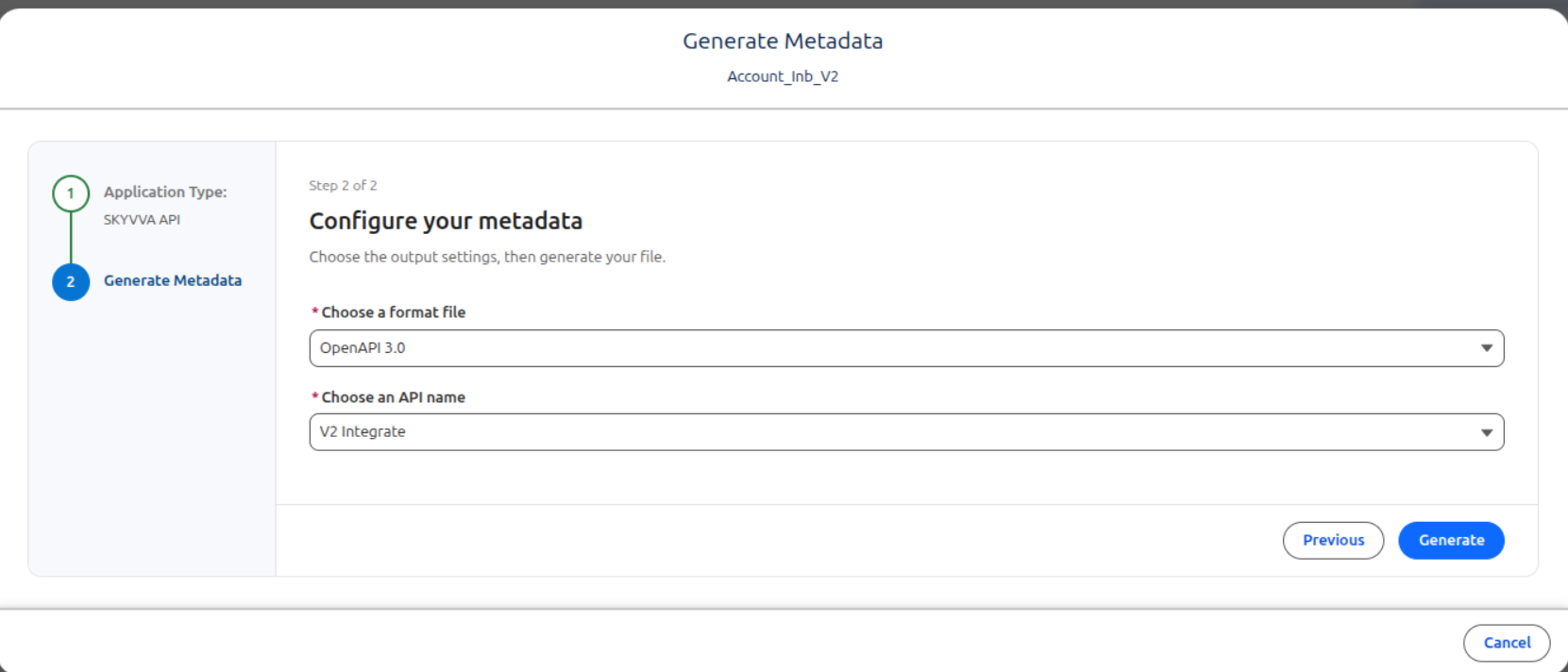
Figure 3: Select OpenAPI 3.0 and choose the required V2 API operation.
Important Note: Source Fields Used for API Metadata Generation
SKYVVA generates the API request schema based on the Source fields configured in the Interface Mapping Tool, not the Target fields.
For example, the Source structure Account_V2 contains:
| Source Field | Data Type |
|---|---|
| AccountNumber | Text |
| BillingCity | Text |
| BillingCountry | Text |
| Name | Text |
| skyvvasolutions__Acc_Id__c | Text |
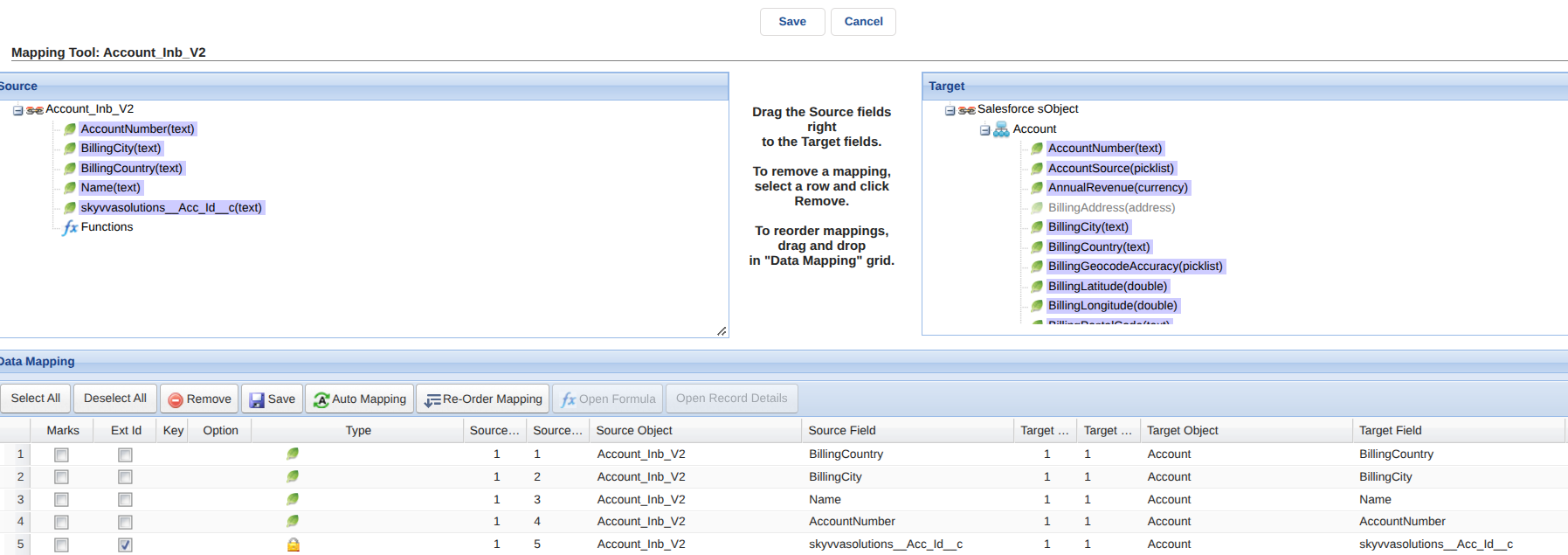
Figure 4: Source fields configured in the Account_V2 Mapping Tool.
Note: Ensure that all required Source fields are configured before generating the metadata because these fields determine the generated API message structure.
After selecting the required API operation, click Generate.
Expected Result:
SKYVVA generates the OpenAPI 3.0 metadata file based on the selected V2 Interface, API operation, and configured Source fields.
Step 4: Download the Generated Metadata File
After clicking Generate, the metadata file is downloaded through the browser.
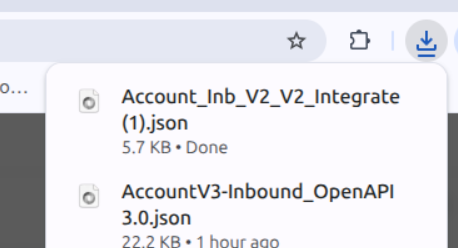
Figure 5: Verify that the generated SKYVVA V2 API metadata file has been downloaded.
Expected Result:
The generated metadata file is available for use by compatible external systems or applications.
Step 5: Import the V2 Integrate Metadata into Postman
This step demonstrates how to import the generated V2 Integrate metadata into Postman and prepare the request payload for testing.
- Open Postman.
- Click Import.
- Select the generated V2 Integrate OpenAPI 3.0 JSON file.
- Complete the import.
- Open the imported collection, for example,
SKYVVA V2 REST API. - Expand Integrate and select POST integrate.
- Navigate to Body → raw → JSON to view the generated request payload.
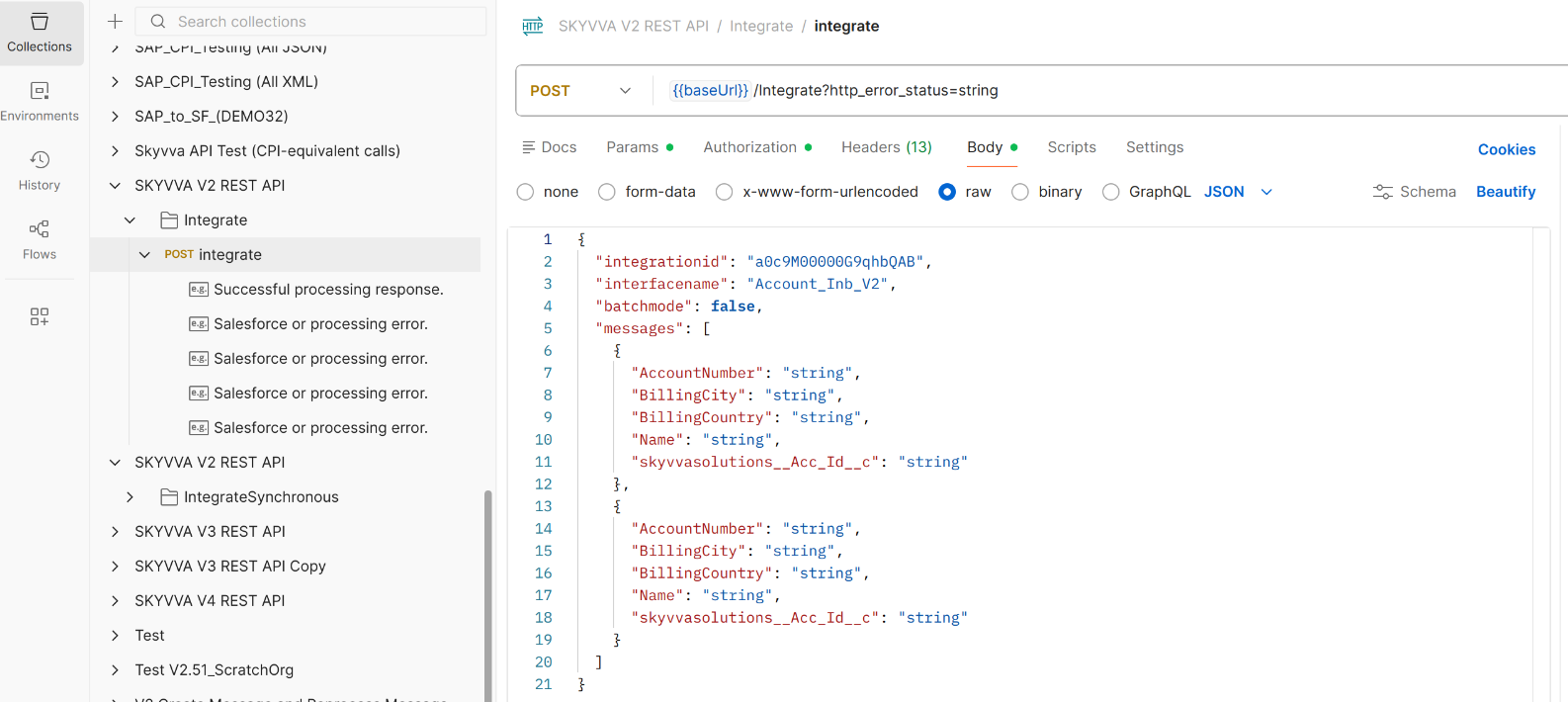
Figure 6: Original V2 Integrate request structure generated by SKYVVA and imported into Postman.
5.1 Original Generated Request Structure
The following JSON illustrates the generated request structure displayed in Postman.
{
  "integrationid": "a0c9M00000G9qhbQAB",
  "interfacename": "Account_Inb_V2",
  "batchmode": false,
  "messages": [
    {
      "AccountNumber": "string",
      "BillingCity": "string",
      "BillingCountry": "string",
      "Name": "string",
      "skyvvasolutions__Acc_Id__c": "string"
    },
    {
      "AccountNumber": "string",
      "BillingCity": "string",
      "BillingCountry": "string",
      "Name": "string",
      "skyvvasolutions__Acc_Id__c": "string"
    }
  ]
}
The generated request contains the Integration ID, Interface name, batchmode parameter, and a messages array.
The fields inside messages are generated from the Source structure configured in the SKYVVA Interface Mapping Tool. The value "string" is a placeholder that should be replaced with actual business data.
5.2 Understand the batchmode Parameter
The batchmode parameter determines how records are processed when using the V2 Integrate API.
| Value | Processing Behavior |
|---|---|
"batchmode": true | Records are sent to the SKYVVA Batch Control Board for batch processing. |
"batchmode": false | Records are processed directly into the Salesforce database through the configured SKYVVA Interface. |
When batchmode is true:
"batchmode": true
The records are sent to the SKYVVA Batch Control Board, where they can be processed using the configured batch processing mechanism.
When batchmode is false:
"batchmode": false
The records are processed through the SKYVVA Interface and written to the Salesforce database according to the configured mapping and operation.
Note: The batchmode parameter is available in the V2 Integrate API request. It is not included in the generated V2 IntegrateSynchronous request.
5.3 Example Request Payload with Actual Values
The following example uses batchmode: false to process Account records into Salesforce.
{
  "integrationid": "a0c9M00000G9qhbQAB",
  "interfacename": "Account_Inb_V2",
  "batchmode": false,
  "messages": [
    {
      "AccountNumber": "A001",
      "BillingCity": "Phnom Penh",
      "BillingCountry": "Cambodia",
      "Name": "SKYVVA Technology",
      "skyvvasolutions__Acc_Id__c": "EXT001"
    },
    {
      "AccountNumber": "A002",
      "BillingCity": "Siem Reap",
      "BillingCountry": "Cambodia",
      "Name": "Test Company",
      "skyvvasolutions__Acc_Id__c": "EXT002"
    }
  ]
}
To send the records to the SKYVVA Batch Control Board instead, change "batchmode": false to "batchmode": true.
5.4 Request Parameters
| Parameter | Description |
|---|---|
integrationid | ID of the SKYVVA Integration. |
interfacename | Name of the selected V2 Interface. |
batchmode | true sends records to the Batch Control Board; false processes records into Salesforce. |
messages | Array containing one or more records to process. |
| Source fields | Fields generated from the Interface Mapping Tool's Source structure. |
Expected Result:
The V2 Integrate metadata is successfully imported into Postman. After configuring and sending a valid request:
- With
batchmode: true, records are submitted to the SKYVVA Batch Control Board. - With
batchmode: false, records are processed into Salesforce according to the Interface configuration.
Step 6: Import the V2 IntegrateSynchronous Metadata into Postman
This step demonstrates how to import the generated V2 IntegrateSynchronous metadata into Postman.
- Open Postman.
- Click Import.
- Select the generated V2 IntegrateSynchronous OpenAPI 3.0 JSON file.
- Complete the import.
- Open the imported collection, for example,
SKYVVA V2 REST API. - Expand IntegrateSynchronous and select POST integrate Synchronous.
- Navigate to Body → raw → JSON to view the generated request payload.
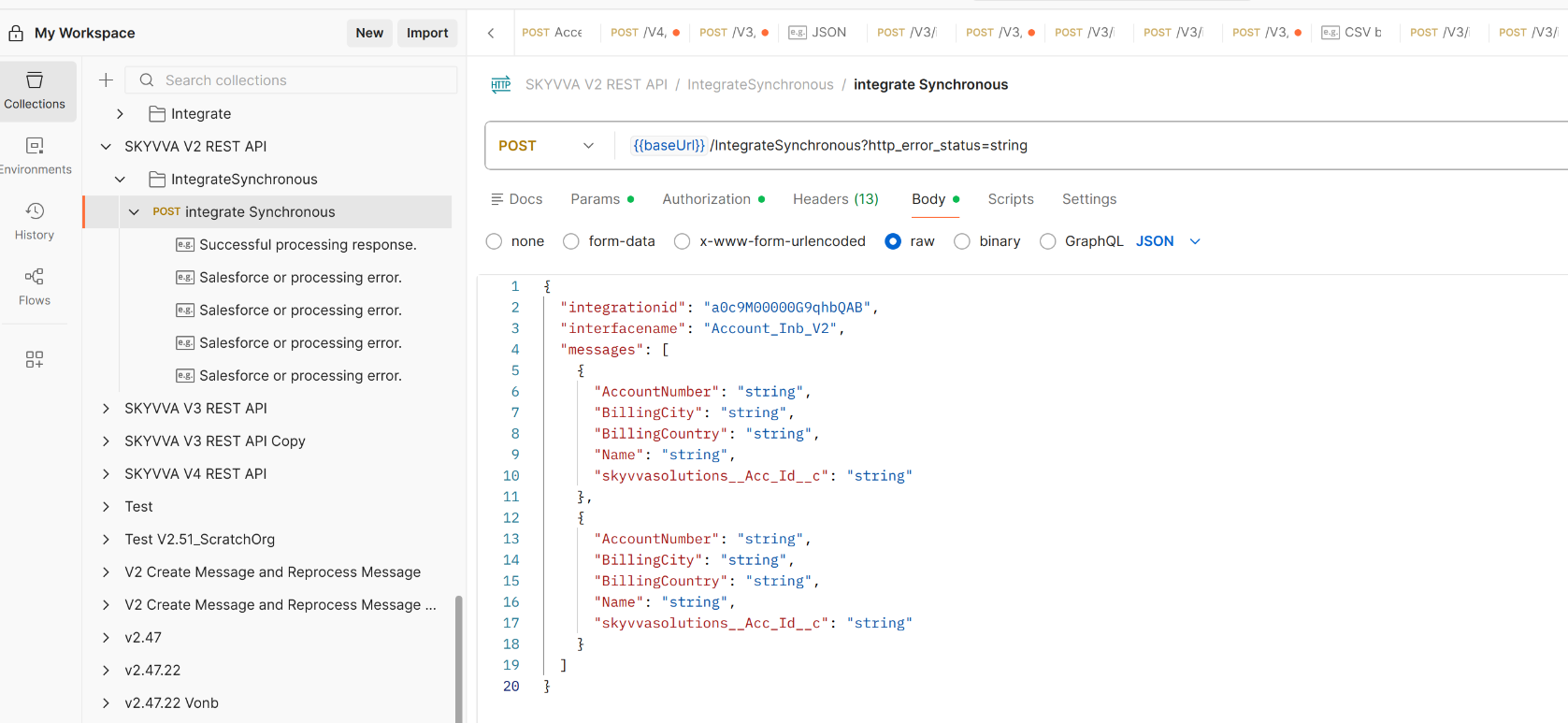
Figure 7: Original V2 IntegrateSynchronous request structure generated by SKYVVA and imported into Postman.
6.1 Original Generated Request Structure
{
  "integrationid": "a0c9M00000G9qhbQAB",
  "interfacename": "Account_Inb_V2",
  "messages": [
    {
      "AccountNumber": "string",
      "BillingCity": "string",
      "BillingCountry": "string",
      "Name": "string",
      "skyvvasolutions__Acc_Id__c": "string"
    },
    {
      "AccountNumber": "string",
      "BillingCity": "string",
      "BillingCountry": "string",
      "Name": "string",
      "skyvvasolutions__Acc_Id__c": "string"
    }
  ]
}
The generated request contains the Integration ID, Interface name, and messages array.
Unlike V2 Integrate, the generated V2 IntegrateSynchronous request does not include the batchmode parameter.
6.2 Example Request Payload with Actual Values
{
  "integrationid": "a0c9M00000G9qhbQAB",
  "interfacename": "Account_Inb_V2",
  "messages": [
    {
      "AccountNumber": "A001",
      "BillingCity": "Phnom Penh",
      "BillingCountry": "Cambodia",
      "Name": "SKYVVA Technology",
      "skyvvasolutions__Acc_Id__c": "EXT001"
    },
    {
      "AccountNumber": "A002",
      "BillingCity": "Siem Reap",
      "BillingCountry": "Cambodia",
      "Name": "Test Company",
      "skyvvasolutions__Acc_Id__c": "EXT002"
    }
  ]
}
6.3 Request Parameters
| Parameter | Description |
|---|---|
integrationid | ID of the SKYVVA Integration. |
interfacename | Name of the selected V2 Interface. |
messages | Array containing one or more records to process synchronously. |
| Source fields | Fields generated from the Interface Mapping Tool's Source structure. |
Expected Result:
The V2 IntegrateSynchronous metadata is successfully imported into Postman. The generated request contains the Integration ID, Interface name, and Source fields configured in SKYVVA.
Step 7: Understand the Difference Between V2 Integrate and V2 IntegrateSynchronous
Both API operations use the Source fields configured in the selected SKYVVA V2 Interface, but their generated request structures differ.
| Feature | V2 Integrate | V2 IntegrateSynchronous |
|---|---|---|
| HTTP Method | POST | POST |
| API Endpoint | /Integrate | /IntegrateSynchronous |
| Integration ID | Included | Included |
| Interface Name | Included | Included |
| Batch Mode Parameter | Included | Not included |
| Batch Mode = true | Records sent to Batch Control Board | Not applicable |
| Batch Mode = false | Records processed into Salesforce | Not applicable |
| Messages Array | Supported | Supported |
| Source Fields | Based on Mapping Tool | Based on Mapping Tool |
| Processing | Supports batch or direct processing | Synchronous processing |
Important Note:
The V2 Integrate API supports the batchmode parameter to control whether records are sent to the SKYVVA Batch Control Board or processed directly into Salesforce.
The V2 IntegrateSynchronous API does not include the batchmode parameter in its generated request structure.
Conclusion
The SKYVVA Generate MetaData feature simplifies integration with external systems by generating an OpenAPI 3.0 specification for the selected Interface API V2 operation.
External systems or applications can use the generated metadata to understand the SKYVVA API request structure and prepare data for integration with Salesforce through SKYVVA.
In this document, Postman is used as an example to demonstrate importing the generated metadata, reviewing the original request structure, and replacing placeholder values with actual business data.
For V2 Integrate, the batchmode parameter determines whether records are sent to the Batch Control Board or processed into Salesforce. The generated message fields are determined by the Source structure configured in the Interface Mapping Tool.