How to Generate SKYVVA V4/integrate API Metadata for Interface API V3
Overview
This guide explains how to generate SKYVVA API V4 metadata in OpenAPI 3.0 format, import it into an external application, and use the generated request structure to send business data to Salesforce through SKYVVA.
SKYVVA API metadata is intended for external systems and applications. Postman is used here only as an example API client to show the generated structure and test requests.
The V4/Integrate metadata generation supports JSON, XML, and CSV business payload formats.
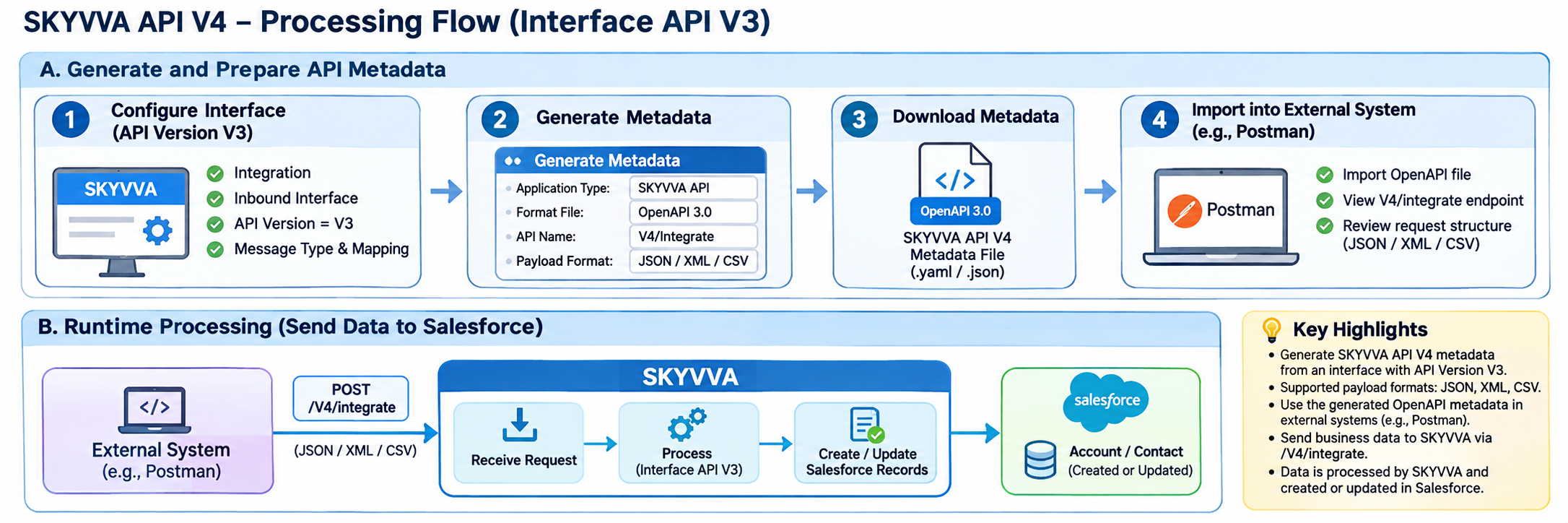
Interface API Version Compatibility
| Interface API Version | Supported SKYVVA API metadata |
|---|---|
| V2 | API V2 |
| V3 | API V3 and API V4 |
Important: To generate SKYVVA API V4 metadata, configure the inbound interface with Interface API Version V3. A separate Interface API Version V4 is not required.
How SKYVVA Generates the Request Structure
SKYVVA generates the metadata based on the Source Object configured in the selected interface's Mapping Tool, rather than the Salesforce target fields.
The Source Object can be an sObject or a Message Type. A Message Type may define hierarchical parent and child objects.
In this example, the inbound interface AccountMessageType_Inb_V3 uses the following source structure:
| Source object | Source fields |
|---|---|
My_Account (parent) | City, Country, CustomerID, CustomerName, CustomerNumber, Description |
My_Contact (child) | ContactName, Email, FirstName, LastName |
For example, the source field CustomerName can map to Salesforce Account.Name, while the generated request continues to use the source field name CustomerName.
Screenshot — SKYVVA Mapping Tool
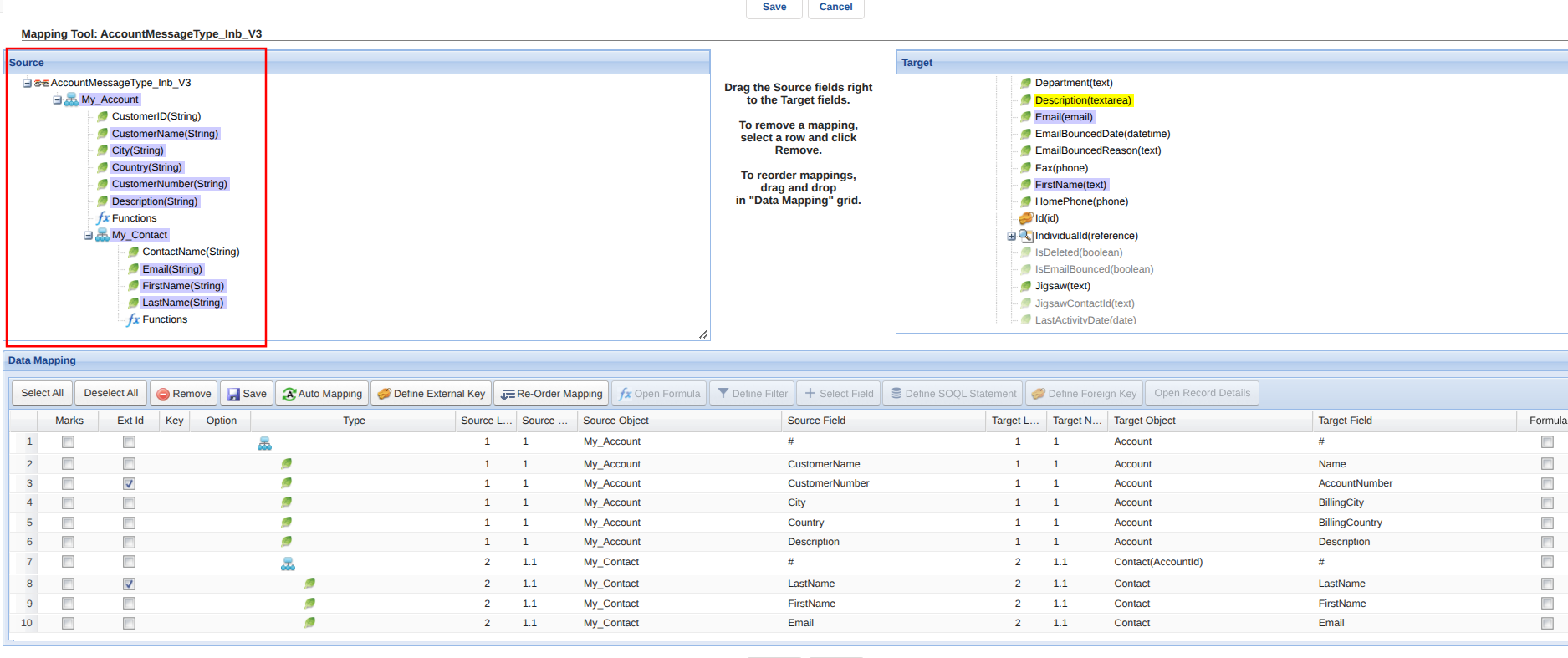
The Mapping Tool shows the source objects and their field mappings to Salesforce Account and Contact.
Prerequisites
- Create a SKYVVA Integration and an inbound Interface.
- Set the inbound Interface API Version to V3.
- Configure the Source Object (sObject or Message Type) and the required field mappings.
- Ensure the user has access to Generate MetaData and the necessary Salesforce permissions.
- Prepare Postman or another compatible API client for testing.
Generate SKYVVA API V4 Metadata
Step: Open the inbound interface
- Open SKYVVA in Salesforce and navigate to the required Integration.
- Open the inbound Interface, such as
AccountMessageType_Inb_V3. - Confirm that its Interface API Version is V3.
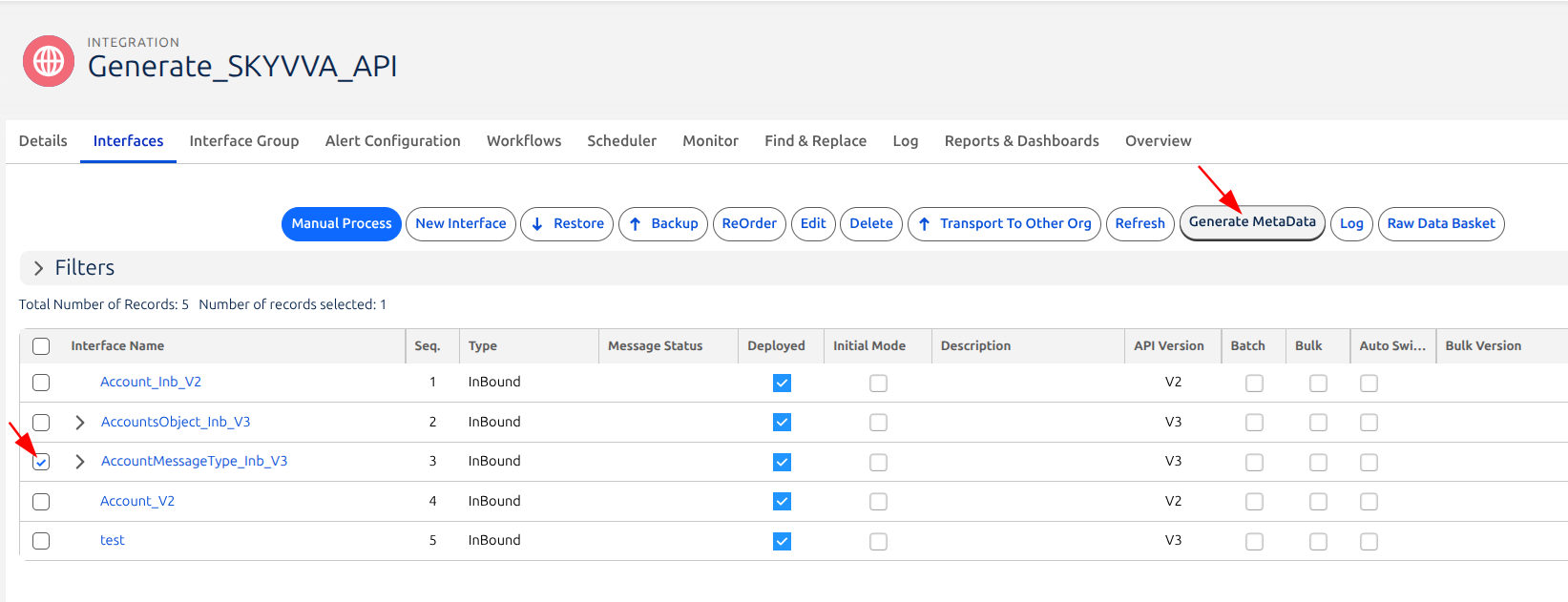
Step: Open Generate MetaData
- Open Generate MetaData for the selected interface.
- Choose SKYVVA API as the application type.
- Open the metadata configuration options.
Step: Select the metadata options
| Setting | Value |
|---|---|
| Choose a format file | OpenAPI 3.0 |
| Choose an API name | V4/Integrate |
| Payload Format | JSON, XML, or CSV |
Screenshot — Generate SKYVVA API V4 Metadata
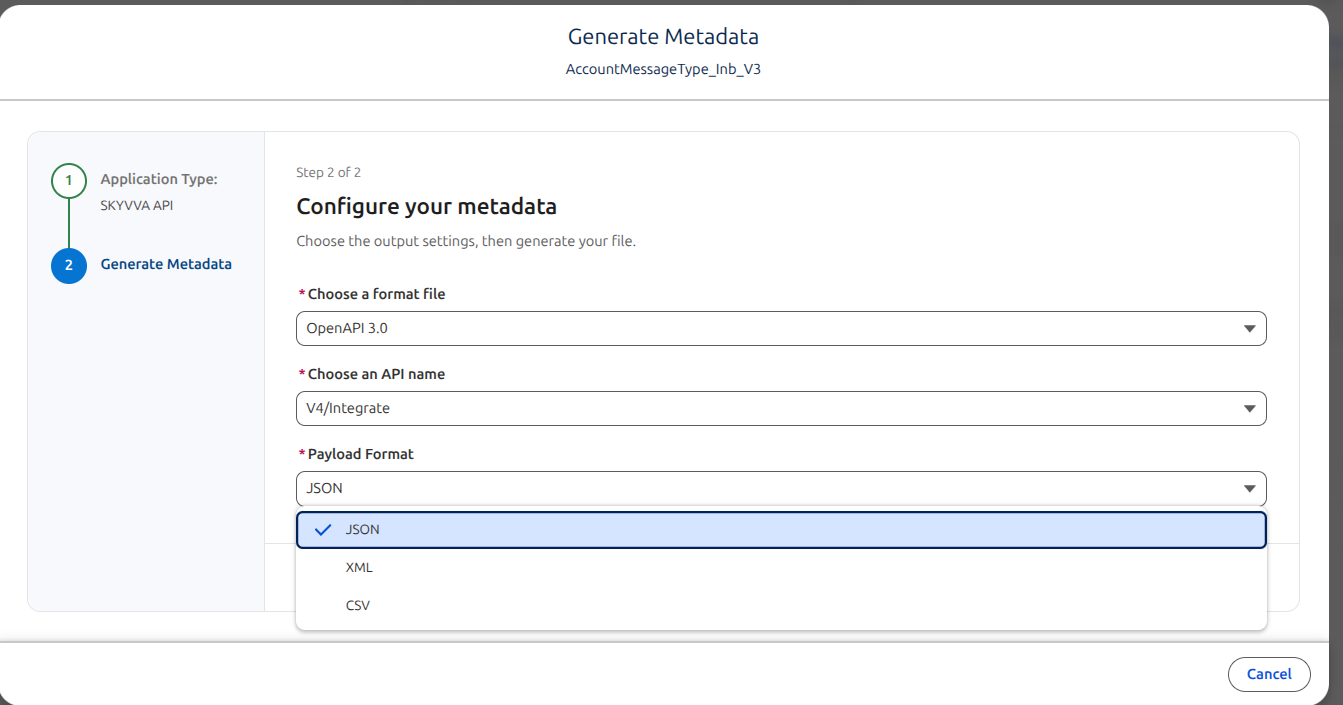
The Generate MetaData screen shows OpenAPI 3.0, V4/Integrate, and the payload format selection.
Step: Download the metadata
- Select JSON and click Generate File.
- Save the generated OpenAPI 3.0 file.
- Repeat for XML and CSV if you want to test those payload formats.
Import the Generated Metadata into Postman
- Open Postman and click Import.
- Select the generated OpenAPI 3.0 file.
- Complete the import and open the imported collection.
- Locate the generated POST /V4/integrate request.
- Repeat the import for other payload formats if needed.
The request body shown in Postman follows the Source Object structure from the SKYVVA Mapping Tool.
Generated API V4 Request Structures
The examples below show the original request bodies generated by SKYVVA and the same bodies filled with test values. They are request bodies, not complete URLs or authentication configurations.
JSON Payload Format
Screenshot — Generated JSON Request Structure
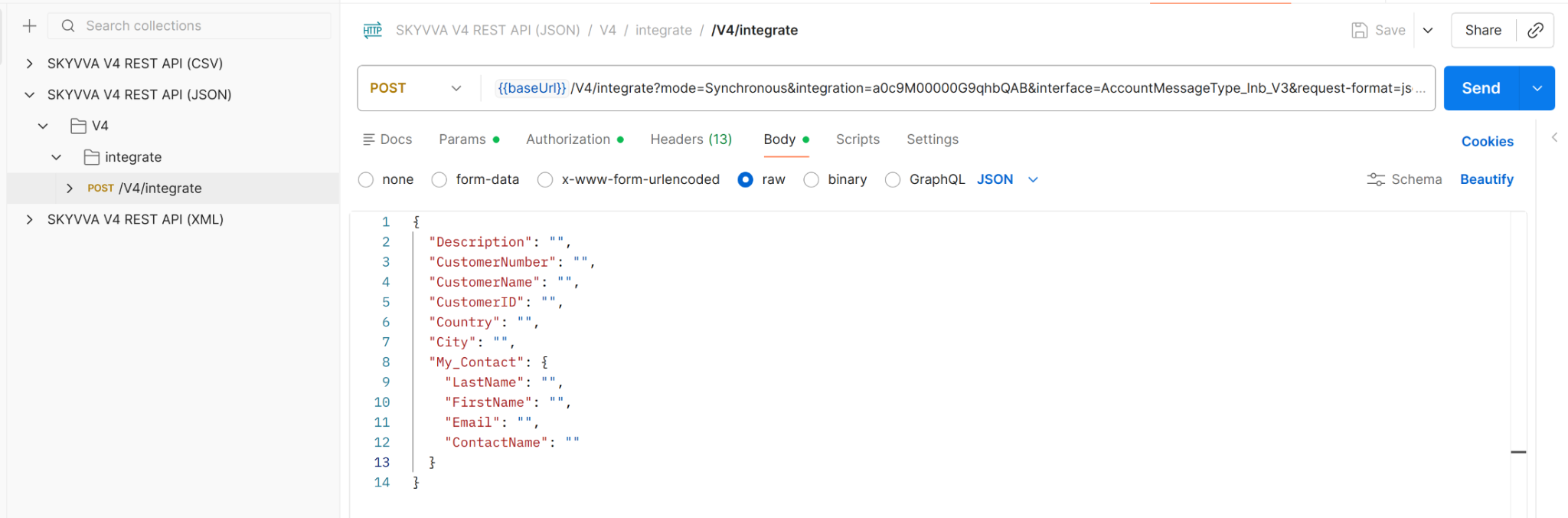
Postman displays the generated JSON source fields and nested My_Contact object.
Original generated JSON structure
{
  "Description": "",
  "CustomerNumber": "",
  "CustomerName": "",
  "CustomerID": "",
  "Country": "",
  "City": "",
  "My_Contact": {
    "LastName": "",
    "FirstName": "",
    "Email": "",
    "ContactName": ""
  }
}
JSON structure with sample values
{
  "Description": "Test Account using SKYVVA API V4",
  "CustomerNumber": "10001",
  "CustomerName": "SKYVVA Technology",
  "CustomerID": "C001",
  "Country": "Cambodia",
  "City": "Phnom Penh",
  "My_Contact": {
    "LastName": "Dara",
    "FirstName": "Sok",
    "Email": "sok.dara@example.com",
    "ContactName": "Sok Dara"
  }
}
The parent fields appear at the JSON root. The generated example represents My_Contact as a nested object, not an array.
XML Payload Format
Screenshot — Generated XML Request Structure
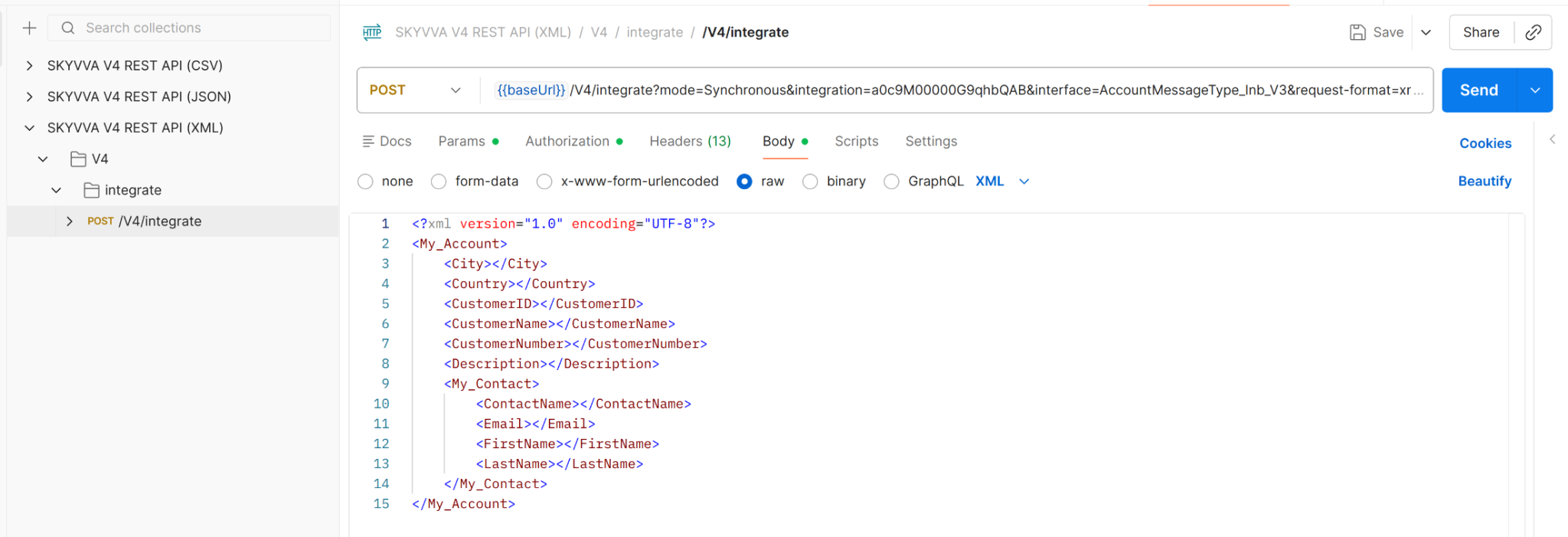
Postman displays the My_Account root element with a nested My_Contact element.
Original generated XML structure
<?xml version="1.0" encoding="UTF-8"?>
<My_Account>
  <City></City>
  <Country></Country>
  <CustomerID></CustomerID>
  <CustomerName></CustomerName>
  <CustomerNumber></CustomerNumber>
  <Description></Description>
  <My_Contact>
    <ContactName></ContactName>
    <Email></Email>
    <FirstName></FirstName>
    <LastName></LastName>
  </My_Contact>
</My_Account>
XML structure with sample values
<?xml version="1.0" encoding="UTF-8"?>
<My_Account>
  <City>Phnom Penh</City>
  <Country>Cambodia</Country>
  <CustomerID>C001</CustomerID>
  <CustomerName>SKYVVA Technology</CustomerName>
  <CustomerNumber>10001</CustomerNumber>
  <Description>Test Account using SKYVVA API V4</Description>
  <My_Contact>
    <ContactName>Sok Dara</ContactName>
    <Email>sok.dara@example.com</Email>
    <FirstName>Sok</FirstName>
    <LastName>Dara</LastName>
  </My_Contact>
</My_Account>
CSV Payload Format
Screenshot — Generated CSV Request Structure
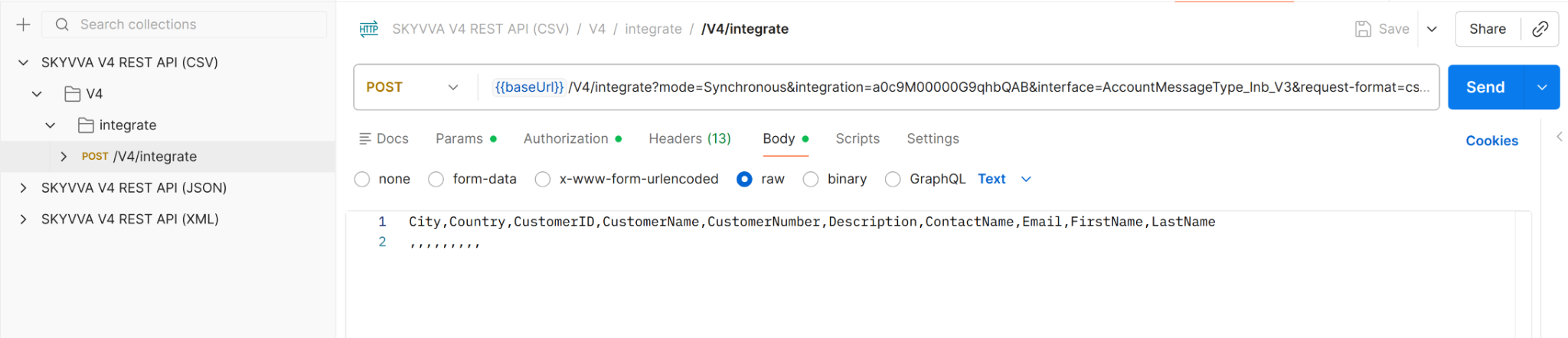
Postman displays the generated CSV header and an empty data row.
Original generated CSV structure
City,Country,CustomerID,CustomerName,CustomerNumber,Description,ContactName,Email,FirstName,LastName
,,,,,,,,,
CSV structure with sample values
City,Country,CustomerID,CustomerName,CustomerNumber,Description,ContactName,Email,FirstName,LastName
Phnom Penh,Cambodia,C001,SKYVVA Technology,10001,Test Account using SKYVVA API V4,Sok Dara,sok.dara@example.com,Sok,Dara
CSV represents the parent and child source fields as columns in the same row. For this example, the header contains no explicit parent-child prefixes.
Configure the API V4 Request in Postman
Step: Review the endpoint and parameters
- Open the imported POST /V4/integrate request.
- Keep the endpoint URL provided by the generated OpenAPI definition.
- Review the generated query parameters and supply the correct values for your Integration and Interface.
- Ensure the request format matches the selected JSON, XML, or CSV payload.
Note: Use the parameter names and allowed values from the generated metadata; do not assume that V4 uses exactly the same parameters as V3.
Step: Configure authentication and request body
- Configure the Salesforce authentication required for your environment.
- Open Body and select raw.
- Use the appropriate body format for the generated request: JSON, XML, or CSV/text.
- Replace the empty fields with the sample values shown above.
- Check the generated headers, including the request content type.
Step: Send the request
- Click Send.
- Review the HTTP response and response body.
- If the request fails, check the authentication, parameters, payload format, and mapping configuration.
Verify Processing in SKYVVA and Salesforce
Step: Check SKYVVA Message Monitor
- Open Message Monitor in SKYVVA.
- Find the message associated with the test request.
- Review its processing status and error details, if any.
Step: Check Salesforce records
- Open the Salesforce Accounts tab.
- Locate the Account corresponding to
CustomerName = SKYVVA Technology. - Verify the mapped Account fields.
- Open the related Contacts and verify the Contact fields.
| Salesforce field | Expected sample value |
|---|---|
| Account.Name | SKYVVA Technology |
| Account.AccountNumber | 10001 |
| Account.BillingCity | Phnom Penh |
| Account.BillingCountry | Cambodia |
| Account.Description | Test Account using SKYVVA API V4 |
| Contact.FirstName | Sok |
| Contact.LastName | Dara |
| Contact.Email | sok.dara@example.com |
The expected Salesforce results depend on the configured mapping and operation. Source fields that are not mapped to Salesforce target fields do not automatically populate target fields.
Expected Result
After successful configuration and processing:
- SKYVVA generates V4/Integrate OpenAPI 3.0 metadata for an Interface API Version V3 interface.
- The generated request structure reflects the configured Source Object fields.
- JSON, XML, and CSV metadata can be imported into Postman or a compatible external application.
- Valid requests are processed through the configured SKYVVA inbound interface.
- Mapped business data is created or updated in Salesforce according to the interface configuration.
Summary
SKYVVA API V4 metadata enables external applications to prepare requests using the source structure configured in a SKYVVA inbound interface. The interface uses API Version V3, while the generated external API operation is V4/Integrate. Postman provides a practical way to inspect the generated JSON, XML, and CSV bodies and test the integration before connecting another external system.