1. How to generate SOQL statement for the outbound interface?
Learning Objective :- This unit describes:-
- How to generate SOQL statements for the outbound interface?
- The 3 different features.
- The easiest feature to use among three.
Introduction:- In this tutorial, we can see how SOQL can be generated from doing the drag & drop mapping. Before we used to write the SOQL manually into the field Query. The other possibility is to use the Query Editor where we can generate the SOQL as well. The SOQL is only needed for the outbound interface to select data from salesforce object. We can see different possibilities in detail. The possibilities are:-
- Create SOQL manually.
- Generation of SOQL by Using the Query Editor.
- Generation of SOQL by using the Mapping tool.
Create SOQL manually:- In this section, we show how and where we can enter manually the SOQL. This is the way we use a long time ago now we have the easiest way to do with new features, which you can see in the next two possibilities which are given below. The procedure is given below:- Pre-Requisite:-
- Create integration.
- Create interface - Select type "Outbound".
1. Check the section "SOQL query to select sObject data".
- In this section, we can enter the query manually.
- And after writing the query, we need to save it.
(As shown in the picture given below)

Generation of SOQL by Using the Query Editor:- In this section, we show how we can generate SOQL by using "Query Editor". The Query Editor is available only with the use of an outbound interface. With inbound interface it make no sense. This is the better way then create SOQL manual. The easiest way is given in the next section. The procedure is given below:- Pre-Requisite:-
- Create integration.
- Create interface - Select type "Outbound".
1. Click on Query Editor as shown in the picture given below:-
2. You can see in the picture given below:-
- Select Object:-

- Select Fields
- Click on Execute SOQL.
- Click on Test SOQL.
- Click on save SOQL.
(As shown in the picture given below).

Generation of SOQL by using the Mapping tool:- In this section we show how we can use mapping tool for generating SOQL, The easiest way is by using the mapping tool because here the SOQL is generated automatically and the user doesn't need to know the syntax of the SOQL and the most important thing we can save time by using the mapping tool. The procedure is given below:-
- Create Integration:-

- Create Interface:-
- Select type "OutBound".
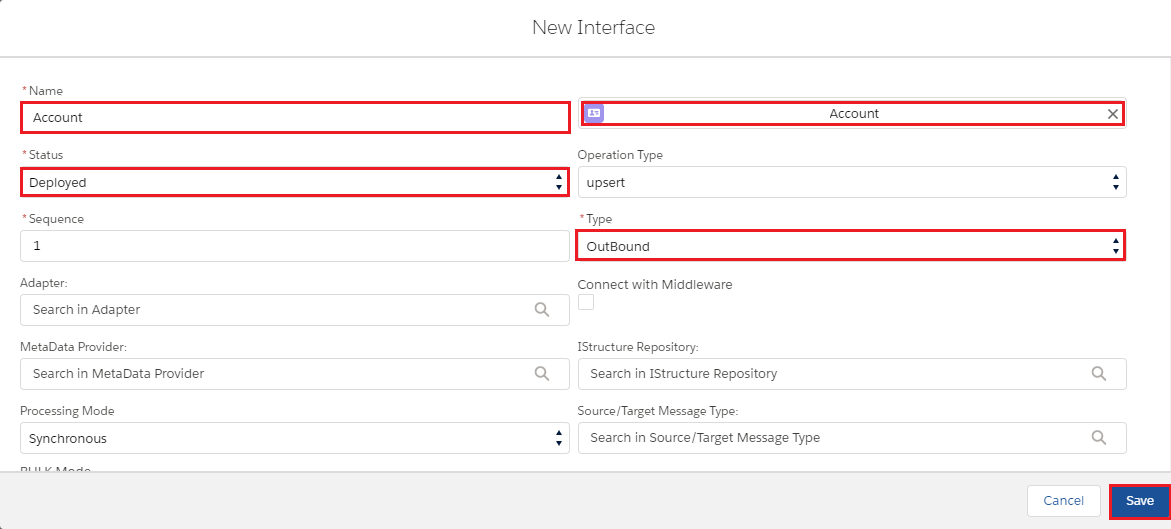
3. Do Mapping drag and drop in Data Mapping grid :-
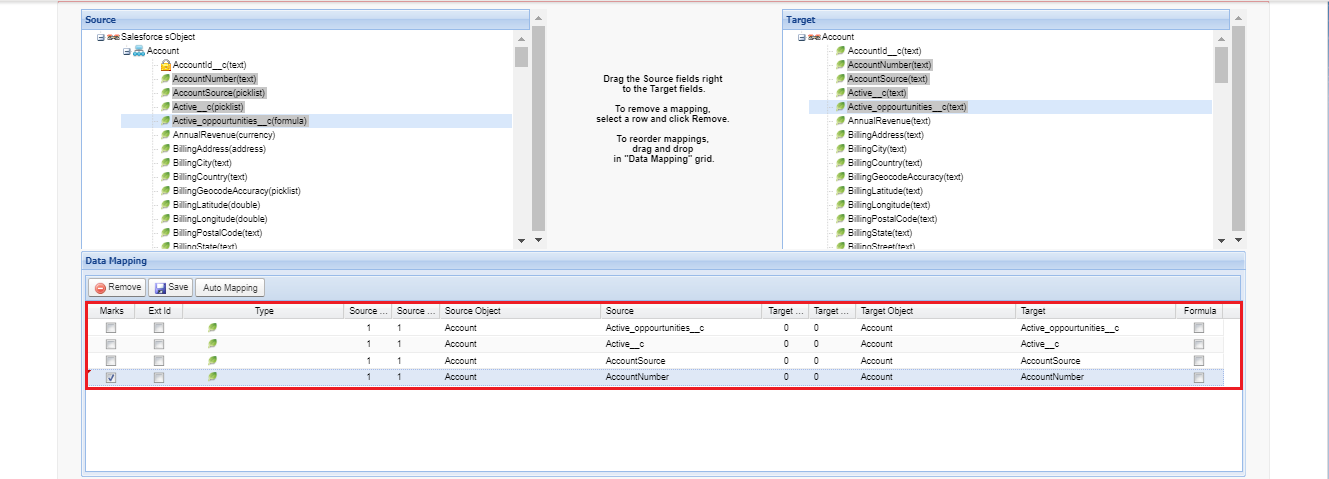
- We can see the section of "SOQL Query to select sObject data" where SOQL is automatically generated when we do mapping:-

CASE 1. If we try to delete Query when the mapping is active:-
- It cannot be deleted we will get an error as shown in the picture given below.