How to import file (binary/attachment) to salesforce using New agent?
Introduction
Importing files such as binary attachments into Salesforce can be crucial for businesses seeking to streamline data management and integrate with various systems effectively. Using the Skyvva Integration App, a versatile tool for handling complex data operations, simplifies this process. SKYVVA facilitates seamless connections between Salesforce and external systems through comprehensive integration capabilities, supporting agents in managing data flows more efficiently.
- To import a file (binary/attachment) into Salesforce using a new agent, ensure your Skyvva Integration App is properly configured within your Salesforce environment. Skyvva's agents are components designed to automate data exchanges, making it easier to manage file imports, including attachments like PDFs, images, or other documents.
- Setting up an agent involves defining parameters such as data sources, mappings, and scheduling preferences. Once configured, the agent serves as a conduit, receiving the file, converting it into a compatible format, and placing it in the appropriate location within Salesforce. This process supports different attachment types while preserving data integrity and reducing manual work.
- With SKYVVA's robust integration and automation features, importing files becomes a streamlined and efficient task, enhancing productivity and ensuring that Salesforce remains a comprehensive repository for essential business documents.
Pre-require
- Create a MetaData provider and repository for the upload message type
- Connection destination and create an adapter
- Create Integration and Inbound Interface
How to import Attachment to Account by using ContentVersion?
- Importing an attachment to an account using ContentVersion through the Skyvva Integration App can streamline data handling within Salesforce. Skyvva, known for enhancing integration capabilities, leverages Salesforce's robust ContentVersion object to manage document attachments effectively. ContentVersion is the primary data structure for storing files in Salesforce, enabling users to link and organize content efficiently across various records.
- To begin the process, it’s crucial to prepare the file, including metadata like title, description, and file extension, to ensure it matches Salesforce's requirements. Using Skyvva, data mapping, and transformation steps guide the attachment import to the designated account. This mapping ensures the correct association of the ContentVersion record to the appropriate Account object. The integration process through Skyvva streamlines importing, linking, and maintaining data integrity across records, significantly improving document management and operational efficiency within Salesforce.
Case1: Configuration of importing Attachment binary by using Account ID
- Integrating attachments effectively into your Salesforce system is crucial for seamless data management and workflow optimization. This guide focuses on the configuration of importing attachment binaries by using the Account ID within the SKYVVA Integration App.
- SKYVVA, known for its powerful data integration capabilities, allows businesses to streamline processes between Salesforce and various external systems. This configuration ensures that documents, images, and relevant files linked to specific accounts are efficiently imported and stored, enhancing data accessibility and record completeness.
- By setting up the import process using the Account ID, you align attachments directly with their associated accounts, maintaining data consistency and minimizing manual intervention. Whether handling client documents, contracts, or other vital records, this integration step supports a more cohesive Salesforce environment. Read on to understand the step-by-step configuration process to enable this functionality and optimize the attachment import workflow using Skyvva’s robust integration features.
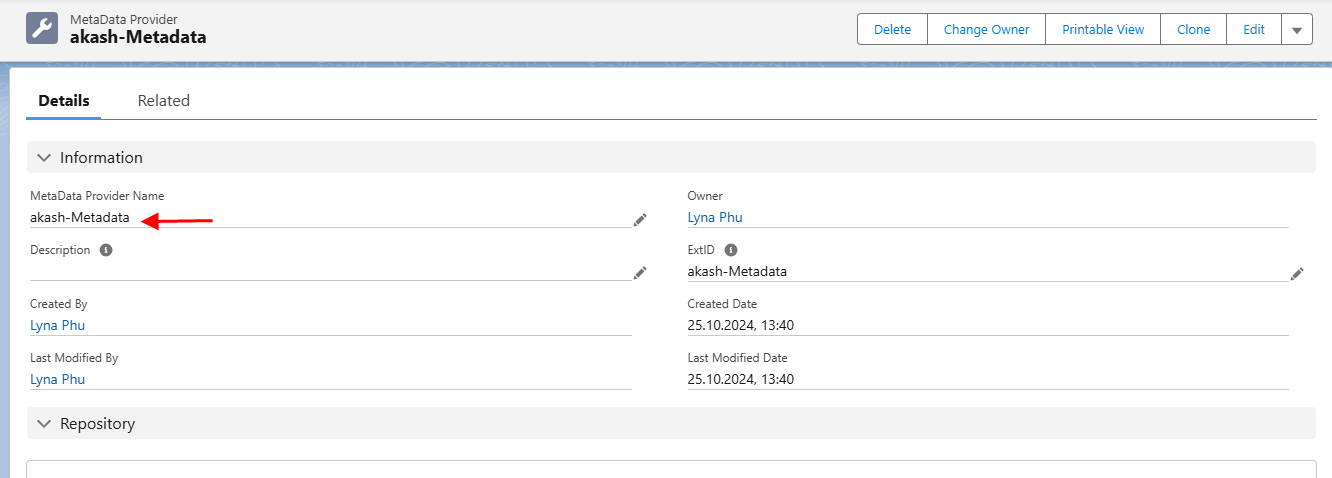
- sObject: Type Plain structure
- Account: Type Salesforce sObject
- ContentVersion: Type Salesforce sObject
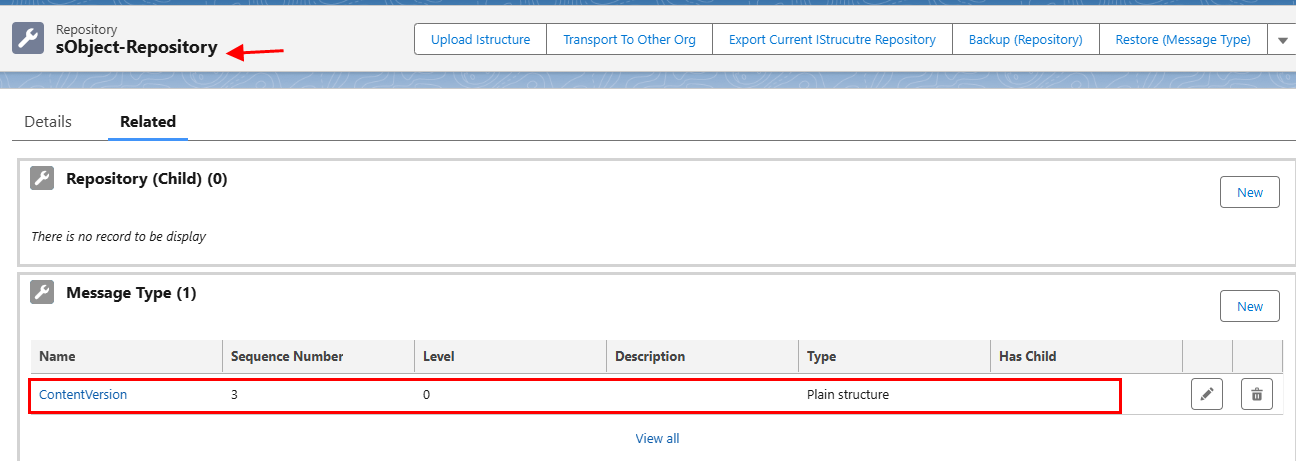
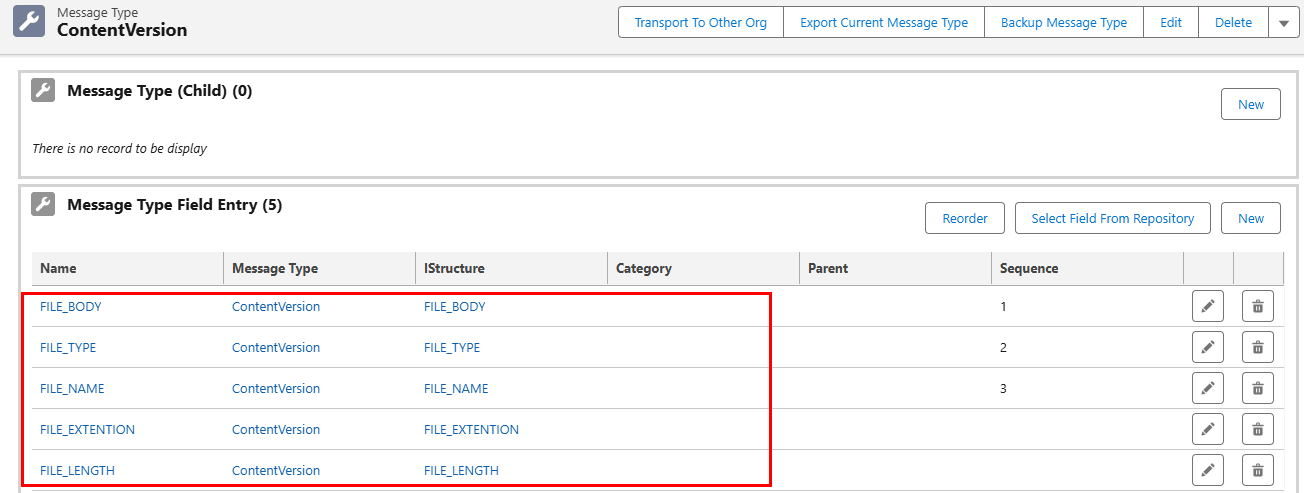
- Message Type Field Entry
- We go to the Agent control board to connect the destination. How to use the Agent control board.
Connection Destination in Agent Control board
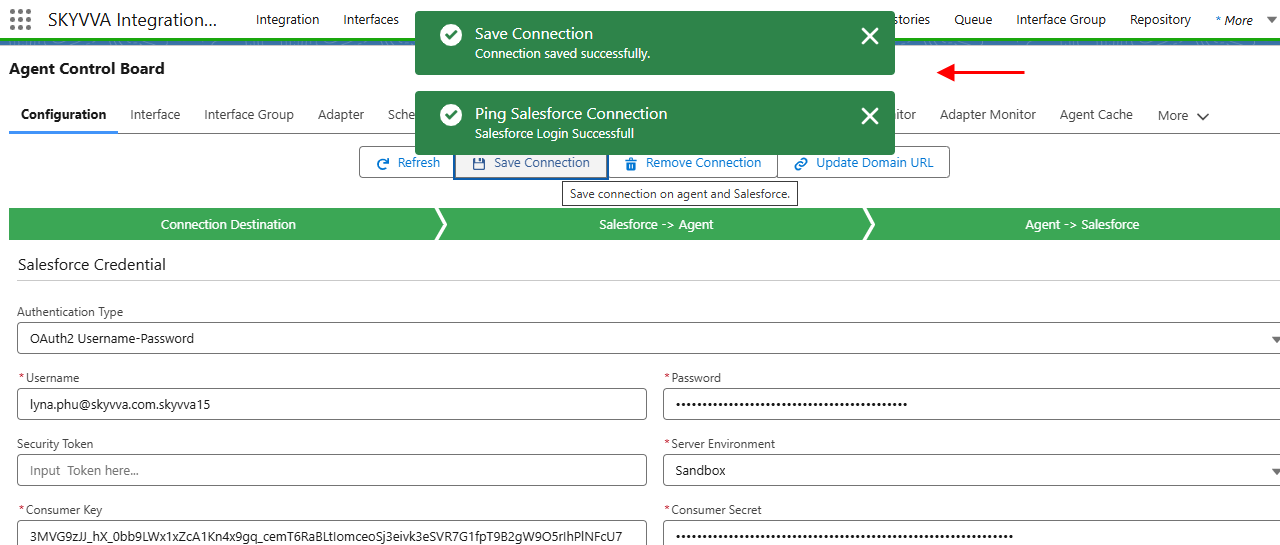
- Create an Adapter in the Agent control board, We need the Adapter to transfer the data from one System to another system or computer.
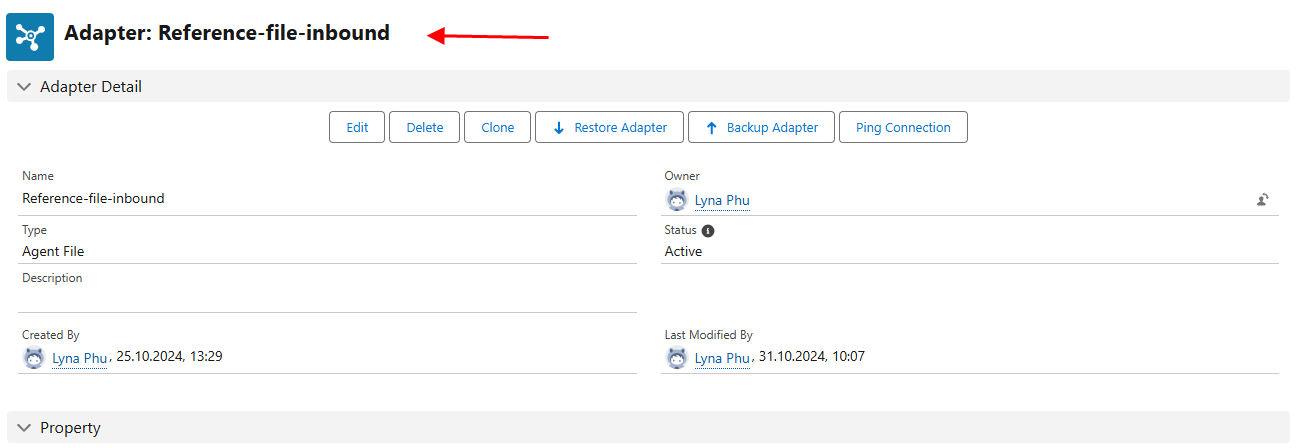
- Here’s an example below.
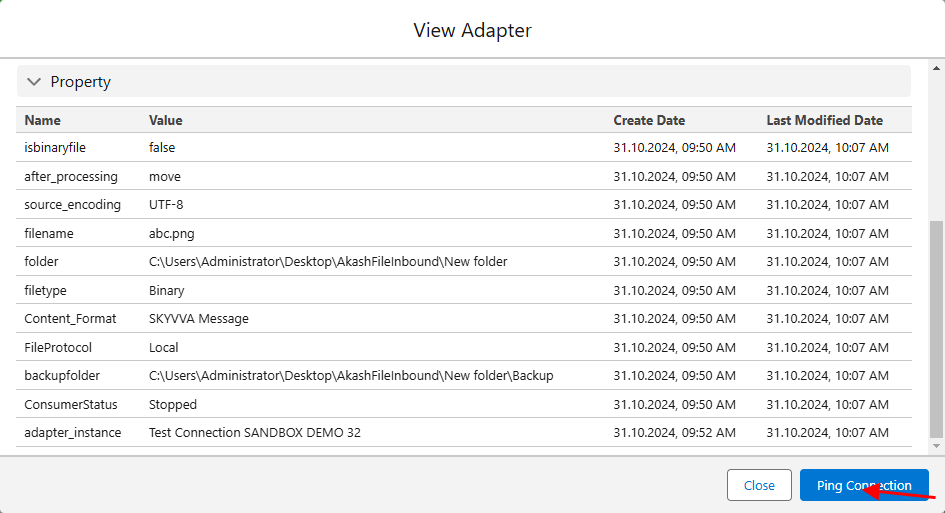
Hit button Ping Connection
The adapter (Inbound) is created successfully
- We need an Inbound Interface to import data from Salesforce.
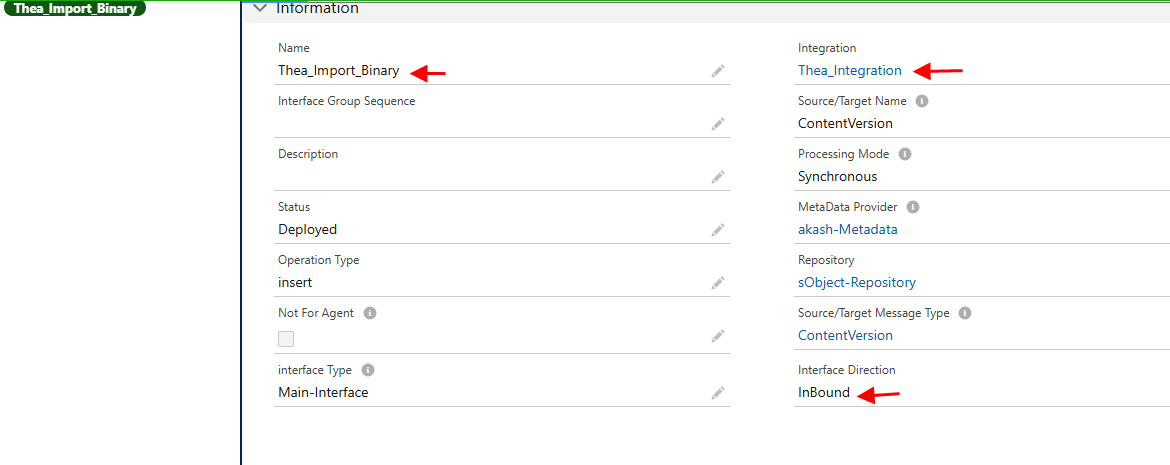
- Create Integration and Inbound Interface with the message types that we uploaded.
[su_box title="Note" box_color="#2a8af0" title_color="#000000"]Source Name we choosing ContentVersion.[/su_box]
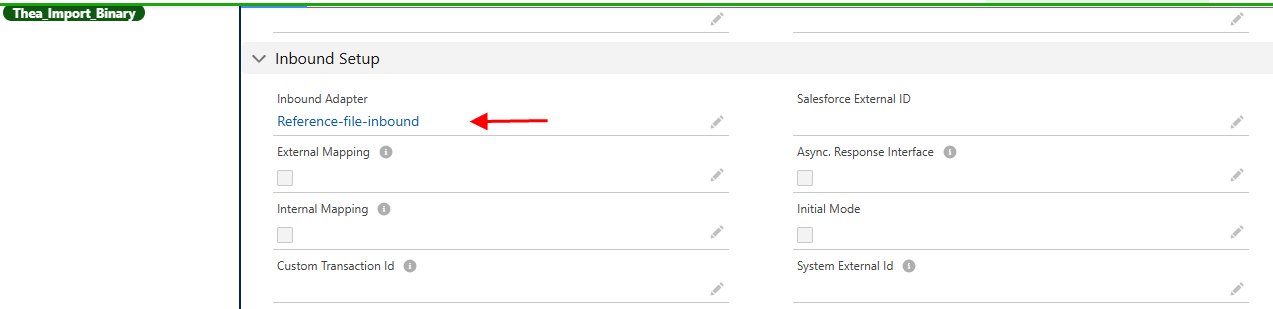
- Scroll down to Inbound Adapter
- Open Mapping
- ContentVersion (Source) to ContentVersion (Target)
- Title ExId’s
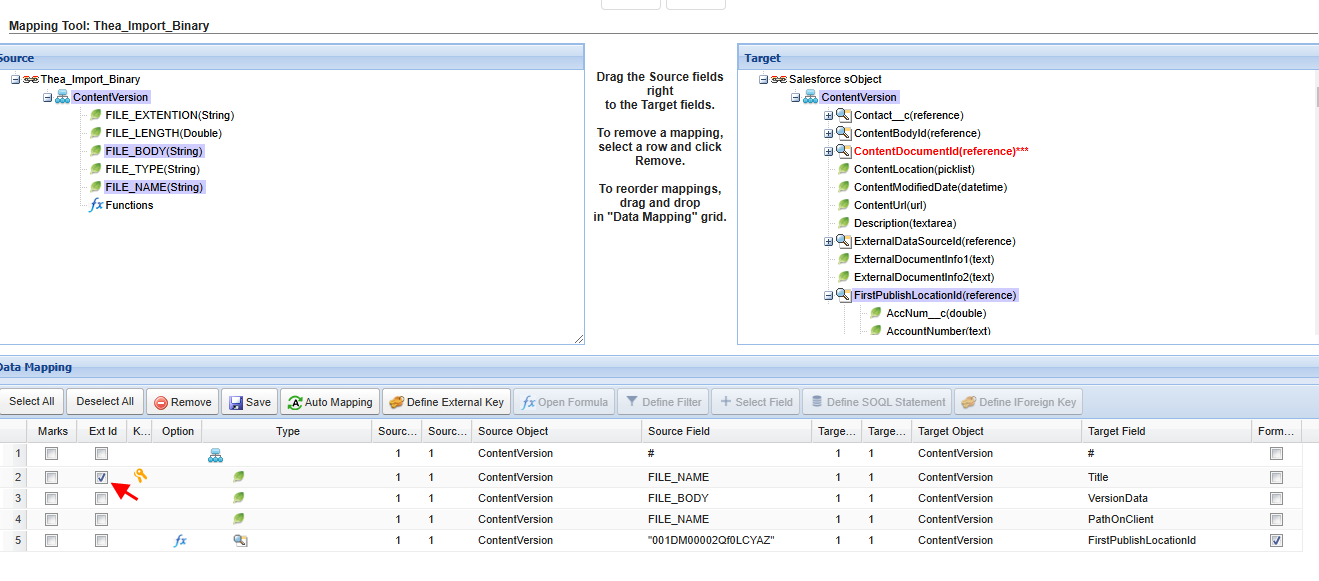
- Save
Select your Interface Click on the Manual Process button
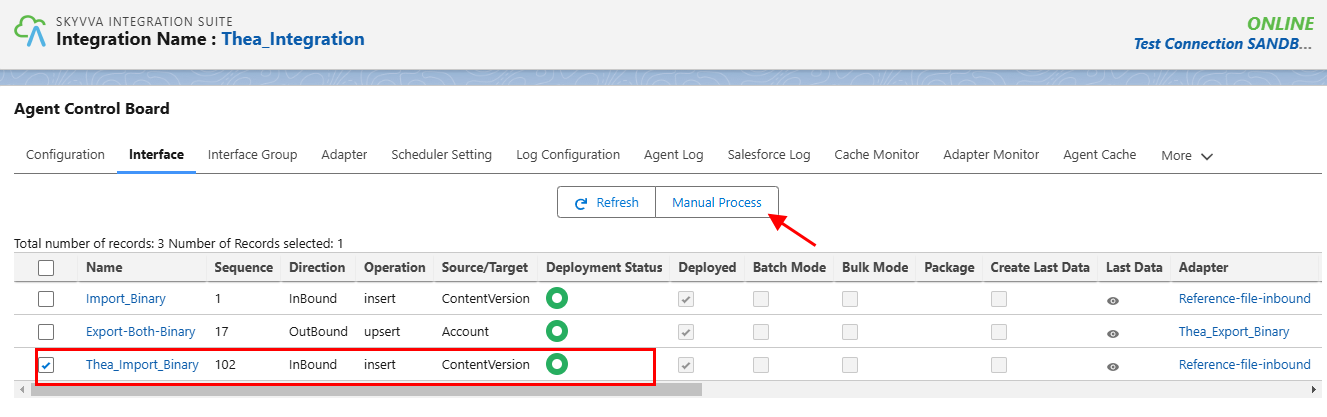
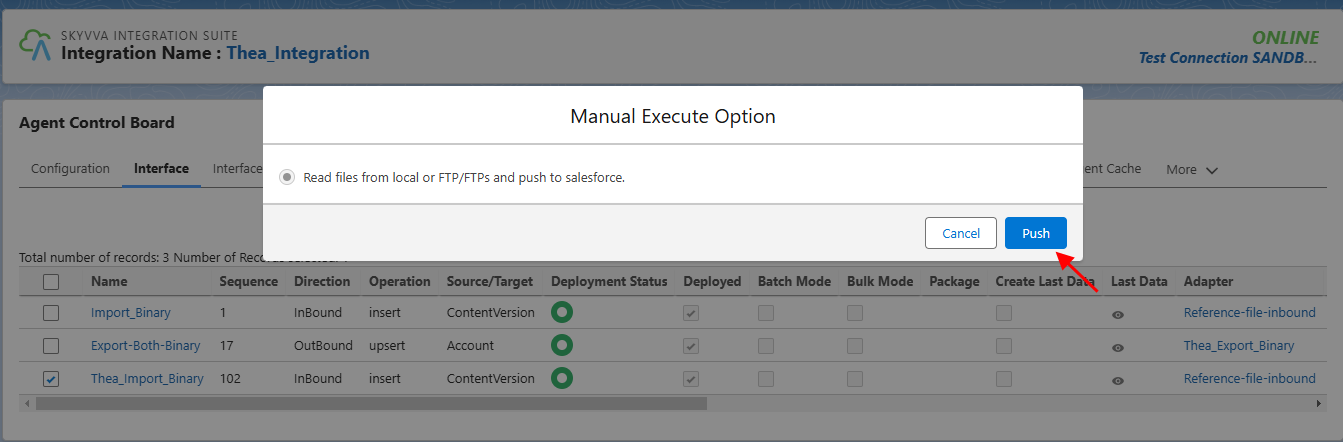
- Manual Execution Option
- Click on Push-button
- Go to Message Monitor
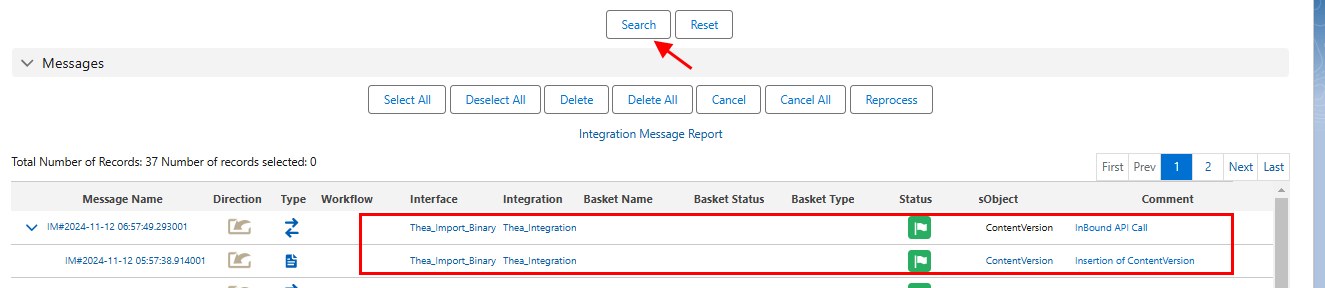
- Click on the search button
- Binary file successfully imported
Case2: Configuration of importing Attachment binary by using vlookup
- The SKYVVA integration app streamlines data management between Salesforce and external systems, providing enhanced functionality for efficient data handling. One of its advanced features includes the configuration of importing attachment binaries combined with the power of VLOOKUP to simplify and automate data processes.
- This approach allows users to integrate attachments seamlessly, ensuring important document data is imported accurately and linked properly within Salesforce. By employing VLOOKUP, the system intelligently matches records and associates attachments based on unique identifiers, reducing manual intervention and errors. This method proves invaluable for businesses needing bulk data transfers or managing high volumes of attachment imports while maintaining data integrity.
- Setting up this configuration not only boosts productivity but also strengthens data reliability within Salesforce environments. This guide will walk you through the essential steps to implement this configuration effectively, ensuring a seamless integration experience.
The user must follow all the previously mentioned steps, including integration, interface setup, and linking the inbound adapter.
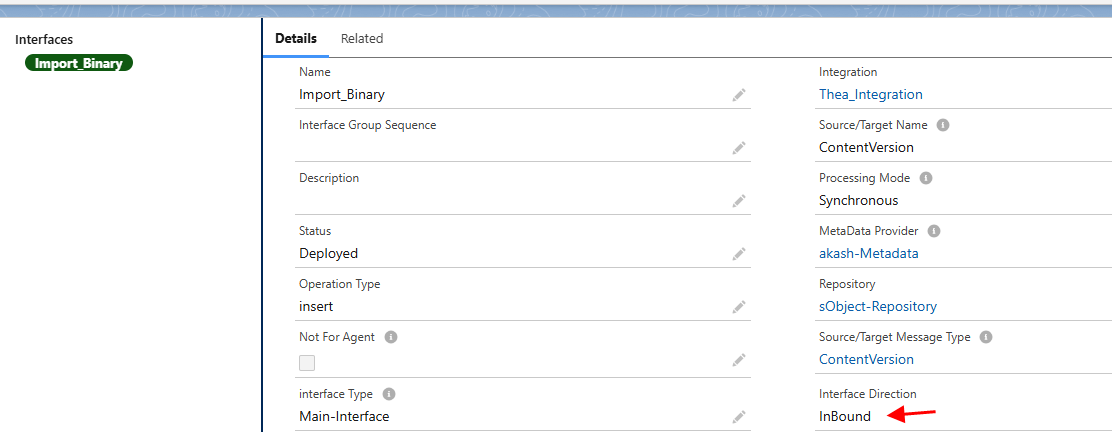
- Mapping
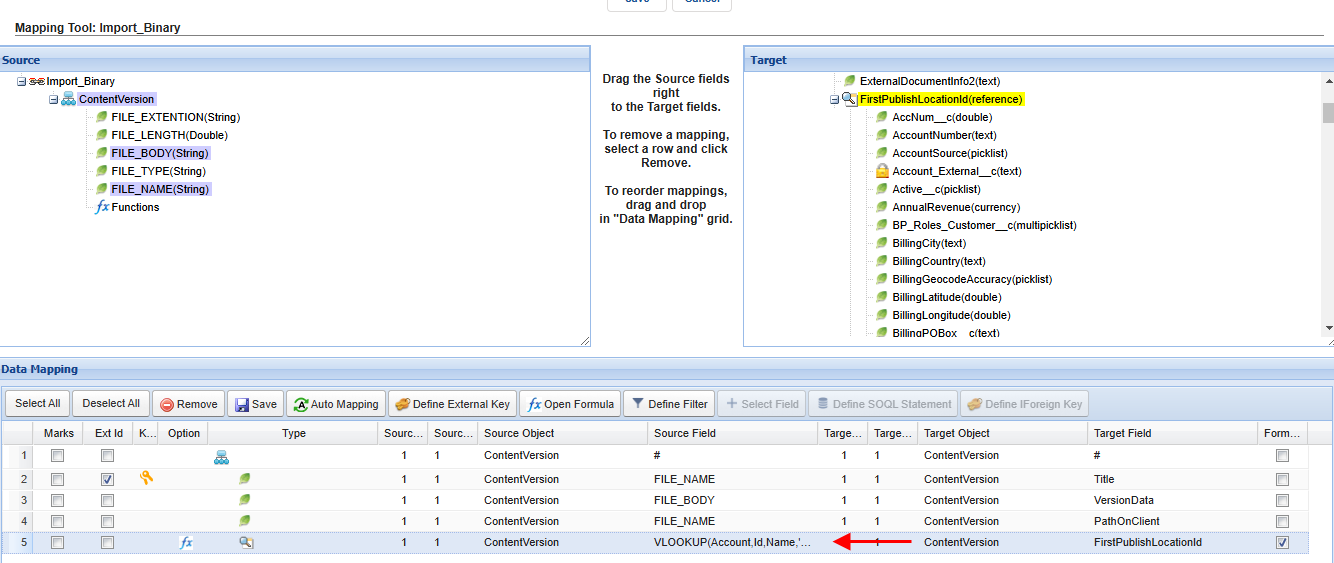
- Open Mapping
- ContentVersion (Source) to ContentVersion (Target)
- Define vlookup -VLOOKUP(Account,Id,Name,'Thea_Binary')
- Title ExId’s
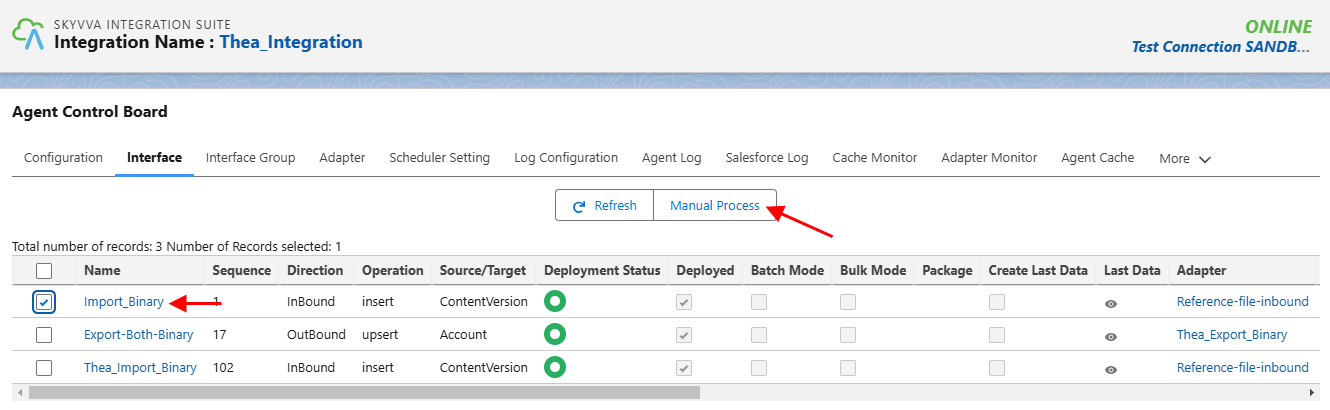
- Manual Execution Option
- Click on Push-button
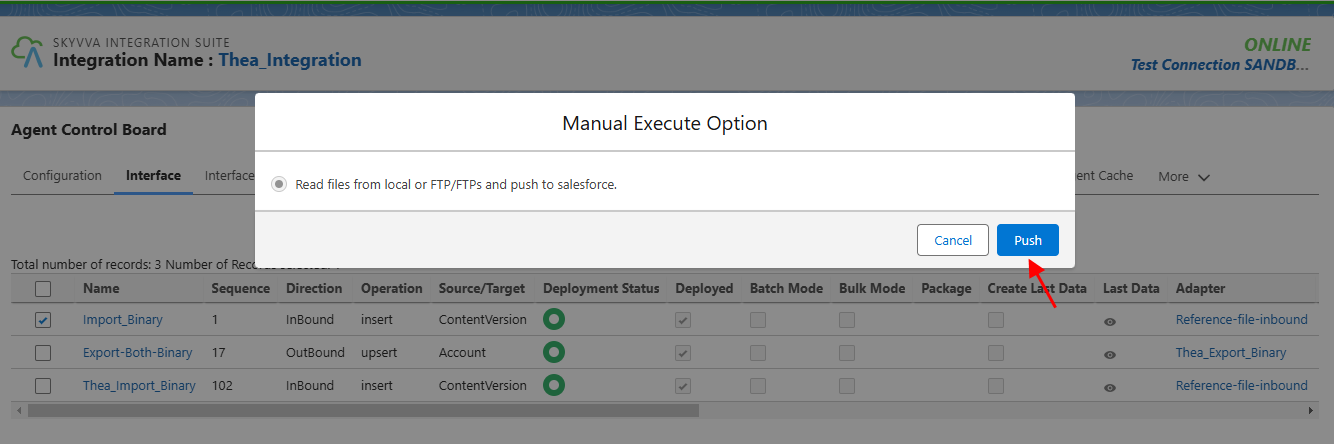
- Manual Process has been executed
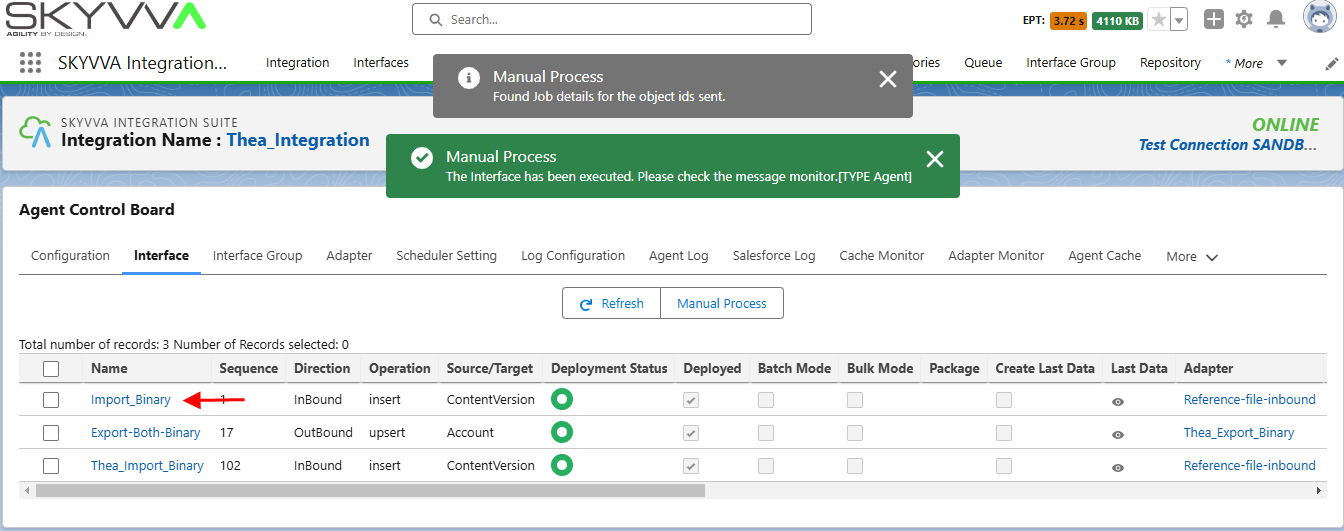
- Go to Message Monitoring
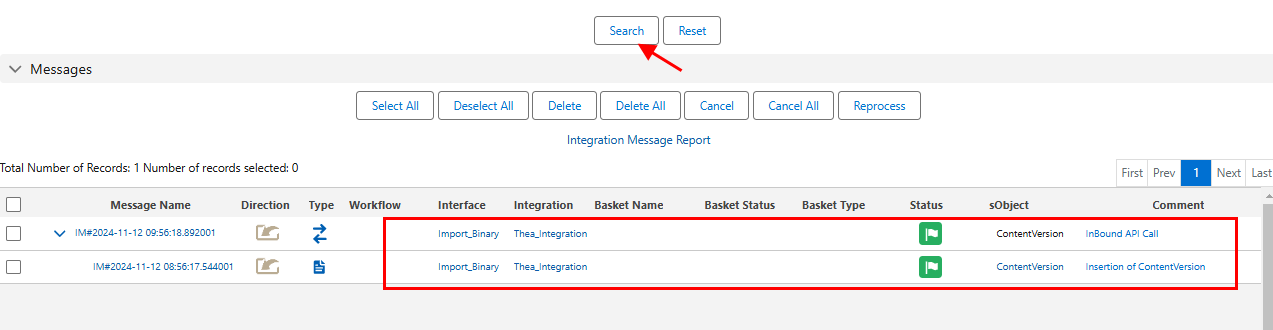
- Click on the search button
- Binary file successfully imported
Summary
In this tutorial, we learned Importing files (binary/attachments) to Salesforce using the new agent in the SKYVVA Integration App involves a structured process. First, set up an integration to connect external systems with Salesforce. Configure an interface specifically designed for file handling and link it with the inbound adapter. Ensure the new agent is installed and properly configured to facilitate data transfer. Execute the import job, which processes and maps files to the relevant Salesforce records, ensuring seamless attachment integration into the platform.