How to Import Internet Adapter using Bulk Mode ?
Internet Adapter for the Inbound Interface using Bulk Mode.
The capabilities and features of an Internet Adapter for the Inbound Interface using Bulk Mode, particularly within the context of a SKYVVA integration application. It's great that users experience platforms such as Google Drive and Dropbox so that the adapter handles different data formats like XML, CSV, and JSON.
The adapter has been enhanced to support Bulk Processing mode with Internet Drive. In this mode, when the setting is configured to 'Bulk', the adapter will create a Bulk Basket in the Bulk Control Board using the SKYVVA integration application.
In the business scenario a specific adapter, within an SKYVVA integration application, is configured to create a Bulk Basket in a Bulk Control Board when the setting is set to 'Bulk.' The use of terms like "adapter," "Bulk Basket," and "Bulk Control Board" suggests a data integration context where data is being transferred or synchronized between different systems.
In this scenario, an adapter is a piece of software that facilitates communication and data exchange between different systems, and settings determine the behavior of that adapter. In this case, when the setting is configured to 'Bulk,' the adapter takes action by creating a Bulk Basket in the Bulk Control Board.
Here are some considerations and steps you might want to take into account:
- Adapter Configuration:
Ensure that the user's Internet Adapter is configured to handle the Inbound Interface in Bulk Mode. This might involve setting specific parameters or options related to Bulk processing within the SKYVVA integration application.
- Bulk Processing Mode:
Clearly define the behavior of the adapter in 'Bulk' mode. Users have to Specify how it interacts with the Bulk Control Board, create Bulk Baskets, and handle bulk data processing.
- Integration Application Settings:
Ensure the SKYVVA integration application is configured to recognize and work with the Internet Adapter in Bulk Mode. This may involve configuring connection settings, authentication, and any other relevant parameters.
[su_box title="Note" box_color="#ff0000" title_color="#000000"]
- In Synchronous mode, the interface pushes all records in the file to create a single basket in the Bulk control board.
- In Asynchronous mode, the interface can divide the records from the CSV file to create baskets based on the settings specified in the interface (specifically, the setting for Transfer Package Size on the Interface Detail page in the Information section).
- The Asynchronous mode can only divide records when using the CSV format; it cannot be applied to other formats.
[/su_box]
Required step:
- Create an Integration
- Create an Inbound Adapter e.g., OneDrive
- Create an Inbound Interface -> setting Processing Mode: Synchronous -> Do Mapping -> link Adapter OneDrive with Interface
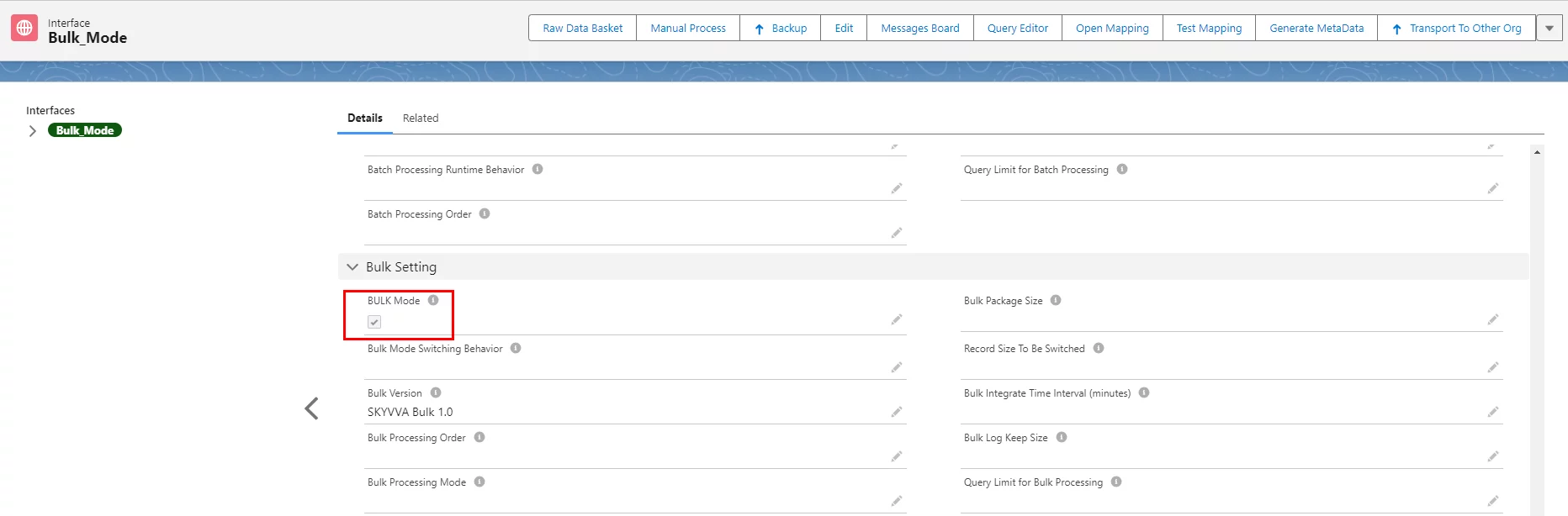
- Go to Interface Detail -> scroll down to Bulk Setting -> tick Bulk Mode
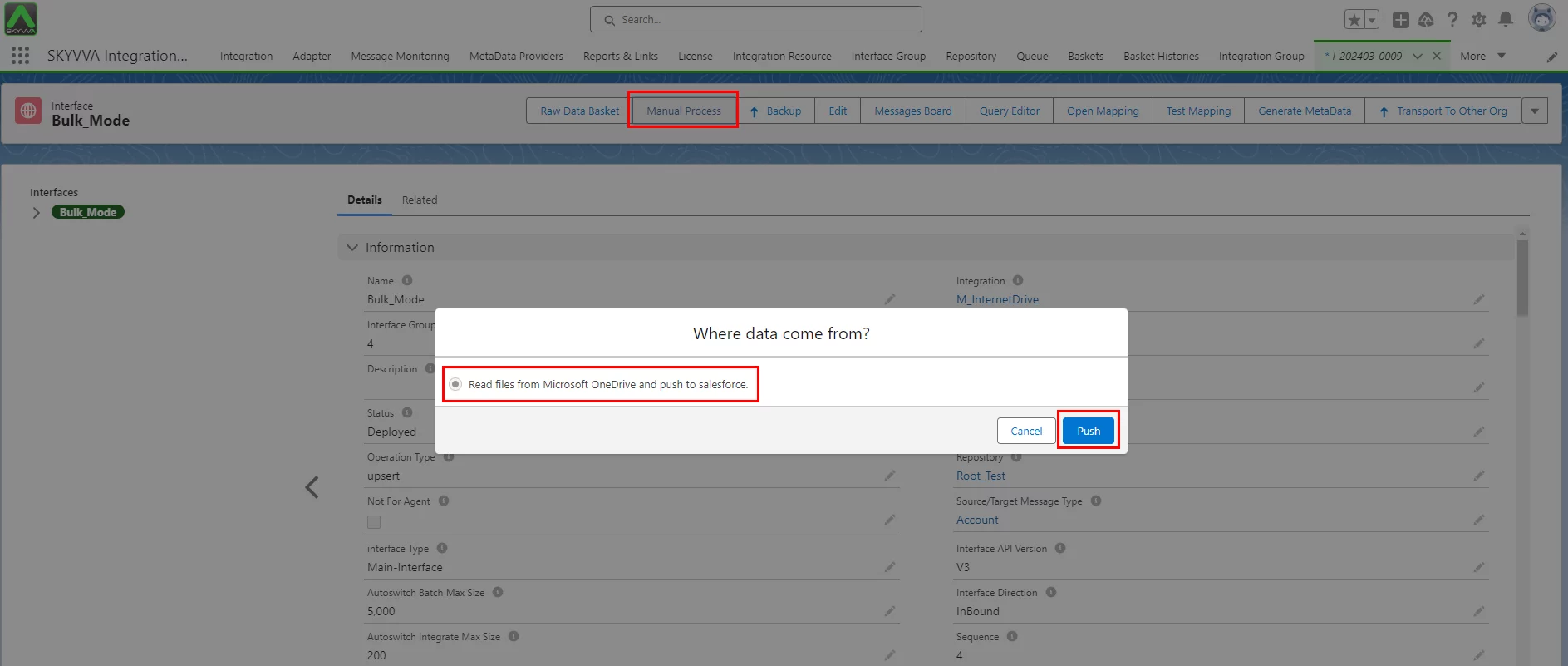
- Click on the Manual Process button for the Read file from OneDrive.
- Apex Job
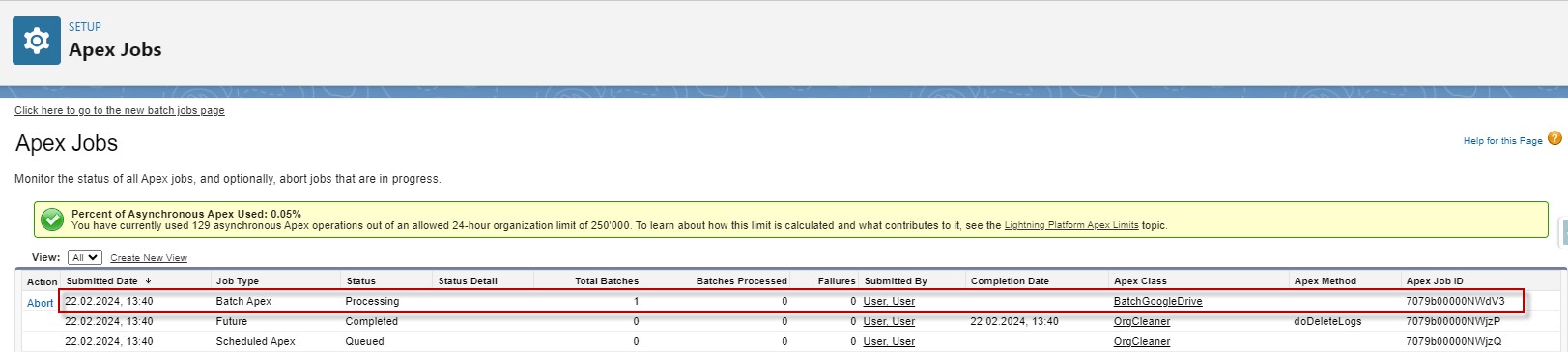
- After apex job processing is completed, it will create a basket in the Bulk Control Board.
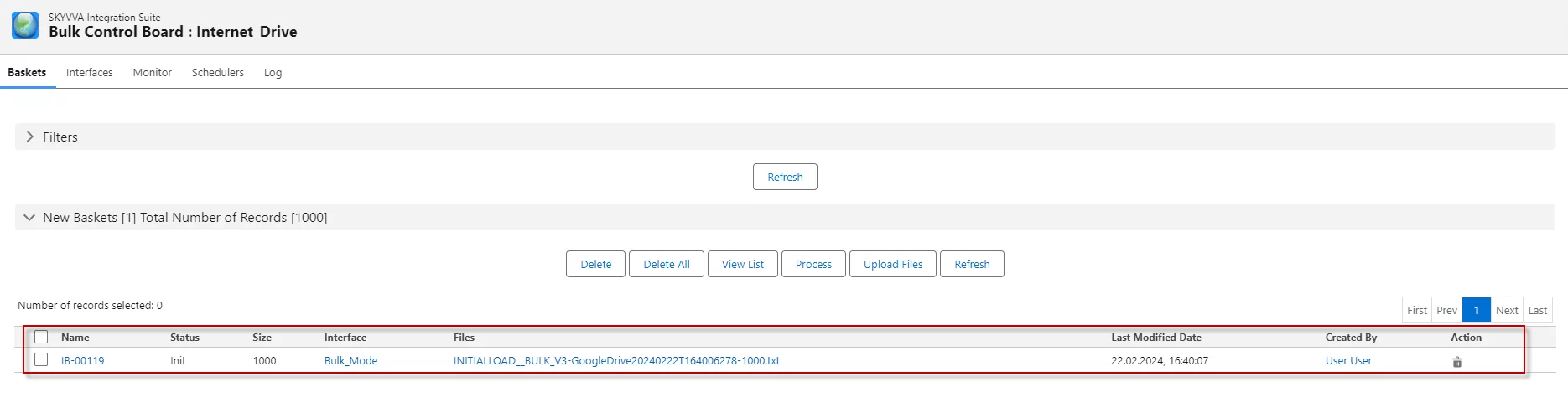
- Then we can process them as Bulk Processing manually or schedule whatever user want
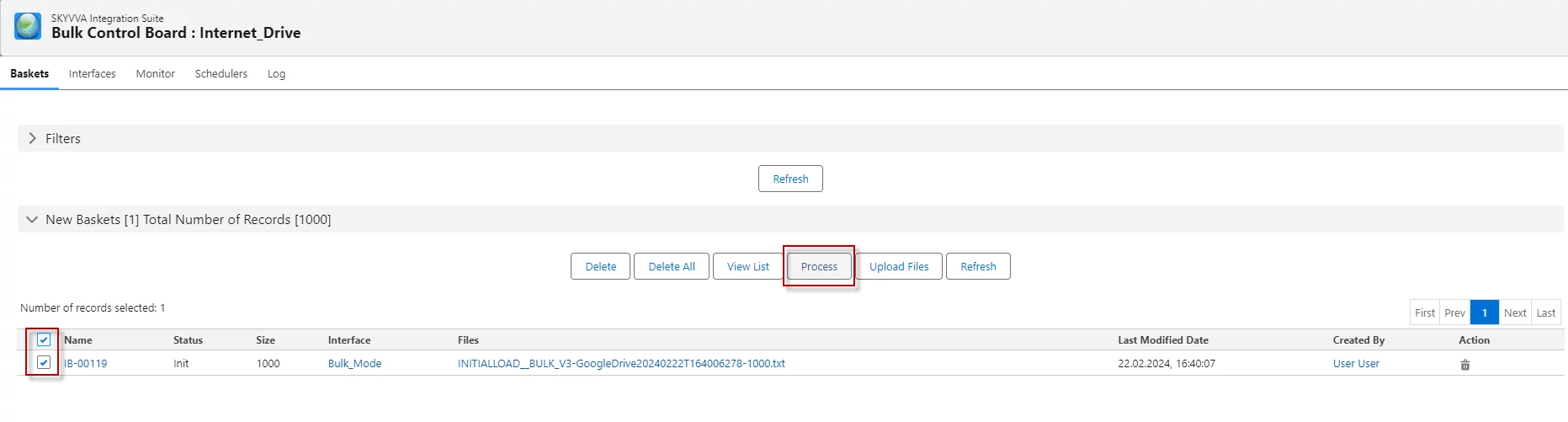
- Apex job process basket

- After Apex Job processing was completed, we got the Message Monitoring
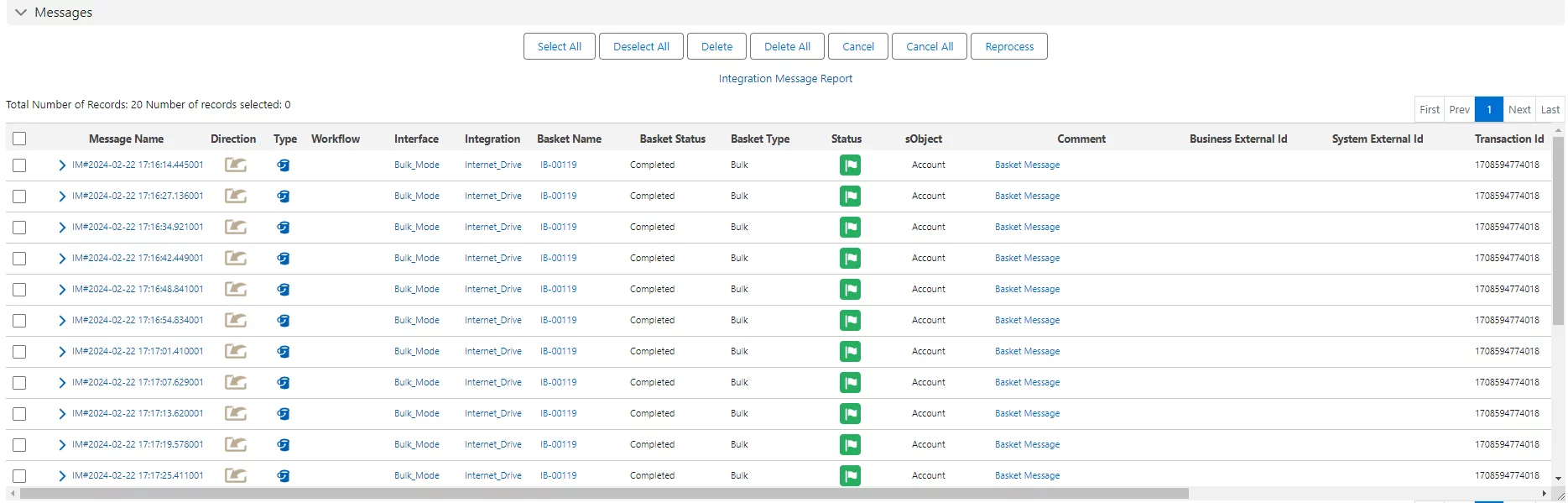
[su_box title="Result:" box_color="#2a8af0" title_color="#000000"]After the basket processing is completed, a success message is generated, indicating that the records have been successfully created in Salesforce[/su_box]