How to Import Internet Adapter using Synchronous Mode?
Internet Adapter for the Inbound Interface using Synchronous Mode.
Configuring an Internet Adapter for the Inbound Interface using Synchronous Mode, a data processing system that supports various file formats through the Internet Drive adapter. The supported formats include CSV, XML, and JSON.
The system operates in Synchronous mode, allowing immediate file processing without the need to chain batch jobs to other processes. This mode is particularly beneficial when dealing with smaller files, enabling users to process them without significant delays.
SKYVVA, which appears to be part of this processing system. SKYVVA provides additional functionalities & capabilities to enhance the integration and processing of data.
- Access Skyvva Configuration:
Log in to your Skyvva integration application.
- Navigate to the flow integration settings.
- Create Inbound Interface:
Create the Inbound Interface for which the user wants to configure the Internet Adapter.
- Select Synchronous Mode:
Look for a setting that allows the user to choose the communication mode. Select the synchronous mode for the Inbound Interface.
- Configure Internet Adapter:
Locate the section related to adapters.
- Choose the Internet Adapter or HTTP Adapter (SKYVVA supports HTTP communication for synchronous integration).
- Enter the necessary details such as endpoint URL, authentication credentials, request/response format, etc.
- Define Message Mapping:
Specify how the data should be mapped between the external system and the Inbound Interface within SKYVVA.
Required step:
- Create an Integration
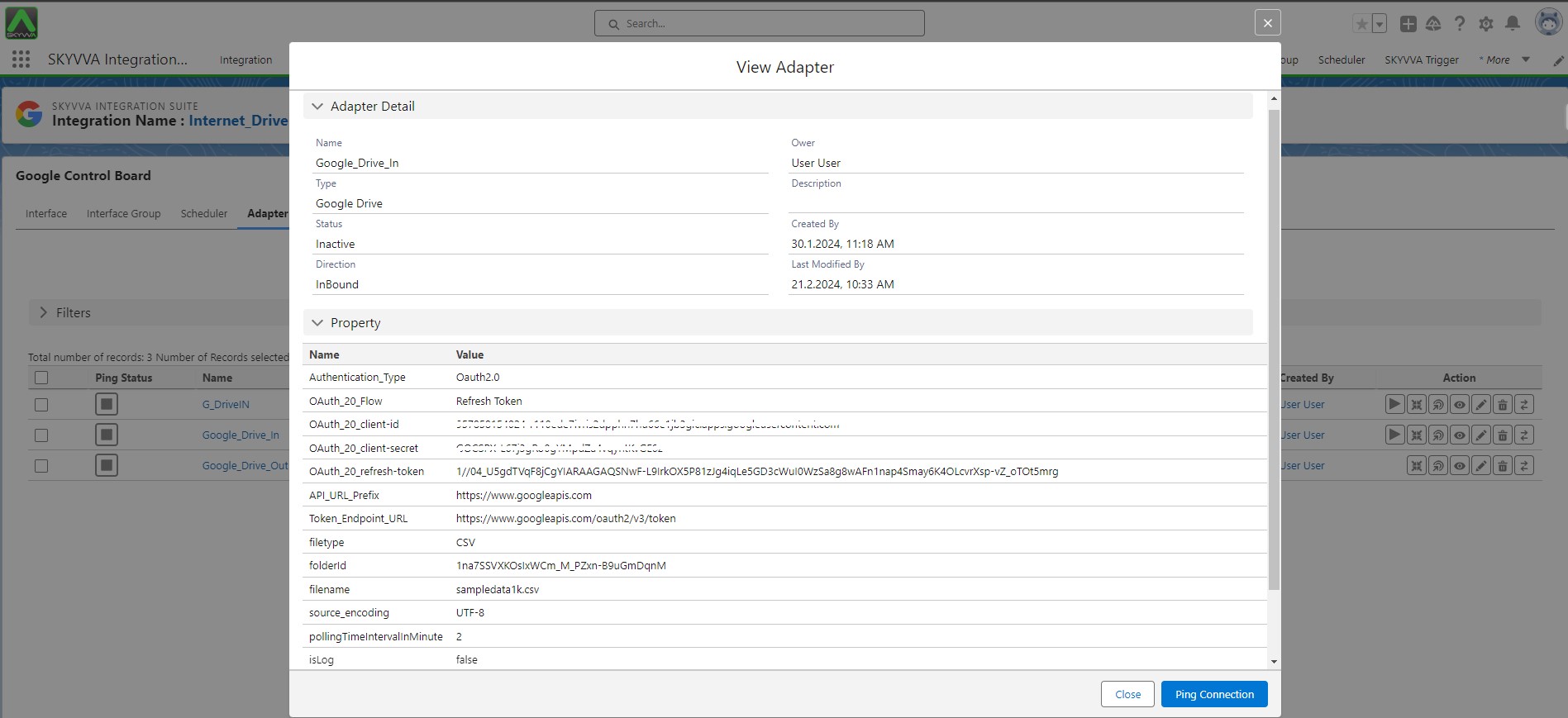
- Create an Inbound Adapter e.g., Google Drive
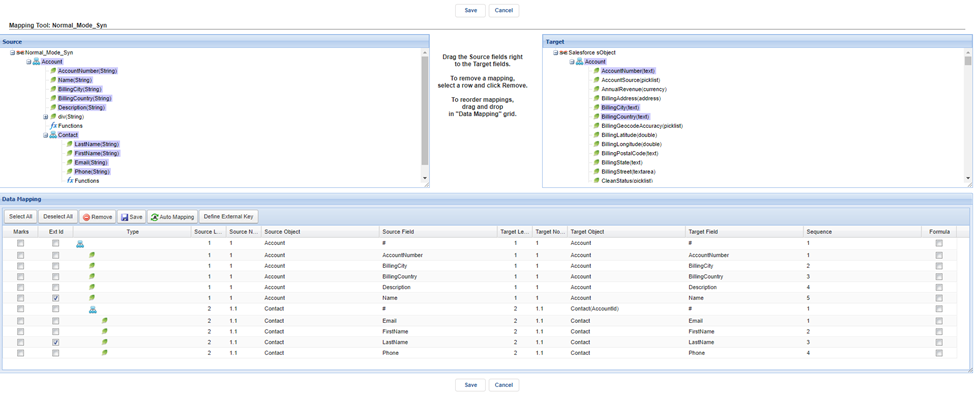
- Create an Inbound Interface -> Do Mapping
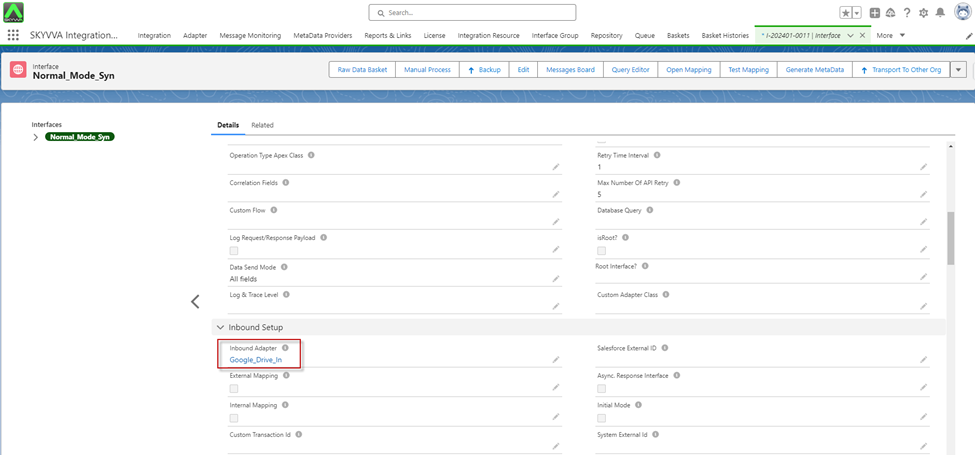
- Go to Interface Detail -> Setting Processing Mode: Synchronous -> Link Adapter Google Drive with Interface
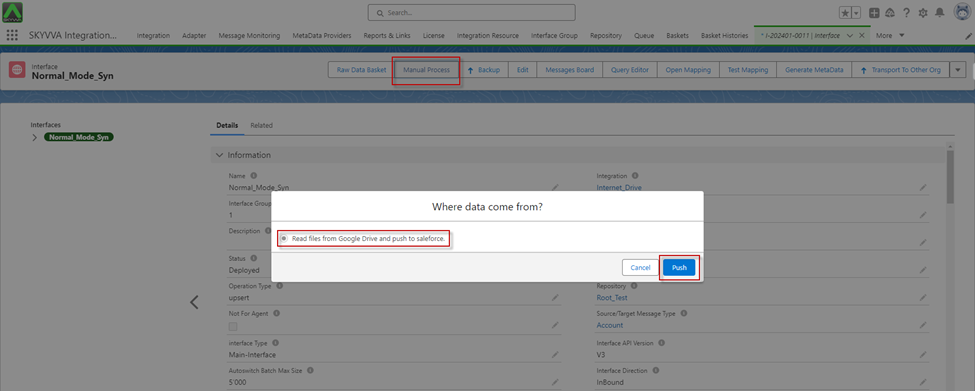
- Click on the Manual Process button for the Read file from Google Drive.
- Apex Job
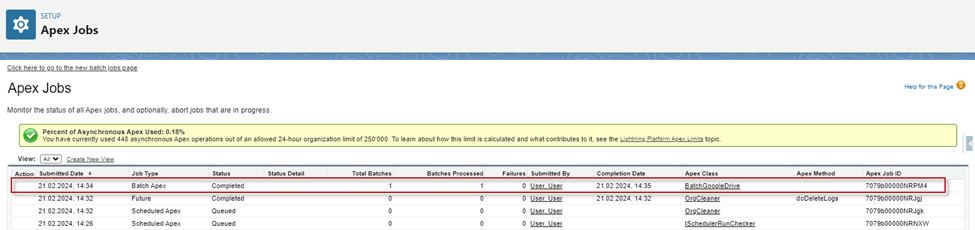
[su_box title="Note" box_color="#ff0000" title_color="#000000"] Use Syn mode, the Apex job processes one batch per Apex job, meaning it processes all the records within a single batch job.[/su_box]
- After apex job processing was completed, we got the Message Monitoring
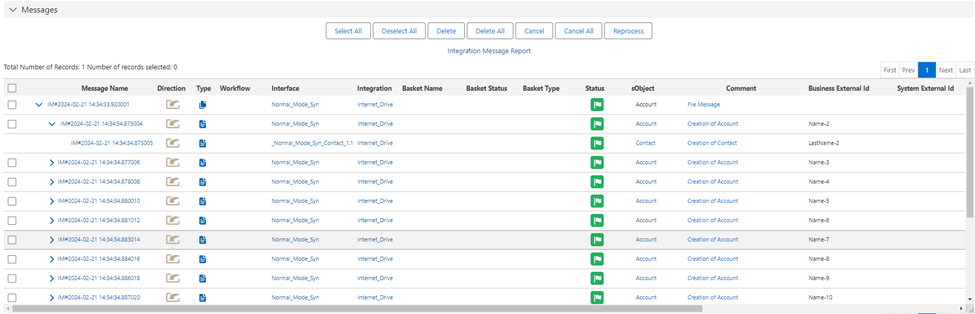
[su_box title="Result:" box_color="#2a8af0" title_color="#000000"]When clicking the 'Manual Process' button for the Read file from Google Drive, it retrieves the file from Google Drive and processes it in a batch per job. After the Apex Job process is completed, we can view the File Message in the Message Monitoring. For One File Message have 1000 Business Messages.[/su_box]