How to Import Source Definitions Using CSV, XML, and JSON in SKYVVA?
Overview
SKYVVA allows users to import a source definition from a CSV, XML, or JSON file. The application reads the file structure and generates source fields (IStructure) automatically, reducing the need to create each field manually.
When importing a new structure, users can choose to merge it with existing fields or replace the existing source definition.
Prerequisites
Before importing a source definition:
- Sign in to Salesforce and open SKYVVA.
- Open the relevant Integration and Interface.
- Prepare a valid CSV, XML, or JSON file containing the required source fields.
- Ensure you have permission to edit the interface's source definition.
Supported File Types
CSV (.csv)
CSV files represent fields as columns. SKYVVA supports four separator choices; select the separator that matches your file.
| Separator | Example header |
|---|---|
Comma (,) | Name,AccountNumber,BillingCity,BillingCountry |
Semicolon (;) | Name;AccountNumber;BillingCity;BillingCountry |
| Tab | Name<TAB>AccountNumber<TAB>BillingCity<TAB>BillingCountry |
Pipe (\|) | Name\|AccountNumber\|BillingCity\|BillingCountry |
The <TAB> markers above represent actual tab characters in the file.
Example CSV using commas:
Name,AccountNumber,BillingCity,BillingCountry
Superstore Customer 001,ACC-001,New York City,United States
The first row defines the source field names. When a CSV file uses another separator, choose the corresponding CSV Separator (for CSV File) option before importing.
XML (.xml)
XML files define fields using elements. The element names are used to identify the source structure.
<?xml version="1.0" encoding="UTF-8"?>
<Account>
  <Name>Superstore Customer 001</Name>
  <AccountNumber>ACC-001</AccountNumber>
  <BillingCity>New York City</BillingCity>
  <BillingCountry>United States</BillingCountry>
</Account>
The Account element groups the fields, while its child elements describe the source data.
JSON (.json)
JSON files define fields using object properties.
  {
    "Name": "Superstore Customer 001",
    "AccountNumber": "ACC-001",
    "BillingCity": "New York City",
    "BillingCountry": "United States"
  }
The Account object contains the source field names and sample values.
Note: The examples above illustrate a simple Account structure. More complex nested structures may require additional configuration.
Import a Source Definition
- Open SKYVVA and navigate to the relevant Integration.
- Open the Interface where you want to configure the source structure.
- Go to Details → Source Definition.
- Choose the file to upload in the source definition upload area.
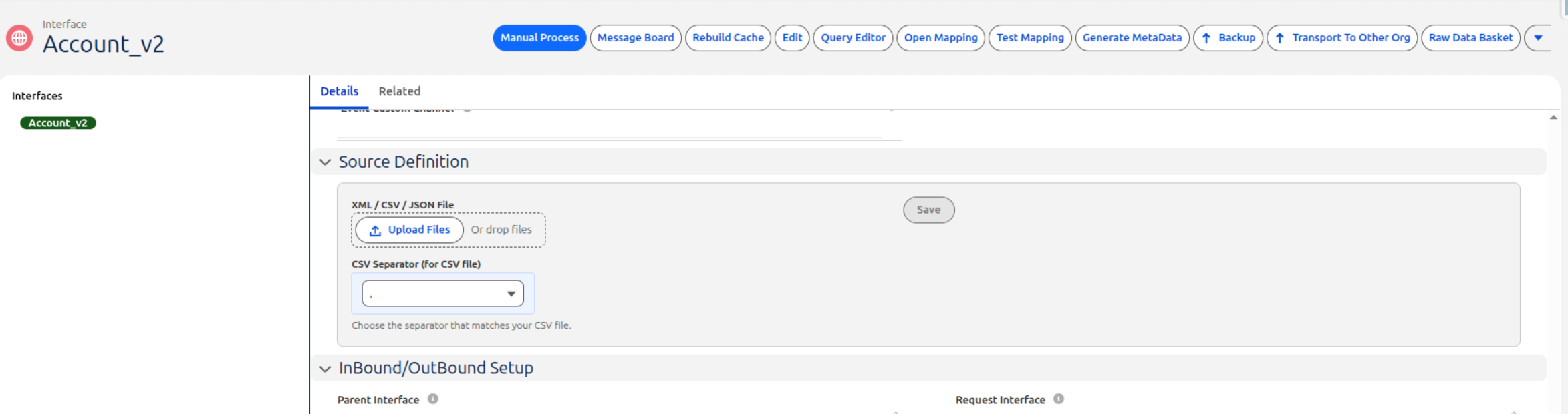
- For a CSV file, select the separator that matches its contents.
- Upload the file and review the displayed source structure.
- Click Save.
- In the confirmation dialog, choose Yes to merge or No to replace.
- Review the resulting IStructure fields and confirm that the source definition is correct.
Merge or Replace Existing Fields
When you click Import Structure, SKYVVA asks:
Merge new fields with existing fields?
- Yes — Merge: Retains existing fields and adds fields from the uploaded structure that are not already present.
- No — Replace: Replaces the existing source definition fields with those from the uploaded structure.
Example
Suppose the existing source definition contains:
Name
AccountNumber
BillingCity
BillingCountry
You import a new file containing:
Name
Phone
Website
Industry
If you select Yes, the source definition contains:
Name
AccountNumber
BillingCity
BillingCountry
Phone
Website
Industry
If you select No, the source definition contains:
Name
Phone
Website
Industry
Choose Merge when you want to extend an existing structure. Choose Replace when the uploaded file should become the new complete source definition.
Verify the Imported Structure
After importing, review the Source Definition field list:
- Confirm that all expected fields appear.
- Confirm that existing fields are retained when you choose Merge.
- Confirm that obsolete fields are no longer present when you choose Replace.
- Check that the structure remains available when you reopen the interface.
Troubleshooting
| Situation | What to check |
|---|---|
| CSV fields are not separated correctly | Ensure the selected CSV separator matches the file |
| Expected fields are missing | Check the file's column headers, XML elements, or JSON properties |
| Import fails | Check that the file contains valid CSV, XML, or JSON syntax |
| Existing fields disappeared | Check whether No — Replace was selected |
| New fields do not appear | Verify the uploaded file contains the new field names and recheck the import result |
Summary
The Source Definition import feature lets you create and maintain IStructure fields from CSV, XML, and JSON files. CSV supports comma, semicolon, tab, and pipe separators. The Import Structure confirmation gives you control over whether the new definition extends the existing fields or replaces them.