1. How to import flat xml file?
Learning Objectives
After completing this unit, you’ll be able to:
- Describe what the Manual Load feature is.
- Comfortably use the manual load feature to import XML data.

Introduction
SKYVVA´s Free Dataloader is part of the SKYVVA´s Integration Cloud App and is a native force.com App. As a true Cloud Service data can be uploaded over the Web without the need to install any software or hardware. SKYVVA´s Free Dataloader is perfectly suited for a business analyst and administrator to manage the import of critical business information such as accounts, contacts, assets products, leads or orders in a timely manner without being reliant on limited IT resources. Based on an intuitive (Salesforce Look & Feel) Web interface SKYVVA´s Free Dataloader is very easy to configure (No Coding) and maintain. The Free Dataloader is installed as a tab 'Integration' directly in the Salesforce menu bar. Fields are mapped by a visual editor, data are transformed using a formula editor. All operations are executed in the familiar Salesforce Look & Feel. Business analysts or administrator get alerted about failure in the service and are enabled to resolute data transforming or process logic without IT help via a message board
What is SKYVVA Data Loader?
SKYVVA´s Dataloader is a native Salesforce App and is designed to integrate data supporting CSV/XML format via a manual file upload. It is simple, intuitive and powerful to built integration in minutes. It is a Config&Click graphical mapping tool. Skyvva data loader use to upsert, insert, update, delete, or export Salesforce records.
Pre-requisite
We should have a salesforce organization with Skyvva products.
Configuration of SKYVVA Data Loader
To import data from CSV/XML file into Salesforce Please follow the given steps: Step 1. The first step is to create a new Integration to import our XML file.
- On the Menu Bar, you see the Integration tab -> clicks on the tap Integration. Please refer the document to create Integration
- Click On New button.

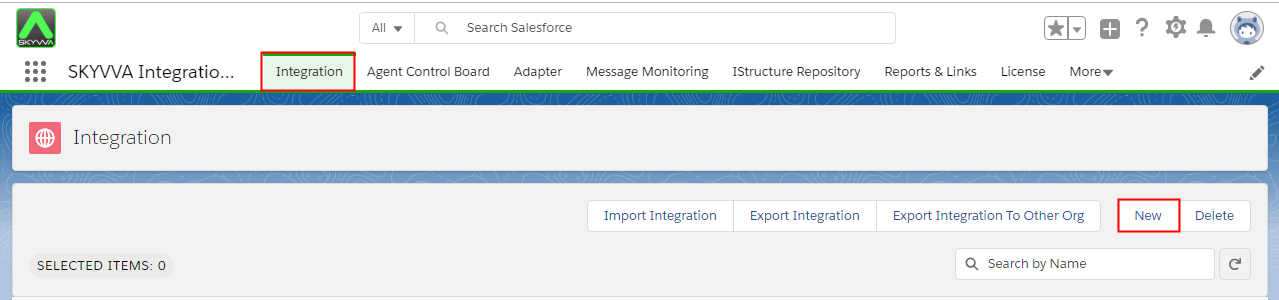
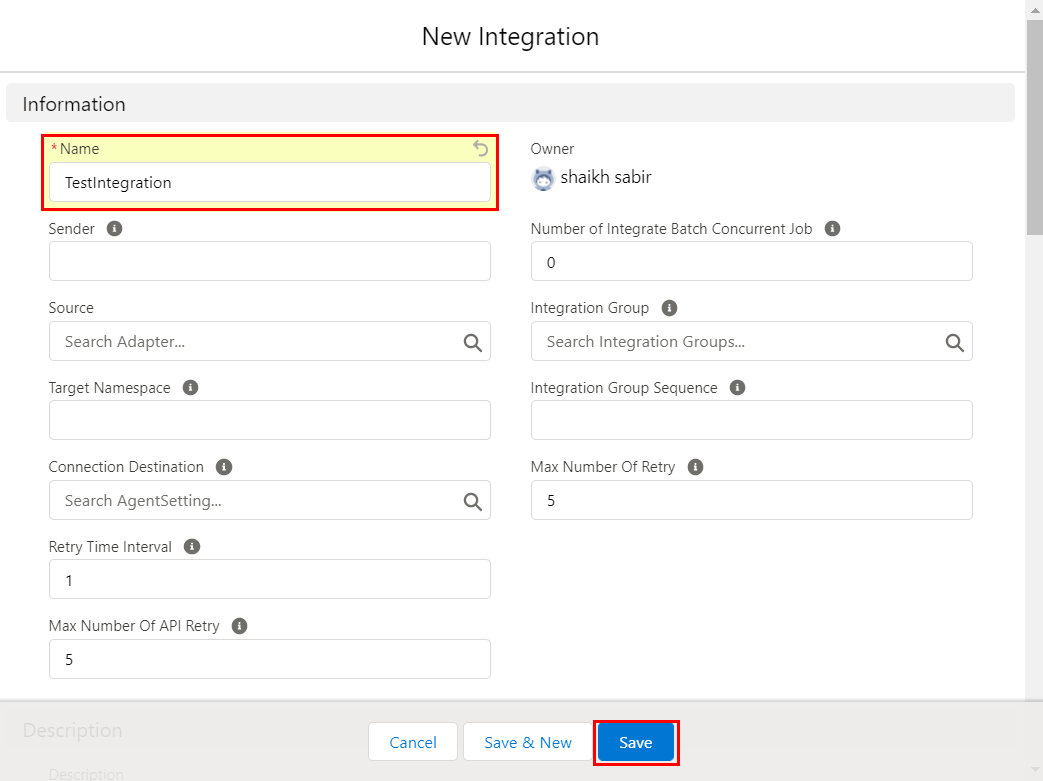
- Fill in the Name Field (Give a meaningful name that identifies your integration.) We give our Integration a name and a short description of the use case for this integration.
- All other fields can remain as default...
- Click on Save button and we have created an Integration to upload XML file
Step 2. The next step is to create the Interface for the Account Object. To create new interface follow the given steps:
- Go to your Integration page.
- Click on Interface tab (near to detail tab).
- Click On New Interface button.

We give our Interface a Name and change the Status to Deploy and choose in Source Name the proper SObject -> Account. All other fields can remain as default… Click on the ‘Save’ button and created our Account Interface. Interface Fields Information:
- Name: It can be Account, Contact or Case.. etc to notify your Interfaces
- Statue: Deployed (It can be used)
- Sequence: Ranking number (1)
- Adapter: It is the connector
- Source Name: Salesforce Objects (Account, Contact or Case.. ect.)
- Operation Type: There are 4 types:
– Upsert: To update on existed data and insert new data that doesn't exist yet in Message Monitoring.
– Update: Only update on data that is already existed in Message Monitoring.
– Insert: Add all data in the Message Monitoring.
– Delete: Delete all data in Message Monitoring.
- Type: There are 2 Types:
– Inbound: Import data into Salesforce
– Outbound: Export data outside Salesforce
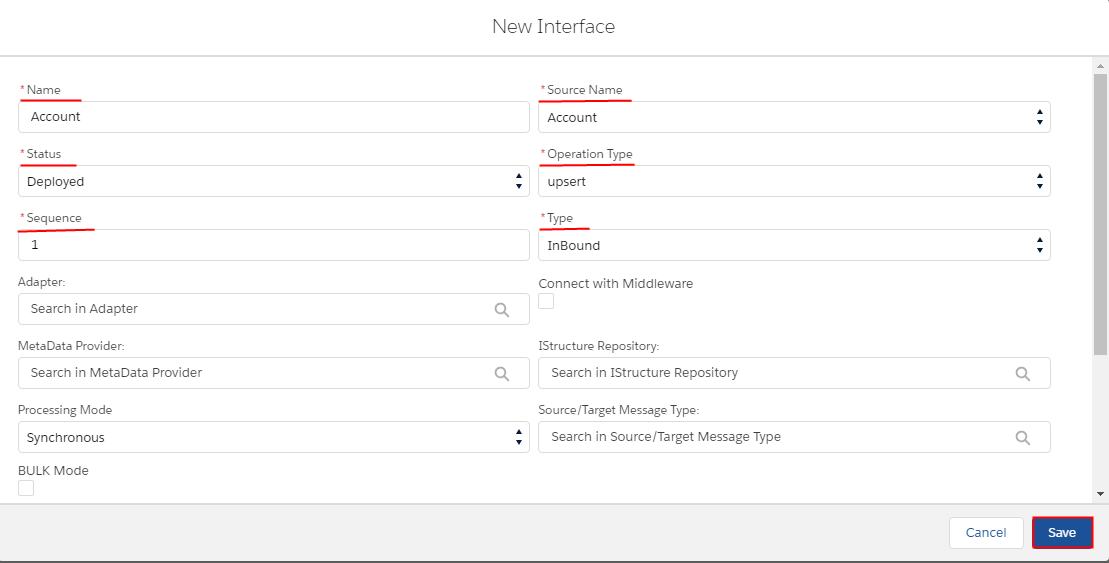
We click on 'Save' and created our Account Interface.

We click on the 'Account Interface' link and see the Interface Details. It navigates to:

Step 3 How to do Mapping Cross down to Source definition Section->Click choose file button to browse the file that wants to map and choose your XML file to upload ->choose file->Click Open button->and then click on 'Save'


- Browse the XML file for Istructure.
- And save it.
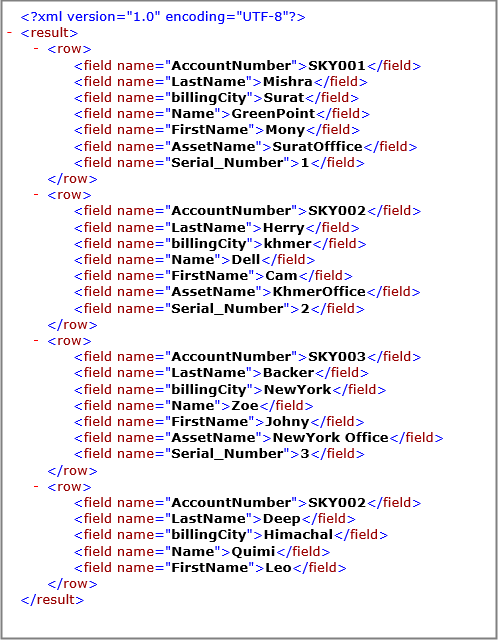
Your uploaded XML file structure looks like:
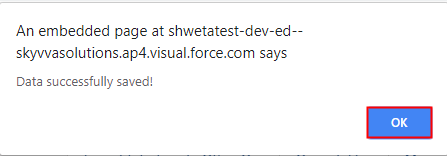
You see the Message that the XML file upload was successful and then click on the OK button.
In the reloaded Mapping area we see now our source structure with all fields.
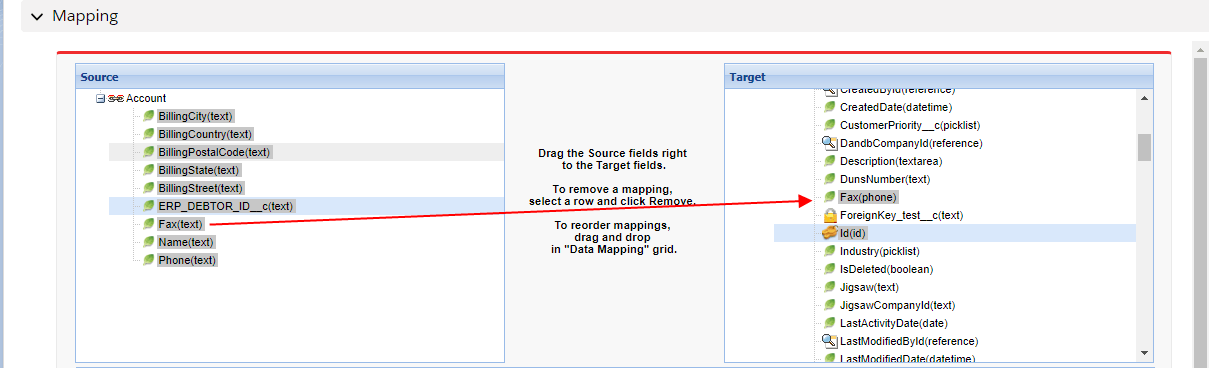
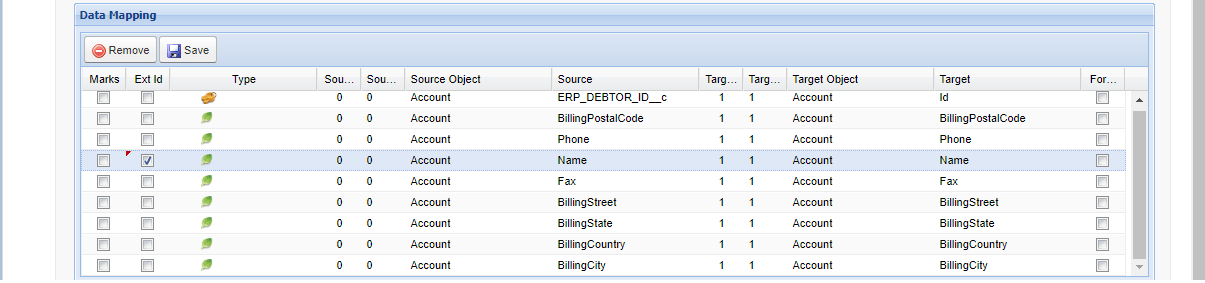
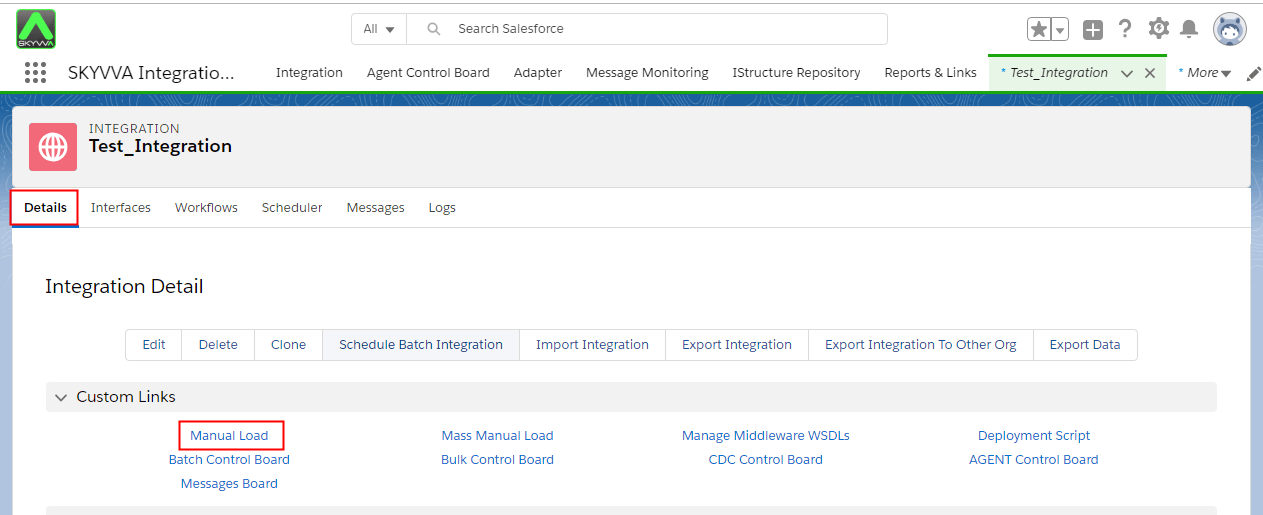
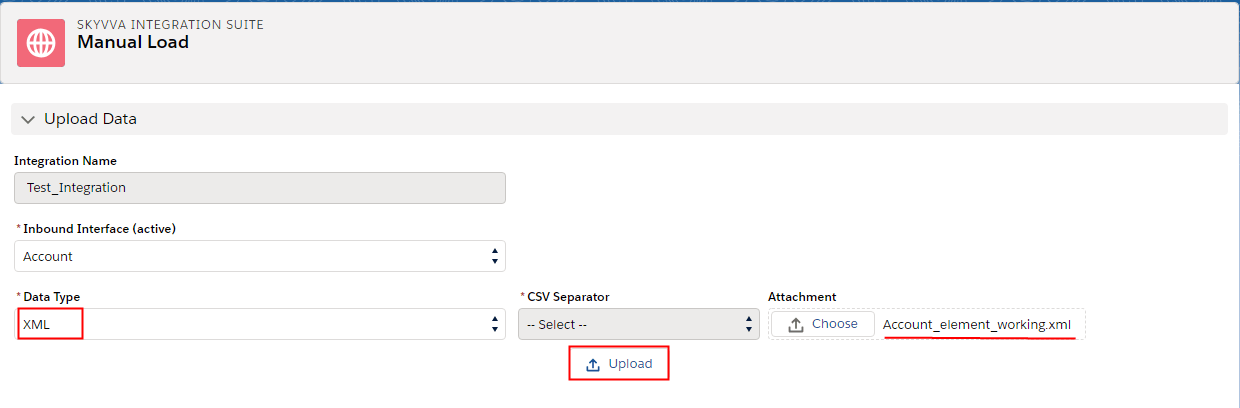
Select the external Id field (Name). For object, it is required to have an External Id field which is to be used for synchronization with the external system. This external id field must be unique in order to avoid duplicate records on each object. Steps 4: How to do Manual Load? Now we have finished our interface setup and go back to our Integration Details Page and click on the 'Manual Load' link. On the Manual Load page, you will have choose the same file (1) and Upload (2) again.
- Select Data type XML
- Browse XML file
- Click on Upload Button
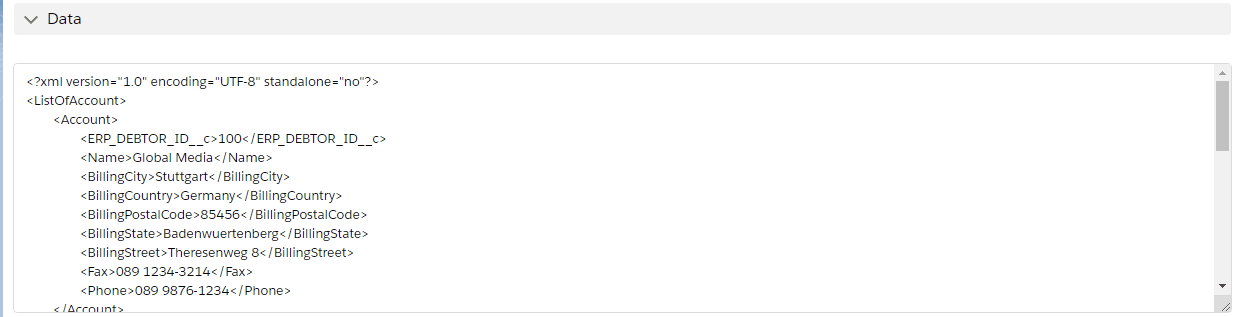
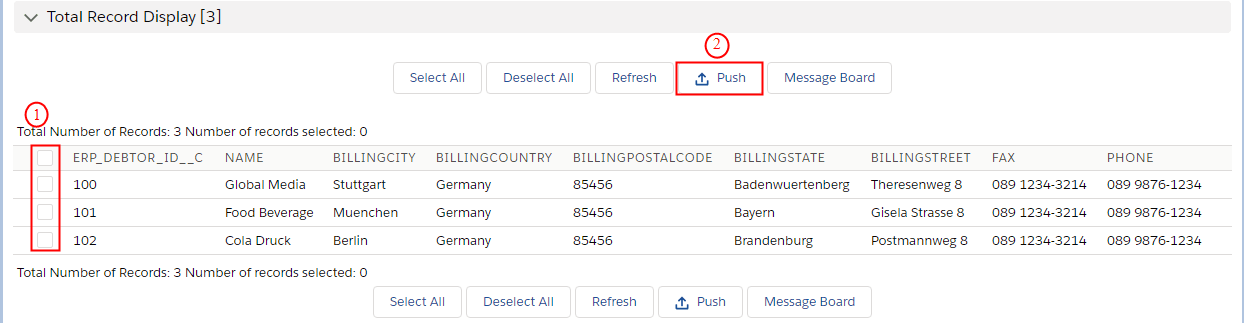
After you have selected the records click on 'Push' Button to upload the data into Salesforce and you get the message that the upload process started. We click on the 'Message Board' Button and come to the Message Board.
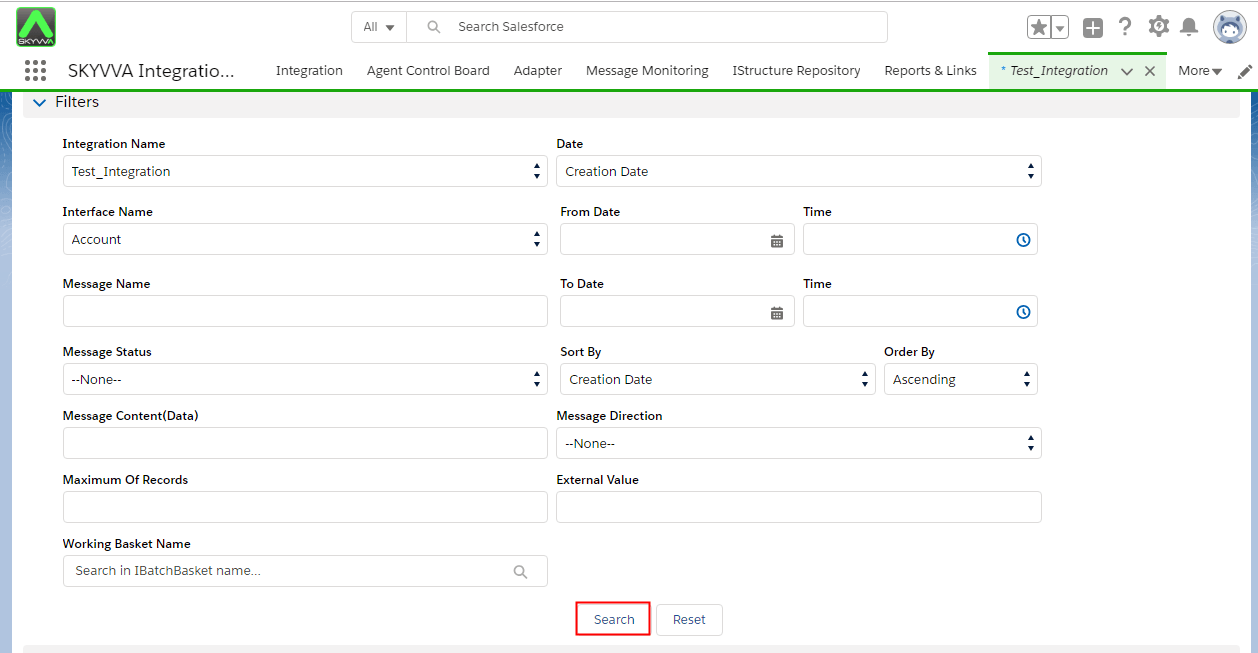
Step 5 How to use Message Monitoring? Storage usage will be found when you are on the Message Board page. And Filter below will show how to use or search different criteria, for example:

Below is the 'Filters' area, you can search for different criteria e.g. Integration Name, Interface Name, Message Status or by Date.
- Filters:
- Integration Name: You can choose which Integration you prefer to see the result
- Interface Name: You can choose which Interface you prefer to see the result
- Message Status:
- There are many types of Status, but there are 3 common using types:
- Green Flag = The upload was successful and is Completed
- Red Flag = Failed
- Yellow Flag = Pending
-Note: You can select None if you prefer to see all types of message flags. Then click on Search.
- Messages Section
You will be able to see the Total Number of Records as well.
- Type: Inbound or Outbound
- Target: is the target interface that is used to be integrated to
-Statue: It shows which flag is green, red or yellow... etc.
-Creation Date: It shows which date interface is created
- Modification Date: It shows which date interface is Modified
- Button
- Select All: The function of Select All button is to select all Message results
-Deselect All: The function of Deselect All button is to Deselect all Message results
-Delete: The function of the delete button is to delete only selected Messages
-Deleted All: The function of Delete All button is to delete all Message results
-Cancel: cancel selected Messages that are a pending status
-Cancel All: The function of canceling All button is to cancel all Pending Message results
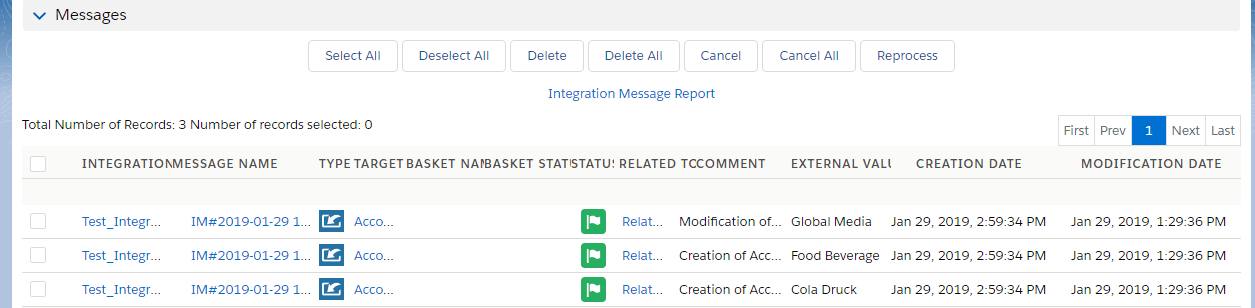
As you can see the status of uploaded record was green which means it was success or completed. In case you want to see your Account Detail In the Message area, clicking on ‘Related To‘ to jump there.