How to Import XML Using the Data Loader?
Introduction
In this tutorial, you will learn how to import XML files into Data Loader using both Flat and Hierarchical formats. Flat XML files contain data with only one level, while Hierarchical XML files have multiple levels of data. Our mapping will be handled using both data templates, and both formats utilize V3 processing.
In this tutorial, we are showing usecase with different XML formats:
- Flat XML
- Hierarchical XML
- Attribute XML**
1. Import Flat CSV File with Inbound Interface.
What is flat XML?
Flat XML in this context means a single level of elements wrapped in the root element with no other structuring.
Pre-requisite:
- Create or upload Message Type.
- Create Integration and Inbound Interface
- Do mapping
Here are the steps to import XML file with the inbound interface:
- If you have not yet configured CSP Trusted Sites and CORS, you will not be able to import hierarchical CSV, XML, and JSON files. An error message will be displayed as shown in the screenshot below.

Note: Before importing data, you need to create CORS and CSP Trusted Sites to enable the data loader to use the REST API for import files . If you have already completed this step, please ignore this reminder: Here is the link for creating (link not available)
Step 1: Create or Upload Message Type
- Go to Metadata provider => create Repository => Upload or create Message Type.
- Here’s Message Type.

Step 2: Create Integration.
Step 3: Create Inbound Interface and Linked with Message Type.
- Fill Name
- Select Delopyed Status
- Select Account Source Name
- Select Inbound Direction
- Select V3 Interface API Version
- Select MetaData Provider, Repository, and Source/Target Message Type
- Click Save Button

Step4: Do mapping.

Step 5: Go to Integration -> Click the Details page -> Then click the Data Loader link on the Custom Section.

- Choosing Import Data Function.
- Select Interface and click next.
- Select Format Data Type and click next.
- Click Upload file to choose a file and click the upload button.
- Select record and click push button.

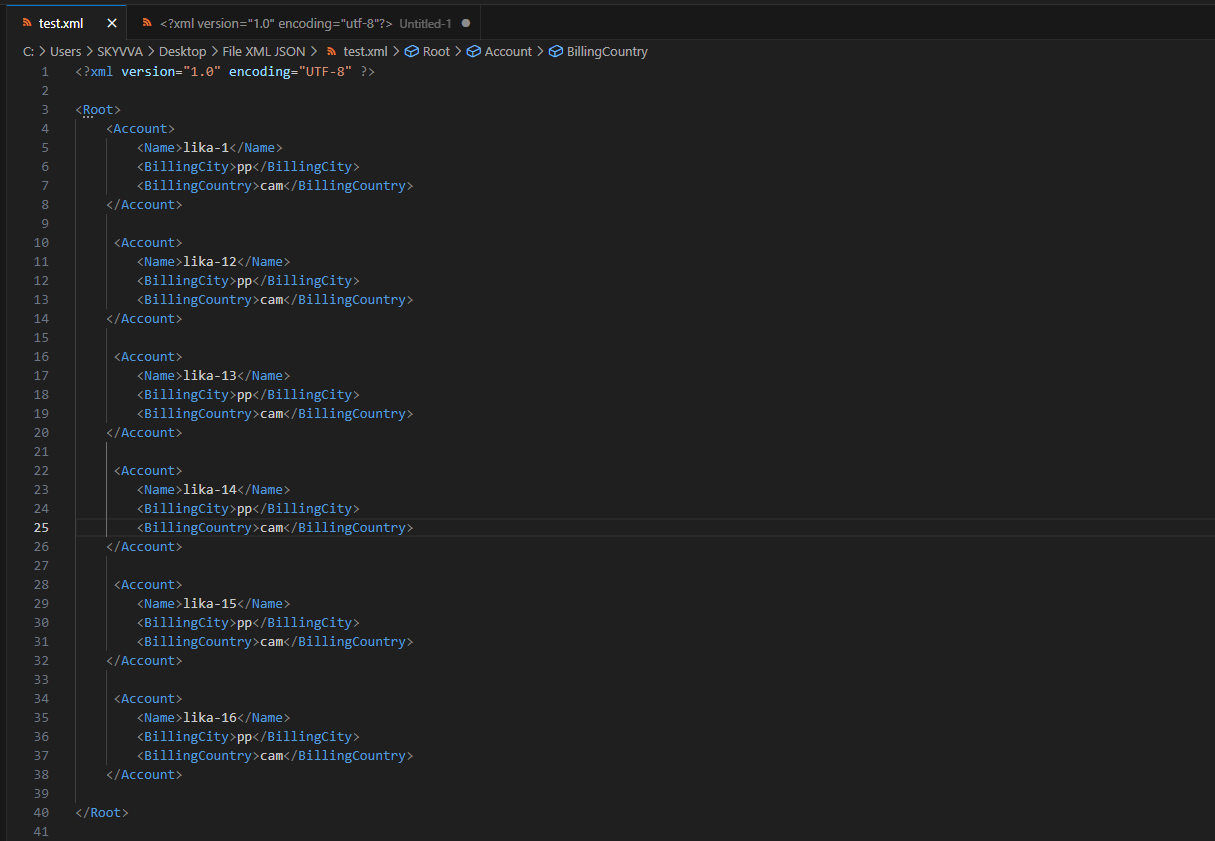
- Here's the Payloads.
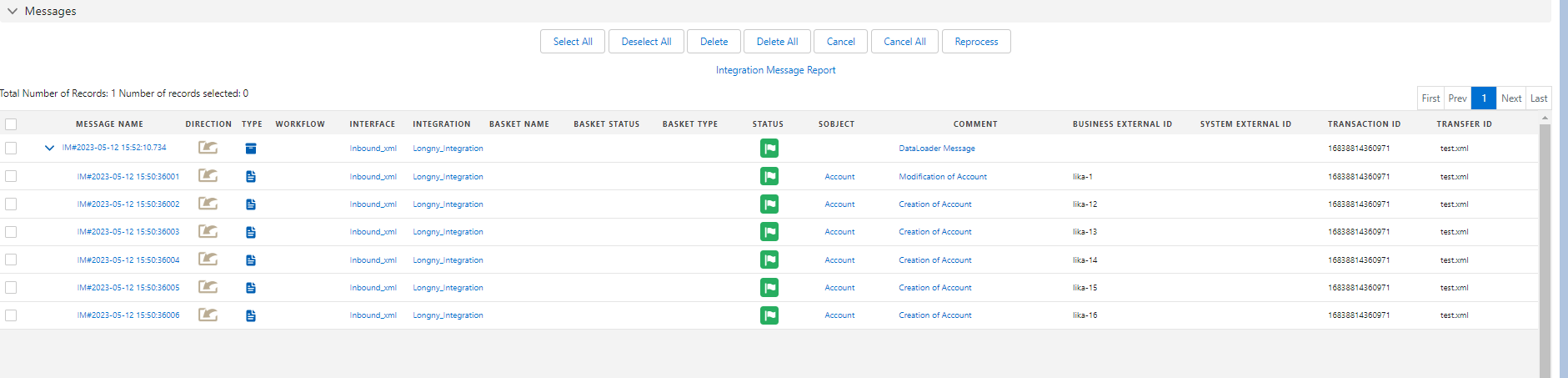
- Here’s the result on the message monitor.
2. How to Import Hierarchical XML Using the Data Loader.
What is the Hierarchical?
In a hierarchical Interface, one interface is a parent of other interfaces. It means that the child interfaces a relationship with a parent. For example, the Account interface is a parent of the contact.
Also, One parent interface can have many child, but the child interface has only a single-parent interface. eg. one Account can store many Contacts, but one Contact can’t store many Accounts
Pre-requisite:
- Create or upload Message Type.
- Create Integration.
- Create Inbound Interface.
- Do mapping
Here are the steps to import a Hierarchical XML file with the inbound interface:
Step 1: Create or Upload Message Type.
- Go to Metadata provider => create Repository => Upload or create Message Type.
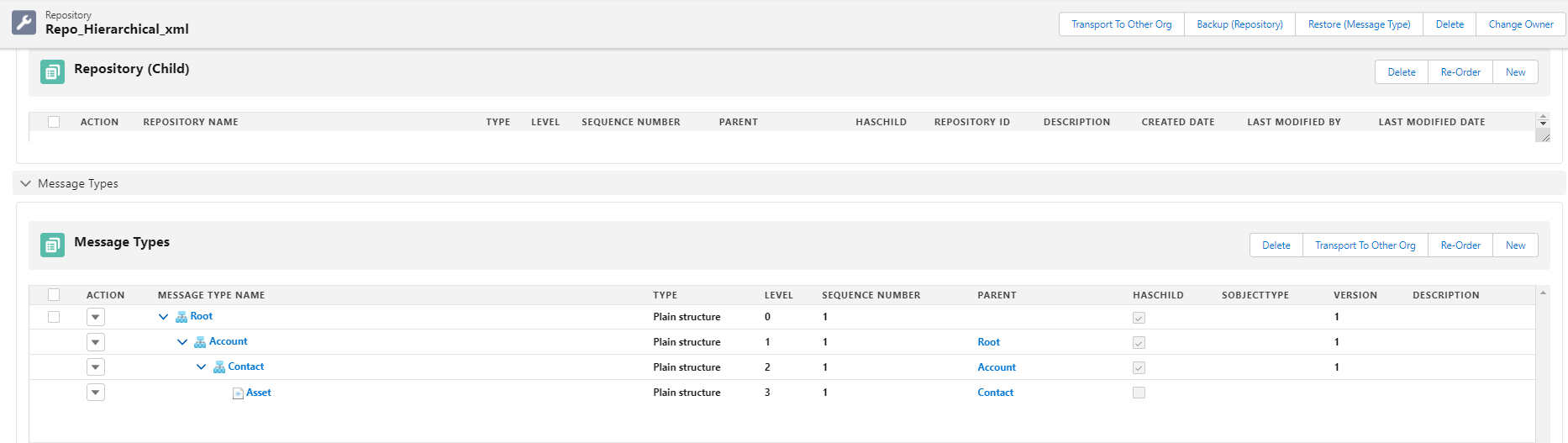
- Here’s the Message Type.
Step 2: Create Integration.
Step 3: Create an Inbound Interface link with Message Type.
- Fill Name
- Select Deployed Status
- Select Account Source Name
- Select Inbound Direction
- Select V3 Interface API Version
- Select Metadata Provider, Repository, and Source/Target Message Type
- Click Save Button

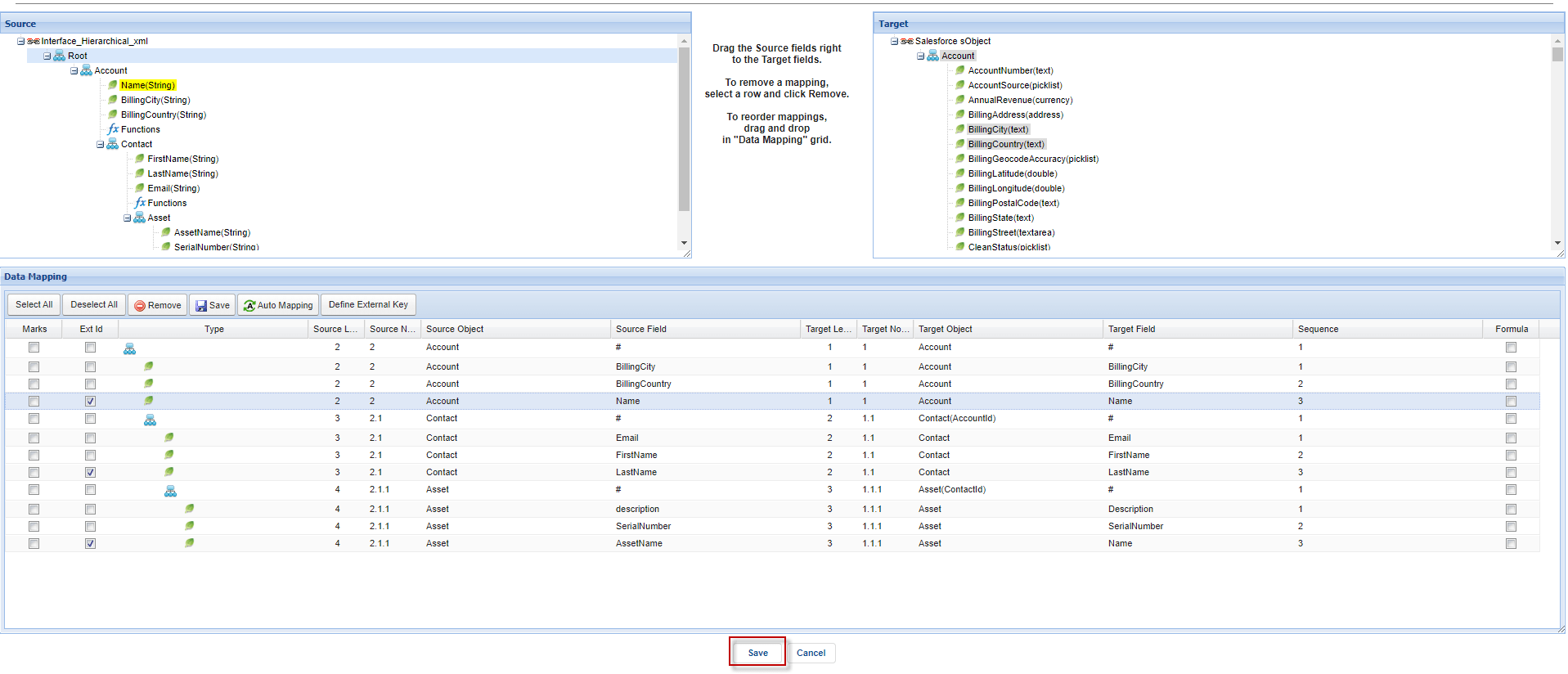
Step 4: Do mapping.
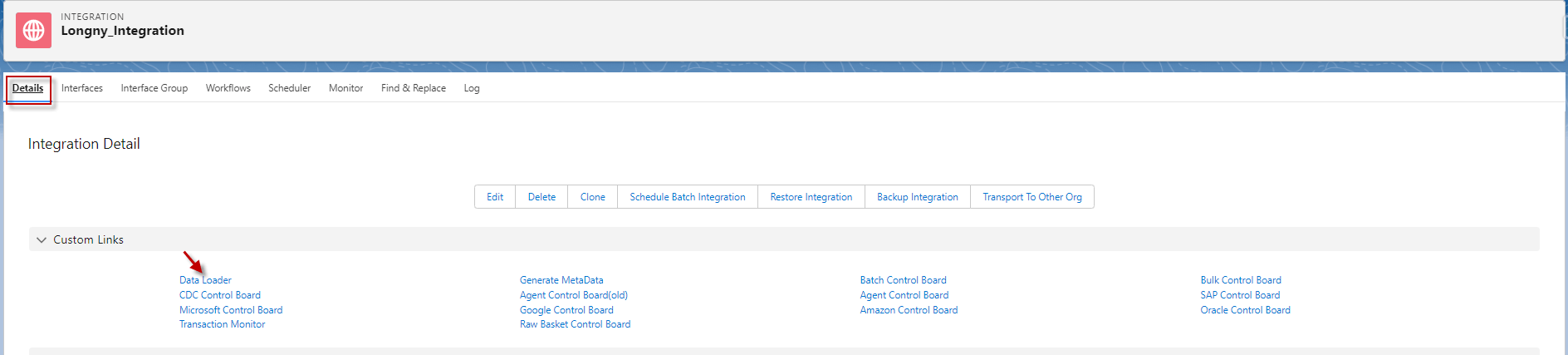
Step 5: Go to Integration -> Click the Details page -> Then click the Data Loader link on the Custom Section.
- Choosing Import Data Function.
- Select Interface and click next.
- Select Format Data Type and click next.
- Click Upload file to choose a file and click the upload button.
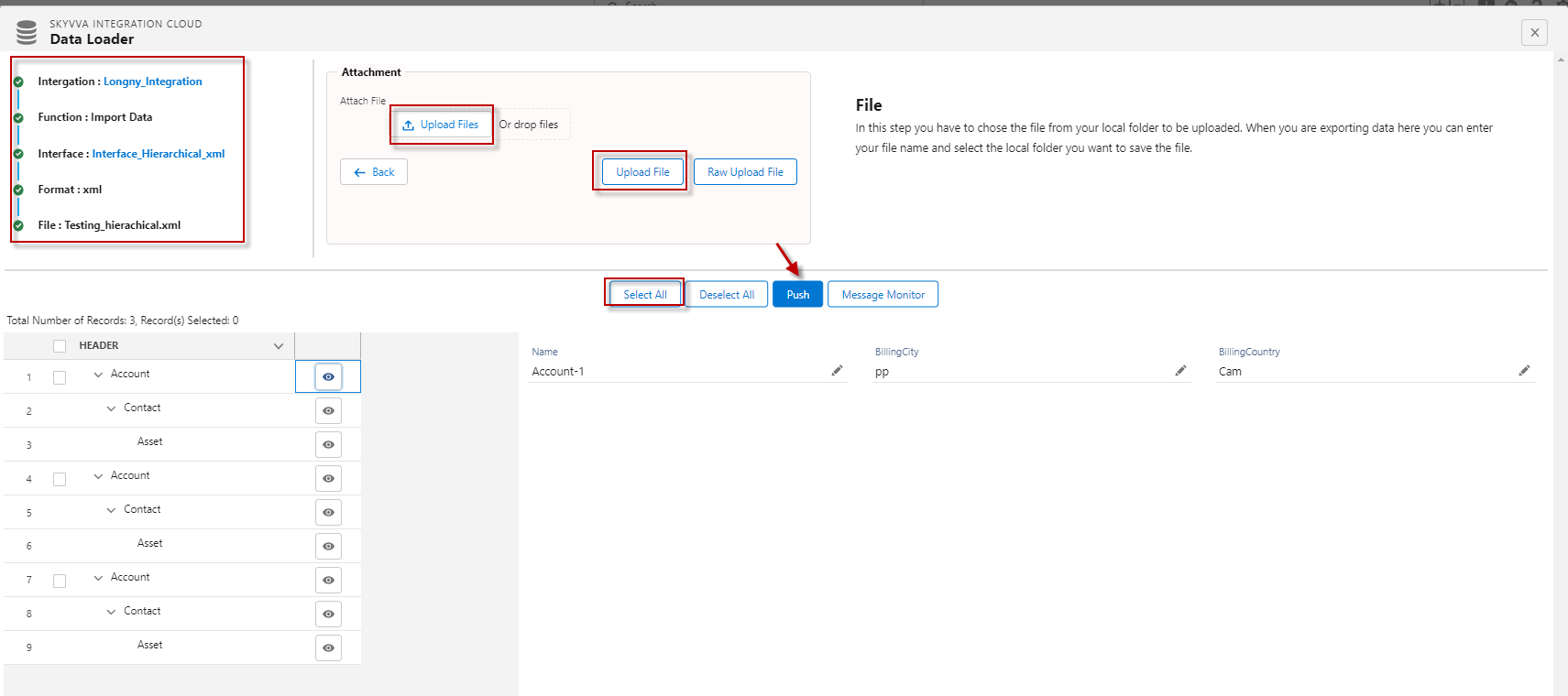
- Here's the Payloads.

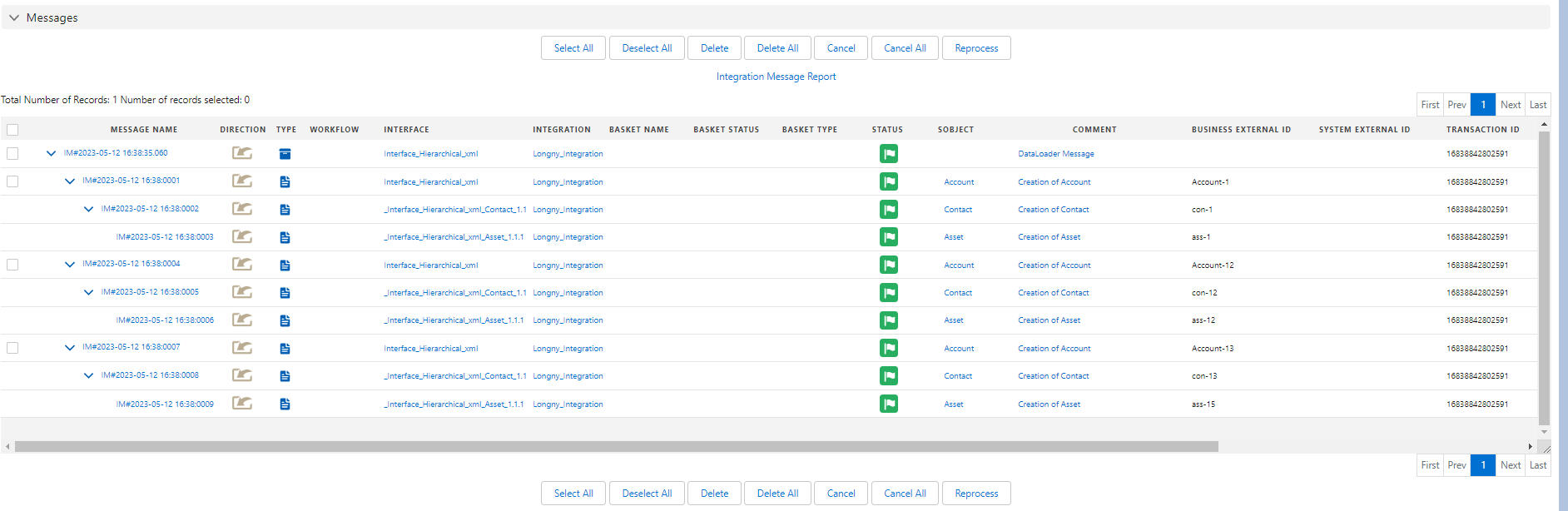
- Here’s the result on the message monitor.
####
3.How to Import Attribute XML using the Data Loader
Pre-requisite:
- Create or upload Message Type.
- Create Integration.
- Create Inbound Interface.
- Do mapping
Here are the steps to import Attribute XML File with Inbound Interface:
Step 1: Create or Upload Message Type.
- Go to create Metadata provider => create Repository => Upload or create Message Type.
- Here’s the Message Type.
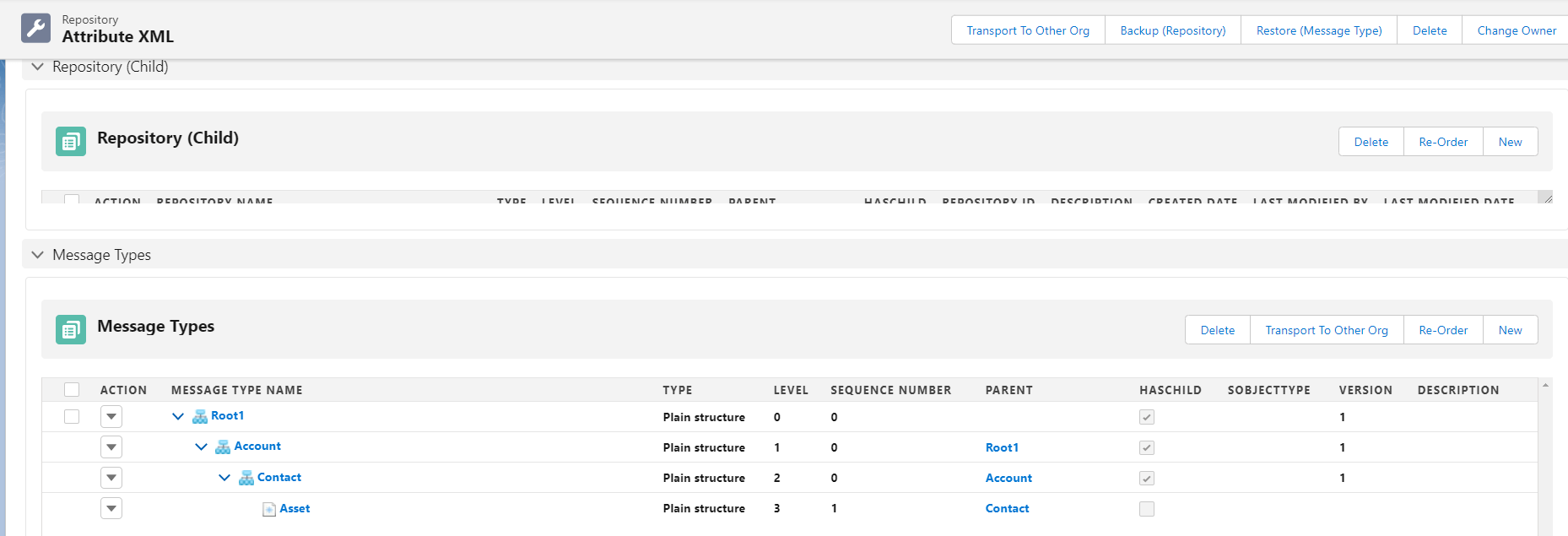
- Message Type Contact has a message type field entry as Attribute because the data I will upload has an attribute field.

Step 2: Create Integration
Step 3: Create Inbound Interface link with the message type.
- Fill Name
- Select Delopyed Status
- Select Account Source Name
- Select Inbound Direction
- Select V3 Interface API Version
- Select MetaData Provider, Repository, and Source/Target Message Type
- Click Save Button

Step 4: Do mapping.

Step 5: Go to Integration -> Click the Details page -> Then click the Data Loader link on the Custom Section.

- Choosing Import Data Function.
- Select Interface and click next.
- Select Format Data Type and click next.
- Attach file to choose a file and click the upload button.
- Select the records and click push button.
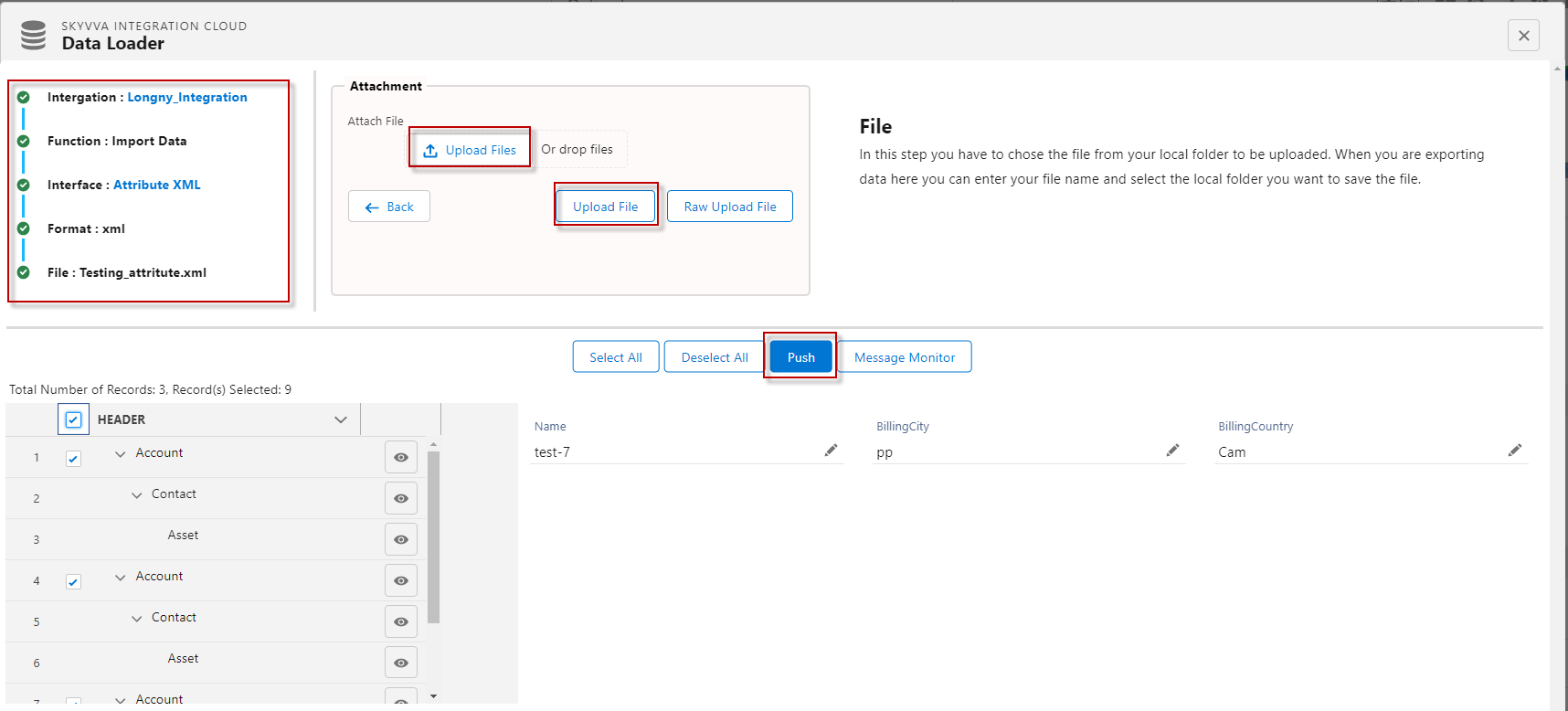
- Here's the Payloads.

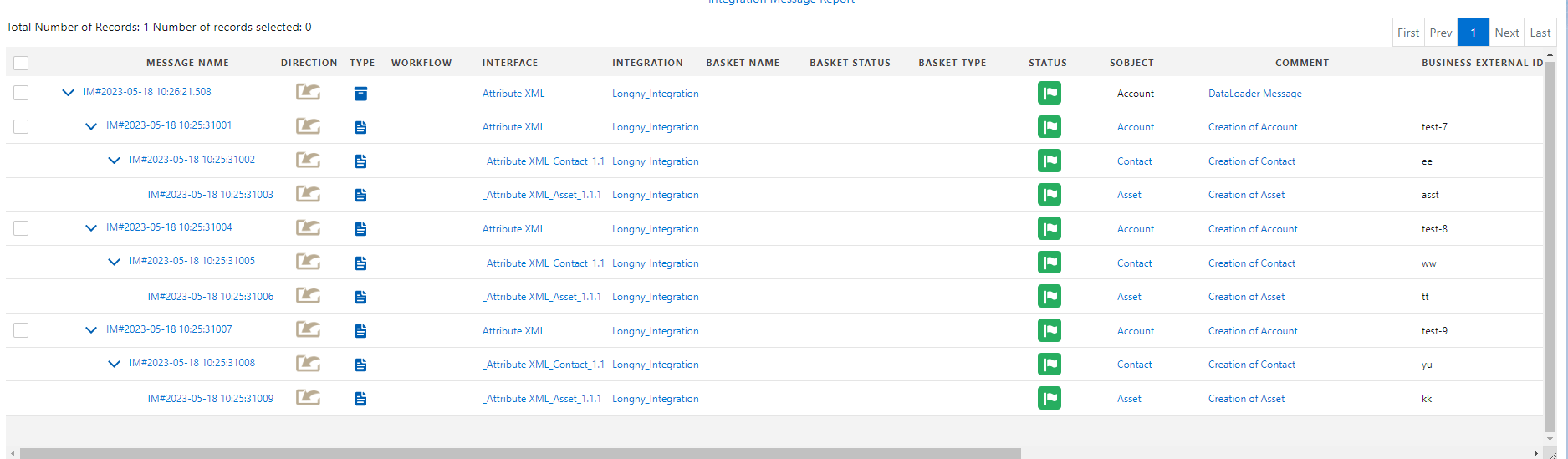
- Here’s the result on the message monitor.