1. How to invoke Asynchronous BAPI XML using Skyvva SAP ERP Adapter?
Posting BAPI XML to SAP ERP over Skyvva SAP ERP Adapter In SAP ERP we have to do the following settings Calling RFC-enabled Function Modules over HTTP from external application As a prerequisite, go to transaction SICF and locate the following service: sap -> bc -> soap -> rfc. Its description gives you some more details about the functionality: SOAP HTTP HANDLER FOR RFC-CAPABLE FUNCTION MODULES. Now, right-click on that service and choose Test Service, and make sure that you allow SAP to open your web browser (in a popup that appears). Make note of the URL that is opened in the browser. Generally, this URL would look as follows: http://[hostname]:[SICF port]/sap/bc/soap/rfc?sap-client=[client]
It’s a central endpoint for all BAPI’s. Now that we know the communication URL use an HTTP client to communicate with SAP. In this example, I will use the SOAP UI tool for this purpose, but it can be any application. Importing BAPI/RFC's from Import SAP metadata To Import SAP metadata first we need to create Connection in skyvva as shown below Go to Integration details tab and then select SAP Control Board

Provide the details as shown for the SAP system
In the Configuration tab. Provide the details Here we need to provide the sap configuration details as below Type: SAP ERP Deployment: Embedded Logical System: LSSAP Host Url: http://xxxx.com Port: 16xxx Username: xxxx Password: SAPID: System Id Client: 820

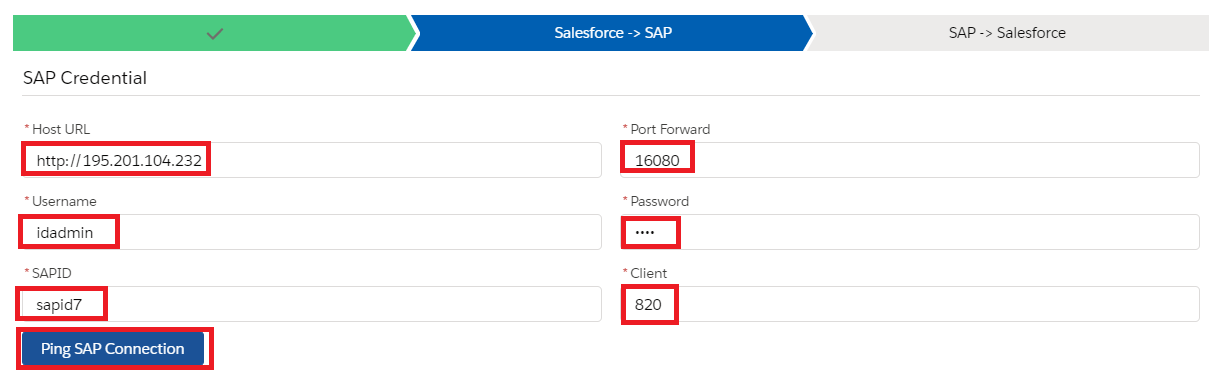
Once we provide the details we need to ping the SAP Connection. Then we can see the pop-up like its successfully connected to SAP Backend.
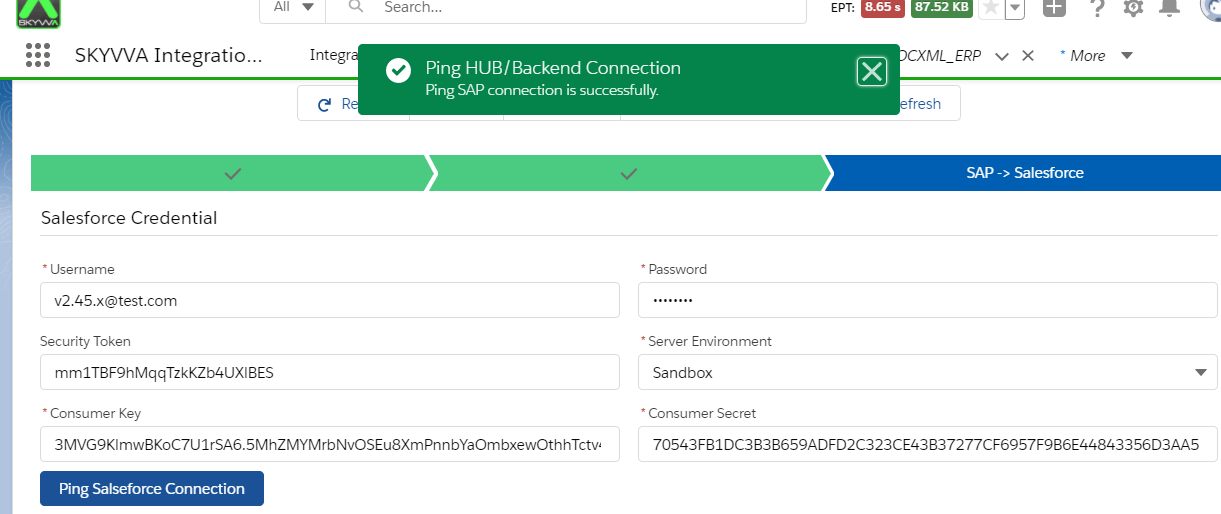
Now we have to provide the salesforce details as shown below. Consumer Key and Consumer Secret we can get from the connected App.
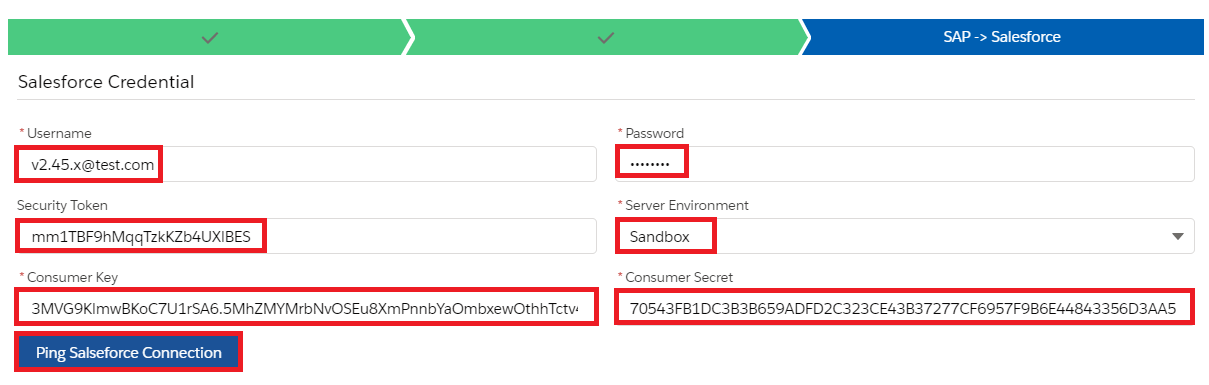
Click on Ping Connection of Salesforce to check if its connected successfully.
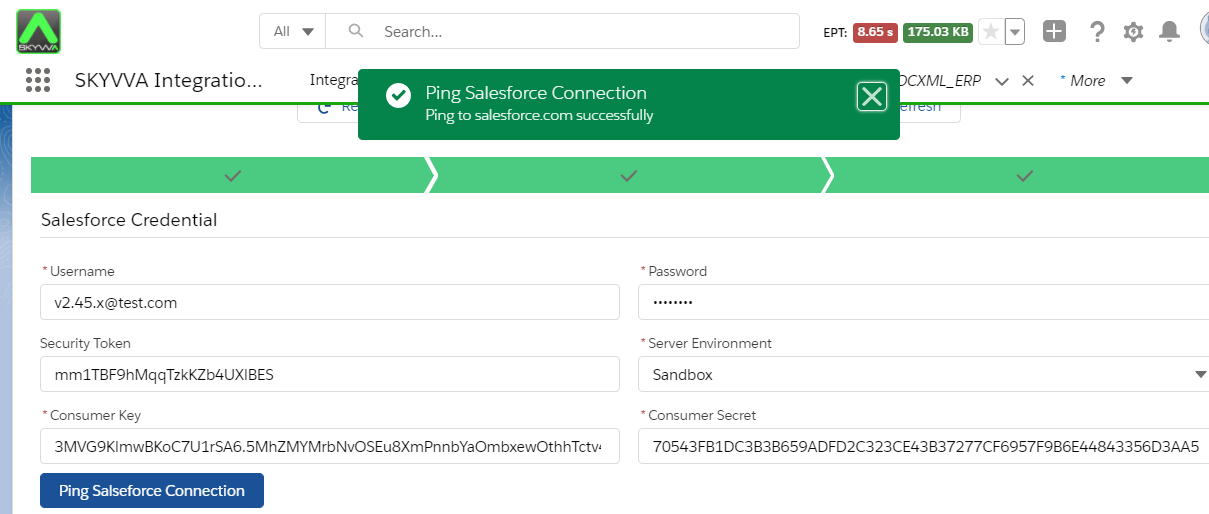
We got the Consumer Key and Consumer Secret from App manager. With this connection. we can import the IDOC/RFC's from SAP. Create Metadata Provider
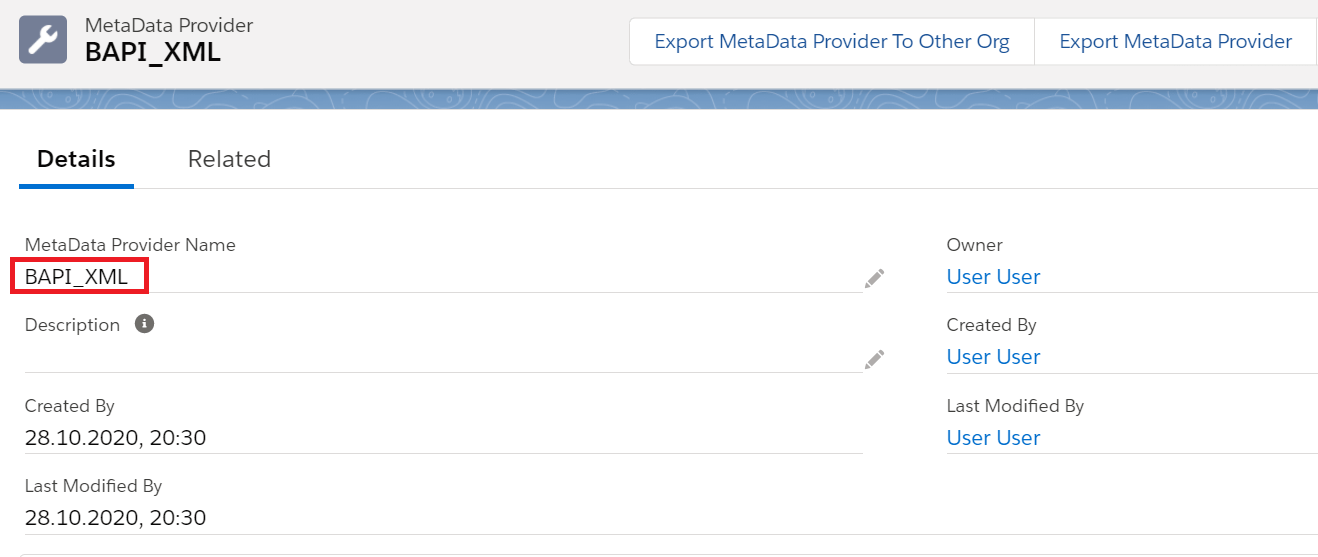
Create Repository

From the Repository Click on Import SAP Metadata Tab

Here we need to give the details of connection type, Connection Destination which we created earlier in the SAP Control Board and Select the Application Data type BAPI/RFC's and then click on Retrive.

Select the BAPI name to create message type
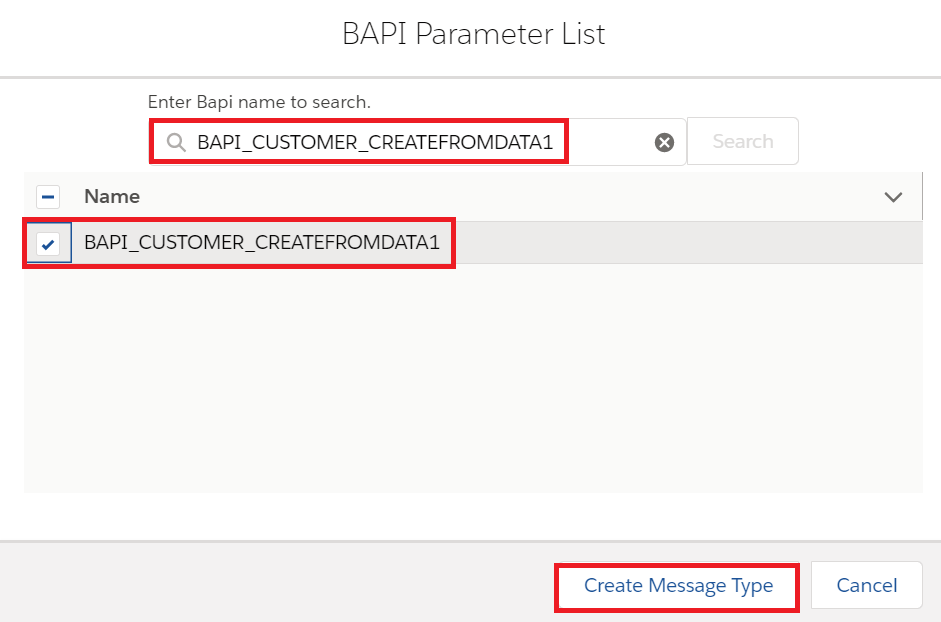
Below is the message type template for BAPI
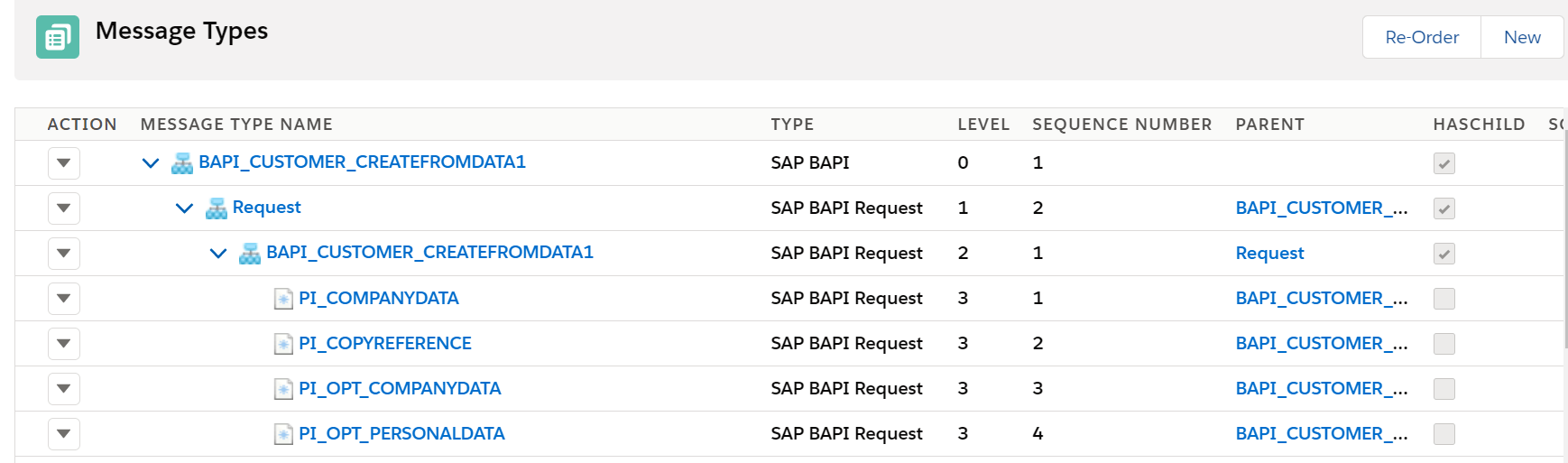

This message type we use in the outbound interface and inbound interface
Creating the SAP ERP Adapter in Skyvva We need to provide the following details to create the Skyvva SAP ERP adapter Name - Name of the adapter Type - SAP ERP Description - BAPI XML Adapter Direction - Outbound Status - Active objectFormat - BAPI
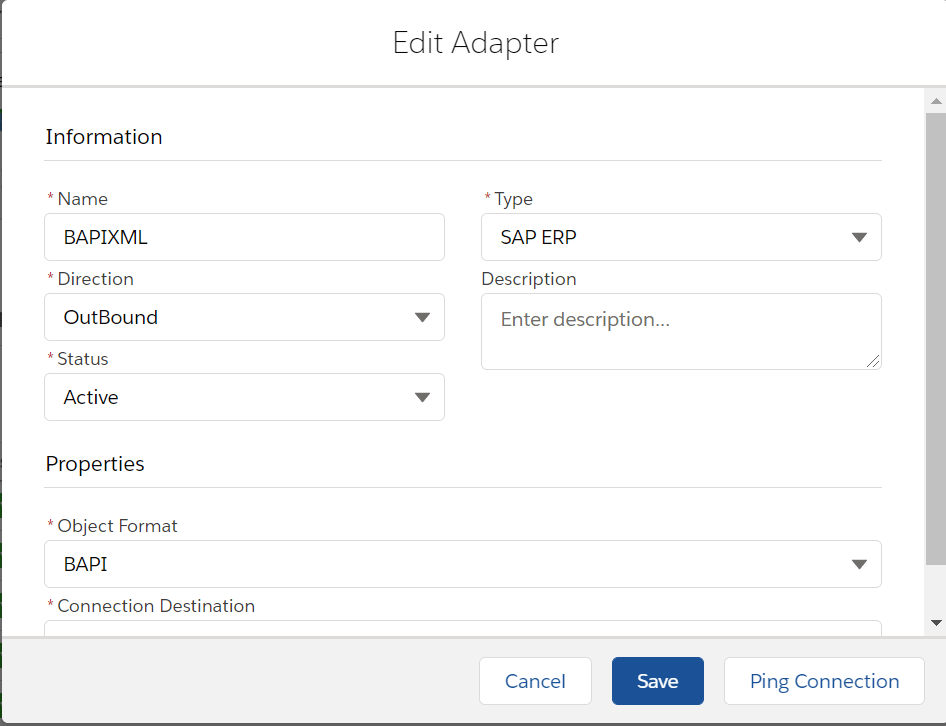
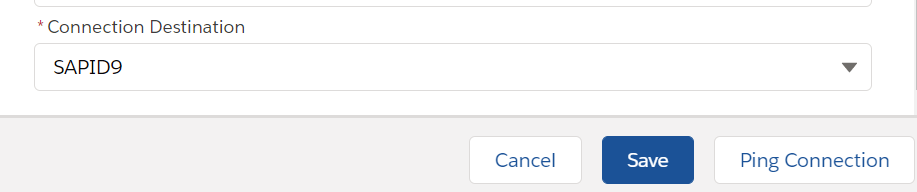
Connection Destination - It means the SAP Connection which we created earlier for the backend connection - SAPID9 Now click on save button to create the adapter.
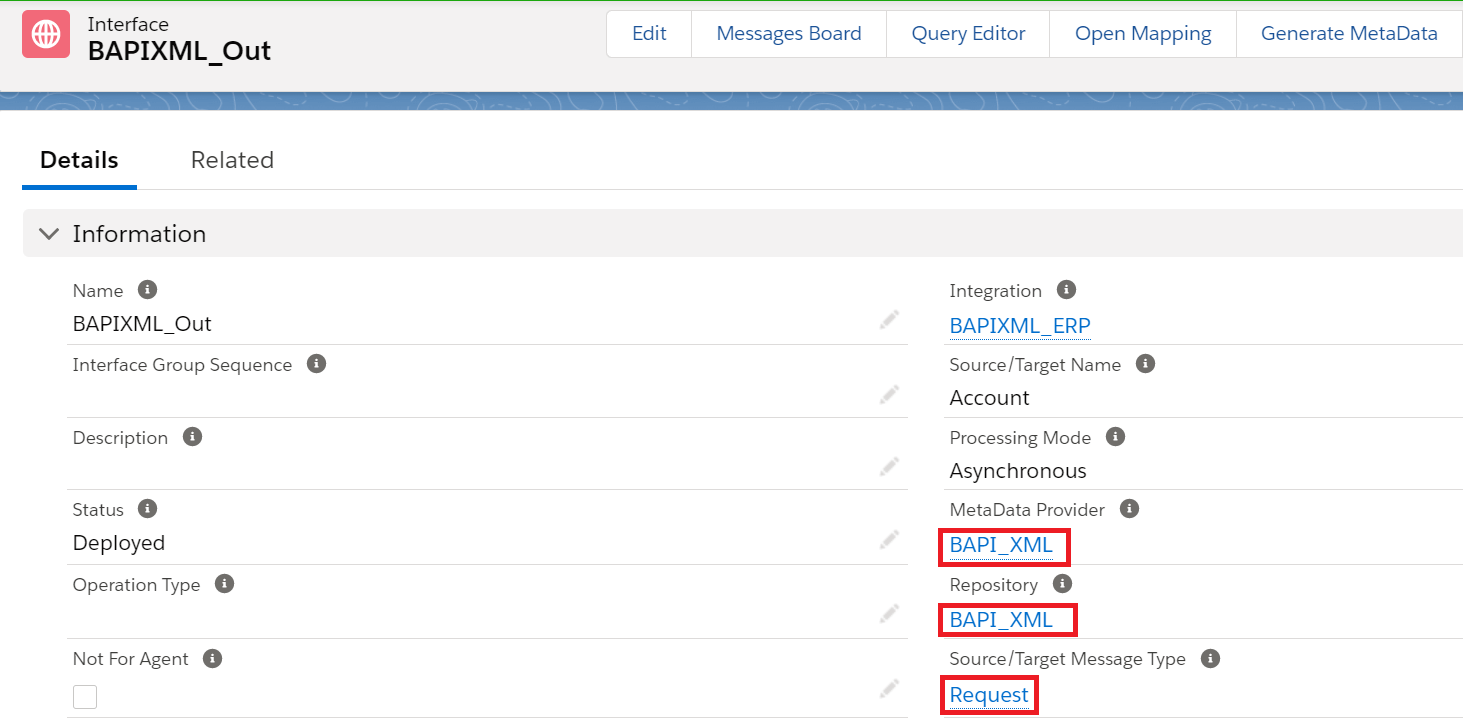
Creating an Outbound Request interface: Provide the Name, sObject type, Description, Processing mode, Status, Metadata provider, Repository, Message type, outbound adapter and the SQL statement as shown in the screenshots below In the message type we have to select the root message type then it will automatically point to Request in the request interface


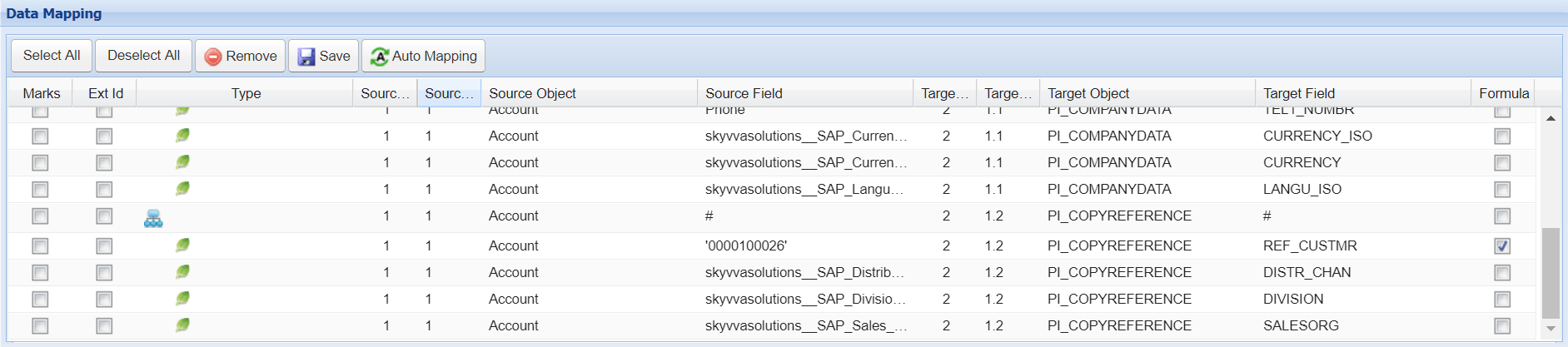
For outbound interface we have to do mapping in Skyvva as shown.

Save the interface once provide all the necessary details.
Now do the callout using below apex code: skyvvasolutions.CallOutControl c=new skyvvasolutions.CallOutControl(); c.returnXml=true; c.returnListRecord=true; c.isCreateMessage=true; c.actionDoIntegrate=true; String[] ids=new String[]{'0013E00001DKgY9QAL'}; skyvvasolutions.Iservices.invokeCalloutV3('BAPIXML_ERP','BAPIXML_Out',ids,'AUTO', c);
Now we can see the message in the message monitor:
