2. How to push data from Salesforce by using a button, trigger, the process build process?
Learning Objective: After completing this unit, you’ll be able to:
- Describe which are the invoke outbound interface methods.
- Comfortably use all the methods to push data from Salesforce by using a button, trigger, the process build process.
Introduction
To show the different technology which can be use to push data to the external client by using Skyvva. For example, different possibility like: Using Trigger, Process Builder process, Flow, Apex class to send data out. The callout methods are using to send data from salesforce to external system (SFDC to SAP/SAP-PI) through interface outbound. The Service only sends one record/children per request to SAP. To invoke callout from apex trigger the method invokeCallout(interfaceId, ids, ‘AUTO’) is recommended.
Why we use button, trigger, the process build process to push data from salesforce?
- Process Builder: Here customer can use the Process Builder to catch the changes. When the change of a record is recognize an apex class is called and in this apex class we can invoke our API invokeCalloutXX().
- Button : When user push a button the change data should sent
- Trigger: When a record is changed the change data should sent.
- Flow: When a record changes or when a user clicks a button, use an Autolaunched flow.
- Quick Action: which generates SKYVVA Trigger scripts where we have a trigger type “Quick action”.
[su_box title="Note" box_color="#2a8af0" title_color="#000000"]The lightning version does not support with custom button, So we need to implement our tool to generate a script of the lightning component to use with Quick Action instead of a button. [/su_box]
Process Builder
Process Builder is a Salesforce’s point-and-click tool that lets you easily automate if/then business processes and see a graphical representation of your process as you build. Every process consists of a trigger, at least one criteria node, and at least one action. You can configure immediate actions or schedule actions to be executed at a specific time. To keep things simple, this unit focuses on the most common process type: Record Change, which mean the process, will start when the records are created or edited. The configuration To be able to execute callout, you have enter interface page detail and scroll down to Runtime Configuration- Outbound section then check flag “Use Skyvva Outbound Scheduler”.

[su_box title="Note" box_color="#FF0000" title_color="#000000"]
- If you want to execute callout, the flag could be blank.
- If you want to create CP Record, the flag is required.[/su_box]
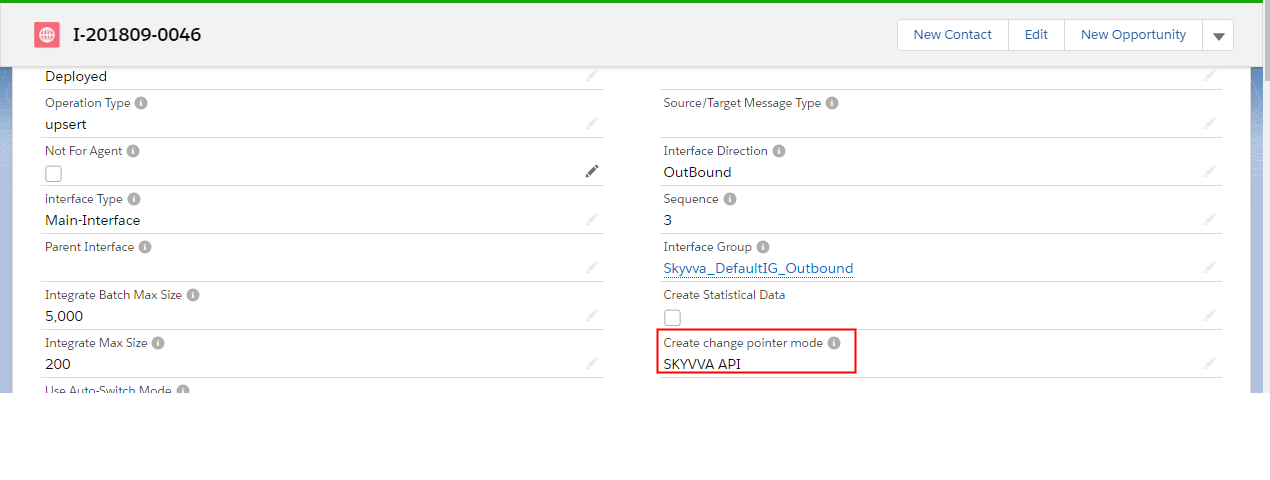
- The interface could be set creating change pointer by process builder or trigger. You have to select SKYVVA API. This is the pre-requisite to create process builder.
This part is mainly explain the process of creating the process builder in order to create change pointer records. To build process builder, you can follow the steps below:
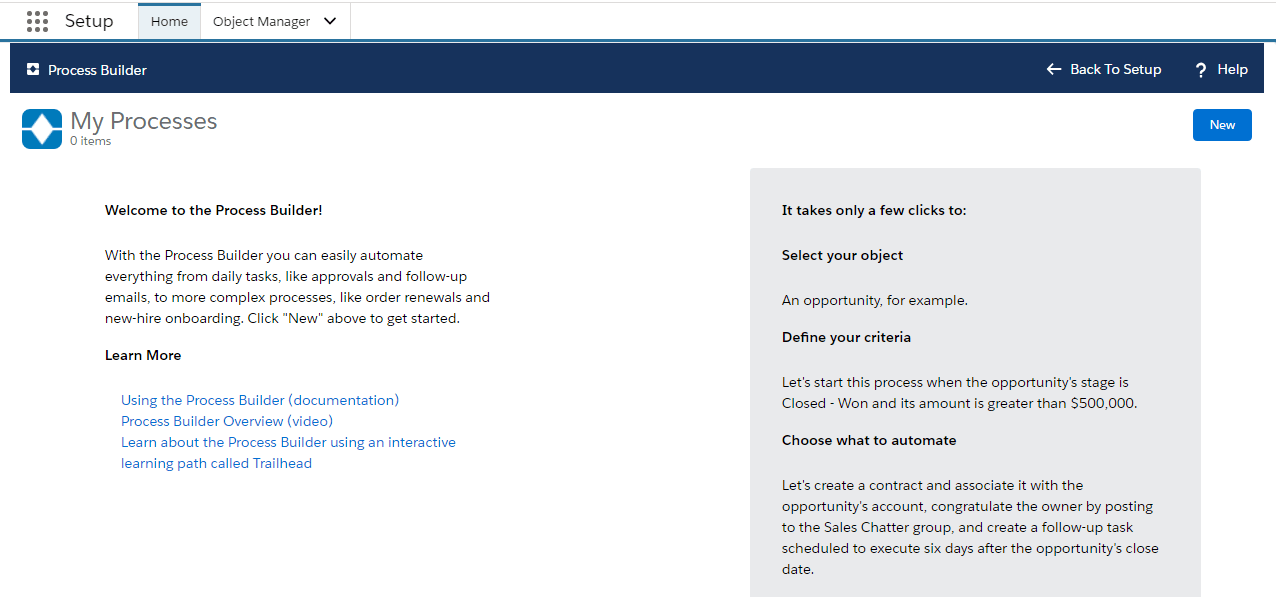
- From Setup, enter Process Builder in the Quick Find Box, click Process Builder. When you are on process builder page, click on New button.
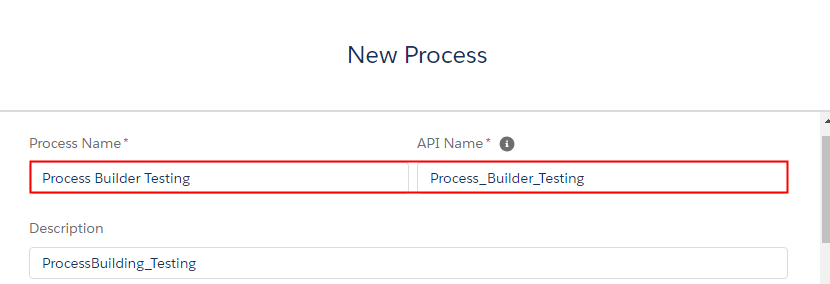
- Fill in the name of the process
- Add the Object and Specify when to start the Process.
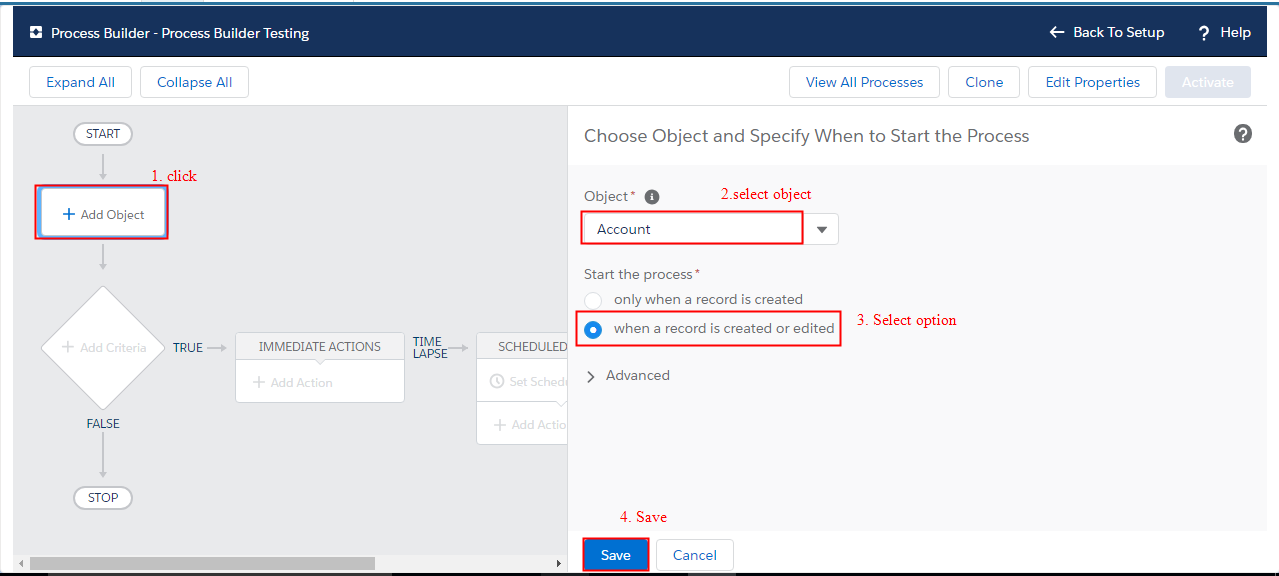
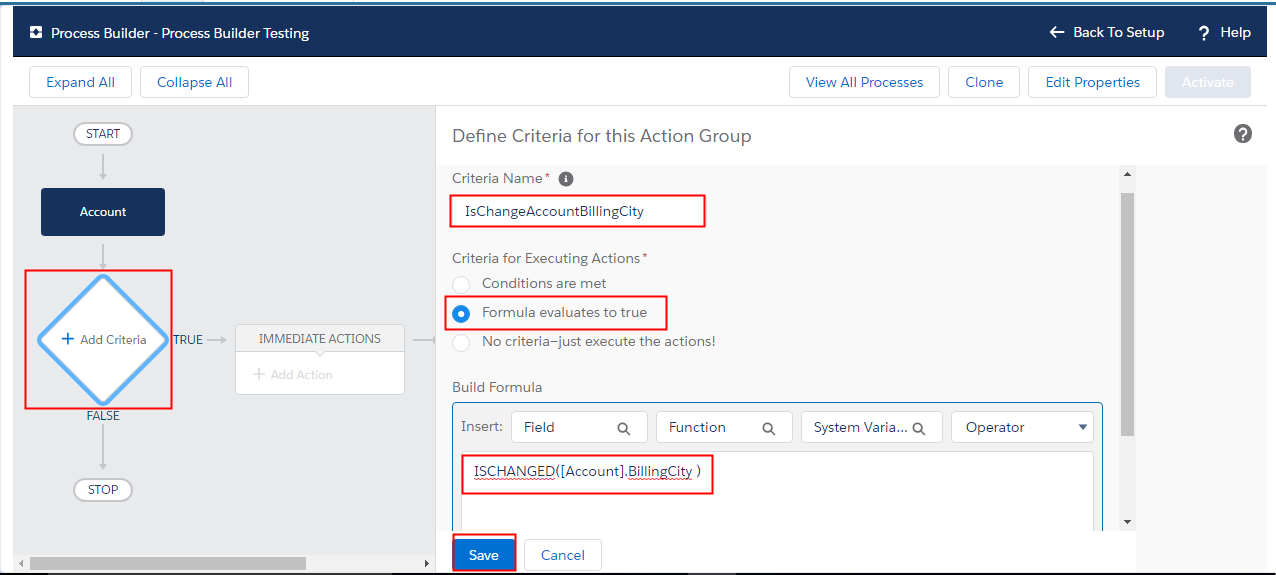
- Add the Criteria to define it for Action Group:
- Name the Criteria
- Choose Formula evaluate to true
- Build Formula by insert the Function and Field then click Save .
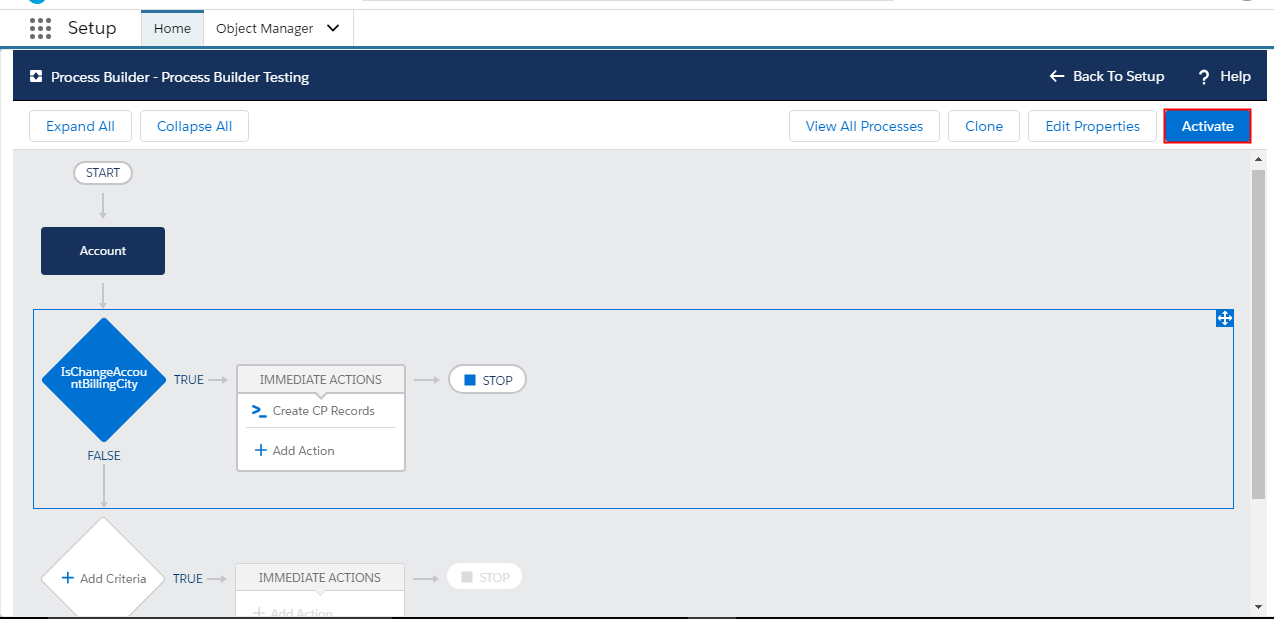
Add the actions to execute when the criteria are met by:
- Select the Action Type: Apex
- Select the Action Name: Create CP Record
- Select Apex Class: SKYVVA Callout/Create CP. When you section it, some of dropdown list will appear for you to choose. Then click Add Row to add 2 more.
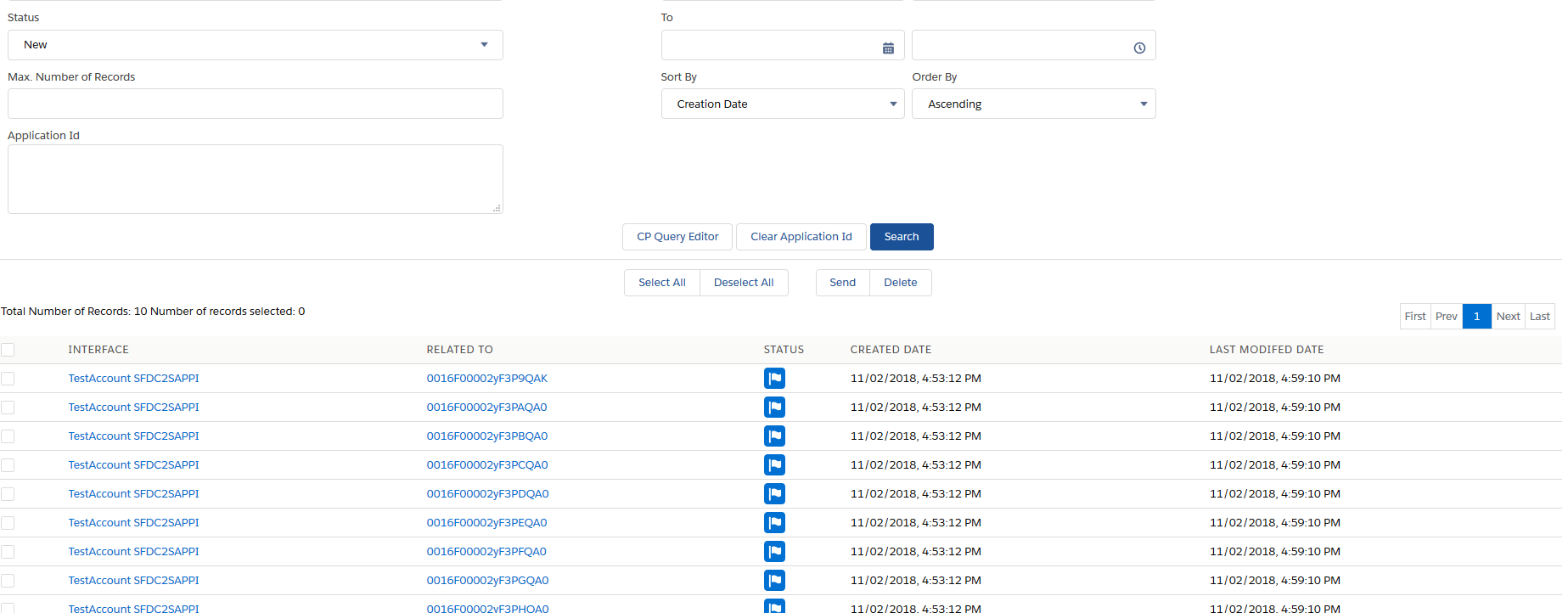
To monitor change pointer records: You can check the change pointer records in CDC Control Board.
Trigger
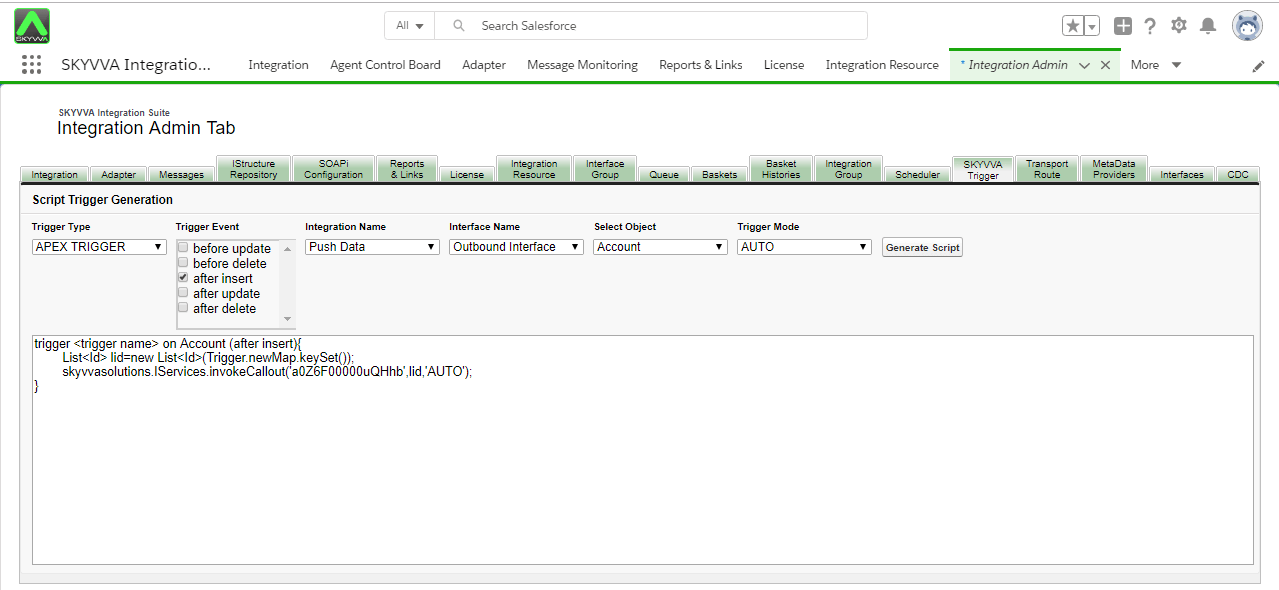
When a record is changed the change data should sent. Whenever a record e.g. an account in Salesforce is changed this change are sent immediately to the client. This is the opposite way to the batch/async. variant. Follow the given steps:
- Select Trigger Type “APEX TRIGGER”
- Tick Trigger Event (can tick more than one)
- Select your Integration Name
- Select your Interface Name (show only outbound interface)
- Select SObject Name
- Select Trigger Mode : None, Auto, Future, Batch
- Click button “Generate Script”
- Now you will see the script apex trigger in the box and can copy to use it
- In the script, change to your own name
to your own name
Button
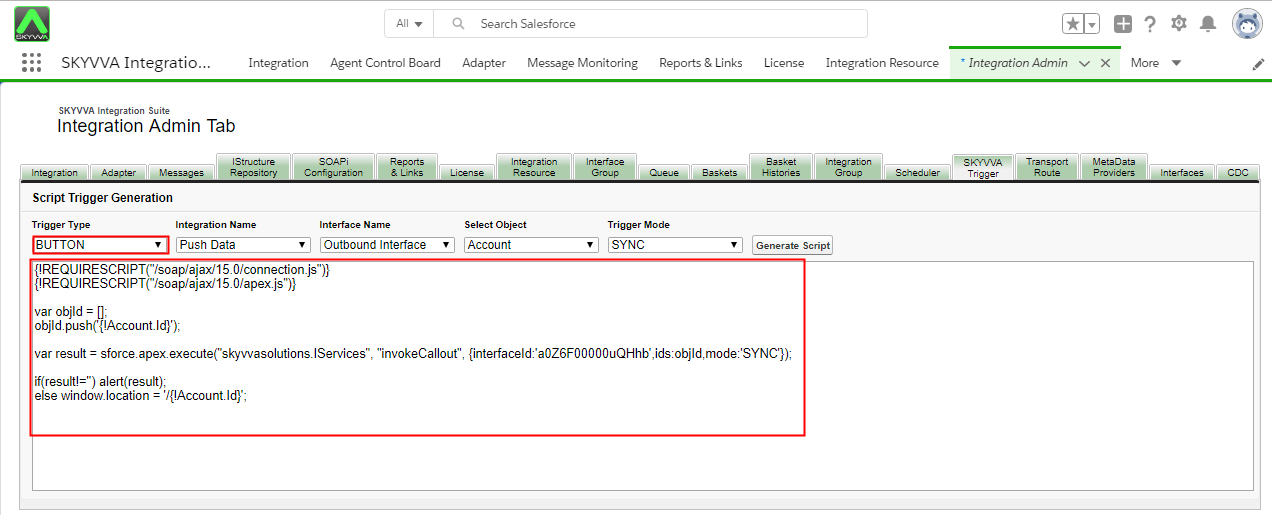
- Select Trigger Type “BUTTON”
- Select your Integration Name
- Select your Interface Name (show only outbound interface)
- Select SObject Name
- Select Trigger Mode: Sync, Future, Batch
- Click button “Generate Script”
- Now you will see the script trigger button in the box and can copy to use it.
How to use Flow to call our invokeCallOutV3() API ?
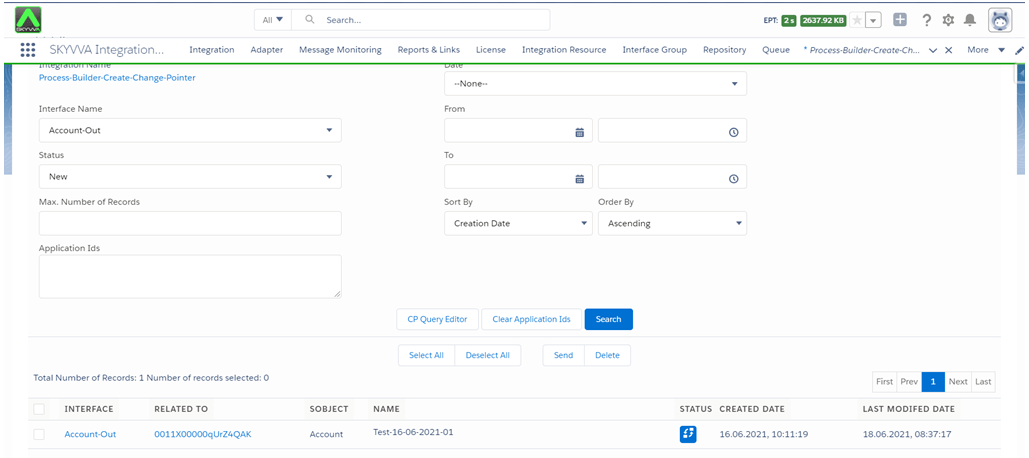
A flow is the part of Salesforce Flow that collects data and performs actions in your Salesforce org or an external system. Salesforce Flow provides two types of flows: screen flows and Autolaunched flows. To automate a business process that collects data from people, use a screen flow. To launch a flow internally when a record changes or when a user clicks a button, use an Autolaunched flow. Case 1: Flow executes SKYVVA apex to create change pointer Description: Provide the possibility to invoke SKYVVA Api to create changed pointer or process outbound interface from Flow (record triggered flow). Create Change Pointer Record [su_box title="Note" box_color="#2a8af0" title_color="#000000"]User must have outbound interface and check flag Use SKYVVA Outbound Scheduler on that interface [/su_box] Expectation: When we update Billing City, Flow will be creating CP record that show on CDC Control Board
- Click on Setup gear icon
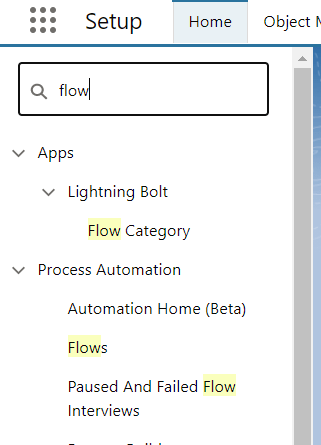
- Enter Flow in the Quick Find Box, and select Flow
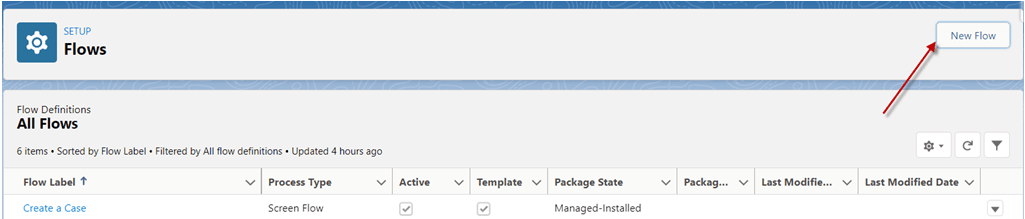
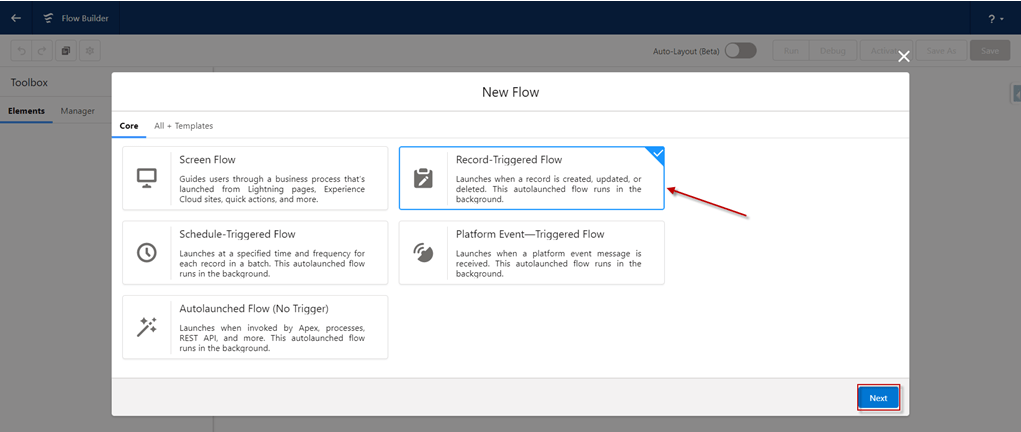
- Click New Flow button
- Select Record-Triggered Flow -> Click Next
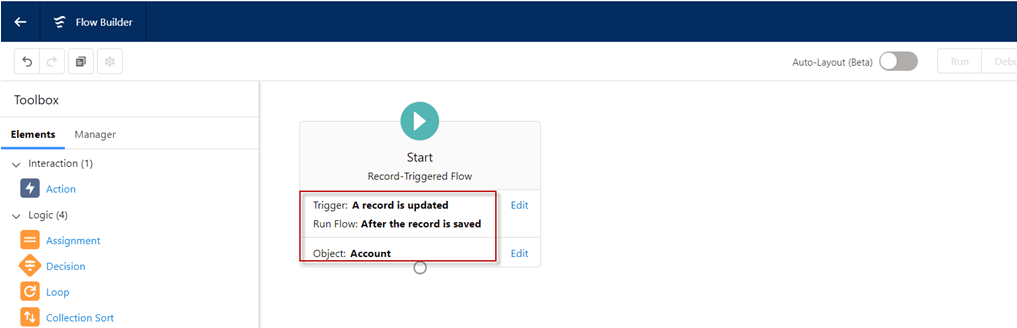
- Choose object: e.g. Account
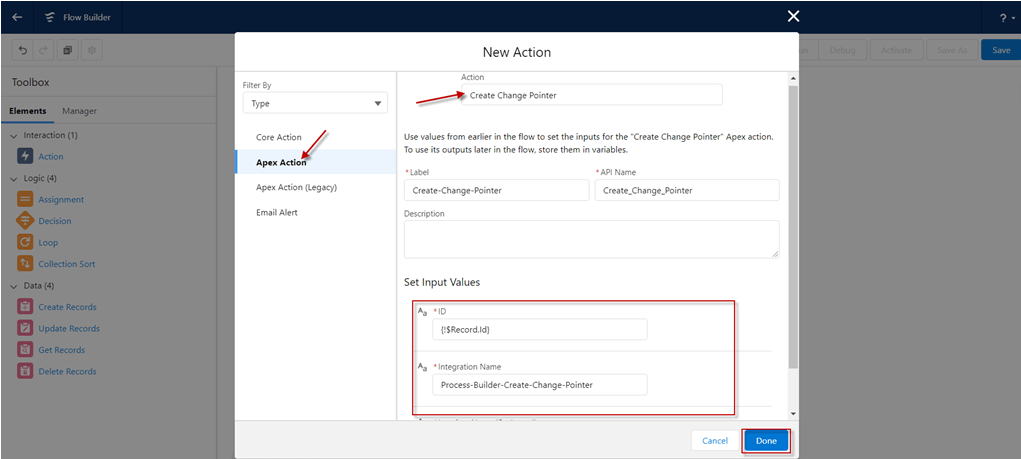
- Drag Action into Flow
- Action: Create Change Pointer
- ID:
- Integration Name:
- Interface Name:
- Click Done
- Click Save
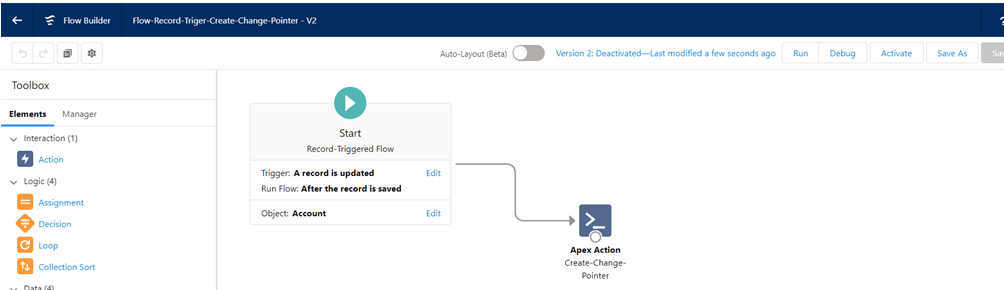
- At the end click Activate button on the right side
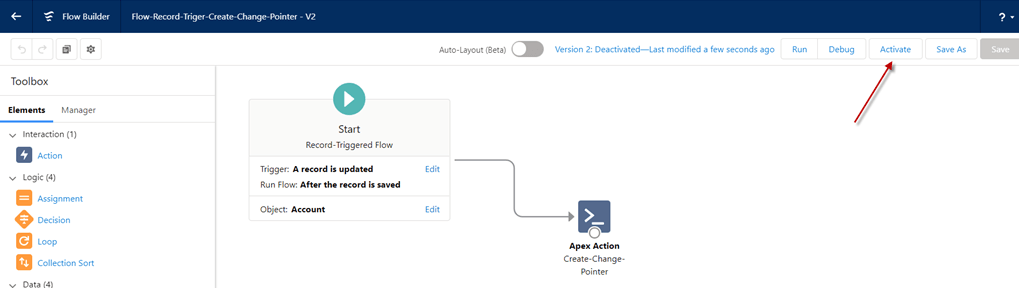
- Now we change Billing City value on Account object then Save
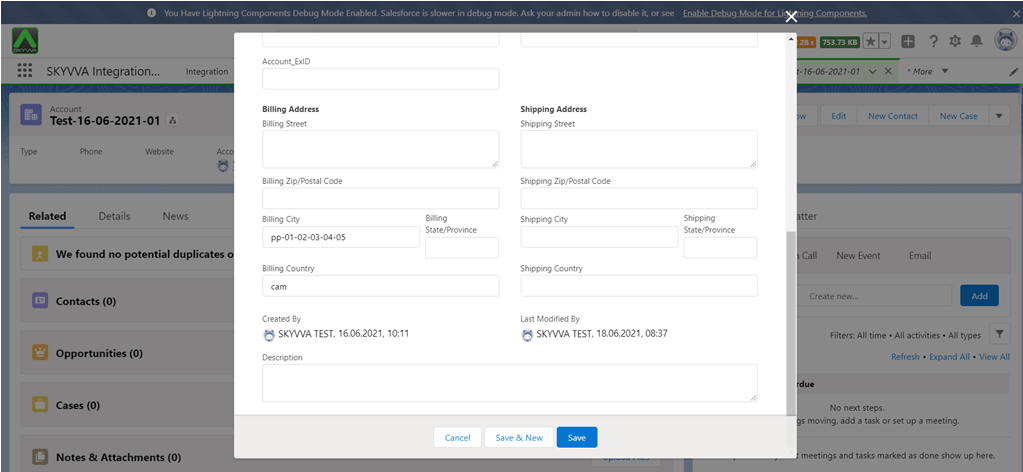
- Result: After update Billing City Process Builder will be create CP record and show in CDC Control Board
Case 2: Flow executes skyvva apex to execute callout Execute invoke callout old version by default. However, user can execute outbound V3 by specify the version number (3) by including the input value for
- At the end click Activate button on the right side
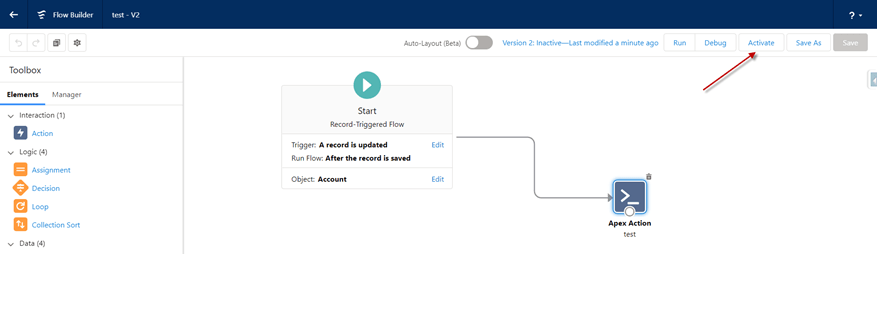
- Now we change Billing City value on Account object then Save
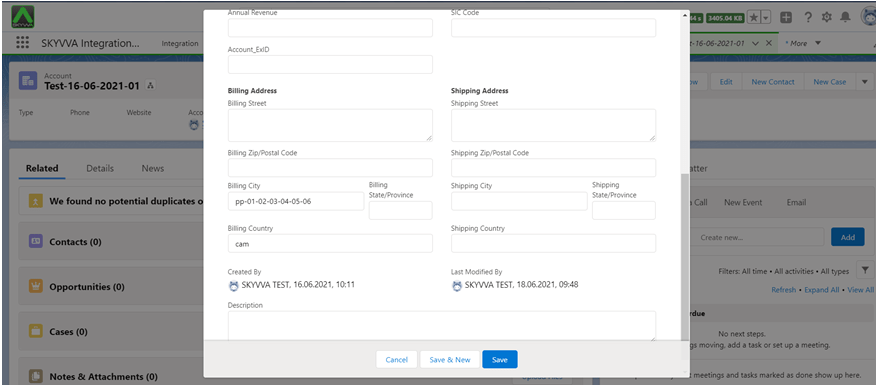
Result: After update Billing City Process Builder will be sent to external system

Now user learn how to invoke SKYVVA Api to create changed pointer or process outbound interface from Flow (record triggered flow).
How to use Quick action ?
The lightning version does not support with custom button, So we need to implement our tool to generate a script of the lightning component to use with quick action instead of a button. We have a tool Skyvva Trigger which generates SKYVVA Trigger scripts where we have a trigger type "Quick action". Pre- Requisite:-
- Create Integration.
- Create an Outbound Interface.
Follow steps as shown below:
- Fill fields in the interface as shown below
- Enter Name
- Status: Deployed
- Operation Type: Upsert
- Type: Outbound
- Fill in Adapter
- Click save button

- Enter to Integration Tab
- Open SKYVVA Trigger Tab
- Fill in Trigger Type
- Integration Name
- Interface Name
- Select Object
- Trigger Mode
- Click on Generate Script

- Go to Set Up
- Developer Console
- Click on File
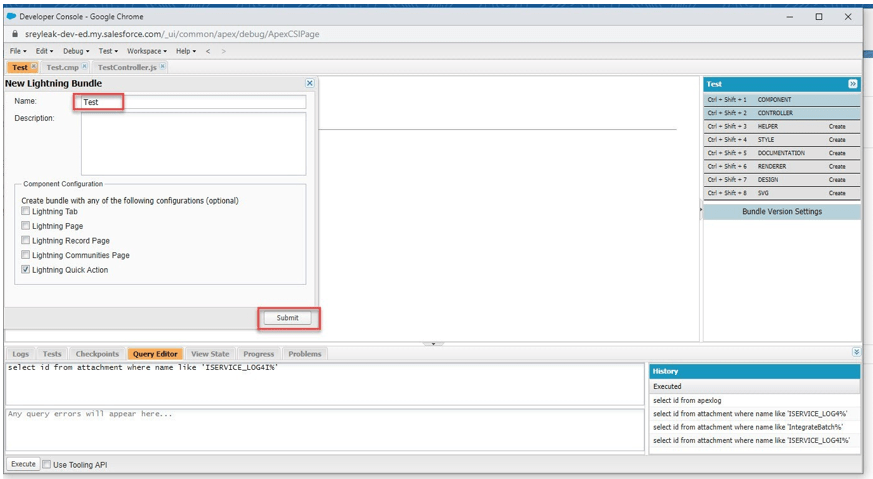
- Select New Lightning Component
- Fill in Name
- Tick on Lightning Quick Action
- Click on Submit
- Click on Component
- Copy script form Script Generation Component and paste in Component

- Click on Controller
- Copy the script from Script Generate JS Controller and paste in Controller

- Navigate to Set up
- Object Manager
- Account
- Buttons, Links and Actions
- New Action
- Fill in Required fields
- Save

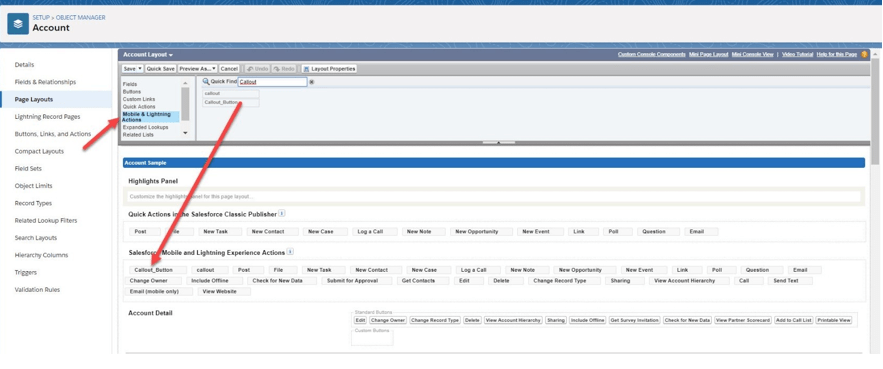
- Enter to Page Layouts
- Account Layout
- Mobile& Lightning Actions
- Drag into Salesforce Mobile and Lightning Experience Actions
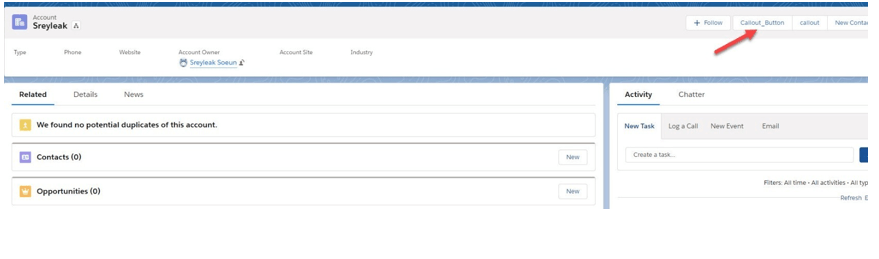
- Enter to Account
- It will show the Button we’ve created
- Click on that Button
- Go to Message Board
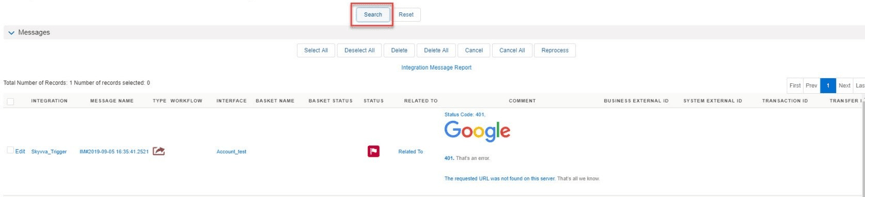
- Click Search will show the records that we callout