How to Query Records Changed from SAP Business Bydesign with Skyvva Scheduler?
Introduction
In this tutorial, we will learn How to get the last modified Business partner object in SAP Business Bydesign using Operation GET in SAP business Bydesign Adapter. To get the data from SAP Business partner in the SAP business Bydesign application to Salesforce. we need to have SAP Business Partner Message Type and SAP Business Bydesign Adapter. It is very helpful for user who want to get data last changed to insert or update to salesforce. We can process data manually and scheduler to know detail about How to run the outbound interface manually or scheduler please follow this link: #article/129-how-to-run-the-outbound-interface-through-the-manually-or-scheduler
Pre-required:
- Create Integration.
- Create Sap Business Bydesign Connection Destination.
- Create SAP business ByDesign Message type for Business Partner by using SAP Metadata Import.
- Create Inbound and outbound Interfaces.
- Create Sap Business Bydesign Adapter.
Step1: Create Integration.
To know detail about Integration, please follow this tutorial. What is Integration, and How to use it?
- Here’s Integration
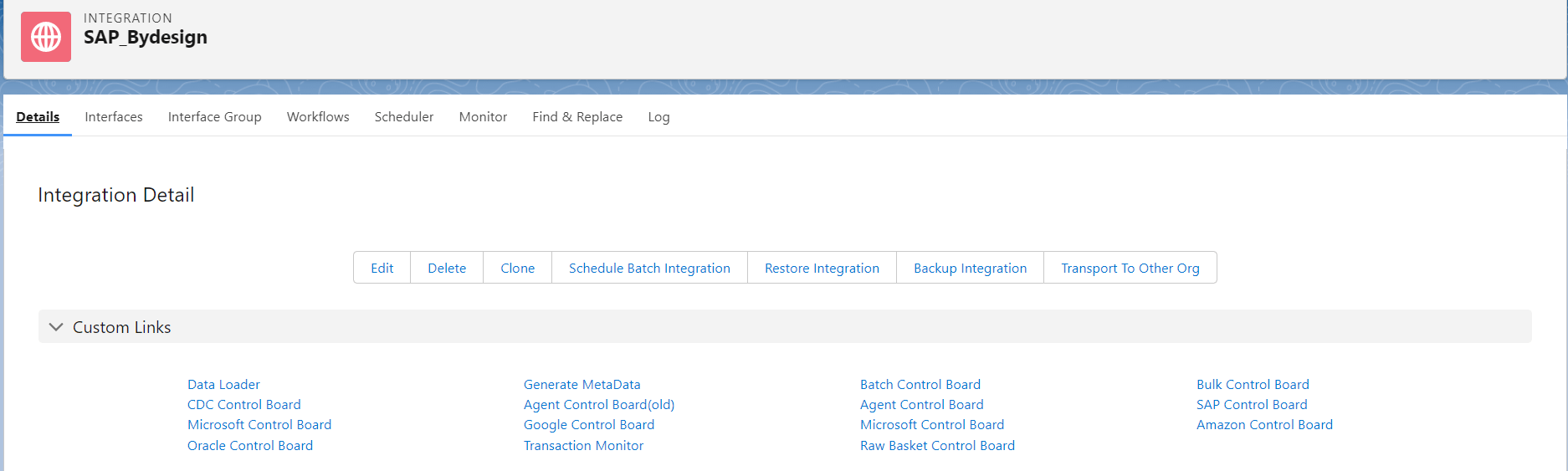
Step2: Create Sap business Bydesign connection destination.
Go to Integration Details -> click SAP Control Board.
- Here’s the example.

Choose Destination New -> choose Type= Sap Business ByDesign -> Filling name –> click Continue Button
- Here’s the example below.

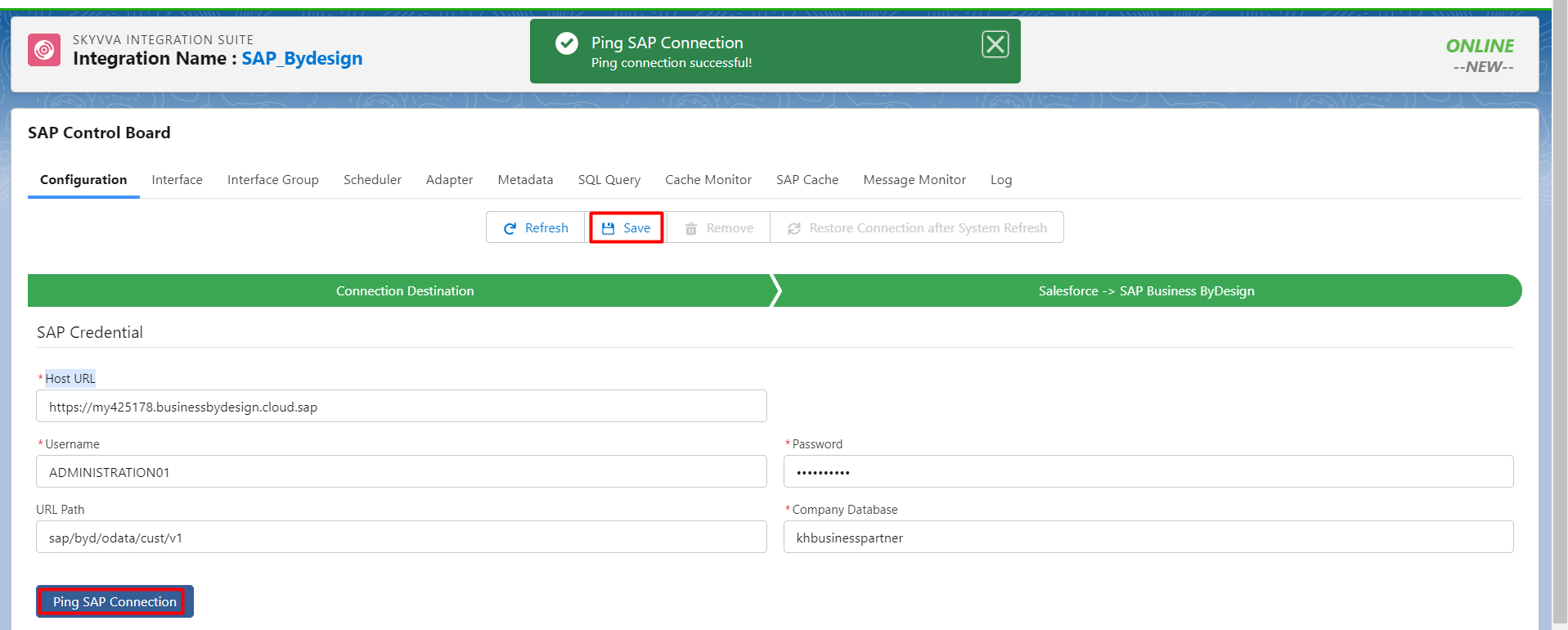
- Filling Host Url, Username, password, Url path, and Company database which is Collection that User want to uses. Click Ping SAP Connection button to active the distention and click save button. See the example below.
To using Sap Business Bydesign URL, User need to Create Remote Site.
- Here’s the example.
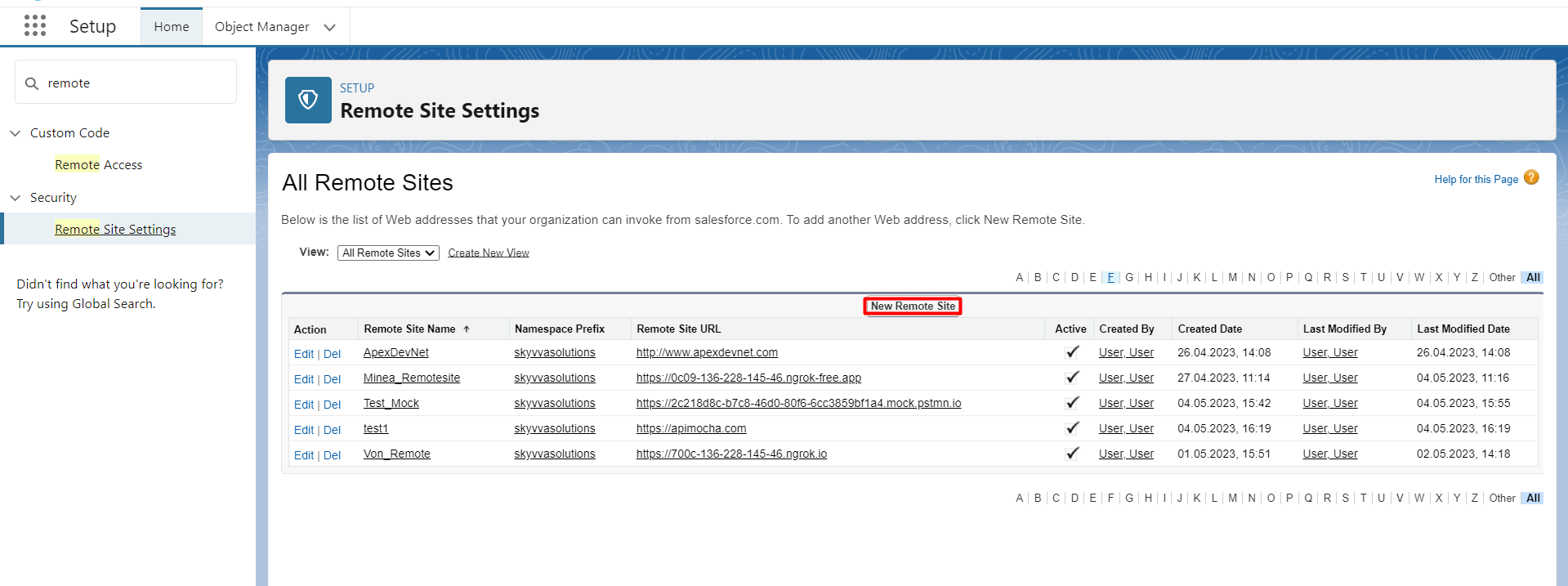
Go to setup -> Search “Remote”-> click Remote Site Settings.

- Click new Remote site Button
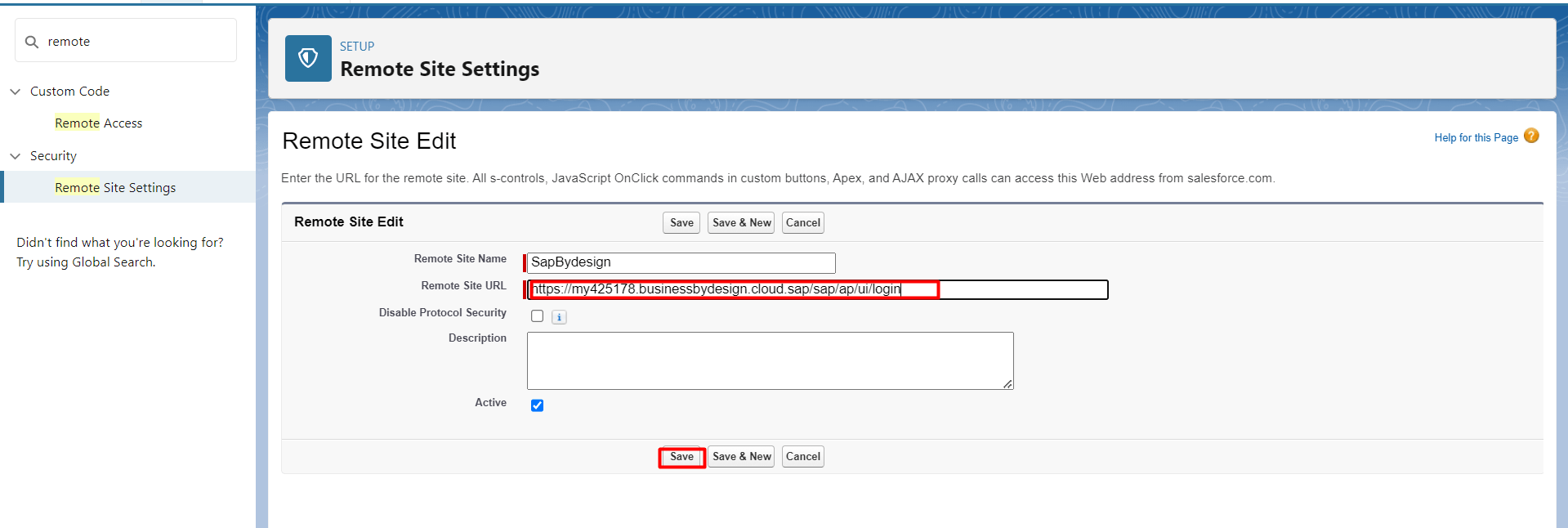
- Filling name , URL of SAP business ByDesign and click save button.
Step 3: Create SAP business ByDesign Message type for Business Partner by using SAP Metadata Import.
User need to have Metadata and repository.
- Here’s Repository.
Click Import SAP Metadata. See the picture below.

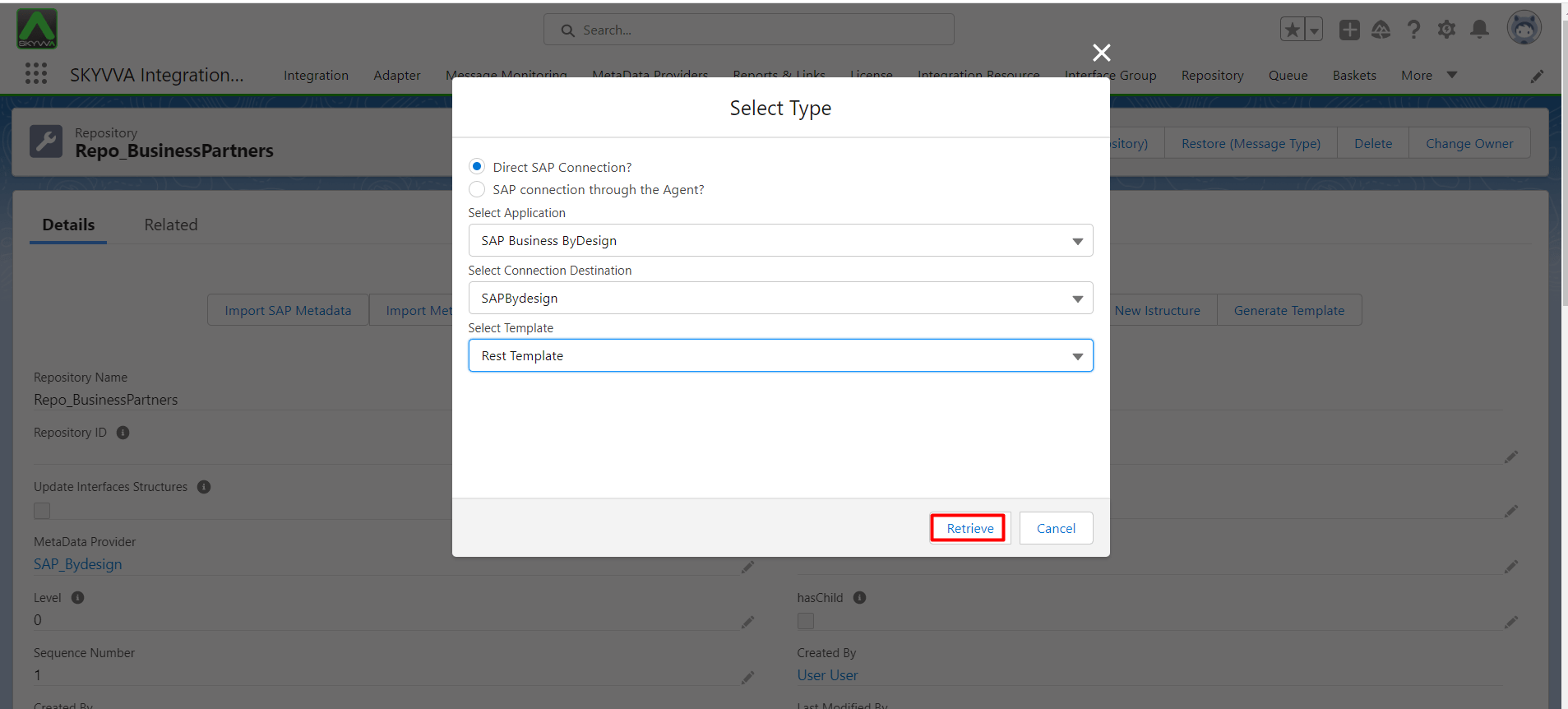
- Choosing Direct SAP Connection?, Select Application: Sap Business Bydesign, Select Connection Destination, Select Template: Rest Template and click Retrieve Button. See the example below.
- Search Business Partner , and choosing Business Partner Collection and click Create Message Type.

- Here’s the Business Partner Collection Message Type.
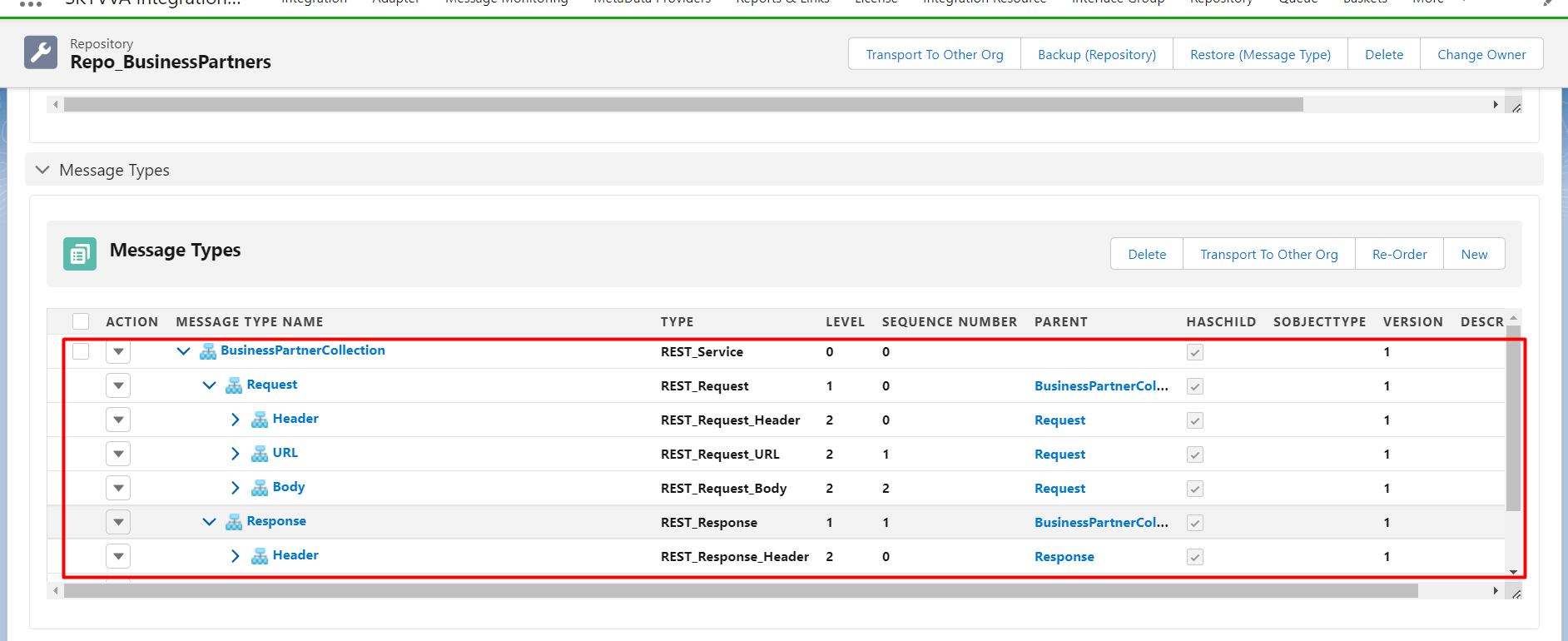
- We need to create message type fields’ entry for LastChangeDateTime in message type Request.
- Click Query parameter and create the Message Type Field Entry

- Create the message type field entry.

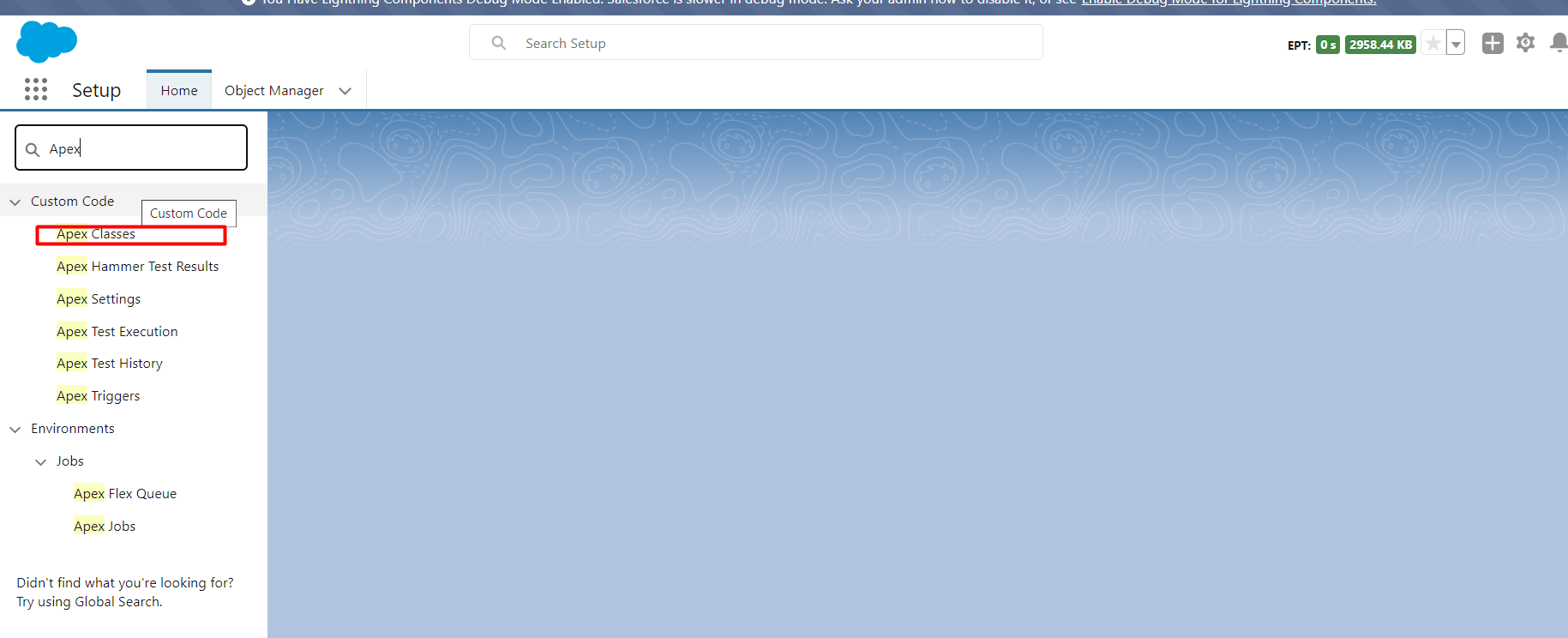
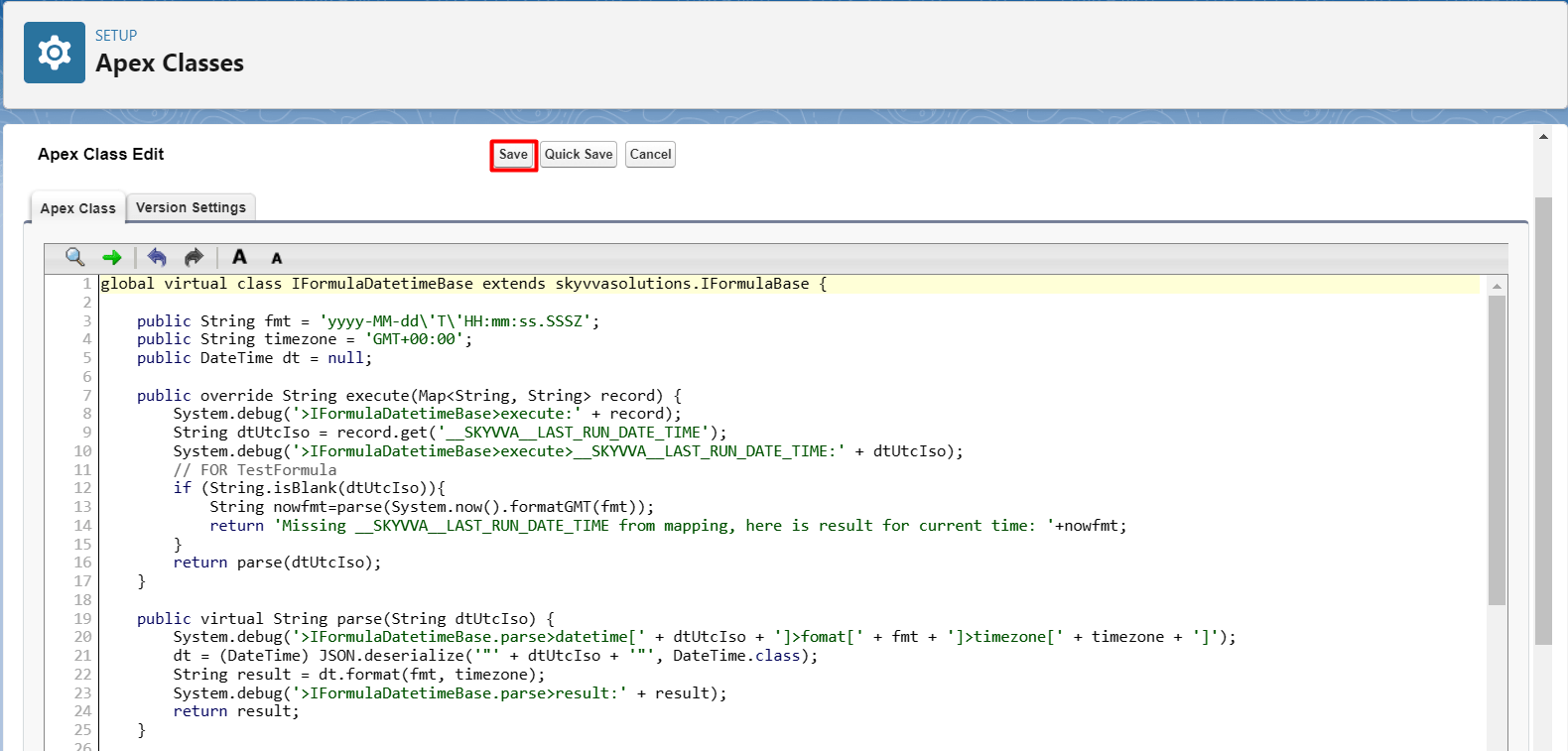
We also need to create Apex code for get the time. Go to setup and search Apex and click Apex Classes
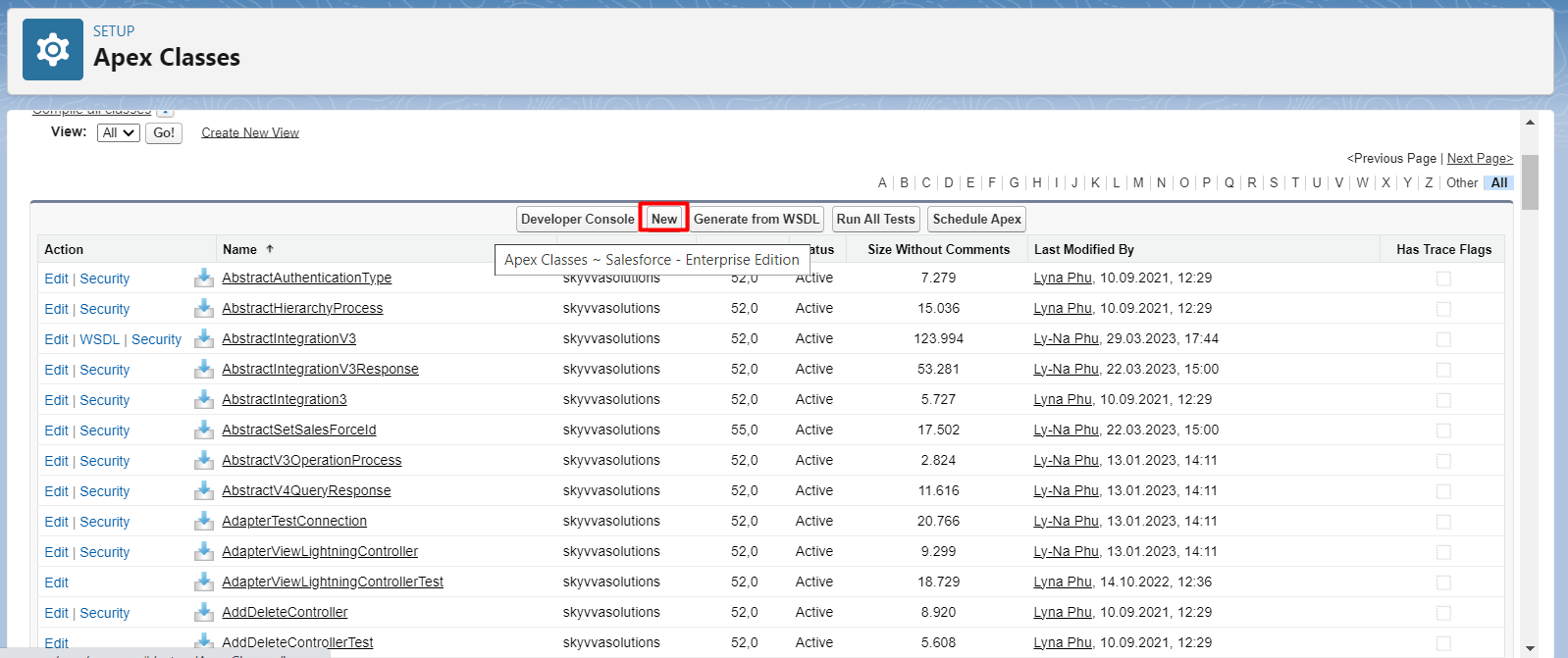
- Click new
[su_box title="Note" box_color="#2a8af0" title_color="#000000"] Make sure that the timezone of sap business bydesign system is the same as the code.[/su_box]
Here's the apex code.
global virtual class IFormulaDatetimeBase extends skyvvasolutions.IFormulaBase {
public String fmt = 'yyyy-MM-dd\'T\'HH:mm:ss.SSSZ'; public String timezone = 'GMT+00:00'; public DateTime dt = null;
public override String execute(Map
public virtual String parse(String dtUtcIso) { System.debug('>IFormulaDatetimeBase.parse>datetime[' + dtUtcIso + ']>fomat[' + fmt + ']>timezone[' + timezone + ']'); dt = (DateTime) JSON.deserialize('"' + dtUtcIso + '"', DateTime.class); String result = dt.format(fmt, timezone); System.debug('>IFormulaDatetimeBase.parse>result:' + result); return result; }
//2020-01-01 global class DateParser extends IFormulaDatetimeBase { public override String parse(String iso) { this.fmt = 'yyyy-MM-dd'; return super.parse(iso); } }
//00:00:00 global class TimeParser extends IFormulaDatetimeBase { public override String parse(String iso) { this.fmt = 'HH:mm:ss'; return super.parse(iso); } }
//2020-01-01T00:00:00Z global class DateTimeParser extends IFormulaDatetimeBase { public override String parse(String iso) { this.fmt = 'yyyy-MM-dd\'T\'HH:mm:ss'; String finalValue = super.parse(iso); return finalValue+'Z'; } } }
- Here's the picture.
Step 4: Create Outbound and Inbound Interfaces and linked with message Type.
- Here’s Outbound Interface.

- Here's the mapping


- Here’s Inbound Interface.

- Here’s mapping.

- Linked Inbound Interface with Request Interface.
Go to Request Interface and scroll down to find field Response Interface and select the Response Interface.

Step4: Create Sap Business Bydesign.
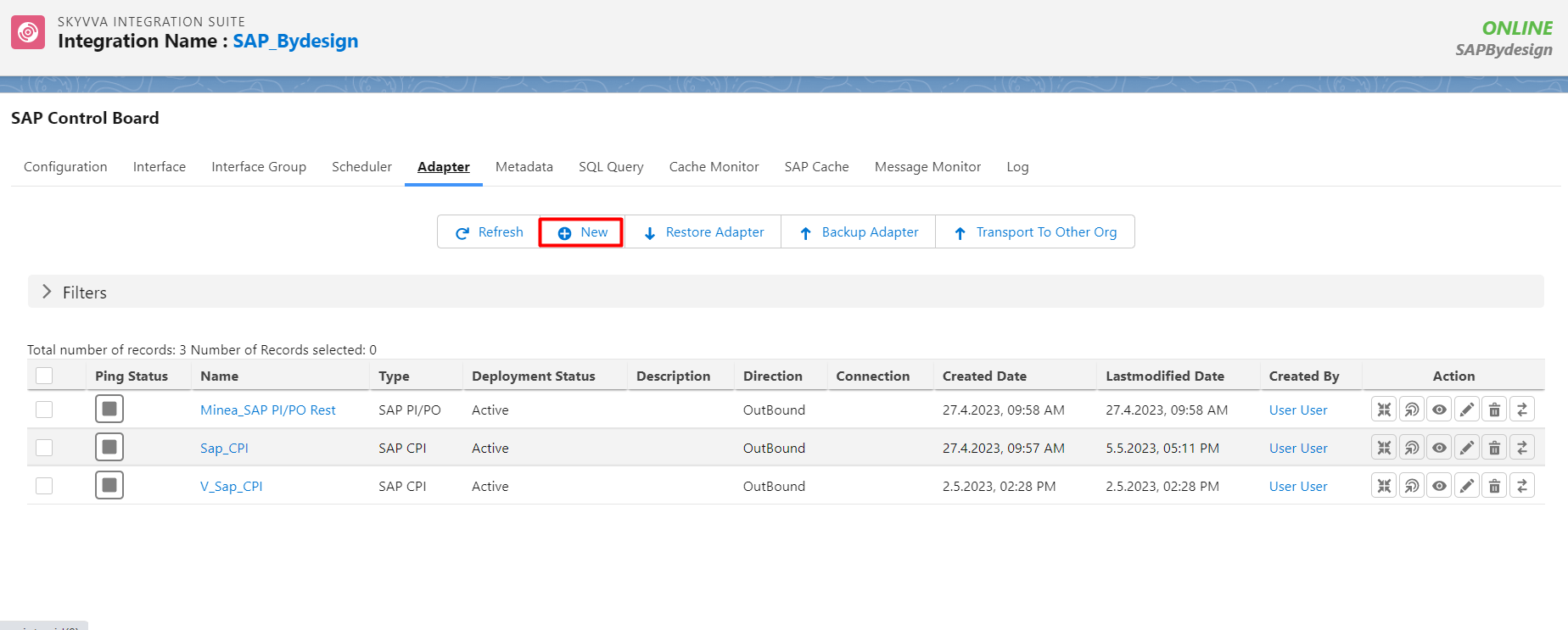

[su_box title="Note" box_color="#2a8af0" title_color="#000000"] Put your url of the sap business by system.[/su_box]
- Here’s the example url https://my425178.businessbydesign.cloud.sap/sap/byd/odata/cust/v1/khbusinesspartner/BusinessPartnerCollection

- Linked adapter with outbound

- Run scheduler on sap control board. And set time to running

- Click run

- Go to monitor to check the result
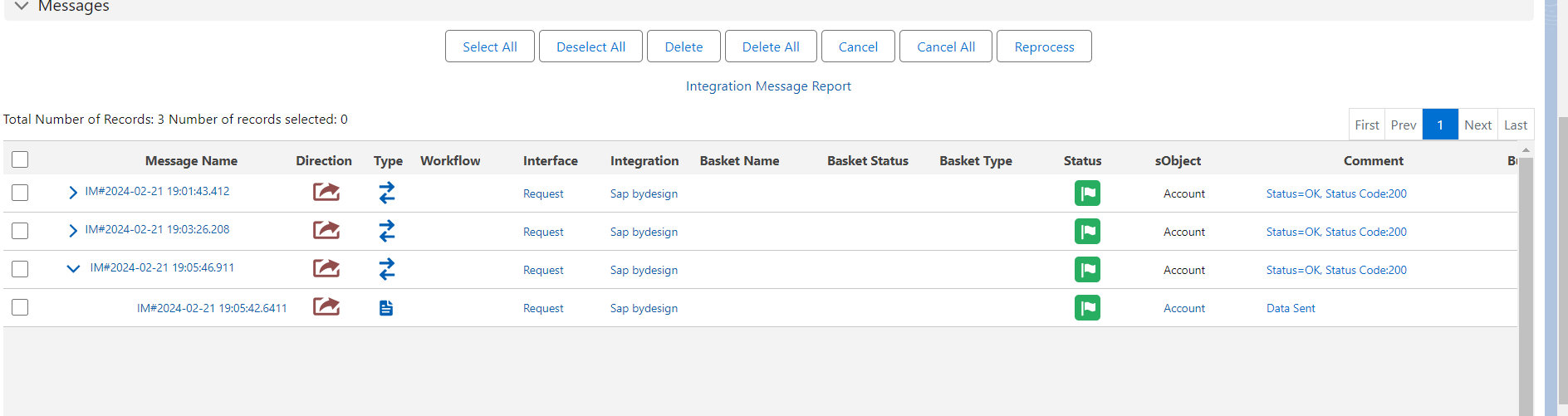
We can see the request is successful but no response due to no data change, now let change data in sap by design by using postman to change.

- Now go to monitor to see the result


Summary
Finally, we have learned how to query data changed from sap business by design to salesforce by using Skyvva Scheduler.