How to Synchronize MySQL Database Data Using an Inbound Interface via a Scheduler?
Introduction
This tutorial will guide you on how to synchronize the data from the database and push it to salesforce. For the database, we can select the data from the table or we can use the Stored Procedure to push the data into Salesforce. On the Salesforce side, We do any operation such as upsert, insert, and update or use the custom class when the business logic is complex that is something available already in the SKYVVA solution. MYSQL database is used for example to retrieve data from the existing records in the database and it located on EC2 instance. Pre-requisites:-
- Create Integration
- Do configuration on the new Agent Control Board
- Create inbound Database Adapter
- Create Metadata Provider, Repository and generate Message Type from the database
- Create inbound Interface
- Check Cache monitoring status
- Use scheduler as consumer
How to do synchronize database data using an inbound Interface?
In this case, we need a scheduler to synchronize data from the database into Salesforce. The scheduler will fetch the database record based on the value put on Database Query in Interface. Step-1: Create Integration and test connection destination. Create new Integration by following the guide, Link is given below. #article/what-is-an-integration-and-how-to-create-it
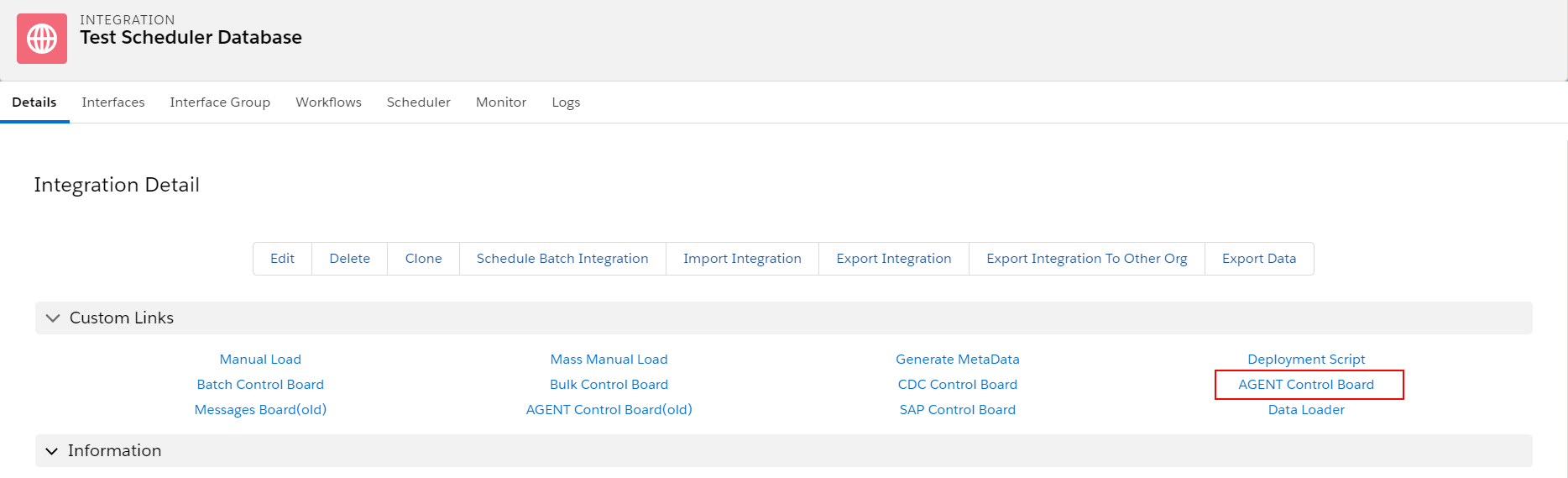
- Navigate to AGENT Control Board as shown below.
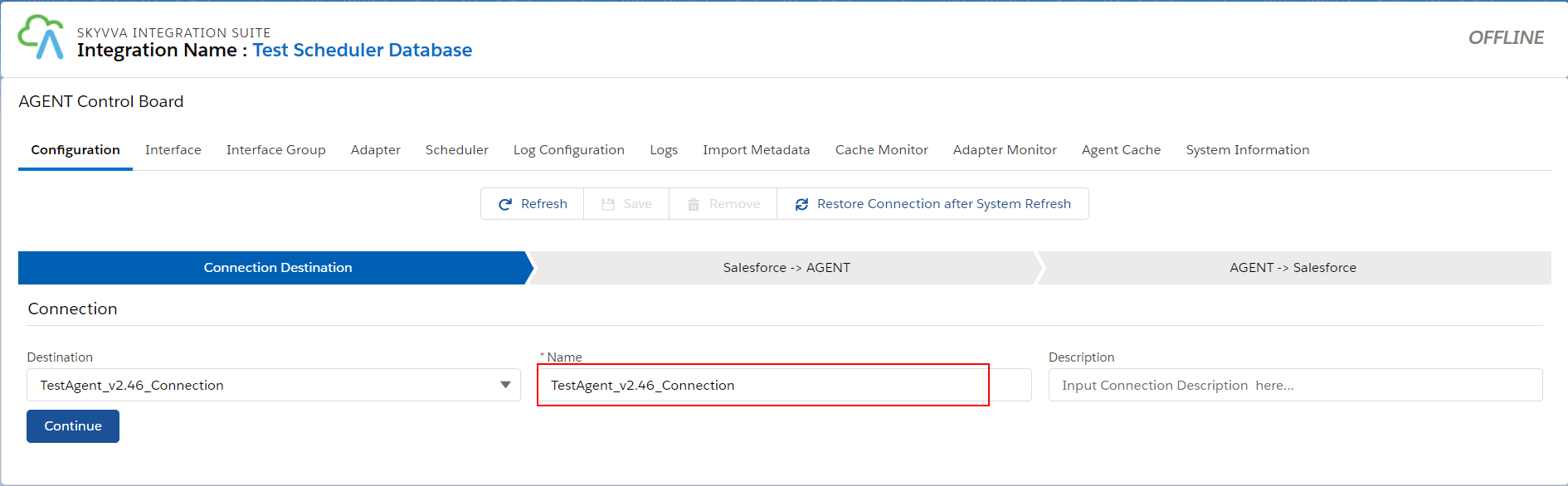
- In the Configuration tab enter the connection destination name and click on the button "Continue".
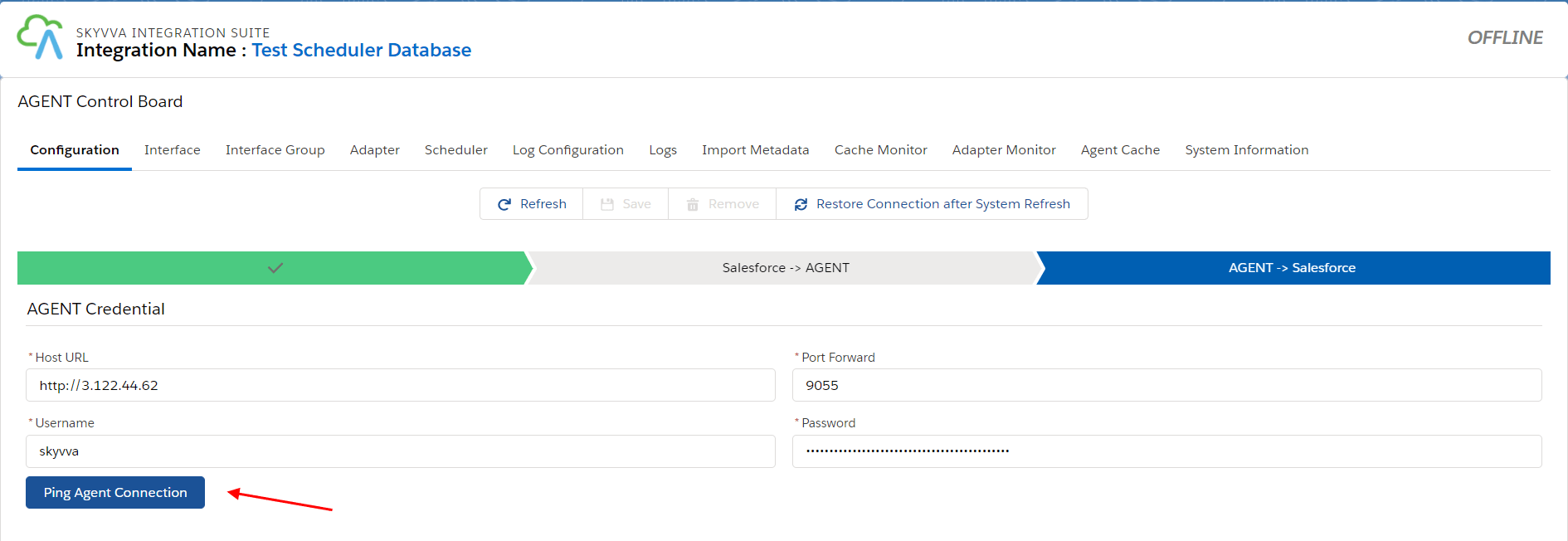
- Fill in all the required details
- Click button Ping Agent Connection
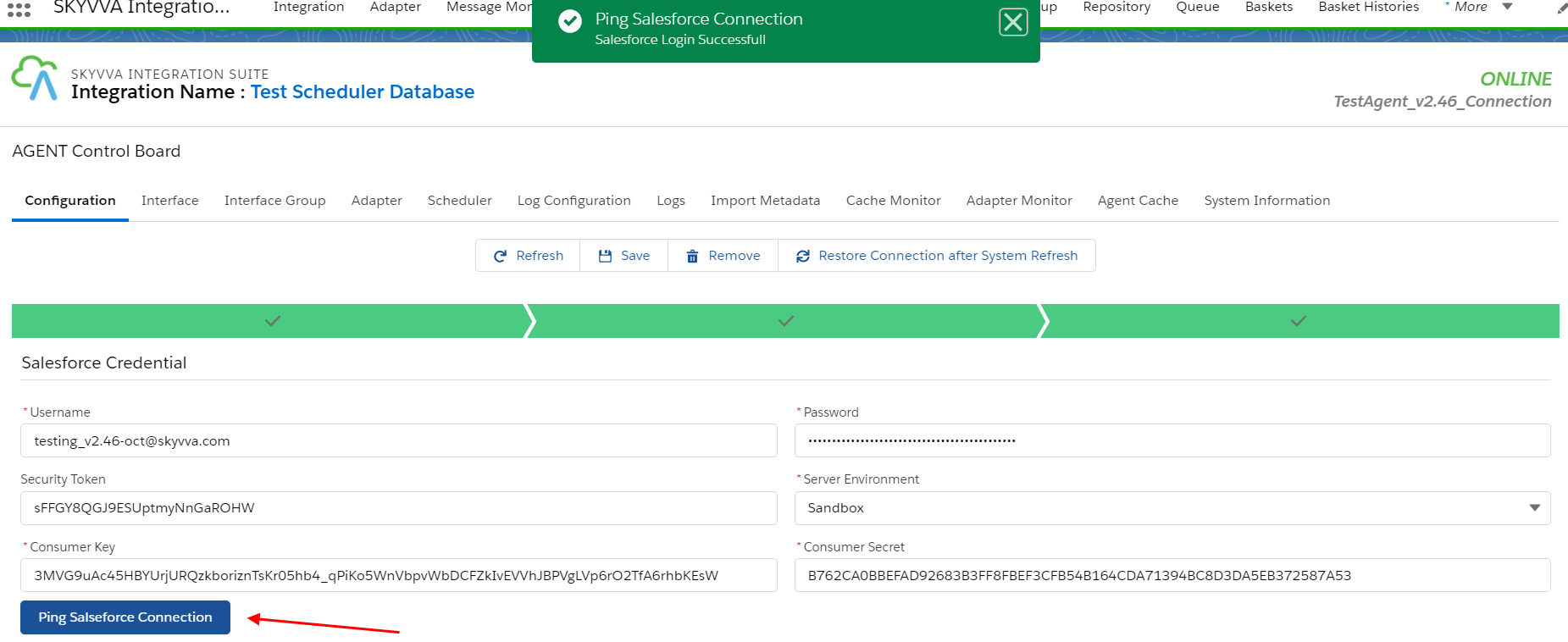
- Fill in all the required details
- Click button Ping Salesforce Connection
Step-2: Create an Inbound Database Adapter on the new Agent Control Board
- Navigate to the Adapter tab after that click the button New

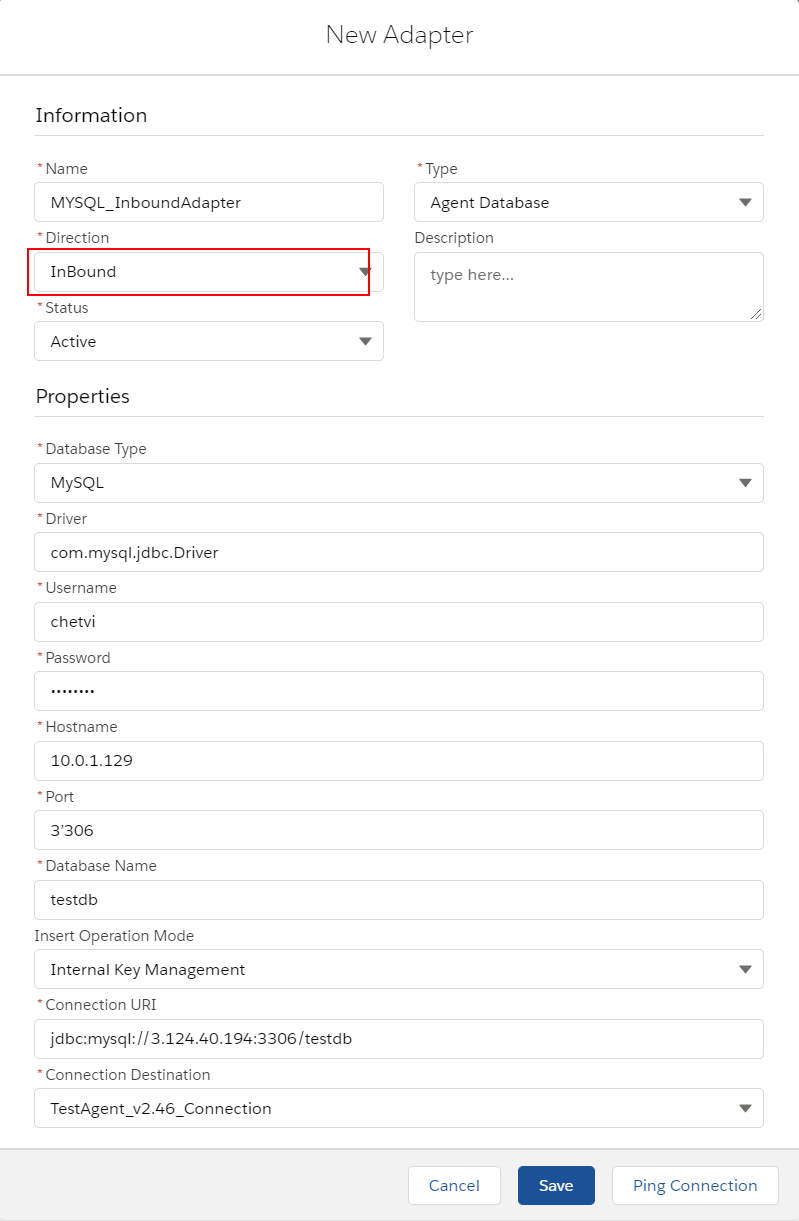
- Fill all required field
- Name: any name
- Type: Agent Database
- Direction: Inbound
- Status: Active
- Database Type: MySQL
- Driver: mysql.jdbc.Driver
- Username: (your user name on database)
- Password: (your password on database)
- Hostname: 124.40.1949 (public ipv4 on EC2 AWS)
- Port: 3306(default)
- Database Name: your database name
- Insert Operation Mode: Internal Key Management
- Connection URI: jdbc:mysql://3.124.40.194:3306/testdb (connection url format is protocol//[hosts][/database])
- Connection Destination: your destination name
* on EC2, make sure you have allowed MYSQL port 3306 on Group Policy for connectivity from other system.
Step-3 Generate Message Type from the database
- Create Metadata Provider
- Create a Repository
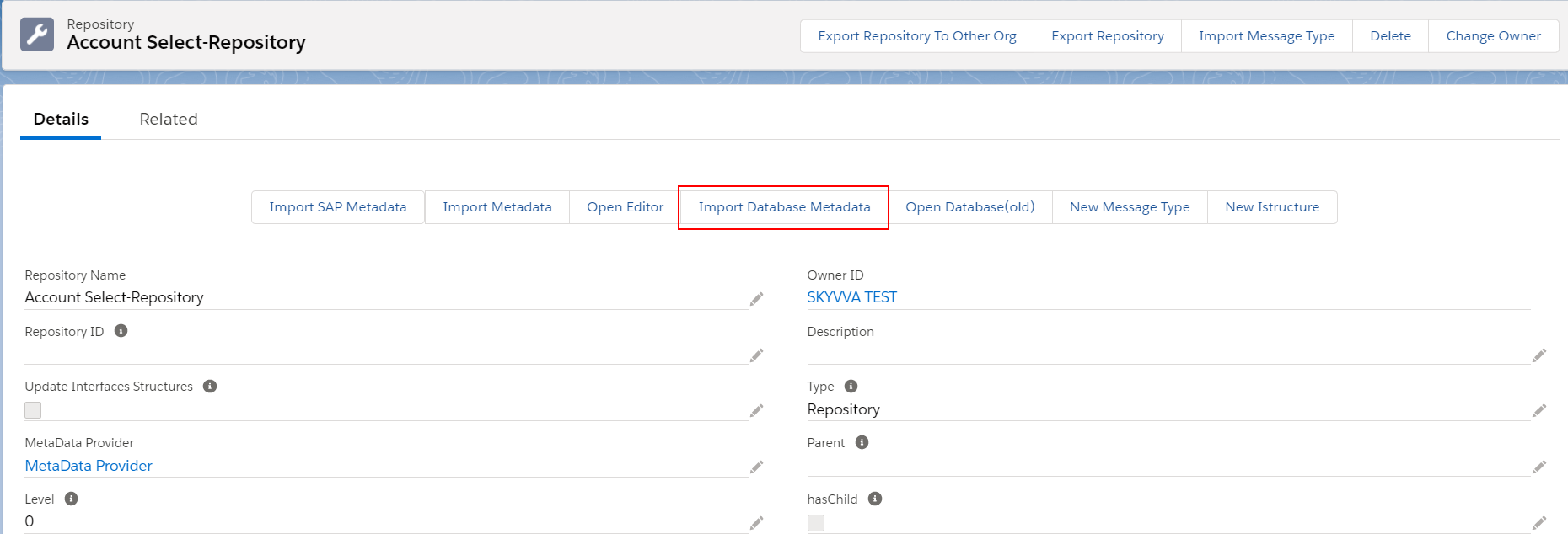
- Go to the Repository details page then click the Import Database Metadata button
- Fill all required field then click Retrieve Database to get the Table’s record
- Agent Instance: your instance name
- Adapter Name: your adapter name
- Object Type: Table, View, Procedure
- Database Operation: Select (database’s template will be generated based on operation)

- Choose Table’s name for creating Message Type

- After that, we got the Message Type generated as a template from the database

Note: For Select operation, we have a template for generating Message Type for a single Table - Create a root Message Type with the prefix “Database_” + “Table’s name” within type as “Database Table Template” - Create two Message Type as a child of the root with the fixed name. The first one is “Request”, type as “Database Request”. And the other one is “Response”, type as “Database Response” - Under “Request”, create a Message Type as the child. The Table’s name is used for this Message Type within type as “Database Table”. i.e: tbl_account_db_atn. In this Message Type, was generated the field name like on Table - Under “Response”, create a Message Type as the child with the fixed name “records” within type as “Plain structure” - Under “records”, create a Message Type as the child. The Table’s name is used for this Message Type within type as “Plain structure”. In this Message Type, was generated the field name like on Table Step 4: Create Interface
- For creating the Interface need to follow this guide #article/1-what-is-an-interface-and-how-to-create-it
- Create an inbound Interface for Synchronous mode, operation(upsert), Choose Adapter, Metadata Provider, Repository and Message Type (Response)

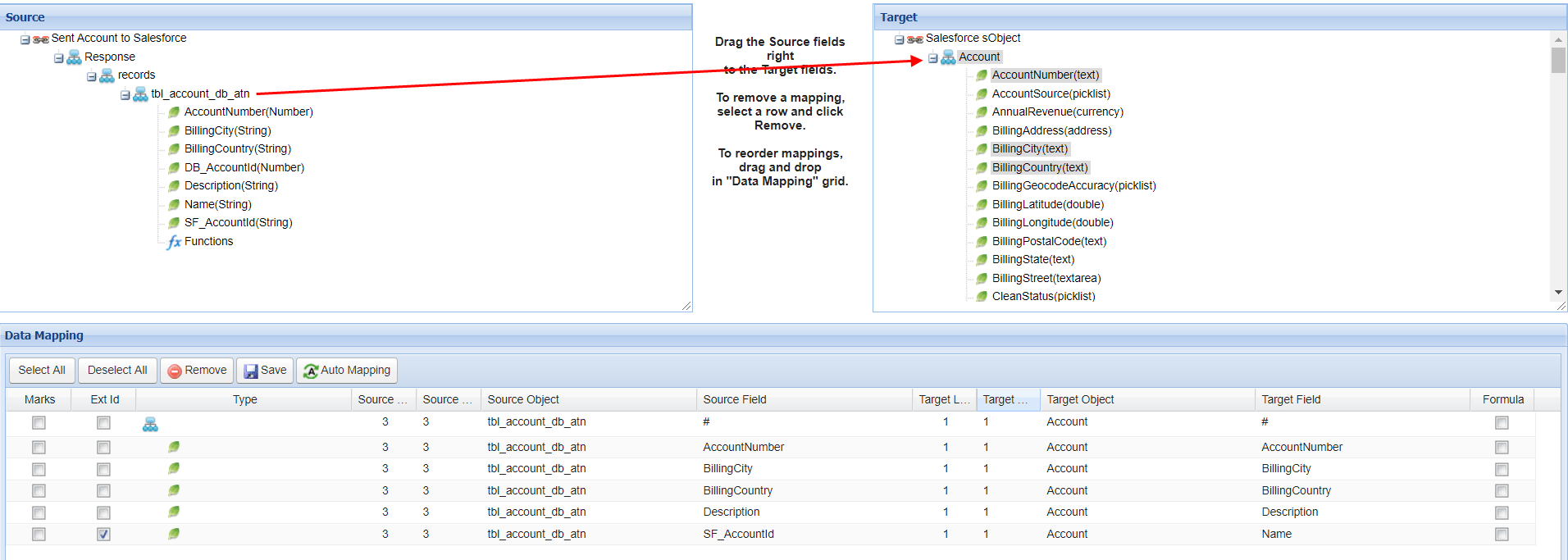
- Mapping:
- Put select statement into Database Query’s field.

- This SQL select will fetch the record which is AccountNumber equal “100248”.

- Go to scheduler
Agent scheduler will be generated after the user clicks the Scheduler tab.

- Set a time to run every 1 minute.

Note: If the machine has a small memory, we should not set the time for running every 1 minute because it will block another job. Running every 10 minutes or more is a good recommendation.

- As a result of message monitoring, the record has been sent to Salesforce correctly via Scheduler.

- Run at a specific time
The time that we define here, is the time on the server that is Agent running.

- Time


- As a result of message monitoring, the record has been sent to Salesforce correctly via Scheduler.
