1. How to use Data capture functionality Process Builder with Agent?
[su_box title="Note" box_color="#2a8af0" title_color="#000000"]A Process Builder is a notification that Salesforce sends when a change to a Salesforce records/fields appear as part of a Create, update, delete, or undelete operation.[/su_box]
Learning Objectives
A Change Data Capture event, or change event, is a notification that Salesforce sends when a change to a Salesforce record occurs as part of a Create, update, delete, or undelete operation. User has to create Account in SalesForce, it should trigger an event and send this Account Information to MS SQL Server DB of our organization. Once it's inserted in our SQL DB, it will create particular AccountID and give it back to SalesForce. The notification includes all new and changed fields and header fields that contain information about the change.
Introduction
The reason users need to accomplice this is our Account creation process used to start from Our own SKYVVA product so it was creating AccountID (Auto Generated) from DB and used from Primary identification for Account across the system. Now we want to create Account from SalesForce but need to keep AccountId generated from SQL DB. For example, header fields indicate the type of change that triggered the event and the origin of the change. Change events support all custom objects and a subset of standard objects.
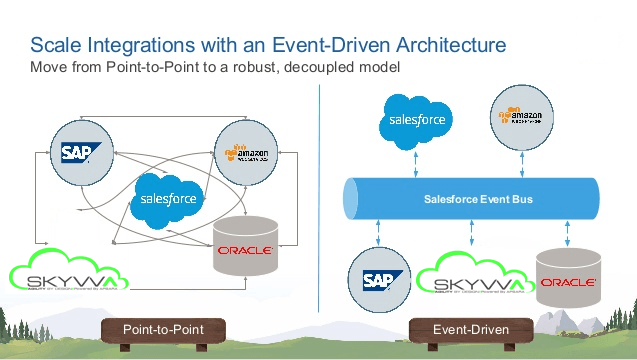
How to use Process Builder with Agent?
The user has to experienced how SKYVVA Change Events to synchronize changes to the Salesforce records in your SQL server Db Management system. SKYVVA can Change/Update events the same way you subscribe to other events. Users can use Process Builder. CometD is a messaging library that enables listening to events through long polling and simulates push technology. Go to Salesforce Org.
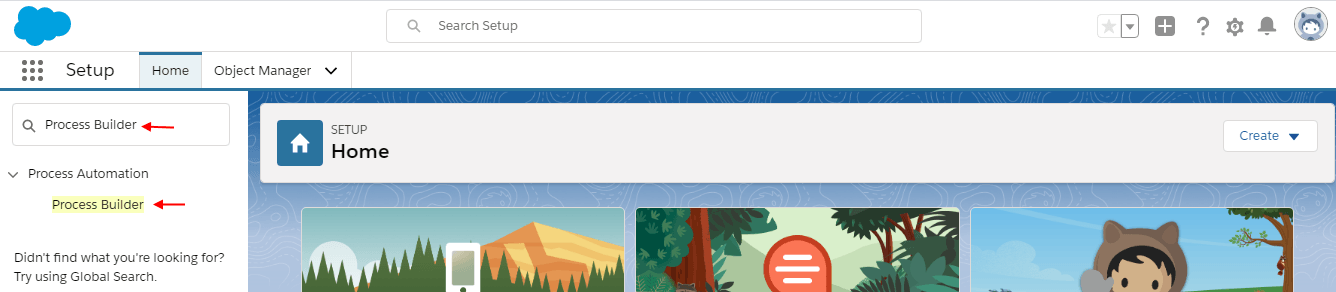
- Click on Setup Gear icon

- Write Process builder in the search box & click on it
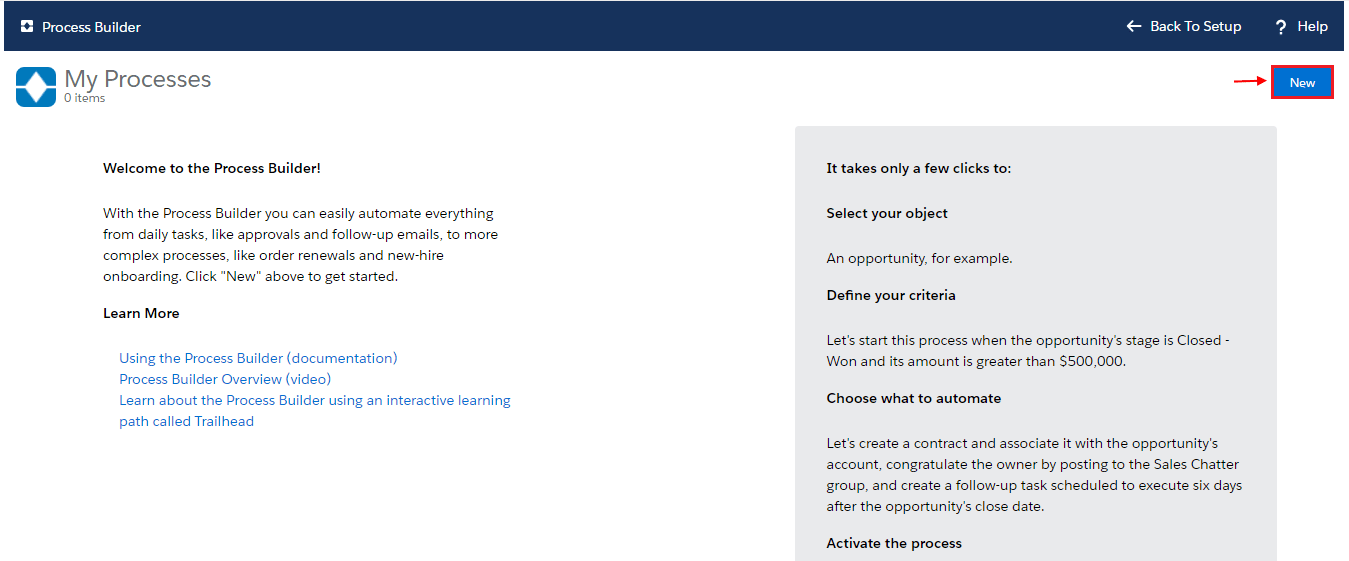
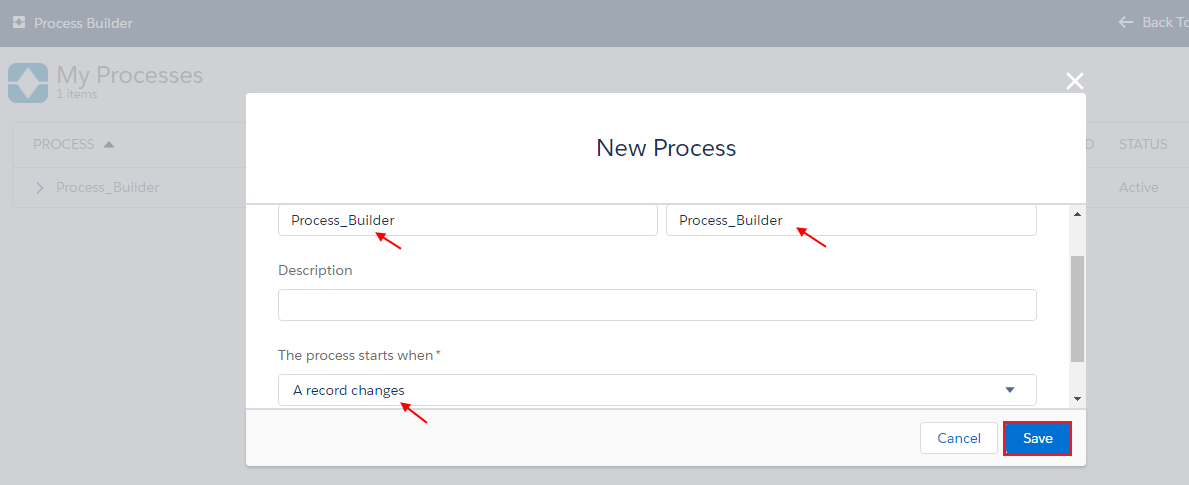
- Click on New button
- Write Process Name then Select A record changes
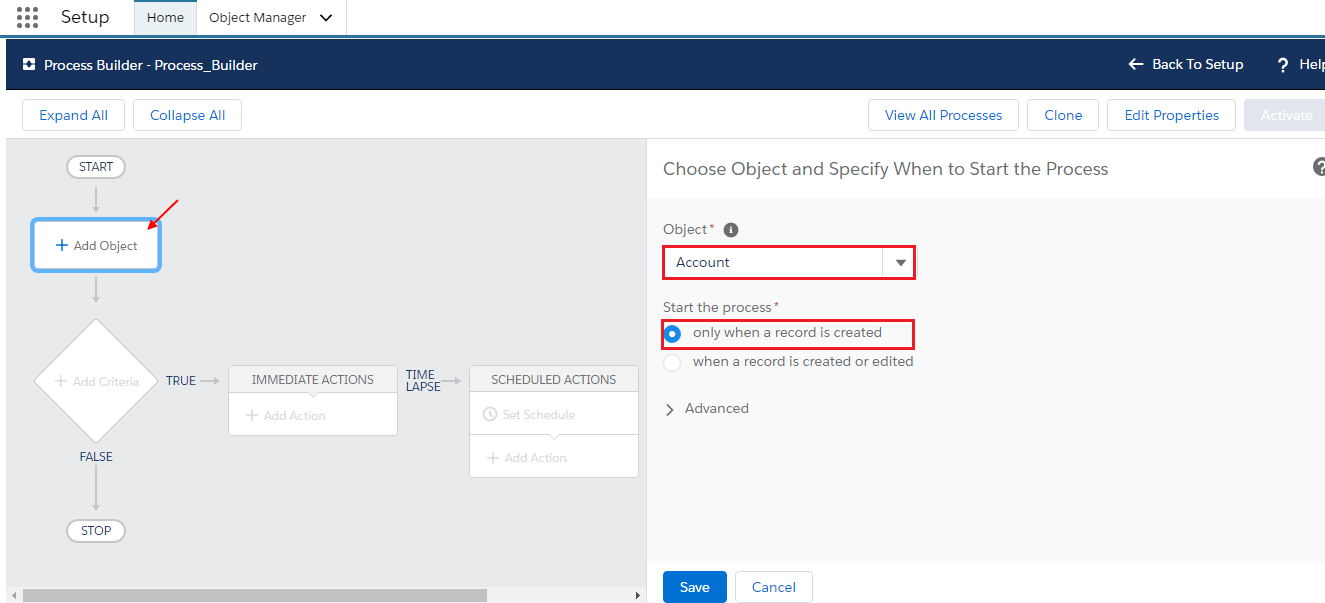
- Click Add Object
- Choose object e.g Account
- Start the process, select when a record is created or edited
- Click Add Criteria
- Write Criteria Name, choose Formula evaluates true for criteria to Execute Action
- Write Formula ISCHANGED([Account].BillingCity) formula for changing BillingCity
- Save

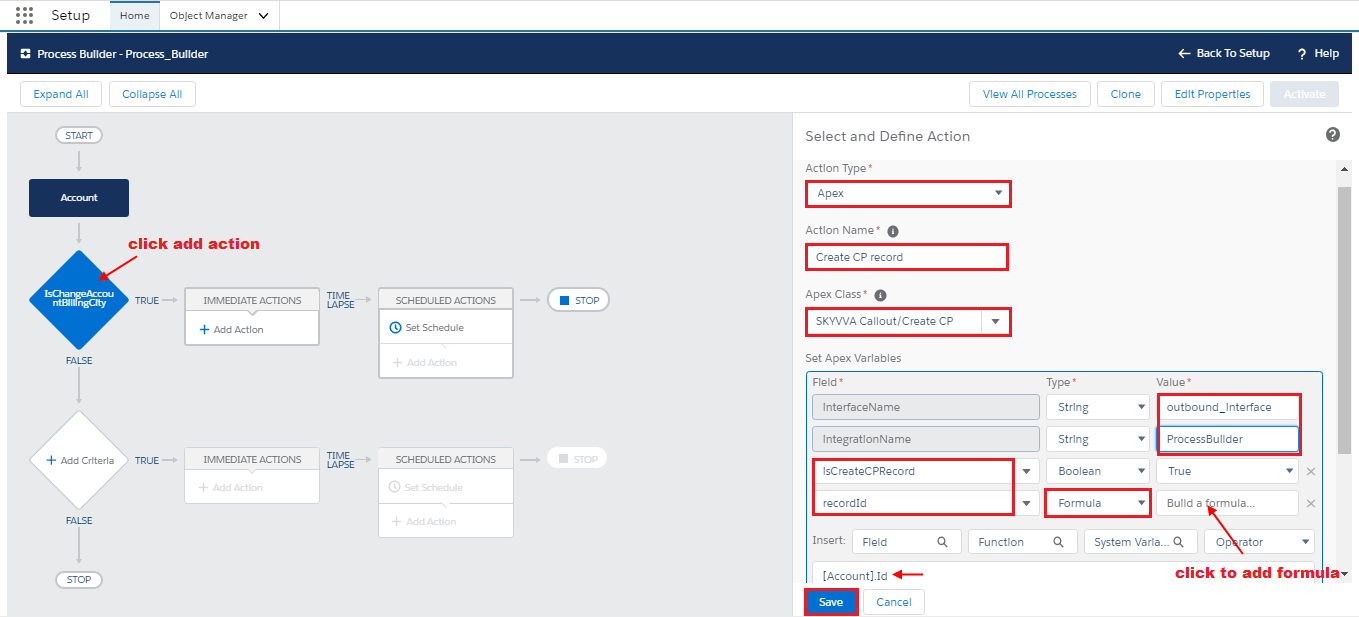
- Click Add Action
- For Action, Type choose Apex, for Action Name write Name
- Choose SKYVVA Callout/Create CP
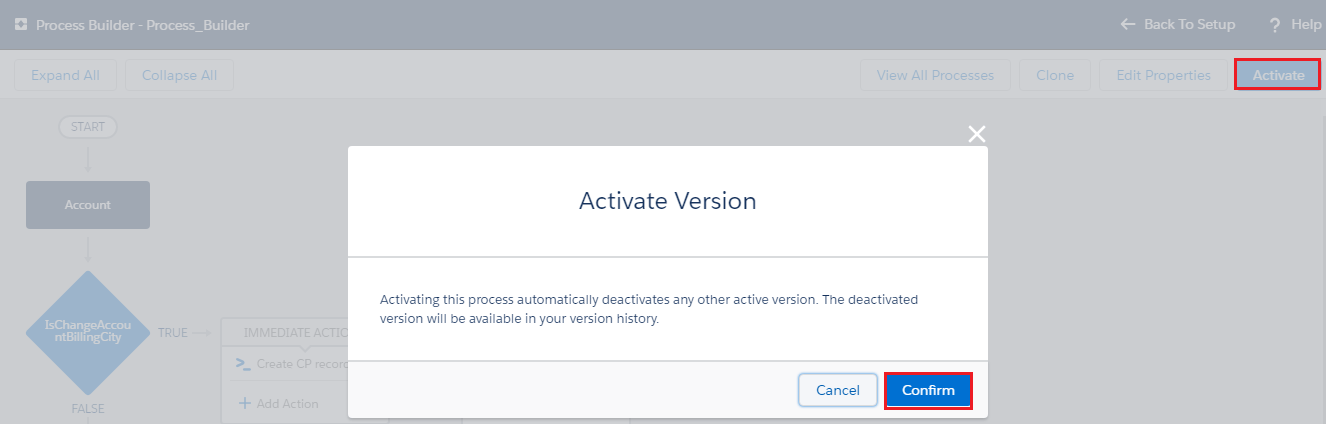
- Click Activate button on the right side then click confirm button when the popup message
Go to Microsoft SQL Server Management Studio – Download Microsoft SQL Server Management Studio...
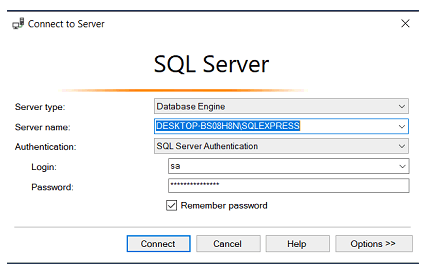
Connect to Server
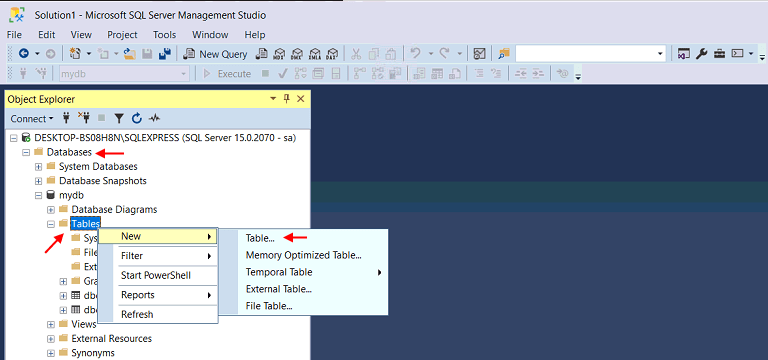
- Click on Databases
- Scroll down to Tables
- Right Click on New
- Click on Table
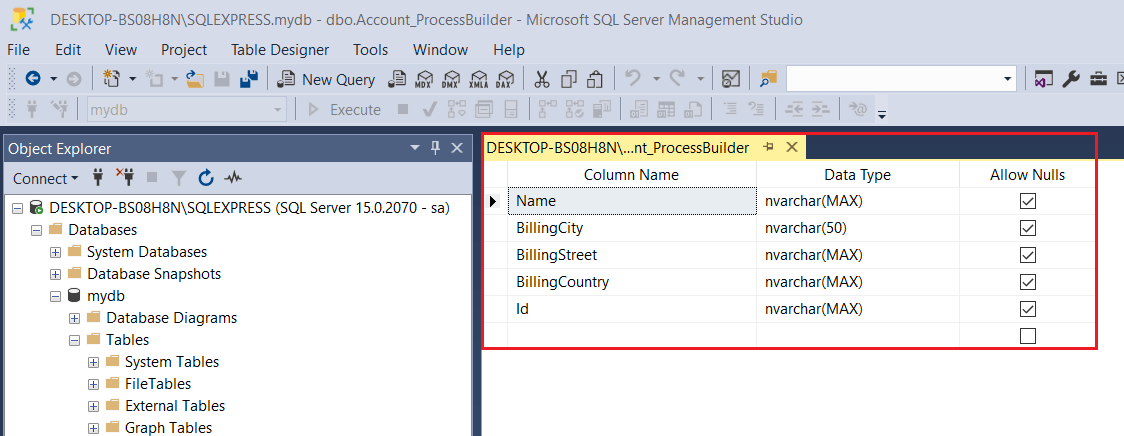
- Create Column Name
- Select Data Type “nvarchar(Max)”or”nvarchar(50)”
- Allow Nulls checked by default
Now go to Salesforce Click on Adapter Tab
- Create Adapter Type JDBC
- Click on Ping Connection
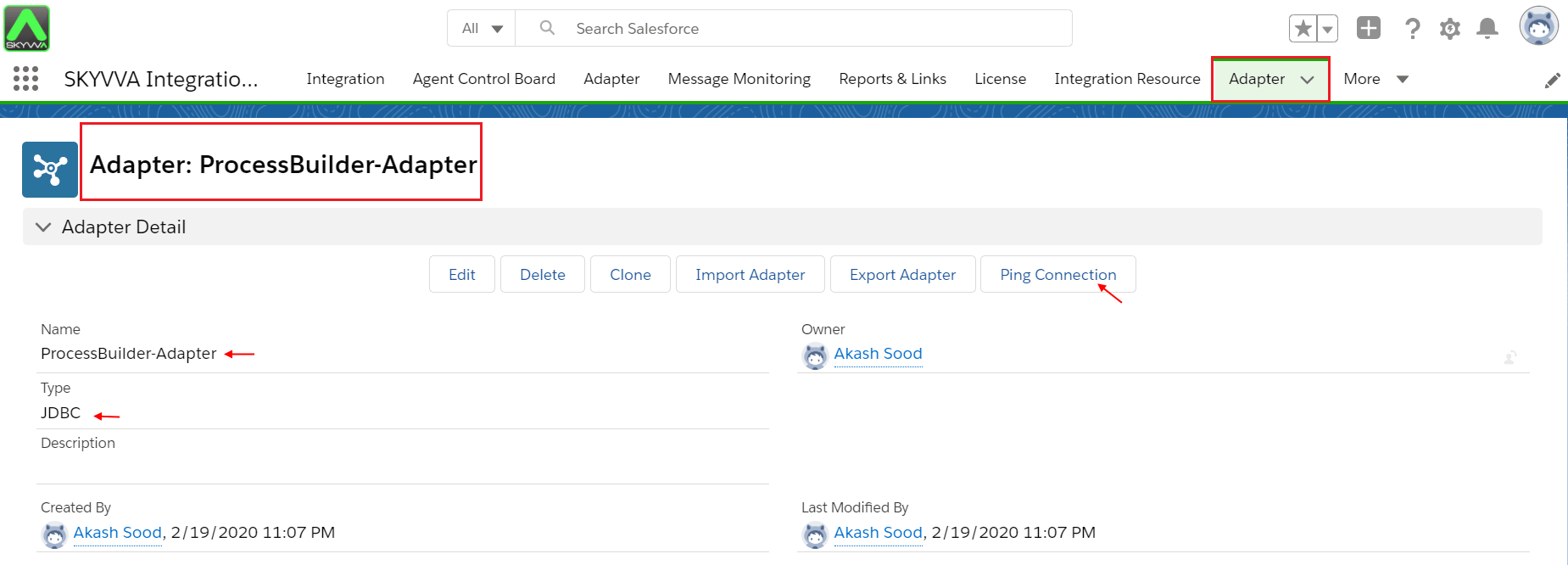
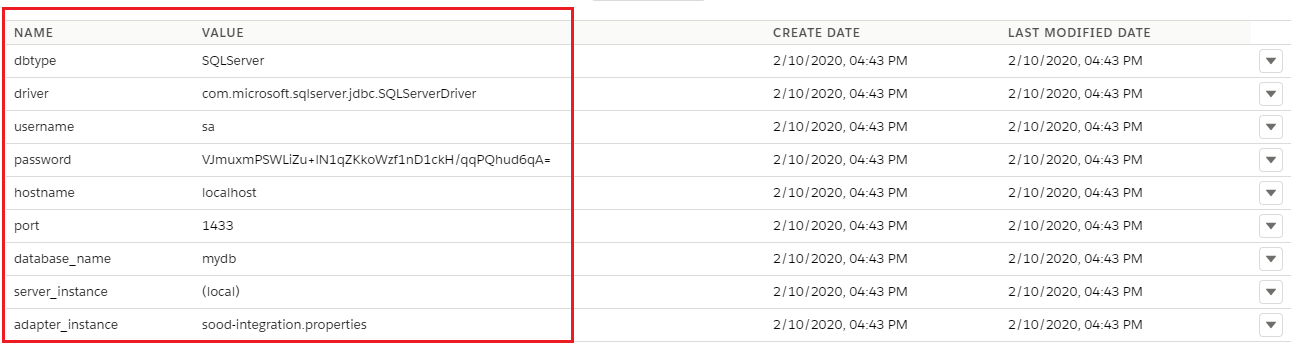
- Adapter property made a connection successfully with Agent and SQL Server called jdbcSQLServerDriver
- Database Type SQL Server
- Database Name mydb
- Create Integration
- Create Interface
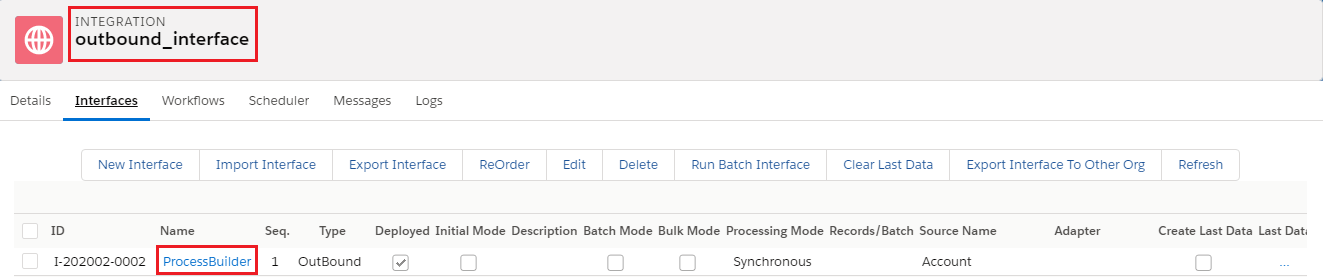
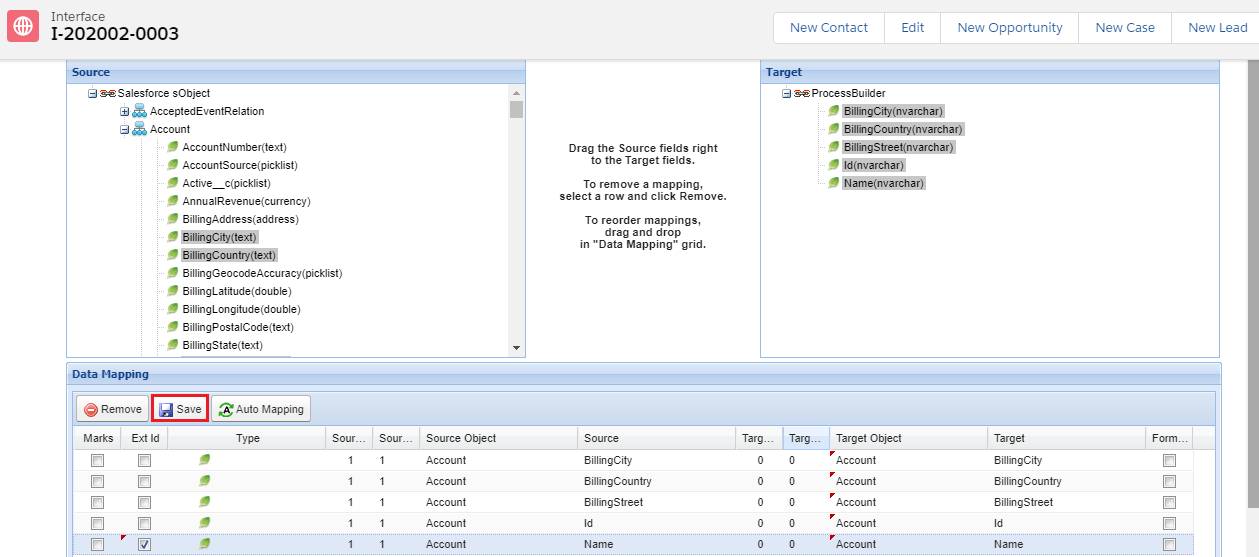
- Click on Interface
- Scroll down to mapping Section
- Select Ext id
- Save
Now go to the Agent and Select your Integration which you just created
- Select your Interface
- Click on Edit Interface Button
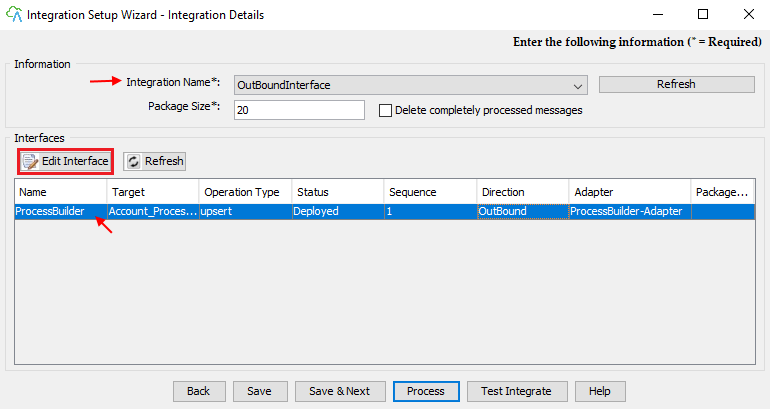
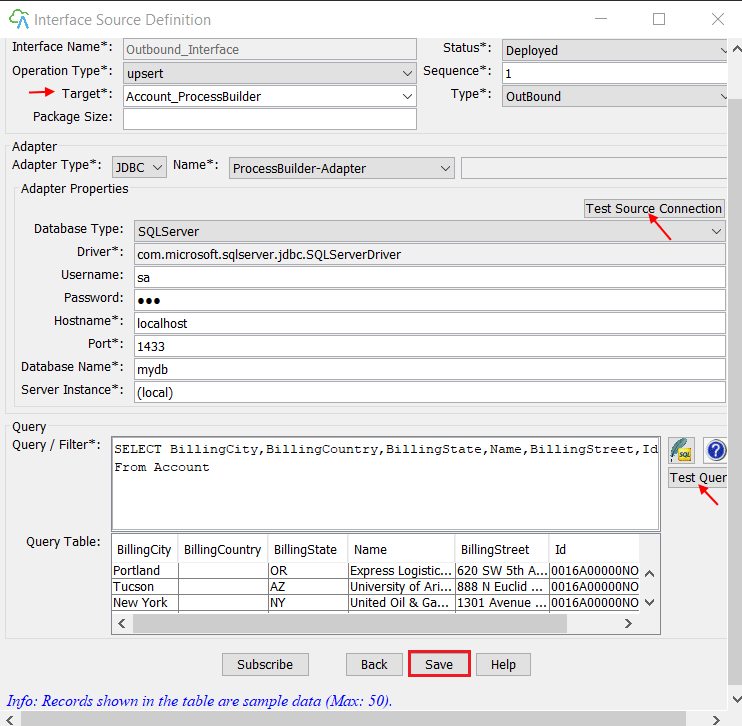
Now see Interface Source Definition
- Test Source connection with SQL Server Database
- Write Query in Query/Filter section
- Click on Test Query button
- Records are fetching from Salesforce Org in Query table successfully
- Save
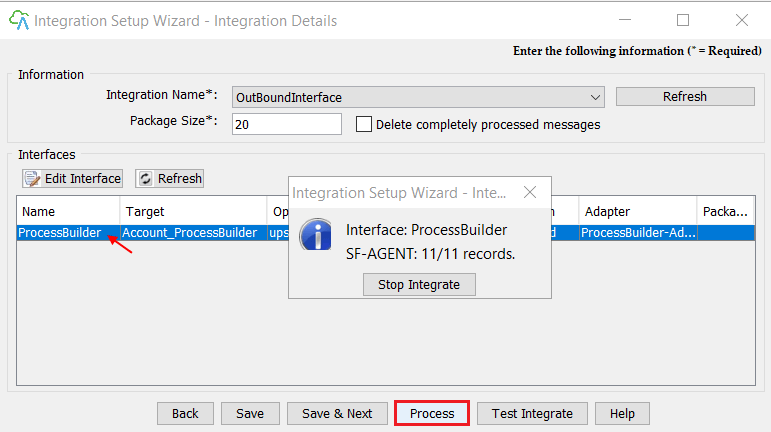
- Select Your Interface
- Click on the Process button
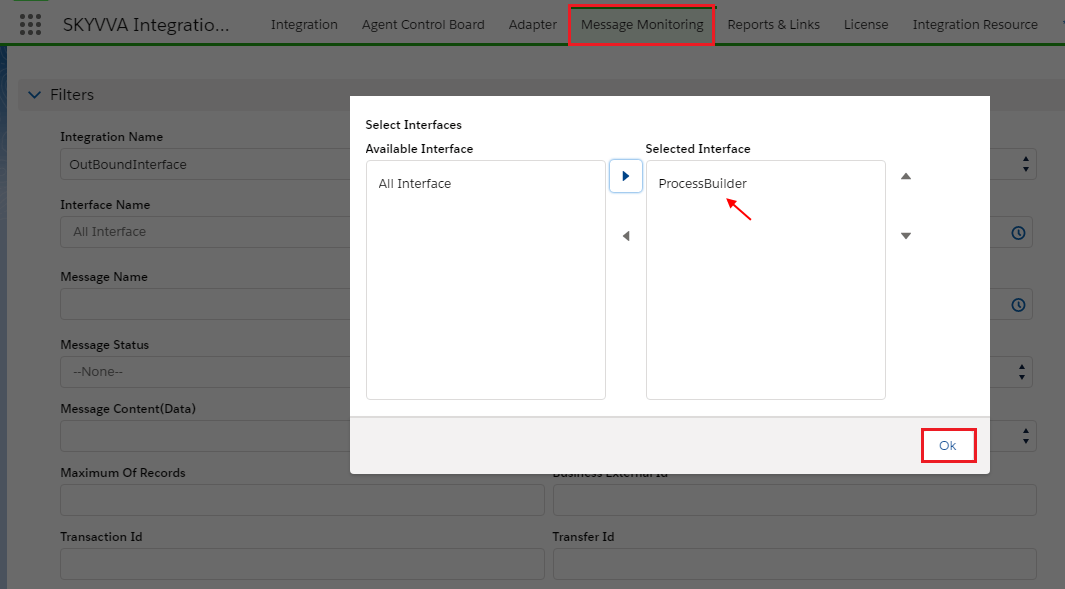
Go to Salesforce Org and click on Message Monitoring
- Select Integration Name
- Select Interface
- ok
- Scroll Down to Messages section
- Click on the search button
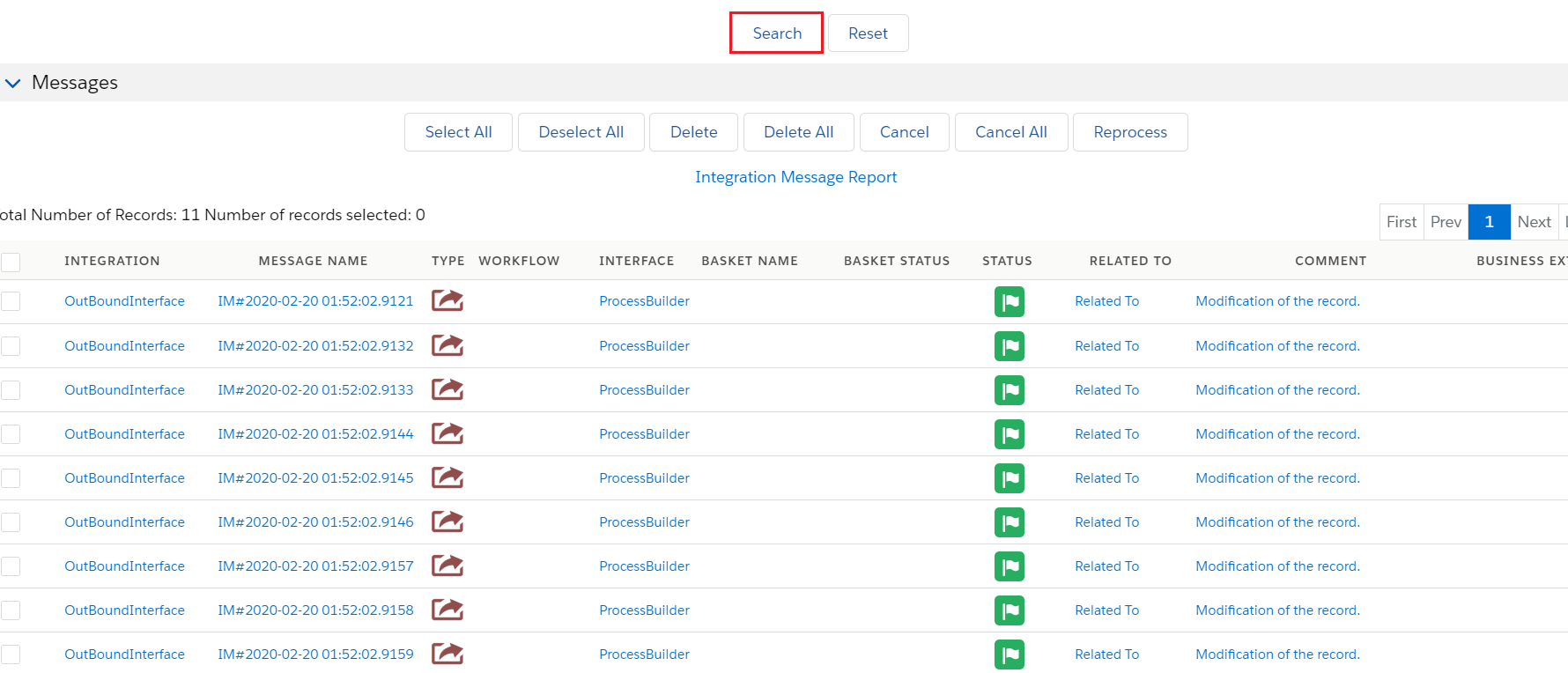
- Records upsert successfully
- Now click on Account Object
- Click on Record user just created

- Click on Related list Detail
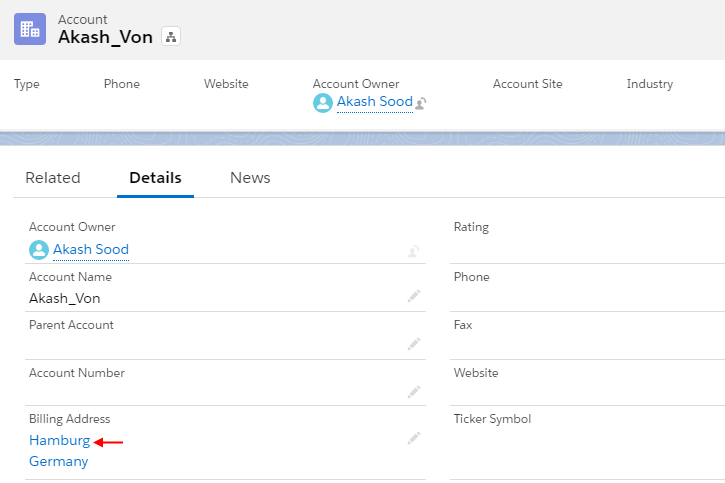
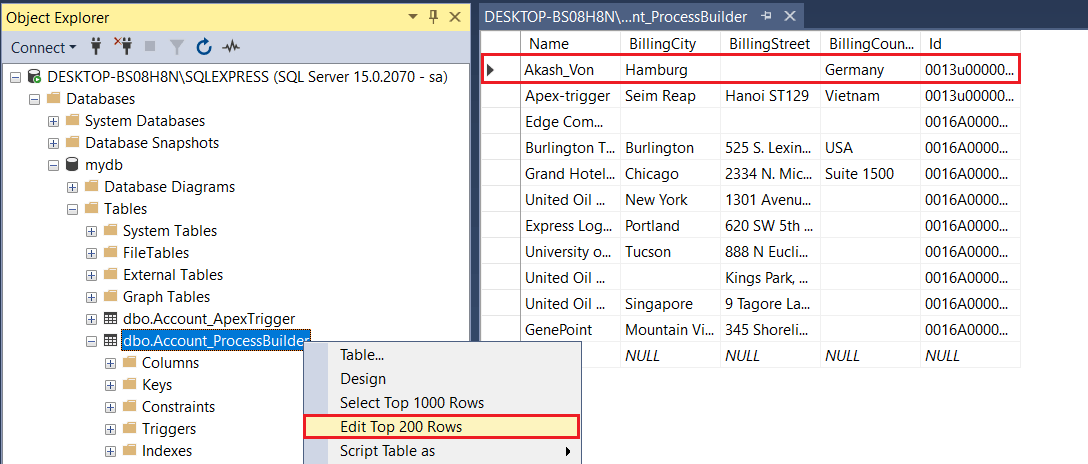
Open SQL Server Now
- Right Click on Account_ProcessBuilder
- Click on Edit Top 200 Rows
- Now records are open
- Now we have to update
Now try to Change/Update on Salesforce Org.
- Billing City
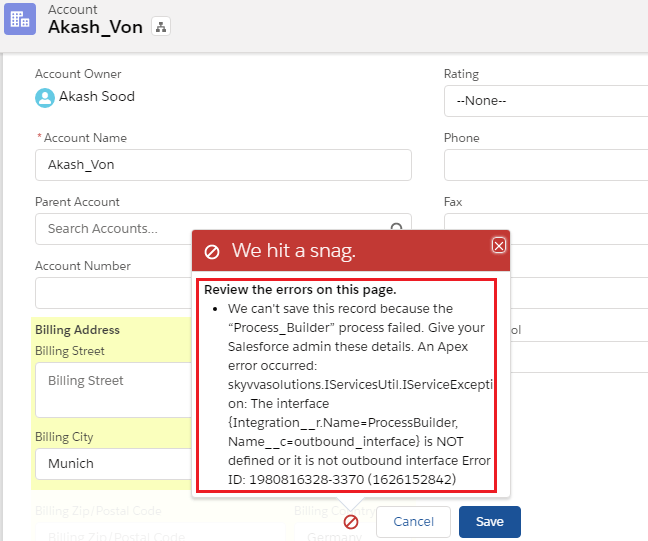
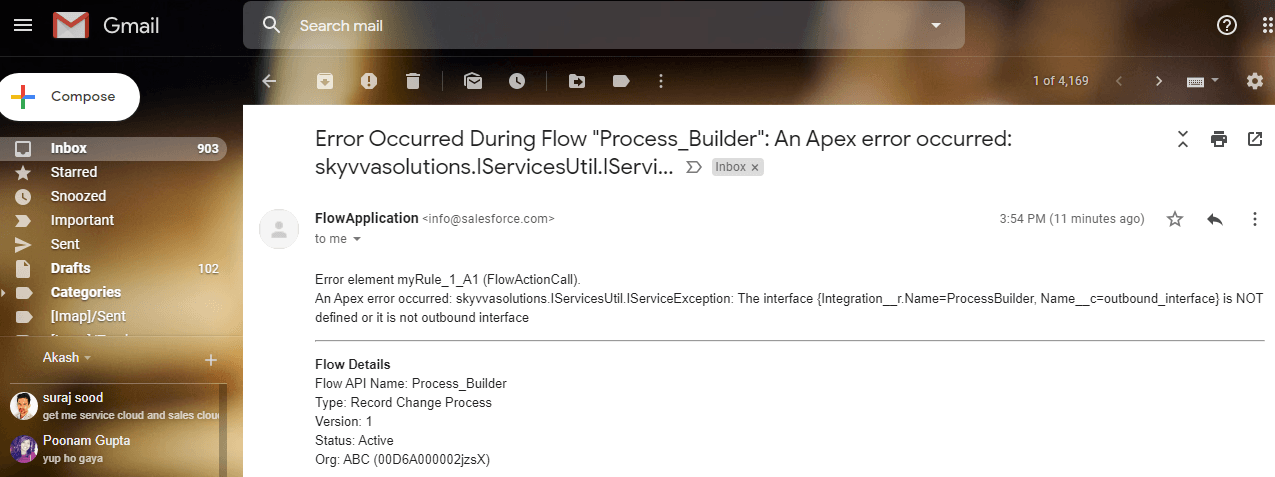
- See here “We hit a snag” means we can’t change BillingCity because Process builder fire on the BillingCity field and it works fine.
- Go to your registered EmailID.