2. How to Use Find & Replace Function?
Introduction:
In this tutorial, you will learn how to use Find & Replace Function. Find & Replace function to perform mass editing and replace data. With this function, you can search, edit, and replace the text in the IData of failed/pending messages. The Find & Replace function can be accessed from the Integration page.
Pre-requisite
- Create Integration and Inbound interface with operation upsert
- Create a message type
- Link a message type for the inbound interface
- To get failed and pending messages, we will demonstrate how to push records via Data Loader to intentionally create failed and pending messages.
- Mapping
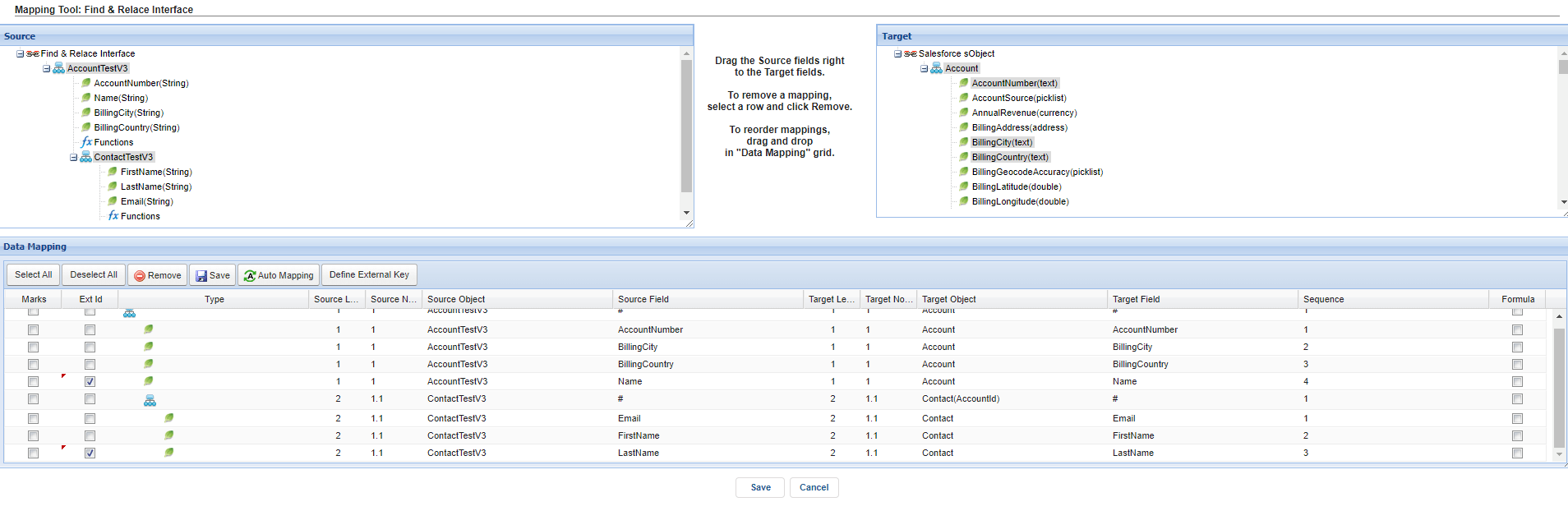
- Create a workflow to generate pending messages when the workflow conditions are not met.
Select the 'SOURCE INTERFACES'
- Keep Processing Mode as the default setting (Pass all messages to the next step)
- Keep setting 'Runtime Behavior' as default (Continue when an error occurred)
- Keep setting 'Action when all Conditions not met' as default (Update Message Status to 'Pending')
- Click New IWorkflow Condition Button
- Fill BillingCity <> 'PP' on Condition means is not equal to 'PP'
- Click Create New Target Button
- Choose the interface to perform this workflow
- Click Save button
Here is the sample payload to push the records

Here is an example, pushing records with a Data Loader in order to get the failed/pending message.
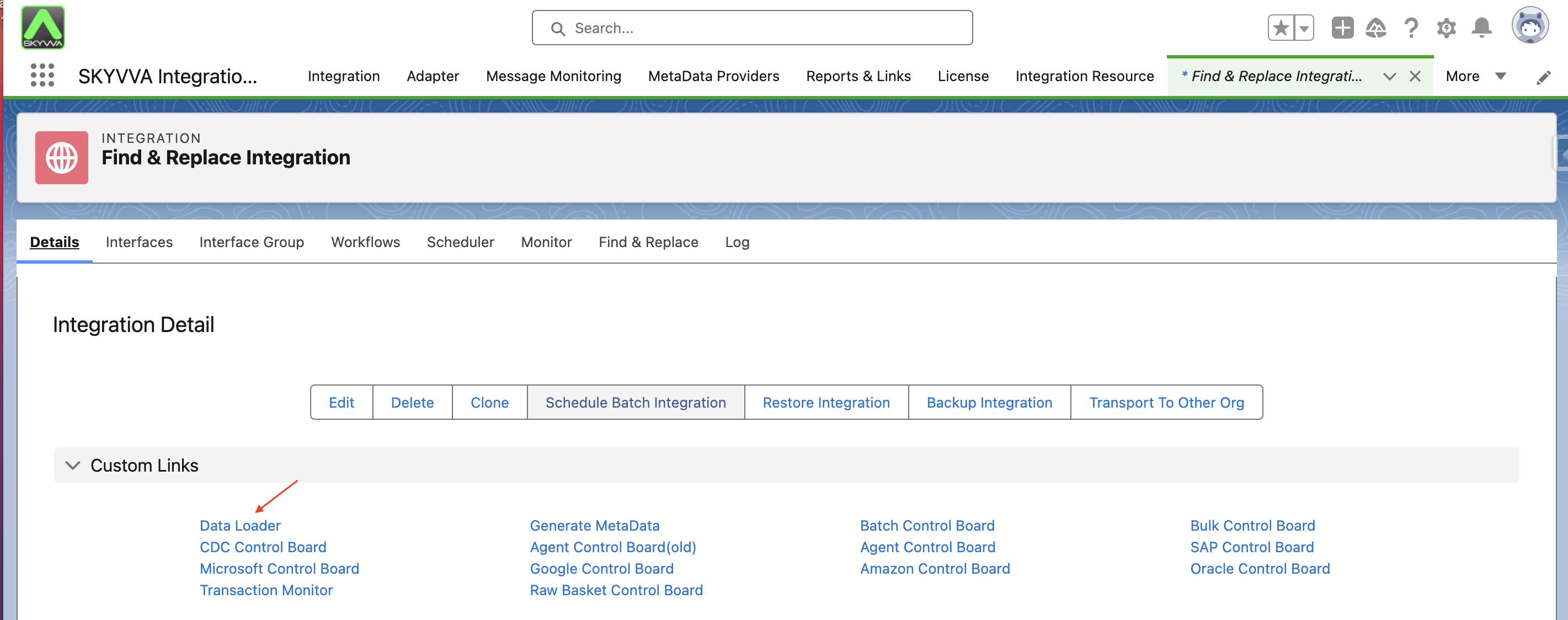
- Go to the Integration Detail page
- Click the Data Loader link in Custom Links Section.
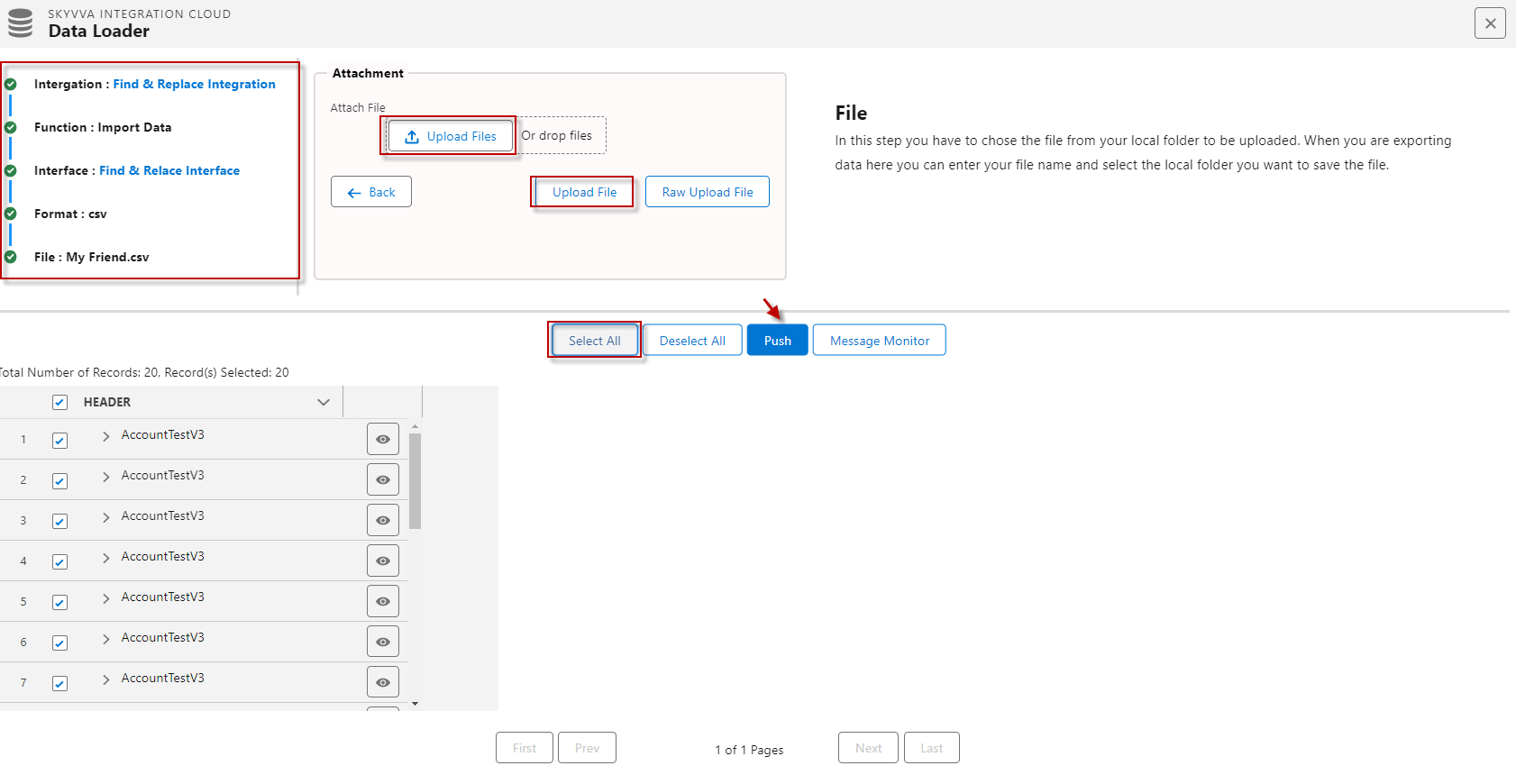
- Choose Import Data Function and click the next button.
- Select Interface and click the next button.
- Format data type CSV, separate Comma, and click the next button.
- Click on the Upload File button to choose a file and click the upload file button.
- Select all and click the push button.
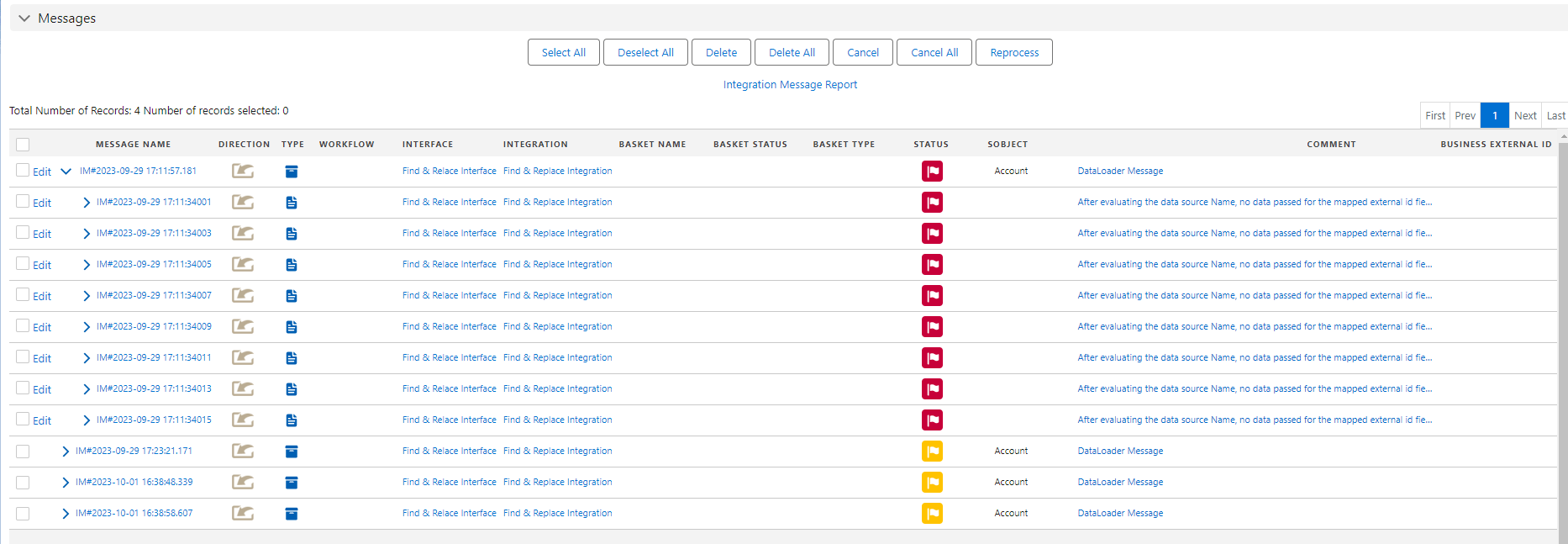
- Click search on the message monitor to see the result.
The messages are pending and failed now due to the records push did not meet the condition and missing the name required fields. You will need the Find & Replace Function in order to edit the Idata of the message to make it correct for reprocessing to be successful.
- Enter to Integration Page again
- Click on the Find & Replace tab.
- Select the name of the interface for which you want to see the failed and pending message records.
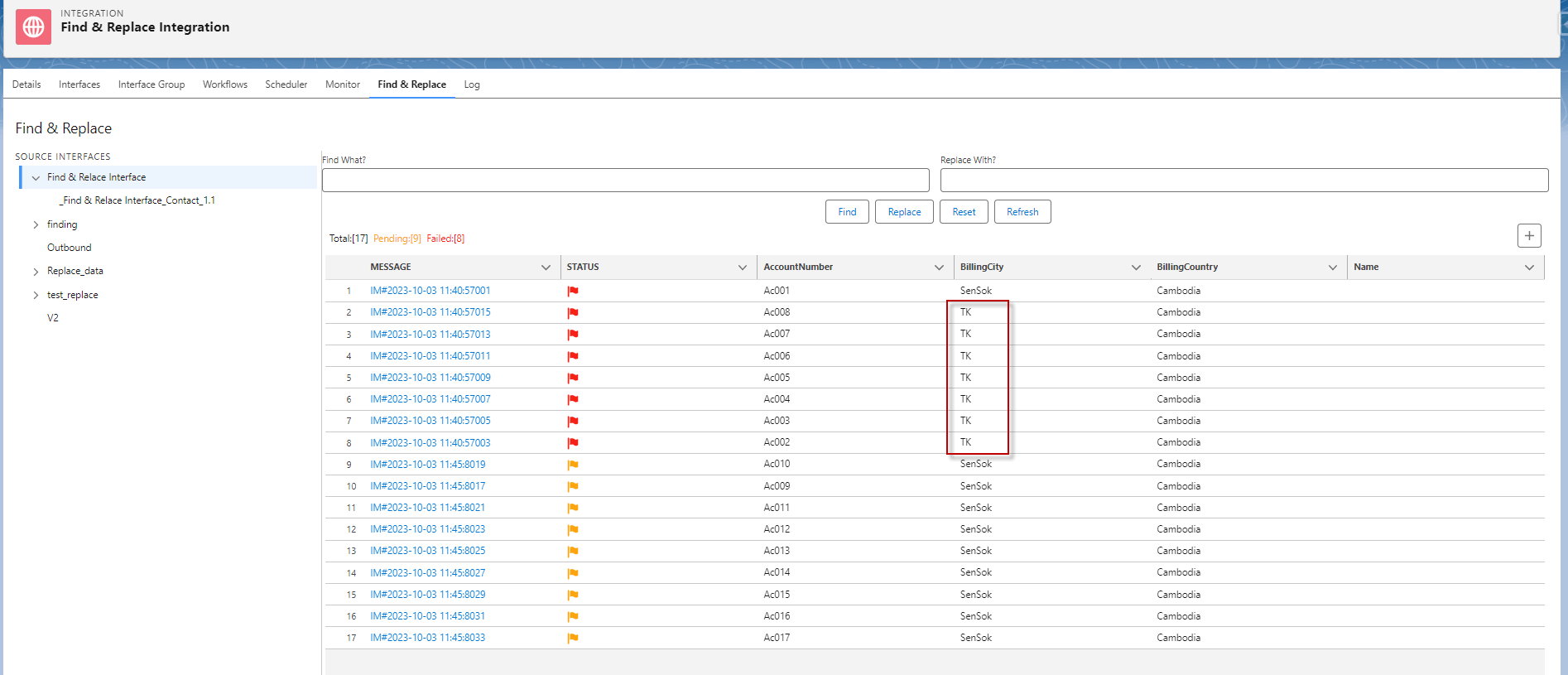
After selecting the interface, you will be able to see the list of failed and pending messages for that interface.

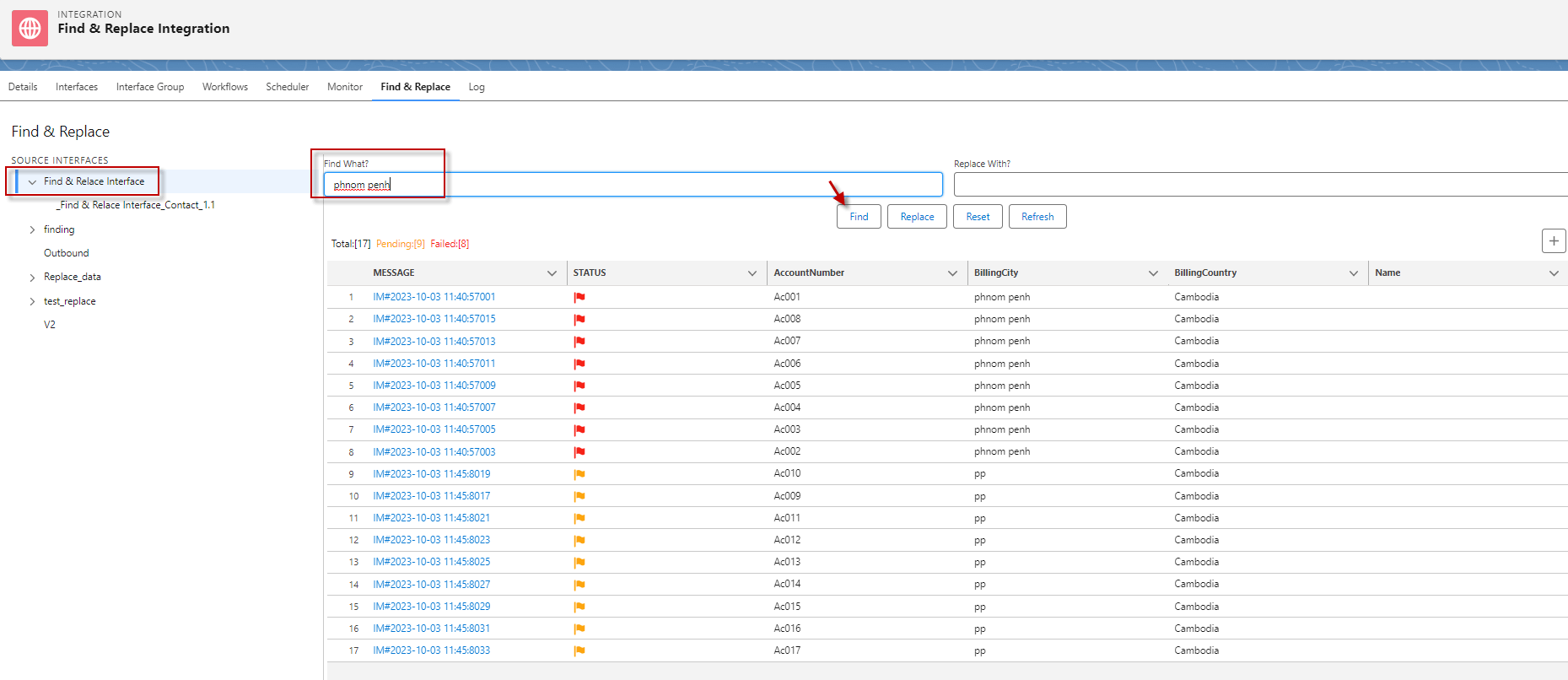
Now we will show you how to 'Find' the 'phnom penh' value of the 'BillingCity ' Field.
- Fill 'phnom penh' on Find What?
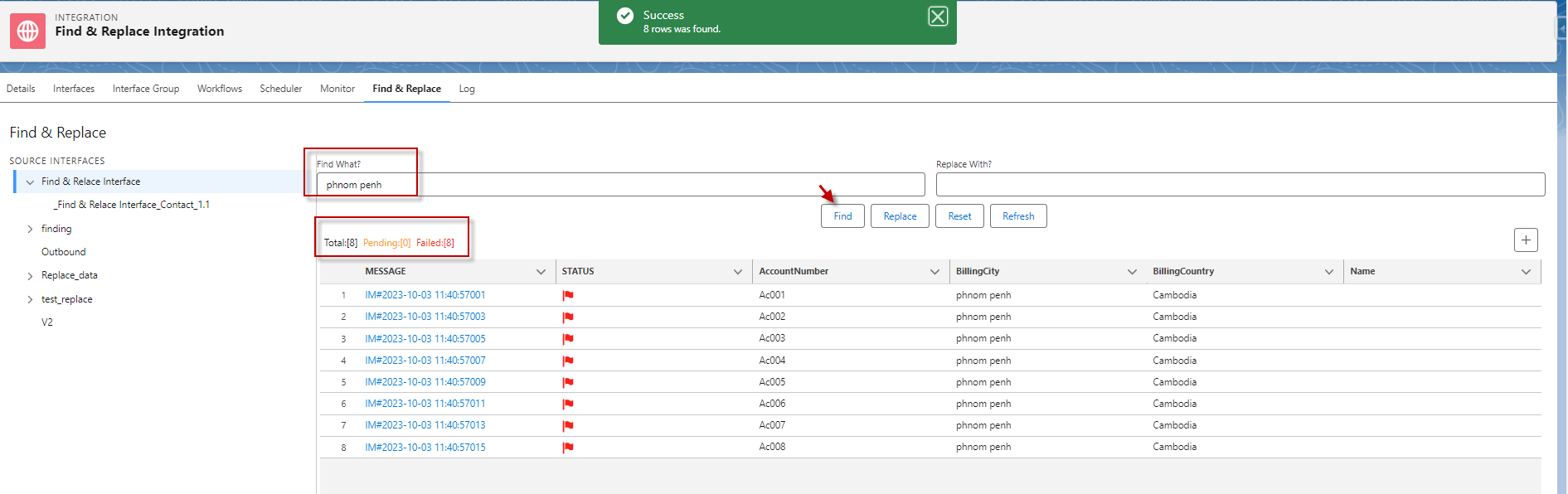
- Click Find Button
As a result, it will display six messages that match our filter.
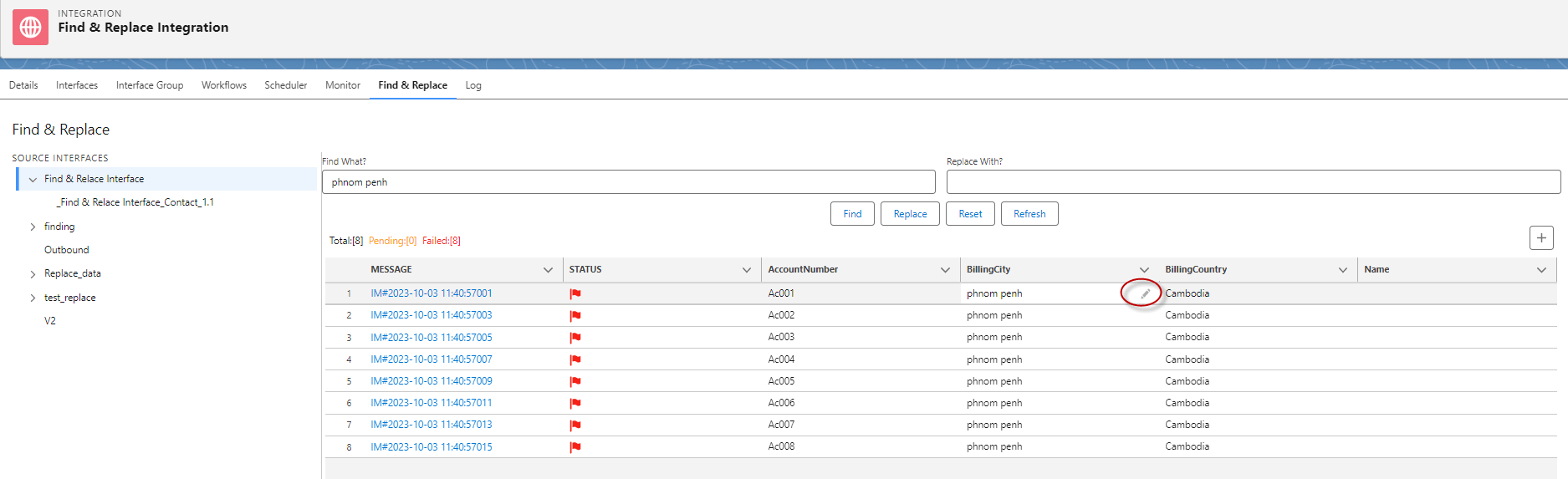
There are two ways to replace values: manually replacing them or using auto-replace functionality.
- Manually Replacing
Click on the Edit button (Pen icon)
- Fill the "pp" text into the edit box text
- Click Save button
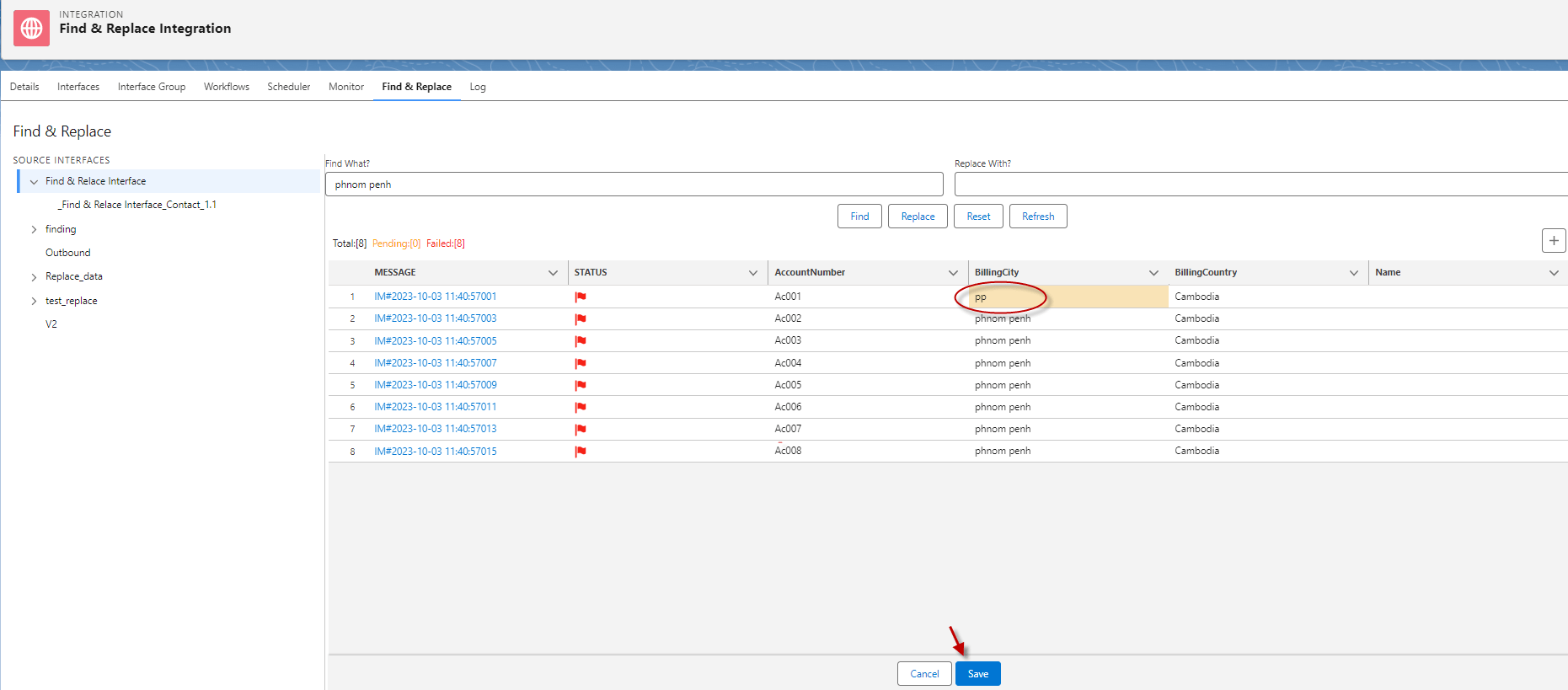
The value has saved successfully
- Auto-replace functionality
replace the value 'Phnom Penh' with the value 'TK' in the 'BillingCity' field.
- Click Replace button
- Select "Exactly match records?"
[su_box title="Note" box_color="#2a8af0" title_color="#000000"]
- When you select 'Exactly match records,' only the exact word will be replaced.
- When you select 'All records that contain the search string,' all values containing the search string will be replaced with the new word.
[/su_box]
- Click Ok
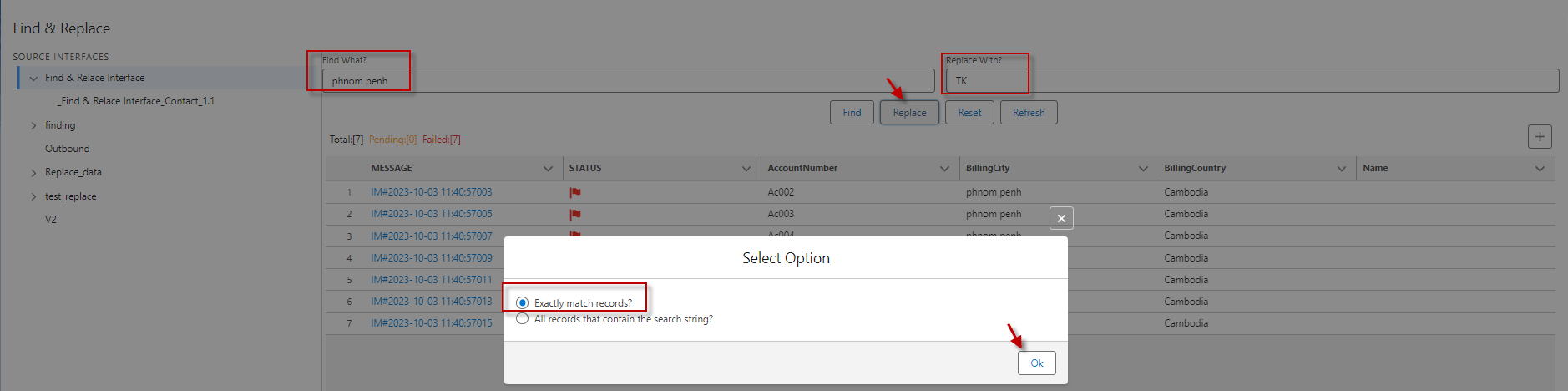
- Then Click Save
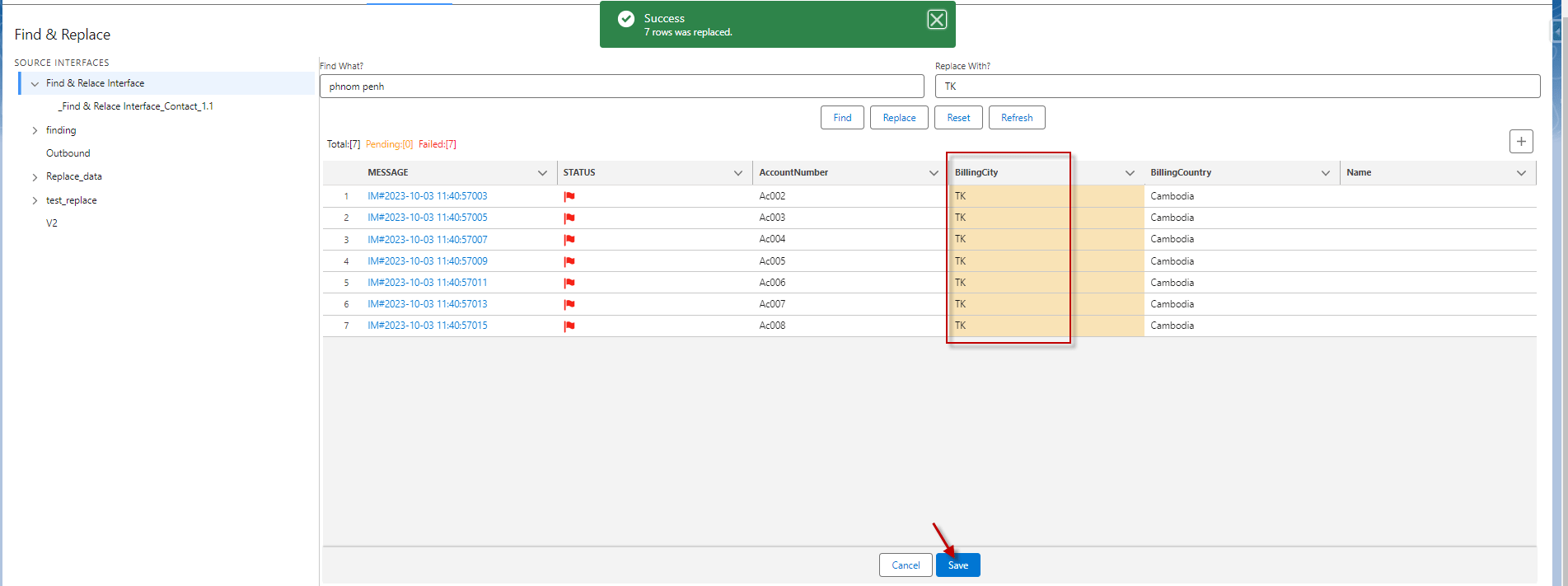
Now field of 'BillingCity' has the value 'Phnom Penh' replaced with the value 'TK'
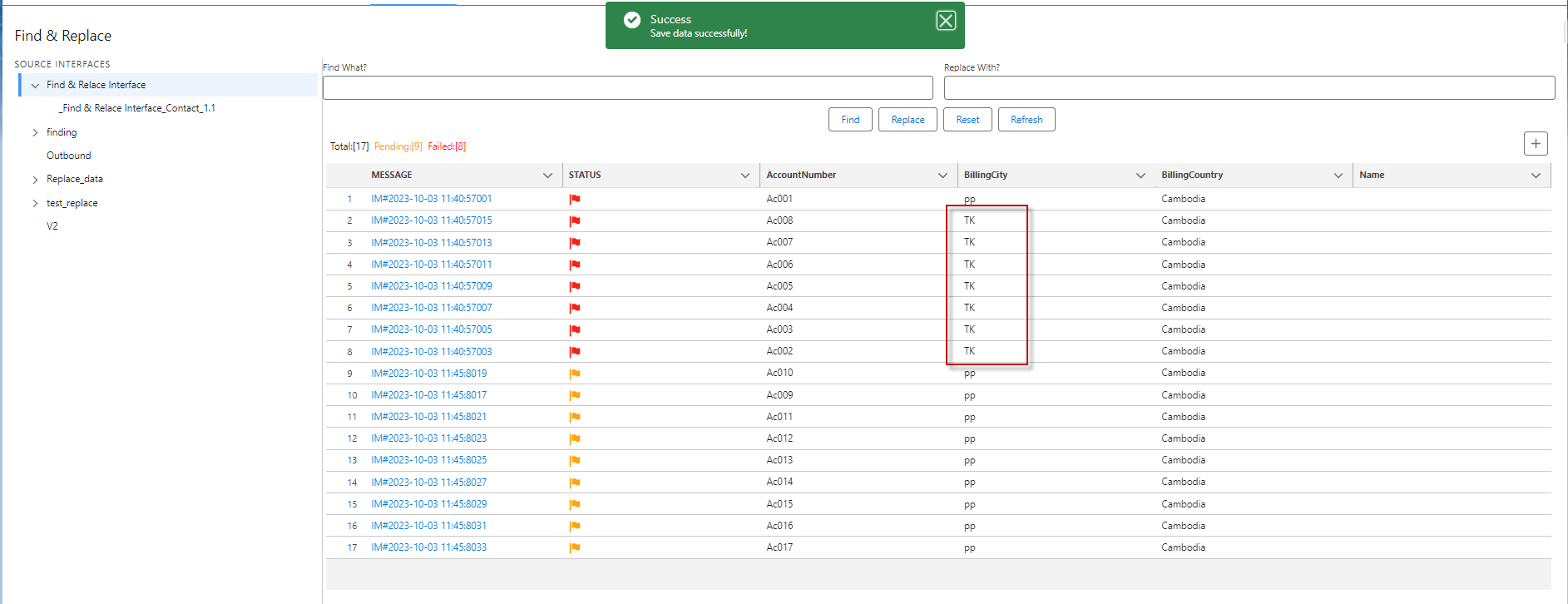
Now we will show you how to replace the 'Blank' value of the Name with "N Blank"
- Leave Blank value on Find What?
- Click Find Button
As a result, it will display ten messages that match our filter.

- Fill the "N Blank" text into Replace With?
- Click Replace button
- Select "Exactly match records?"
- Click Ok

- Then Click Save
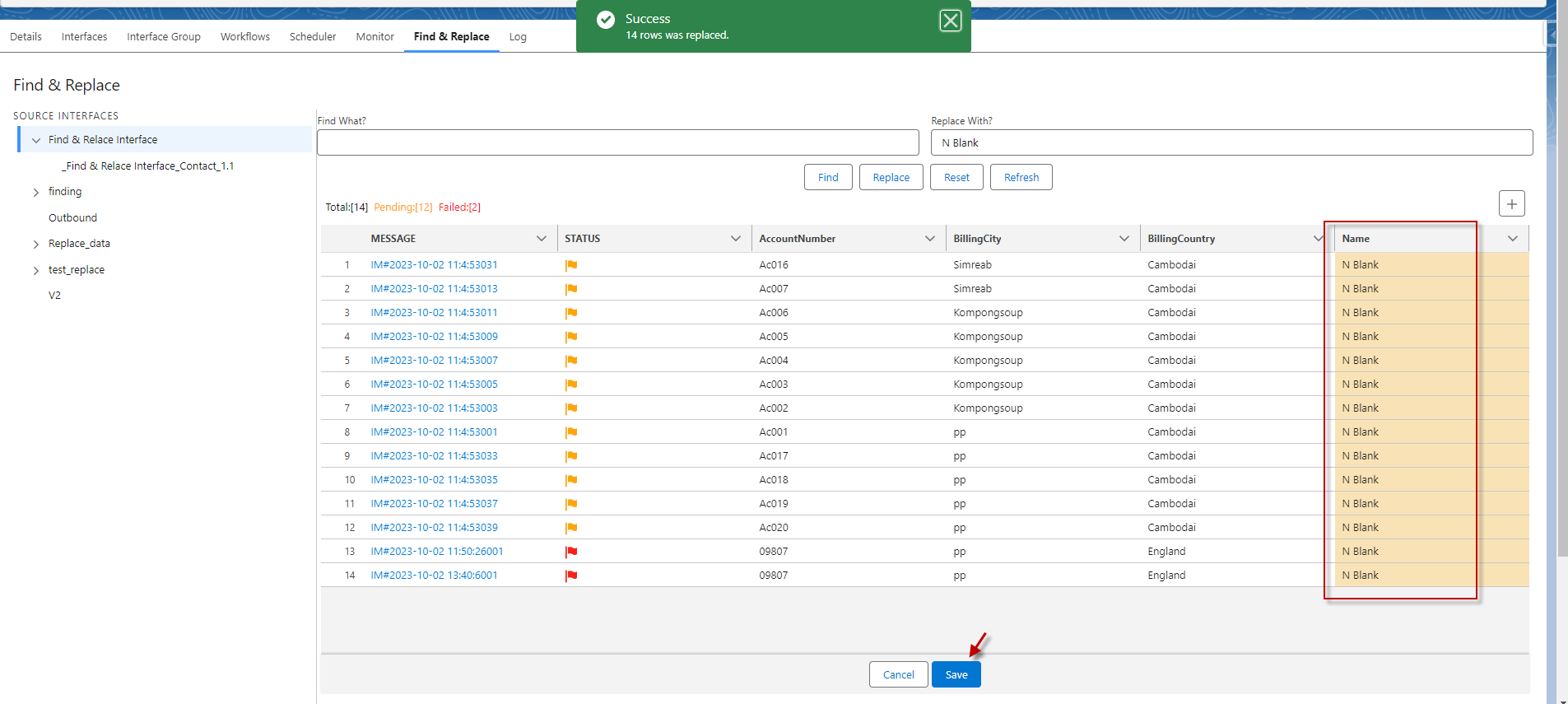
After click save button
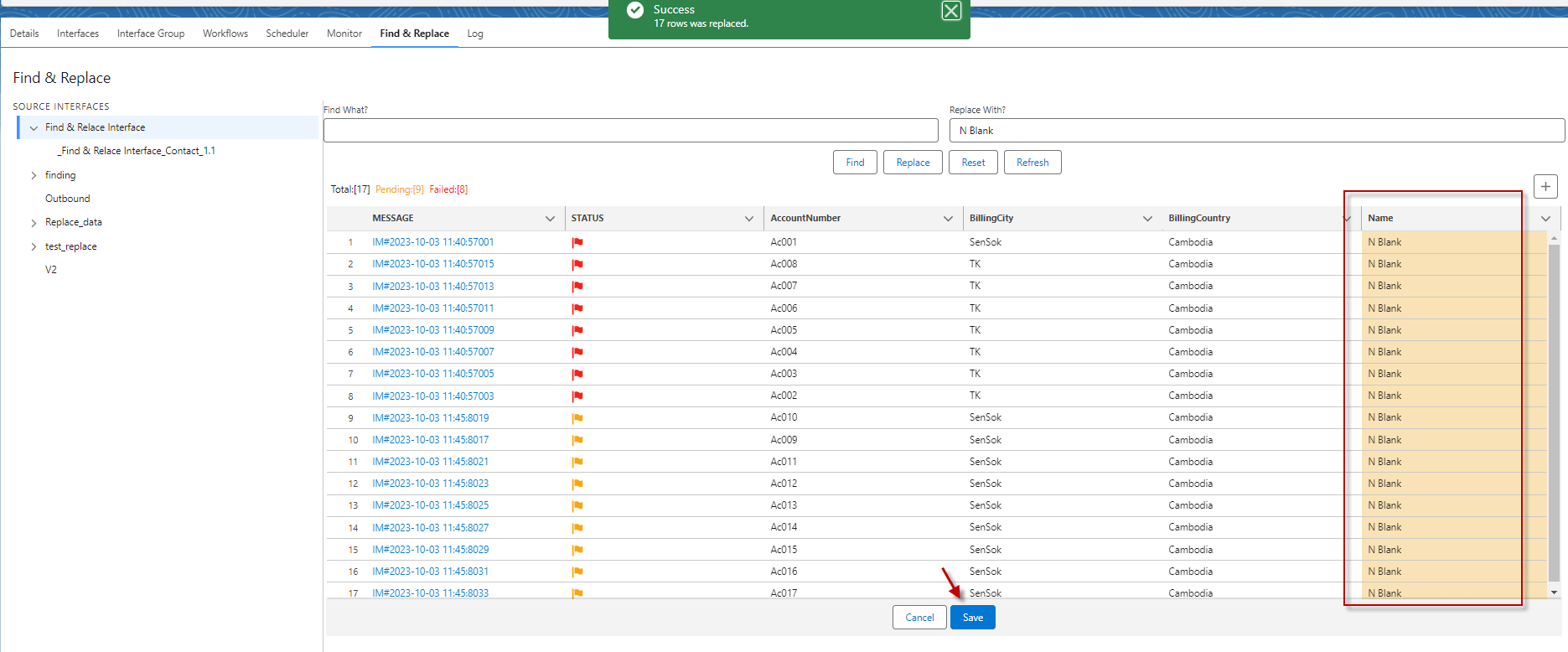
Now that the Name and BillingCity values have been replaced, it is time to reprocess the message to ensure that the values have been replaced correctly.
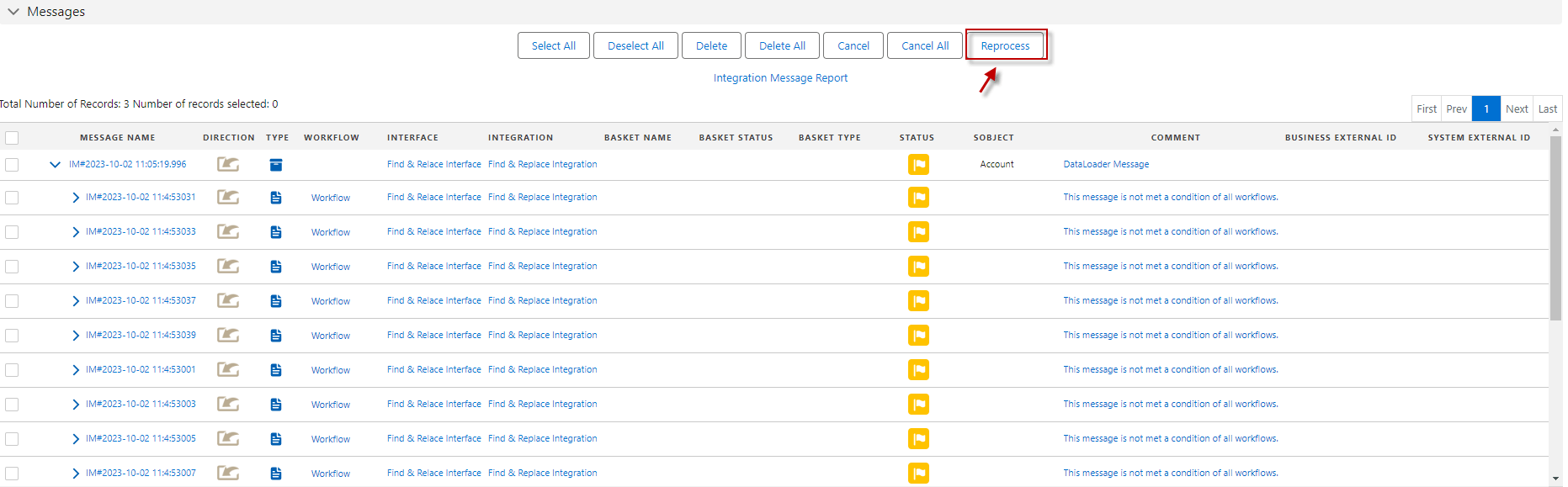
- Go to Message Monitor
- Select the Message then click Reprocess button
After reprocessing the message, the account will be upserted into Salesforce.
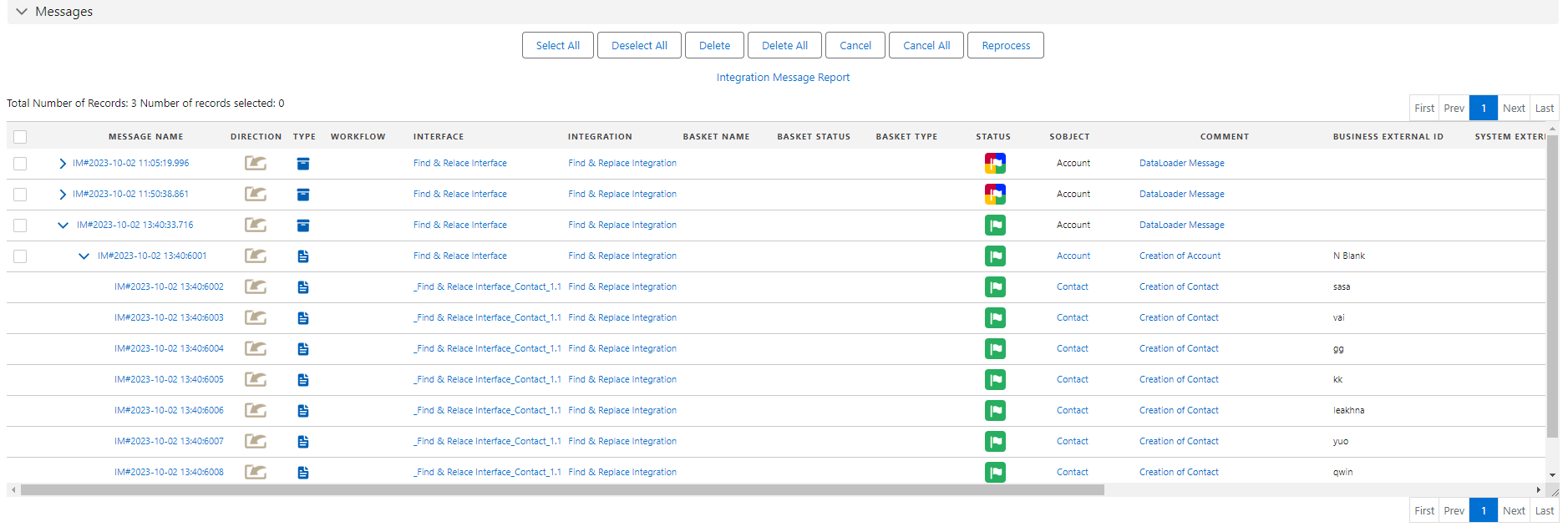
[su_box title="Note:" box_color="#2a8af0" title_color="#000000"]On the sub-interface for 'Find' and 'Replace' data, it works the same as the main interface.[/su_box]
If you want to 'Find' and 'Replace' data on the sub-interface, please click on it.
- Here's the screen of the sub-interface
