How to Use Re-Order Button on Mapping Tool?
Introduction
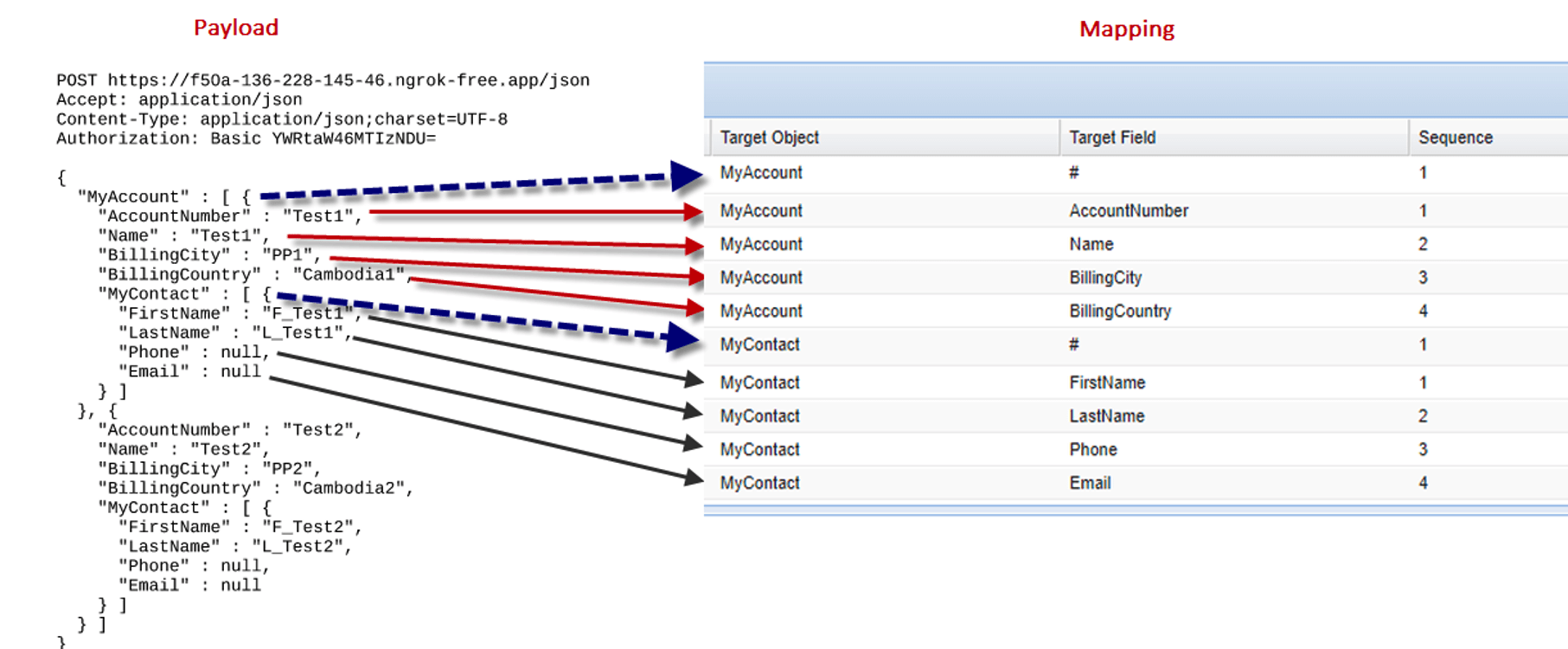
'Re-Order Mapping' is located on the Mapping Tool, which allows you to reorder mapping records by sequence. This change also prevents users from reordering records in Data Mapping. When the button is used, the sequence field is reorganized during the callout of the record, and the resulting payload records are sorted in ascending sequence numbers. These improvements result in a more efficient and organized data payload sequence structure.
How Re-Order Field Mapping and Callout With SAP CPI Adapter?
In this lesson, you will learn how to reorder the mapping fields of the outbound interface and perform the manual process using the SAP CPI Adapter, as shown below:
Pre-requisite
- Create new Integration
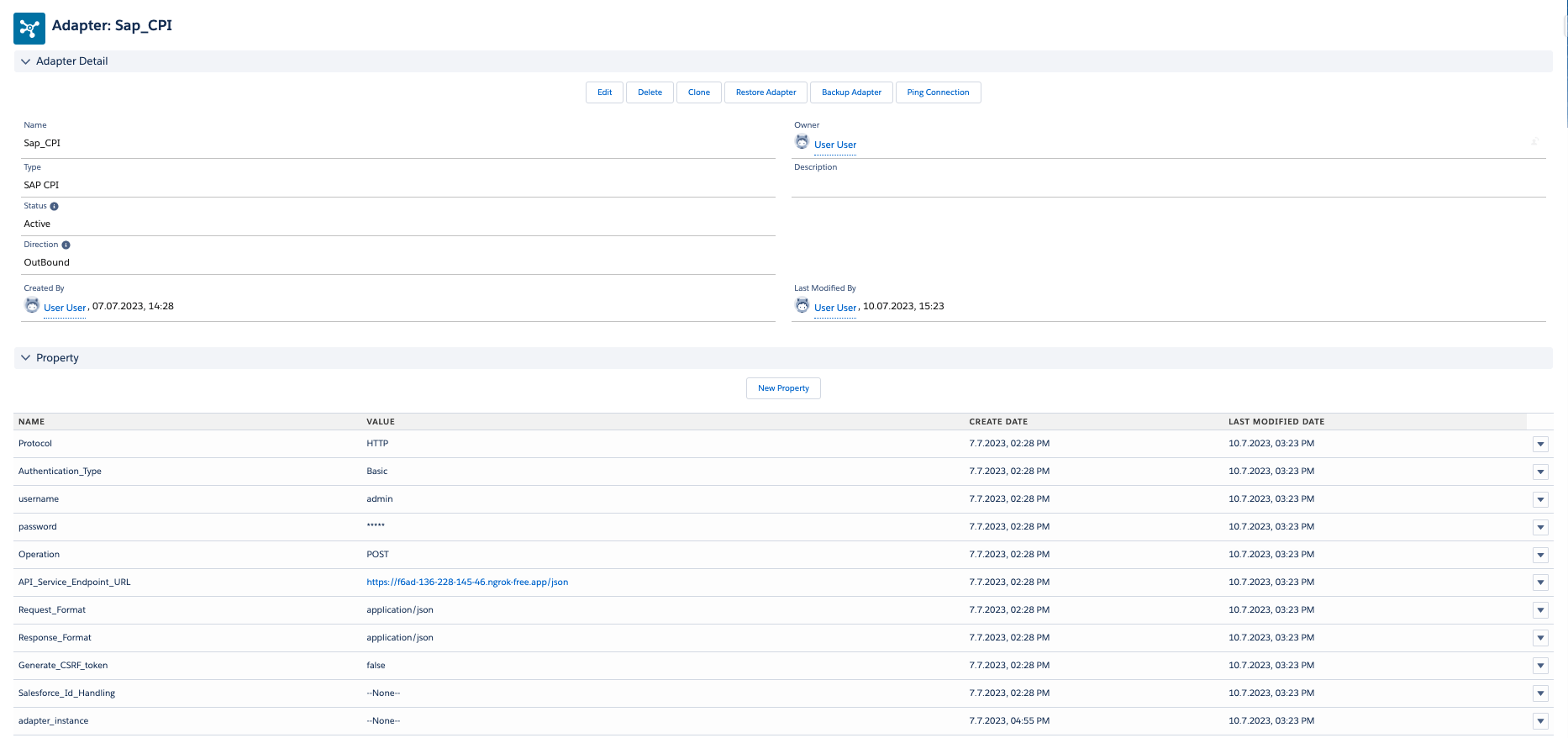
- Create an SAP CPI Outbound Adapter
- Create Message Type
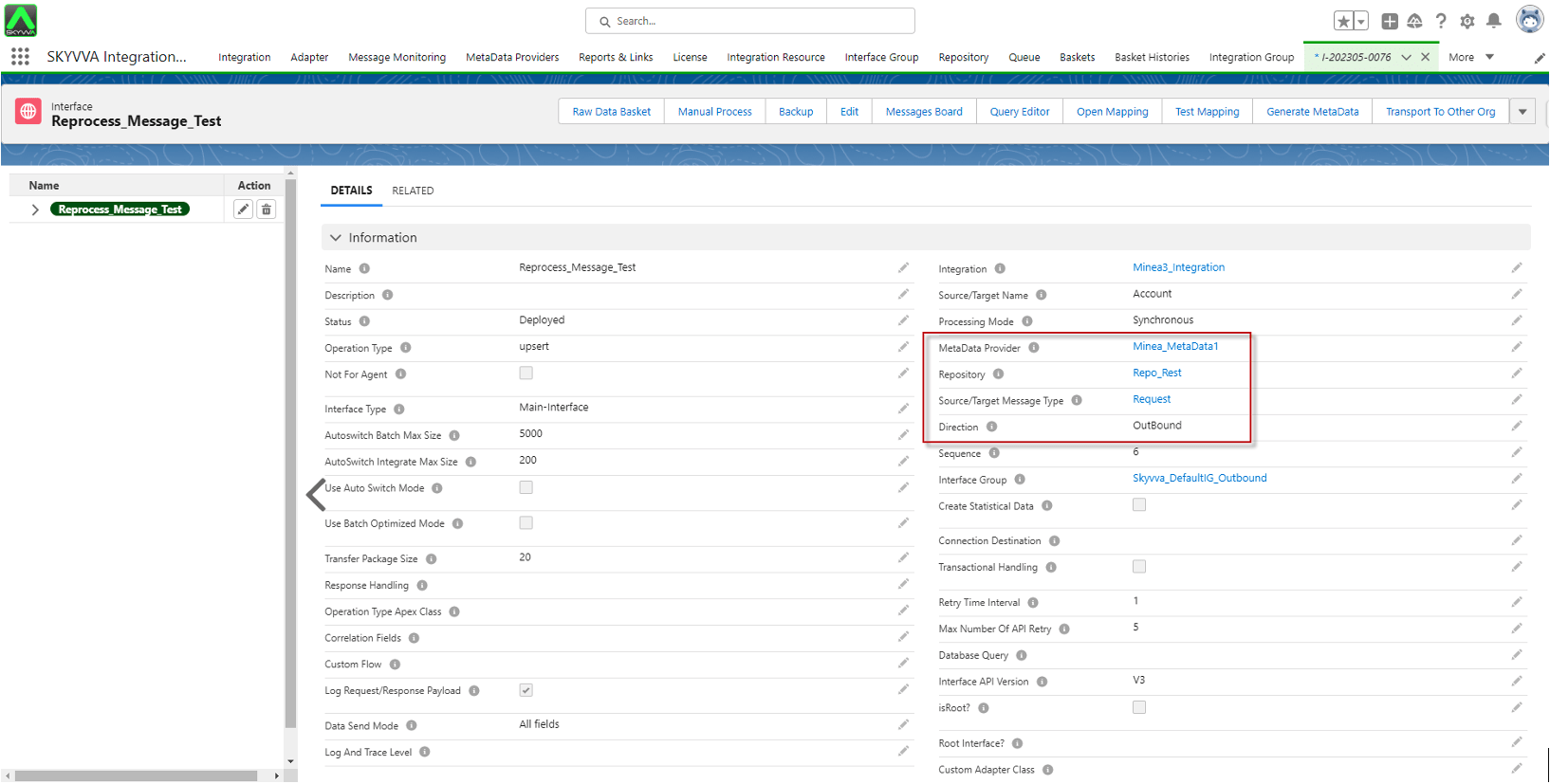
- Create a new Outbound Interface
- Link the Message Type and Adapter with the interface
- Do Mapping
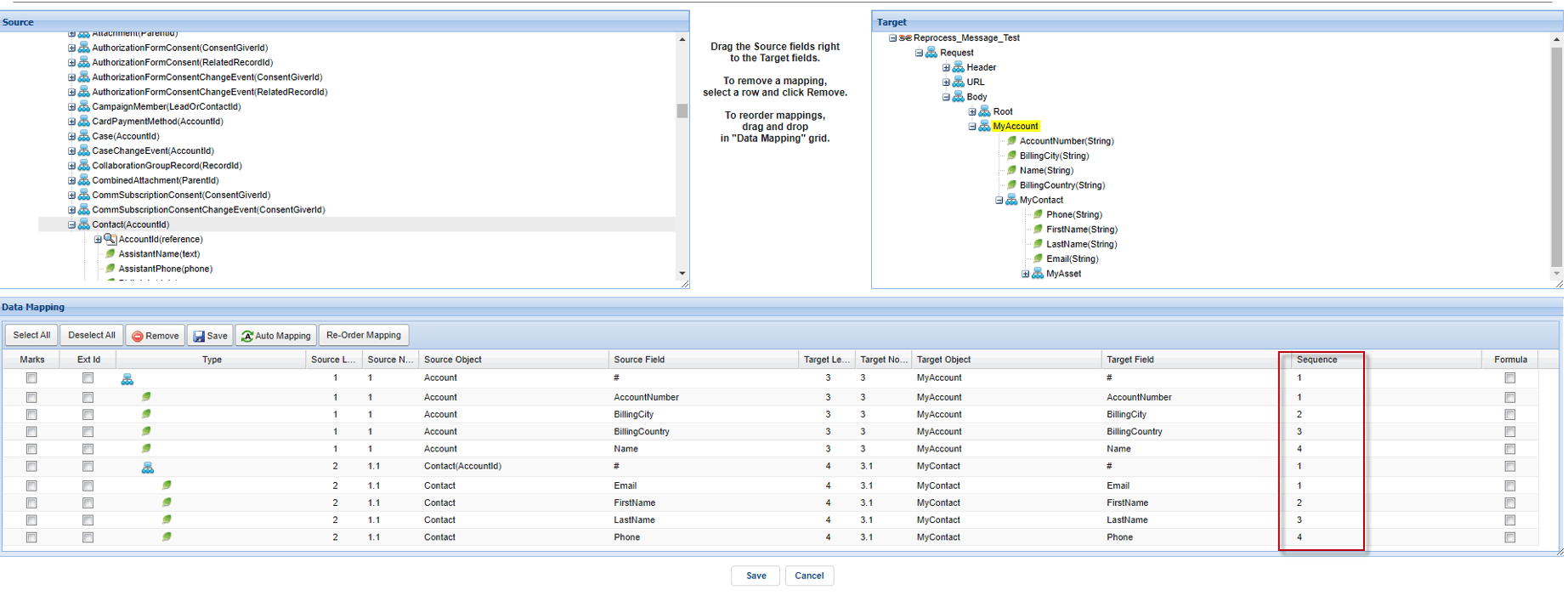
Here is just an example: we have mapped 'MyAccount' Message Type to the Account sObject and 'MyContact' Message Type to the Contact sObject. The current Mapping order is as follows:
- MyAccount
AccountNumber
- BillingCity
- BllingCountry
- Name
- MyContact
- FirstName
- LastName
- Phone
- Re-Order Field Mapping
Re-Order Field Mapping of MyAccount Message Type
Click the Re-Order Mapping button
- Select ReOrder Fields on 'Choose a Option:'. There are different types of reordering: Reorder Fields and Reorder Node. Reorder Fields allows you to sort fields while selecting Reorder Node allows you to sort nodes.
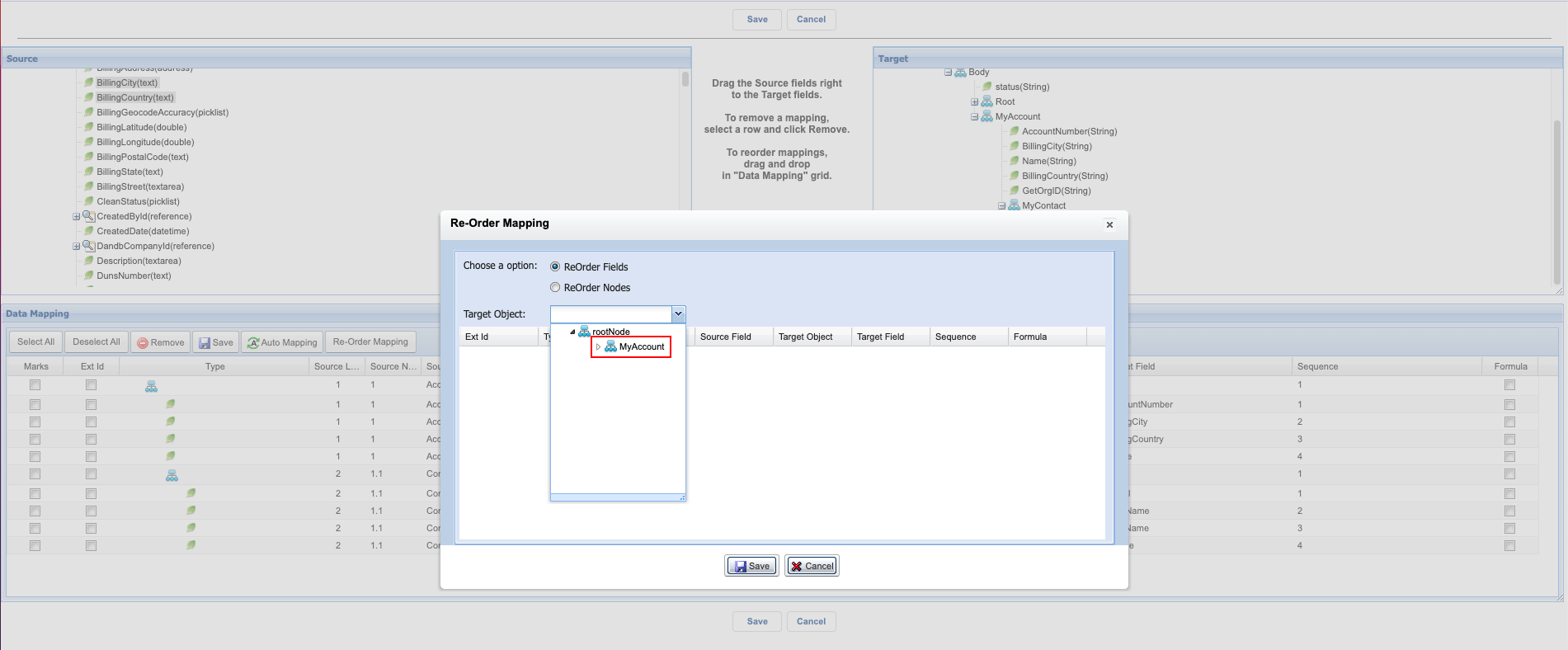
- From the dropdown list of 'Target Object', select the node for which you want to change the field sequence. For example, select 'MyAccount'. To choose a sub-node, click on the arrow right sign to expand the list.
[su_box title="Note" box_color="#2a8af0" title_color="#000000"]By default, the target object will have a 'rootNode' even if our business message type does not have it. This is used to store fields without nodes and to wrap all mapping nodes and fields[/su_box]
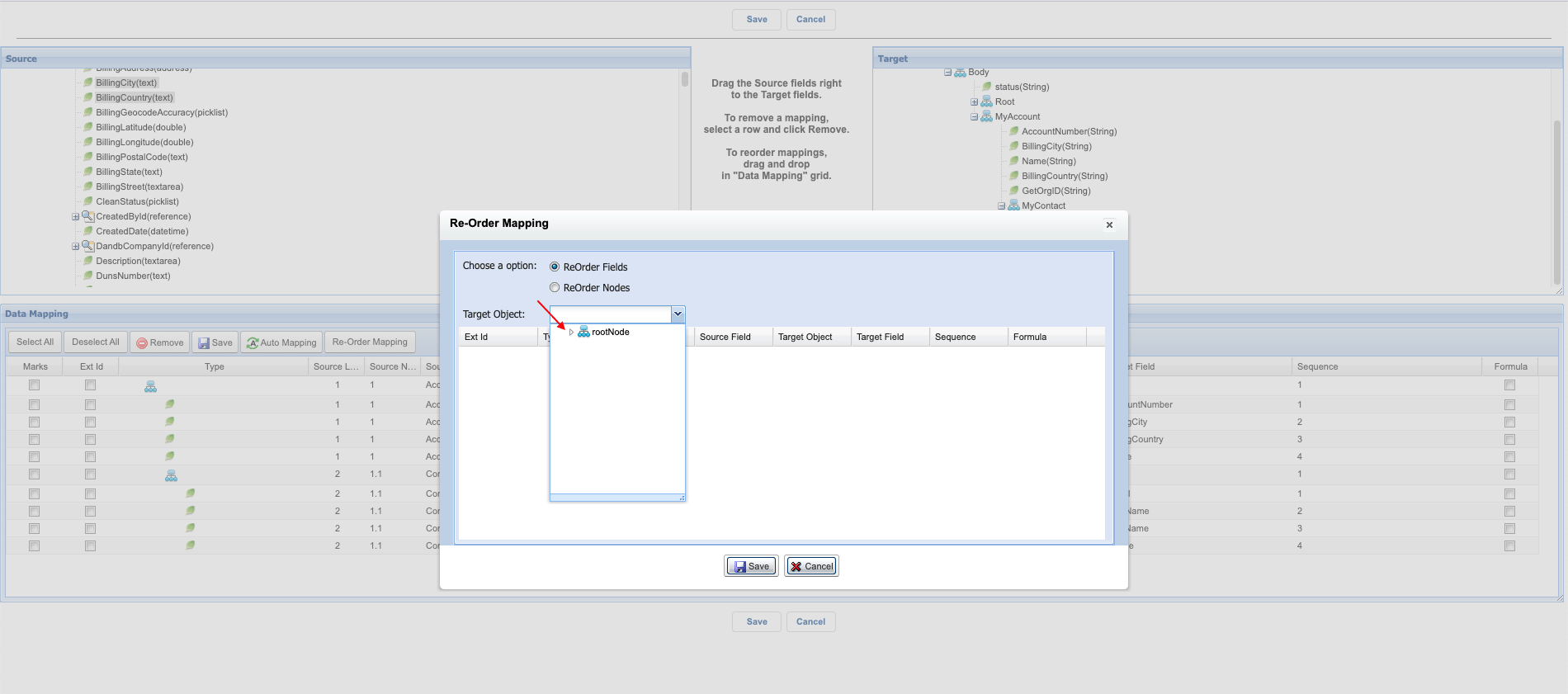
Now the MyAccount sub-node of the rootNode will be displayed.
- To reorder fields, select a row and move it up or down to the desired position in the order.
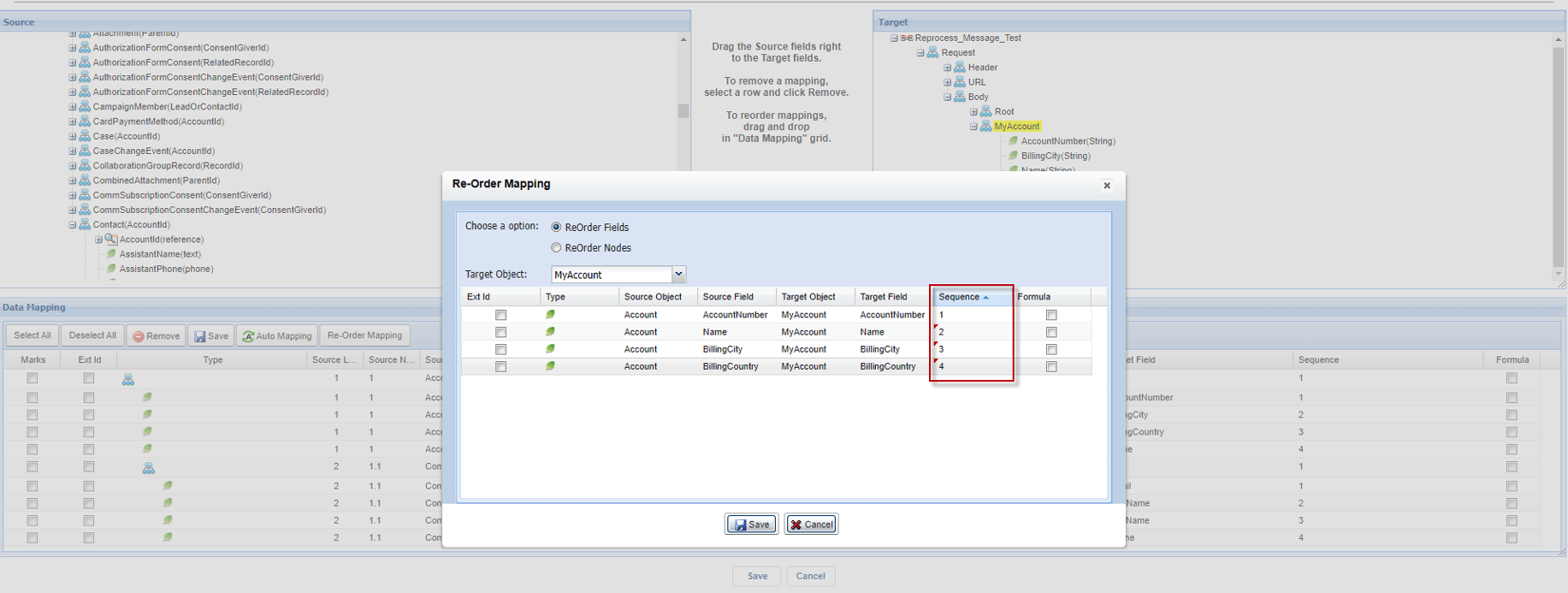
MyAccount Mapping Fields Before Re-Order MyAccount Mapping Fields After Re-Order
AccountNumber AccountNumber
BillingCity Name
BllingCountry BillingCity
Name BillingCountry
- Re-Order Field Mapping of MyContact Message Type
Select the 'MyContact' sub-node on 'Target Object'.
- To reorder fields, select a row and move it up or down to the desired position in the order.
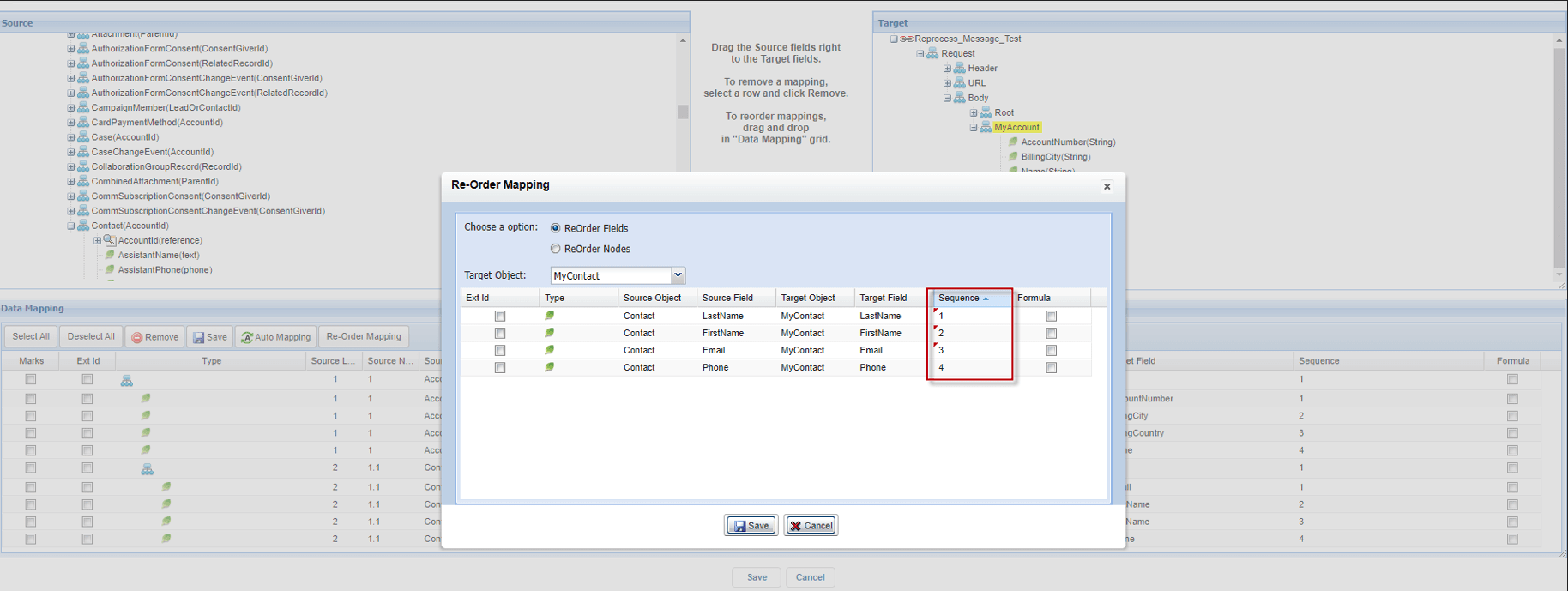
-
MyContact Mapping Fields Before Re-Order MyContact Mapping Fields After Re-Order
Email LastName
FirstName FirstName
LastName Email
Phone Phone
- After clicking the Save button, the pop-up screen will close and the re-ordered mapping will be saved into Data Mapping.
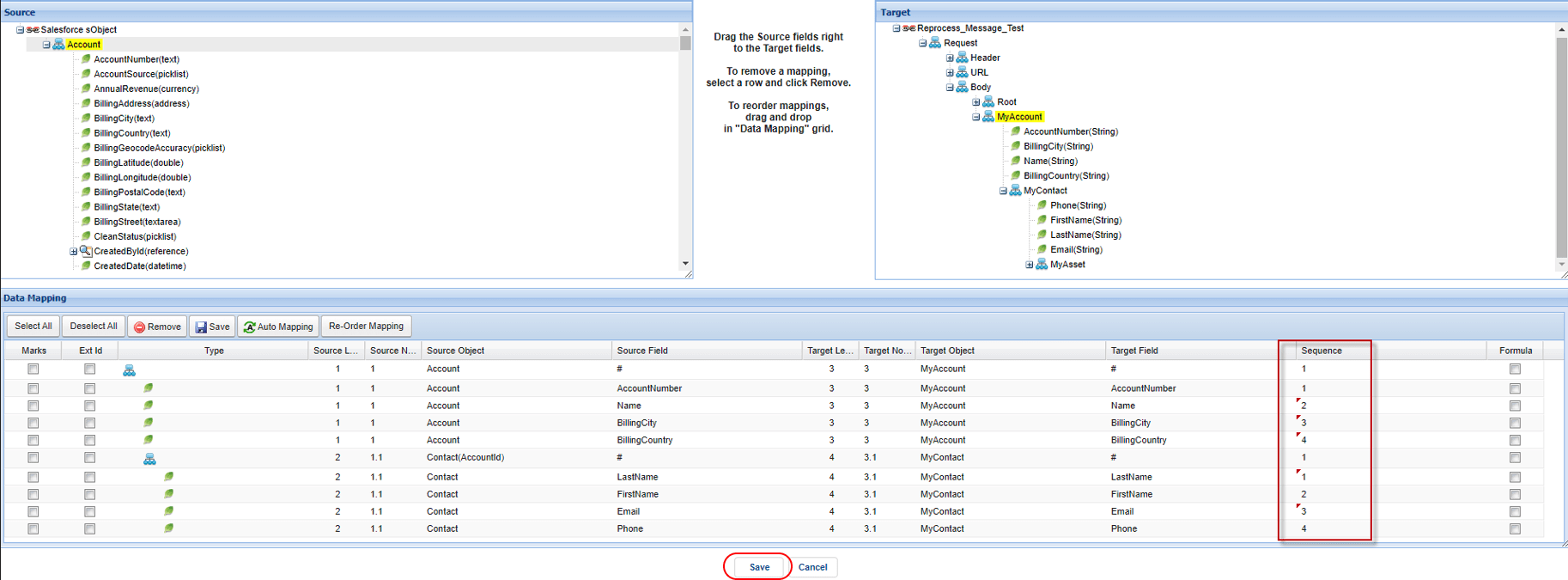
- Afterward, click the Save button to save the mapping record.
- You can make callouts using the developer console, manual processing, or scheduled processing.
Now, we will show you execute Interface with manual processing
You need to filter your records to be callout on Filter Query on SOQL Query for the Filter sObject section

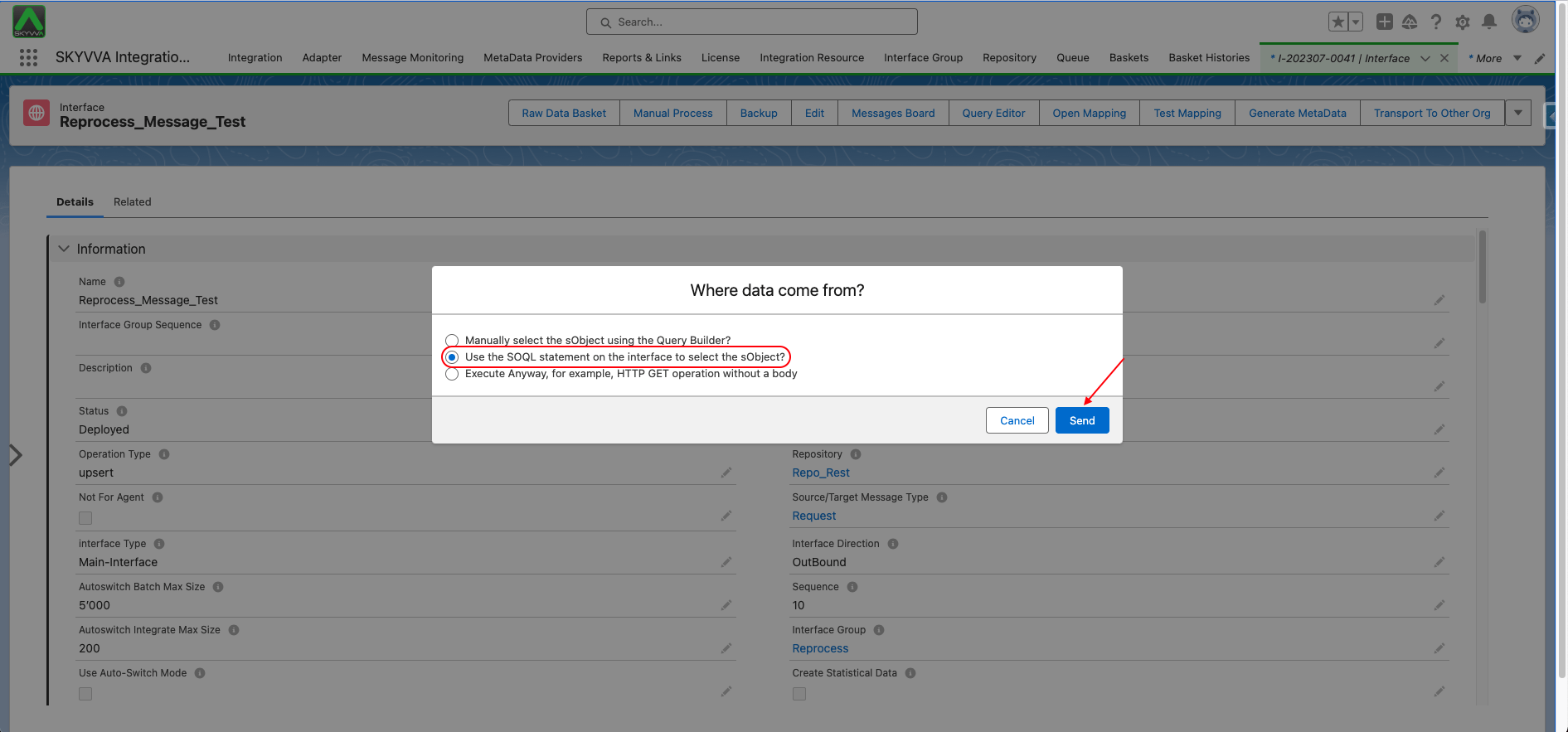
- Go to Interface Detail Pages
- Click on the Manual Process Button
- Select "Use the SOQL statement on the interface to select the sObject?"
- Click Send Button
- After clicking Send Button, it will alert the message "The Interfaces__c has been executed. Please check the message monitor"
- After the execution is complete, messages will be created. Please go to Message Monitoring to check them.
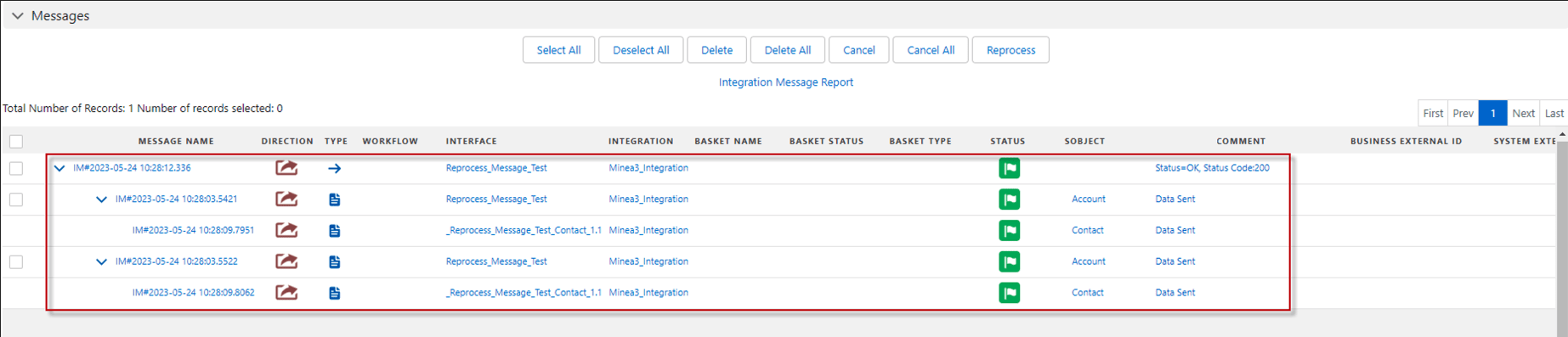
Finally, the payload is generated based on the mapping order.