How to Use the REST Adapter to Transfer Data from One Salesforce Org to Another Salesforce Org?
Introduction
Transferring data between Salesforce org using the SKYVVA integration application and the REST adapter involves several steps to ensure smooth and efficient data migration. Here's a step-by-step guide on how to accomplish this:
- Setup and Configuration:
Install and configure the SKYVVA integration application in both the source and target Salesforce org.
- Set up the REST adapter in the source Salesforce org. This involves configuring the necessary endpoints and authentication mechanisms to facilitate communication with the target org.
- Define the Data to Transfer:
Identify the specific data objects and fields that need to be transferred from the source org to the target org.
- Create data mappings to ensure that the data is accurately transferred and aligned between the two org.
- Create Integration Flows:
In the SKYVVA integration application, create integration flows to define the data transfer process. These flows include source and target connections, data mappings, and any necessary transformations or validations.
- Configure the REST adapter as the source connection and the target Salesforce org as the destination.
- Test the Integration:
Before performing the actual data transfer, conduct thorough testing of the integration flows. This helps identify and resolve any issues, ensuring that the data is correctly transferred without any errors or data loss.
- Execute the Data Transfer:
Once testing is successful, execute the integration flows to transfer the data from the source Salesforce org to the target org. Monitor the transfer process to ensure it completes successfully and verify that the data in the target org matches the source data.
- Monitor and Maintain:
Continuously monitor the integration flows for any issues. Perform regular maintenance and updates to the integration configurations as needed to accommodate any changes in data structures as per business requirements.
By following these steps, you can effectively use the REST adapter within the SKYVVA integration application to transfer data between Salesforce org, ensuring a smooth and accurate data migration process.
Pre-required
Create a connected app in source org.
- Creating a connected app in the source org is essential for Salesforce to Salesforce integration. The process involves generating a client ID and client secret from the connected app. Alongside a username and password, these four properties are critical for establishing a secure and authenticated connection between Salesforce instances. By configuring these details, seamless data exchange and integration workflows can be facilitated, ensuring efficient and secure communication between the source and target Salesforce environments.
Rest Adapter Template
{ "Rest Service":{ "Request":{ "URL":{ "PATH Parameter":{ //flat Structure }, "QUERY Parameter":{ //flat Structure } }, " Header ":{ //flat Structure }, "Body":{ //flat Structure //Custom Hierarchical Business Message type } }, "Response":{ "root":{ //web service response } } } }
Name of Message Type Type of Message Type
Rest Service
ex: REST_Upsert_Account_ByExternalId_Service REST_Service
Request REST_Request
URL REST_Request_URL
PATH Parameter REST_Request_URL_Path_Parameter
QUERY Parameter REST_Request_URL_Query_Parameter
Header REST_Request_Header
Body REST_Request_Body
Response REST_Response
Root(it should be anything)
Ex: Root, response_body, res_body Plain structure
Operation Type: Upsert (Insert or Update)
The "Upsert" operation in the SKYVVA integration application allows for efficient data management by combining the functionalities of both insert and update operations. When executing an upsert, the application checks if a record already exists based on a specified key. If the record exists, it updates the existing data; if not, it inserts a new record. This dual capability streamlines processes reduces repetition, and ensures data consistency. By simplifying the integration workflow, upsert enhances productivity and ensures that the data remains accurate and up-to-date within the system.
Create Metadata & Repository and REST Template for your service:
- Metadata: REST_Org_To_Org_Metadata
- Repository: REST_Org_To_Org_Repository (You can able to create multiple rest service templates in a single repository)
Message Type: REST_Upsert_Account_ByExternalId_Service

- Integration Name: REST_Org_To_Org_Integration

Go to the Interfaces tab of your integration and click on the ‘New Interface’ button.
Here, you need to provide the following details:
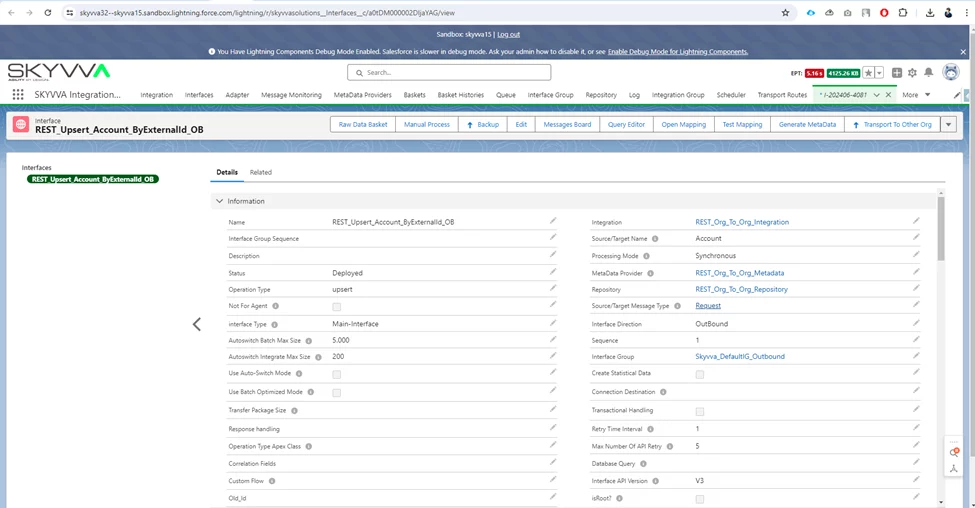
- Interface Name: REST_Upsert_Account_ByExternalId_OB
- Source object: ex. Account
- MetaData Provider: REST_Org_To_Org_Metadata
- Repository: REST_Org_To_Org_Repository
- Source/Target Message Type: REST_Upsert_Account_ByExternalId_Service
- Direction: Outbound
- Status: Deployed
Outbound Interface: REST_Upsert_Account_ByExternalId_OB
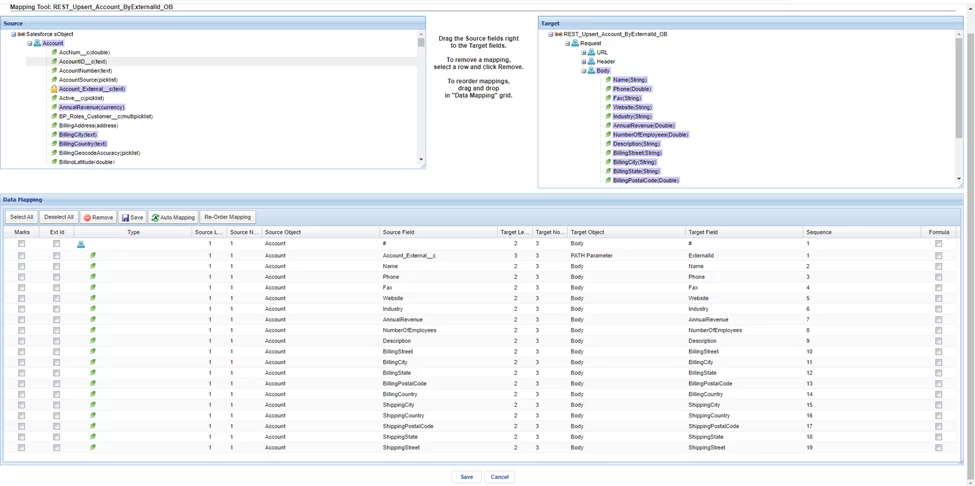
Mapping:
- Click on the “Open Mapping” button.
- Map source fields to the target side fields will generate a dynamic header, dynamic path, query, and request body for your request.
Go to the Adapter Tab:
- Click on the new button and select type as a REST and Direction as an outbound provide a meaningful name to your adapter
- Provide configuration details in various properties based on authentication type. Ex: Auth2.0 and Basic.
Outbound Adapter: REST_Upsert_Account_ByExternalId_OB

- Link REST_Upsert_Account_ByExternalId_OB Outbound adapter with Outbound Interface:
- Edit the interface, find the field Outbound Adapter, search REST_Upsert_Account_ByExternalId_OB adapter, and select an adapter.

Now that the Request Part is completed, we can send requests from the source to the target system. Now we need to create an inbound interface to process our web service response.
Go to the Interfaces tab of your integration and click on the ‘New Interface’ button.
Here, the user needs to provide the following details:
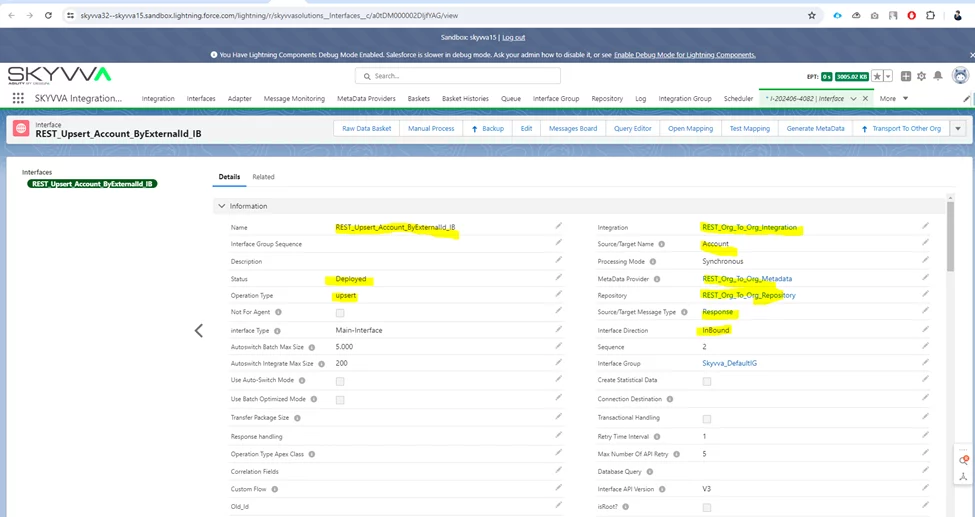
- Interface Name: REST_Upsert_Account_ByExternalId_IB
- Source object: ex. Account
- MetaData Provider: REST_Org_To_Org_Metadata
- Repository: REST_Org_To_Org_Repository
- Source/Target Message Type: REST_Upsert_Account_ByExternalId_Service
- Direction: Inbound
- Status: Deployed
Inbound Interface: REST_Upsert_Account_ByExternalId_IB
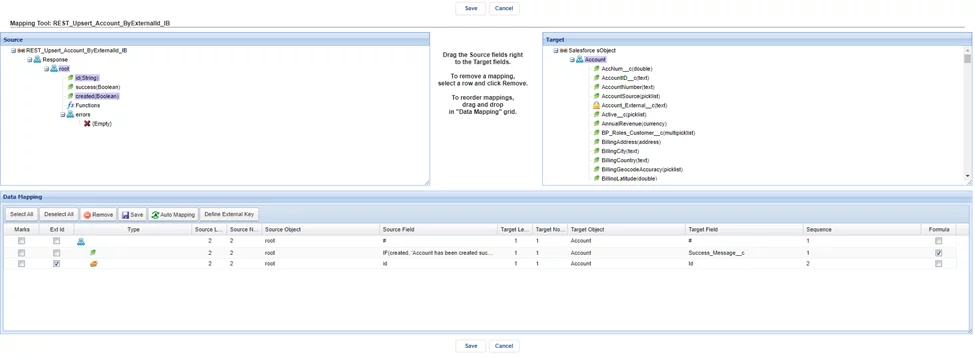
Go to the Mapping:
- Click on the “Open Mapping” button.
- Map source fields to the target side fields and it will process the response and make changes into Salesforce org.
Link Inbound Interface with Outbound Interface:
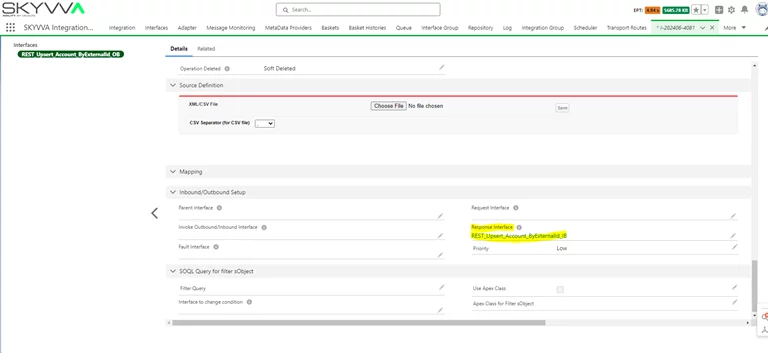
- Open the Outbound Interface and select the response interface in the Response Interface field of the Outbound interface.
- Callout: (This will execute your outbound interface and it will generate dynamic data for your request using account '001DM00002PVHAEYA5')
skyvvasolutions.CallOutControl c = new skyvvasolutions.CallOutControl(); c.returnJSONComplete=true; c.actionDoIntegrate=true; c.isCreateMessage=true; String[] ids= new String[]{'001DM00002PVHAEYA5'}; List<skyvvasolutions.CalloutResponse> result = skyvvasolutions.Iservices.invokeCalloutV3('REST_Org_To_Org_Integration','REST_Upsert_Account_ByExternalId_OB',ids,'SYNC',c);
Go to Message Monitoring: (It will display your request and response status)
- Go to the Integration Tab and click on the “Monitoring” Tab.
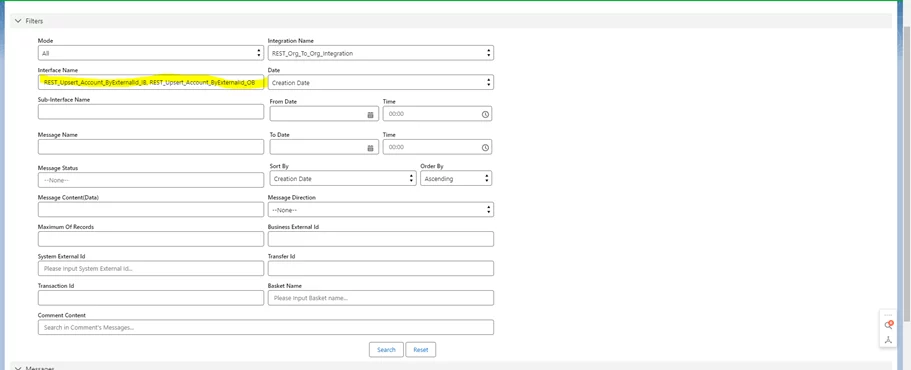
- Select your interface Interface Name field and apply different filters in various fields.
- Click on the Search button.
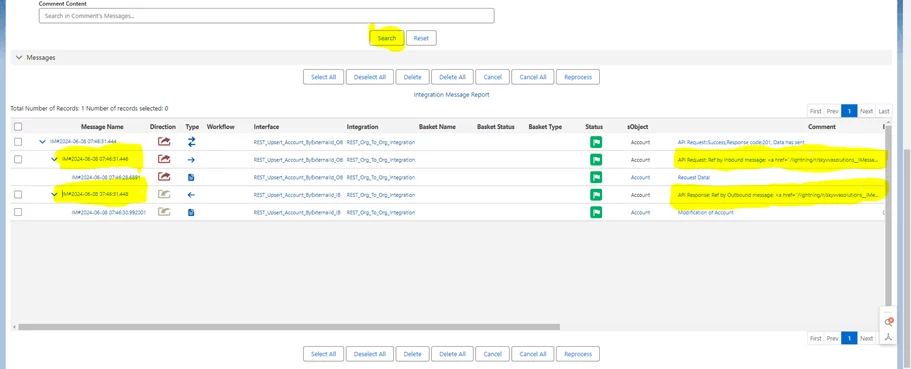
- An API Request message indicates whether your request is processed successfully or not.
- An API Response message indicates whether your response is processed successfully or not.
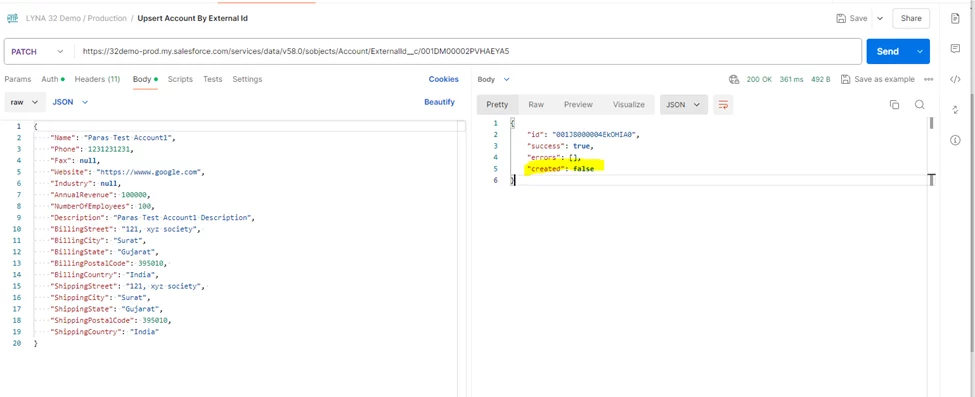
- If the created flag is true in the response then an account has been created successfully and if it is false then an account has been updated.
[su_box title="Result:" box_color="#2a8af0" title_color="#000000"]
- An account is inserted into Salesforce org (Source Org) successfully and based on inbound interface mapping, we are updating the source message field of an account which indicates that the account is inserted or updated. Ex: created = true (inserted)
[/su_box]
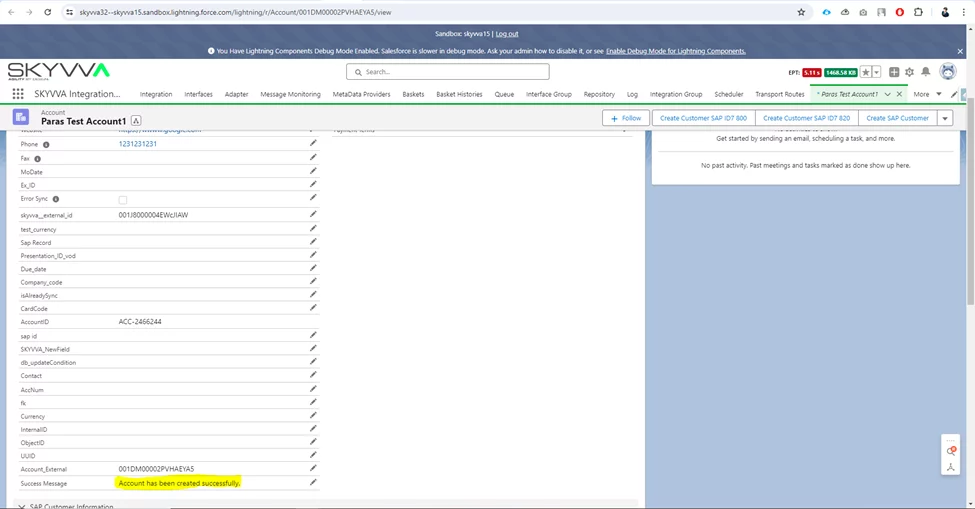
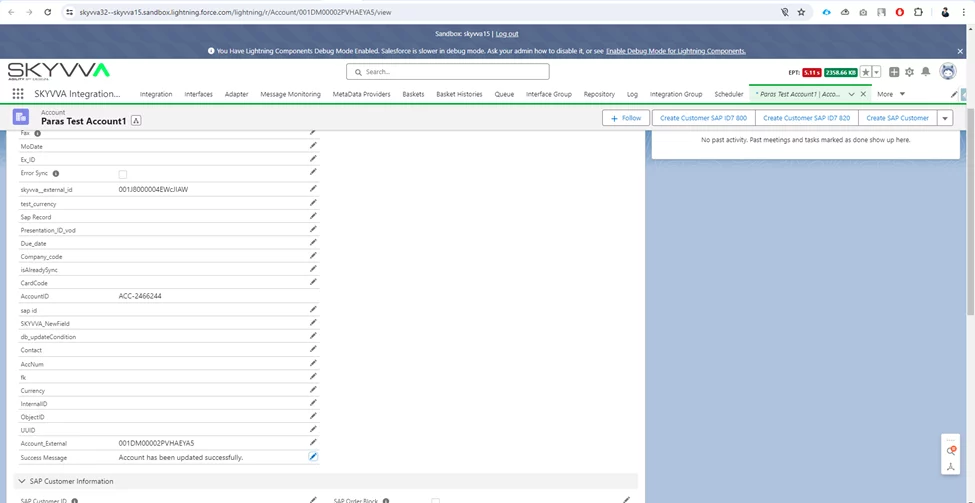
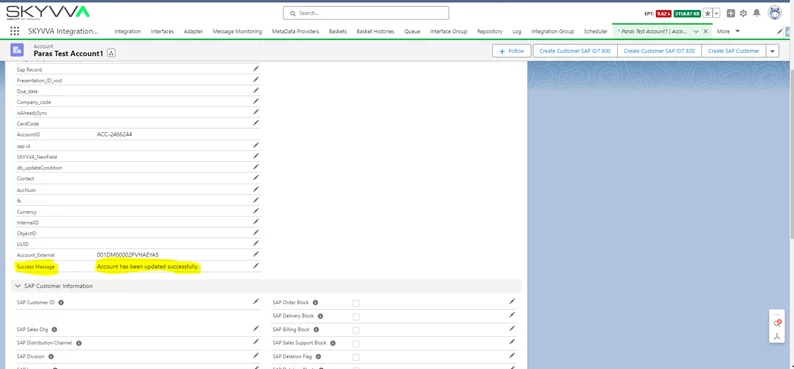
- When the user executes the callout script again then we will get created = false (updated) field of response and our inbound processing will work based on it.
- Ex: The account has been updated successfully.
Operation Type: GET
The "GET" operation type in the SKYVVA integration application allows users to retrieve data from Salesforce. This operation is essential for accessing and extracting information stored within the Salesforce environment. Utilizing the feature-rich API, users can perform GET requests to fetch hierarchical data efficiently. This functionality supports seamless data retrieval without the need to specify message types explicitly, enhancing flexibility and ease of use. Consequently, the GET operation simplifies integration processes, enabling users to access necessary data swiftly and integrate it into their workflows with minimal effort.
Create Metadata & Repository and REST Template for your service:
- Metadata: REST_Org_To_Org_Metadata
- Repository: REST_Org_To_Org_Repository (You can able to create multiple rest service templates in a single repository)
- Message Type: REST_GET_Account_ByExternalId_Service
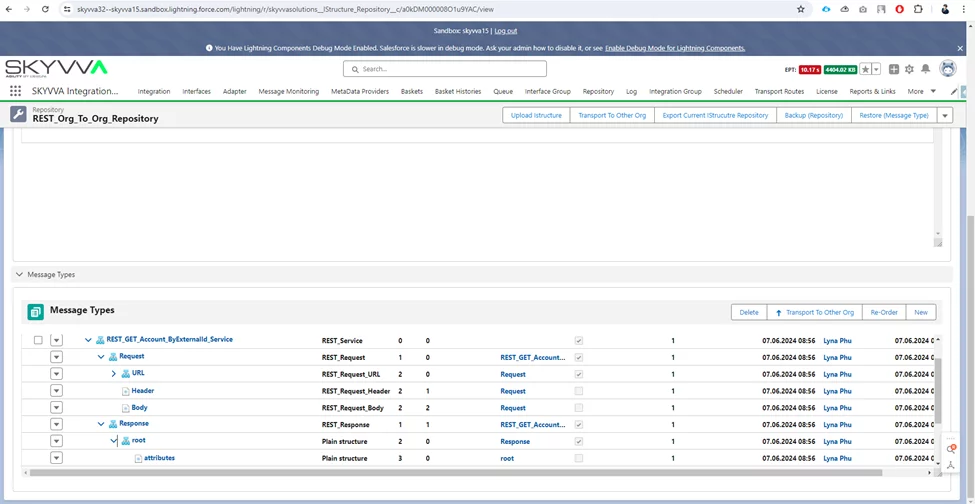
- Integration Name: REST_Org_To_Org_Integration

- Go to the Interfaces tab of your integration and click on the ‘New Interface’ button.
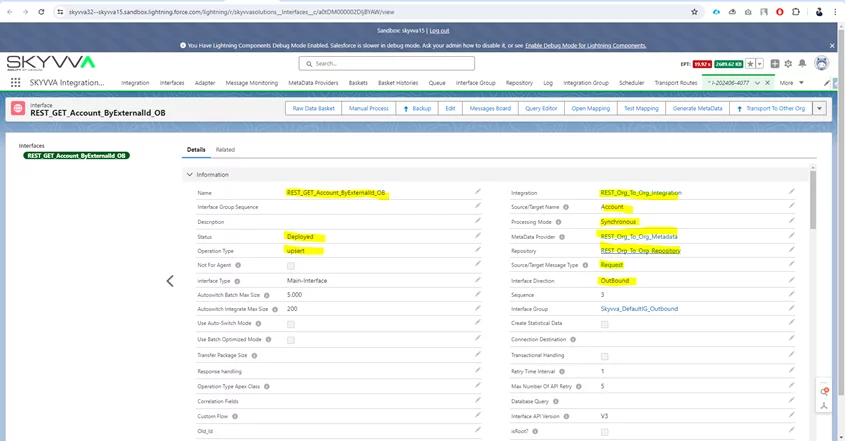
Here, the user needs to provide the following details:
- Interface Name: REST_GET_Account_ByExternalId_OB
- Source object: ex. Account
- MetaData Provider: REST_Org_To_Org_Metadata
- Repository: REST_Org_To_Org_Repository
- Source/Target Message Type: REST_GET_Account_ByExternalId_Service
- Direction: Outbound
- Status: Deployed
Outbound Interface: REST_GET_Account_ByExternalId_OB
Go to Mapping:
- Click on the “Open Mapping” button.
- Map source fields to the target side fields will generate a dynamic header, dynamic path, query, and request body for your request.

Go to the Adapter Tab:
- Click on the new button and select type as a REST and Direction as an outbound provide a meaningful name to your adapter and provide configuration details in various properties based on authentication type. Ex: Auth2.0 and Basic.
- Outbound Adapter: REST_GET_Account_ByExternalId_OB

- Link REST_GET_Account_ByExternalId_OB Outbound adapter with Outbound Interface:
- Edit the interface, find the field Outbound Adapter, search REST_GET_Account_ByExternalId_OB adapter, and select an adapter.
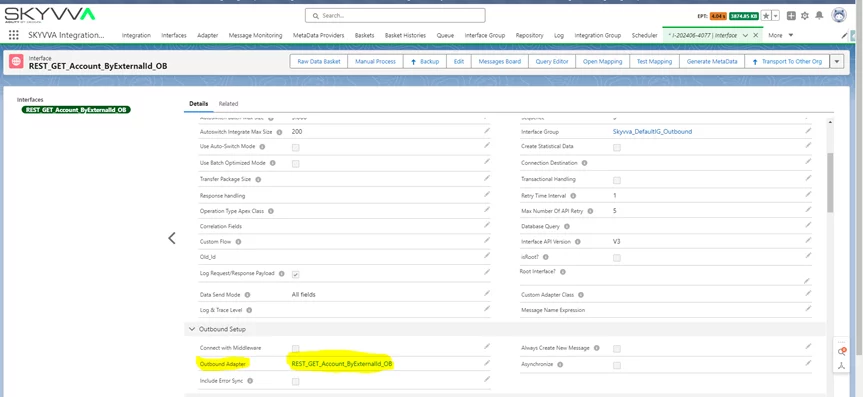
Now that the Request Part is completed, we can send requests from the source to a target system. Now we need to create an inbound interface to process our web service response.
- Go to the Interfaces tab of your integration and click on the ‘New Interface’ button.
Here, you need to provide the following details:
- Interface Name: REST_GET_Account_ByExternalId_IB
- Source object: ex. Account
- MetaData Provider: REST_GET_To_Org_Metadata
- Repository: REST_Org_To_Org_Repository
- Source/Target Message Type: REST_GET_Account_ByExternalId_Service
- Direction: Inbound
- Status: Deployed
Inbound Interface: REST_GET_Account_ByExternalId_IB
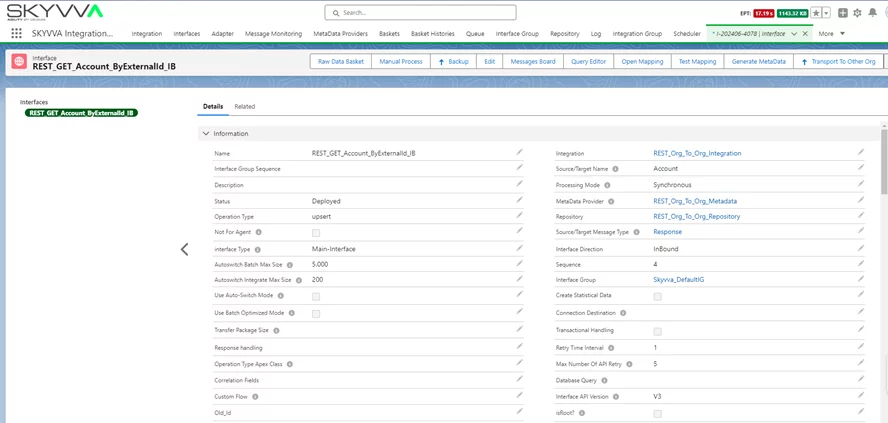
Go to Mapping:
- Click on the “Open Mapping” button.
- Map source fields to the target side fields and it will process the response and make changes into Salesforce org.

Link Inbound Interface with Outbound Interface:
- Open the Outbound Interface and select Response Interface in the Response Interface field of the Outbound Interface.

Callout: (This will execute your outbound interface and it will generate dynamic data for your request using account '001DM00002PVHAEYA5')
skyvvasolutions.CallOutControl c = new skyvvasolutions.CallOutControl(); c.returnJSONComplete=true; c.actionDoIntegrate=true; c.isCreateMessage=true; String[] ids= new String[]{'001DM00002PVHAEYA5'}; List<skyvvasolutions.CalloutResponse> result = skyvvasolutions.Iservices.invokeCalloutV3('REST_Org_To_Org_Integration','REST_GET_Account_ByExternalId_OB',ids,'SYNC',c);
Go to Message Monitoring: (It will display your request and response status)
- Go to the Integration Tab and click on the “Monitoring” Tab.
- Select your interface Interface Name field and apply different filters in various fields.
- Click on the Search button.

- An API Request message indicates whether your request is processed successfully or not.
- An API Response message indicates whether your response is processed successfully or not.
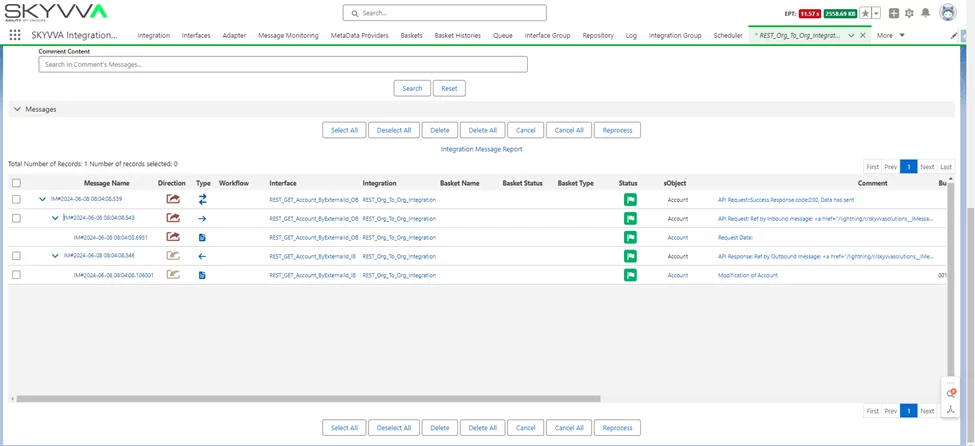
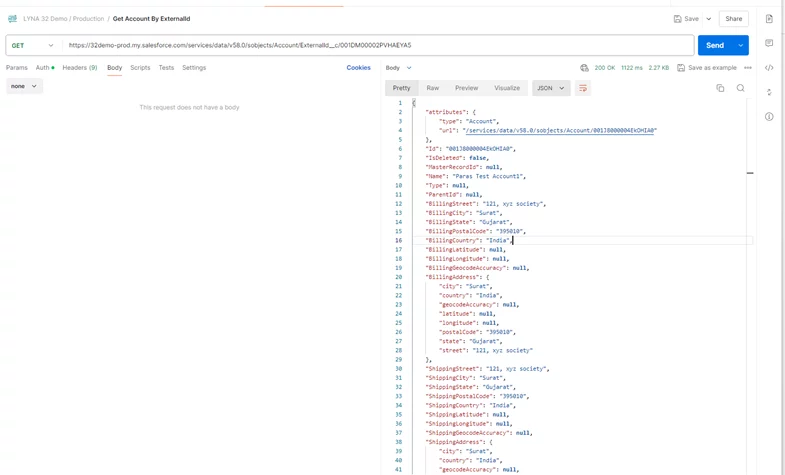
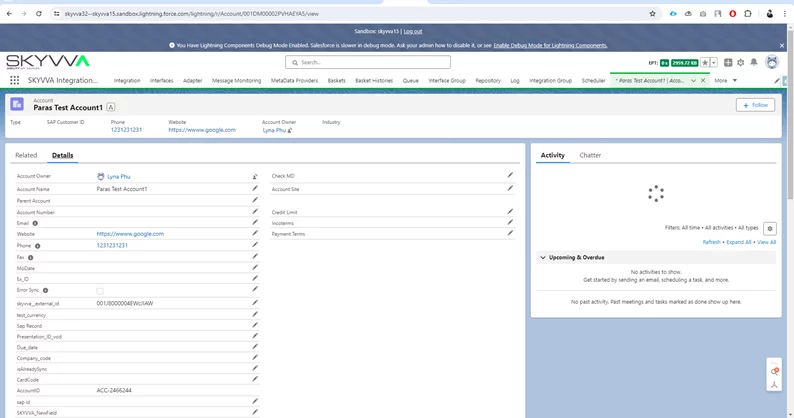
- The inbound interface will update account information in the target system.
Operation Type: Delete
The "Delete" operation type in the SKYVVA integration application allows users to remove records from Salesforce efficiently. This operation is essential for maintaining data accuracy and cleanliness within the system. By specifying the records to be deleted, users can streamline data management processes and prevent the accumulation of outdated or incorrect information. The SKYVVA integration application ensures that the deletion process is executed securely and effectively, minimizing the risk of data loss or errors. This feature supports various integration business scenarios, enhancing overall system performance and reliability by keeping the Salesforce database up-to-date and relevant.
Create Metadata & Repository and REST Template for your service:
- Metadata: REST_Org_To_Org_Metadata
- Repository: REST_Org_To_Org_Repository (You can able to create multiple rest service templates in a single repository)
Message Type: REST_Delete_Account_ByExternalId_Service

- Integration Name: REST_Org_To_Org_Integration
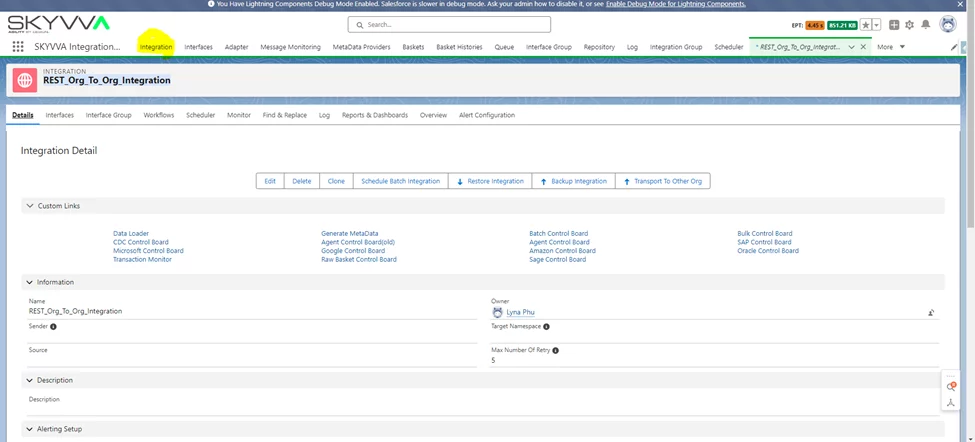
- Go to the Interfaces tab of your integration and click on the ‘New Interface’ button.
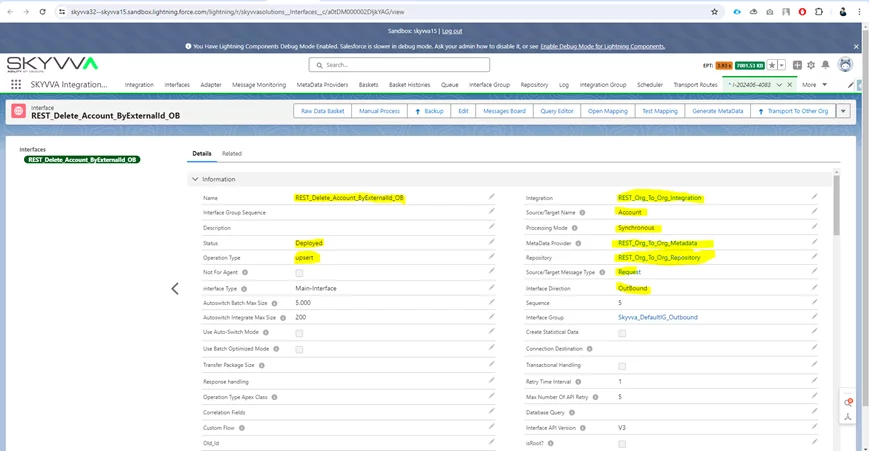
Here, you need to provide the following details:
Interface Name: REST_Delete_Account_ByExternalId_OB
- Source object: ex. Account
- MetaData Provider: REST_Org_To_Org_Metadata
- Repository: REST_Org_To_Org_Repository
- Source/Target Message Type: REST_Delete_Account_ByExternalId_Service
- Direction: Outbound
- Status: Deployed
Outbound Interface: REST_Delete_Account_ByExternalId_OB
Go to Mapping:
- Click on the “Open Mapping” button.
- Map source fields to the target side fields will generate a dynamic header, dynamic path, query, and request body for your request.

Go to the Adapter Tab:
- Click on the new button and select type as a REST and Direction as an outbound provide a meaningful name to your adapter
- Provide configuration details in various properties based on authentication type. Ex: Auth2.0 and Basic.
Outbound Adapter: REST_Delete_Account_ByExternalId_OB
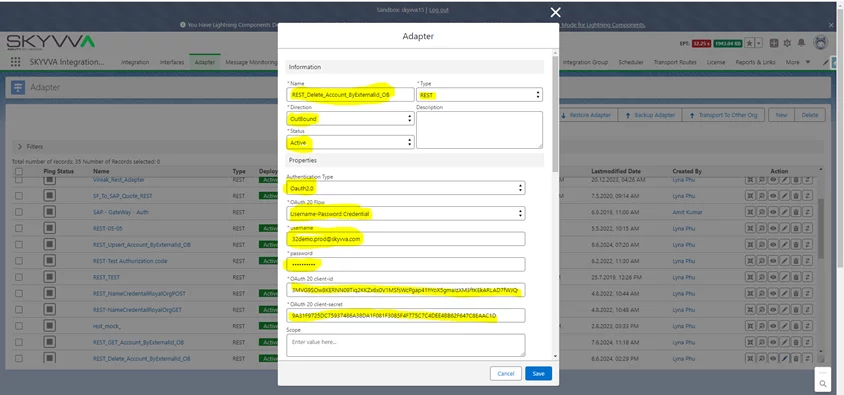
- Link REST_Delete_Account_ByExternalId_OB Outbound adapter with Outbound Interface:
- Edit the interface, find the field Outbound Adapter, search REST_Delete_Account_ByExternalId_OB adapter, and select an adapter.
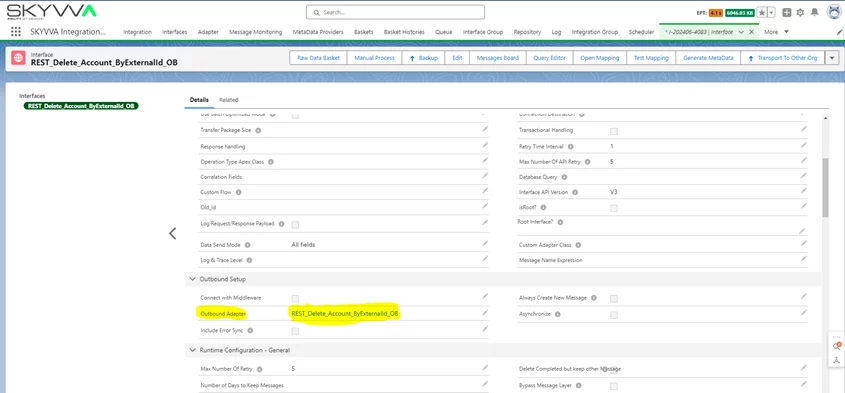
Now that the Request Part is completed, we can send requests from the source to the target system.
- Callout: (This will execute your outbound interface and it will generate dynamic data for your request using account '001DM00002PVHAEYA5')
skyvvasolutions.CallOutControl c = new skyvvasolutions.CallOutControl(); c.returnJSONComplete=true; c.actionDoIntegrate=true; c.isCreateMessage=true; String[] ids= new String[]{'001DM00002PVHAEYA5'}; List<skyvvasolutions.CalloutResponse> result = skyvvasolutions.Iservices.invokeCalloutV3('REST_Org_To_Org_Integration','REST_Delete_Account_ByExternalId_OB',ids,'SYNC',c);
Go to Message Monitoring: (It will display your request and response status)
- Go to the Integration Tab and click on the “Monitoring” Tab.
- Select your interface Interface Name field and apply different filters in various fields.
- Click on the Search button.
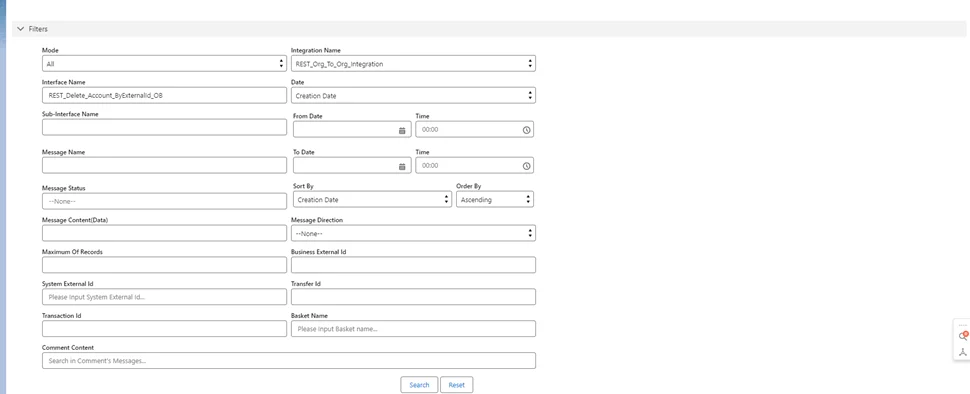
- An API Request message indicates whether your request is processed successfully or not.
- An API Response message indicates whether your response is processed successfully or not.

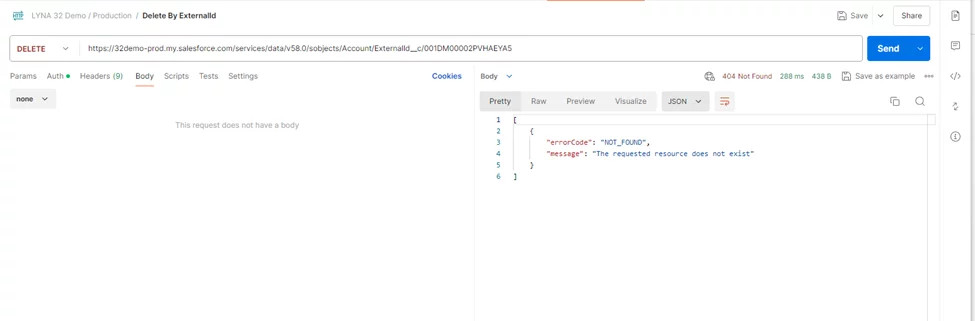
Summary
Now user understands how to transfer data between Salesforce org using the SKYVVA Integration application, and utilizes the REST adapter with the operation type: (Insert or Update), Get, Delete. Configure the source and target connections, select the appropriate operation, and map the data fields to facilitate seamless data migration and synchronization.