1. Message Monitoring
Learning Objectives:- This unit describes:-
- What is message monitor?
- How to use the message monitor in a different case, for example, searching by content, sorted by Date, etc?
Introduction:-
SKYVVA´s Free Dataloader is part of the SKYVVA´s Integration Cloud App where message monitoring shows the result of processed inbound or outbound Interface. Here the graphical representation of processed data is displayed. Users can easily sort out the pass, fail or pending data.
What is Message Monitoring?
Message Monitoring is used to check the integration result after processing the Inbound or Outbound interface. The integration result includes Pending, Failed, Completed, Cancelled status and the reason why it failed. Additionally, we can know the real Sobject is integrated successfully with completed status. When the interface gets processed, we can see the result on the message monitoring page. It can be in two formats:
- For a flat file.
- For tree view.
In both cases, fields and functionalities are the same but the view of the record is different.
Pre-requisite:-
- We have to create Integration.
- Creating integration the next step is to create Interface.
Do mapping with the help of the SKYVVA mapping tool.
- Upload data using Skyvva manual load feature.
How to use message monitoring?
We have to process interfaces to integrate data. Here, we will show how to use message monitoring. and we can apply the different types of filters to search out the uploaded data or records. we have a different type of filters as:

Filters Section contains the following fields:
- Integration Name: You can choose which Integration you prefer to see the result.
- Interface Name: We can search for data/record with the interface name. With a single interface or with all interface.
- Message Name: We can apply the filter on message name which can be indicated as eg:
IM#2019-08-06 11:14:33.218000
- Message Content(Data): We can search with message data. For example, we can search with name, city, Lname, Fname.
- Maximum Of Records:
- Transaction Id: We can apply this filter to search for data. Transaction Id is given from the caller and thus caller knows it and he can search with it to find the corresponding message with his transaction Id.
- Working Basket Name: We can search with Working Basket is nothing but the basket where inbound processing baskets will store and waiting to process.
- Date: We can apply the filter on the creation date and modification date.
- From Date and To Date: We can search a record which is created in a specific time
- Sort By: we can sort by creation date and medication date of records.
- Message Direction: We can search with the inbound and outbound direction of data processing.
- External Id: We can search with external Id field which is defined in object. And we can choose which one should become key.
- Transfer Id: we can this filter to get the required result.
- Message Status: There are many types of Status, but there are 3 common using types:
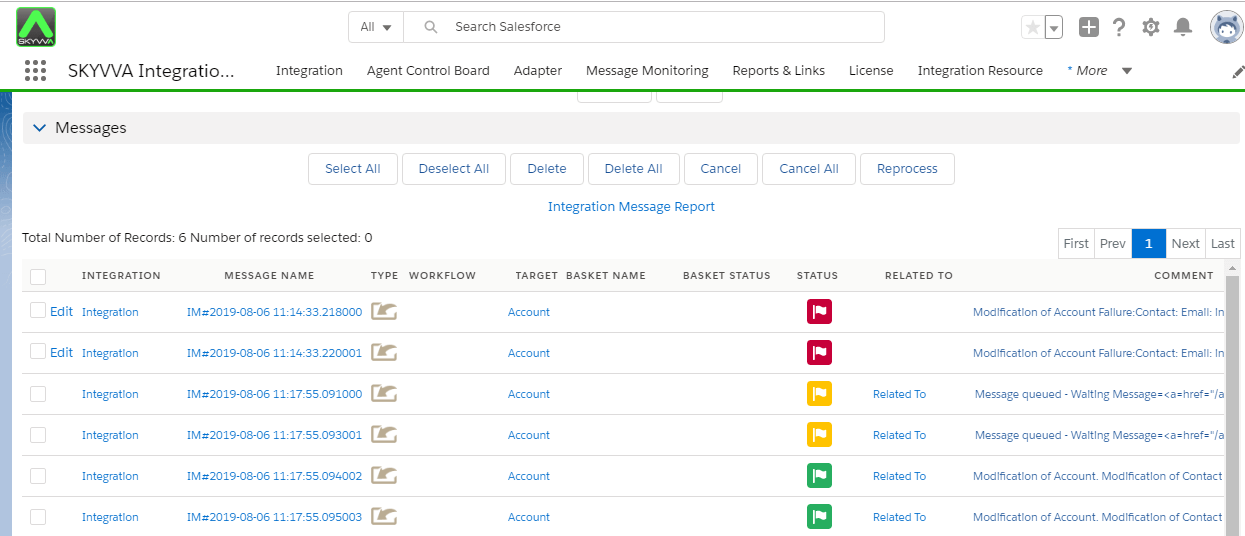
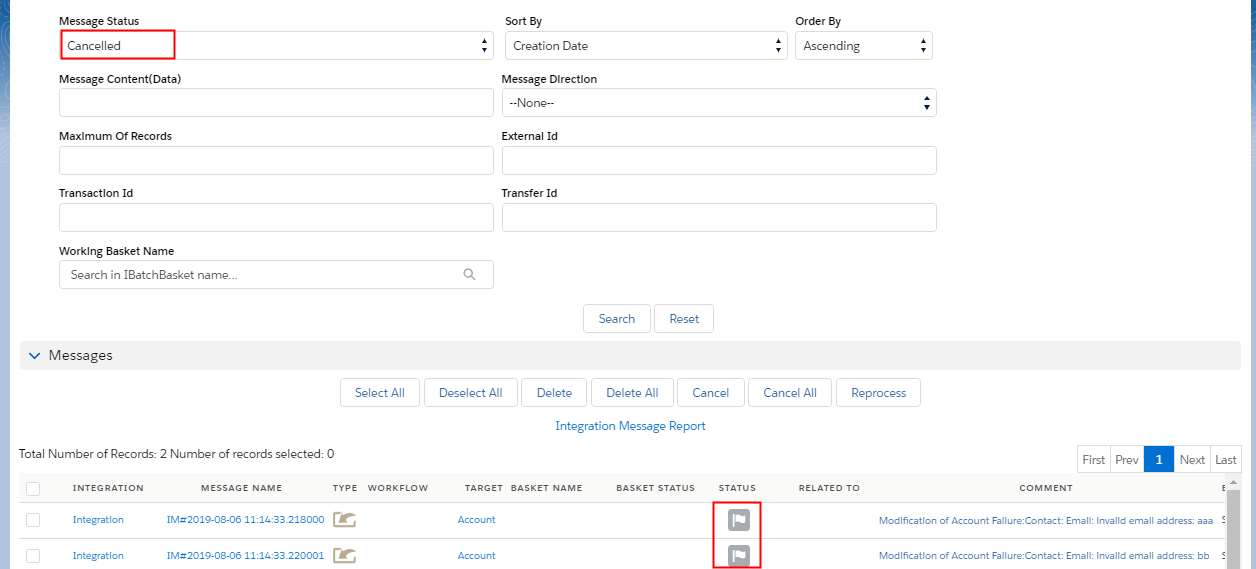
– New(Blue): New messages flag is shown in blue color. It means the message is just created but the processing has not started. – Complete Message (Green): Completed messages flag is shown in green color. Data process successfully. – Failed Message (Red): Red messages flag is shown in Red color. It means that the message processing fails somewhere because of incorrect or insufficient data. – Pending Message (Yellow): Yellow messages flag is shown in Yellow color. It means that the is in the queue to process. – Canceled (gray): Gray messages flag is shown in Yellow color. We can not delete the pending message directly first we have to cancel it. – Partial completed(): This status will be used for hierarchical interfaces. Whenever the child data fail parent message is set to partial completed status.
We can see the fail, pending and completed messages in the following screenshot:
You can see the Cancelled messages in the following screenshot:
You can see the new messages with a tree view in the following screenshot:

[su_box title="Note" box_color="#2a8af0" title_color="#000000"]You can select None if you prefer to see all types of message flags.[/su_box]
How to re-process fail and pending messages?
Failed Messages The message is Failed because of a lot of reasons, you can see it in the Comment. This is one of many reasons, such as it doesn‘t have some fields to fulfill and complete the information. As you can see the screen below, it is Failed since the Account Required fields are missing [Name]. Click on Edit and fill the missing information then Reprocess.

Click On edit.

Pending Message The message is Pending because of a lot of reasons. This is one of many reasons, it is waiting for other Failed Message to be Completed first (Message queued – Waiting for Message=IM#2017-06-21 11:08:38.853001 to be processed first). You can read reasons it is Pending in the Comment as an example below. Note: You can not delete Pending Message. You will have to Cancel it to become Grey first.
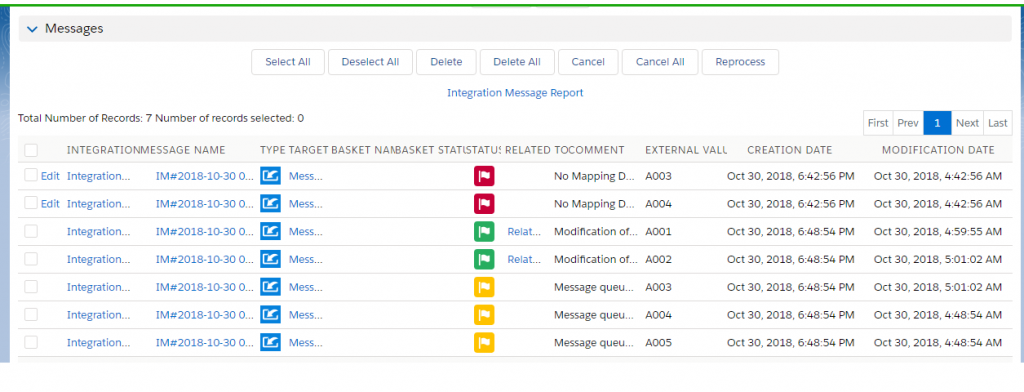
After you Reprocess the Failed Message to become Completed, Check on the Pending Message and click on button Reprocess
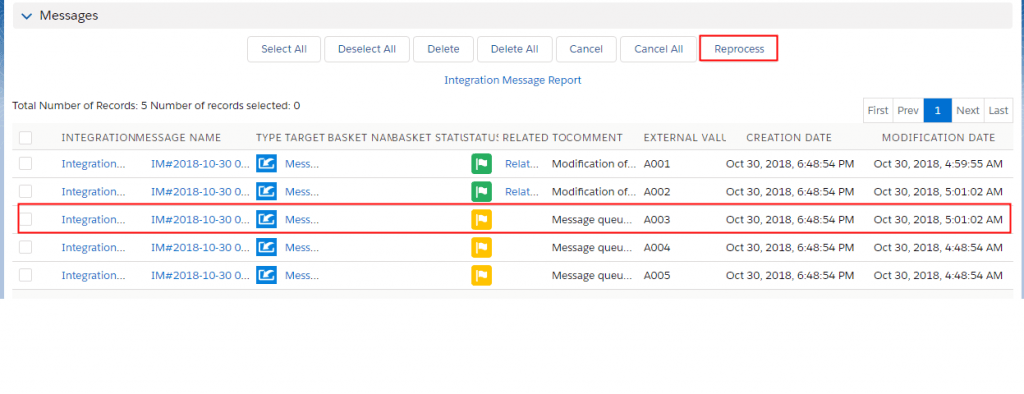
After Reprocessing the pending message it should display as:
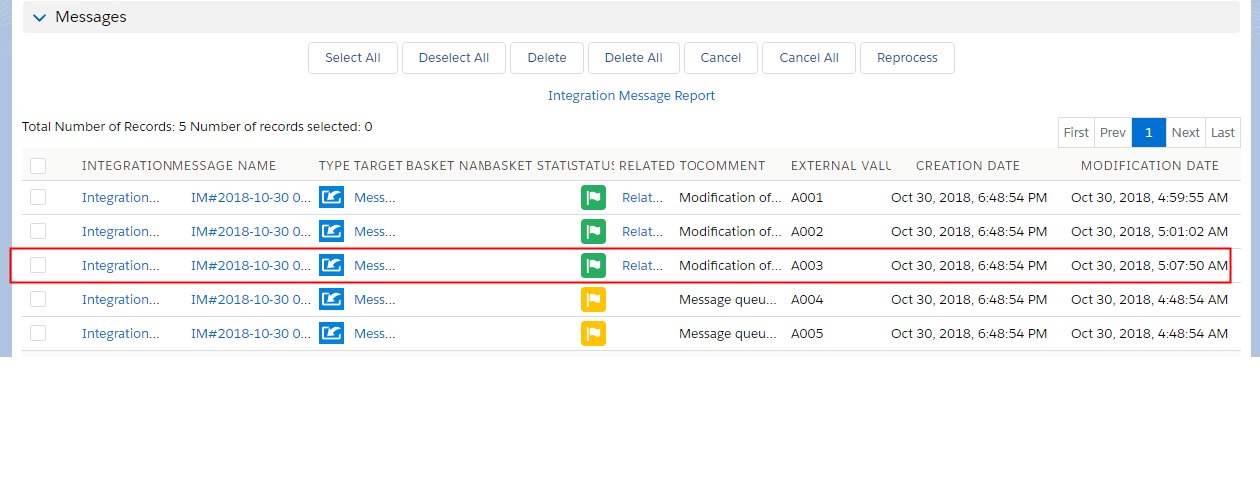
Pending Message has become Failed because it required the missing Name. If it doesn‘t require the missing name and has completed information, it would become Completed.

The Failed Message because (After evaluating the data source (Name), no data passed for the mapped external id field (Name).