1. Message Monitoring
Message Monitoring
- As we all know that how important is the result of anything we perform so in simple words message monitoring is used to check the integration result after processing the Inbound or Outbound interface.
- The integration result includes Pending, Failed, Completed, Cancelled status.
- It also shows the reason why the message got failed.
- Additionally, we can know the real sObject is integrated successfully with completed status.
- We have so many features inside message monitoring which we are going to check in this chapter of message monitoring.
Message Monitoring divided into three sections which are:- Storage Usage, Filters, and Messages. All three sections are described below in detail.
1. Storage Usage
This is the first section of message monitoring, This section is to check the amount of space we have used and how much is available for you. It includes three sections Data Storage, File Storage Big, and Object Storage. (1) Data Storage. (2) File Storage Big. (3) Object Storage.
- The description of Data Storage, File Storage, and Big Object Storage is shown in the table given below.
Description
Data Storage It contains all the messages stored in the table.
File Storage It contains all the attachments.
Big Object Storage It contains all the massive amounts of data on the Salesforce.
- The picture is given below for a better understanding of the storage usage section on Message Monitoring.

2. Filters
With the message monitor, you can search over different criteria. For example, you can search message by date e.g. the creation or modified date. You can select any of the mode from the picklist like Message, API or Event message monitoring. You can sort the view and search message over its content. Likewise, you can search for messages and see if it gets posted or failed. You can see the different statuses of messages e.g. green, red, yellow and grey. Following are the search criteria you can use
Fields Description
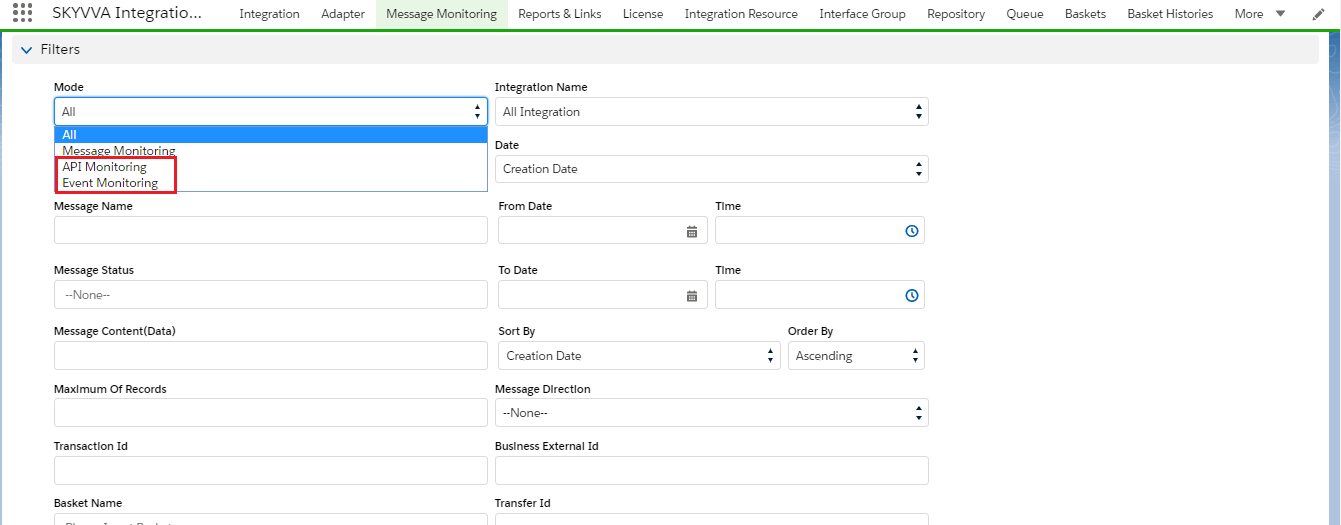
Mode It Contains option All, Message, API and Event monitoring.
Integration Name The name of the integration
Interface Name The name of the interface
Message Name The key to the message
Message Status The status of the message
Message Content(Data) The content of the message
Maximum Of Records Use this filter to limit the result in the Message Monitoring to prevent the time out due to many messages.
Transaction Id You can use this field to define a unique transaction id for all messages belonging to a logical object.
Basket Name Use to filter the specific basket.
System External Id You can filter and reference the message Id of an external system. It also can save the system Id.
Date You can specify Creation or Modified date
From The from date
To The to date
Sort By You can specify Creation date, Modified date or Message Name
Order By Use to filter the message in order by Ascending or Descending.
Message Direction You can specify to see Inbound and Outbound Message separately.
Business External Id This is the id of the business object.So we can enter Id here in this field.
Transfer Id This field is a unique id to identify the transfer package.
Comment Content You can filter both comment short and long for the full error text.
[su_box title="Note" box_color="#2a8af0" title_color="#000000"]
- The Value of TRANSACTION ID generates automatically.
- The Value of TRANSFER ID set by the user on sap.
- You can't set the maximum number of records to more than 10000.
- The difference between System External Id and Business External Id is that Business external id is a sales order number whereas system external id is a message id of the middleware like SAP-PO.[/su_box].
Fields: Mode
We provide two more modes to search API and Event message monitoring. It simplifies our work, and now we can easily search and differentiate. We can see in the picture given below.
- We can select any of the modes.
Field: Interface Name
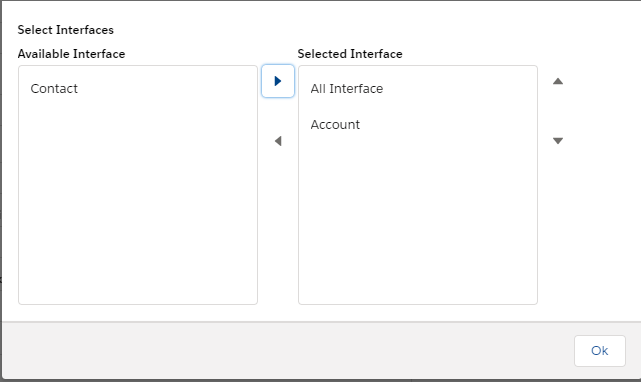
You can see the different fields and their content. You can change the field content and do a reprocessing with the changed value. SKYVVA provides an option for the user to exclude and include the particular interface to search the messages on the Message Monitoring Board. You can either search the specific interface by excluding the one you do not want to search for the message. Overall, you can select multiple interfaces to include or exclude.
Field: Message Status
You can select the message over the message status:
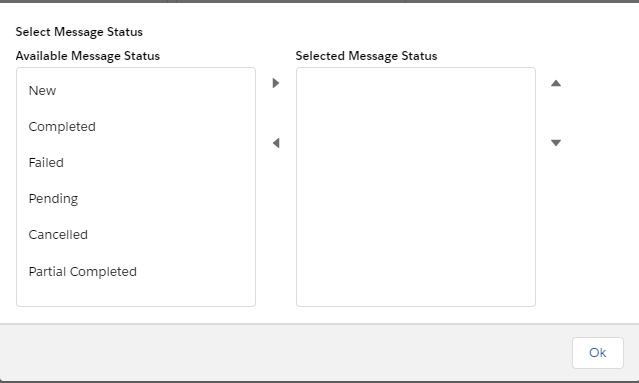
The following are the description of message status:
- None: Select all the status.
- New: This status corresponds to the color blue. This status occurs when users use CDD/CDT (Change Data Detection/ Change Data Transfer) Scheduler to run as a job regularly. CDD collect changes and create the message with status “New”
- Completed: This status corresponds to the color green. A message with this status could be posted successfully.
- Failed: This status corresponds to the color red. A message with this status could not be posted successfully due to some error situations. You have to look at the error description and fix the error. A message with this status can be reprocessed.
- Pending: This status corresponds to the color yellow. A message with this status is in the waiting state because it has to the dependent relationship to other messages which could not be posted successfully. Such a message can be reprocessed as well.
- Canceled: This status corresponds to the color grey. This status corresponds to the color grey. The user is not able to delete messages with status pending so he had to cancel them at the first. As a result, we will get messages with status Cancelled and the user will be able now to delete them.
Field: Maximum of Records
In case there are too many messages then we will run into time out, use this filter to limit the result in the Message Monitor.
Field: Message Direction
The screenshot of Message Direction is given below
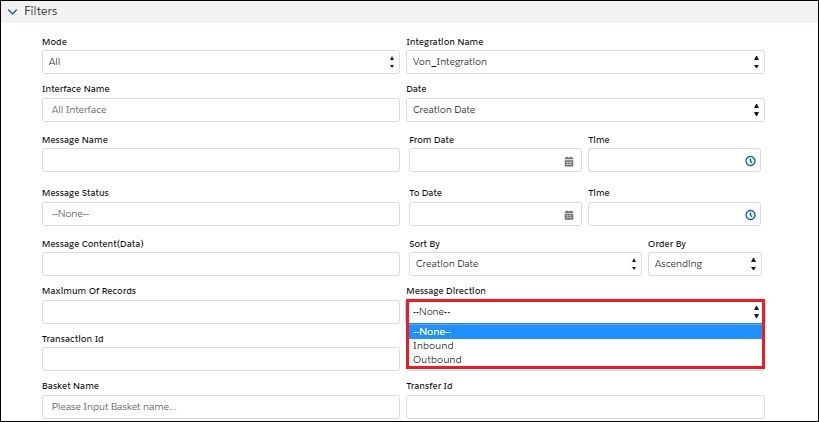
The description of Message Direction:
Message Direction Description
Inbound Use this value when you want to search for Inbound messages.
Outbound Use this value when you want to search for Outbound messages.
--None-- Use this value when you want to search for Inbound and Outbound messages.
The following action is applied to the search screen:
Button:
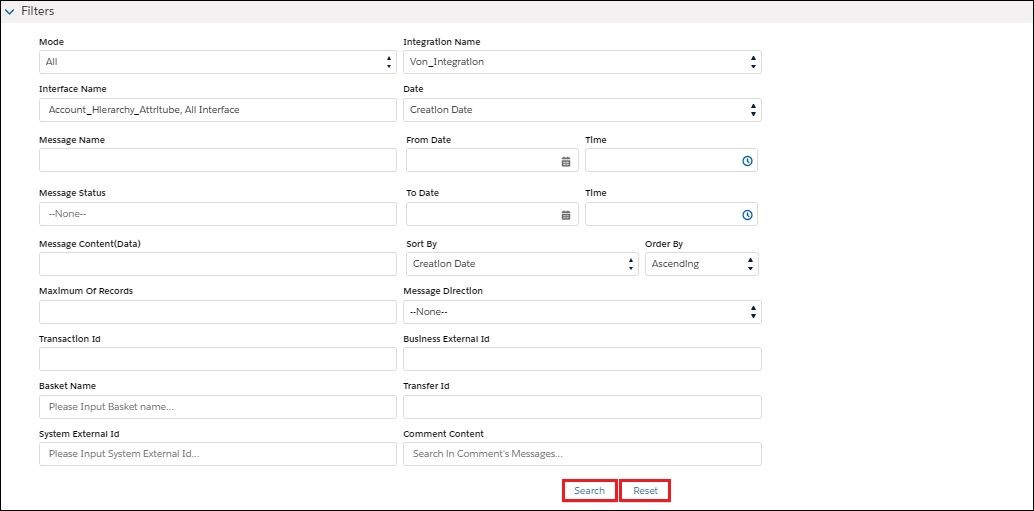
Here the description's function of the button in filter:
Button Description
[su_button url="#" style="flat" size="6"]Search[/su_button] After specifying all the search criteria push on this button to start the search.
[su_button url="#" style="flat" size="6"]Reset[/su_button] With this button, you reset e.g. clear the search criteria you have entered before.
3. Messages
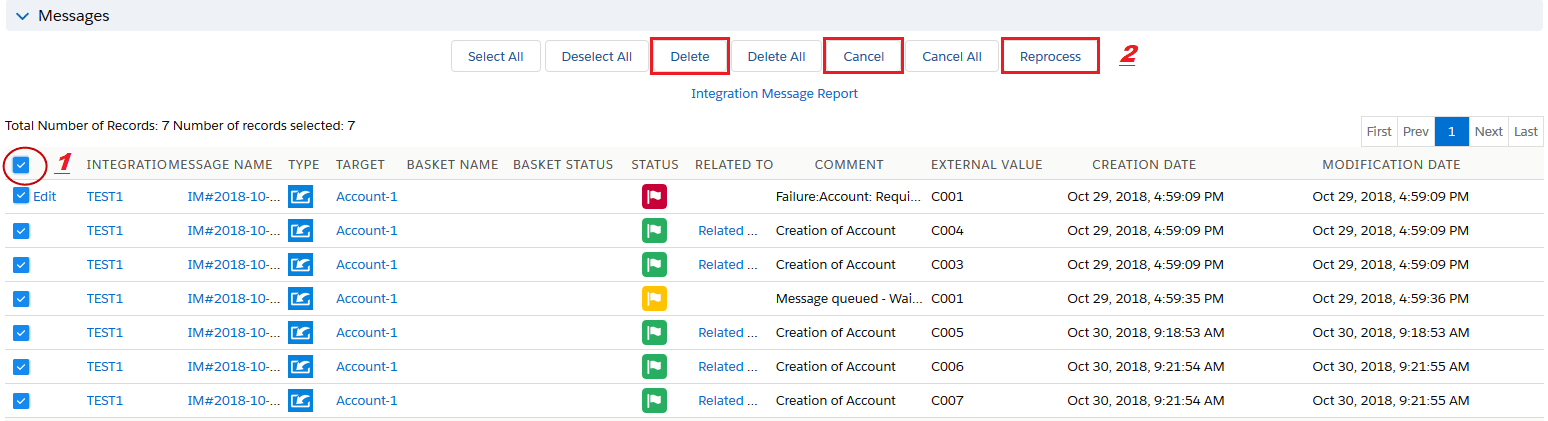
This section will be displayed all types of messages as Failed, Pending, Cancelled, Completed, and New. The following action for the result screen can be applied:
Button Description
[su_button url="#" style="flat" size="6"]Select All[/su_button] Select all the entry in the result screen.
[su_button url="#" style="flat" size="6"]Deselect All[/su_button] Deselect all the entry in the result screen.
[su_button url="#" style="flat" size="6"]Reprocess[/su_button] Reprocess the selected message entry / entries.
[su_button url="#" style="flat" size="6"]Delete[/su_button] Delete selected messages
[su_button url="#" style="flat" size="6"]Delete All[/su_button] Delete all messages in the result screen.
[su_button url="#" style="flat" size="6"]Cancel[/su_button] Cancel the message. You can for example cancel a message with status red but not message with status green.
[su_button url="#" style="flat" size="6"]Cancel All[/su_button] Cancel all the messages. You can for example cancel a message with status red but not message with status green.

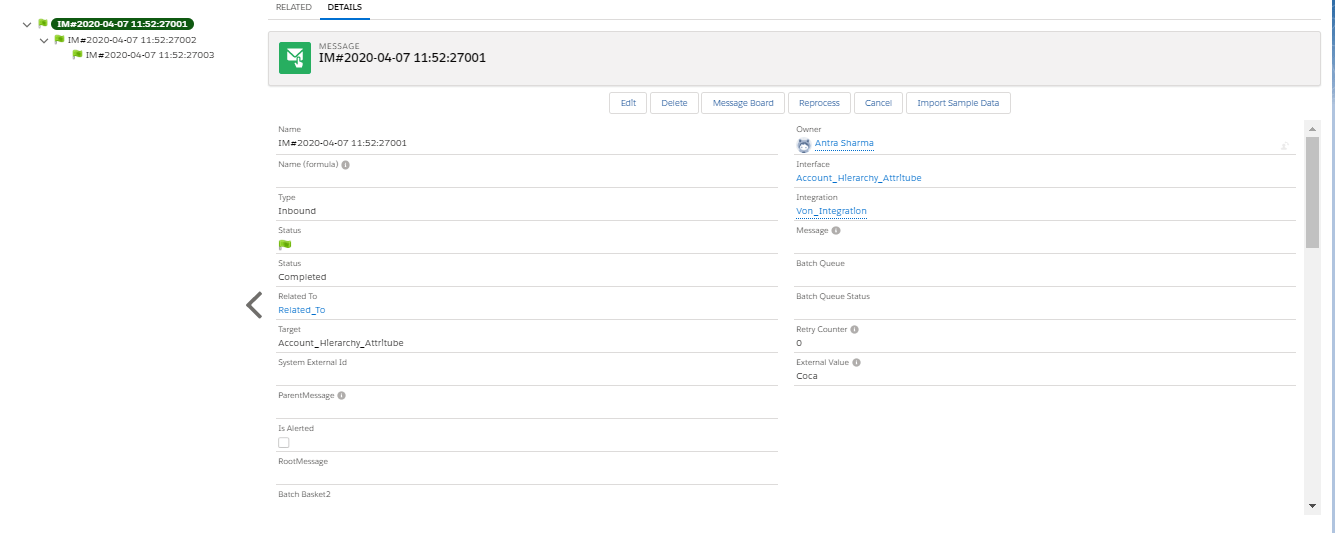
You can jump into the detail of a message. Click on the message name to jump into the detail. Here is an example of a message detail.
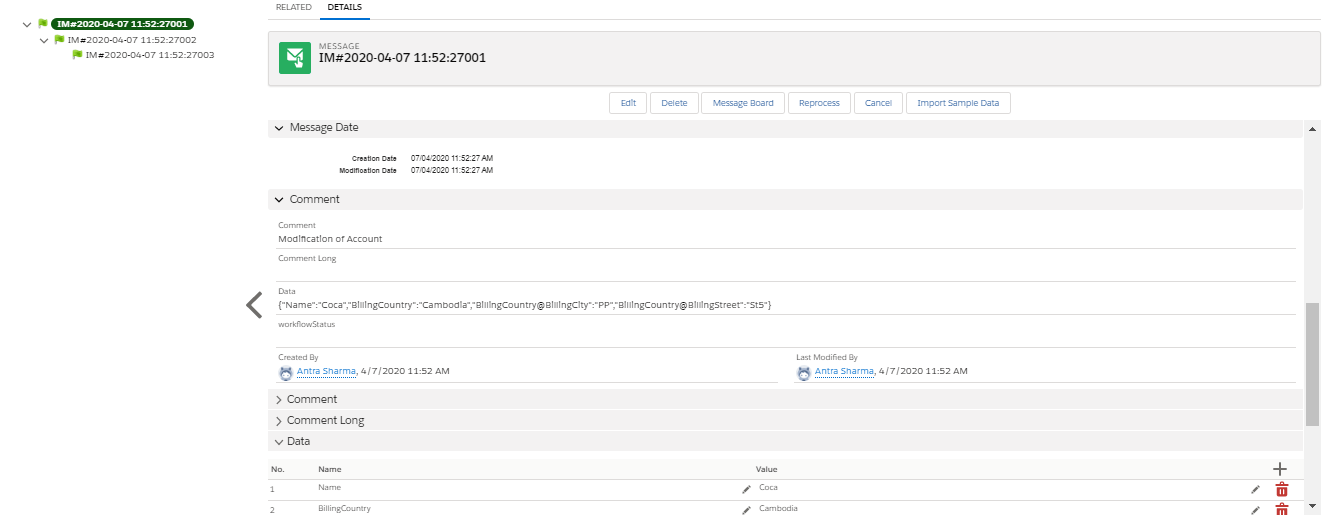
The user can also select (1) all the entry only per page and then he can apply an action (2) for the result screen.