1. Overview of SKYVVA Soap and Rest API
#### Learning Objective:
After completing this unit, you’ll be able to:
- Overview of SKYVVA soap and rest API
- Comfortably connect soap UI with salesforce organization.
Introduction
SoapUI is an open-source web service testing application for service-oriented architectures and representational state transfers. We can connect soap UI with the salesforce organization to push data.
Required details:
- SoapUI application.
- Username and password of your salesforce organization.
- Security Token.
We can push data using the following:
- Soap API
- Rest API
What is a SOAP API?
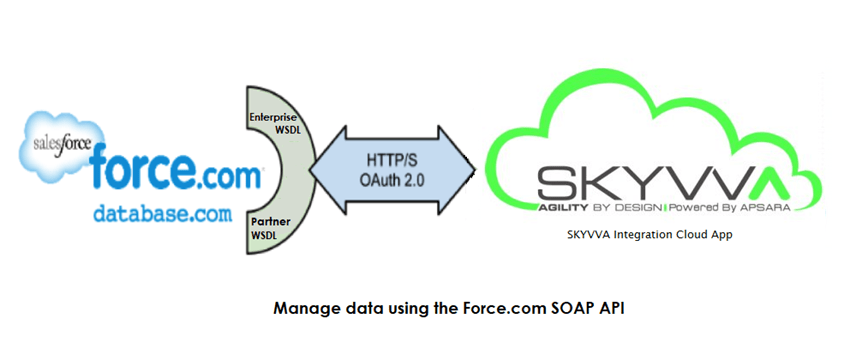
SOAP is a standard communication protocol system that permits processes using different operating systems like Linux and Windows to communicate via HTTP and its XML. SOAP-based APIs are designed to create, recover, update, and delete records like accounts, passwords, leads, and custom objects. These offer over twenty different kinds of calls that make it easy for the API developers to maintain their accounts, perform accurate searches, and much more. These can then be used with all those languages that support web services. SOAP APIs take advantage of making web-based protocols such as HTTP and XML that are already operating on all operating systems that are why its developers can easily manipulate web services and get responses without caring about language and platforms at all.
Explaining a Simple SOAP Example
SOAP, by its very nature, requires a little more setup, but I think you’ll be amazed at how simple it is to use. Begin this example by creating a Windows Forms application using Apex. The sample code uses java, but the same technique works fine with other Apex languages (you’ll need to modify the code to fit). Add labels, text boxes, and buttons as shown here (the Latitude and Longitude fields are read-only).
How to Integrate SoapUI to SKYVVA
Follow the given steps to connect SoapUI with SKYVVA Step1: Generate API file
- Go to your Salesforce Organization
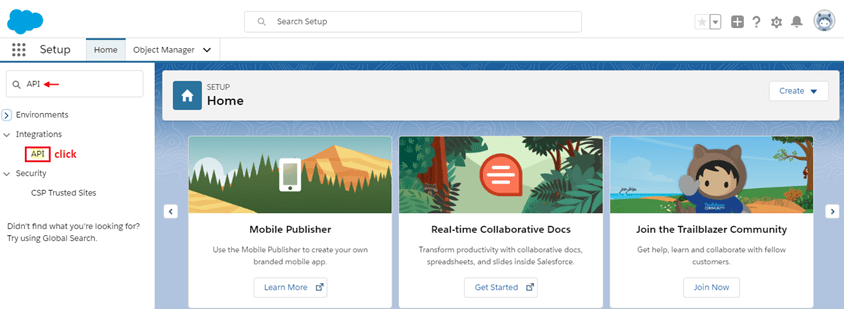
- Click on API under Integration
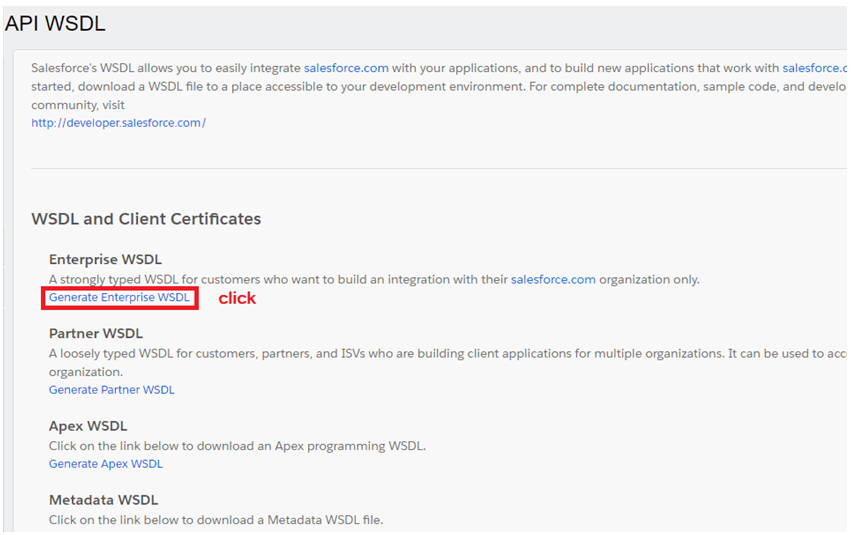
- Click on Generate Enterprise WSDL
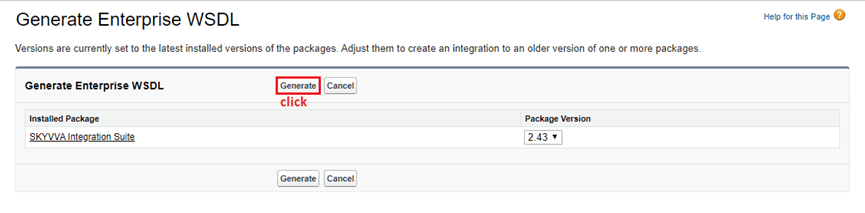
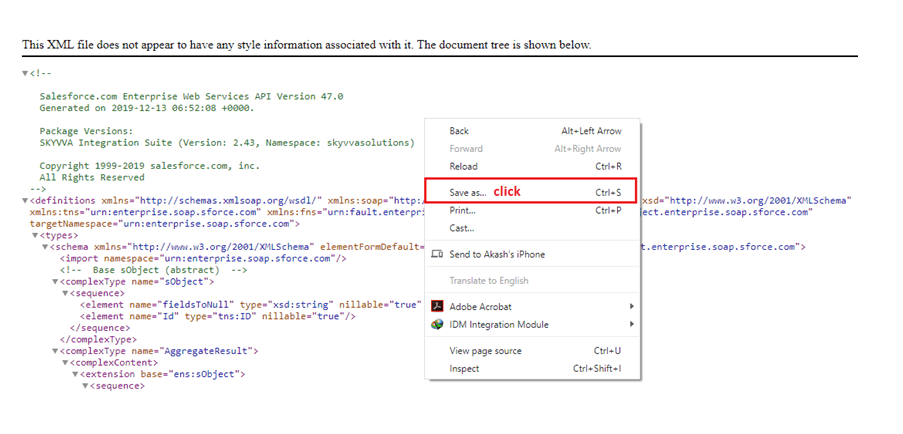
Go to SoapUI
- Click on SOAP
- Create a new SOAP project
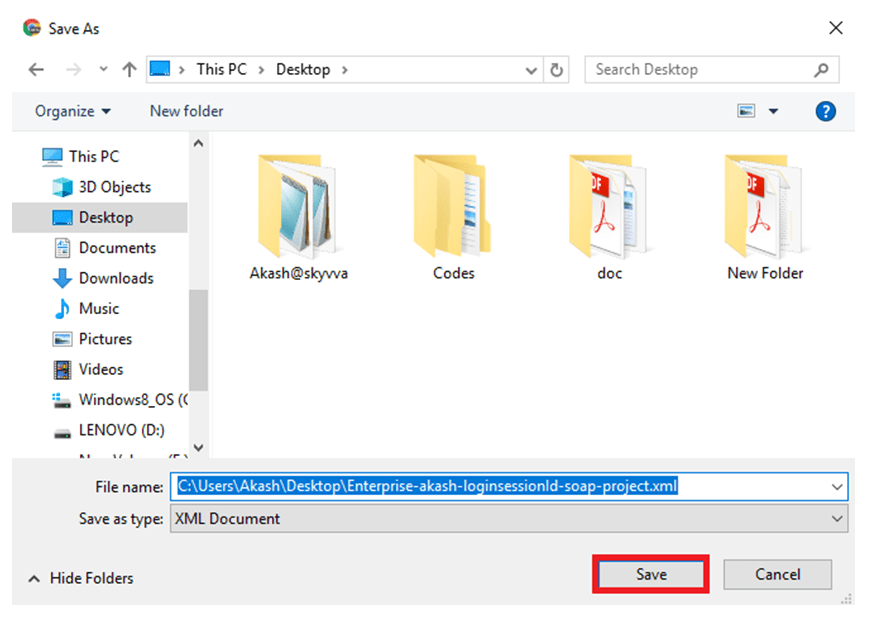
- Save the WSDL file in your system.
Step2: Go to the SoapUI application
- SoapUI is open-source. Users can easily download it from Google.com.
- Here we are using SoapUI Version 5.5.0
- Right-click & open SoapUI application
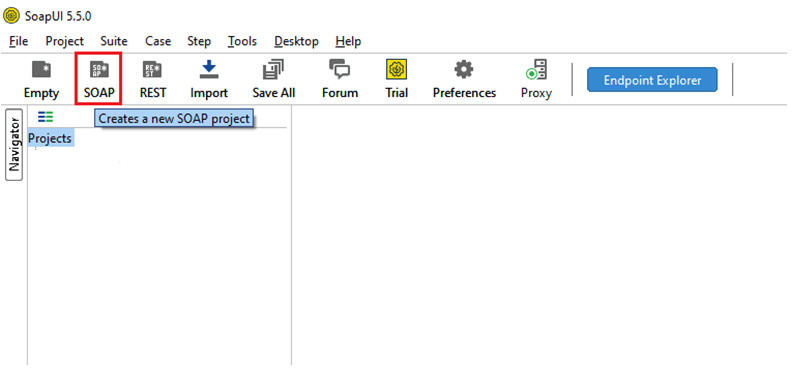
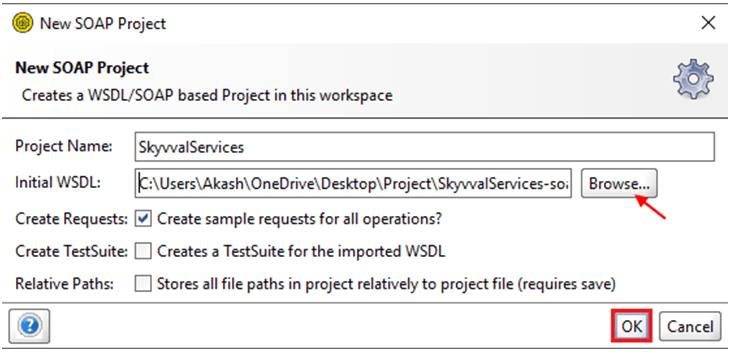
- Click Soap & create a new SOAP project as shown in the picture.
- Write your Project name
- Browse the Initial WSDL XML file
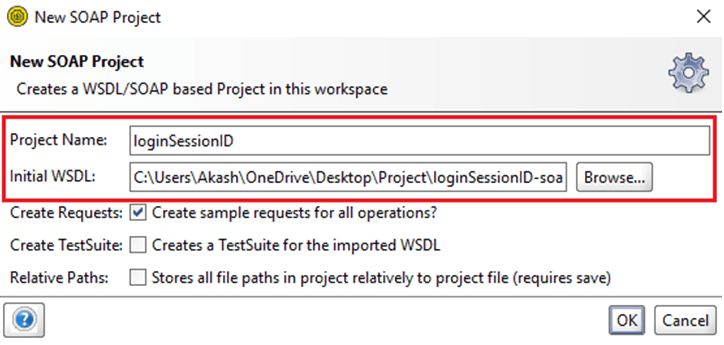
- Click on the OK button.
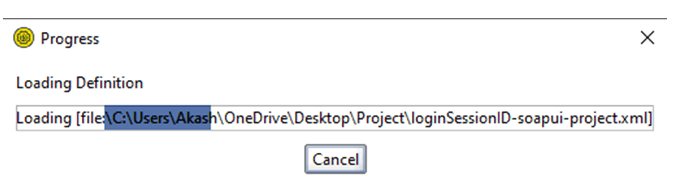
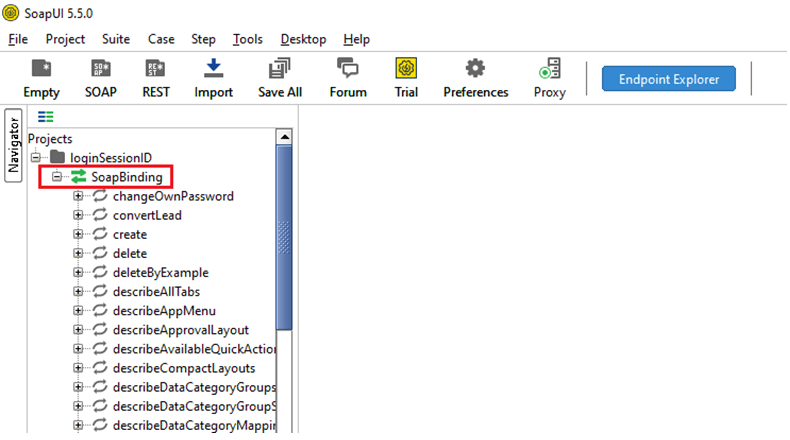
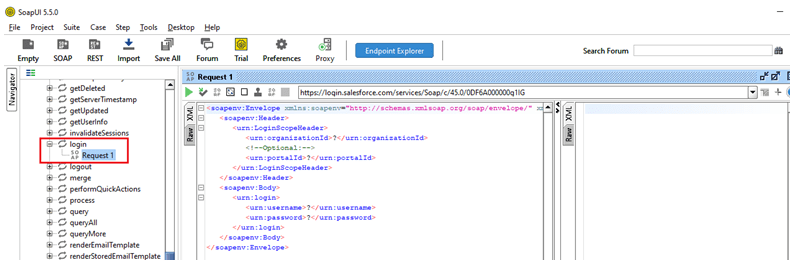
- Expand login & click “Request 1“
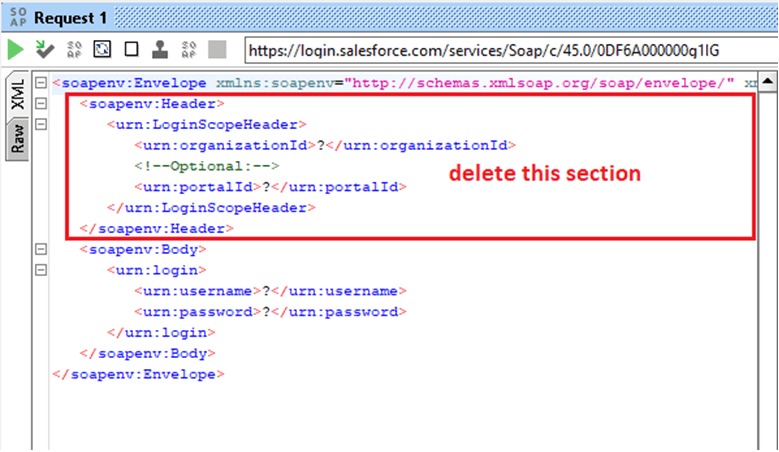
- Delete this section it is UN-use-able
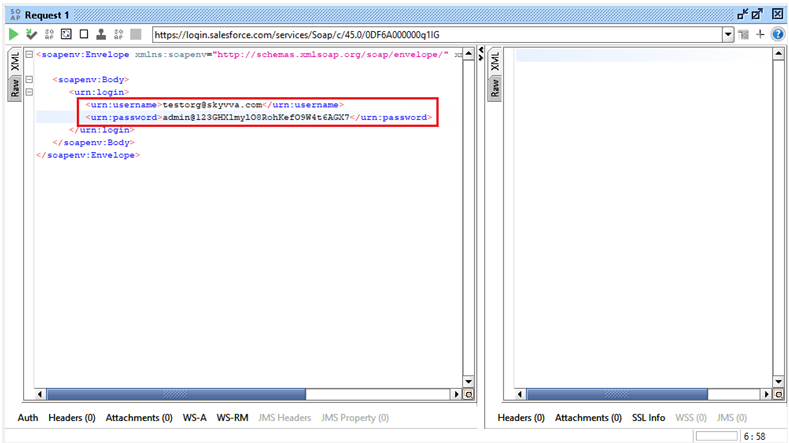
- Enter your Org credentials
- Username
- Password + Security Token
- Click on the play button
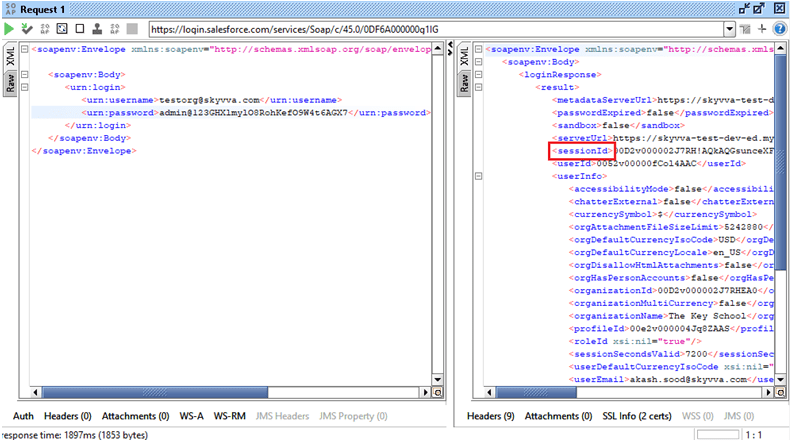
[su_box title="Note" box_color="#2a8af0" title_color="#000000"]Refresh sessionId with 15-10 minutes because it changes frequently[/su_box]
- Great you Generated sessionId successfully.
Step3: Now repeat almost the same steps but this time download SKYVVA WSDL
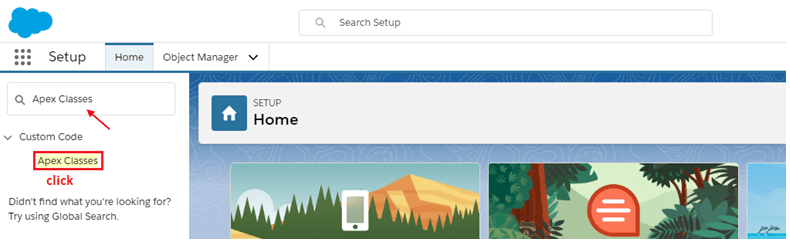
- Go to salesforce setup & Apex Classes in the search box
- Click Apex Classes
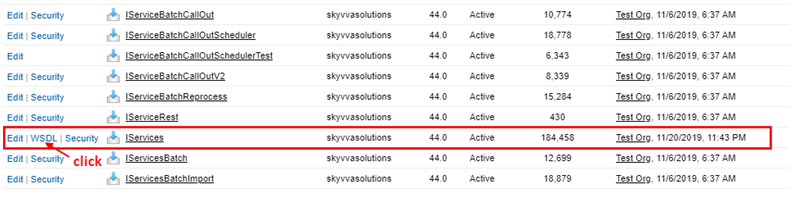
- Scroll down to Service
- Click & generate WSDL
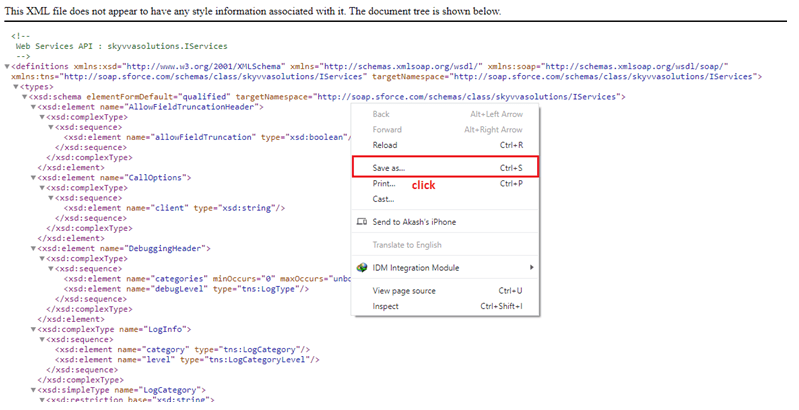
- Save the generated file
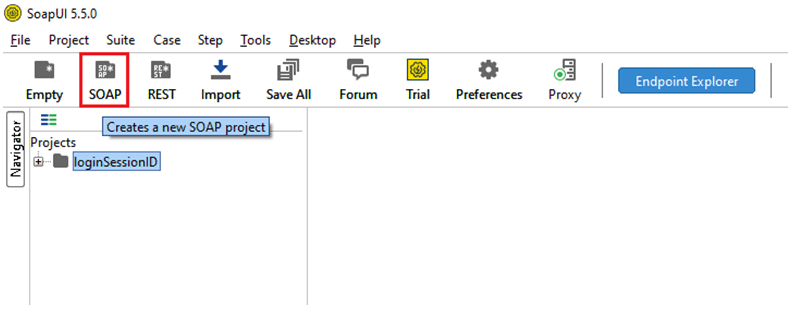
- Go to SoapUI
- Click on SOAP
- Create a new SOAP project
- Type the Project Name in the open window. Browse your Initial WSDL XML file and Click ok
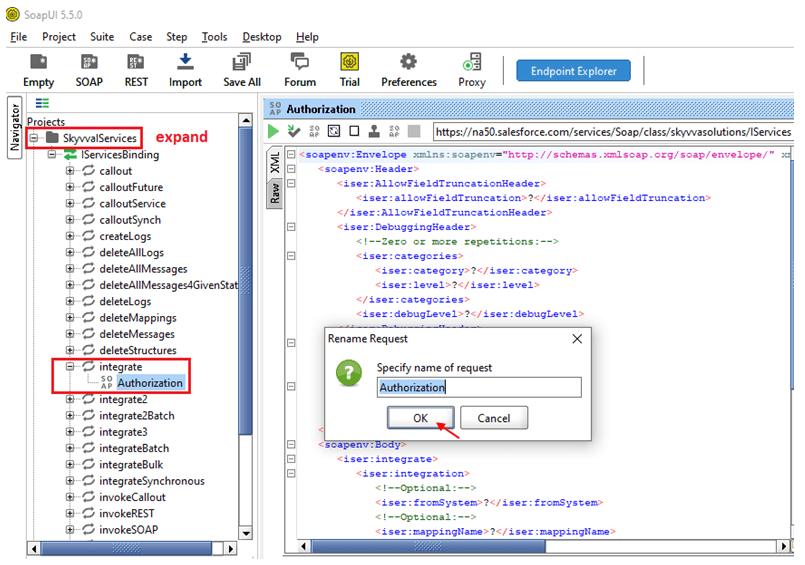
- Expand SkyvvaIServices
- Go to integrate
- Rename it to Authorization
Step 4: Create an Interface in your org
- Go back to your org
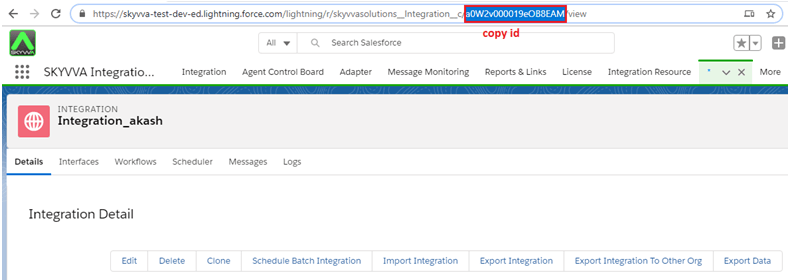
- Create Integration & copy IntegrationID
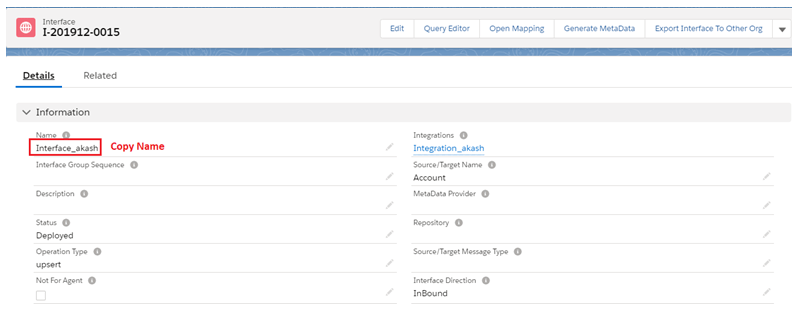
- Create Interface & copy Interface Name
Go to the related page and create an IStructure
- Name
- BillingCity
- BillingCountry
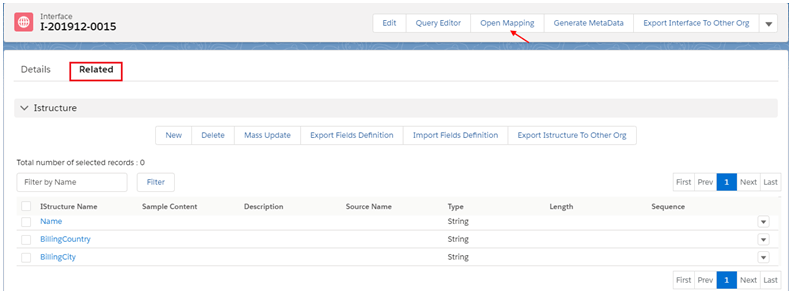
- Click on the Open Mapping button
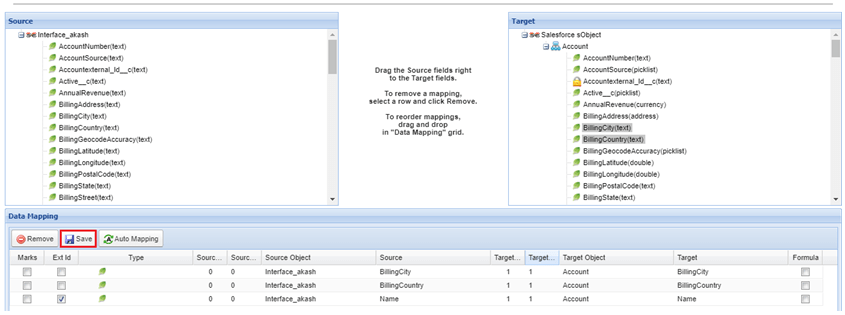
Step5: Go to SoapUI to connect SKYVVA with Soap UI
- Paste this code
00D7F000001bZ8f!AQEAQNjsb3J8mRbgmaxbkCVyEddn1hbyDUuFkvD.ali3CWVC0_8UIC65ek0XEvWUD410R3NM9FLG8T2Z_NL67g7PDFi1Vg7u a0i7F000003gJ2JQAU Test_SoapUI Name Test BillingCity Mumbai BillingCountry India
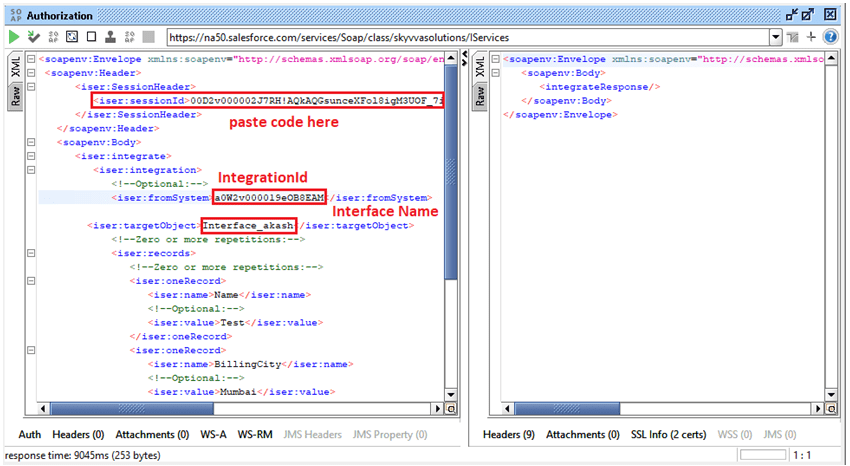
- Submit
- Great you passed your code to Salesforce
- When you click on submit your code automatically transfers to Salesforce org
Step6: Check result Go to your Salesforce org
- Click on the Message Monitoring Tab
- Select your Integration
- Select your Interface
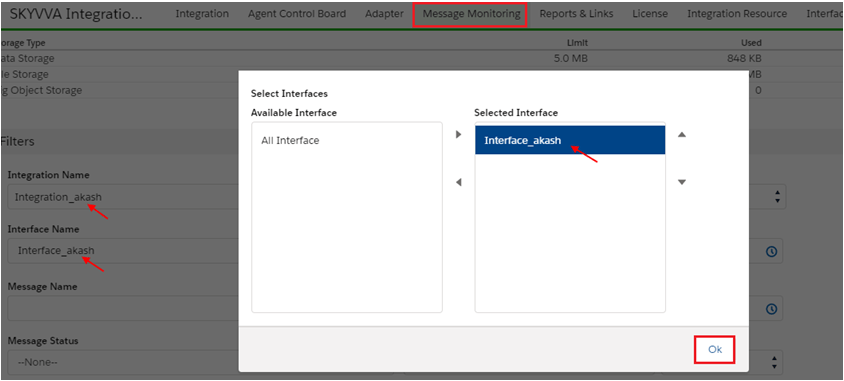
- OK
- Click on the Search button
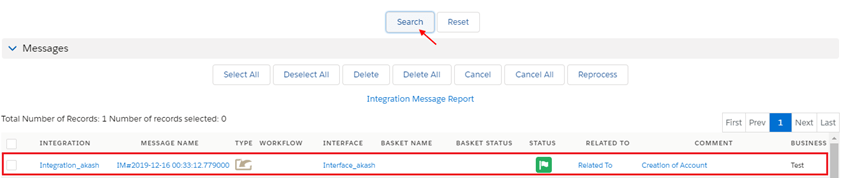
Congratulations your record has been updated successfully
2 What is REST API?
REST is an architectural style of web services that works as a channel of communication between different computers or systems on the internet. The term REST API is something else. Those application programming interfaces that are backed by the architectural style of the REST architectural system are called REST APIs. REST API-compliant web services, database systems, and computer systems permit requesting systems to get robust access and redefine representations of web-based resources by deploying a predefined set of stateless protocols and standard operations. By these protocols and operations and redeploying the manageable and updatable components without causing the effect on the system, REST API systems deliver fast performance, reliability, and more progression.

Explaining a Simple REST Example IntegrateBatch
The examples in this section use REST API resources to create, retrieve, update, and delete records, along with other record-related operations.
- Open SoapUI
- Click on REST

Login to your Salesforce org
- Go to setup
- Copy your URL

- Paste the URL here to create a new REST project
- Click ok
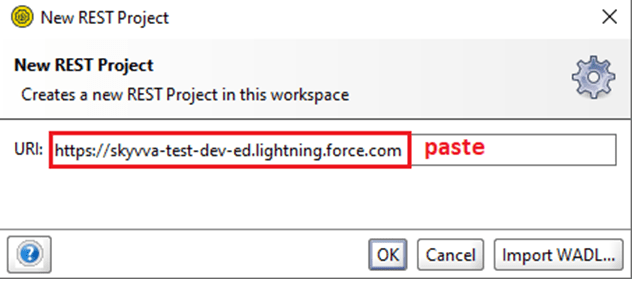
- Rest project created.

- Expand URL
- Right-click on Request
- Click on Clone Request


- Specify the name of the cloned Request
- Eg. Authorization
- Click ok
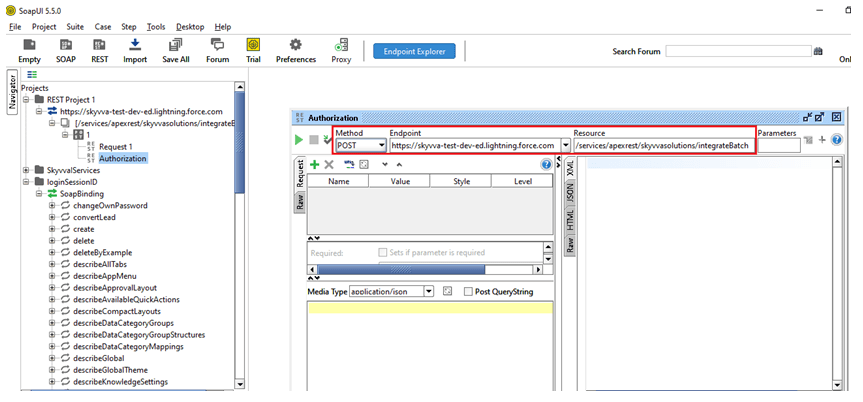
Now here something is very important Method POST Endpoint URL: https://skyvva-test-dev-ed.lightning.force.com/ RESOURCE: /services/apexrest/skyvvasolutions/integrateBatch
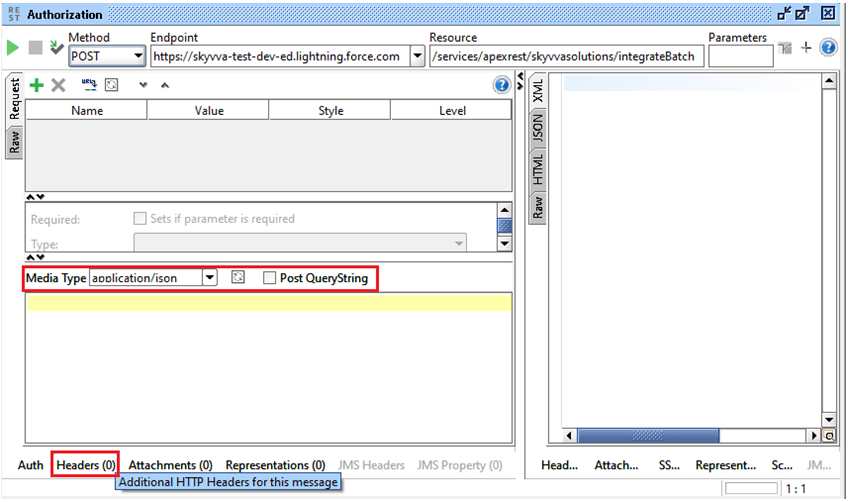
- Media type by default application/json where we post. (json is the format)
- Header is some tricky although it is easy
- Click on Header
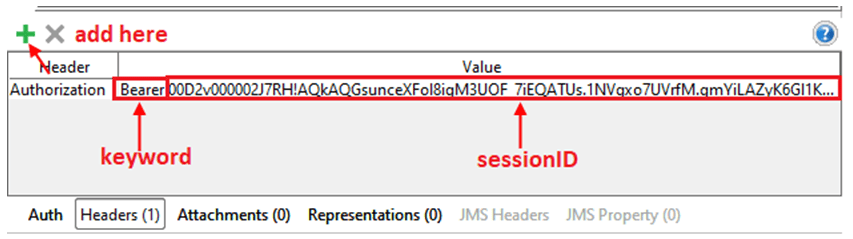
- Add header name eg. Authorization
- A bearer is a keyword after pressing the space key
- Paste your sessionID
- Press enter key
Now go back to your Salesforce org
- Create Integration & copy IntegrationID
- Create Interface & copy Interface Name

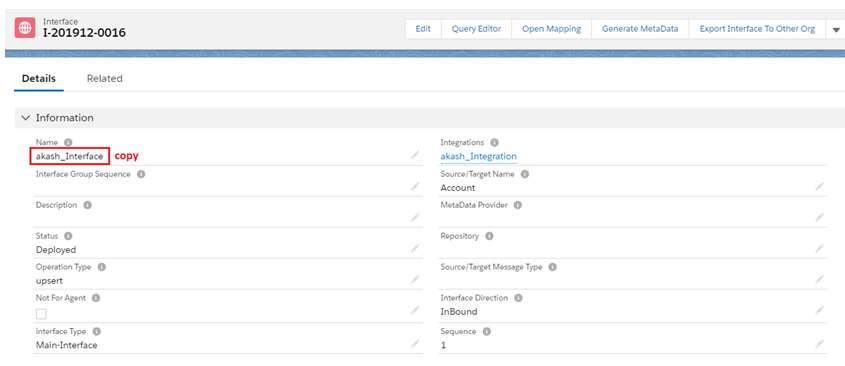
Click on Related List & create an IStructure
- Name
- BillingCity
- BillingCountry

- Click on the Open Mapping button
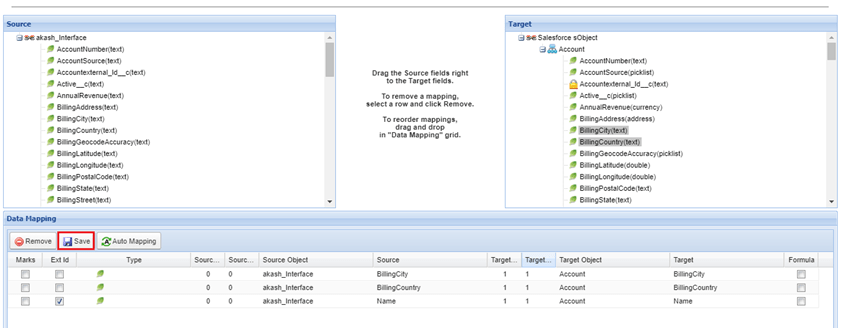
- Select Ext Id & Save
Go to SoapUI Paste this code under the Media type section URL: https://skyvva-test-dev-ed.lightning.force.com/ RESOURCE: /services/apexrest/skyvvasolutions/integrateBatch {"INTEGRATIONID" : "a0W2v000019ePQOEA2", "INTERFACENAME" : "akash_Interface", "messages": [ { "BillingCountry": "Cam", "Name": "Test01", "BillingCity": "PP" }, { "BillingCountry": "Cam", "Name": "Test02", "BillingCity": "PP" }, { "BillingCountry": "Cam", "Name": "Test03", "BillingCity": "PP" } ] }

- Paste the code and submit it.

Great you pass
- Number Of Records": "3"
- Basket Name": "IB-00000"
- Basket Id": "a0A2V0000uHgCiEAK"
Go to your Salesforce org
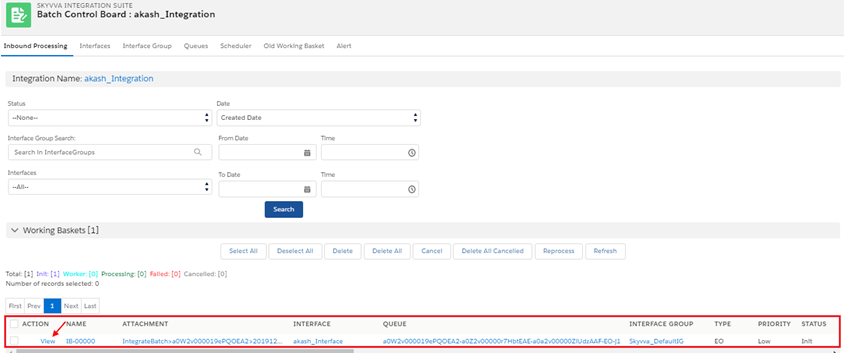
- Go to your Integration
- Click on Batch Control Board
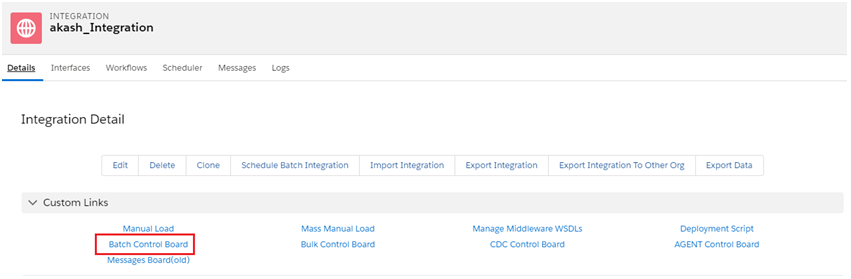
Here is all the information about our Integration Inbound processing
- Click on view
- Successfully saved

Explaining a Simple REST Example Create New Message
Follow the same steps to create the REST project. Go back to your Salesforce org
- Create an Integration & copy IntegrationID
- Create an Interface & copy Interface Name

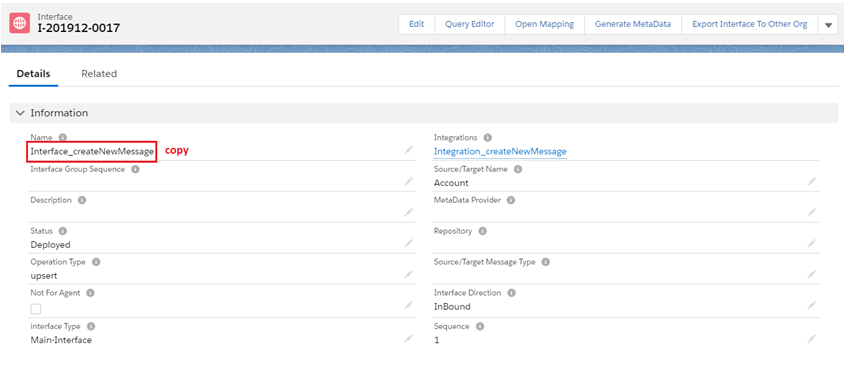
Click on Related List to create IStructure
- Name
- BillingCity
- BillingCountry

- Click on the Open Mapping Button
- Go to the mapping section select ExtId & save

- Go to SoapUI
- Paste this code under the Media type section
- URL: https://skyvva-test-dev-ed.lightning.force.com/
- RESOURCE: /services/apexrest/skyvvasolutions/createNewMessage
{ "integrationid":"a0W2v000019eQGkEAM", "INTERFACENAME":"Interface_createNewMessage" , "messages":[ { "imessage":{ "skyvvasolutions__status__c":"Pending", "skyvvasolutions__Comment__c":"Test Comment1123456" }, "idata":{ "BillingCity":"Billing City0", "Name":"Account01" } }, { "imessage":{ "skyvvasolutions__status__c":"New", "skyvvasolutions__Comment__c":"Test Comment1123456" }, "idata":{ "BillingCity":"Billing City0", "Name":"Account22" } }, { "imessage":{ "skyvvasolutions__status__c":"Failed", "skyvvasolutions__Comment__c":"Test Comment1123456" }, "idata":{ "BillingCity":"Billing City0", "Name":"Account12" } } ] }
- Submit
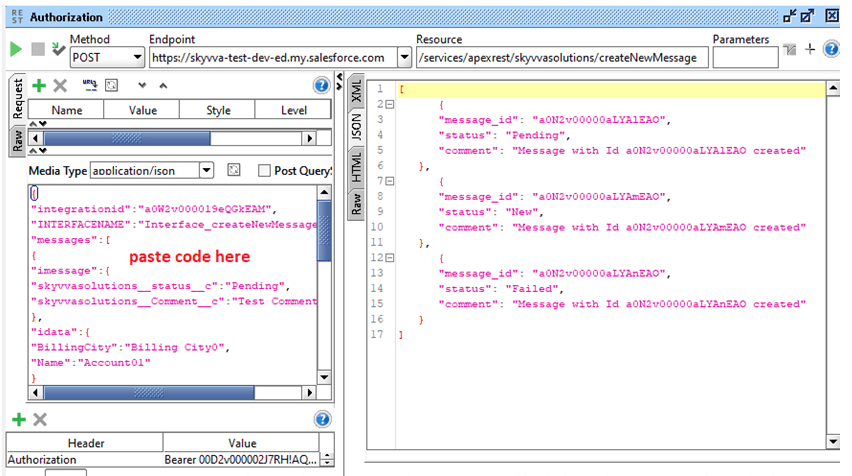
- Great you passcode
Go to your Salesforce org
- Click on Message Board
- Go to your Integration
- Select Interface
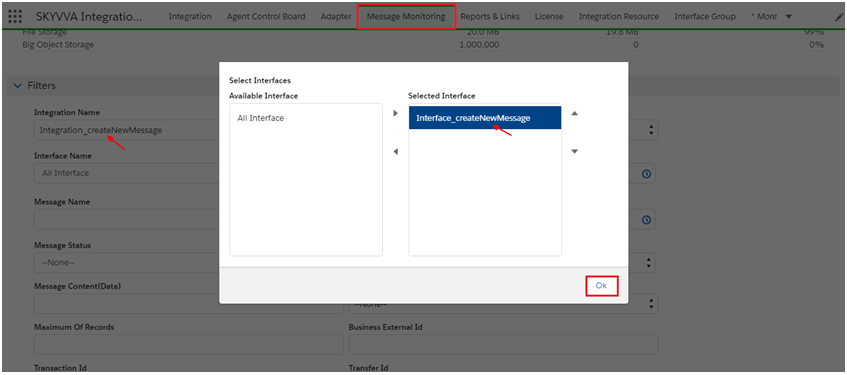
- OK
- Click on the search button

This is an example of a Failed message seeing a red flag, If the user has business requirements New, Pending, and Cancelled messages use the method process message to reprocess. As now we explain in next step
Explaining a Simple REST Example Process Message
We have to follow the same steps for creating REST Project 3
- Follow same steps
Go back to your Salesforce org
- Copy Integration
- Copy Interface Name

Go to SoapUI
- Paste this code under the Media type section
- URL: https://skyvva-test-dev-ed.lightning.force.com
- RESOURCE: /services/apexrest/skyvvasolutions/processMessage
{ "INTEGRATIONNAME" : "Integration_createNewMessage", "INTERFACENAME" : "Interface_createNewMessage", "MODE":"SYNC", "STATUS":[ "New", "Pending", "Failed" ], "messages": [ "a0N2v00000aLYAlEAO", "a0N2v00000aLYAmEAO", "a0N2v00000aLYAnEAO" ] } [su_box title="Key to remember" box_color="#2a8af0" title_color="#000000"]Click here to find messageID[/su_box]

- Click on Detail List
- See Integration and Interface name

Go to SoapUI
- Submit

- Great you passcode
Go to your Salesforce org
- Go to your message board
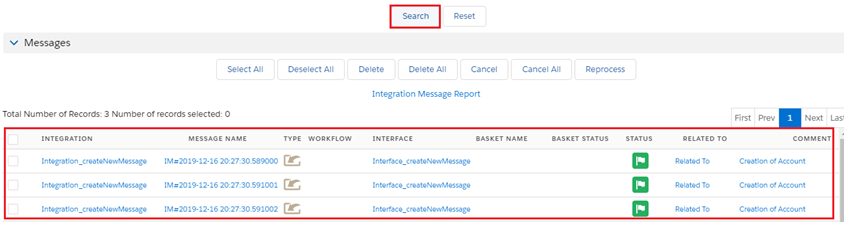
- Congratulations you have done very easily
Explaining a Simple REST Example Integrate Synchronous
This feature is created to allow user to call Skyvva Services by REST Api from their system.
- Create integration & copy Name

Create an interface & copy the Name

Click on the Related list & create IStructure
- Name
- BillingCity
- BillingCountry

- Click on the Open Mapping Button

Go to SoapUI
- Paste this code under the Media type section
- URL: https://skyvva-test-dev-ed.lightning.force.com
- RESOURCE: /services/apexrest/skyvvasolutions/IntegrateSynchronous
{ "integrationid" : "Integrate_synchronous", "interfacename" : "Interface_synchronous", "batchmode" : "false", "messages": [ { "Name": "India", "BillingCity": "Mumbai", "BillingCountry": "India" } , { "Name": "USA", "BillingCity": "LA", "BillingCountry": "Virgina" } ] }
- Submit
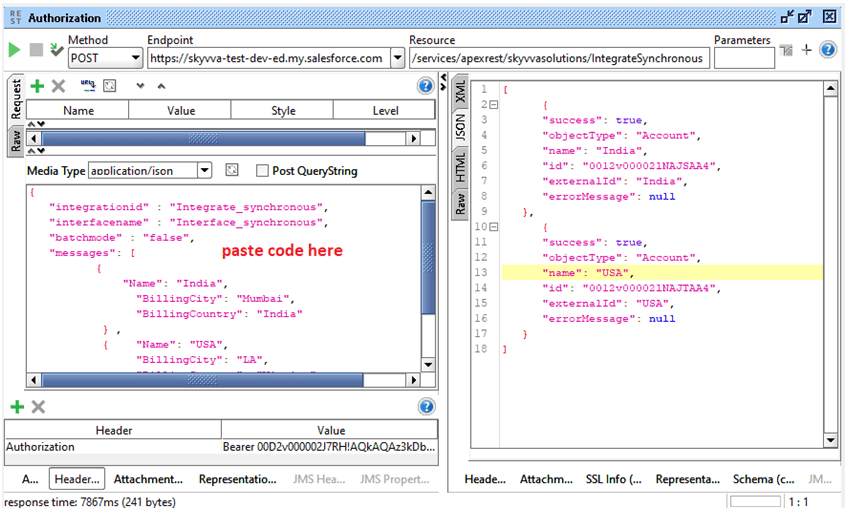
Great code pass successfully
- Go to your Salesforce org
- Go to your Integration
- Click on the Message Monitoring Tab

- Select your Integration
- Select your Interface
- OK
Click on the Search button

The green flag status reflects that your inbound integration was successfully achieved with the help of SoapUI.