1. Scheduler
The overview of SKYVVA Scheduler
SKYVVA Schedulers is a type of scheduled job which runs regularly bases on-time setting (ie. every 10 minutes). There are three categories of Schedulers.
- Schedule per integration: is a global scheduler process all interfaces on integration, it will skip either Interface group or interface that is running its scheduler.
- Schedule per-interface group: process all interfaces in the group, if the scheduler has been started then all the schedule of the interface in this group will stop automatically.
- Schedule per interface: it will process a specific interface. It cannot be started if its interface group scheduler has already started.
The functionality of SKYVVA Schedulers
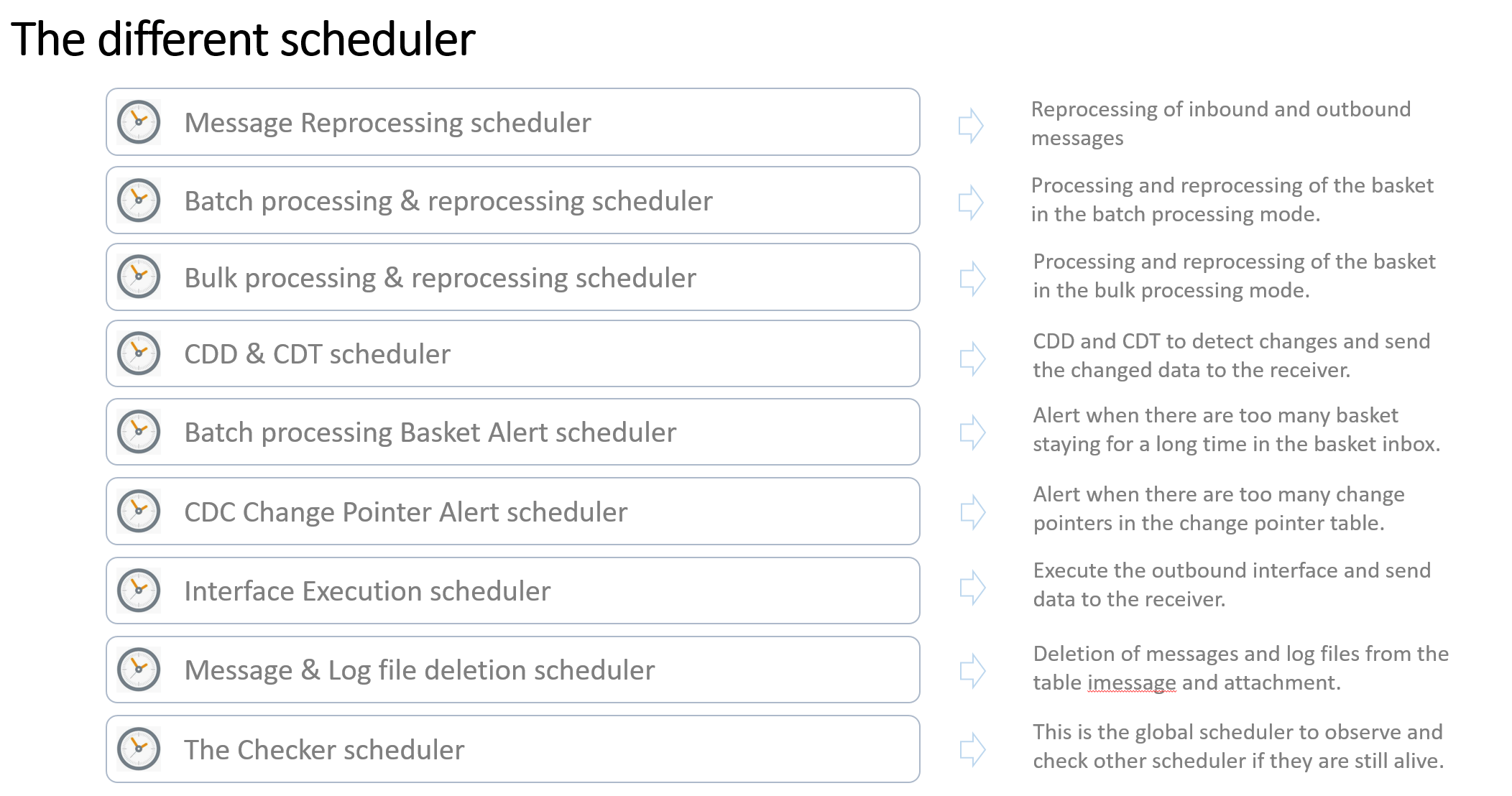
These schedules are important. They play different roles. To know more details about this scheduler, you can check them below:
Scheduler Type
Description
Alert Alert Threshold of CDC, Batch, EOIO
BatchProcess Process basket attachments
BatchREprocess Reprocess basket attachments
CDD_PerIntegration Collect Data Change
CDT_PerIntegration Process outbound
Checker Checking the other schedulers' running status
DoMaintenance Automatic data maintenance, Delete logs, Delete ILogs.
MessageReprocessPerIntegration Reprocess messages without basket attachment.
Interface Execution Scheduler The scheduler uses the method invokeCallout2() to execute the outbound interface
Administration of the Scheduler
After the installation of the SKYVVA software, there is no scheduler running.
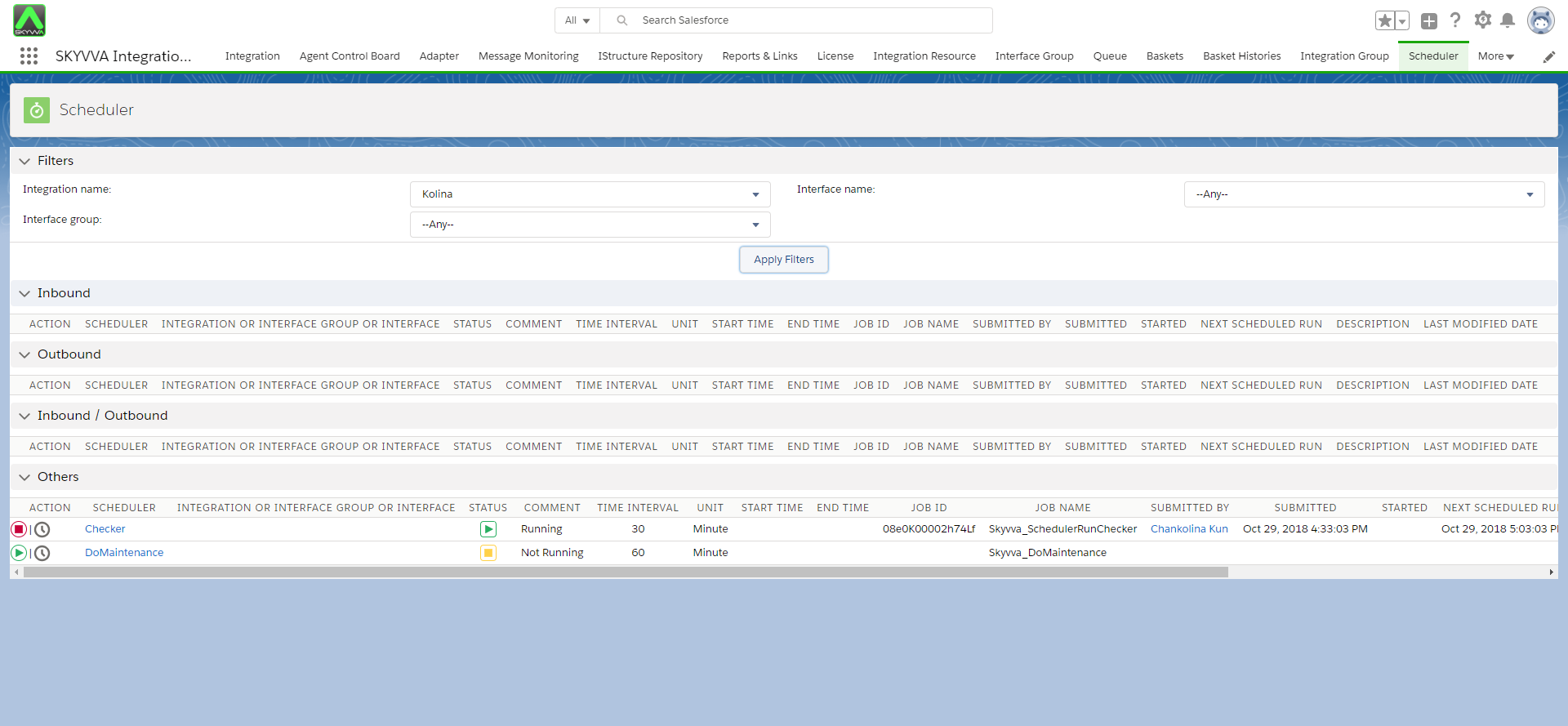
After a fresh installation of the Skyvva software, there are currently two general schedulers: The maintenance and the Checker scheduler.
- The DoMaintenance scheduler: are responsible for deleting Messages, Logs and attachment history.
- The Checker scheduler has the task to check if other Schedulers are still running. If a scheduler is stopped for whatever reason, the checker will restart the scheduler again.
In fact, when you create a new Integration, for this Integration 3 Schedulers are created:
- BatchProcess
- BatchReprocess
- ChangeDataDetection
- ChangeDataTransfer
- MessageReprocessPerIntegration
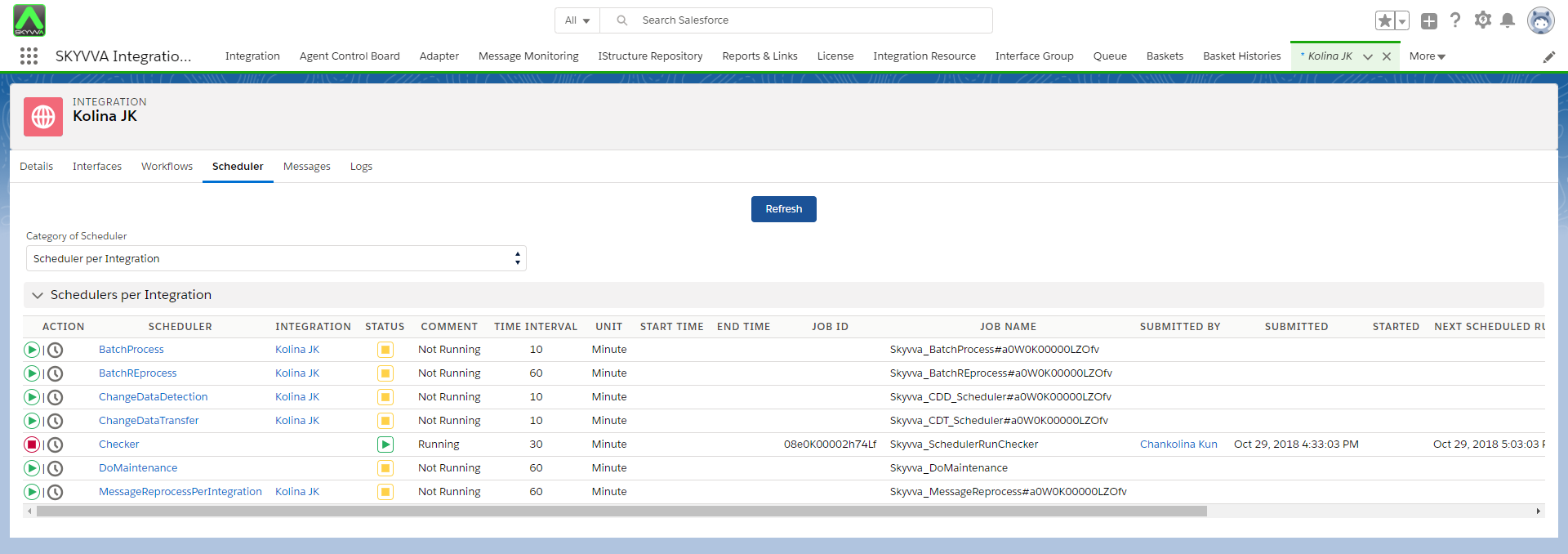
This table describes the field in the Scheduler view.
Field Description
Action The action you can apply for the scheduler
Scheduler The Name of the scheduler. This is the different type of Scheduler
Integration or Group The name of the integration or Integration group ( Our recommendation to not use Integration group anymore)
Status The status of the scheduler (green, red, grey)
Comment Comment to describe some situation e.g. stopped by admin
Time interval The time interval for the scheduler run
Job Id The Job Id
Job Name The job name. The name is concatenated with the Id of the integration group
Submitted By The user who starts the scheduler
Submitted The Date and time when the Scheduler was started
Started The start time
Next Scheduler Run The time when the next run is started
Description Description of the scheduler
As an admin, you can configure some setting which is useful for your operation. The following steps will describe the configuration and setting you can do in the current version.
Start/ Stop the scheduler
You can start or stop the scheduler to handle different situations. For example in case of resource shortage and there're many messages entering the system you can stop some scheduler which is not that important. Therefore, you can manage the data load and adjust the resource shortage situation. To stop the scheduler click on the link "Stop".
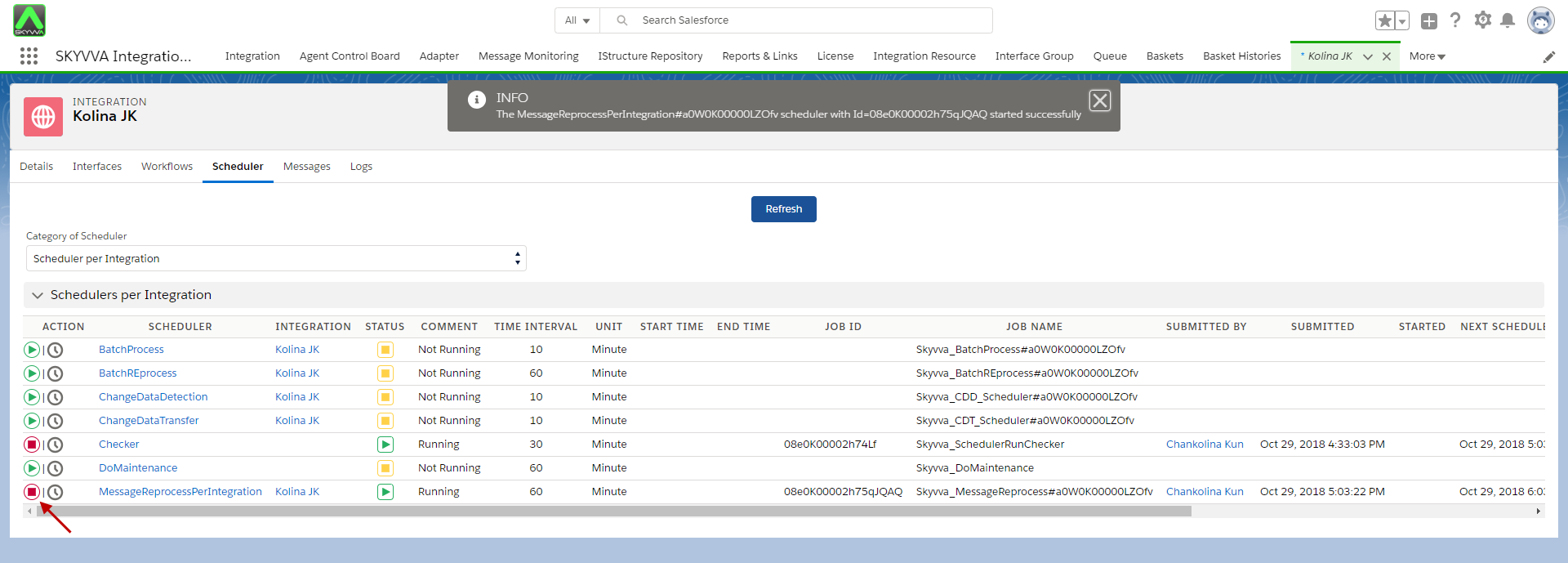
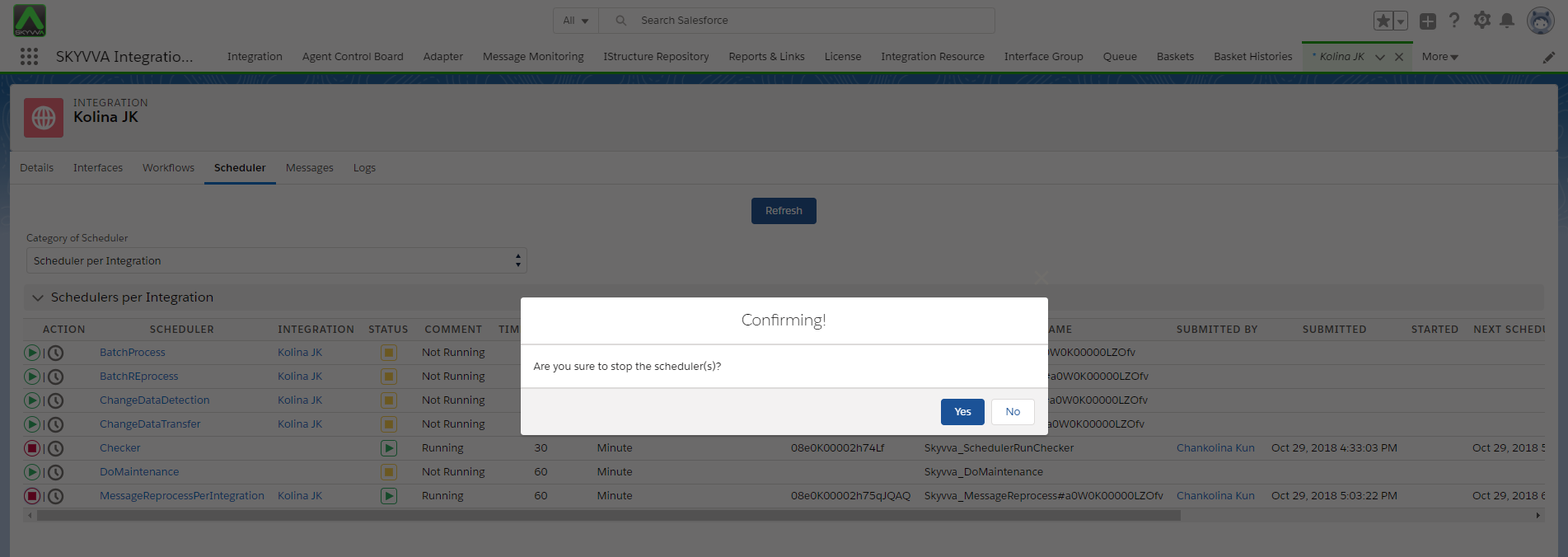
Confirm with the button "OK".
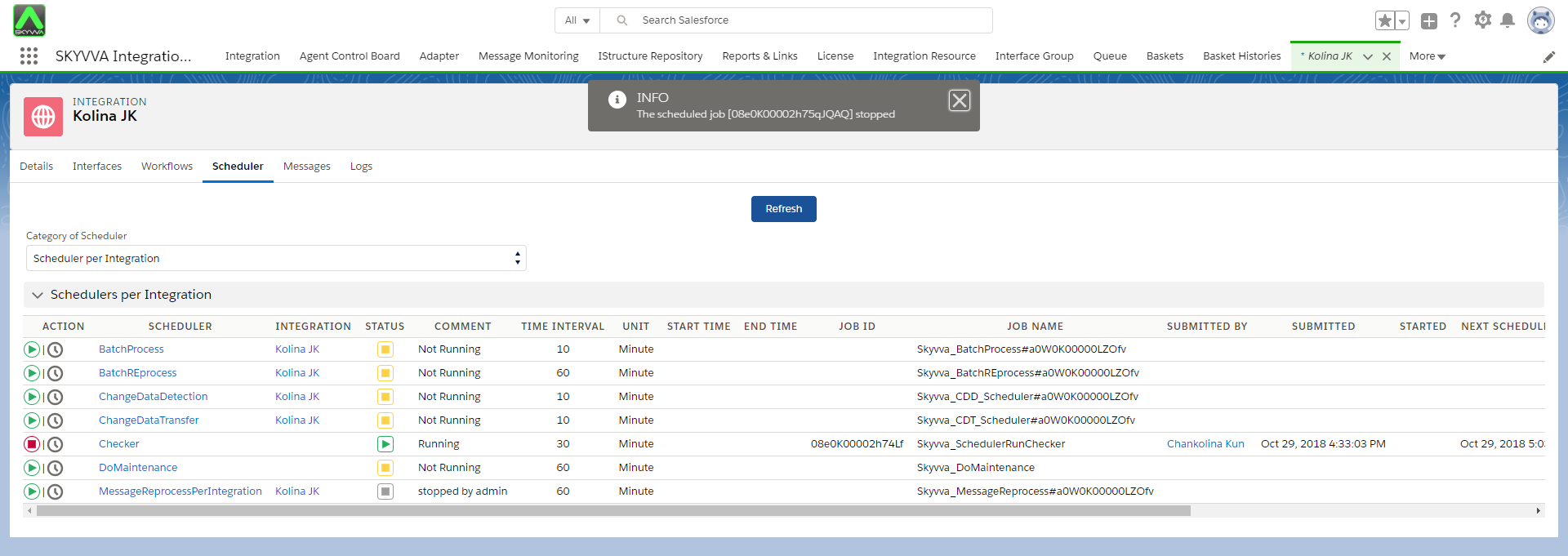
The color turns into green and the Action you can do next is "Start".
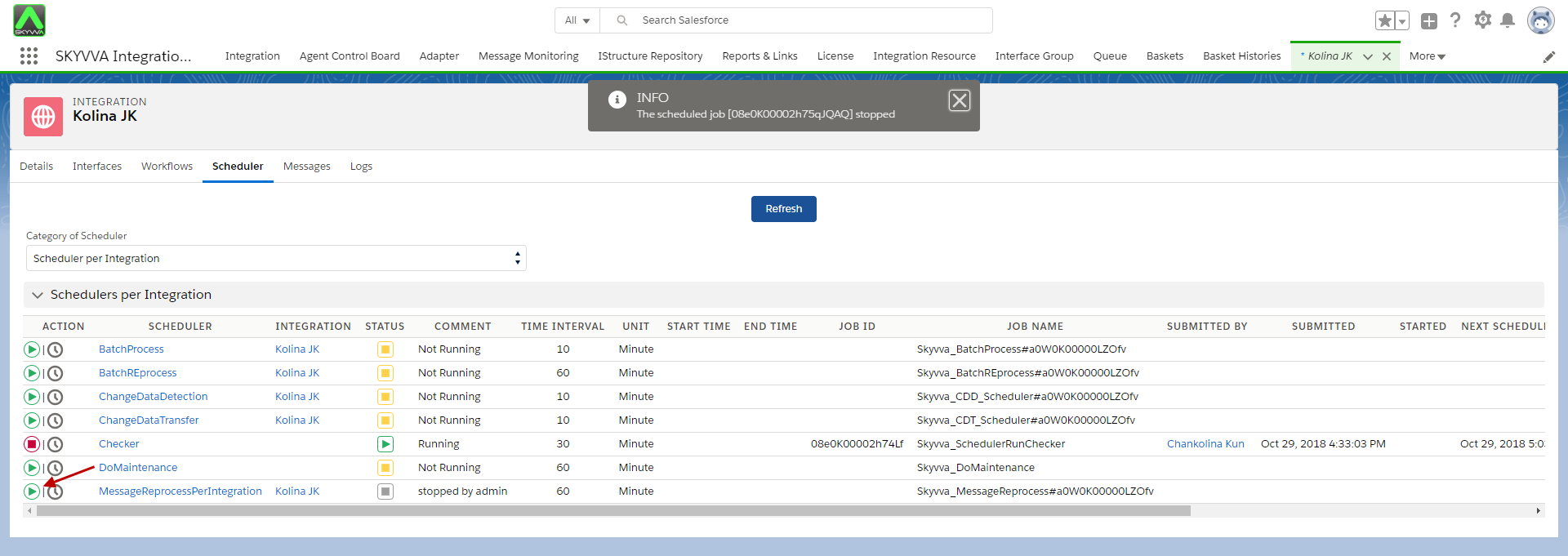

The Color turns into red. You see the Job Id and Job Name. You can go to the monitoring of the scheduled job to see the scheduled job correspond to the scheduler