SkyvvaSalesforce Adapter — Version Upgrade Guide
1. About this guide
Use this guide for a Version Upgrade: 1.1.x → 1.2.x. The middle number changes from 1 to 2, while the first number stays 1. The x represents any patch number in that release family. This upgrade makes the new OAuth2 flow choices available. Version 1.1.x uses username/password authentication and has no Client Credential flow option. Version 1.2.x offers Username-Password Credential and Client Credential. Use the exact 1.2.x version chosen for your environment.
An integration flow (iFlow) is the process that sends data between systems. Its receiver channel is the connection line that sends data to Salesforce. A version upgrade has two parts: deploy the new adapter to make it available to run, then use Update Version on this receiver connection. Existing connections keep their earlier version until you update them. Use the working 1.1.x connection as the starting point, with its General, Connection and Skyvva tabs.
For compatible corrections within the same release family, such as 1.2.0 → 1.2.3, use the Patch Update Guide.
| Version | Available authentication flows |
|---|---|
| 1.1.x | Username/password; no flow selector for Client Credential authentication. |
| 1.2.x | OAuth2 Flow selector with Username-Password Credential and Client Credential. |
The Client Credential field shown in the old Connection tab stores application credentials used with username/password authentication. Its presence does not mean version 1.1.x supports the Client Credential OAuth2 flow.
For the update example, use Skyvva API Version = V3 and Mode = Synchronous before and after the update. Run a successful test with these settings before changing the adapter version.
Updating the adapter file and updating a receiver channel are separate actions. Saving an integration flow version backs up its configuration; keep the previous adapter file separately.
2. Before you start
Before starting, prepare the following:
| Requirement | What you need |
|---|---|
| Source and target release | A receiver using 1.1.x, the new adapter file for the intended 1.2.x version (.esa) and its release notes. Ask the administrator to confirm that Update Version can move the connection to the intended 1.2.x version. |
| SAP Integration Suite access | Permission to edit and save the integration flow, deploy the adapter and flow, and view logs. Ask your administrator to perform steps you cannot access. |
| Working configuration | The working Salesforce address, credential aliases (the names of saved credentials in Security Material), SKYVVA Integration and Interface, mode and data formats. Also record any values maintained outside the flow under Configure. Check that the credentials are deployed in Security Material. |
| Salesforce verification | Access to the intended Salesforce organization, SKYVVA processing results and resulting business records, or an administrator who can verify them. |
| Test request | Sample data, the expected Salesforce result, and a unique value that helps you find the same test in the logs and Salesforce. |
| Synchronous scenario | A working V3 interface with Mode = Synchronous. In this mode, the caller waits for the processing response. Confirm that a test succeeds before starting. |
| Recovery files | A saved version and downloaded backup of the integration flow, plus the previous adapter file. Create the flow backup in Section 3. |
| Deployment method | An administrator who knows how to replace the existing adapter file in your SAP Integration Suite environment. |
To continue username/password authentication, keep the existing credential aliases. To adopt Client Credential, first have the Salesforce administrator enable that flow and choose the Salesforce user the application will run as, and grant the required permissions.
Check bug fixes and new features on the SKYVVA website
On the SKYVVA website, open the release notes for the target version. Confirm that the entry applies to the SkyvvaSalesforce adapter running in SAP CPI and matches the version of the new adapter file.
Read the fixes, new features, supported versions and required setting changes. Also read the notes for any releases between your current and new versions. Choose tests that cover the changes you use.
If the notes for your adapter version are unavailable, ask SKYVVA support or the person supplying the adapter file. Check the notes for the CPI adapter, as the Salesforce SKYVVA package has separate release notes.
Try the procedure in a test environment first. Find all integration flows that use this adapter and agree a time for the change with their owners. Run and record a successful test before replacing the adapter, then repeat it afterwards. Test the other affected flows too.
3. Update procedure
3.1 Record the existing configuration
- Open Design, then open the package containing your integration flow. Some SAP Integration Suite layouts show this page under Design → Integrations and APIs.
- Open the flow and select its SkyvvaSalesforce receiver connection. Record the settings on each tab.
- Record the installed adapter version from the adapter details. Check the adapter version in Integration Adapter Details rather than the receiver’s General tab.
- Choose Edit → Save as Version and enter a comment such as Before version upgrade to 1.2.x.
- Download a backup of the flow. Ask your administrator to retain the previous adapter file.
To check the saved flow version, return to the package’s Artifacts tab and click the flow’s version number to open Version History. This is the flow version, which may differ from the adapter version.
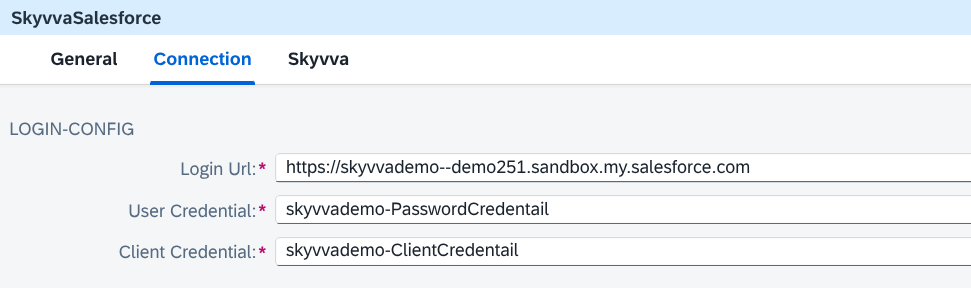
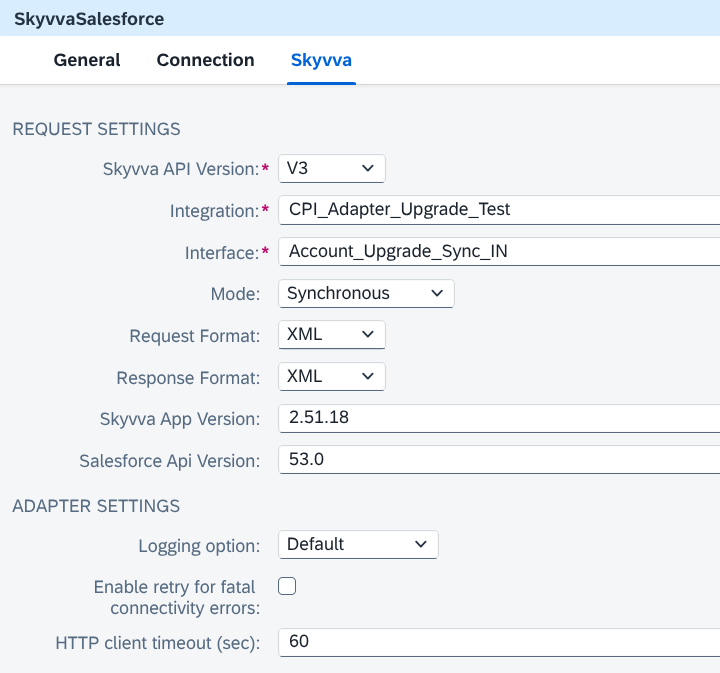
Figure 1. Connection and Skyvva settings recorded before the version upgrade.
Record the actual Login Url, User Credential alias and Client Credential alias from the working flow.
Record these settings so you can compare them after the upgrade:
| Setting | Example for this test | What to keep or check |
|---|---|---|
| Skyvva API Version | V3 | Keep V3 for this scenario. |
| Integration | Your working Integration name | Record the existing flow's actual Integration value. |
| Interface | Your working Interface name | Record the existing flow's actual Interface value. |
| Mode | Synchronous | Keep the mode used by the successful test before the upgrade. |
| Request Format | JSON | Keep JSON and the existing request structure. |
| Response Format | JSON | Keep JSON and review any downstream response handling. |
| Skyvva App Version | 2.48.0 | Confirm the SKYVVA package version actually installed in Salesforce. |
| Salesforce Api Version | 53.0 | Record the existing value; assess API changes separately. |
| Logging option | Default | Preserve the chosen logging setting. |
| Enable retry for fatal connectivity errors | Unchecked | Preserve this setting for the initial upgrade test. |
| HTTP client timeout (sec) | 60 | Preserve the configured timeout. |
Skyvva App Version, Skyvva API Version, Salesforce Api Version, and the adapter version refer to different things. Upgrading the adapter to 1.2.x does not mean entering the adapter release number in any of those three processing fields.
Also record values maintained under Configure and any field mapping used to prepare the request. Confirm that the saved credential names exist in Security Material.

Figure 2. Saved integration flow version available for recovery before the upgrade.
3.2 Deploy the new adapter
- Open Design. In Integration Packages, open the package containing the existing adapter, then select Artifacts.
- On the existing SkyvvaSalesforce adapter row, open Actions (the three dots …) and choose View Metadata. Open the details for editing if needed. Ask your administrator if you cannot edit them.
- In the Integration Adapter file field, click the browse icon and select the new adapter file for the intended 1.2.x version (
.esa). Check that the adapter ID remains unchanged; do not edit it. - Check the selected file and the version read from it, then click Save. This saves the uploaded file; it does not deploy it.
- Return to the adapter row and click Actions → Deploy to make the saved adapter available to run.
- Wait for deployment to finish.
In Integration Adapter Details, the Name, ID and Version fields are read-only. Select the new .esa file using the browse icon; do not type a new version into the Version field. Check the resulting adapter version after saving.
The adapter and integration flow may be in different packages.
Open the package that contains your SkyvvaSalesforce adapter. Package names are chosen by the user and do not identify the installed adapter version. The Version column on the Integration Packages page shows the package version; check the adapter’s own version inside the package before deploying.
If uploading reports that the adapter ID already exists, ask the administrator to check the existing adapter and replacement method before continuing.

Figure 3. Upload and save the new adapter file, then deploy it from the Actions menu.
Open Monitor → Manage Integration Content, find SkyvvaSalesforce, and check its deployed version and status. Confirm that the intended 1.2.x version is running before updating the receiver connection. Test the other flows that use this adapter before applying the change in production.
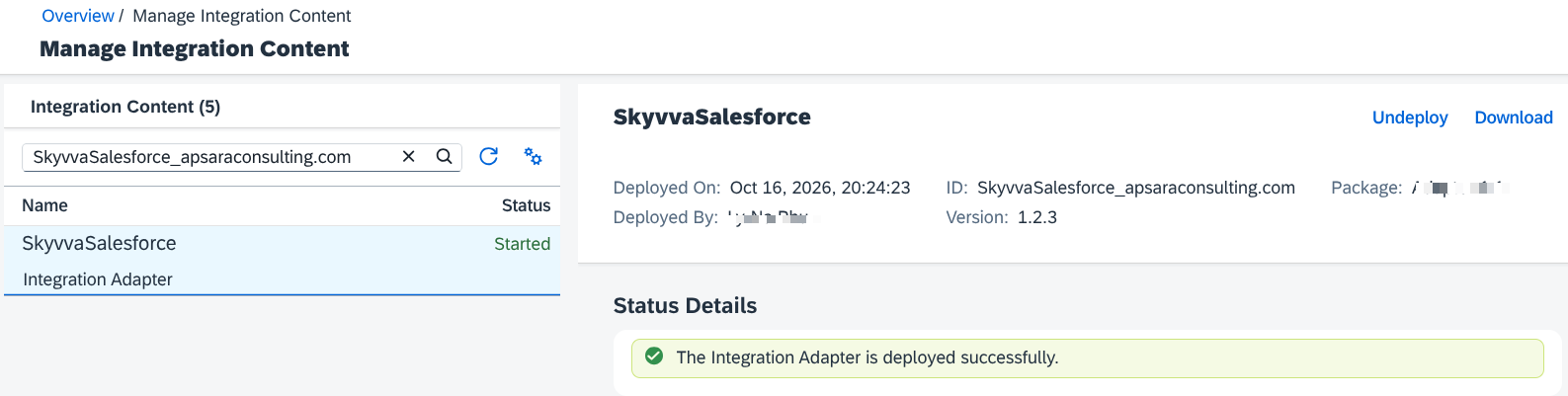
Figure 4. Target SkyvvaSalesforce adapter deployed and running before upgrading the integration flow’s receiver channel.
3.3 Update the receiver channel version
3.3.1 Open the integration flow in Edit mode
Open the saved integration flow and choose Edit.
3.3.2 Select the receiver connection
Click the SkyvvaSalesforce receiver connection in the diagram to open its settings.
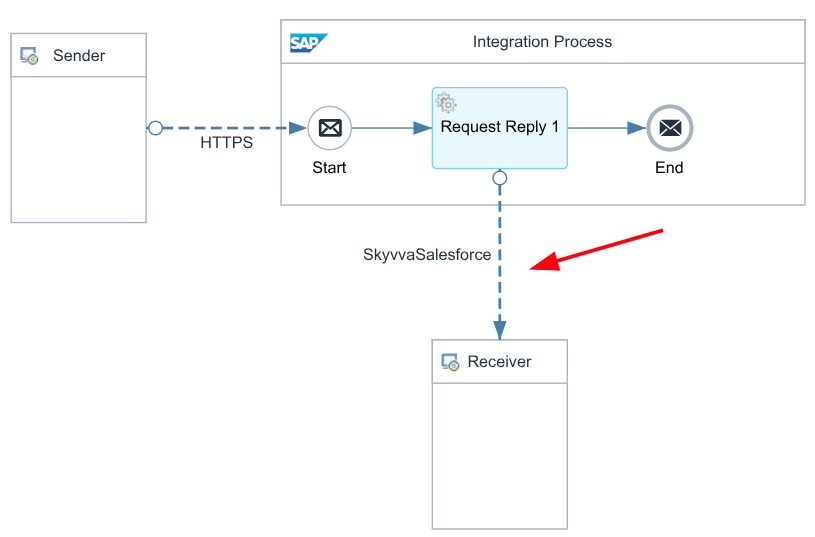
Figure 5a. Select the SkyvvaSalesforce receiver connection in the diagram to open its settings.
3.3.3 Choose Update Version
In the selected receiver connection’s settings panel, choose Update Version.
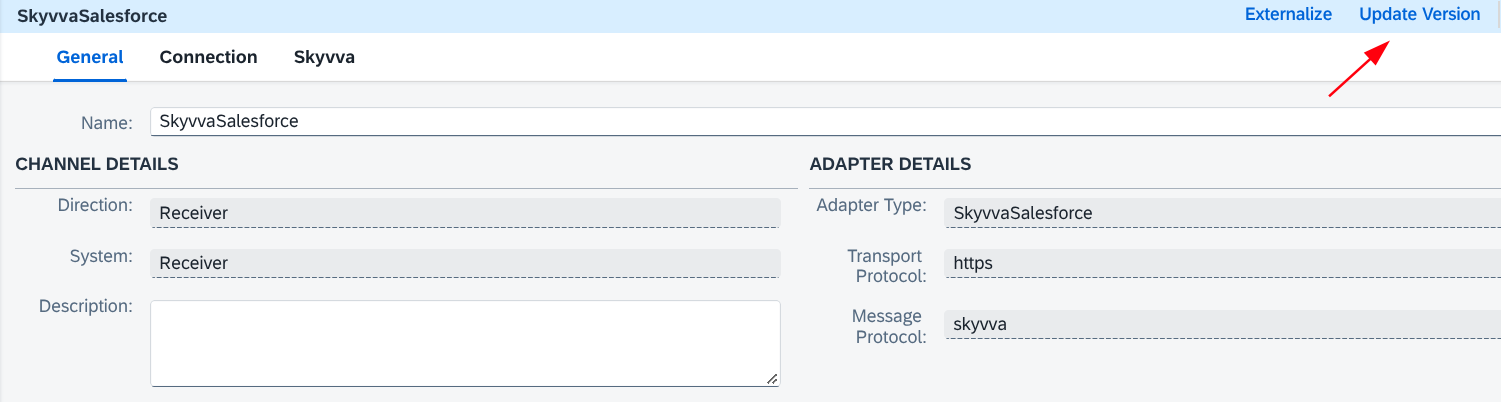
Figure 5. Update Version action used to migrate the SkyvvaSalesforce receiver channel.
3.3.4 Confirm the update
Update Version uses the latest compatible version available for the flow. It may not let you choose an older version. Confirm that the update will use the intended 1.2.x version, then choose OK. If it offers 1.3.x, or the target is unclear, ask your administrator to confirm the correct upgrade path before accepting.
Figure 6. Confirmation of the receiver channel version update.
3.3.5 Check the updated connection
Select the receiver connection again. Compare the existing settings with your saved values and check any new fields. Fill in any required field that is empty. Keep a record of the update confirmation and the deployed adapter version. Use Integration Adapter Details to check the adapter version; keep the receiver update confirmation separately. Repeat these steps for each receiver connection you need to upgrade.
If Update Version or the expected version is unavailable, ask the administrator to check the adapter deployment and the flow’s runtime profile—the SAP runtime setting used by the flow. Reload the editor and select the connection again. If SAP reports that the existing connection cannot be upgraded, have an integration developer recreate it in a test flow using the saved settings, including values under Configure. Validate and test it before production.
3.4 Review Connection and Skyvva settings
Select the receiver connection and check its General, Connection and Skyvva tabs. Compare the settings with those recorded before the upgrade.
| Area | Target 1.2.x setting for the illustrated scenario |
|---|---|
| Connection | Authentication Type = OAuth2. |
| OAuth2 Flow | Select Username-Password Credential to preserve the 1.1.x authentication method. Client Credential is the new alternative. |
| Login Url | Restore or confirm the existing Salesforce login address. |
| User Credential / Client Credential | Restore or confirm the existing credential aliases. |
| Skyvva API Version | V3. |
| Integration / Interface | The values recorded from the working flow. |
| Mode | Synchronous, matching the pre-upgrade flow. |
| Request Format / Response Format | JSON / JSON. |
| Skyvva App Version | The confirmed Salesforce SKYVVA package version. |
| Salesforce API version, logging, retry and timeout | Compare with the settings recorded before the upgrade. |
A newly created receiver connection may start with Skyvva API Version = V2 and Mode = Synchronous. For this guide, set V3 and Synchronous. Check both fields after using Update Version too.
3.4.1 Keep username/password authentication
Select OAuth2 Flow = Username-Password Credential. Keep the existing Login Url, User Credential alias and Client Credential alias. This is the continuation of the 1.1.x sign-in setup.
Figure 7. Username-Password Credential selected to retain the existing authentication method.
3.4.2 Use the new Client Credential option
Select OAuth2 Flow = Client Credential only after the Salesforce administrator has enabled that flow for the application and chosen the Salesforce user the application will run as. Enter the appropriate Salesforce My Domain base address and Client Credential alias. The User Credential field is hidden for this choice; authentication uses the application credentials and the Salesforce user selected by the administrator.
Test authentication and the intended Integration/Interface processing after changing flows. Upgrading to 1.2.x makes the option available; it does not configure the Salesforce application automatically. For full field descriptions, see the receiver settings guide.
Figure 8. Skyvva tab after the version upgrade, with V3 and Synchronous unchanged.
4. Test the result
Confirm the following results before using the updated adapter in production:
| Check | Expected result |
|---|---|
| Adapter release | The intended 1.2.x adapter is deployed and the receiver channel has completed the intended Version Upgrade. |
| Authentication | The chosen Username-Password Credential or Client Credential flow authenticates successfully. |
| Release changes | Tests for relevant bug fixes and any newly selected features give the expected results. |
| Processing settings | Integration, Interface, API version, mode, data formats and values under Configure match the settings recorded before the change. |
| CPI result | The test message has no unexpected processing error. |
| Synchronous response | The response uses the expected format and reports the expected result. Check for errors for each record. |
| Salesforce result | SKYVVA shows the expected processing result. The expected Salesforce records and links between them exist. |
First, repeat the test that worked before the upgrade. If you then enable Client Credential or another new feature, test that change separately. For this synchronous scenario, inspect the returned business result and confirm the Salesforce records as well as the CPI message status.
4.1 Save and validate
Save the flow and run validation. Resolve any reported configuration errors.
4.2 Deploy the integration flow
Deploy the validated flow after the target adapter is deployed.
Figure 9. Deployment status of the integration flow using the upgraded receiver channel.
4.3 Test and check CPI processing
Run a representative test request with the same mapping, Integration, Interface and JSON structure used before the upgrade.
Figure 10. CPI processing result for the test request sent after the version upgrade.
4.4 Check Salesforce processing
Inspect the returned synchronous business response, then check the corresponding SKYVVA result and expected Salesforce records.
Figure 11. Salesforce processing and business result verified for the upgraded receiver channel.
Confirm each result:
- Salesforce authentication succeeds with the intended user and credential aliases.
- The request reaches the intended SKYVVA Integration and Interface.
- The CPI message log and adapter response contain no unexpected error.
- The synchronous response and corresponding Salesforce result confirm successful business processing.
- The expected Salesforce records and relationships exist, and any response-handling steps still work.
A successful HTTP response or CPI message status alone does not confirm that Salesforce processed every record. Check the response for errors and verify the expected Salesforce records. Record the test message ID, adapter version, upgrade confirmation and Salesforce result before applying the change in production.
5. Restore the previous setup if needed
If a test fails, save the error details and compare the settings with those recorded before the upgrade.
To restore the flow settings:
- Open the package’s Artifacts tab and click the flow’s version number.
- In Version History, select the version saved before the upgrade and choose Revert.
- Validate, save and deploy the restored flow, then test again.
If the problem comes from the new adapter, ask the administrator to restore the previous adapter file and test all affected flows. Restoring the flow alone does not restore the adapter file or undo records already created in Salesforce.