3. Formula In Mapping
What is Formula Mapping?
Formula mapping is a complex mapping rule – for example, a combination of source fields or a combination of functions and source fields mapped to one sObject field. we can do formula mapping using different functions.
VLOOKUP Formula
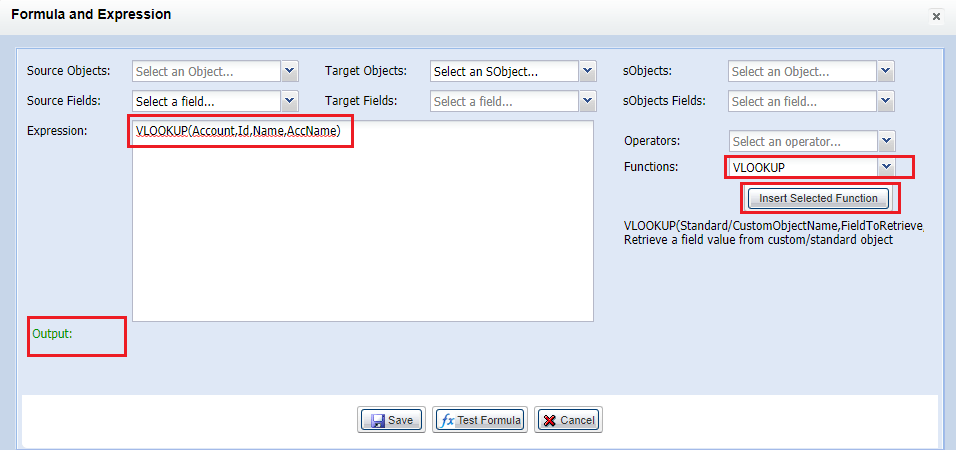
VLOOKUP is one of SKYVVA formula functions, which is better than the function of Salesforce that can retrieve the value from both standard and custom objects, different fields, e.g. Id and Name, etc. with many conditions. To add any formula in mapping, you have to check on the Formula box at the right as in the picture below and choose any kind of function or double click on a row to open a Formula and expression window. Here is the syntax of VLOOKUP: “VLOOKUP(Standard/CustomObjectName,FieldToRetrieve,FieldCondition1,Condition1,FieldCondition2,Condition2,...)” The popup window below will show when you check the flag and click on the line.
- Choose function = VLOOKUP then click Insert Select Function button
- Enter the values
- Clicks on Test Formula to see output if it is true or failed than Save.
[su_box title="Note" box_color="#2a8af0" title_color="#000000"] If the output is failed, it means that your formula is incorrect. In conclusion, after you map all fields, do the formula and choose the External ID, please save. Just in case you forget to save, all your Data Mapping will be lost.[/su_box]
IF Formula
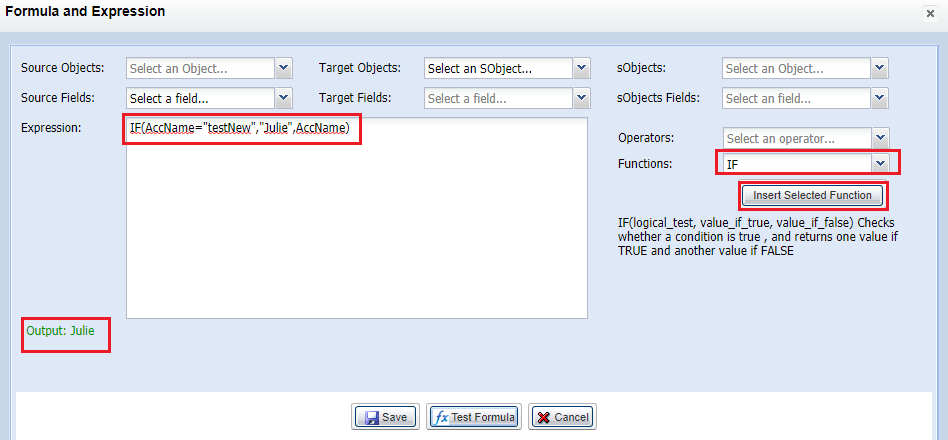
IF is also one of the formula to use in mapping. IF function is using to test for or evaluate certain conditions, and then react differently depending on whether the test was TRUE or FALSE. The IF function can perform a logical test and return one value for a TRUE result, and another for a FALSE result. You can use it to test for a specific condition or more than one. Here is the syntax: IF(logical_test, value_if_true, value_if_false) This section will only focus on how to use formula, so the steps will show at Data Mapping Editor where you have to check the flag on the Formula box and click the line in order to get the popup window.
- Choose function = IF then click Insert Select Function button
- Enter the values
- Clicks on Test Formula to see output if it is true or failed than Save.
[su_box title="Note" box_color="#2a8af0" title_color="#000000"] If the output is failed, it means that your formula is incorrect. In conclusion, after you map all fields, do the formula and choose the External ID, please save. Just in case you forget to save, all your Data Mapping will be lost.[/su_box]
Add Apex class to use as Formula
This feature enables the end-user to map fields not only with basic functions like (CONCAT, CONTAINS, IF, ISNULL, MAX, MIN…) but also with Apex Class. In this Class user, write the apex logic. We add also this Functionality to the Formula for defining workflow conditions as well. This feature enables the user to extends the function of mapping formula to execute their apex class. Sometimes, the standard formula cannot handle the complex business logic. So the user can write the apex script to execute the business logic. The apex class must be extended to SKYVVA’s based class <skyvvasolutions.IFormulaBase> and override some methods:
- public override String executes (Map
- public override void preExecute(List
[su_box title="Warning" box_color="#F7DC6F" title_color="#000000"] Does not execute the query in method execute(…) because it is called when processing mapping every message record data, It can exceed the query limit in salesforce. Please override the method preExecute(…) then query and cached the result for using in execute(…). Invoke apex class with formula APEXCLASS("SkyvvaCustomFormula"): The apex class must be surrounded by double-quotes. [/su_box] Mapping

This apex query all accounts based on ERP_DEBTOR_ID number to get each account id to map to the target field AccountId for contact.
Sample Apex Class:
***public override void preExecute(List<Map<String,String>> records)***: Queries all accounts in salesforce based on ERP_DEBTOR_ID’s values and caches result in Map. public override String execute(Map**public override void **preExecute(List<Map<String,String>> records){ //System.debug('>SkyvvaCustomFormula.preExecute: message- records:'+records.size()); //add value of erp_debtor_id into set **Set**<String> erpIds=**new Set**<String>(); **for**(Map<String,String> m: records){ //key must be lower case String erpId=m.**get**('erp_debtor_id'); **if**(String.isNotBlank(erpId))erpIds.add(erpId); } //System.debug('>SkyvvaCustomFormula.preExecute: Set erpIds:'+erpIds); //>Set erpIds:{RES001, RES002} //Query accounts based on set erpIds and put to cache **for**(Account a: [**select **erp_debtor_id c,id **from **Account **where** ERP_DEBTOR_ID c **IN**:erpIds]){ erpIdAccountId.put(a.erp_debtor_id c, a.Id); } //System.debug('>SkyvvaCustomFormula.preExecute: cache erpIdAccountId: '+erpIdAccountId); //>erpIdAccountId:{RES001=001F000001hGGJhIAO, RES002=001F000001mv8F4IAI} } /* Find account id based on ERP_DEBTOR_ID from cache @param record: map contains key/value of each message-data. the key of must be lowercase
` e: record{email=test1@gmail.com, erp_debtor_id=RES001, firstname=test1, lastname=test1} */ public override String execute(Map #### Remove leading zeros To handle incoming values with leading zeros in an inbound interface using the **SKYVVA** integration app, you can utilize Salesforce's Apex code to process the data. Let's assume you receive the string 000234898923 and want to extract the number without the leading zeros (234898923) - In this example, a global class formulaClass extends skyvvasolutions.IFormulaBase. Inside the execute method, the field value is retrieved from the incoming record using record.get('UHL_SalesAssistant1__c'). The Integer.valueOf() function is then used to convert the string to an integer. This process automatically removes any leading zeros from the number. - The relevant part of the code is: Integer personnelNo = Integer.valueOf(record.get('UHL_SalesAssistant1__c')); - After obtaining the integer value, a query searches for a matching contact using the personnel number. If a match is found, the Contact ID is returned; otherwise, an empty string is returned. - This approach effectively handles strings with an unknown number of leading zeros, converting them to integers using the Integer.valueOf() method. This ensures that only the significant digits are processed, making it a robust solution for incoming data fields with variable-length numbers. global with sharing class formulaClass extends skyvvasolutions.IFormulaBase { global override void preExecute(List