1. What is the Auto-Switch mode and when to use it?
Learning Objectives
After completing this unit, you’ll be able to:
- Describe what Auto-switch mode is.
- How and when to use Auto-switch mode.
Introduction
SKYVVA providing different data processing modes like immediately processing, Batch processing, Bulk processing modes. where Auto-Switch mode is a combination of all three modes. When data processing is in the auto-switch mode it means processing is based on the number of records and IntegrateMaxSize, IntegrateBatchMaxSize.
What is Auto-Switch mode?
Auto-switch mode is a data processing mode provided by Skyvva. When the auto-switch mode flag checked, It means that Agent automatic switch SKYVVA API based on the number of record and IntegrateMaxSize, IntegrateBatchMaxSize. And when the flag is unchecked it means that data is integrated into normal mode (no batch or bulk) no matter what is the size of records. Before configuring Auto-Switch Mode, you have to know about the parameters:
- Integrate Max Size: Maximum number of records that SKYVVA Integration Agent can integrate using method integrate. The default value is 200. If the number of records to be integrated is bigger than this value, Agent will switch the API method automatically.
- Integrate Batch Max Size: Maximum number of records that SKYVVA Integration using method integrate Batch. The default value is 5000. If the number of records to be integrated is bigger than this value, Agent will switch to use the Bulk API method automatically.
If the number of records (Data) <= Integrate Max Size, Interface will run in Normal Mode.
If the number of records (Data) > Integrate Max Size and the number of records (Data) <= Integrate Batch Max Size, Interface will run in Batch Mode.
If the number of records (Data) > Integrate Batch Max Size, Interface will run in BULK Mode.
Pre-requisite
- We have to create Integration.
- Creating integration next step is to create Interface.
Configuration: How to use Auto-Switch mode?
We click on the 'Account Interface' link and see the Interface Details and scroll down to Runtime Configuration-Inbound section then checkbox on Use Auto-Switch Mode.

How to integrate from other systems? Assuming you already have created interface since this part will be the focus on integrating from Agent as an example. To integrate from Agent, please run Agent-UI and more steps as following:
- After running the Agent-UI, the Integration Control Board will popup then you have to click on Integration Wizard.
- Select your agent the Property File.
- We have to select the existing integration and interface on which we have to process data.
- After selecting the interface you will be land on Interface Source Definition a place where you can configure the adapter. To create an adapter please click on this link (How to create adapter in Agent). After creating the adapter, you can test the Query to see the data and then save it.
How to monitor the result? As we know, the number of records will define how SKYVVA Integration can integrate. You can monitor the result depend on the value of the record you define.
- Check the result in the Message Monitoring Board if the records are less than Integrate Max Size.
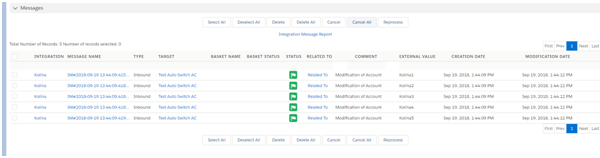
- Check the result in the Batch Control Board if the records are greater than Integrate Max Size.

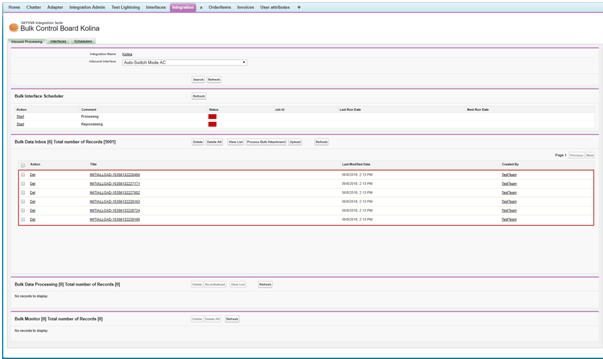
- Check the result in Bulk Control Board if the records are greater than Integrate Batch Max Size.
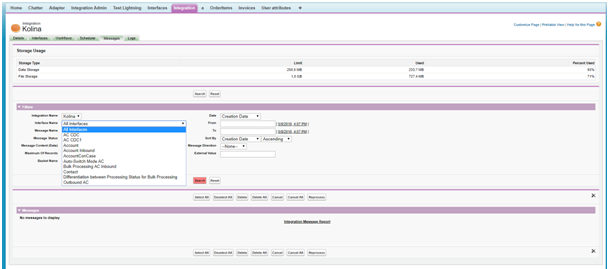
How to monitor in Message Monitoring Board? Login to Salesforce and enter Integration => Message Monitoring Board tab => Select Interface Name => click search button