16.2 What is the difference between the bulk mode supported in Skyvva?
Learning Objectives:- This unit describes:-
- Difference between the bulk mode supported in Skyvva?
Introduction:-
This tutorial explains the difference between Bulk modes supported in SKYVVA. It introduces you to when and why these modes will be used. It also describes the configuration of each mode.
What is bulk mode supported in SKYVVA?
Bulk Processing uses for running attachment as batch too. It has more ability than synchronous, batch and running with huge records at high speed. The Records have more than 5000, so you use them with bulk processing. It can contain many records in an attachment, and you can set a time interval in bulk processing scheduler of SKYVVA or Agent Scheduler to run anytime that you want.
Pre-requisite:-
Before configuring Bulk Interface Processing, you have to know about the parameters:
- BULK Mode: Check this flag if you want to run interface in a bulk mode using Salesforce BULK API.
- Bulk Version: SKYVVA support SFDC pure bulk mode in version 2.0 then we have our own SKYVVA bulk mode. This uses Skyvva workflow and mapping and thus it is more powerful but slower than pure bulk API technique from salesforce.
- Bulk Processing Mode: These fields indicate two modes which are support with bulk version 1.0 and bulk version 2.0 only parallel mode is supported. So the value depends here on the selection of field bulk version. For example, When we want to use "serial" we should select bulk 1.0.
- There are two modes which are:
- Bulk Package Size: This parameter determines how many records are split into Bulk data size. If your Message contains 10.000 records and the value for this parameter is 1000 so you will get 10 bulk data set in Salesforce.
- Bulk Monitor Keep Size: The number of bulk execute logs to be kept.
- Bulk Sch Frequency: This is the schedule time-frequency for bulk scheduler on
- Bulk Integrate Time Interval (minute): The interval (minutes) used to integrate bulk job scheduler. For example, if its value is 10, then the integrate bulk scheduler will be run every 10 minutes.
Bulk Modes:-
There are two options of bulk mode, which is including SKYVVA bulk and SFDC bulk. The following section will be explained more detail about these two modes.
- SKYVVA Bulk
- SFDC Bulk
SKYVVA Bulk:-
SKYVVA Bulk is slow but very powerful, it allows you to do business mapping using our mapping tool and formula. Likewise, you can use the SKYVVA workflow to validate the data before posting. You can use SKYVVA Bulk mode with both Bulk-processing modes, which are Parallel and Serial. The default value is Serial.
The configuration of SKYVVA Bulk:-
- To be able to use SKYVVA bulk mode you have to enter Interface page detail and scroll down to the Bulk Setting section then checkbox on BULK Mode along with choosing Bulk Version.
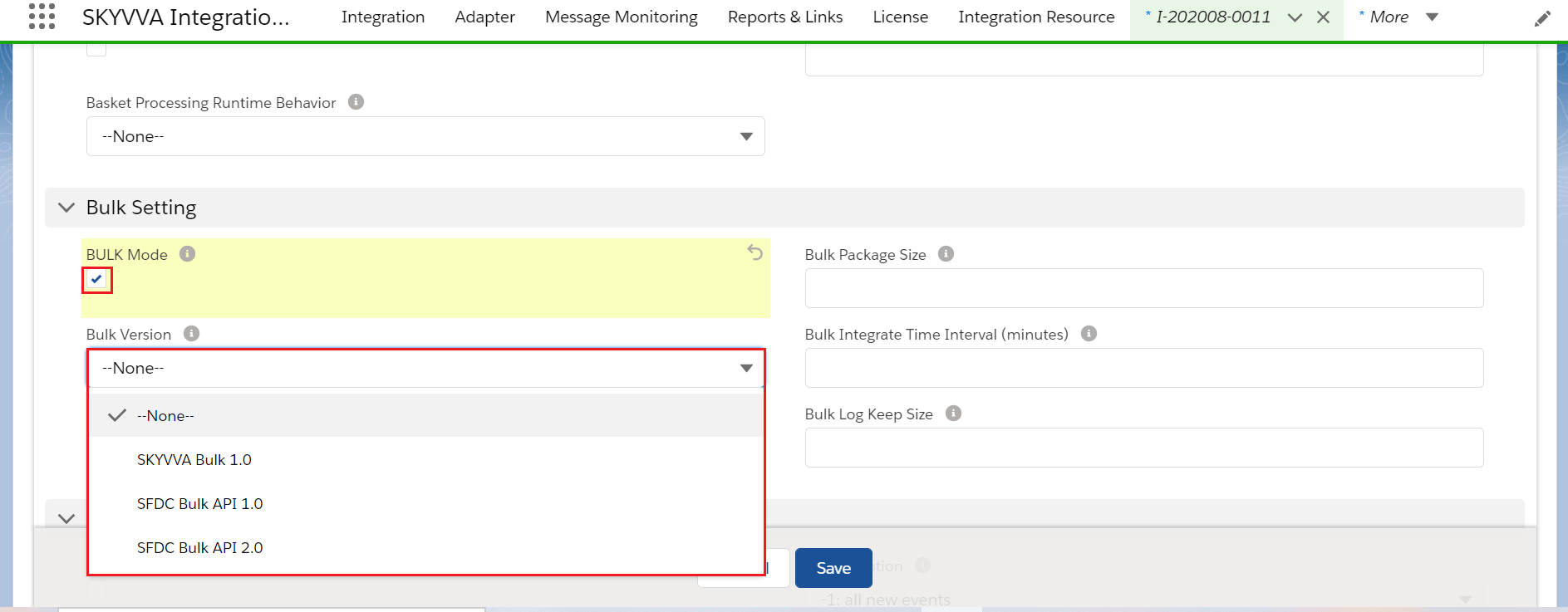
- When you check this flag, it means you activate the bulk processing and your data will be integrated from Agent.
To integrate from Agent:-
This part will show the example by integrate the data from Agent. To integrate from Agent, you have to create an adapter. To create an adapter in Agent please check this link (How to create an adapter in Agent).
To set schedule:-
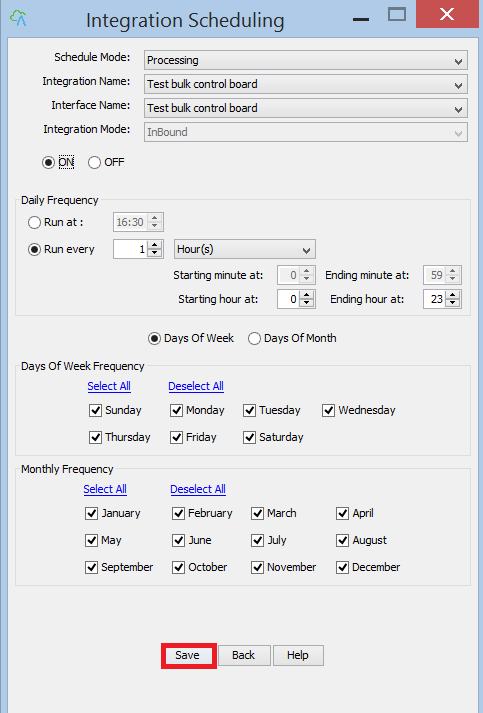
When the creating adapter is done, you have to set the scheduler in order to integrate the bulk data. To set scheduler, you can: Click Integration Scheduling Property File Selection>Integration Name>Interface Name>Integration Mode>On>Run at/Run every>Save
To monitor in Bulk Control Board and Message Monitoring Board:-
As you did integrate, your data you might want to check or monitor if all your data are successfully integrated. To monitor bulk data, please log in to Salesforce and enter Bulk Control Board. If you want to know more and how to use Bulk Control Board please kindly look for this documentation (How to use Bulk Control Board).
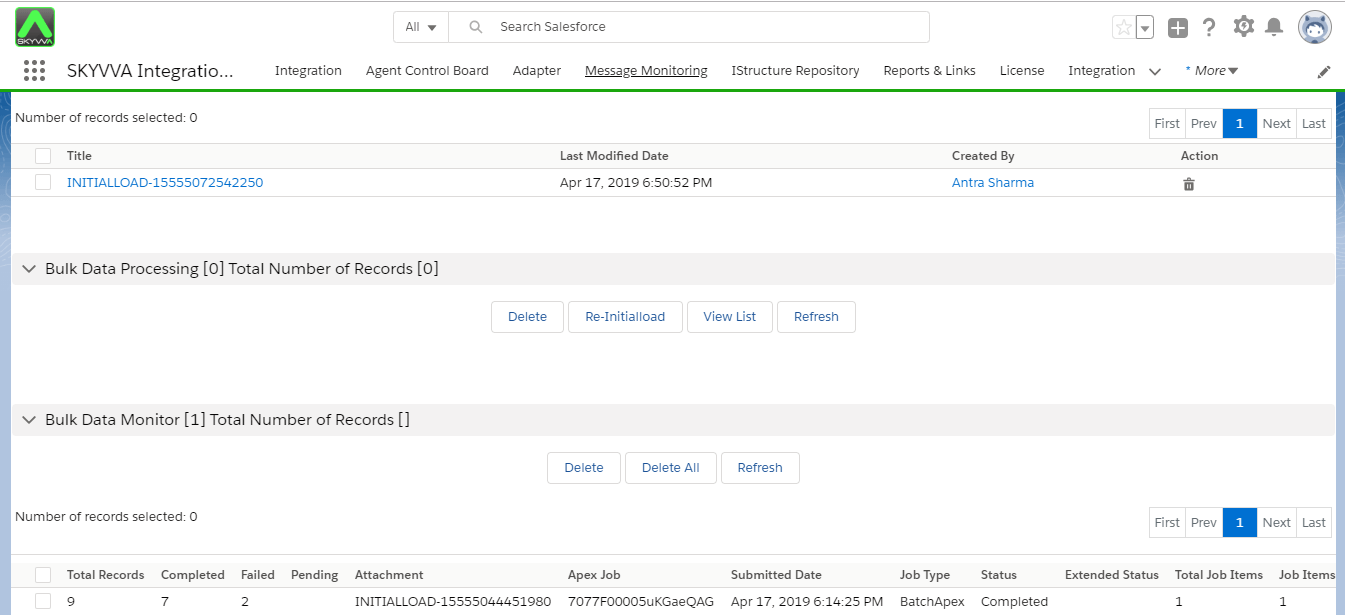
[su_box title="Note" box_color="#2a8af0" title_color="#000000"]Only Fail and Pending Messages are shown in the Message Monitoring Board.[/su_box]
SFDC Bulk:-
We support SFDC pure bulk mode in version 2.0 that is very fast but cannot use the SKYVVA mapping tool to do business data mapping. On the other hand, SFDC Bulk requires the data has to be mapped already on the sender side and doing the additional mapping to enrich the business logic is not possible using SKYVVA mapping. This mode will work with both processing mode, Parallel and Serial, for version 1.0. Version 2.0, you can only use with Serial mode processing.
The configuration of SFDC Bulk:-
To be able to use SKYVVA bulk mode you have to enter Interface page detail and scroll down to Streaming and Bulk API Configuration section then checkbox on BULK Mode along with choosing Bulk Version.
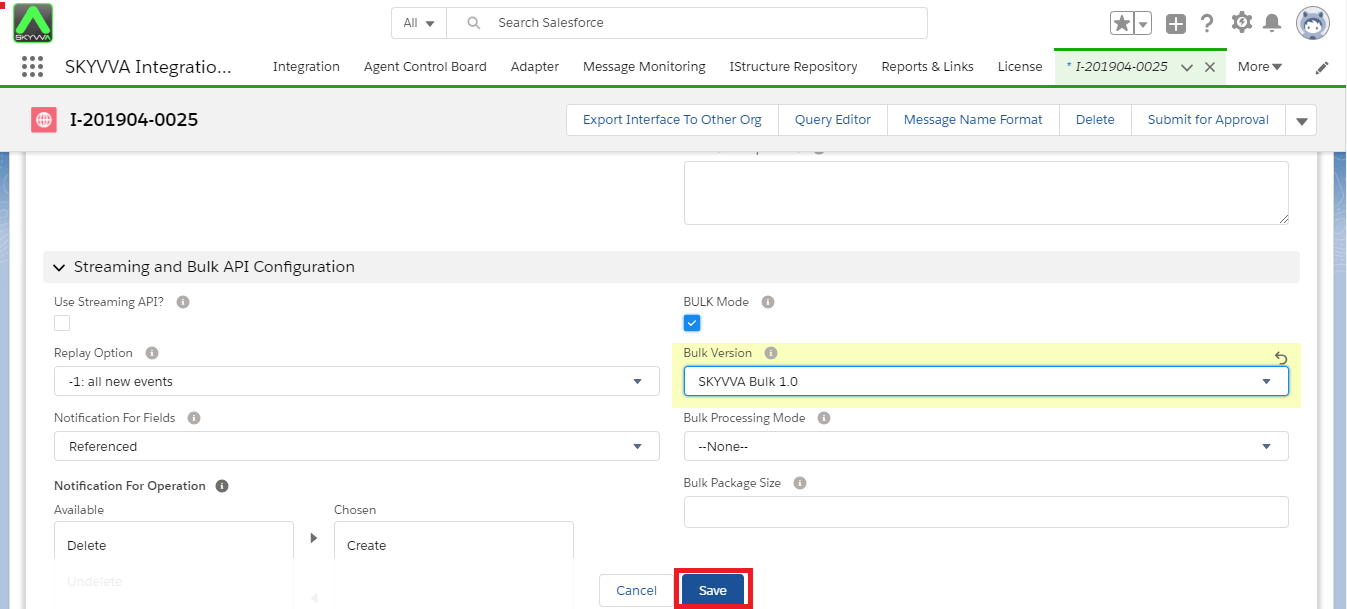
When you check this flag, it means you activate the bulk processing and your data will be integrated from Agent. [su_box title="Note" box_color="#2a8af0" title_color="#000000"]When you do a mapping, you have to use the requirement field as external Id otherwise, this SFDC Bulk won’t work.[/su_box]
To integrate from Agent:-
This part will show the example by integrate the data from Agent. To integrate from Agent, you have to create an adapter. To create an adapter in Agent please check this link (How to create an adapter in Agent).
To set schedule:-
This step is similar to the procedure of SKYVVA Bulk.
To monitor in Monitor Bulk Data Load Jobs and Message Monitoring Board:-
When the integration is done, you have to check the bulk data in Monitor Bulk Data Load Jobs. To enter Monitor Bulk Data Load Job:
- Click Setup >Jobs> Monitor Bulk Data Load Jobs
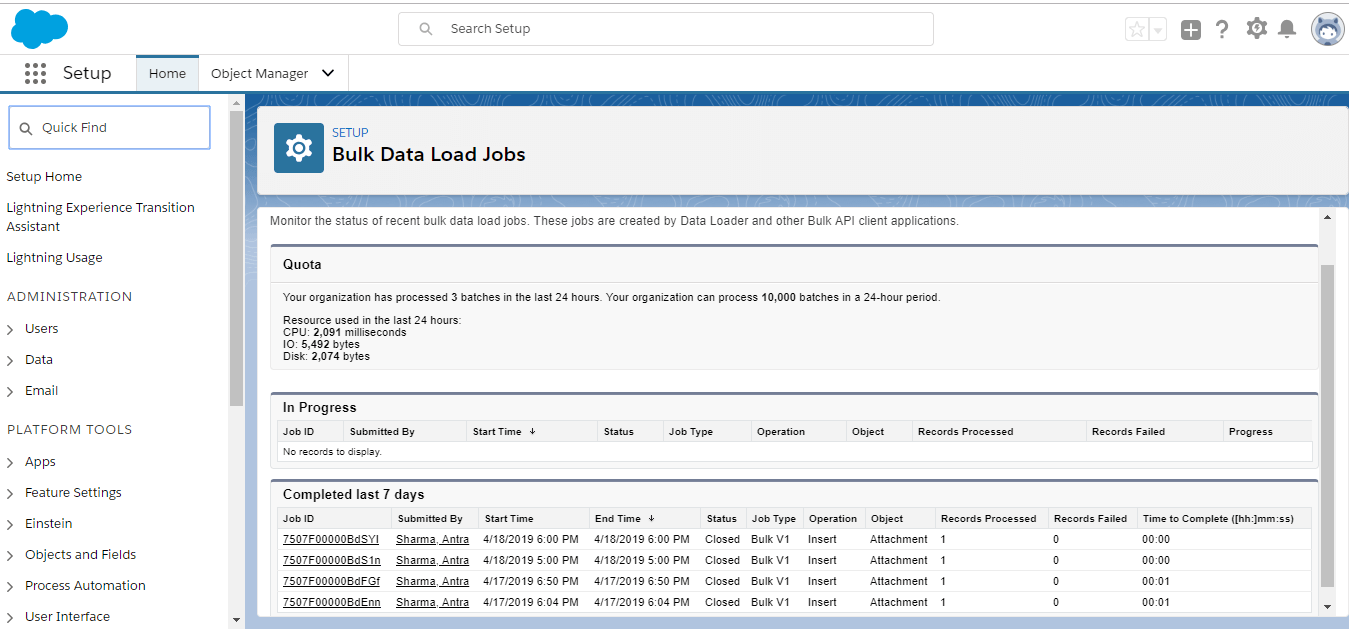
[su_box title="Note" box_color="#2a8af0" title_color="#000000"] For the SFDC Bulk version, Completed, Fail, and Pending message are all shown in the Message Monitoring Board.[/su_box]