1. Workflow
Workflow is a filtered message condition to do integration base on a series of workflow rules. It provides the condition to one or many interfaces. It defines the condition that checks true or false on the statement. For example, Users have one integration and have two interfaces such as Account and contact. If Workflow Account is false will check workflow Contact then it is false too. It will not do both integrations. If Account is true, it will do the integration and check contact too. Contact is false, so it only does Account.

The main parameter of workflow:-
Functions/Buttons name
Description
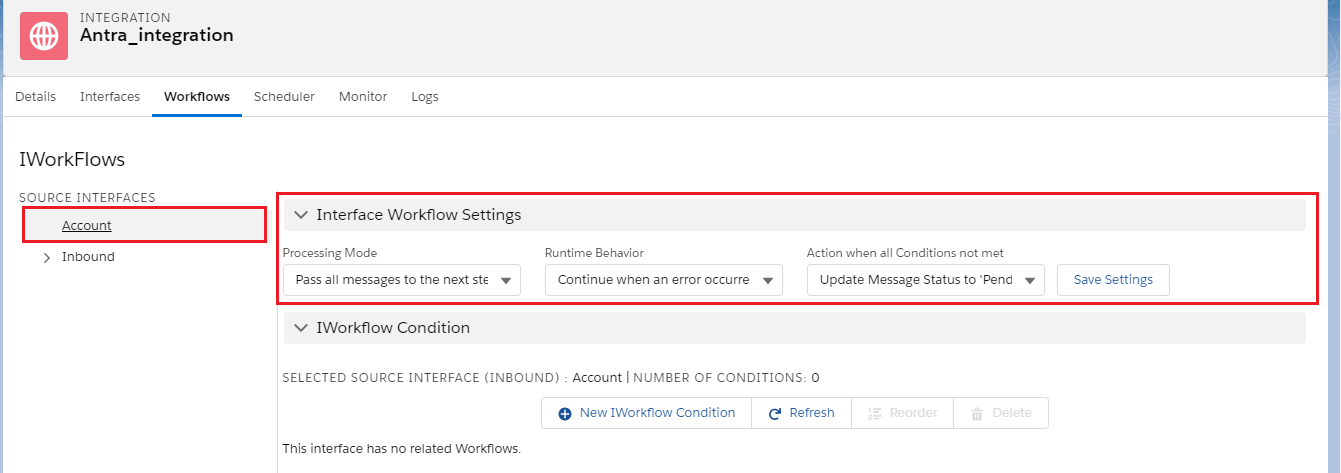
Processing Mode Contain 2 modes:-
- Pass all message to the next step (Default)
- Pass only matched message to the next step
- Continue when an error occurred.
- Stop when an error occurred.
- Rollback when an error occurred.
- Set Message Status to 'Pending'.
- Update Message status to 'Cancelled'.
- Update Message status to 'Completed'.
- Update Message status to 'New'.
- Delete Message.
- Name of source interface that we clicked on.
- Number of workflow conditions that we have created to specify the source interface.
Refresh Click on this button to Refresh the workflow screen. (i.e. After deleted a condition or reordering them)
Reorder To reorder the condition, which one you want to execute first.
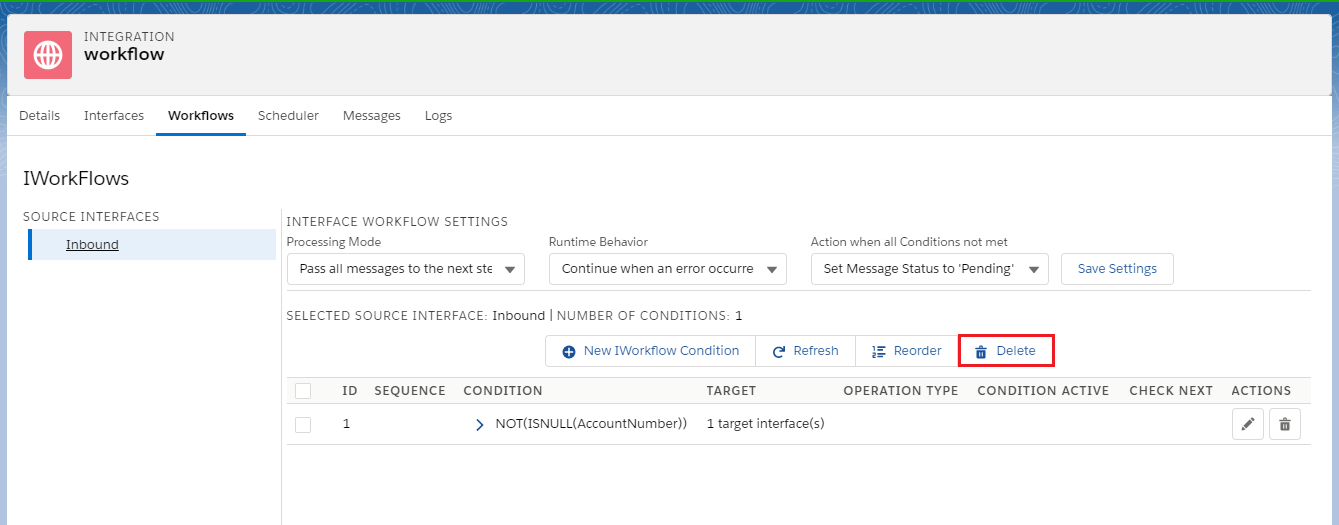
Delete To delete the condition.
Save Settings To save the three workflow settings.
Import and Export IWorkflow User need to add the import, export, and transport to other org workflow functions in the workflows screen to make it easy and friendly for the user can back up, restore, or transport to another org.
Create a workflow After getting to know some rules of workflow it will be easy for you to create it. To create the workflow, there are some steps must be followed:
- Open Integration Detail page
- Click on Workflows tab
- Select the source Interfaces.
- After clicking on Interface, the screen will look the same as shown in the picture given below.
- Choose Processing Mode.
- Choose Runtime Behaviour.
- Choose Action when all Conditions not met.
- By clicking on New IWorkflow Condition, we can see the screen as shown below.
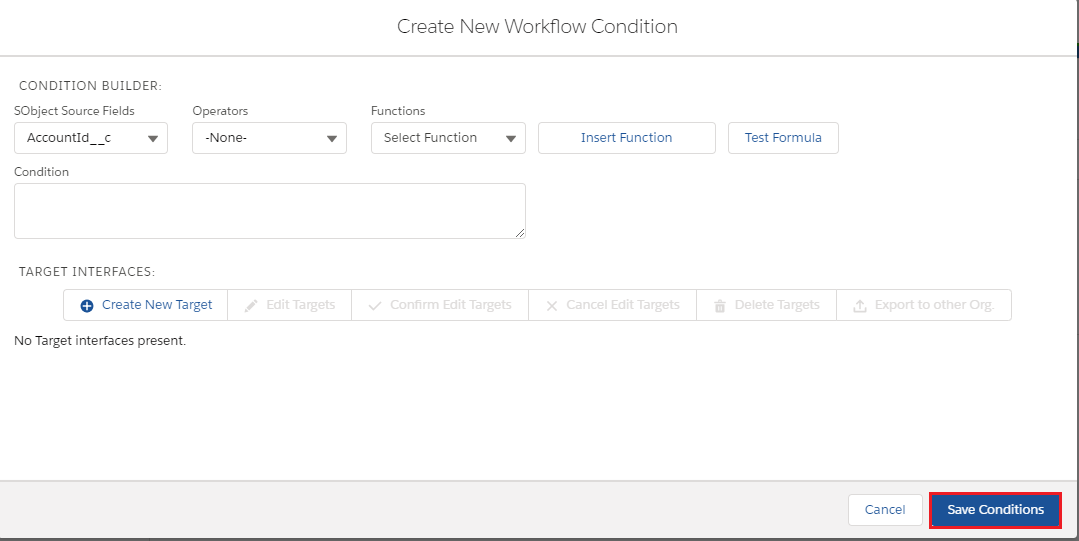
- We can build condition in the condition builder as per our requirement.
- We can create a New Target in Target interface as shown in the picture given below:-
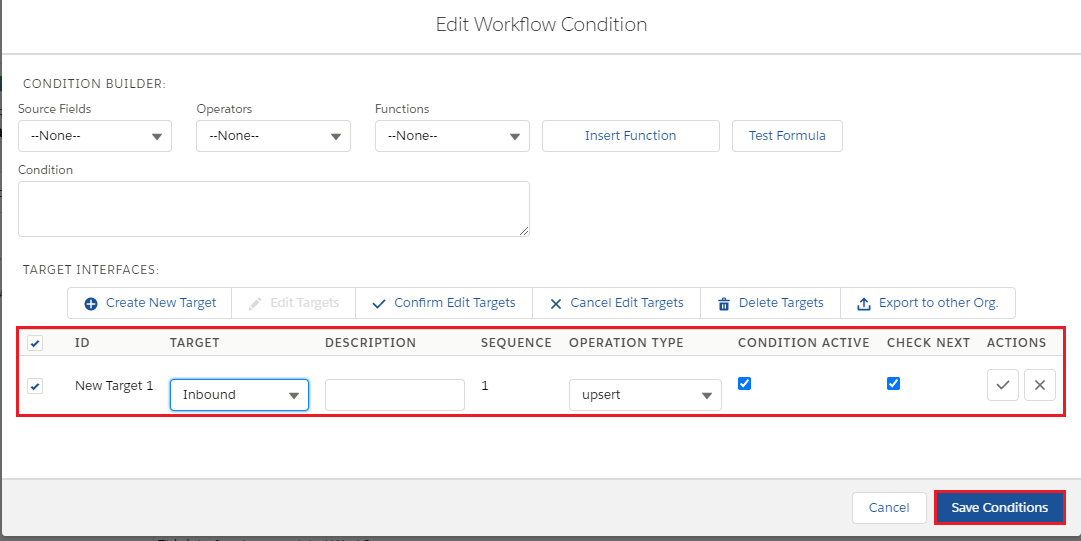
- In this way, we can create a workflow.
Delete a workflow To delete Workflow you can click on the "Delete" button as the screenshot below.